Ubuntu 20.04.6 LTS (Focal Fossa), amd64
dpkg -s libc6 | grep Arch
  => Architecture string만 알려준다.
출처 : Ubuntu Architecture 확인 방법
$ cat /etc/*-release
CentOS Linux release 8.2.2004 (Core)
$ uname -m
x86_64
출처 : Linux(리눅스) OS 종류와 버전 및 아키텍처(Architecture) 확인
출처 : [PostgreSQL] Ubuntu Linux PostgreSQL 사용법 - #1 다운로드 및 설치
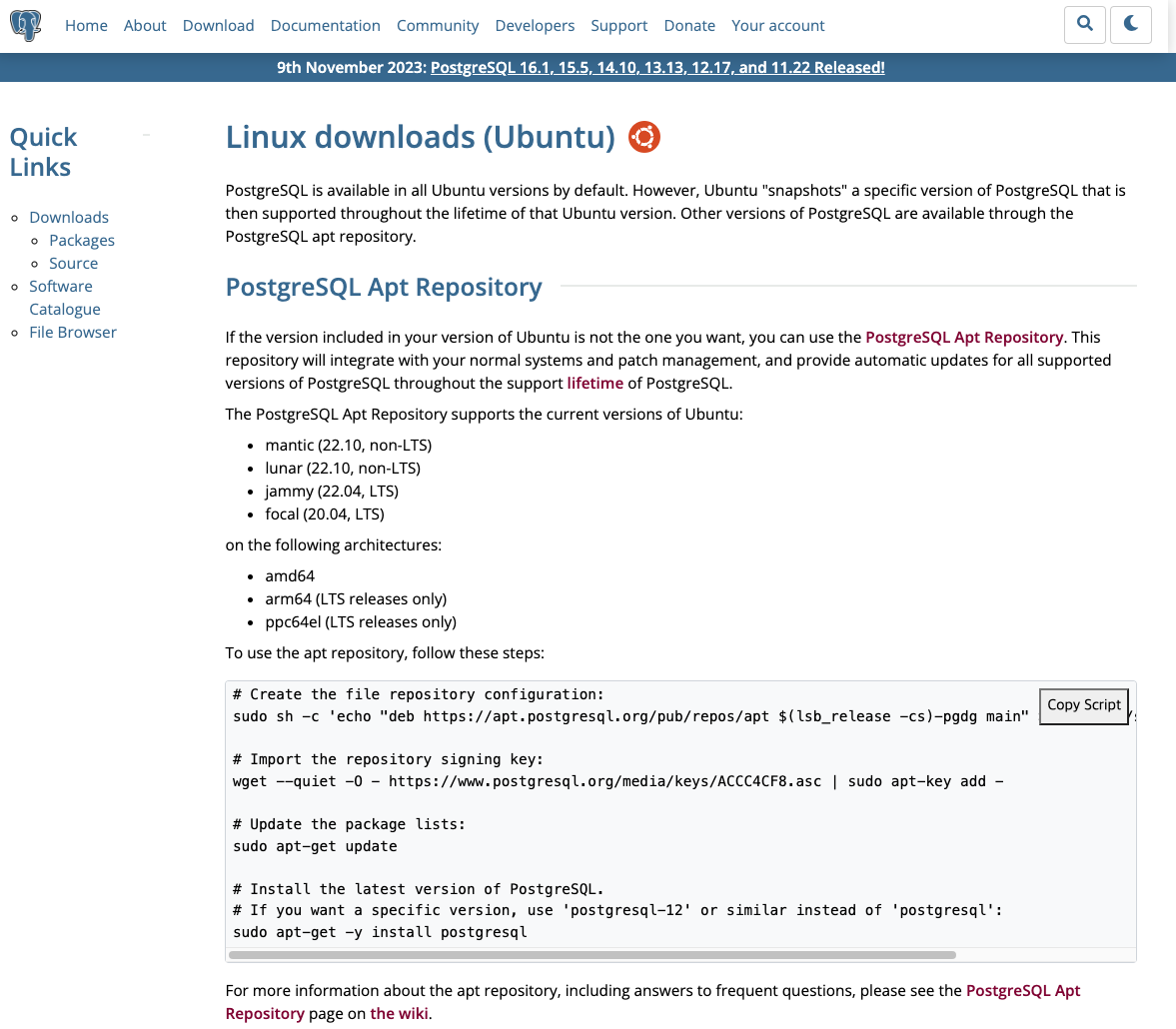
Install PostgreSQL from PostgreSQL Apt Repository
sudo sh -c 'echo "deb https://apt.postgresql.org/pub/repos/apt $(lsb_release -cs)-pgdg main" > /etc/apt/sources.list.d/pgdg.list'
sh: lsb_release: command not found
To Fix it
sudo apt install lsb-core
출처 : [Fixed] How To Fix “Lsb_release Command Not Found” Error In Linux
wget --quiet -O - https://www.postgresql.org/media/keys/ACCC4CF8.asc | sudo apt-key add -
sudo apt-get update
sudo apt-get -y install postgresql
sudo dpkg --status postgresql
Change the default PostgreSQL User password by enabling Password Encryption
sudo -u postgres psql
\password
Specify the md5 authentication method for the authentication
sudo nano /etc/postgresql/16/main/pg_hba.conf
# DO NOT DISABLE!
# If you change this first entry you will need to make sure that the
# database superuser can access the database using some other method.
# Noninteractive access to all databases is required during automatic
# maintenance (custom daily cronjobs, replication, and similar tasks).
#
# Database administrative login by Unix domain socket
local   all             postgres                                md5
sudo systemctl restart postgresql
Now you need a password for login as postgres
sudo -u postgres psql
Creating a Postgres database
postgres=# create database APP;
postgres=# \l

postgres=# \c app
You are now connected to database "app" as user "postgres".
app=#
출처 : How to install PostgreSQL on Ubuntu
activate it immediately and on system boot
sudo systemctl enable postgresql --now
출처 : How to Install PostgreSQL 15 on Ubuntu 22.04 or 20.04
Creating a New Role
# bash$
sudo -u postgres createuser --interactive
# postgres=#
create user mobuser with encrypted password '1234';
Grant priviliege
GRANT ALL PRIVILEGES ON DATABASE APP TO mobuser;
Opening a Postgres Prompt with the New Role
sudo adduser mobuser
su mobuser
sudo -u mobuser psql -d app
출처 : [PostgreSQL]PostgreSQL 유저생성, DB&Table생성 , test 데이터 넣기
출처 : <a href="https://www.databasemart.com/blog/how-to-install-postgresql-on-ubuntu-20-04-lts"target="_blank">How to Install PostgreSQL on Ubuntu 20.04 LTS
postgres=# alter user [사용자명] with password '비밀번호';
postgres=# alter user jangjaewon with password '1q2w3e4r!@'; 👈 이런식으로 입력한다.
출처 : TIL135.PostgreSQL 설치 및 접속 문제(password authentication failed)
출처 : [Ubuntu] 우분투에 PostgreSQL 설치 및 접속 핵심 정리
출처 : PostgreSQL 원격 접속 시 could not connect to server: Connection refused 에러 해결법
To make PostgreSQL accept connections from any IP address (all TCP/IP), you need to adjust the PostgreSQL configuration to allow remote connections. Follow these steps:
Edit PostgreSQL Configuration File:
Open the PostgreSQL configuration file using a text editor. The file is usually named postgresql.conf and is located in the PostgreSQL data directory. On Ubuntu, the default location is often/etc/postgresql/{version}/main/postgresql.conf.```
sudo nano /etc/postgresql/{version}/main/postgresql.conf
Replace {version} with the specific version you are using.
Find and Edit the listen_addresses Parameter:
Locate the listen_addresses parameter in the configuration file. Uncomment the line and set it to '*' to listen on all available IP addresses:
listen_addresses = '*'
Save and Close the File:
Save your changes and exit the text editor.
Configure pg_hba.conf File:
PostgreSQL uses the pg_hba.conf file to control access. Open this file:
sudo nano /etc/postgresql/{version}/main/pg_hba.conf
Again, replace {version} with the actual version.
Allow Remote Connections:
Add a line to allow connections from any IP address. This line should look like this:
host all all 0.0.0.0/0 md5
This line allows all IPs (0.0.0.0/0) to connect using the md5 method. Adjust the authentication method (md5, password, trust, etc.) based on your security requirements.
Save and Close the File:
Save your changes and exit the text editor.
Restart PostgreSQL:
Restart the PostgreSQL service for the changes to take effect:
sudo systemctl restart postgresql
Now, PostgreSQL should accept connections from any IP address. However, be cautious about security implications when opening up your database server to all IPs, and consider implementing proper security measures, such as strong authentication methods and firewall rules, to protect your PostgreSQL instance.
