Fragment 정의하기
액티비티를 만들 때와 비슷하게, 하나의 Kotlin 소스 파일과 하나의 XML레이아웃로 정의
Kotlin소스 파일 생성
- Fragment를 생성하려면 Fragment의 서브클래스(또는 이의 기존 서브클래스)를 생성
- Fragment에 대해 레이아웃을 제공하려면 반드시 onCreateView()콜백 메서드를 구현
- inflate()함수를 통해서 fragment_first.xml 파일로부터 레이아웃을 로드
class FirstFragment : Fragment() {
    override fun onCreateView(
        inflater: LayoutInflater, container: ViewGroup?,
        savedInstanceState: Bundle?
    ): View? {
        // Inflate the layout for this fragment
        return inflater.inflate(R.layout.fragment_first, container, false)
    }
Fragment를 activity의 레이아웃 파일에 정적 추가
-
프래그먼트를 액티비티의 레이아웃 파일 안에서 선언
-
fragment 안의 android:name 특성은 레이아웃 안에서 인스턴스화할 Fragment 클래스를 지정
- 고유한 ID와 함께 android:id 속성을 제공합니다.
- 고유한 문자열과 함께 android:tag 속성을 제공합니다.
-
위의 두 가지 중 어느 것도 제공하지 않으면, 시스템은 컨테이너 뷰의 ID를 사용합니다.
<?xml version="1.0" encoding="utf-8"?>
<LinearLayout xmlns:android="http://schemas.android.com/apk/res/android"
    android:id="@+id/fragment_container"
    android:layout_width="match_parent"
    android:layout_height="match_parent"
    android:orientation="vertical">
    <TextView
        android:layout_width="wrap_content"
        android:layout_height="wrap_content"
        android:text="Hello World!" />
    <fragment
        android:name="com.skmns.fragmentbasic.FirstFragment"
        android:layout_width="match_parent"
        android:layout_height="match_parent"
        android:id="@+id/fragment" />
</LinearLayout>
Kotlin 코드에서 동적으로 Fragment 추가하기
supportFragmentManager.commit {
            replace(R.id.frameLayout, frag)
            setReorderingAllowed(true)
            addToBackStack("")
}- supportFragmentManager
사용자 상호작용에 응답해 Fragment를 추가하거나 삭제하는등 작업을 할 수 있게 해주는 매니저
- replace
어느 프레임 레이아웃에 띄울것이냐, 어떤 Fragment냐
- setReorderingAllowed
애니메이션과 전환이 올바르게 작동하도록 트랜잭션과 관련된 Fragment의 상태 변경을 최적화
- addToBackStack
뒤로가기 버튼 클릭시 다음 액션 (이전 fragment로 가거나 앱이 종료되거나)
👀 트랜잭션
- DB의 상태를 변경시키는 작업의 단위
- 한꺼번에 수행되어야 할 연산을 모아놓은 것
- 연산들을 모두 처리하지 못 한 경우에는 원 상태로 복구한다.
실습
(1) 버튼을 누르면 fragment 화면이 변경 되는 예제
(2) 아래와 같이 Frag1 버튼을 누르면 프래그먼트 1번 화면이 표시된다.
(3) Frag2 버튼을 누르면 프래그먼트 2번 화면이 표시된다.
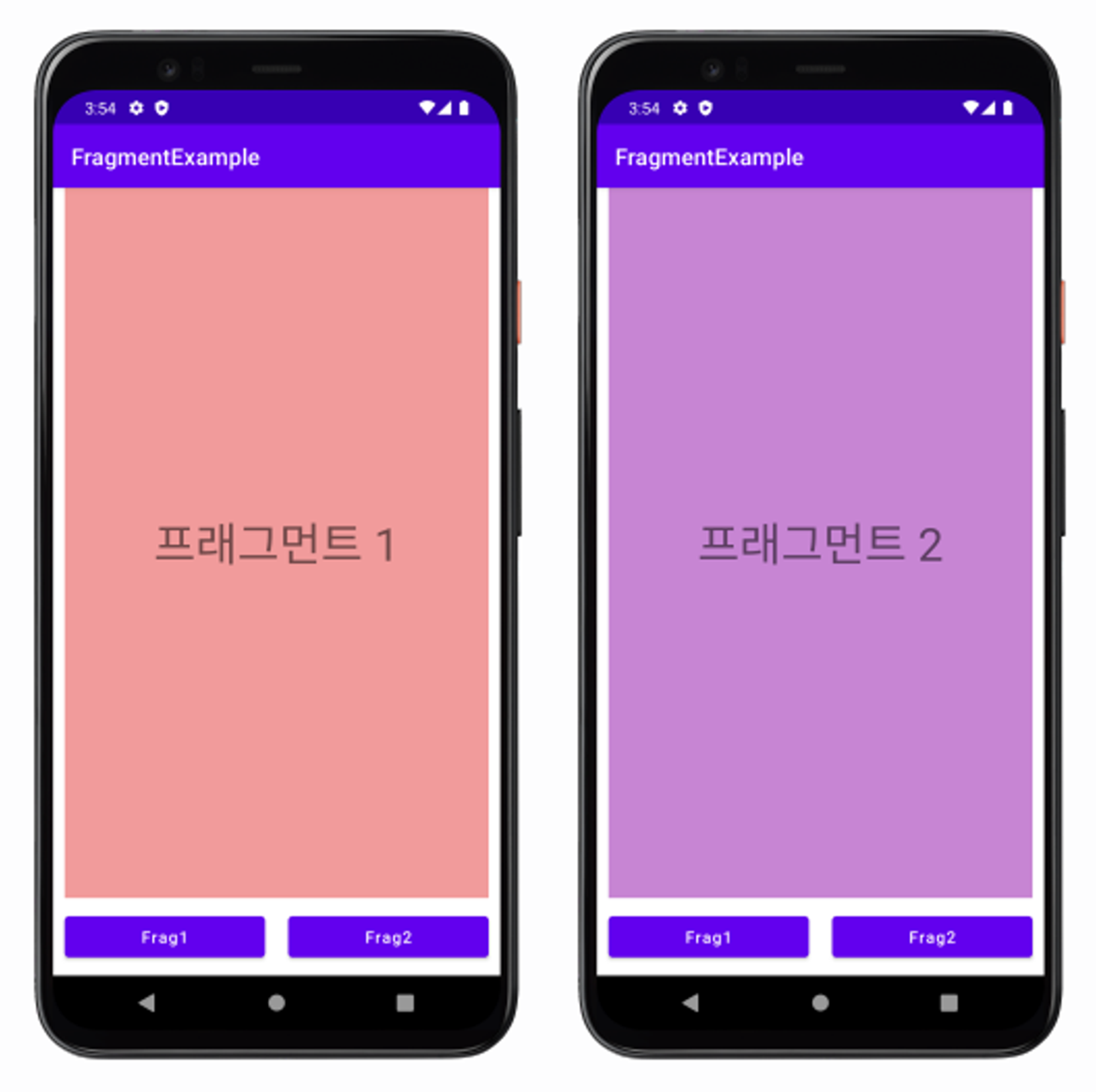
Fragment
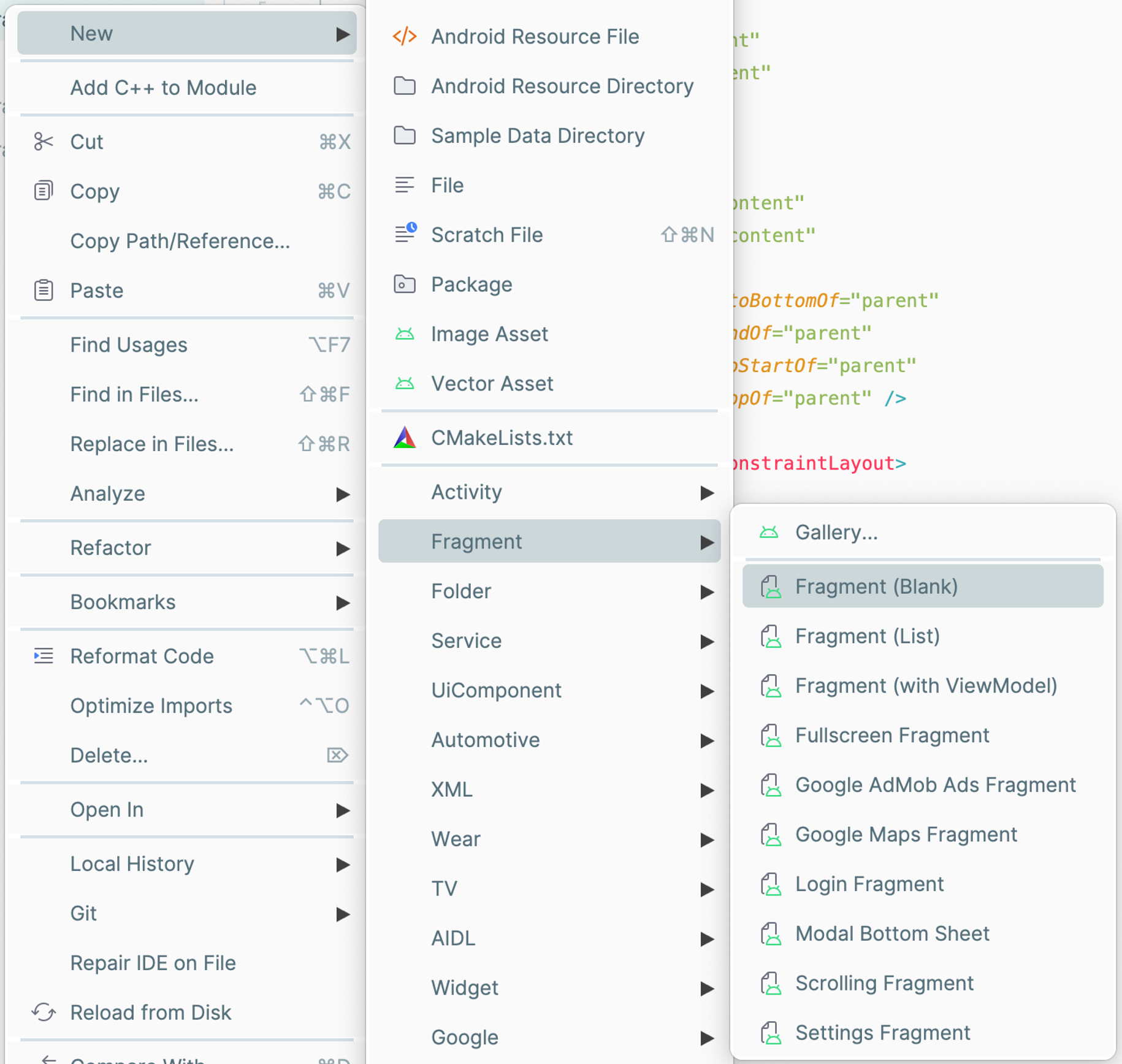
- FragmentExample이라는 프로젝트를 생성
- 안드로이드스튜디오에서 File > New > Fragment > Fragment(Blank)
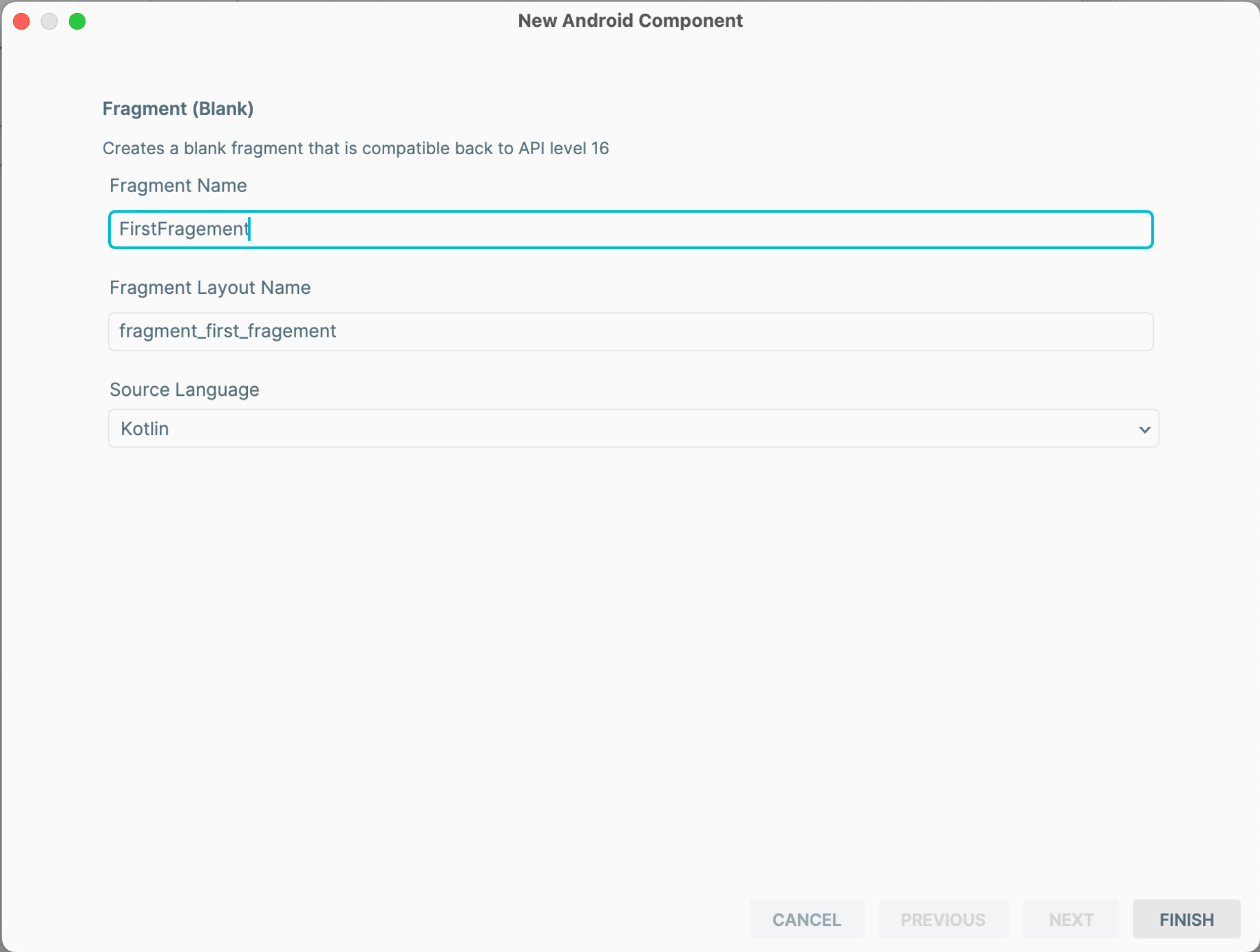
- FragmentName값을 FirstFragement로 설정
- FragmentLayoutName값을 fragment_first로 설정
- (SecondFragement도 만듬)
XML 파일
- fragment_first.xml
<?xml version="1.0" encoding="utf-8"?>
<androidx.constraintlayout.widget.ConstraintLayout
    xmlns:android="http://schemas.android.com/apk/res/android"
    xmlns:app="http://schemas.android.com/apk/res-auto"
    android:layout_width="match_parent"
    android:background="#F19B9B"
    android:layout_height="match_parent">

    <TextView
        android:layout_width="wrap_content"
        android:layout_height="wrap_content"
        android:text="프v래그먼트 1"
        android:textAllCaps="false"
        android:textSize="40sp"
        app:layout_constraintTop_toTopOf="parent"
        app:layout_constraintStart_toStartOf="parent"
        app:layout_constraintEnd_toEndOf="parent"
        app:layout_constraintBottom_toBottomOf="parent"/>

</androidx.constraintlayout.widget.ConstraintLayout>- fragment_second.xml
<?xml version="1.0" encoding="utf-8"?>
<androidx.constraintlayout.widget.ConstraintLayout
    xmlns:android="http://schemas.android.com/apk/res/android"
    xmlns:app="http://schemas.android.com/apk/res-auto"
    android:layout_width="match_parent"
    android:background="#C785D3"
    android:layout_height="match_parent">

    <TextView
        android:layout_width="wrap_content"
        android:layout_height="wrap_content"
        android:text="프래그먼트 2"
        android:textAllCaps="false"
        android:textSize="40sp"
        app:layout_constraintTop_toTopOf="parent"
        app:layout_constraintStart_toStartOf="parent"
        app:layout_constraintEnd_toEndOf="parent"
        app:layout_constraintBottom_toBottomOf="parent"/>

</androidx.constraintlayout.widget.ConstraintLayout>- activity_main.xml (정적)
fragment를 표시할 FrameLayout과 버튼 2개 추가
<?xml version="1.0" encoding="utf-8"?>
<androidx.constraintlayout.widget.ConstraintLayout
    xmlns:android="http://schemas.android.com/apk/res/android"
    xmlns:app="http://schemas.android.com/apk/res-auto"
    xmlns:tools="http://schemas.android.com/tools"
    android:layout_width="match_parent"
    android:layout_height="match_parent"
    tools:context=".MainActivity">

    <FrameLayout
        android:id="@+id/frameLayout"
        android:layout_width="0dp"
        android:layout_height="0dp"
        android:layout_marginStart="10dp"
        android:layout_marginEnd="10dp"
        app:layout_constraintBottom_toTopOf="@+id/fragment1_btn"
        app:layout_constraintEnd_toEndOf="parent"
        app:layout_constraintStart_toStartOf="parent"
        app:layout_constraintTop_toTopOf="parent">
    </FrameLayout>

    <Button
        android:id="@+id/fragment1_btn"
        android:layout_width="0dp"
        android:layout_height="wrap_content"
        android:layout_margin="10dp"
        android:text="Frag1"
        android:textAllCaps="false"
        app:layout_constraintBottom_toBottomOf="parent"
        app:layout_constraintEnd_toStartOf="@+id/fragment2_btn"
        app:layout_constraintStart_toStartOf="parent"
        app:layout_constraintTop_toBottomOf="@+id/frameLayout" />

    <Button
        android:id="@+id/fragment2_btn"
        android:layout_width="0dp"
        android:layout_height="wrap_content"
        android:layout_margin="10dp"
        android:text="Frag2"
        android:textAllCaps="false"
        app:layout_constraintBottom_toBottomOf="parent"
        app:layout_constraintEnd_toEndOf="parent"
        app:layout_constraintStart_toEndOf="@+id/fragment1_btn"
        app:layout_constraintTop_toBottomOf="@+id/frameLayout" />

</androidx.constraintlayout.widget.ConstraintLayout>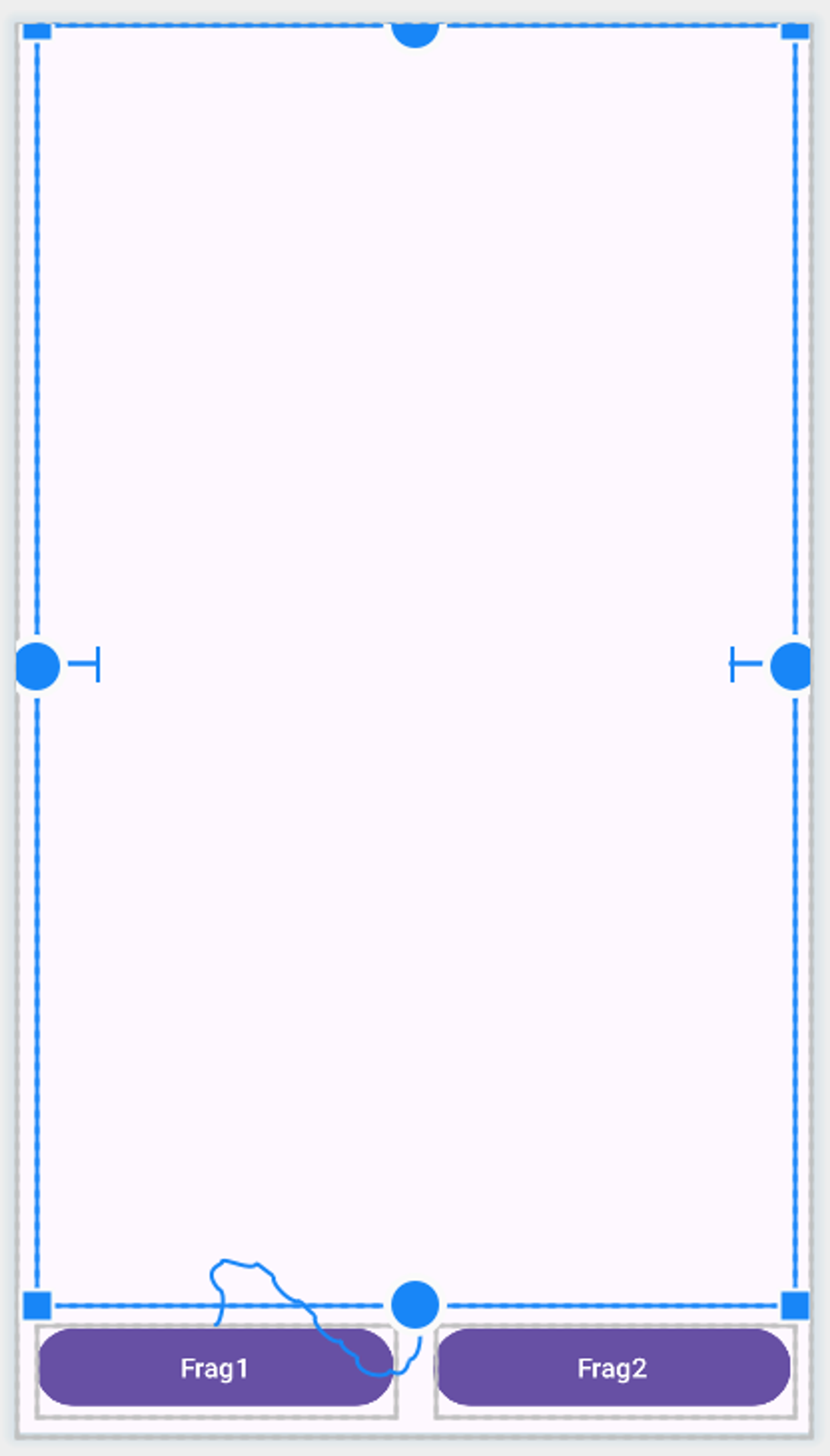
MainActivity.kt에 Fragment 추가
(1) binding
class MainActivity : AppCompatActivity() {

    private val binding by lazy { ActivityMainBinding.inflate(layoutInflater) }

    override fun onCreate(savedInstanceState: Bundle?) {
        super.onCreate(savedInstanceState)
        enableEdgeToEdge()
        setContentView(binding.root)
    }
}
(2) MainActivity.kt에 Fragment 추가하기 (동적)
        binding.apply {
            // 버튼 1 클릭하면 -> 첫번 째 Fragment를 띄워준다.
            fragment1Btn.setOnClickListener {
                setFragment(FirstFragment())
            }
            fragment2Btn.setOnClickListener {
                setFragment(SecondFragment())
            }
        }
        //시작 화면에 FirstFragment를 띄워주기용
        setFragment(FirstFragment())
    }

    private fun setFragment(frag: Fragment) {
        supportFragmentManager.commit {
            //어느 프레임 레이아웃에 띄울것인지
            replace(R.id.frameLayout, frag)
            setReorderingAllowed(true)
            //뒤로가기 버튼 클릭시 다음 액션
            addToBackStack("")
        }
    }