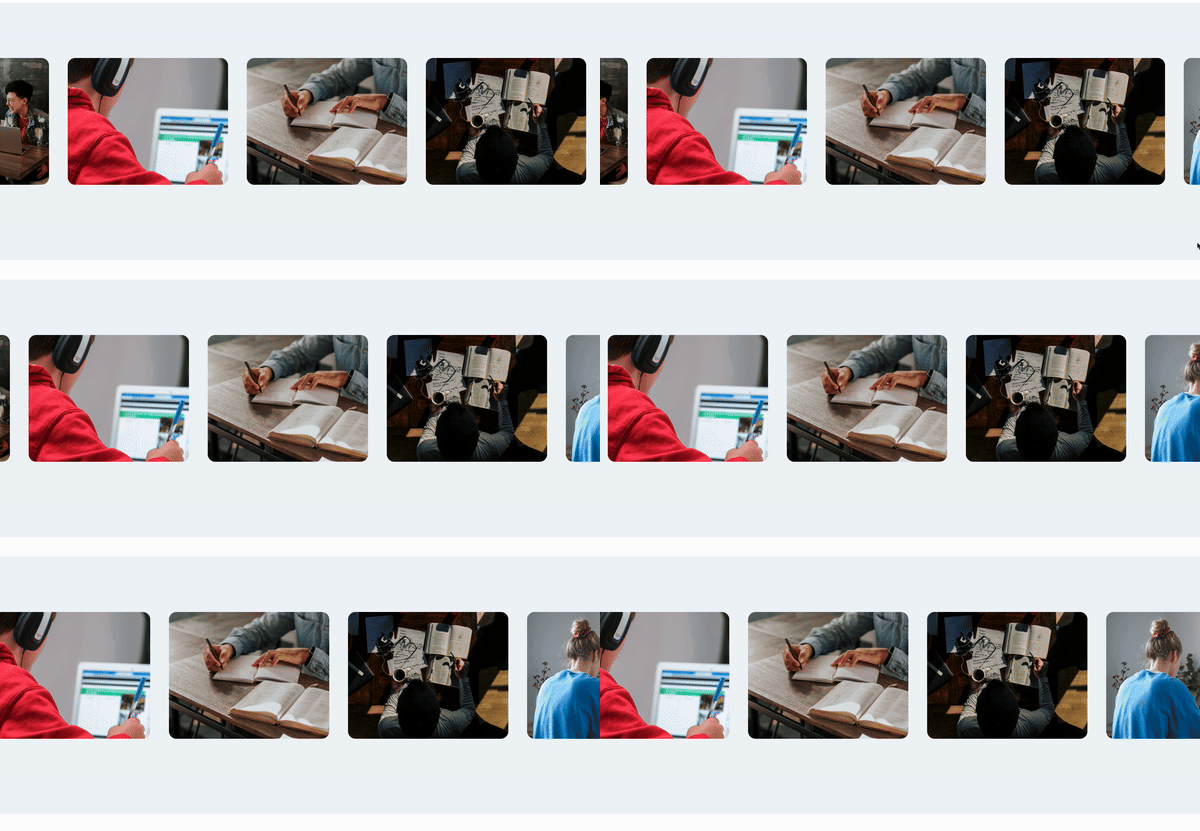
swiper 이용해서 이미지 전환 부드럽게
- swiper 설치
npm i swiper- next.js 코드
"use client";

import React from "react";
import { Autoplay } from "swiper/modules";
import "swiper/css";
import "swiper/css/navigation";
import "swiper/css/pagination";
import "swiper/css/effect-fade"; // 필요한 스타일 추가

import { Swiper, SwiperSlide } from "swiper/react";
import { imageList } from "./image";
import CardImage from "./CardImage";

type PropsType = {};

export default function CardList({}: PropsType) {
  return (
    <section className='lg:my-48  relative bg-blueGray-100'>
      <div className='py-40 '>
        <Swiper
          className='sample-slider h-[180px] sm:h-[200px] lg:h-[270px]'
          modules={[Autoplay]}
          spaceBetween={20}
          slidesPerView={4} // 화면에 보여질 슬라이드 수
          loop={true} // 무한 루프 활성화
          autoplay={{
            delay: 0,
            pauseOnMouseEnter: false, // added
            disableOnInteraction: false,
          }}
          speed={6000} //add
          pagination={{ clickable: false }}
          allowTouchMove={false}
          breakpoints={{
            // 스마트폰 화면 크기
            320: {
              slidesPerView: 1.5,
              spaceBetween: 20,
            },
            // 태블릿 화면 크기
            768: {
              slidesPerView: 3,
              spaceBetween: 30,
            },
            // 데스크톱 화면 크기
            1200: {
              slidesPerView: 3.5,
              spaceBetween: 40,
            },
          }}
        >
          {imageList.map((item, index) => (
            <SwiperSlide key={index} className='w-52 rounded-2xl '>
              <CardImage src={item.src} />
            </SwiperSlide>
          ))}
        </Swiper>
      </div>
    </section>
  );
}
- 이미지 카드 부드럽게
.sample-slider .swiper-wrapper {
  transition-timing-function: linear;
}