activity_main.xml
<?xml version="1.0" encoding="utf-8"?>
<LinearLayout xmlns:android="http://schemas.android.com/apk/res/android"
    xmlns:app="http://schemas.android.com/apk/res-auto"
    xmlns:tools="http://schemas.android.com/tools"
    android:layout_width="match_parent"
    android:layout_height="match_parent"
    android:orientation="vertical"
    android:gravity="center"
    tools:context=".MainActivity">

    <TextView
        android:id="@+id/tvname"
        android:textSize="30dp"
        android:layout_width="wrap_content"
        android:layout_height="wrap_content"
        android:text="name"
         />
    <TextView
        android:id="@+id/tvemail"
        android:textSize="30dp"
        android:layout_width="wrap_content"
        android:layout_height="wrap_content"
        android:text="email"
        />
    <Button
        android:id="@+id/click"
        android:text="click"
        android:textSize="30dp"
        android:layout_width="wrap_content"
        android:layout_height="wrap_content"/>
</LinearLayout>
dialog.xml
<?xml version="1.0" encoding="utf-8"?>
<LinearLayout xmlns:android="http://schemas.android.com/apk/res/android"
    android:layout_width="match_parent"
    android:orientation="vertical"
    android:layout_height="match_parent">
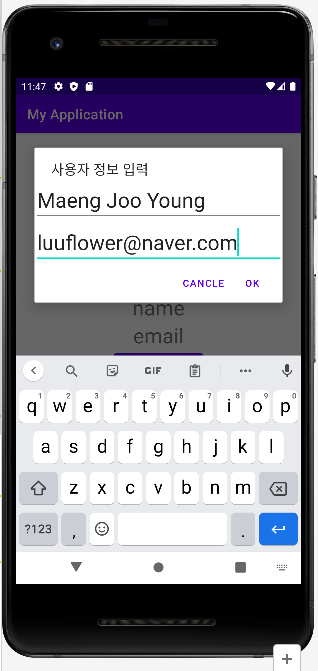
    <EditText
        android:id="@+id/edtname"
        android:hint="name>>"
        android:textSize="30dp"
        android:layout_width="match_parent"
        android:layout_height="wrap_content"/>
    <EditText
        android:id="@+id/edtemail"
        android:hint="email>>"
        android:textSize="30dp"
        android:layout_width="match_parent"
        android:layout_height="wrap_content"/>
</LinearLayout>
toast.xml
<?xml version="1.0" encoding="utf-8"?>
<LinearLayout xmlns:android="http://schemas.android.com/apk/res/android"
    android:layout_width="match_parent"
    android:orientation="horizontal"
    android:background="#f00"
    android:gravity="center"
    android:layout_height="match_parent">
<ImageView
    android:src="@mipmap/ic_launcher"
    android:layout_width="wrap_content"
    android:layout_height="wrap_content"/>
    <TextView
        android:id="@+id/toastmsg"
        android:text="toastmsg"
        android:textSize="30dp"
        android:textColor="#fff"
        android:layout_width="wrap_content"
        android:layout_height="wrap_content"/>


    <ImageView
        android:src="@drawable/toast"
        android:layout_width="100dp"
        android:layout_height="100dp"/>

</LinearLayout>
MainActivity.java
package com.example.myapplication;

import androidx.appcompat.app.AlertDialog;
import androidx.appcompat.app.AppCompatActivity;

import android.content.DialogInterface;
import android.graphics.Color;
import android.os.Bundle;
import android.view.View;
import android.widget.Button;
import android.widget.EditText;
import android.widget.TextView;
import android.widget.Toast;

public class MainActivity extends AppCompatActivity {
    TextView toastmsg, tvname,tvemail;
    EditText edtname,edtemail;
    View toastv, dialogv, oov, xxv;
    Button click;
    @Override
    protected void onCreate(Bundle savedInstanceState) {
        super.onCreate(savedInstanceState);
        setContentView(R.layout.activity_main);
        tvname = findViewById(R.id.tvname);
        tvemail = findViewById(R.id.tvemail);
        click = findViewById(R.id.click);
        toastv = View.inflate(MainActivity.this,R.layout.toast,null);
        dialogv = View.inflate(MainActivity.this,R.layout.dialog,null);
        toastmsg = toastv.findViewById(R.id.toastmsg);
        edtname = dialogv.findViewById(R.id.edtname);
        edtemail = dialogv.findViewById(R.id.edtemail);

        click.setOnClickListener(new View.OnClickListener() {
            @Override
            public void onClick(View view) {
                //대화상자 작성
                AlertDialog.Builder dlg = new AlertDialog.Builder(MainActivity.this);
                dlg.setTitle("사용자 정보 입력");
                dlg.setView(dialogv);
                dlg.setPositiveButton("ok", new DialogInterface.OnClickListener() {
                    @Override
                    public void onClick(DialogInterface dialogInterface, int i) {
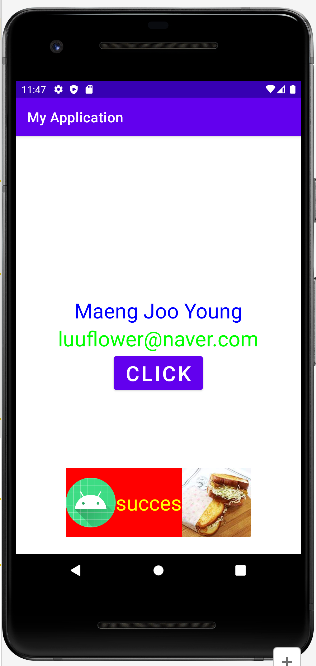
                        String name = edtname.getText().toString();
                        tvname.setText(name);
                        tvname.setTextColor(Color.BLUE);
                        String email = edtemail.getText().toString();
                        tvemail.setText(email);
                        tvemail.setTextColor(Color.GREEN);
                        Toast toast = new Toast(MainActivity.this);
                        toast.setView(toastv);
                        toastmsg.setText("succes");
                        toastmsg.setTextColor(Color.YELLOW);
                        toast.show();
                    }
                });
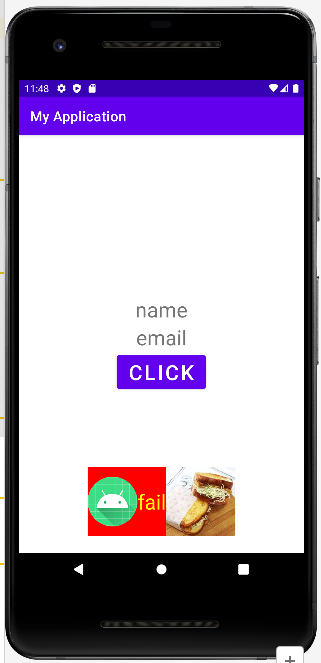
                // cancle 버튼에 맞는 토스트메세지를 보이도록 프로그래밍 하시오.
                dlg.setNegativeButton("cancle", new DialogInterface.OnClickListener() {
                    @Override
                    public void onClick(DialogInterface dialogInterface, int i) {
                        Toast toast = new Toast(MainActivity.this);
                        toast.setView(toastv);
                        toastmsg.setText("fail");
                        toastmsg.setTextColor(Color.YELLOW);
                        toast.show();
                    }
                });
                dlg.show();
            }
        });

    }
}

ㅎㅇ