목표
1. [프론트엔드/백엔드] Docker Image 생성 (프로젝트는 있음을 가정)
2. EC2에 Docker 설치
3. [프론트엔드/백엔드] Docker Container 실행
이전에 작성한 ▶️ Dockerfile 스크립트로 이미지 생성하고 Docker hub에 등록하기를 참고
공통
Docker 설치
apt update && apt install -y docker.io docker-compose
apt 업데이트 및 docker 설치
Docker 실행
docker-compose up -d
Docker 상태 확인
docker ps
프론트엔드
./nginx/default.conf
server {
    listen       80;
    server_name  localhost;
    location / {
        root   /usr/share/nginx/html;
        index  index.html index.htm;
        try_files $uri $uri/ /index.html;
    }
    error_page   500 502 503 504  /50x.html;
    location = /50x.html {
        root   /usr/share/nginx/html;
    }

      location /api/ {
          rewrite ^/api(/.*)$ $1 break;
          proxy_pass http://[백엔드 IP]:8080;
          proxy_http_version 1.1;
          proxy_set_header Upgrade $http_upgrade;
          proxy_set_header Connection "upgrade";
          proxy_set_header Host $host;
          proxy_cache_bypass $http_upgrade;
      }
}
Dockerfile
FROM    nginx:latest
EXPOSE  80
COPY     ./nginx/default.conf /etc/nginx/conf.d/default.conf
COPY    ./dist /usr/share/nginx/html
Dockerfile은 빌드 도구와 터미널 명령어 입력 중 편한 도구를 이용하여 Build&Push
frontend 프로젝트가 DockerHub에 push되었으면 frontend를 배포할 EC2로 이동
docker-compose.yml
services:
  frontend:
    image: [DockerId]/[이미지 이름]:[버전]
    ports:
      - 80:80
위의 파일을 작성한 위치에서 Docker 실행 명령어를 입력

백엔드
Dockerfile
FROM    openjdk:17-ea-slim-buster
EXPOSE  8080
ADD     ./build/libs/[build된 jar파일].jar  /app.jar
CMD     java -jar /app.jar
ENV     DB_USER=[username]
ENV     DB_PASSWORD=[password]
ENV     DB_URL=jdbc:mariadb://[rds IP]:3306/[database]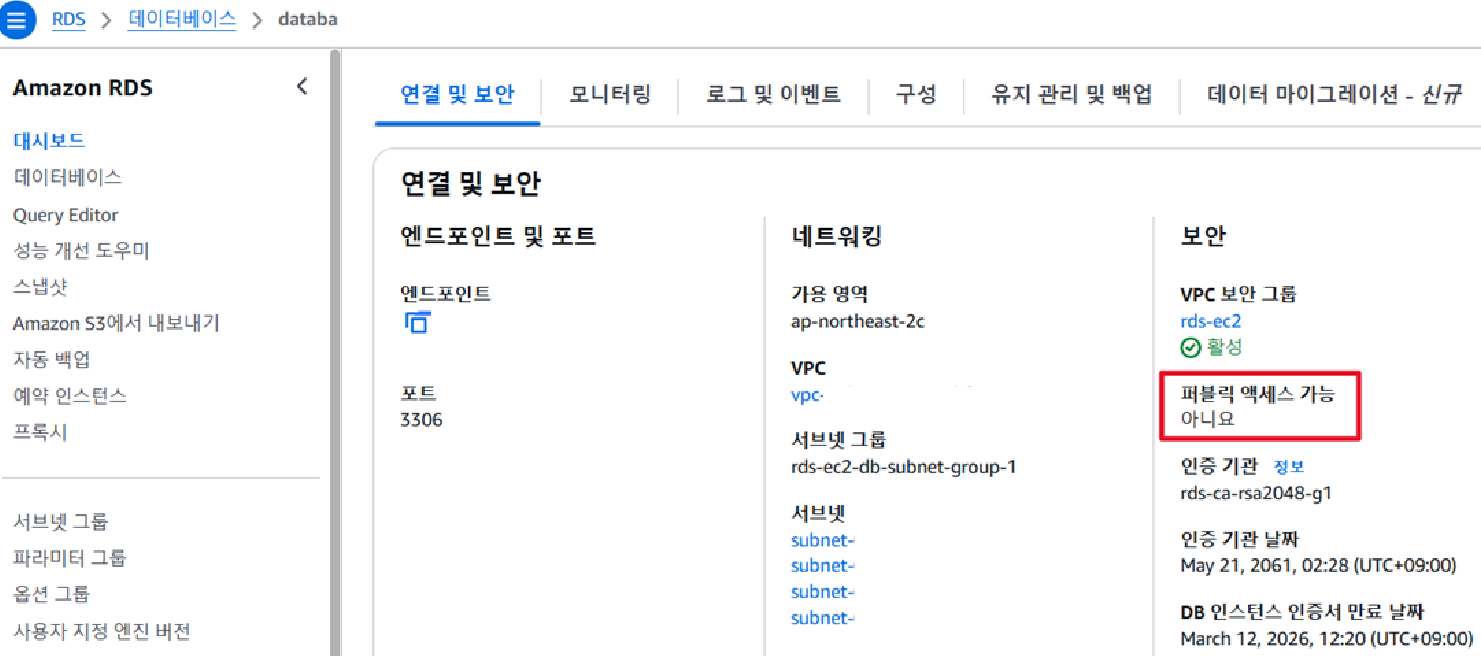
여기서 DB주소는 백엔드로 쓸 EC2와 연결된 RDS 주소를 작성, RDS의 퍼블릭 액세스 기능이 꺼져있다면 RDS와 연결되지 않은 EC2는 해당 데이터베이스에 접근할 수 없음에 유의 (나는 백엔드와 DB의 EC2를 맞췄으므로 퍼블릭 액세스는 활성화하지 않았다.)
▶️ EC2와 RDS를 어떻게 연결하는지 모른다면?(클릭)
frontend와 마찬가지로 Dockerfile은 빌드 도구와 터미널 명령어 입력 중 편한 도구를 이용하여 Build&Push
backend 프로젝트가 DockerHub에 push되었으면 backend 배포할 EC2로 이동
docker-compose.yml
services:
  frontend:
    image: [DockerId]/[이미지 이름]:[버전]
    ports:
      - 8080:8080
위의 파일을 작성한 위치에서 Docker 실행 명령어를 입력

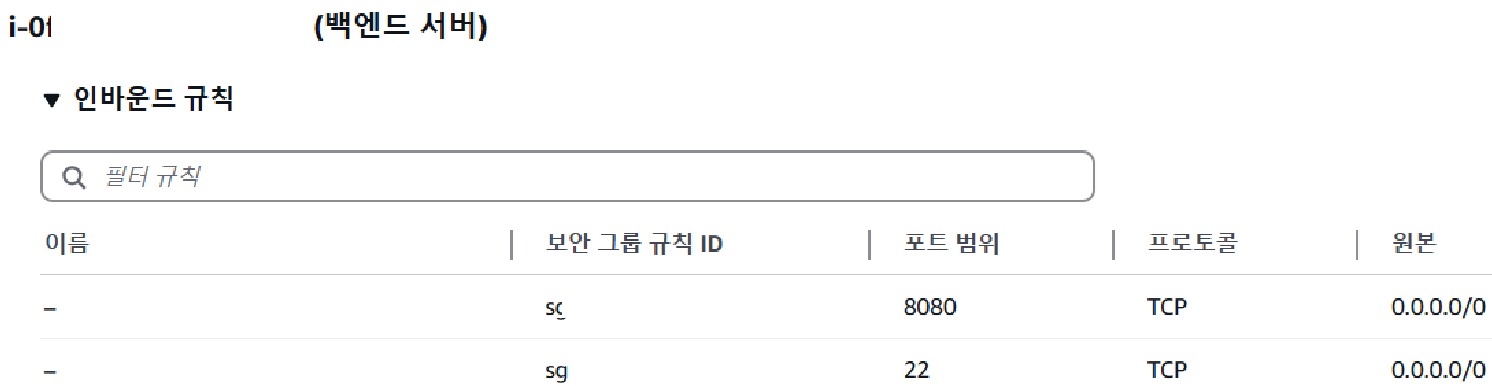
백엔드 서버에서 8080포트의 인바운드 규칙을 잊지 말자
▶️ 인스턴스 보안 규칙 변경 방법(클릭)