
0. 도입
VPN 운영 중 다음과 같은 애로사항이 있었습니다.
1. 접속 로그는 남지만 실시간 접속 현황을 확인하기 어려움
2. UDP Inbound/Outbound가 차단된 환경에서는 VPN 사용이 어려움
이러한 문제를 해결하기 위해 기존 VPN에 TCP 연동을 추가하고, 보안 강화를 위해
접속 알림 기능을 구성하였습니다.
해당 글은 VPN 환경이 구성되었다는 전제 하에 작성된 글이기 때문에
VPN 구축에 대해 궁금하신 분들은 아래 글에서 구축 방법을 확인하고 오시는것도 도움이 될 것 같습니다!
1. VPN TCP 연동
-
구축 배경
- 일부 네트워크망(Wi-Fi, 관공서망, 해외망 등)에서 VPN 접속이 불가능한 사례 존재
- OpenVPN의 기본 통신 프로토콜은 UDP이기 때문에, UDP 차단 환경에서는 연결이 이루어지지 않음
- 따라서 TCP 연결을 구현하여 UDP가 차단되는 일부 망에서 TCP를 통한 VPN 연결을 지속하고자 함
-
VPN TCP config 파일 생성
cd /etc/openvpn/server cp server.conf server-tcp.conf -
server-tcp.conf 수정
# server-tcp.conf # 포트변경 port 443 # TCP 연결 proto tcp ;proto udp #가상 네트워크 인터페이스 변경 dev tun1 # TCP, UDP 서브네팅 server 10.9.0.0 255.255.255.0 # TCP, UDP 로깅 변경 status /var/log/openvpn/openvpn-status-tcp.log # By default, log messages will go to the syslog (or # on Windows, if running as a service, they will go to # the "\Program Files\OpenVPN\log" directory). # Use log or log-append to override this default. # "log" will truncate the log file on OpenVPN startup, # while "log-append" will append to it. Use one # or the other (but not both). log /var/log/openvpn/openvpn-tcp.log log-append /var/log/openvpn/openvpn-tcp.log # UDP에서 사용하는 옵션 제거 ;explicit-exit-notify 1 -
systemctl을 이용하여 VPN-TCP 서비스 등록 및 서비스 시작
systemctl enable openvpn-server@server-tcp
systemctl start openvpn-server@server-tcp.service
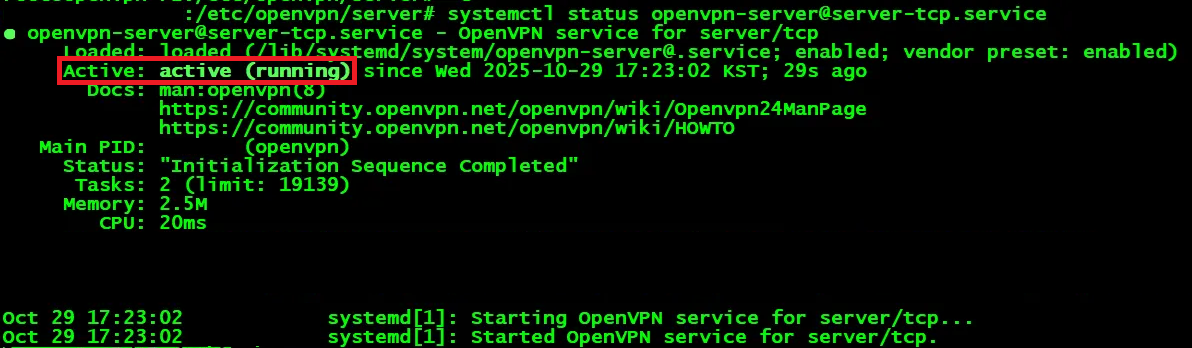
systemctl status openvpn-server@server-tcp.service
서비스 Active 확인
-
TCP, UDP 포트 확인
netstat -nlutp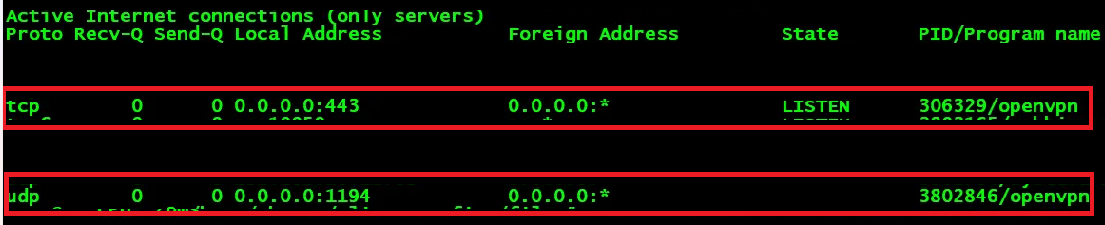
-
TCP 프로토콜 전용 .ovpn 생성
- TCP로 통신하기 위해서는 새로운 .ovpn 파일이 필요
- 기존 base.conf 파일을 cp해 새로운 config 파일 생성
cp base.conf base-tcp.conf- base-tcp.conf
;dev tap
dev tun1
# Windows needs the TAP-Win32 adapter name
# from the Network Connections panel
# if you have more than one.  On XP SP2,
# you may need to disable the firewall
# for the TAP adapter.
;dev-node MyTap

# Are we connecting to a TCP or
# UDP server?  Use the same setting as
# on the server.
proto tcp
;proto udp

# The hostname/IP and port of the server.
# You can have multiple remote entries
# to load balance between the servers.
remote my-server-2 443    #서버 IP 입력
;remote my-server-2 1194
2. VPN 로그인 알림 설정(with Slack)
- 구축 배경
- 보안 강화 및 무단 접속 탐지
- 접속 이력의 투명성 및 감사 로그 확보
- 운영 및 장애 대응 편의성
해당 설정은 OpenVPN에서 기본적으로 제공하는 OpenVPN Client Script Hooks 기능을 사용하여 구성하였습니다.
-
Client 접속 성공 시 알림 스크립트 작성
#!/bin/bash # =============================================== # FileName: client-connect.sh # Description: VPN 접속 시 user,ip,protocol,time 등의 정보를 # Slack에 전송해주는 스크립트 # server.conf, server-tcp.conf 에서 해당 스크립트 실행 # Author: Chanyoung, Han # ver: 1.0.0 # Last Modified: 2025-11-07 # =============================================== SLACK_WEBHOOK_URL="WEBHOOKS URL" USER="$common_name" IP="$ifconfig_pool_remote_ip" SRC_IP="$trusted_ip" PROTO="$PROTO" TIME="$(date '+%Y-%m-%d %H:%M:%S')" MESSAGE="🟢 *VPN Connected* *User:* ${USER} *Protocol:* ${PROTO} *VPN IP:* ${IP} *Source IP:* ${SRC_IP} *Time:* ${TIME}" PAYLOAD=$(cat <<EOF { "channel": "#channel_name", "username": "VPN", "text": "${MESSAGE}", "icon_emoji": ":openvpn:" } EOF ) curl -X POST -H "Content-type: application/json" --data "$PAYLOAD" "$SLACK_WEBHOOK_URL" -
Client 접속 해제 시 알림 스크립트 작성
#!/bin/bash # =============================================== # FileName: client-disconnect.sh # Description: VPN 접속해제 시 user,ip,protocol,time 등의 정보를 # Slack에 전송해주는 스크립트 # server.conf, server-tcp.conf 에서 해당 스크립트 실행 # Author: Chanyoung, Han # ver: 1.0.0 # Last Modified: 2025-11-07 # =============================================== SLACK_WEBHOOK_URL="WEBHOOKS URL" USER="$common_name" IP="$ifconfig_pool_remote_ip" SRC_IP="$trusted_ip" PROTO="$PROTO" TIME="$(date '+%Y-%m-%d %H:%M:%S')" MESSAGE="🔴 *VPN DisConnected* *User:* ${USER} *Protocol:* ${PROTO} *VPN IP:* ${IP} *Source IP:* ${SRC_IP} *Time:* ${TIME}" PAYLOAD=$(cat <<EOF { "channel": "#channel_name", "username": "VPN", "text": "${MESSAGE}", "icon_emoji": ":openvpn:" } EOF ) curl -X POST -H "Content-type: application/json" --data "$PAYLOAD" "$SLACK_WEBHOOK_URL" -
Scripts 권한 부여
chmod +x client-connect.sh chmod +x client-disconnect.sh -
server.conf 변경
- 해당 내용 추가 후 저장
# VPN Login Configs client-connect /etc/openvpn/client-connect.sh client-disconnect /etc/openvpn/client-disconnect.sh script-security 2 # 보안 Level 조정(Scripts 실행 허용) setenv PROTO UDP # TCP일때는 PROTO TCP -
시스템 재시작
systemctl restart openvpn-server@server.service -
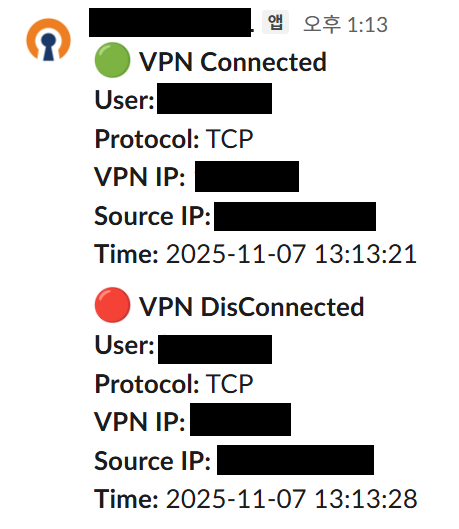
알림 결과

System Engineer의 발전기록