HTML, CSS/day25 / 23.09.27(수) / (핀테크) Spring 및 Ai 기반 핀테크 프로젝트 구축

01_selector
05기본속성_선택자.html
<!DOCTYPE html>
<html lang="en">
<head>
    <meta charset="UTF-8">
    <meta name="viewport" content="width=device-width, initial-scale=1.0">
    <title>Document</title>
<!--
    # 기본 속성 선택자
    - 선택자[속성값] : 특정한 속성이 있는 태그를 선택
    - 선택자[속성=값] : 특정한 속성안의 값이 같고, 특정값과 같은 문서 객체를 선택
-->
<style type="text/css">
input[type] {
    color: blue;
}
input[type=password] {
    background-color: silver;
}
</style>
</head>
<body>
    <h1>기본 속성 선택자</h1>
    <br>
    <form action="#">
        <p>text : <input type="text" id="data" name="data"></p>
        <br>
        <p>password : <input type="password" id="pwd" name="pwd"></p>
    </form>
</body>
</html>
06인접선택자.html
<!DOCTYPE html>
<html lang="en">
<head>
    <meta charset="UTF-8">
    <meta name="viewport" content="width=device-width, initial-scale=1.0">
    <title>Document</title>
<!--
    # 인접 선택자
    - 현재 요소에서 뒤에 위치한 태그를 선택
    - 인접 형태 선택자
      > 선택자A + 선택자B
        : 선택자A 의 요소 중에서 바로 뒤에 위치하는 선택자B 의 요소를 선택

    - 일반 형제 선택자
      > 선택자A ~ 선택자B
        : 선택자A 의 형제 요소 중에서 선택자A 뒤에 위치하는 선택자B 요소를 모두 선택
-->
<style type="text/css">
h2 + h3 {
    color: red;
}
h2 ~ h3 {
    background-color: orange;
}
</style>
</head>
<body>
    <h1>인접 선택자</h1>
    <h2>제목 - 2</h2>
    <h3>제목 - 3</h3>
    <h3>제목 - 3</h3>
    <h3>제목 - 3</h3>
    <h3>제목 - 3</h3>
    <h3>제목 - 3</h3>
    <div id="content">
        <h3>content - h3</h3>
    </div>
    <h3>제목 - 3</h3>
</body>
</html>07반응선택자.html
<!DOCTYPE html>
<html lang="en">
<head>
    <meta charset="UTF-8">
    <meta name="viewport" content="width=device-width, initial-scale=1.0">
    <title>Document</title>
<!--
    # 반응 선택자
    - 링크가 걸린 문자에 스타일을 부여
    - : link        -> 선택자가 방문하지 않은 링크
      : visited     -> 선택자가 방문한 링크
      : hover       -> 선택자에 마우스가 올라갔을 때
      : active      -> 선택자가 클릭된 상태일 때
-->
<style type="text/css">
a:link{
    color: orange;
}
a:visited{
    color: brown;
}
a:hover{
    color: red;
    background-color: yellow;
}
a:active{
    color: blue;
}
</style>
</head>
<body>
    <h1>반응 선택자</h1>
    <br>
    <h2><a href="https://www.naver.com/" target="_blank">naver</a></h2>
    <br>
    <h2><a href="https://www.daum.net/" target="_blank">daum</a></h2>
</body>
</html>08상태선택자.html
<!DOCTYPE html>
<html lang="en">
<head>
    <meta charset="UTF-8">
    <meta name="viewport" content="width=device-width, initial-scale=1.0">
    <title>Document</title>
<!--
    # 상태 선택자
    - 입력 양식의 상태를 선택할 때 사용
    - : checked   -> 체크 상태의 input 태그를 선택
      : foucs     -> 초점이 맞추어진 input 태그를 선택
      : enabled   -> 사용 가능한 input 태그를 선택
      : disabled   -> 사용 불가능한 input 태그를 선택
-->
<style type="text/css">
input:checked+span{
    color: red;
}
input:enabled+span{
    background-color: yellow;
}
input:disabled+span{
    text-decoration:line-through ;
}
#test-a:focus{
    background-color: pink;
}
#test-b:focus{
    background-color: skyblue;
}
</style>
</head>
<body>
    <h1>상태 선택자</h1>
    <br>
    <div>
        <p><input type="checkbox" value="bicycle" checked><span>bicycle</span></p>
        <p><input type="checkbox" value="car" ><span>car</span></p>
        <p><input type="checkbox" value="motorcycle" disabled><span>motorcycle</span></p>
        <br>
        <p>focus 테스트 a : <input type="text" id="test-a"></p>
        <p>focus 테스트 b : <input type="text" id="test-b"></p>
    </div>
</body>
</html>09구조선택자.html
<!DOCTYPE html>
<html lang="en">
<head>
    <meta charset="UTF-8">
    <meta name="viewport" content="width=device-width, initial-scale=1.0">
    <title>Document</title>
<!--
    # 일반 구조 선택자
    - 특정한 위치에 있는 태그를 선택
    - : first-child         -> 형제 관계 중 첫번째 요소 선택
    - : last-child          -> 형제 관계 중 마지막 요소 선택
    - : nth-child(n)        -> 형제 관계 중 앞에서 n번째 요소 선택
    - : nth-last-child(n)   -> 형제 관계 중 뒤에서 n번째 요소 선택

    # 형태 구조 선택자
    - 일반 구조 선택자와 비슷하지만 태그 형태를 구분함
    - : first-of-type           -> 형제 관계 중에서 첫번째로 나오는 특정 태그 선택
    - : last-of-type            -> 형제 관계 중에서 마지막으로 나오는 특정 태그 선택
    - : nth-of-type(n)          -> 형제 관계 중에서 앞에서 n번째로 나오는 특정 태그 선택
    - : nth-last-of-type(n)     -> 형제 관계 중에서 뒤에서 n번째로 나오는 특정 태그 선택
  -->
<style type="text/css">
ul > li {
    font-weight: bold;
    font-size: 20px;
}
ul > li:nth-child(2n) {
    color: green;
}
ul > li:nth-child(2n+1) {
    color: brown;
}
ul > li:first-child {
    color: blue;
}
ul > li:last-child {
    color: red;
}
p:first-of-type{
    color: orange;
}
p:last-of-type{
    font-weight: bold;
    color: purple;
}
p:nth-of-type(2){
    background-color: pink;
}
p:nth-last-of-type(2){
    color: darkgreen;
}
</style>
</head>
<body>
    <h1>일반 구조 선택자</h1>
    <br>
    <ul>
        <li>one</li>
        <li>two</li>
        <li>three</li>
        <li>four</li>
        <li>five</li>
        <li>six</li>
        <li>seven</li>
    </ul>
    <br>

    <h1>형제 구조 선택자</h1>
    <br>
    <p>h1 - p1</p>
    <p>h1 - p2</p>
    <p>h1 - p3</p>
    <p>h1 - p4</p>
    <br>
    <div>
        <h2>제목 - h2</h2>
        <p>h2 - p1</p>
        <p>h2 - p2</p>
        <p>h2 - p3</p>
        <p>h2 - p4</p>
    </div>
</body>
</html>10반응문자_선택자.html
<!DOCTYPE html>
<html lang="en">
<head>
    <meta charset="UTF-8">
    <meta name="viewport" content="width=device-width, initial-scale=1.0">
    <title>Document</title>
<!--
    # 문자 선택자
    - 시작 문자 선택자
      > 태그 내부의 첫번째 글자나, 첫번째 라인을 선ㅌ개
        ::first-letter      -> 첫번째 글자 선택
        ::first-line        -> 첫번째 라인 선택
    - 반응 문자 선택자
      > 사용자가 드래그한 콘텐츠를 표시
        : selection     ->
-->
<style type="text/css">
p{
    font-size: 26px;
}
p::first-letter{
    font-size: 30px;
}
p::first-line{
    background-color: gold;
    font-weight: bold;
}
.content::selection{
    background-color: orange;
}
</style>
</head>
<body>
    <h1>시작 문자 선택자</h1>
    <p>Have a nice day ^_^ <br>step by step</p>
    <p>즐거운 하루 되세요</p>
    <br>

    <h1>반응 문자 선택자</h1>
    <h2>html</h2>
    <p class="content">
        인터넷 서비스의 하나인 월드 와이드 웹을 통해 볼 수 있는 문서를 만들 때 사용하는 웹 언어의 한 종류이다. <br>
        특히 하이퍼텍스트를 작성하기 위해 개발되었으며, 인터넷에서 웹을 통해 접근되는 대부분의 웹 페이지들은 HTML로 작성된다.<br>
        [네이버 지식백과] HTML [Hypertext Markup Language] (두산백과 두피디아, 두산백과)
    </p>
</body>
</html>
11_CSS_definition.html
<!DOCTYPE html>
<html lang="en">
<head>
    <meta charset="UTF-8">
    <meta name="viewport" content="width=device-width, initial-scale=1.0">
    <title>Document</title>
<!--
    # 외부 스타일 시트
    - 스타일 속성을 '.css' 로 저장하여 HTML 문서에 파일명으로 연결
    - <link> 태그를 사용해서 적용

    # 선택자 우선 순위
    - CSS 속성을 우선적으로 적용할 것인지를 결정함
      > 1. 점수가 높은 선언이 우선 적용
        2. 점수가 같으면 가장 마지막에 선언된 것이 적용
    - 선택자 우선 순위
      > 인라인 선택자                 1000
        id 선택자( #xxx )              100
        class 선택자( .xxx )            10
        가상 선택자( :first-child )     10
        태그 선택자( p, h1,... )         1
        전체 선택자( * )                 0

     Ex) #title li:hover => 100 + 1 + 11 = 111
-->
<link rel="stylesheet" type="text/css" href="external-style.css"
</head>
<body>
    <h1>외부 스타일 시트</h1>
    <div id="external">
        <p>외부 스타일 시트</p>
    </div>
</body>
</html>
external-style.css
@charset "UTF-8";
#external p{
    font-size: 30px;
    color: blue;
}
02_text
01_font.html
<!-- 02_font/02-01_font.html -->

<!DOCTYPE html>
<html>
<head>
<meta charset="UTF-8">
<title>02-01_font</title>
<link href="https://fonts.googleapis.com/css2?family=Roboto+Slab:wght@300&display=swap" rel="stylesheet">
</head>
<body>
	<h1>text font 속성</h1>
	<style type="text/css">
	/*
		font-size
		- 글자 크기 지정
	*/
	.size { font-size: 30px; }
	.default { font-size: 16px; }
	</style>
	<p class="size"> 글자 크기 30 </p>
	<p class="basic"> 기본 글자 크기</p>
	<p class="defualt"> 글자 크기 16 </p>
	<hr>
	<style type="text/css">
	/*
		font-family
		- 폰트를 지정하고, 컴퓨터에 해당 폰트가 없으면 적용되지 않습니다
		- 폰트는 여러개 지정이 가능하고, 첫번째 폰트가 없으면 다음에 지정된 폰트가 적용됩니다
		  마지막 폰트는 OS 에 기본 설치되는 generic-family 폰트( serif, sans-serif, monospace )를 지정하는게 일반적입니다
	    - 구글 웹폰트
	      https://fonts.google.com
	*/
	.dotum { font-family: "dotum"; }
	.serif { font-family: "abc", serif; }
	.google { font-family: "Roboto Slab"; }
	</style>
	<p class="dotum"> 글꼴 </p>
	<p class="serif"> serif 글꼴</p>
	<p class="google"> 구글 폰트 </p>
	<hr>
	<style type="text/css">
	/*
		font-weight
		- 글자 굵기 지정 : normal, bold, lighter
	*/
	.weight { font-weight: bold; }
	.normal { font-weight: normal; }
	.light { font-weight: lighter; }
	</style>
	<p class="weight"> 글자 굵기 </p>
	<p class="normal"> 글자 굵기 </p>
	<p class="light"> 글자 굵기 </p>
	<hr>
	<style type="text/css">
	/*
		font-style
		- 글자 기울기 : normal, italic
	*/
	.italic { font-style: italic; }
	.normal { font-style: normal; }
	</style>
	<p class="italic"> italic </p>
	<p class="normal"> 글자 스타일 </p>
	<hr>
	<style type="text/css">
	/*
        font-variant
        - 소문자를 대문자로 변환 : small-caps
	*/
    .variant{
        font-variant: small-caps;
    }
	</style>
	<p class="variant">HOME, home</p>
	<hr>
	<style type="text/css">
	/*
        line-height
        - 텍스트의 높이 지정(줄간격)
        - 기본 line-height 는 약 120%
	*/
    .line_300{
        line-height: 300%;
    }
    .line_100{
        line-height: 100%;
    }
	</style>
	<p class="">글자 줄간격 : 기본<br>글자 줄 간격 : 기본</p>
	<p class="line_300">글자 줄간격 : 300%<br>글자 줄 간격 : 300%</p>
	<p class="line_100">글자 줄간격 : 100%<br>글자 줄 간격 : 100%</p>
	<hr>
	<style type="text/css">
	/*
        font 속성 여러개 적용
        - font : font-style | font-variant | font-weight | font-size/line-height | font-family
          > font 속성에는 font-size, font-family 속성이 반드시 들어가야 함
	*/
    .font_a{
        font:italic small-caps bold 30px/150% serif;
    }
    .font_b{
        font: bold 40px "Roboto Slab", sans-serif;
    }
	</style>
	<p class="font_a">font 속성에 한번에 값을 넣어서 설정 가능</p>
	<p class="font_b">font 속성에 한번에 값을 넣어서 설정 가능</p>
	<hr>

    <style type="text/css">
    /*
        text-indent
        - 들여쓰기. 한 문단에서 첫번째 줄에만 적용
    */
    .indent {
        text-indent: 30px;
    }
	</style>
	<p class="indent">
        들여쓰기들여쓰기들여쓰기들여쓰기들여쓰기들여쓰기<br>
        들여쓰기들여쓰기들여쓰기들여쓰기들여쓰기들여쓰기들여쓰기들여쓰기들여쓰기들여쓰기들여쓰기들여쓰기
    </p>
	<hr>

    <style type="text/css">
    /*
        text-align
        - 텍스트 수평 정렬. ( center, right, left, justify )
    */
    .center{
        text-align: center;
    }
    .right{
        text-align: right;
    }
    .left{
        text-align: left;
    }
    .justify{
        text-align: justify;
    }
	</style>
	<p class="center">센터</p>
	<p class="right">오른쪽</p>
	<p class="left">왼쪽</p>
	<p class="justify">양쪽양쪽양쪽양쪽양쪽양쪽양쪽양쪽양쪽양쪽양쪽양쪽</p>
	<hr>
    <style type="text/css">
    /*
        text-decoratoin
        - 링크의 라인을 제거하거나, text에 라인을 적용
          (none : 라인제거, overline : 윗줄, line-througj : 중간줄, underline : 밑줄)
    */
    .line_none{
        text-decoration: none;
    }
    .line_overline{
        text-decoration: overline;
    }
    .line_through{
        text-decoration: line-through;
    }
    .line_underline{
        text-decoration: underline;
    }
	</style>
    <p class=""><a href="#">link</a></p>
	<p class="line_none"><a href="#">link none</a></p>
	<p class="line_overline">윗줄</p>
	<p class="line_through">가운데줄</p>
	<p class="line_underline">밑줄</p>
	<hr>
    <style type="text/css">
    /*
        letter-spacing
        - 글자 사이의 간격 지정
    */
    .letter{
        letter-spacing: 30px;
    }
	</style>
	<p class="letter">글자 사이 간격</p>
	<hr>
    <style type="text/css">
    /*
        word-spacing
        - 단어 사이의 간격 지정
    */
    .word{
        word-spacing: 30px;
    }
	</style>
	<p class="word">단어 사이 간격 </p>
	<p class=""></p>
	<hr>
    <style type="text/css">
    /*
        text-transform
        - 대소문자 전환
    */
    .upper{
        text-transform: uppercase;
    }
    .lower{
        text-transform: lowercase;
    }
    .capital{
        text-transform: capitalize;
    }
	</style>
	<p class="upper">text transForm : uppercase, 소->대</p>
	<p class="lower">text trnasForm : lowercase, 대->소</p>
	<p class="capital">text trnasForm : capitalize, 첫글자만 대문자</p>
</body>
</html>
03_box-model
01_box_basic.html
<!DOCTYPE html>
<html lang="en">
<head>
<meta charset="UTF-8">
<meta name="viewport" content="width=device-width, initial-scale=1.0">
<title>Document</title>
<!--
# box model
- html 태그는 사각형 박스로 다루어 짐
- box는 content, padding, border, margin 으로 구성
> content : 요소의 텍스트, image 등의 실제 내용
padding : border(테두리) 안쪽에 위치하는 요소의 내부 여백 영역
border : 테두리 영역으로 테두리 두께
margin : border(테두리) 바깥에 위치하는 요소의 외부 여백 영역
-->
<style type="text/css">
div{
background-color: bisque;
width: 500px;
border: 10px solid blue;
margin: 20px;
padding: 20px;
}
</style>
</head>
<body>
<h1>box model</h1>
<br>
<div>
# box model<br>
- html 태그는 사각형 박스로 다루어 짐<br>
- box는 content, padding, border, margin 으로 구성<br>
> content : 요소의 텍스트, image 등의 실제 내용<br>
padding : border(테두리) 안쪽에 위치하는 요소의 내부 여백 영역<br>
border : 테두리 영역으로 테두리 두께<br>
margin : border(테두리) 바깥에 위치하는 요소의 외부 여백 영역
</div>
<div id="size">
<p>box width, height</p>
</div>
</body>
</html>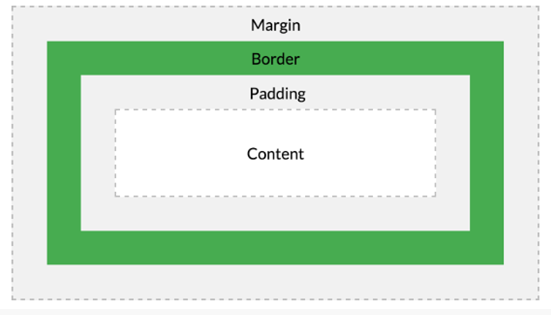
02_margin_padding.html
<!DOCTYPE html>
<html lang="en">
<head>
    <meta charset="UTF-8">
    <meta name="viewport" content="width=device-width, initial-scale=1.0">
    <title>Document</title>
<!--
    # margin, padding 속성
    - margin, padding 속성은
      content 의 4개의 방향( top, right, bottom, left )에 대해서 지정 가능
-->
<style type="text/css">
div{
    border: 1px solid red;
    width: 300px;
    height: 150px;
}
.box_1{
    /*
    margin-top: 20px;
    margin-right: 50px;
    margin-bottom: 30px;
    margin-left: 20px;
    */
    margin: 20px 50px 30px 20px;
}
.box_2{
    margin: 20px 50px 30px;/* 위, 왼쪽-오른쪽, 아래, */
}
.box_3{
    margin: 20px 50px; /* 위-아래, 왼쪽-오른쪽*/
}
.box_4{
    margin: 30px; /* 네 방향 */
}
</style>
</head>
<body>
    <h1>margin, padding</h1>
    <br>
    <div class="box_1">
        margin : <br>
        <br>
        margin- top 20px: <br>
        margin- right 50px: <br>
        margin- bottom 30px: <br>
        margin- left 20px:
    </div>
    <div class="box_2">
        margin : <br>
        <br>
        margin- top 20px: <br>
        margin- right 50px: <br>
        margin- bottom 30px: <br>
        margin- left 50px:
    </div>
    <div class="box_3">
        margin : <br>
        <br>
        margin- top 20px: <br>
        margin- right 50px: <br>
        margin- bottom 20px: <br>
        margin- left 50px:
    </div>
    <div class="box_4">
        margin : <br>
        <br>
        margin- top :30px <br>
        margin- right :30px <br>
        margin- bottom :30px <br>
        margin- left :30px
    </div>
</body>
</html>
03_border.html
<!DOCTYPE html>
<html lang="en">
<head>
    <meta charset="UTF-8">
    <meta name="viewport" content="width=device-width, initial-scale=1.0">
    <title>Document</title>
<!--
    # border
    - width, style, color 속성을 사용해서 box 테두리 모양을 지정 가능

-->
<style type="text/css">

.solid{
    text-align: center;
    border-radius: 20px;
    border: 10px solid blue;
}
.hidden{
    text-align: center;
    border-radius: 20px;
    border: 10px none ;
}
.dotted{
    text-align: center;
    border-radius: 20px;
    border: 10px dotted yellow;
}
.dashed{
    text-align: center;
    border-radius: 20px;
    border: 10px dashed orange;
}
.double{
    text-align: center;
    border-radius: 20px;
    border: 10px double green;
}
.groove{
    text-align: center;
    border-radius: 20px;
    border: 10px groove brown;
}
.ridge{
    text-align: center;
    border-radius: 20px;
    border: 10px ridge red;
}
.inset{
    text-align: center;
    border-radius: 20px;
    border: 10px inset coral;
}
.outset{
    text-align: center;
    border-radius: 20px;
    border: 10px outset navy;
}
.border_style_2{ /* 위-아래, 좌-우 */
    border-style: solid dotted;
}
.border_style_3{ /* 위, 좌-우, 아래 */
    border-style: solid dashed double;
}
.border_style_4{ /* 위, 우, 아래, 좌 */
    border-style: solid dotted dashed double;
}
.border_wirth_2{
    border-style: solid; border-width:10px 30px;
}
.border_wirth_3{
    border-style: solid; border-width:10px 30px 50px;
}
.border_wirth_4{
    border-style: solid; border-width:10px 30px 50px 70px;
}
.border_color_2{
    border-style: solid;
    border-width:10px 30px;
    border-color:red blue;
}
.border_color_3{
    border-style: solid;
    border-width:10px 30px 50px;
    border-color:brown orange gold;
}
.border_color_4{
    border-style: solid;
    border-width:10px 30px 50px 70px ;
    border-color:purple navy olive bisque;
}
</style>
</head>
<body>
    <h1>box 테두리</h1>
    <br>
    <p class="solid">border: 10px solid blue</p>
    <p class="hidden">border: 10px none </p>
    <p class="dotted">border: 10px dotted yellow</p>
    <p class="dashed">border: 10px dashed orange</p>
    <p class="double">border: 10px double green</p>
    <p class="groove">border: 10px groove brown</p>
    <p class="ridge">border: 10px ridge red</p>
    <p class="inset">border: 10px inset coral</p>
    <p class="outset">border: 10px outset navy</p>
    <br>
    <p class="border_style_2">border-style: solid dotted</p>
    <p class="border_style_3">border-style: solid dashed double</p>
    <p class="border_style_4">border-style: solid dotted dashed double</p>
    <br>
    <p class="border_wirth_2">border-style: solid; border-width:10px 30px</p>
    <p class="border_wirth_3">border-style: solid; border-width:10px 30px 50px </p>
    <p class="border_wirth_4">border-style: solid; border-width:10px 30px 50px 70px</p>
    <br>
    <p class="border_color_2">border-style: solid;
                              border-width:10px 30px;
                              border-color:red blue;</p>
    <p class="border_color_3">border-style: solid;
                              border-width:10px 30px 50px;
                              border-color:brown orange gold;</p>
    <p class="border_color_4">border-style: solid;
                              border-width:10px 30px 50px 70px ;
                              border-color:purple navy olive bisque;</p>
</body>
</html>
04_border_radius.html
<!DOCTYPE html>
<html lang="en">
<head>
    <meta charset="UTF-8">
    <meta name="viewport" content="width=device-width, initial-scale=1.0">
    <title>Document</title>
<!--
    # border-radius
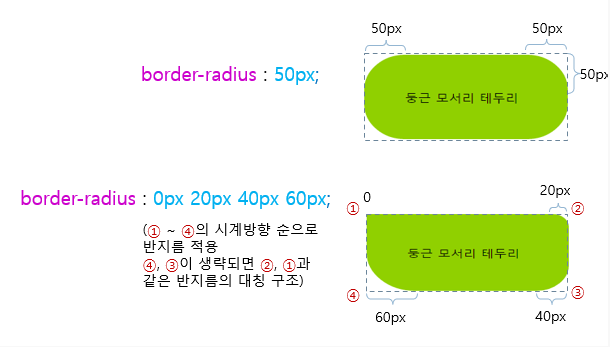
    - border-radius 속성을 사용하면 박스의 네 모서리를 둥글게 만들 수 있다
-->
<style type="text/css">
div{
    width: 300px;
    padding: 20px;
    background-color: gold;
    text-align: center;
}
.round_1{
    border-radius: 50px;
}
.round_2{
    border-radius: 0px 20px;
}
.round_3{
    border-radius: 0px 20px 40px;
}
.round_4{
    border-radius: 0px 10px 20px 30px;
}
.round_5{
    border:4px solid orange;
    border-radius: 30px;
}
</style>
</head>
<body>
    <h1>border-radius</h1>
    <br>
    <div class="round_1">
        border-radius: 50px;
    </div>
    <br>
    <div class="round_2">
        border-radius: 0px 20px;
    </div>
    <br>
    <div class="round_3">
        border-radius: 0px 20px 40px;
    </div>
    <br>
    <div class="round_4">
        border-radius: 0px 10px 20px 30px;
    </div>
    <br>
    <div class="round_5">
        border:4px solid orange;
        border-radius: 30px;
    </div>
    <br>
</body>
</html>
Fintech