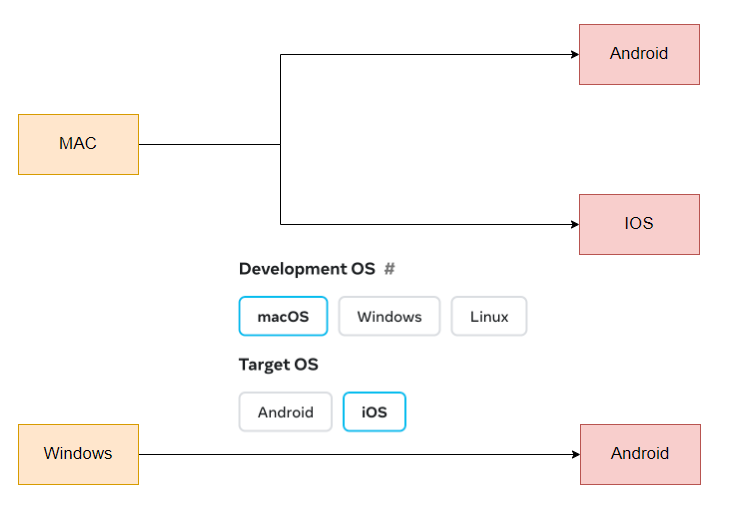
Windows -> Android
Git Bash 기본으로 설정
vscode는 powershell을 디폴트로 사용한다.
이걸 git bash로 바꿔놓으면 매번 터미널을 클릭하지 않아도 된다.
vscode에서 ctrl+,를 눌러 설정을 연다.
terminal.integrated.defaultprofile.windows
VS Code를 Git 기본 에디터로 설정
git config --global core.editor "code --wait"JDK 설치
choco install -y openjdk11 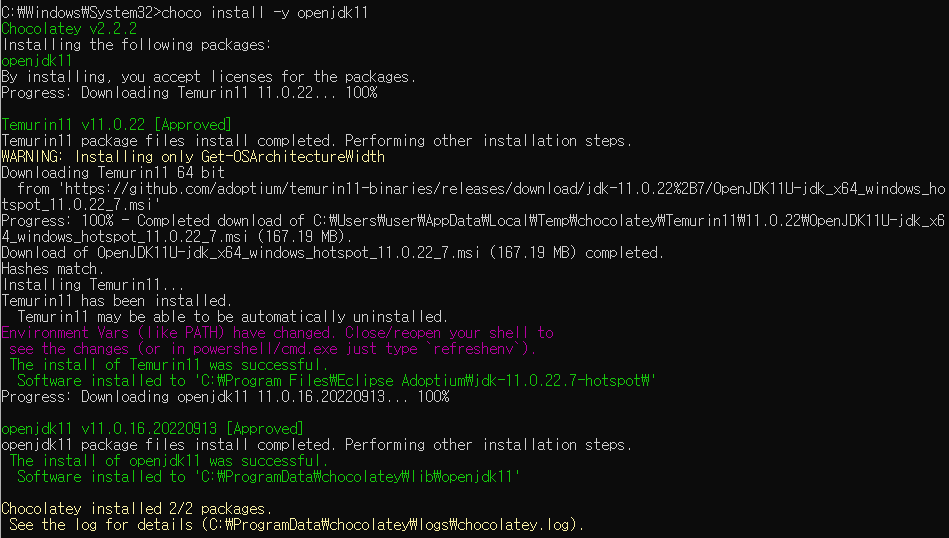
android_sdk_root 환경 변수 구성


잘 설치됐는지 확인하려고 git bash에
adb를 쳤는데 제대로 들어가지 않았다
해결법 -> git bash에다 경로를 직접 넣어준다
- git bash 경로 확인
echo $PATH
- 환경 변수 강제로 설정
export PATH=$PATH:/c/Users/user/AppData/Local/Android/Sdk/platform-tools다시 1번을 실행해서 경로가 들어갔는지 확인하고 adb 명령어 실행해보기

성공~
리액트 네이티브 앱 생성
npx react-native init 프로젝트명이렇게 하면 폴더에 아무것도 안만들어진다..
npx react-native@latest init 프로젝트명 --pm npm이렇게 하면 app.js가 ts로 만들어진다.
아래 코드는 js 버전
/**
 * Sample React Native App
 * https://github.com/facebook/react-native
 *
 * @format
 */

import React from 'react';
import {
  SafeAreaView,
  ScrollView,
  StatusBar,
  StyleSheet,
  Text,
  useColorScheme,
  View,
} from 'react-native';

import {
  Colors,
  DebugInstructions,
  Header,
  LearnMoreLinks,
  ReloadInstructions,
} from 'react-native/Libraries/NewAppScreen';

function Section({children, title}) {
  const isDarkMode = useColorScheme() === 'dark';
  return (
    <View style={styles.sectionContainer}>
      <Text
        style={[
          styles.sectionTitle,
          {
            color: isDarkMode ? Colors.white : Colors.black,
          },
        ]}>
        {title}
      </Text>
      <Text
        style={[
          styles.sectionDescription,
          {
            color: isDarkMode ? Colors.light : Colors.dark,
          },
        ]}>
        {children}
      </Text>
    </View>
  );
}

function App() {
  const isDarkMode = useColorScheme() === 'dark';

  const backgroundStyle = {
    backgroundColor: isDarkMode ? Colors.darker : Colors.lighter,
  };

  return (
    <SafeAreaView style={backgroundStyle}>
      <StatusBar
        barStyle={isDarkMode ? 'light-content' : 'dark-content'}
        backgroundColor={backgroundStyle.backgroundColor}
      />
      <ScrollView
        contentInsetAdjustmentBehavior="automatic"
        style={backgroundStyle}>
        <Header />
        <View
          style={{
            backgroundColor: isDarkMode ? Colors.black : Colors.white,
          }}>
          <Section title="Step One">
            Edit <Text style={styles.highlight}>App.js</Text> to change this
            screen and then come back to see your edits.
          </Section>
          <Section title="See Your Changes">
            <ReloadInstructions />
          </Section>
          <Section title="Debug">
            <DebugInstructions />
          </Section>
          <Section title="Learn More">
            Read the docs to discover what to do next:
          </Section>
          <LearnMoreLinks />
        </View>
      </ScrollView>
    </SafeAreaView>
  );
}

const styles = StyleSheet.create({
  sectionContainer: {
    marginTop: 32,
    paddingHorizontal: 24,
  },
  sectionTitle: {
    fontSize: 24,
    fontWeight: '600',
  },
  sectionDescription: {
    marginTop: 8,
    fontSize: 18,
    fontWeight: '400',
  },
  highlight: {
    fontWeight: '700',
  },
});

export default App;
android 앱 실행하기
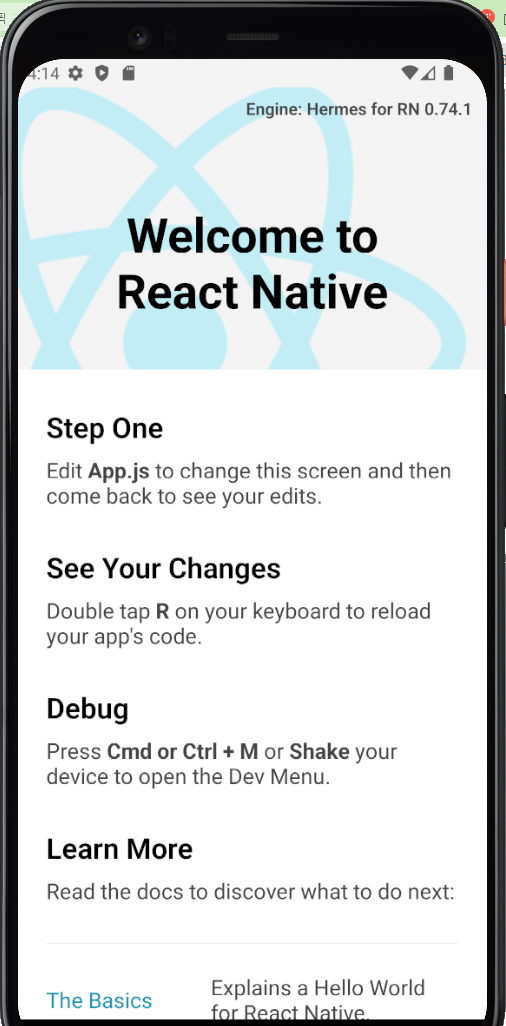
안드로이드 스튜디오에서 virtual device를 먼저 실행시킨 다음에
visual studio code 에서 npm start를 하면 "welcome to React Native"가 나온다!!
오후 1시에 시작해서 오전 1시에 끝난 눈물의 세팅이었다..
중간중간 오류가 정말 많이 난다...
하지만 해냈죠?