저번 Global AI Bootcamp에 다녀왔던 후기를 적었는데, 이번 글은 실습한 자료를 집에서 다시 정리해보고 체화시키기 위해 블로그에 정리를 하겠다.
Semantic Kernel: 다양한 AI 모델과 도구들을 유기적으로 결합하여 AI 오케스트레이션을 구현하는 오픈소스 SDK
이를 활용하면 GPT 계열의 대형 언어 모델 뿐만 아니라, Hugging Face, Azure, 구글 등의 여러 AI 서비스를 하나의 애플리케이션에서 통합적으로 사용할 수 있다.
또한 플러그인 기능을 통해 기존 API나 도구를 AI 모델이 호출 할 수 있도록 하고, 멀티 에이전트 구성으로 복잡한 작업을 단계 별로 수행하도록 만들 수 있다.
본 포스팅에서는 Semantic Kernel의 개념부터, Google Gimini 모델 연동, Azure OpenAI 및 오픈소스 모델 연결, 플러그인 및 멀티 에이전트 활용, 그리고 RAG(벡터 검색)과 모니터링(Asprie 대시보드),OpenTelementry 연동까지 차례로 실습 형태로 정리하겠다.
들어와서, Semantic Kernel에 대해 다시 자세하게 말하자면, AI 오케스트레이션 프레임워크로, 복잡한 AI 작업 흐름을 구성하고, 여러 모델과 도구를 결합해주는 역할을 한다.
쉽게 말해, 단일 대형 언어 모델 호출에 그치지 않고, 여러 모델(GPT-4,Deepseek...)와 다양한 툴(API,DB...)을 하나로 묶어 시나리오를 구성할 수 있다.
이를 통해, 보다 엔터프라이즈 수준의 AI 기능(사내 데이터 베이스 검색...)을 구현할 수 있으며, LangChain등의 프레임워크와 유사하지만 플러그인 개념을 도입해 기존 개발 패턴과 통합을 강조하는 것이 특징이다.
이는 공식문건에 포함되어 있으니 읽어보면 좋다!
https://learn.microsoft.com/en-us/semantic-kernel/concepts/plugins/?pivots=programming-language-csharp
Senmantic Kernel의 핵심개념은 다음과 같다.
-
커널 (Kernel) : AI 모델 및 기능들을 오케스트레이션 해주는 중심 객체. .NET(닷넷이라 불림),Python 등에서 SDK로 제공되며, AI서비스 연결, 메모리, 플러그인을 구성한다.
-
AI 커넥터: OpenAI API,Hugging Face 등 다양한 AI 모델 서비스를 커널에 추가할 수 있다. 한개의 커널 인스턴스에 복수의 모델 서비스를 등록해 필요에 따라 사용할 수 있다.(ex: GPT-4와 Gemini를 동시에 사용)
-
플러그인 : 특정 기능을 수행하는 함수들의 모음으로, AI 모델이 함수 호출 형태로 사용할 수 있는 도구이다. (ex: 데이터베이스 조회, 웹 검색 등을 플러그인으로 구현하면 LLM이 함수호출을 통해 해당 기능을 사용) 이러한 플러그인은 기존 ChatGPT의 플러그인 개념과 유사하다.
-
Semantic Memory : 벡터 임베딩을 활용한 메모리 스토어. 문장이나 문서를 벡터로 저장/검색해서 RAG를 구현할 수 있다.
여기서 RAG란? 단순히 말해 검색증강생성이다.
ex) 내 친구 번호 뭐였지? 챗지피티는 모른다.
이때 내 전화번호부를 주면 벡터 데이터베이스에 저장되며 챗지피티는 답을 줄 것이다.
그리고 벡터 데이터베이스를 왜 사용할까도 궁금했는데, 답은 간단했다.
비정형 텍스트 데이터(사진,동영상,코드..) 때문이었다.
Sematic kernel은 여러 DB 벡터 커넥터를 제공해서 프롬프트에 활용할 수 있게 한다.
- 플래너, 에이전트 : 복잡한 요청을 여러 단계로 나누어 실행 계획을 세우거나, 역할 별 멀티 에이전트로 문제를 해결한다.
이처럼 Semantic Kernel의 특성을 잘 알아두고 학습하면, 내가 무엇을 하는지, 어떤 기능을 구현하는 지 무엇이 필요한 지 염두에 두면서 학습할 수 있다.
< 실습 >
우선 실습에서 필요한 건 gitHub access token,Google Gemini API Key 이다.
gitHub access token 발급
https://github.com/settings/tokens
깃허브 계정만 있으면 다 만들 수 있다. 하지만 pro가 아니여서 token 수 제한이 있다는 점. 따로 제한 사항은 없고, 그대로 발급 받으면 된다. 아마 default값이 30일일 것이다.
주의 사항은 dotnet user-secrets 같은 방식으로 로컬 환경 변수나 비밀 저장소에 넣어서 관리해야 한다는 점이다.
Google Gemini API Key 생성
https://ai.google.dev/gemini-api/docs/api-key?hl=ko
또 필요한 것들
- .NET SDK
- PowerShell
- git CLI
- Docker Desktop
- vscode (당연히 깔려 있겠죠)
없으면 다운 후 리눅스 기반일 경우 which를 통해 있는 지 확인하자.
윈도우는 where 이었나 powerShell이면 Get-Command
ex) .NET 확인 = 리눅스 기반: which dotnet, PowerShell : Get-Command dotnet
1. .NET
설치 확인
which dotnet
.NET 버전확인
dotnet --list-sdks
-> 이때 9.0.100 이상의 버전이어야 한다.
로컬머신 개발용 HTTP 인증서 설치
dotnet dev-certs https --trust
.NET Aspire 프로젝트 템플릿을 최신으로 업데이트
dotnet new install Aspire.ProjectTemplates --force
2. PowerShell
설치확인
which pwsh
버전확인
pwsh --version
-> 7.4.0 이상의 버전이 있어야 한다.
3.git CLI(codespace에서 커밋,푸시,브랜치 관리)
설치확인
which git
버전확인
git --version
-> 2.39.0 이상 버전 있어야 됨.
4.GitHub CLI(codespace 로컬터미널로 제어)
설치확인
which gh
버전확인
gh --version
-> 2.65.0 이상 버전
로그인했는지 안했는지 확인
gh auth status
-> 로그인 안했다고 뜨면 gh auth login 명령어를 통해 로그인
5. Docker Desktop
설치확인
which docker
버전확인
docker --version
-> 27.4.0 이상 버전
6. Vs code
설치확인
which code
버전확인
code --version
-> 1.96.0 이상 버전
이 단계를 지나면 이제 드디어 할 준비가 다 되었다는 것이다.
주인장은 github CodeSpace를 통해 실습을 할 것이다.
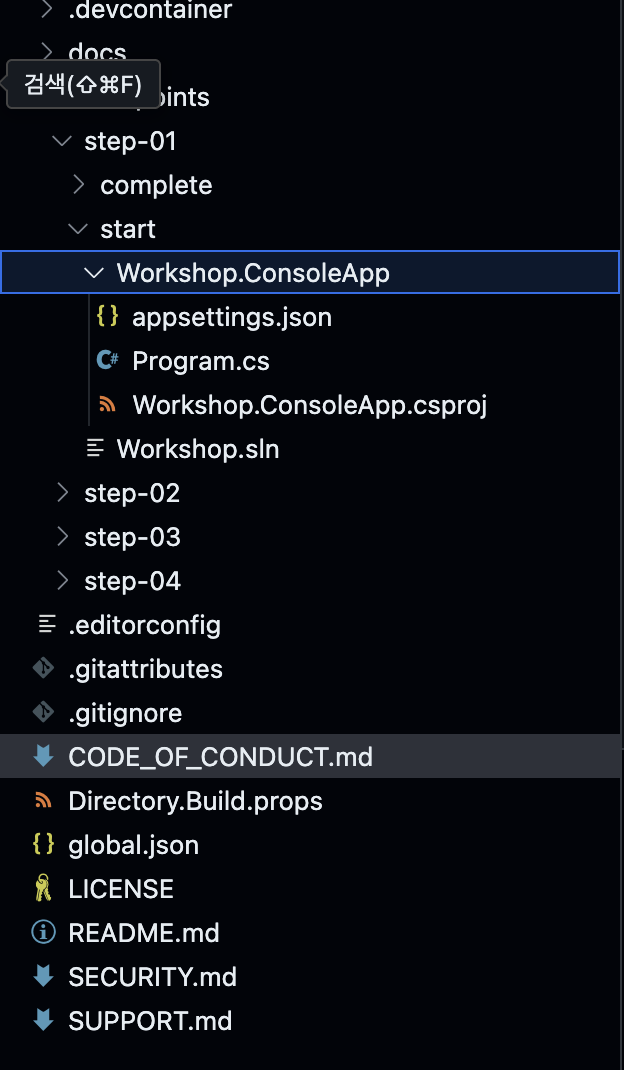
프로젝트 구조는 기본적으로 이렇게 step-02 하위 라이브러리도 똑같은 형식이다.
우선 레포지토리를 내 계정으로 포크한 뒤 내 컴퓨터로 클론할거다.
gh repo clone cheringring/semantic-kernel-workshop후, 클론한 디렉토리로 이동
cd semantic-kernel-workshopvscode 실행
code .레포지토리 클론 상태를 확인해보자.
git remote -v
이런 식으로 결과가 나와야 한다.
우리는 c#으로 진행할거기 떄문에 C# Dev Kit 익스텐션을 설치했는 지 확인하여야한다.
code --list-extensions | grep "ms-dotnettools.csdevkit"아무 메세지도 보이지 않는다면 설치가 안된거기 때문에 아래와 같은 코드를 터미널에 쳐준다.
code --install-extension "ms-dotnettools.csdevkit" --force그리고 나서 레포지토리 루트 설정을 한다.
REPOSITORY_ROOT=$(git rev-parse --show-toplevel)-> $(git rev-parse --show-toplevel) 현재 최 상단 경로(루트 디렉토리)를 자동으로 찾아서 앞에 변수에 저장함.
즉, /workspaces/semantic-kernel-workshop에 이 값이 저장되고 어디에 실행하든 상관없이 경로 문제 없이 작동하기 위함. 이리 저리 적다보면 실수 할 수도 있기 때문에..
실습 디렉토리를 만들고 시작 디렉토리를 복사한다.
mkdir -p $REPOSITORY_ROOT/workshop && \
    cp -a $REPOSITORY_ROOT/save-points/step-01/start/. $REPOSITORY_ROOT/workshop/
-> save-points/step-01/start/ 폴더 안에 있는 시작코드를 workshop에 복사
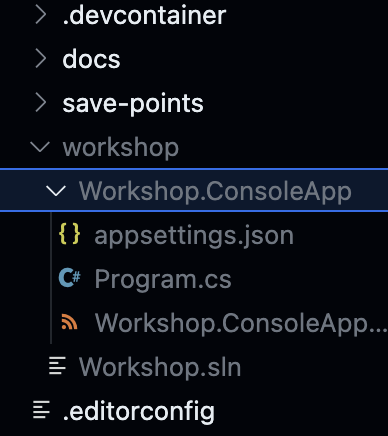
저 명령어를 치면 이렇게 뿅 start에 있던 workshop.Console이 복사가 된다.
이제 Semantic Kernel에 Google Gemini를 연결해볼것이다. 두둥
워크샵 디렉토리에 들어가있어야한다.
cd 를 통해 들어가주자. cd $REPOSITORY_ROOT/workshop
콘솔 프로젝트에 sdk를 연결해준다.
dotnet add ./Workshop.ConsoleApp package Microsoft.SemanticKernel
1. Google Gemini 및 Azure OpenAI 연결
Semantic Kernel의 장점 중 하나는 여러 종류의 AI 모델을 손쉽게 교체하거나 동시에 활용할 수 있다는 것이다.
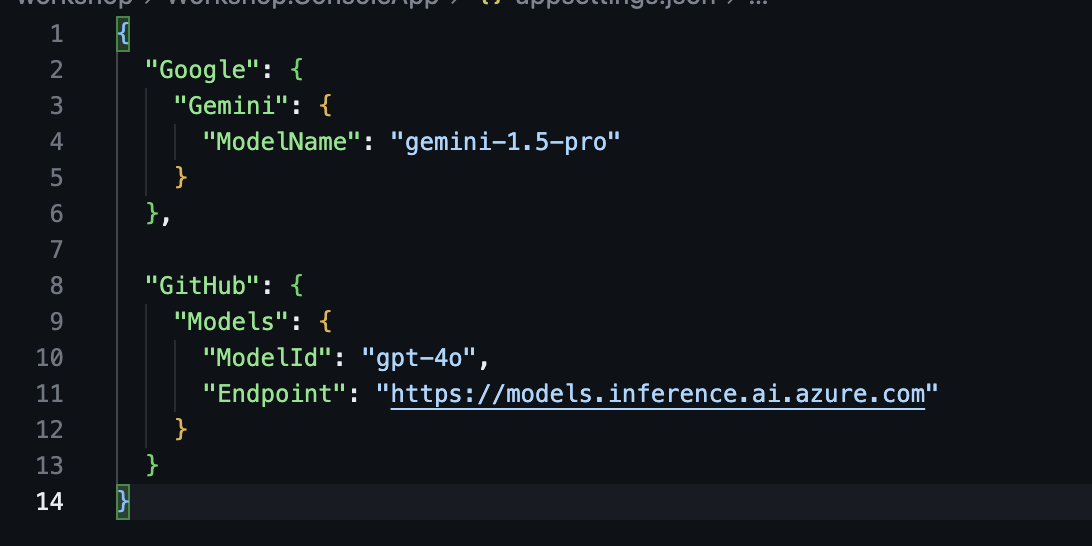
이 때 appsettings.json은 이러하다.
아직은 간단한 구현단계라 엄청 쉽다.
- Google Gemini 연결 실습
콘솔 프로젝트에 google 커넥터를 추가해준다.
dotnet add ./Workshop.ConsoleApp package Microsoft.SemanticKernel.Connectors.Google --prerelease아까 생성한 Google Gimini API key를 콘솔앱에 등록해준다.
dotnet user-secrets --project ./Workshop.ConsoleApp/ set Google:Gemini:ApiKey {{Google Gemini API Key}}-> {{ }} <- 다 제거하고 key값만 넣으면 된다.
그 후 Program.cs 에서 이와같은 코드를 적용시켜주었다.
#Program.cs
using Microsoft.Extensions.Configuration;
using Microsoft.SemanticKernel;

var config = new ConfigurationBuilder()
                 .AddJsonFile("appsettings.json", optional: false, reloadOnChange: true)
                 .AddUserSecrets<Program>()
                 .Build();

var input = default(string);
var kernel = Kernel.CreateBuilder()
                   .AddGoogleAIGeminiChatCompletion(
                        modelId: config["Google:Gemini:ModelName"]!,
                        apiKey: config["Google:Gemini:ApiKey"]!,
                        serviceId: "google")
                   .Build();
var message = default(string);
while (true)
{
    Console.Write("User: ");
    input = Console.ReadLine();

    if (string.IsNullOrWhiteSpace(input))
    {
        break;
    }

    Console.Write("Assistant: ");
Console.WriteLine();
Console.WriteLine("--- Response from Google Gemini ---");
var responseGoogle = kernel.InvokePromptStreamingAsync(
        promptTemplate: input,
        arguments: new KernelArguments(new PromptExecutionSettings() { ServiceId = "google" }));
await foreach (var content in responseGoogle)
{
    await Task.Delay(20);
    message += content;
    Console.Write(content);
}
Console.WriteLine();
}
콘솔 앱 실행
dotnet run --project ./Workshop.ConsoleApp
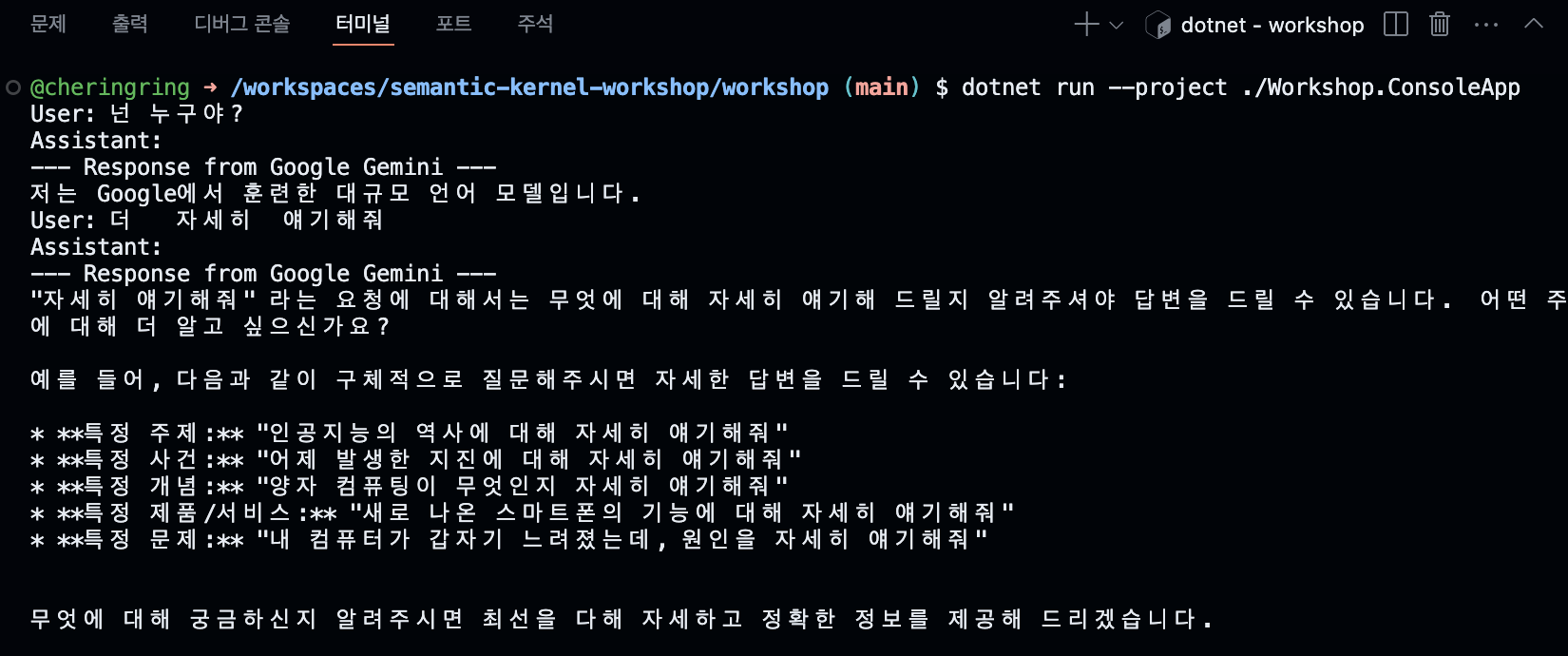
아직 학습이 덜 되었는 지 댕청하다.
- GitHub Model – Azure OpenAI 연결하기
이번엔 github access Token을 넣을거다.
dotnet user-secrets --project ./Workshop.ConsoleApp/ set GitHub:Models:AccessToken {{GitHub Models Access Token}}
using System.ClientModel;

using Microsoft.Extensions.Configuration;
using Microsoft.SemanticKernel;
// openai
using OpenAI;
using System.ClientModel;


var config = new ConfigurationBuilder()
                 .AddJsonFile("appsettings.json", optional: false, reloadOnChange: true)
                 .AddUserSecrets<Program>()
                 .Build();

// github model azure openai model
var client = new OpenAIClient(
    credential: new ApiKeyCredential(config["GitHub:Models:AccessToken"]!),
    options: new OpenAIClientOptions { Endpoint = new Uri(config["GitHub:Models:Endpoint"]!) });
//

var kernel = Kernel.CreateBuilder()
                   .AddGoogleAIGeminiChatCompletion(
                        modelId: config["Google:Gemini:ModelName"]!,
                        apiKey: config["Google:Gemini:ApiKey"]!,
                        serviceId: "google")
                   .AddOpenAIChatCompletion(
                        modelId: config["GitHub:Models:ModelId"]!,
                        openAIClient: client,
                        serviceId: "github")
                   .Build();

var input = default(string);
var message = default(string);
while (true)
{
    Console.Write("User: ");
    input = Console.ReadLine();

    if (string.IsNullOrWhiteSpace(input))
    {
        break;
    }

    Console.Write("Assistant: ");

    Console.WriteLine();
    Console.WriteLine("--- Response from Google Gemini ---");
    var responseGoogle = kernel.InvokePromptStreamingAsync(
            promptTemplate: input,
            arguments: new KernelArguments(new PromptExecutionSettings() { ServiceId = "google" }));
    await foreach (var content in responseGoogle)
    {
        await Task.Delay(20);
        message += content;
        Console.Write(content);
    }
    Console.WriteLine();

    Console.WriteLine();
    Console.WriteLine("--- Response from GitHub Models ---");
    var responseGH = kernel.InvokePromptStreamingAsync(
            promptTemplate: input,
            arguments: new KernelArguments(new PromptExecutionSettings() { ServiceId = "github" }));
    await foreach (var content in responseGH)
    {
        await Task.Delay(20);
        message += content;
        Console.Write(content);
    }
    Console.WriteLine();

    Console.WriteLine();
}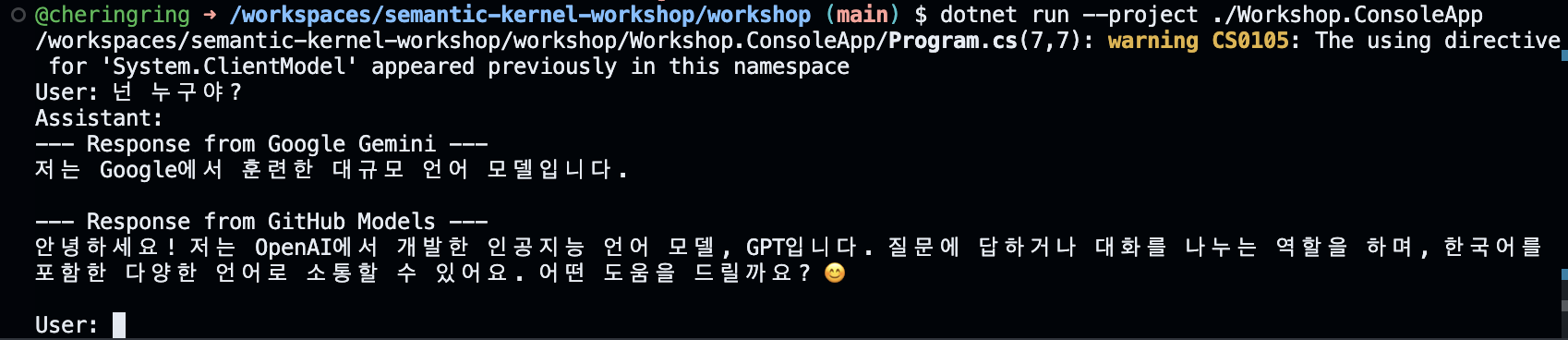
이번엔 두 개의 모델이 대답하는 걸 볼 수 있다!
2. 플러그인 과 에이전트
이제 플러그인을 만들 차례이다.AI가 외부 기능을 실행할 수 있게 해주는 강력한 개념이다.
플러그인은 여러 함수를 묶은 클래스로, 최신 LLM들은 함수 호출 기능을 통해 플러그인을 직접 호출 할 수 있고, kernel은 함수 실행 결과를 다시 모델에게 전달하여 최종 응답을 생성한다.
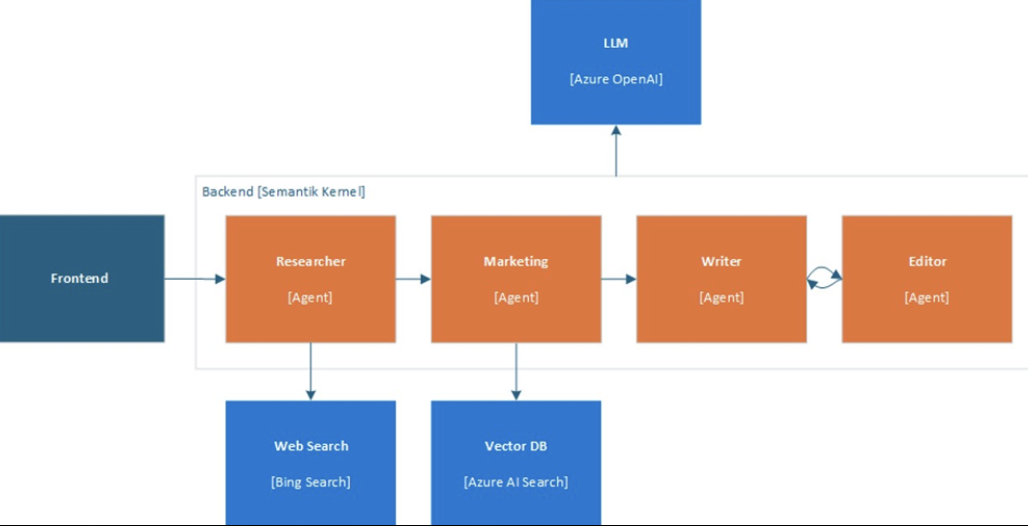
멀티 에이전트 시나리오 예시이다. 커널을 활용하여 여러 에이전트가 각기 다른 도구와 LLM을 사용해 협업하는 구조.
위처럼 프론트로부터 사용자 질문을 (입력) 받으면 -> 백엔드의 커널이 Researcher 에이전트에게 질문을 (전달) 하고 -> Researcher 에이전트는 웹 검색 플러그인을 활용해서 필요한 정보를 (검색하고 요약)한다. -> 이어서 커널은 마케팅 에이전트에게 제품 관련 정보를 (조회)하도록하고 -> 마케팅에이전트는 벡터 db를 사용하여 인덱싱 된 제품 데이터를 (조회)한다. -> 이렇게 얻은 정보는 커널을 통해 write 에이전트에게 전달되고, 이 에이전트는 사용자 지시, 리서칭 마케팅 (결과를 모아) LLM을 사용해 (초안을 작성)한다. -> 마지막으로 editor 에이전트가 작성된 초안을 (검토 및 수정)하는 단계를 거쳐 (최종결과를 도출)한다.
- Researcher 에이전트: Bing Search API 플러그인 사용, 정보 검색 전문.
- Marketing 에이전트: 벡터 DB 검색 플러그인 사용, 제품 데이터 조회 전문.
- Writer 에이전트: GPT-4 모델 사용, 글 작성 전문.
- Editor 에이전트: GPT-4 모델 사용, 글 검토 및 품질 확보.
이러한 멀티에이전트 오케스트레이션을 Semantic Kernel로 구현할 때는, 각 에이전트별로 별도 Kernel 인스턴스를 두거나 하나의 Kernel에 여러 서비스와 플러그인을 등록한 후 서비스 ID 등을 활용해 분기하여 사용할 수 있다. 최근 Semantic Kernel에는 에이전트 프레임 워크도 프리뷰로 제공되어 멀티 에이전트 패턴을 좀 더 쉽게 구성할 수 있다.
각 에이전트 응답을 다른 에이전트 입력으로 연결하는 흐름도 가능하다.
멀티에이전트 구성의 핵심은 역할별로 최적화된 리소스를 활용한다는 점이다. 하나의 거대한 모델에 모든 일을 시키기보다, 정보검색에는 검색 특화 도구를, 데이터 조회에는 벡터DB를, 콘텐츠 생성에는 LLM을, 검증에는 또 다른 LLM이나 규칙 기반 검증기를 사용하는 식.
Semantic Kernel은 이러한 복잡한 흐름을 코드로 직관적으로 표현할 수 있게 해주며, 개발자는 각 단계의 에이전트를 플러그인과 모델로 구현하고 Kernel이 이들을 호출/연결하도록 구성하면 됨.
각설하고, 실습해보도록 하자.
cp -r workshop workshop01-1 을 통해 내가 했던 실습 코드가 01-1 에 저장되게 했다.
전체 프로젝트 빌드
dotnet restore && dotnet build마찬가지로 API access token 넣어주기.
dotnet user-secrets --project ./Workshop.ConsoleApp/ set GitHub:Models:AccessToken {{GitHub Models Access Token}}< 플러그인 실습 >
- 인라인 프롬프트 플러그인 추가하기
프롬프트 플러그인을 코드 형태로 직접 주입
#program.cs
using System.ClientModel;

using Azure;
using Azure.AI.OpenAI;

using Microsoft.Extensions.Configuration;
using Microsoft.SemanticKernel;
using OpenAI;

var config = new ConfigurationBuilder()
                 .AddJsonFile("appsettings.json", optional: false, reloadOnChange: true)
                 .AddUserSecrets<Program>()
                 .Build();

var builder = Kernel.CreateBuilder();
if (string.IsNullOrWhiteSpace(config["Azure:OpenAI:Endpoint"]!) == false)
{
    var client = new AzureOpenAIClient(
        new Uri(config["Azure:OpenAI:Endpoint"]!),
        new AzureKeyCredential(config["Azure:OpenAI:ApiKey"]!));

    builder.AddAzureOpenAIChatCompletion(
                deploymentName: config["Azure:OpenAI:DeploymentName"]!,
                azureOpenAIClient: client);
}
else
{
    var client = new OpenAIClient(
        credential: new ApiKeyCredential(config["GitHub:Models:AccessToken"]!),
        options: new OpenAIClientOptions { Endpoint = new Uri(config["GitHub:Models:Endpoint"]!) });

    builder.AddOpenAIChatCompletion(
                modelId: config["GitHub:Models:ModelId"]!,
                openAIClient: client);
}
var kernel = builder.Build();

var background = "I really enjoy food and outdoor activities.";
var prompt = """
    You are a helpful travel guide.
    I'm visiting {{$city}}. {{$background}}. What are some activities I should do today?
    """;
    // 사용자 입력 city와 고정된 background 정보를 바탕으로 프롬프트를 구성함

var input = default(string);
var message = default(string);
while (true)
{
    Console.WriteLine("Tell me about a city you are visiting.");
    Console.Write("User: ");
    input = Console.ReadLine();

    if (string.IsNullOrWhiteSpace(input))
    {
        break;
    }

    Console.Write("Assistant: ");


    // prompt를 기반으로 함수 생성 → city와 background를 인자로 전달 → AI 응답을 스트리밍 방식으로 출력

    var function = kernel.CreateFunctionFromPrompt(prompt);
    var arguments = new KernelArguments()
{
    { "city", input },
    { "background", background }

    // 사용자가 도시명을 입력하면 AI가 해당 도시와 개인 배경에 기반한 활동을 추천
};

    var response = kernel.InvokeStreamingAsync(function, arguments);
    await foreach (var content in response)
    {
        await Task.Delay(20);
        message += content;
        Console.Write(content);
    }
    Console.WriteLine();
}
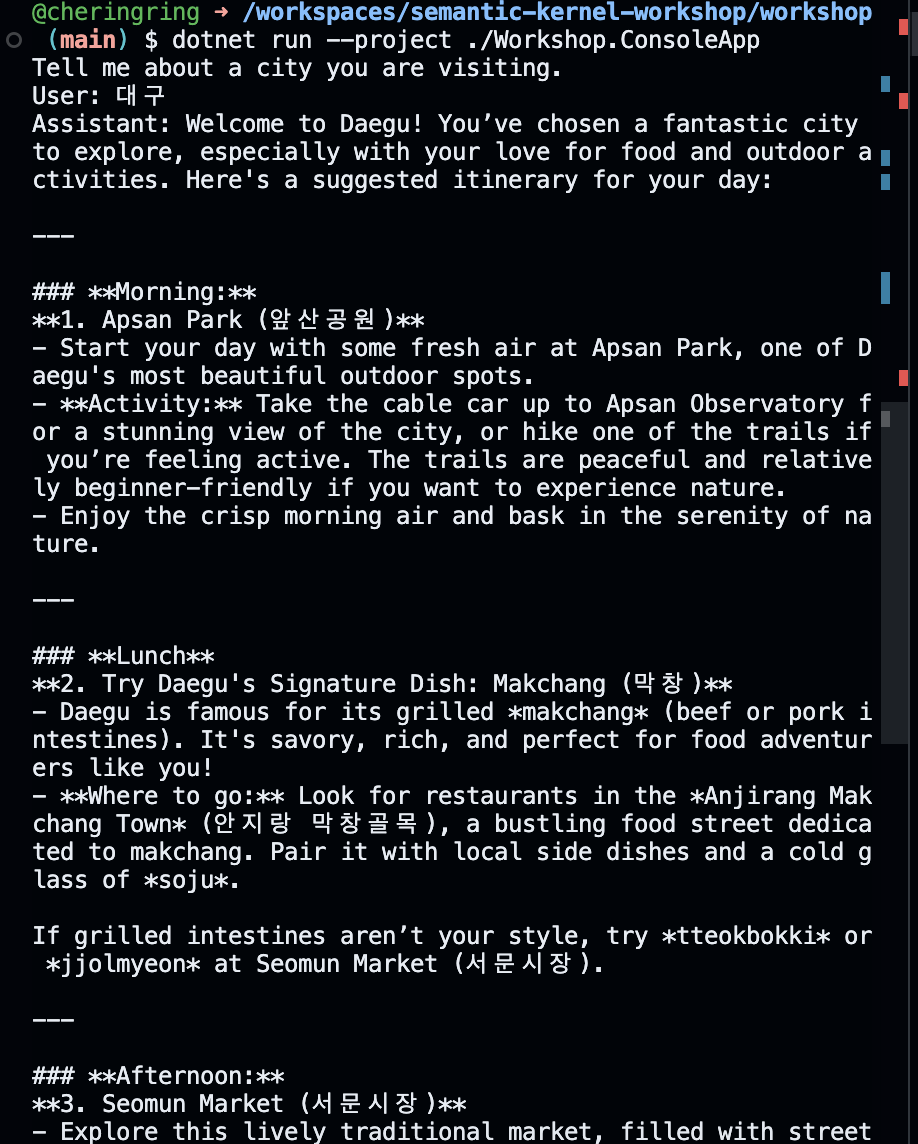
- 외부에서 주입해보기
아래 명령어를 입력해서 travelAgent 추가
mkdir -p $REPOSITORY_ROOT/workshop/Workshop.ConsoleApp/Plugins/TravelAgent && \
    touch $REPOSITORY_ROOT/workshop/Workshop.ConsoleApp/Plugins/TravelAgent/config.json && \
    touch $REPOSITORY_ROOT/workshop/Workshop.ConsoleApp/Plugins/TravelAgent/skprompt.txt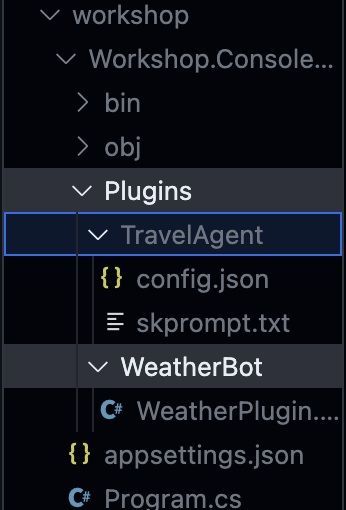
위와 같이 프로젝트 Plugins 안에 추가된다.
Workshop.ConsoleApp/Plugins/TravelAgent/config.json 파일을 열어 아래 내용을 입력한다.
{
  "schema": 1,
  "type": "completion",
  "description": "Recommend various food and outdoor activities in the given city",
  "execution_settings": {
    "default": {
      "max_tokens": 1000,
      "temperature": 0
    }
  },
  "input_variables": [
    {
      "name": "city",
      "description": "Name of the city provided by the user",
      "required": true
    },
    {
      "name": "background",
      "description": "The user's background",
      "required": true
    }
  ]
}
Workshop.ConsoleApp/Plugins/TravelAgent/skprompt.txt 파일을 열어 아래 내용을 입력한다.
You are a helpful travel guide.
I'm visiting {{$city}}. {{$background}}. What are some activities I should do today?
#program.cs
using System.ClientModel;

using Azure;
using Azure.AI.OpenAI;

using Microsoft.Extensions.Configuration;
using Microsoft.SemanticKernel;

using OpenAI;

var config = new ConfigurationBuilder()
                 .AddJsonFile("appsettings.json", optional: false, reloadOnChange: true)
                 .AddUserSecrets<Program>()
                 .Build();

var builder = Kernel.CreateBuilder();
if (string.IsNullOrWhiteSpace(config["Azure:OpenAI:Endpoint"]!) == false)
{
    var client = new AzureOpenAIClient(
        new Uri(config["Azure:OpenAI:Endpoint"]!),
        new AzureKeyCredential(config["Azure:OpenAI:ApiKey"]!));

    builder.AddAzureOpenAIChatCompletion(
                deploymentName: config["Azure:OpenAI:DeploymentName"]!,
                azureOpenAIClient: client);
}
else
{
    var client = new OpenAIClient(
        credential: new ApiKeyCredential(config["GitHub:Models:AccessToken"]!),
        options: new OpenAIClientOptions { Endpoint = new Uri(config["GitHub:Models:Endpoint"]!) });

    builder.AddOpenAIChatCompletion(
                modelId: config["GitHub:Models:ModelId"]!,
                openAIClient: client);
}
var kernel = builder.Build();
//
var background = "I really enjoy food and outdoor activities.";
var plugins = kernel.CreatePluginFromPromptDirectory(Path.Combine(AppContext.BaseDirectory, "../../..", "Plugins"));
//

var input = default(string);

var message = default(string);
while (true)
{
    Console.WriteLine("Tell me about a city you are visiting.");
    Console.Write("User: ");
    input = Console.ReadLine();

    if (string.IsNullOrWhiteSpace(input))
    {
        break;
    }

    Console.Write("Assistant: ");
    //
    var arguments = new KernelArguments()
{
    { "city", input },
    { "background", background }
};
//

    var response = kernel.InvokeStreamingAsync(plugins["TravelAgent"], arguments);
    await foreach (var content in response)
    {
        await Task.Delay(20);
        message += content;
        Console.Write(content);
    }
    Console.WriteLine();

    Console.WriteLine();
}
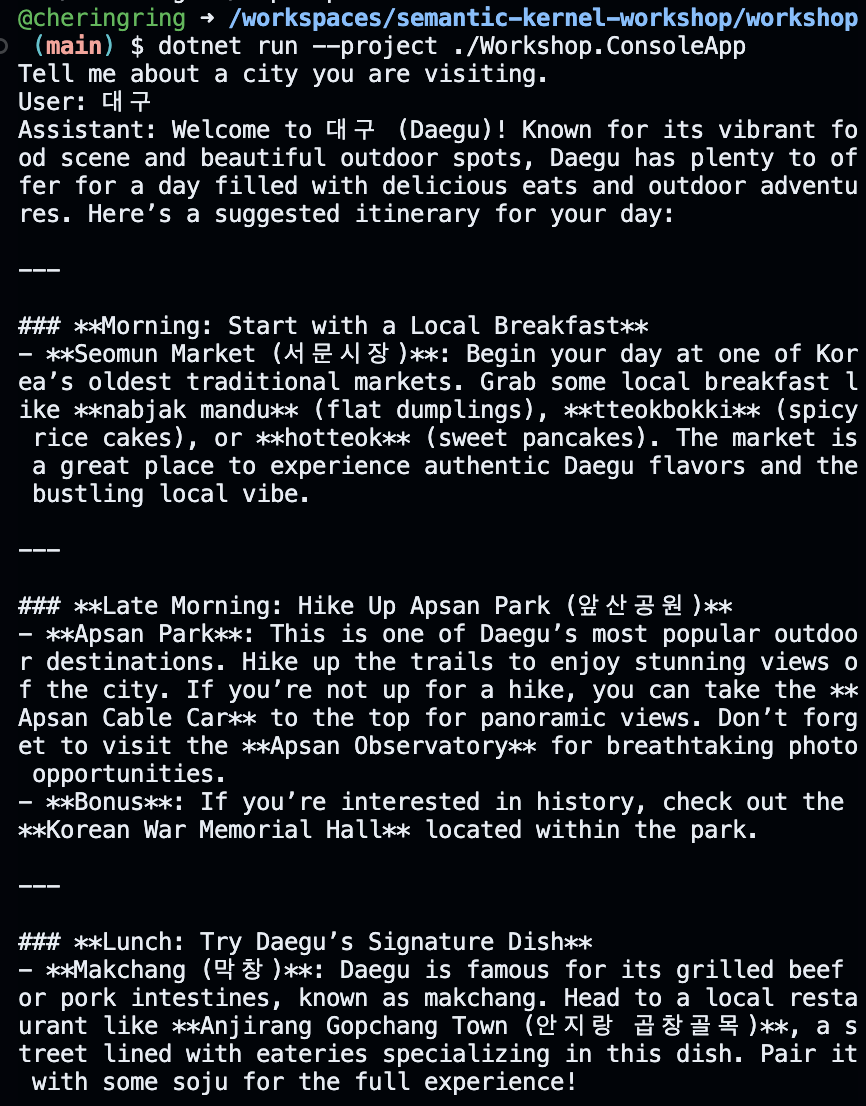
음 아까와 대답이 비슷한 것 같다. 영어로만 대답하니까 좀 어지럽다. 한국어로 바꿔보겠다.
- 네이티브 기반 코드로 한국어로 바꿔보기
mkdir -p $REPOSITORY_ROOT/workshop/Workshop.ConsoleApp/Plugins/BookingAgent && \
    touch $REPOSITORY_ROOT/workshop/Workshop.ConsoleApp/Plugins/BookingAgent/trains.json && \
    touch $REPOSITORY_ROOT/workshop/Workshop.ConsoleApp/Plugins/BookingAgent/TrainBookingPlugin.cs
후 Workshop.ConsoleApp/Plugins/BookingAgent/trains.json 파일을 열어 아래 내용을 입력
[
  {
    "Id": 1,
    "TrainName": "KTX",
    "Destination": "Seoul",
    "DepartureDate": "2025-02-20",
    "Price": 60000,
    "IsBooked": true
  },
  {
    "Id": 2,
    "TrainName": "SRT",
    "Destination": "Suseo",
    "DepartureDate": "2025-02-23",
    "Price": 55000,
    "IsBooked": false
  },
  {
    "Id": 3,
    "TrainName": "ITX",
    "Destination": "Seoul",
    "DepartureDate": "2025-02-25",
    "Price": 45000,
    "IsBooked": false
  }
]
#Workshop.ConsoleApp/Plugins/BookingAgent/TrainBookingPlugin.cs
using System.ComponentModel;
using System.Text.Json;

using Microsoft.SemanticKernel;

namespace Workshop.ConsoleApp.Plugins.BookingAgent;

public class TrainBookingPlugin
{
    private const string Database = "trains.json";

    private static string filepath = Path.Combine(AppContext.BaseDirectory, "../../..", "Plugins", "BookingAgent", Database);
    private static JsonSerializerOptions options = new() { WriteIndented = true };

    private readonly List<TrainModel> _trains;

    public TrainBookingPlugin()
    {
        this._trains = this.LoadTrainsFromFile();
    }

    [KernelFunction("search_trains")]
    [Description("Searches for available trains based on the destination and departure date in the format YYYY-MM-DD")]
    [return: Description("A list of available trains")]
    public List<TrainModel> SearchTrains(string destination, string departureDate)
    {
        return this._trains.Where(train => train.Destination.Equals(destination, StringComparison.InvariantCultureIgnoreCase) &&
                                           train.DepartureDate.Equals(departureDate))
                           .ToList();
    }

    [KernelFunction("book_train")]
    [Description("Books a train based on the train ID provided")]
    [return: Description("Booking confirmation message")]
    public string BookTrain(int trainId)
    {
        var train = this._trains.SingleOrDefault(train => train.Id == trainId);
        if (train == null)
        {
            return "Train not found. Please provide a valid train ID.";
        }

        if (train.IsBooked == true)
        {
            return $"You've already booked this train.";
        }

        train.IsBooked = true;
        this.SaveTrainsToFile();

        return $"Train booked successfully! Train name: {train.TrainName}, Destination: {train.Destination}, Departure: {train.DepartureDate}, Price: ${train.Price}.";
    }

    private void SaveTrainsToFile()
    {
        var json = JsonSerializer.Serialize(this._trains, options);
        File.WriteAllText(filepath, json);
    }

    private List<TrainModel> LoadTrainsFromFile()
    {
        if (File.Exists(filepath))
        {
            var json = File.ReadAllText(filepath);
            return JsonSerializer.Deserialize<List<TrainModel>>(json)!;
        }

        throw new FileNotFoundException($"The file '{Database}' was not found. Please provide a valid {Database} file.");
    }
}

public class TrainModel
{
    public int Id { get; set; }
    public required string TrainName { get; set; }
    public required string Destination { get; set; }
    public required string DepartureDate { get; set; }
    public decimal Price { get; set; }
    public bool IsBooked { get; set; } = false;
}
#program.cs
using System.ClientModel;

using Azure;
using Azure.AI.OpenAI;

using Microsoft.Extensions.Configuration;
using Microsoft.SemanticKernel;

using Microsoft.SemanticKernel.ChatCompletion;
using Workshop.ConsoleApp.Plugins.BookingAgent;

using OpenAI;

var config = new ConfigurationBuilder()
                 .AddJsonFile("appsettings.json", optional: false, reloadOnChange: true)
                 .AddUserSecrets<Program>()
                 .Build();

var builder = Kernel.CreateBuilder();
if (string.IsNullOrWhiteSpace(config["Azure:OpenAI:Endpoint"]!) == false)
{
    var client = new AzureOpenAIClient(
        new Uri(config["Azure:OpenAI:Endpoint"]!),
        new AzureKeyCredential(config["Azure:OpenAI:ApiKey"]!));

    builder.AddAzureOpenAIChatCompletion(
                deploymentName: config["Azure:OpenAI:DeploymentName"]!,
                azureOpenAIClient: client);
}
else
{
    var client = new OpenAIClient(
        credential: new ApiKeyCredential(config["GitHub:Models:AccessToken"]!),
        options: new OpenAIClientOptions { Endpoint = new Uri(config["GitHub:Models:Endpoint"]!) });

    builder.AddOpenAIChatCompletion(
                modelId: config["GitHub:Models:ModelId"]!,
                openAIClient: client);
}
var kernel = builder.Build();
kernel.Plugins.AddFromType<TrainBookingPlugin>("TrainBooking");
var settings = new PromptExecutionSettings()
{
    FunctionChoiceBehavior = FunctionChoiceBehavior.Auto()
};
var history = new ChatHistory();
history.AddSystemMessage("The year is 2025 and the current month is February");
var service = kernel.GetRequiredService<IChatCompletionService>();

Console.WriteLine("I'm a train booking assistant. How can I help you today?");
var input = default(string);
var message = default(string);
while (true)
{
    Console.Write("User: ");
    input = Console.ReadLine();

    if (string.IsNullOrWhiteSpace(input))
    {
        break;
    }

    Console.Write("Assistant: ");
    history.AddUserMessage(input);

    var response = service.GetStreamingChatMessageContentsAsync(history, settings, kernel);
    await foreach (var content in response)
    {
        await Task.Delay(20);
        message += content;
        Console.Write(content);
    }
    history.AddAssistantMessage(message!);
    Console.WriteLine();

    Console.WriteLine();
}
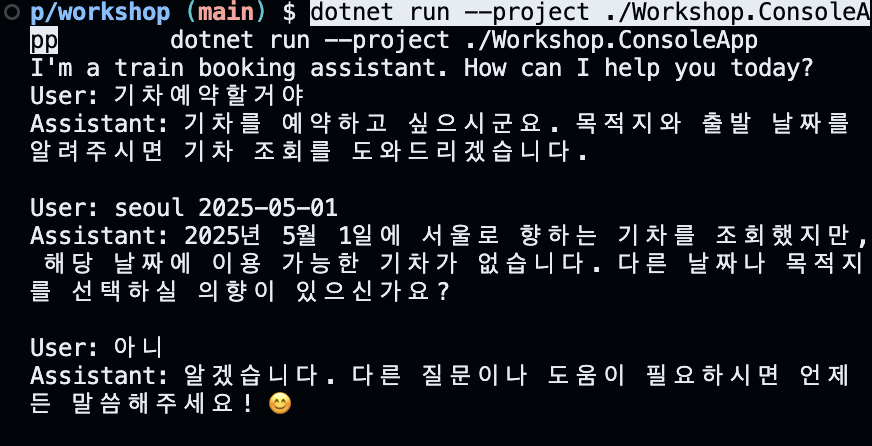
코드 상에는 seoul과 suseo만 가능하고, 영어만 가능하다. 대답은 한국말로 한다 ^-^!! 그리고 날짜 형식은 - 대시바 형식만 인식 가능하다.
< 에이전트 실습 >
아까 했던 개념을 단순화 시켜 보겠다.
ai 에이전트 : 특정 목표를 달성하기 위해 업무를 자동으로 수행하는
여기서 의문이 생긴다. - software entity : 객체라는 독립적인 단어로 불릴 수 있을까?
→ 에이전트는 스스로 모든 판단을 한다. 그러므로 객체(entitiy)라고 불릴 수 있다.
- 멀티에이전트의 장점 : 시멘틱커널을 한국 IT 회사에 홍보할 기획안을 가져가야하는데..
- → 프로젝트 매니저, 마케터, 카피라이터 모든 역할을 할 수 있다.
- 각 에이전트도 각자의 역할을 공유하면서 피드백을 한다. 가장 좋은 답을 도출했으면 output을 만들어서 유저에게 보냄.
스토리 텔러 에이전트를 만들어보겠다.
- 단일 에이전트 : 프롬프트 플러그인
콘솔 앱 프로젝트에 에이전트용 패키지 라이브러리를 추가
dotnet add ./Workshop.ConsoleApp package Microsoft.SemanticKernel.Agents.Core --prerelease
dotnet add ./Workshop.ConsoleApp package Microsoft.SemanticKernel.Yaml
아래 명령어를 실행시켜 Workshop.ConsoleApp/Plugins/StoryTellerAgent/StoryTeller.yaml 파일을 생성
# Bash/Zsh
mkdir -p $REPOSITORY_ROOT/workshop/Workshop.ConsoleApp/Plugins/StoryTellerAgent && \
    touch $REPOSITORY_ROOT/workshop/Workshop.ConsoleApp/Plugins/StoryTellerAgent/StoryTeller.yaml
#Workshop.ConsoleApp/Plugins/StoryTellerAgent/StoryTeller.yaml
name: StoryTeller
template: |
  Tell a story about {{$topic}} that is {{$length}} sentences long.
template_format: semantic-kernel
description: A function that generates a story about a topic.
input_variables:
  - name: topic
    description: The topic of the story.
    is_required: true
  - name: length
    description: The number of sentences in the story.
    is_required: true
output_variable:
  description: The generated story.
execution_settings:
  default:
    temperature: 0.6
#program.cs
using System.ClientModel;

using Azure;
using Azure.AI.OpenAI;

using Microsoft.Extensions.Configuration;
using Microsoft.SemanticKernel;
using Microsoft.SemanticKernel.Agents;
using Microsoft.SemanticKernel.ChatCompletion;

using OpenAI;

var config = new ConfigurationBuilder()
                 .AddJsonFile("appsettings.json", optional: false, reloadOnChange: true)
                 .AddUserSecrets<Program>()
                 .Build();

var builder = Kernel.CreateBuilder();
if (string.IsNullOrWhiteSpace(config["Azure:OpenAI:Endpoint"]!) == false)
{
    var client = new AzureOpenAIClient(
        new Uri(config["Azure:OpenAI:Endpoint"]!),
        new AzureKeyCredential(config["Azure:OpenAI:ApiKey"]!));

    builder.AddAzureOpenAIChatCompletion(
                deploymentName: config["Azure:OpenAI:DeploymentName"]!,
                azureOpenAIClient: client);
}
else
{
    var client = new OpenAIClient(
        credential: new ApiKeyCredential(config["GitHub:Models:AccessToken"]!),
        options: new OpenAIClientOptions { Endpoint = new Uri(config["GitHub:Models:Endpoint"]!) });

    builder.AddOpenAIChatCompletion(
                modelId: config["GitHub:Models:ModelId"]!,
                openAIClient: client);
}
var kernel = builder.Build();

var definition = File.ReadAllText(Path.Combine(AppContext.BaseDirectory, "../../..", "Plugins", "StoryTellerAgent", "StoryTeller.yaml"));
var template = KernelFunctionYaml.ToPromptTemplateConfig(definition);

var agent = new ChatCompletionAgent(template, new KernelPromptTemplateFactory())
            {
                Kernel = kernel
            };
var history = new ChatHistory();
history.AddSystemMessage("You're a very good storyteller agent. Always answer in Korean.");

var input = default(string);
var message = default(string);
while (true)
{
    Console.WriteLine("Hi, I'm your friendly storyteller. What story would you like me to tell you about?");
    Console.Write("User: ");

    Console.Write("User: ");
    input = Console.ReadLine();

    if (string.IsNullOrWhiteSpace(input))
    {
        break;
    }

    Console.Write("Assistant: ");
    history.AddUserMessage(input);
    var arguments = new KernelArguments()
{
    { "topic", input },
    { "length", 3 }
};

    var response = agent.InvokeStreamingAsync(history, arguments);
    await foreach (var content in response)
    {
        await Task.Delay(20);
        message += content;
        Console.Write(content);
    }
    history.AddAssistantMessage(message!);
    Console.WriteLine();

    Console.WriteLine();
}
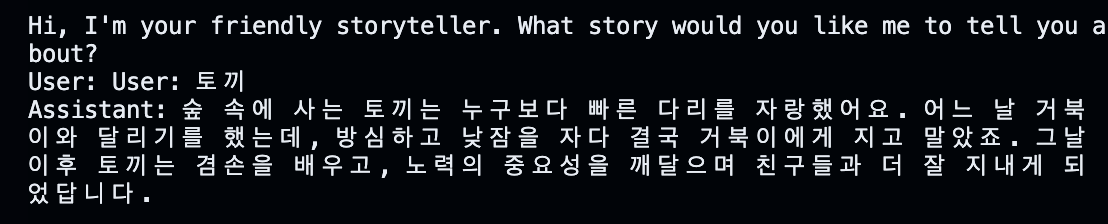
키워드를 치면 이런 귀여운 동화를 만들어준다.ㅎ_ㅎ
- 단일 에이전트 : 네이티브 플러그인
추가dotnet add ./Workshop.ConsoleApp package Microsoft.SemanticKernel.Agents.Core --prerelease dotnet add ./Workshop.ConsoleApp package Microsoft.SemanticKernel.Yaml
mkdir -p $REPOSITORY_ROOT/workshop/Workshop.ConsoleApp/Plugins/RestaurantAgent && \
    touch $REPOSITORY_ROOT/workshop/Workshop.ConsoleApp/Plugins/RestaurantAgent/MenuPlugin.cs
#Workshop.ConsoleApp/Plugins/RestaurantAgent/MenuPlugin.cs
using System.ComponentModel;

using Microsoft.SemanticKernel;

namespace Workshop.ConsoleApp.Plugins.RestaurantAgent;

public class MenuPlugin
{
    [KernelFunction]
    [Description("Provides a list of specials from the menu.")]
    public string GetSpecials() =>
        """
        Special Soup: Clam Chowder
        Special Salad: Cobb Salad
        Special Drink: Chai Tea
        """;

    [KernelFunction]
    [Description("Provides the price of the requested menu item.")]
    public string GetItemPrice(
        [Description("The name of the menu item.")]
        string menuItem) =>
        "$9.99";
}
#program.cs
using System.ClientModel;

using Azure;
using Azure.AI.OpenAI;
using Microsoft.SemanticKernel.Agents;
using Microsoft.SemanticKernel.ChatCompletion;
using Workshop.ConsoleApp.Plugins.RestaurantAgent;

using Microsoft.Extensions.Configuration;
using Microsoft.SemanticKernel;

using OpenAI;

var config = new ConfigurationBuilder()
                 .AddJsonFile("appsettings.json", optional: false, reloadOnChange: true)
                 .AddUserSecrets<Program>()
                 .Build();

var builder = Kernel.CreateBuilder();
if (string.IsNullOrWhiteSpace(config["Azure:OpenAI:Endpoint"]!) == false)
{
    var client = new AzureOpenAIClient(
        new Uri(config["Azure:OpenAI:Endpoint"]!),
        new AzureKeyCredential(config["Azure:OpenAI:ApiKey"]!));

    builder.AddAzureOpenAIChatCompletion(
                deploymentName: config["Azure:OpenAI:DeploymentName"]!,
                azureOpenAIClient: client);
}
else
{
    var client = new OpenAIClient(
        credential: new ApiKeyCredential(config["GitHub:Models:AccessToken"]!),
        options: new OpenAIClientOptions { Endpoint = new Uri(config["GitHub:Models:Endpoint"]!) });

    builder.AddOpenAIChatCompletion(
                modelId: config["GitHub:Models:ModelId"]!,
                openAIClient: client);
}
var kernel = builder.Build();

kernel.Plugins.AddFromType<MenuPlugin>();
var settings = new PromptExecutionSettings()
{
    FunctionChoiceBehavior = FunctionChoiceBehavior.Auto()
};
var agent = new ChatCompletionAgent()
{
    Kernel = kernel,
    Arguments = new KernelArguments(settings),
    Instructions = "Answer questions about the menu.",
    Name = "Host",
};
var history = new ChatHistory();
history.AddSystemMessage("You're a friendly host at a restaurant. Always answer in Korean.");
var input = default(string);
var message = default(string);
while (true)
{
    Console.WriteLine("Hi, I'm your host today. How can I help you today?");
    input = Console.ReadLine();

    if (string.IsNullOrWhiteSpace(input))
    {
        break;
    }

    Console.Write("Assistant: ");
    history.AddUserMessage(input);

    var response = agent.InvokeStreamingAsync(history);
    await foreach (var content in response)
    {
        await Task.Delay(20);
        message += content;
        Console.Write(content);
    }
    history.AddAssistantMessage(message!);
    Console.WriteLine();

    Console.WriteLine();
}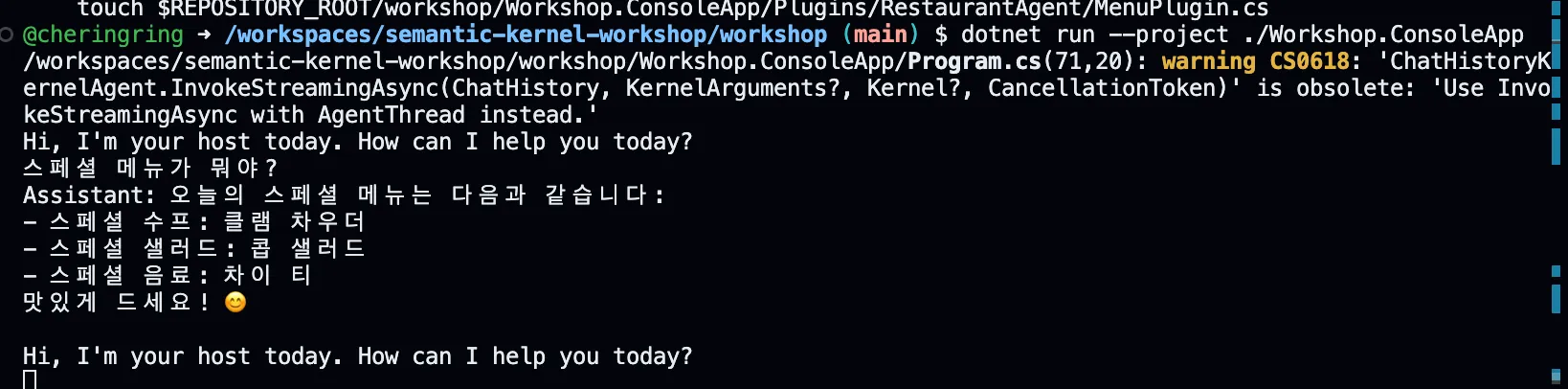
메뉴를 보여준다.
프롬프트 플러그인이랑 네이티브 플러그인 차이점이 궁금해서 찾아봤더니
- 프롬프트 플러그인 자연어 프롬프트를 이용해 만든 가상의 함수
, 즉 LLM이 특정 자연어 지시(prompt)를 실행하게 하기 위한 템플릿. 코드 없이 .txt나 .prompt 같은 파일로 만들어지고
우리 프로젝트 부분에선 yaml
로 외부 yaml로 정의해서 LLM이 읽고 함수처럼 호출하게 만든 것이다.name: StoryTeller template: | Tell a story about {{$topic}} that is {{$length}} sentences long. template_format: semantic-kernel
StoryTeller.yaml 읽어들이는 부분
#program.cs
var definition = File.ReadAllText(Path.Combine(AppContext.BaseDirectory, "../../..", "Plugins", "StoryTellerAgent", "StoryTeller.yaml"));
var template = KernelFunctionYaml.ToPromptTemplateConfig(definition);
-> 외부 yaml을 읽어서 함수형태로 변환하는 함수
  #var agent = new ChatCompletionAgent(template, new KernelPromptTemplateFactory())
{
    Kernel = kernel
};
-> 이 부분에서 template을 에이전트에게 주는 순간,
프롬프트 플러그인이 함수처럼 동작하게 됩니다.
즉, 이 에이전트는 YAML에 정의된 템플릿을 기준으로 답변을 생성
=> 함수처럼 쓰지만 실제로는 LLM이 자연어 프롬프트를 실행하는 것.
직접 코드로 작성한 로직 없이, 프롬프트만으로 기능 수행
- 네이티브 플러그인
C# 함수 또는 클래스로 만든 실제 로직을 LLM이 호출할 수 있게 만든 것, 실제 .NET 코드로 구현한 기능 (ex: 계산, API 호출, DB 접근 등) 함수 이름, 설명, 매개변수 등을 LLM에게 알려주면, 모델이 직접 호출한다.
using Workshop.ConsoleApp.Plugins.RestaurantAgent;요렇게!
이제 에이전트 파트의 마지막인 다중 에이전트 협업에 대해서 알아 볼 것이다.
- 다중 에이전트 협업
추가
dotnet add ./Workshop.ConsoleApp package Microsoft.SemanticKernel.Agents.Core --prerelease
#program.cs
using System.ClientModel;

using Azure;
using Azure.AI.OpenAI;

using Microsoft.Extensions.Configuration;
using Microsoft.SemanticKernel;
using Microsoft.SemanticKernel.Agents;
using Microsoft.SemanticKernel.Agents.Chat;
using Microsoft.SemanticKernel.ChatCompletion;

using OpenAI;

var config = new ConfigurationBuilder()
               .AddJsonFile("appsettings.json", optional: false, reloadOnChange: true)
               .AddUserSecrets<Program>()
               .Build();

var builder = Kernel.CreateBuilder();
if (string.IsNullOrWhiteSpace(config["Azure:OpenAI:Endpoint"]!) == false)
{
  var client = new AzureOpenAIClient(
      new Uri(config["Azure:OpenAI:Endpoint"]!),
      new AzureKeyCredential(config["Azure:OpenAI:ApiKey"]!));

  builder.AddAzureOpenAIChatCompletion(
              deploymentName: config["Azure:OpenAI:DeploymentName"]!,
              azureOpenAIClient: client);
}
else
{
  var client = new OpenAIClient(
      credential: new ApiKeyCredential(config["GitHub:Models:AccessToken"]!),
      options: new OpenAIClientOptions { Endpoint = new Uri(config["GitHub:Models:Endpoint"]!) });

  builder.AddOpenAIChatCompletion(
              modelId: config["GitHub:Models:ModelId"]!,
              openAIClient: client);
}
var kernel = builder.Build();
var reviewerName = "ProjectManager";
var reviewerInstructions =
  """
  You are a project manager who has opinions about copywriting born of a love for David Ogilvy.
  The goal is to determine if the given copy is acceptable to print.
  If so, state that it is approved.
  If not, provide insight on how to refine suggested copy without examples.
  """;

var agentReviewer = new ChatCompletionAgent()
{
  Name = reviewerName,
  Instructions = reviewerInstructions,
  Kernel = kernel
};
var copywriterName = "Copywriter";
var copywriterInstructions =
  """
  You are a copywriter with ten years of experience and are known for brevity and a dry humor.
  The goal is to refine and decide on the single best copy as an expert in the field.
  Only provide a single proposal per response.
  Never delimit the response with quotation marks.
  You're laser focused on the goal at hand.
  Don't waste time with chit chat.
  Consider suggestions when refining an idea.
  """;

var agentWriter = new ChatCompletionAgent()
{
  Name = copywriterName,
  Instructions = copywriterInstructions,
  Kernel = kernel
};
var terminationFunction =
  AgentGroupChat.CreatePromptFunctionForStrategy(
      """
      Determine if the copy has been approved. If so, respond with a single word: yes

      History:
      {{$history}}
      """,
      safeParameterNames: "history");
var selectionFunction =
  AgentGroupChat.CreatePromptFunctionForStrategy(
      $$$"""
      Determine which participant takes the next turn in a conversation based on the the most recent participant.
      State only the name of the participant to take the next turn.
      No participant should take more than one turn in a row.

      Choose only from these participants:
      - {{{reviewerName}}}
      - {{{copywriterName}}}

      Always follow these rules when selecting the next participant:
      - After {{{copywriterName}}}, it is {{{reviewerName}}}'s turn.
      - After {{{reviewerName}}}, it is {{{copywriterName}}}'s turn.

      History:
      {{$history}}
      """,
      safeParameterNames: "history");
var strategyReducer = new ChatHistoryTruncationReducer(1);
var chat = new AgentGroupChat(agentWriter, agentReviewer)
{
  ExecutionSettings = new AgentGroupChatSettings()
  {
      SelectionStrategy = new KernelFunctionSelectionStrategy(selectionFunction, kernel)
      {
          InitialAgent = agentWriter,
          ResultParser = (result) => result.GetValue<string>() ?? copywriterName,
          HistoryVariableName = "history",
          HistoryReducer = strategyReducer,
          EvaluateNameOnly = true,
      },
      TerminationStrategy = new KernelFunctionTerminationStrategy(terminationFunction, kernel)
      {
          Agents = [ agentReviewer ],
          ResultParser = (result) => result.GetValue<string>()?.Contains("yes", StringComparison.InvariantCultureIgnoreCase) ?? false,
          HistoryVariableName = "history",
          MaximumIterations = 10,
          HistoryReducer = strategyReducer,
          AutomaticReset = true,
      },
  }
};


var input = default(string);
var message = default(string);
while (true)
{
  Console.WriteLine("Hi, I'm your project manager today. What product do you have in mind advertising?");

  input = Console.ReadLine();

  if (string.IsNullOrWhiteSpace(input))
  {
      break;
  }

  Console.Write("Assistant: ");

  chat.AddChatMessage(new ChatMessageContent(AuthorRole.User, input));

  var agentName = default(string);
  var isAgentChanged = false;
  var response = chat.InvokeStreamingAsync();
  await foreach (var content in response)
  {
      await Task.Delay(20);
      if (content.AuthorName?.Equals(agentName, StringComparison.InvariantCultureIgnoreCase) == false)
  {
      isAgentChanged = true;
      agentName = content.AuthorName;
      Console.WriteLine();
  }
  else
  {
      isAgentChanged = false;
  }

  message += isAgentChanged ? $"{content.AuthorName}: {content.Content}" : content.Content;
  Console.Write(isAgentChanged ? $"{content.AuthorName}: {content.Content}" : content.Content);
  }
  Console.WriteLine();

  Console.WriteLine();
} 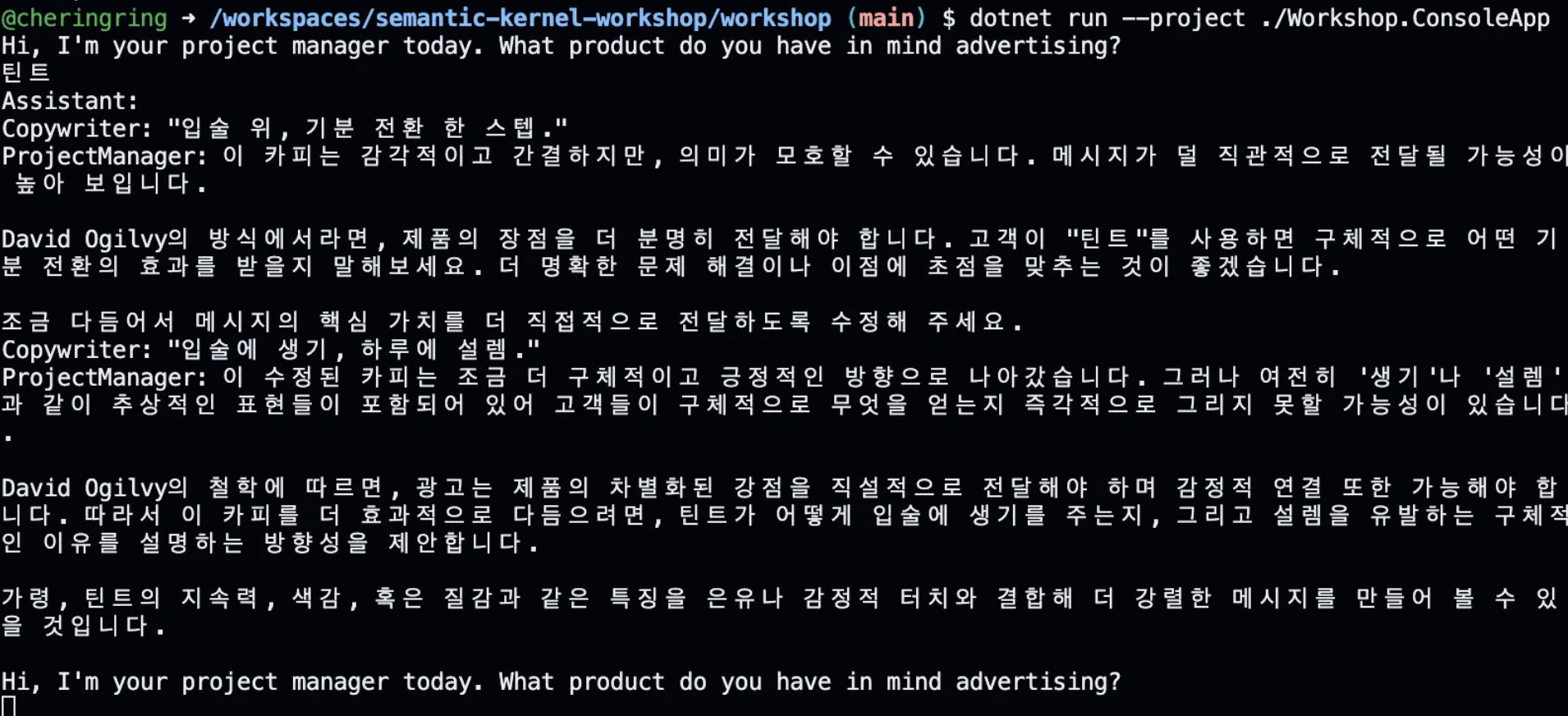
각자의 역할에 맞게 답변을 주고 받고 있는 모습이 보였다.
3. 벡터 검색(RAG)과 모니터링(Aspire Dashboard 및 OpenTelemetry)
- RAG란?
- RAG : 검색증강생성내 친구 전화번호 뭐였지? 챗지피티:모름 ex) 내 전화번호부를 줌. → (벡터 데이터베이스)
-
최신 데이터 적용
-
보안, 기밀 유지 ( 외부 api한테 공개하지않고, 내부 데이터베이스에서 사용하기 위해)
왜 벡터 데이터베이스를 사용할까?
→ 비정형 텍스트 데이터 : 사진, 동영상, 코드
연결할 수 있는 커넥터(azure cosmos DB, Redis, Mongo DB, Elastic Search)를 지원하고 있다.
.NET Asprie Dashboard를 빌드하고 데이터가 어떻게 흘러가는 지 확인.
→ OpenTelemetry ( 모니터링할 수 있는 오픈소스 프로토콜)
-
벡터 스토어에 저장되어 있는 데이터를 직접 검색하기
여기서는 간단하게 In-memory를 통해 하겠다.
-
1) 기본 벡터 검색 기반 콘솔 앱
콘솔 앱 프로젝트에 In-Memory 벡터 데이터베이스 패키지 라이브러리를 추가
dotnet add ./Workshop.ConsoleApp package Microsoft.SemanticKernel.Connectors.InMemory --prerelease추가
  mkdir -p $REPOSITORY_ROOT/workshop/Workshop.ConsoleApp/Models && \
    mkdir -p $REPOSITORY_ROOT/workshop/Workshop.ConsoleApp/Services && \
    touch $REPOSITORY_ROOT/workshop/Workshop.ConsoleApp/Models/DataModel.cs && \
    touch $REPOSITORY_ROOT/workshop/Workshop.ConsoleApp/Services/TextSearchService.cs
#Workshop.ConsoleApp/Models/DataModel.cs
using Microsoft.Extensions.VectorData;
using Microsoft.SemanticKernel.Data;

namespace Workshop.ConsoleApp.Models;

public class DataModel
{
  [VectorStoreRecordKey]
  [TextSearchResultName]
  public Guid Key { get; init; }

  [VectorStoreRecordData]
  [TextSearchResultValue]
  public string? Text { get; init; }

  [VectorStoreRecordData]
  [TextSearchResultLink]
  public string? Link { get; init; }

  [VectorStoreRecordData(IsFilterable = true)]
  public required string Tag { get; init; }

  [VectorStoreRecordVector]
  public ReadOnlyMemory<float> Embedding { get; init; }
}
#TextSearshService.cs
using System.ClientModel;

using Azure;
using Azure.AI.OpenAI;

using Microsoft.Extensions.Configuration;
using Microsoft.Extensions.VectorData;
using Microsoft.SemanticKernel.Connectors.AzureOpenAI;
using Microsoft.SemanticKernel.Connectors.InMemory;
using Microsoft.SemanticKernel.Connectors.OpenAI;
using Microsoft.SemanticKernel.Data;
using Microsoft.SemanticKernel.Embeddings;

using OpenAI;

using Workshop.ConsoleApp.Models;

namespace Workshop.ConsoleApp.Services;

public class TextSearchService(IConfiguration config)
{
    private static readonly string[] entries =
    [
        "Semantic Kernel is a lightweight, open-source development kit that lets you easily build AI agents and integrate the latest AI models into your C#, Python, or Java codebase. It serves as an efficient middleware that enables rapid delivery of enterprise-grade solutions.",
        "Semantic Kernel is a new AI SDK, and a simple and yet powerful programming model that lets you add large language capabilities to your app in just a matter of minutes. It uses natural language prompting to create and execute semantic kernel AI tasks across multiple languages and platforms.",
        "In this guide, you learned how to quickly get started with Semantic Kernel by building a simple AI agent that can interact with an AI service and run your code. To see more examples and learn how to build more complex AI agents, check out our in-depth samples.",
        "The Semantic Kernel extension for Visual Studio Code makes it easy to design and test semantic functions.The extension provides an interface for designing semantic functions and allows you to test them with the push of a button with your existing models and data.",
        "The kernel is the central component of Semantic Kernel.At its simplest, the kernel is a Dependency Injection container that manages all of the services and plugins necessary to run your AI application.",
        "Semantic Kernel (SK) is a lightweight SDK that lets you mix conventional programming languages, like C# and Python, with the latest in Large Language Model (LLM) AI “prompts” with prompt templating, chaining, and planning capabilities.",
        "Semantic Kernel is a lightweight, open-source development kit that lets you easily build AI agents and integrate the latest AI models into your C#, Python, or Java codebase. It serves as an efficient middleware that enables rapid delivery of enterprise-grade solutions. Enterprise ready.",
        "With Semantic Kernel, you can easily build agents that can call your existing code.This power lets you automate your business processes with models from OpenAI, Azure OpenAI, Hugging Face, and more! We often get asked though, “How do I architect my solution?” and “How does it actually work?”"
    ];

    public async Task<IVectorStoreRecordCollection<Guid, DataModel>> GetVectorStoreRecordCollectionAsync(string collectionName)
    {
        var store = new InMemoryVectorStore();
        var collection = store.GetCollection<Guid, DataModel>(collectionName);
        await collection.CreateCollectionIfNotExistsAsync().ConfigureAwait(false);

        return collection;
    }

    public async Task<VectorStoreTextSearch<DataModel>> GetVectorStoreTextSearchAsync(IVectorStoreRecordCollection<Guid, DataModel> collection)
    {
        var embeddingsService = default(ITextEmbeddingGenerationService);
        if (string.IsNullOrWhiteSpace(config["Azure:OpenAI:Endpoint"]!) == false)
        {
            var embeddingsClient = new AzureOpenAIClient(
                new Uri(config["Azure:OpenAI:Endpoint"]!),
                new AzureKeyCredential(config["Azure:OpenAI:ApiKey"]!));


            embeddingsService = new AzureOpenAITextEmbeddingGenerationService(
                deploymentName: config["Azure:OpenAI:DeploymentNames:Embeddings"]!,
                azureOpenAIClient: embeddingsClient
            );
        }
        else
        {
            var embeddingsClient = new OpenAIClient(
                new ApiKeyCredential(config["GitHub:Models:AccessToken"]!),
                new OpenAIClientOptions { Endpoint = new Uri(config["GitHub:Models:Endpoint"]!) });

            embeddingsService = new OpenAITextEmbeddingGenerationService(
                modelId: config["GitHub:Models:ModelIds:Embeddings"]!,
                openAIClient: embeddingsClient);
        }

        for (var i = 0; i < entries.Length; i++)
        {
            var entry = entries[i];
            var embedding = await embeddingsService.GenerateEmbeddingAsync(entry).ConfigureAwait(false);

            var guid = Guid.NewGuid();
            var record = new DataModel()
            {
                Key = guid,
                Text = entry,
                Link = $"guid://{guid}",
                Tag = i % 2 == 0 ? "Even" : "Odd",
                Embedding = embedding
            };

            await collection.UpsertAsync(record).ConfigureAwait(false);
        }

        var search = new VectorStoreTextSearch<DataModel>(collection, embeddingsService);

        return search;
    }
}
#Program.cs
using System.ClientModel;

using Azure;
using Azure.AI.OpenAI;

using Microsoft.Extensions.Configuration;
using Microsoft.SemanticKernel;
using Microsoft.SemanticKernel.Data;

using Workshop.ConsoleApp.Services;
using OpenAI;

var config = new ConfigurationBuilder()
               .AddJsonFile("appsettings.json", optional: false, reloadOnChange: true)
               .AddUserSecrets<Program>()
               .Build();

var builder = Kernel.CreateBuilder();
if (string.IsNullOrWhiteSpace(config["Azure:OpenAI:Endpoint"]!) == false)
{
  var client = new AzureOpenAIClient(
      new Uri(config["Azure:OpenAI:Endpoint"]!),
      new AzureKeyCredential(config["Azure:OpenAI:ApiKey"]!));

  builder.AddAzureOpenAIChatCompletion(
              deploymentName: config["Azure:OpenAI:DeploymentNames:ChatCompletion"]!,
              azureOpenAIClient: client);
}
else
{
  var client = new OpenAIClient(
      credential: new ApiKeyCredential(config["GitHub:Models:AccessToken"]!),
      options: new OpenAIClientOptions { Endpoint = new Uri(config["GitHub:Models:Endpoint"]!) });

  builder.AddOpenAIChatCompletion(
              modelId: config["GitHub:Models:ModelIds:ChatCompletion"]!,
              openAIClient: client);
}
var kernel = builder.Build();

var service = new TextSearchService(config);
var collection = await service.GetVectorStoreRecordCollectionAsync("records");
var search = await service.GetVectorStoreTextSearchAsync(collection);

var input = default(string);
var message = default(string);
while (true)
{
  Console.WriteLine("Ask a question about semantic kernel.");
  Console.Write("User: ");
  input = Console.ReadLine();

  if (string.IsNullOrWhiteSpace(input))
  {
      break;
  }

  Console.Write("Assistant: ");

  var searchResponse = await search.GetTextSearchResultsAsync(input, new TextSearchOptions() { Top = 2, Skip = 0 });
  Console.WriteLine("\n--- Text Search Results ---\n");
  await foreach (var result in searchResponse.Results)
{
  Console.WriteLine($"Name:  {result.Name}");
  Console.WriteLine($"Value: {result.Value}");
  Console.WriteLine($"Link:  {result.Link}");
  Console.WriteLine();
}
  Console.WriteLine();

  Console.WriteLine();
}
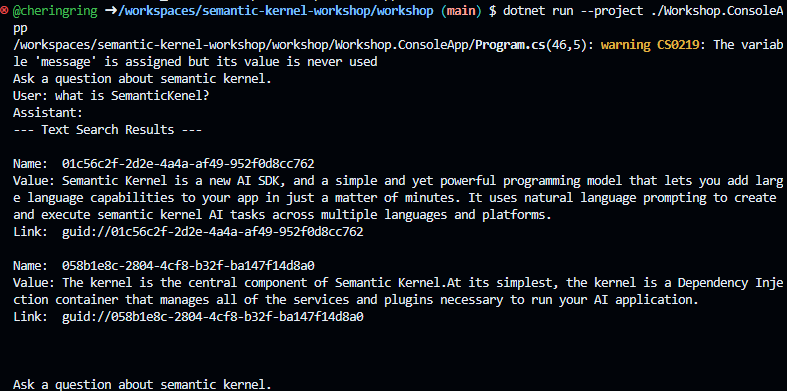
벡터 스토어에 저장된 답변을 추출해 대답해준다.
- 2) Handlebars 기반 프롬프트 템플릿을 활용한 챗봇형 콘솔 앱
- 벡터 스토어에 저장된 데이터를 채팅으로 검색하기
Semantic Kernel에 In-Memory 벡터 데이터베이스에 저장되어 있는 데이터 기반으로 챗봇을 활용해 검색할 것이다.
콘솔 앱 프로젝트에 프롬프트 템플릿 패키지 라이브러리를 추가
dotnet add ./Workshop.ConsoleApp package Microsoft.SemanticKernel.PromptTemplates.Handlebars
위 코드와 동일하고, Program.cs 코드만 조금 변경해준다.
#Program.cs
using System.ClientModel;

using Azure;
using Azure.AI.OpenAI;

using Microsoft.Extensions.Configuration;
using Microsoft.SemanticKernel;
using Microsoft.SemanticKernel.Data;
using Microsoft.SemanticKernel.PromptTemplates.Handlebars;
using Workshop.ConsoleApp.Services;
using OpenAI;

var config = new ConfigurationBuilder()
                 .AddJsonFile("appsettings.json", optional: false, reloadOnChange: true)
                 .AddUserSecrets<Program>()
                 .Build();

var builder = Kernel.CreateBuilder();
if (string.IsNullOrWhiteSpace(config["Azure:OpenAI:Endpoint"]!) == false)
{
    var client = new AzureOpenAIClient(
        new Uri(config["Azure:OpenAI:Endpoint"]!),
        new AzureKeyCredential(config["Azure:OpenAI:ApiKey"]!));

    builder.AddAzureOpenAIChatCompletion(
                deploymentName: config["Azure:OpenAI:DeploymentNames:ChatCompletion"]!,
                azureOpenAIClient: client);
}
else
{
    var client = new OpenAIClient(
        credential: new ApiKeyCredential(config["GitHub:Models:AccessToken"]!),
        options: new OpenAIClientOptions { Endpoint = new Uri(config["GitHub:Models:Endpoint"]!) });

    builder.AddOpenAIChatCompletion(
                modelId: config["GitHub:Models:ModelIds:ChatCompletion"]!,
                openAIClient: client);
}
var kernel = builder.Build();

var service = new TextSearchService(config);
var collection = await service.GetVectorStoreRecordCollectionAsync("records");
var search = await service.GetVectorStoreTextSearchAsync(collection);

var plugin = search.CreateWithGetTextSearchResults("SearchPlugin");
kernel.Plugins.Add(plugin);

var promptTemplate = """
    {{#with (SearchPlugin-GetTextSearchResults query)}}
        {{#each this}}
        Name: {{Name}}
        Value: {{Value}}
        Link: {{Link}}
        -----------------
        {{/each}}
    {{/with}}

    {{query}}

    Include citations to the relevant information where it is referenced in the response.
    """;
var input = default(string);
var message = default(string);
while (true)
{
    Console.WriteLine("Ask a question about semantic kernel.");
    Console.Write("User: ");
    input = Console.ReadLine();

    if (string.IsNullOrWhiteSpace(input))
    {
        break;
    }

    Console.Write("Assistant: ");

    var searchResponse = await search.GetTextSearchResultsAsync(input, new TextSearchOptions() { Top = 2, Skip = 0 });
    Console.WriteLine("\n--- Text Search Results ---\n");
    await foreach (var result in searchResponse.Results)
{
    Console.WriteLine($"Name:  {result.Name}");
    Console.WriteLine($"Value: {result.Value}");
    Console.WriteLine($"Link:  {result.Link}");
    Console.WriteLine();
}
var promptArguments = new KernelArguments()
{
    { "query", input }
};

var promptResponse = kernel.InvokePromptStreamingAsync(
    promptTemplate: promptTemplate,
    arguments: promptArguments,
    templateFormat: HandlebarsPromptTemplateFactory.HandlebarsTemplateFormat,
    promptTemplateFactory: new HandlebarsPromptTemplateFactory());

Console.WriteLine("\n--- Text Search Results from Chat Completions ---\n");
await foreach (var content in promptResponse)
{
    await Task.Delay(20);
    message += content;
    Console.Write(content);
}
Console.WriteLine();
}
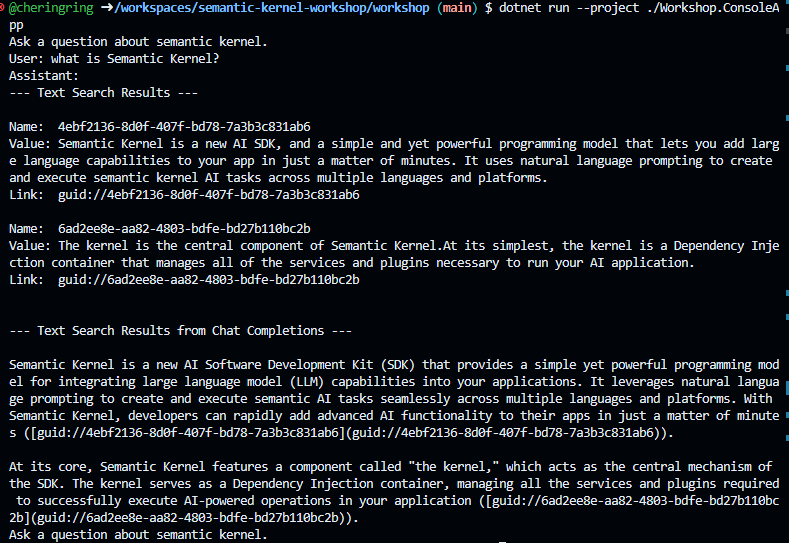
=> 앞 전 코드 둘 다 In-Memory 벡터 스토어에 데이터를 저장하고 검색하는 것은 동일하지만, 검색 결과를 사용자에게 응답하는 방식에서 차이가 있다.
두 Program.cs의 차이점
뒤의 Program.cs는 Handlebars 템플릿으로 구성된 프롬프트를 사용해 AI가 결과를 종합 응답, promptTemplate을 통해 검색 결과를 LLM이 요약 및 재가공,
search.CreateWithGetTextSearchResults("SearchPlugin") 통해 SK 플러그인 생성 및 등록,
Handlebars 기반 템플릿 사용,
검색 결과를 AI가 다시 요약 및 가공하여 자연스러운 답변 형태로 출력의 차이점이 있다.
-> LLM이 검색 결과를 종합하여 한 번에 대답해주는 형식
- 3) 자동 호출 기능을 추가한 채팅으로 검색하기
#Program.cs
using System.ClientModel;

using Azure;
using Azure.AI.OpenAI;

using Microsoft.Extensions.Configuration;
using Microsoft.SemanticKernel;
using Microsoft.SemanticKernel.Data;
using Microsoft.SemanticKernel.PromptTemplates.Handlebars;
using Workshop.ConsoleApp.Services;
using OpenAI;

var config = new ConfigurationBuilder()
                 .AddJsonFile("appsettings.json", optional: false, reloadOnChange: true)
                 .AddUserSecrets<Program>()
                 .Build();

var builder = Kernel.CreateBuilder();
if (string.IsNullOrWhiteSpace(config["Azure:OpenAI:Endpoint"]!) == false)
{
    var client = new AzureOpenAIClient(
        new Uri(config["Azure:OpenAI:Endpoint"]!),
        new AzureKeyCredential(config["Azure:OpenAI:ApiKey"]!));

    builder.AddAzureOpenAIChatCompletion(
                deploymentName: config["Azure:OpenAI:DeploymentNames:ChatCompletion"]!,
                azureOpenAIClient: client);
}
else
{
    var client = new OpenAIClient(
        credential: new ApiKeyCredential(config["GitHub:Models:AccessToken"]!),
        options: new OpenAIClientOptions { Endpoint = new Uri(config["GitHub:Models:Endpoint"]!) });

    builder.AddOpenAIChatCompletion(
                modelId: config["GitHub:Models:ModelIds:ChatCompletion"]!,
                openAIClient: client);
}
var kernel = builder.Build();

var service = new TextSearchService(config);
var collection = await service.GetVectorStoreRecordCollectionAsync("records");
var search = await service.GetVectorStoreTextSearchAsync(collection);

var plugin = search.CreateWithGetTextSearchResults("SearchPlugin");
kernel.Plugins.Add(plugin);

var promptTemplate = """
    {{#with (SearchPlugin-GetTextSearchResults query)}}
        {{#each this}}
        Name: {{Name}}
        Value: {{Value}}
        Link: {{Link}}
        -----------------
        {{/each}}
    {{/with}}

    {{query}}

    Include citations to the relevant information where it is referenced in the response.
    """;

var settings = new PromptExecutionSettings()
{
    FunctionChoiceBehavior = FunctionChoiceBehavior.Auto()
};

var input = default(string);
var message = default(string);
while (true)
{
    Console.WriteLine("Ask a question about semantic kernel.");
    Console.Write("User: ");
    input = Console.ReadLine();

    if (string.IsNullOrWhiteSpace(input))
    {
        break;
    }

    Console.Write("Assistant: ");

    var searchResponse = await search.GetTextSearchResultsAsync(input, new TextSearchOptions() { Top = 2, Skip = 0 });
    Console.WriteLine("\n--- Text Search Results ---\n");
    await foreach (var result in searchResponse.Results)
{
    Console.WriteLine($"Name:  {result.Name}");
    Console.WriteLine($"Value: {result.Value}");
    Console.WriteLine($"Link:  {result.Link}");
    Console.WriteLine();
}
var promptArguments = new KernelArguments()
{
    { "query", input }
};

var promptResponse = kernel.InvokePromptStreamingAsync(
    promptTemplate: promptTemplate,
    arguments: promptArguments,
    templateFormat: HandlebarsPromptTemplateFactory.HandlebarsTemplateFormat,
    promptTemplateFactory: new HandlebarsPromptTemplateFactory());

Console.WriteLine("\n--- Text Search Results from Chat Completions ---\n");
await foreach (var content in promptResponse)
{
    await Task.Delay(20);
    message += content;
    Console.Write(content);
}
var functionCallingArguments = new KernelArguments(settings);

var functionCalingResponse = kernel.InvokePromptStreamingAsync(
    promptTemplate: input,
    arguments: functionCallingArguments);

Console.WriteLine("\n--- Text Search Results from Chat Completions with Auto Function Calling ---\n");
await foreach (var content in functionCalingResponse)
{
    await Task.Delay(20);
    message += content;
    Console.Write(content);
}
Console.WriteLine();
Console.WriteLine();
}
위와 같이 program.cs만 변경해주면
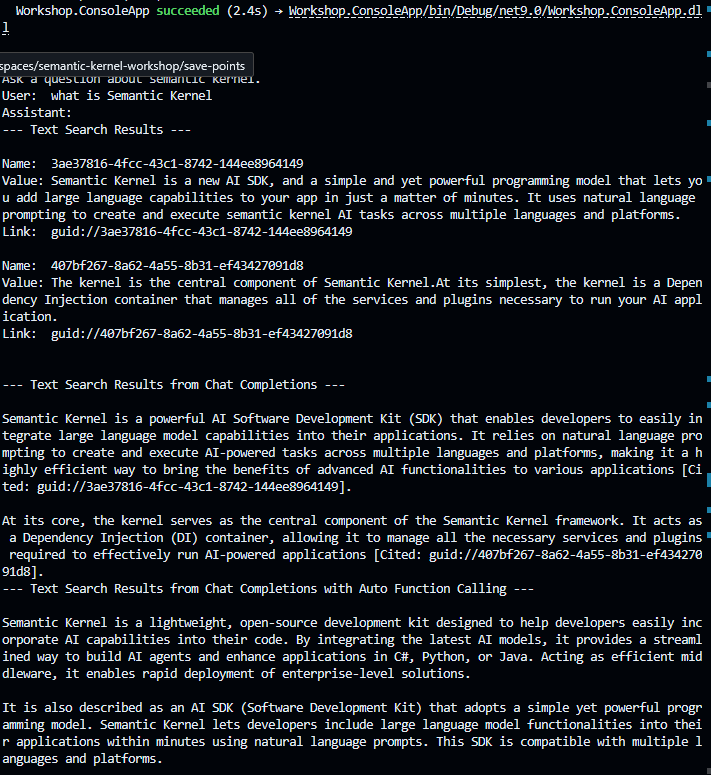
맨 마지막 줄 --- Text Search Results from Chat Completions with Auto Function Calling ---에 답이 뜨는 걸 볼 수 있다.
정리하자면
var functionCallingArguments = new KernelArguments(settings);

var functionCalingResponse = kernel.InvokePromptStreamingAsync(
    promptTemplate: input,
    arguments: functionCallingArguments);
PromptExecutionSettings 객체를 통해 FunctionChoiceBehavior.Auto() 설정을 사용함
이 설정은 Semantic Kernel이 사용자의 입력을 분석해 어떤 플러그인 함수(function)를 자동으로 호출할지 판단하도록 해줌
즉, 사용자가 명령어를 던지면 SK가 자동으로 적절한 플러그인이나 기능을 호출함.
- 4) 채팅 결과 모니터링
챗봇 채팅 호출 결과를 Aspire 대시보드를 통해 모니터링 할거다.
[Aspire 원본문서] (https://learn.microsoft.com/ko-kr/dotnet/aspire/fundamentals/dashboard/standalone)
콘솔 앱 프로젝트에 모니터링 및 로깅 관련 패키지 라이브러리를 추가
dotnet add ./Workshop.ConsoleApp package OpenTelemetry.Exporter.Console
dotnet add ./Workshop.ConsoleApp package OpenTelemetry.Exporter.OpenTelemetryProtocol
#Program.cs
using System.ClientModel;

using Azure;
using Azure.AI.OpenAI;

using Microsoft.Extensions.Configuration;
using Microsoft.Extensions.DependencyInjection;
using Microsoft.Extensions.Logging;
using Microsoft.SemanticKernel;
using Microsoft.SemanticKernel.Data;
using Microsoft.SemanticKernel.PromptTemplates.Handlebars;

using OpenAI;

using OpenTelemetry;
using OpenTelemetry.Logs;
using OpenTelemetry.Metrics;
using OpenTelemetry.Resources;
using OpenTelemetry.Trace;

using Workshop.ConsoleApp.Services;


var config = new ConfigurationBuilder()
               .AddJsonFile("appsettings.json", optional: false, reloadOnChange: true)
               .AddUserSecrets<Program>()
               .Build();
var dashboardEndpoint = config["Aspire:Dashboard:Endpoint"]!;
var resourceBuilder = ResourceBuilder.CreateDefault()
                                   .AddService("SKOpenTelemetry");

// Enable model diagnostics with sensitive data.
AppContext.SetSwitch("Microsoft.SemanticKernel.Experimental.GenAI.EnableOTelDiagnosticsSensitive", true);

using var traceProvider = Sdk.CreateTracerProviderBuilder()
                           .SetResourceBuilder(resourceBuilder)
                           .AddSource("Microsoft.SemanticKernel*")
                           .AddConsoleExporter()
                           .AddOtlpExporter(options => options.Endpoint = new Uri(dashboardEndpoint))
                           .Build();

using var meterProvider = Sdk.CreateMeterProviderBuilder()
                           .SetResourceBuilder(resourceBuilder)
                           .AddMeter("Microsoft.SemanticKernel*")
                           .AddConsoleExporter()
                           .AddOtlpExporter(options => options.Endpoint = new Uri(dashboardEndpoint))
                           .Build();

using var loggerFactory = LoggerFactory.Create(builder =>
{
  // Add OpenTelemetry as a logging provider
  builder.AddOpenTelemetry(options =>
  {
      options.SetResourceBuilder(resourceBuilder);
      options.AddConsoleExporter();
      options.AddOtlpExporter(options => options.Endpoint = new Uri(dashboardEndpoint));
      // Format log messages. This is default to false.
      options.IncludeFormattedMessage = true;
      options.IncludeScopes = true;
  });
  builder.SetMinimumLevel(LogLevel.Information);
});

var builder = Kernel.CreateBuilder();

builder.Services.AddSingleton(loggerFactory);

if (string.IsNullOrWhiteSpace(config["Azure:OpenAI:Endpoint"]!) == false)
{
  var client = new AzureOpenAIClient(
      new Uri(config["Azure:OpenAI:Endpoint"]!),
      new AzureKeyCredential(config["Azure:OpenAI:ApiKey"]!));

  builder.AddAzureOpenAIChatCompletion(
              deploymentName: config["Azure:OpenAI:DeploymentNames:ChatCompletion"]!,
              azureOpenAIClient: client);
}
else
{
  var client = new OpenAIClient(
      credential: new ApiKeyCredential(config["GitHub:Models:AccessToken"]!),
      options: new OpenAIClientOptions { Endpoint = new Uri(config["GitHub:Models:Endpoint"]!) });

  builder.AddOpenAIChatCompletion(
              modelId: config["GitHub:Models:ModelIds:ChatCompletion"]!,
              openAIClient: client);
}
var kernel = builder.Build();

var service = new TextSearchService(config);
var collection = await service.GetVectorStoreRecordCollectionAsync("records");
var search = await service.GetVectorStoreTextSearchAsync(collection);

var plugin = search.CreateWithGetTextSearchResults("SearchPlugin");
kernel.Plugins.Add(plugin);

var promptTemplate = """
  {{#with (SearchPlugin-GetTextSearchResults query)}}
      {{#each this}}
      Name: {{Name}}
      Value: {{Value}}
      Link: {{Link}}
      -----------------
      {{/each}}
  {{/with}}

  {{query}}

  Include citations to the relevant information where it is referenced in the response.
  """;

var settings = new PromptExecutionSettings()
{
  FunctionChoiceBehavior = FunctionChoiceBehavior.Auto()
};

var input = default(string);
var message = default(string);
while (true)
{
  Console.WriteLine("Ask a question about semantic kernel.");
  Console.Write("User: ");
  input = Console.ReadLine();

  if (string.IsNullOrWhiteSpace(input))
  {
      break;
  }

  Console.Write("Assistant: ");

  var searchResponse = await search.GetTextSearchResultsAsync(input, new TextSearchOptions() { Top = 2, Skip = 0 });
  Console.WriteLine("\n--- Text Search Results ---\n");
  await foreach (var result in searchResponse.Results)
{
  Console.WriteLine($"Name:  {result.Name}");
  Console.WriteLine($"Value: {result.Value}");
  Console.WriteLine($"Link:  {result.Link}");
  Console.WriteLine();
}
var promptArguments = new KernelArguments()
{
  { "query", input }
};

var promptResponse = kernel.InvokePromptStreamingAsync(
  promptTemplate: promptTemplate,
  arguments: promptArguments,
  templateFormat: HandlebarsPromptTemplateFactory.HandlebarsTemplateFormat,
  promptTemplateFactory: new HandlebarsPromptTemplateFactory());

Console.WriteLine("\n--- Text Search Results from Chat Completions ---\n");
await foreach (var content in promptResponse)
{
  await Task.Delay(20);
  message += content;
  Console.Write(content);
}
var functionCallingArguments = new KernelArguments(settings);

var functionCalingResponse = kernel.InvokePromptStreamingAsync(
  promptTemplate: input,
  arguments: functionCallingArguments);

Console.WriteLine("\n--- Text Search Results from Chat Completions with Auto Function Calling ---\n");
await foreach (var content in functionCalingResponse)
{
  await Task.Delay(20);
  message += content;
  Console.Write(content);
}
Console.WriteLine();
Console.WriteLine();
}
다른 파일은 같고 program.cs 파일만 수정
아래 명령어를 실행시켜 .NET Aspire 대시보드를 컨테이너로 실행
docker run --rm -it -d -p 18888:18888 -p 4317:18889 --name aspire-dashboard mcr.microsoft.com/dotnet/aspire-dashboard:9.0
이제 Docker로 확인해볼거다.
vscode에 docker를 확장시키고 하는 방법으로 하겠다.
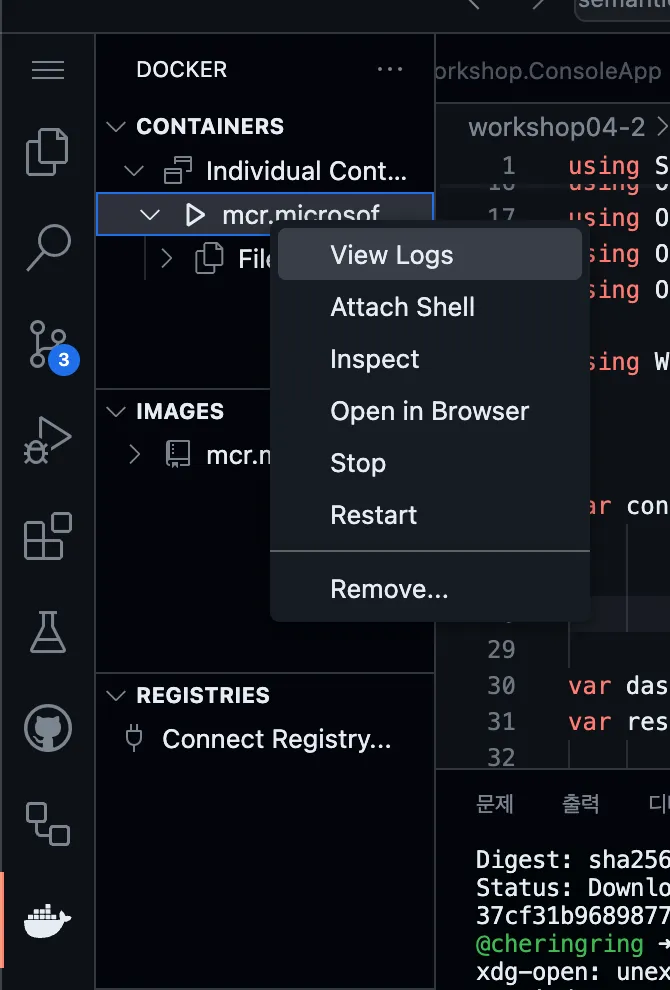
view log를 클릭하면
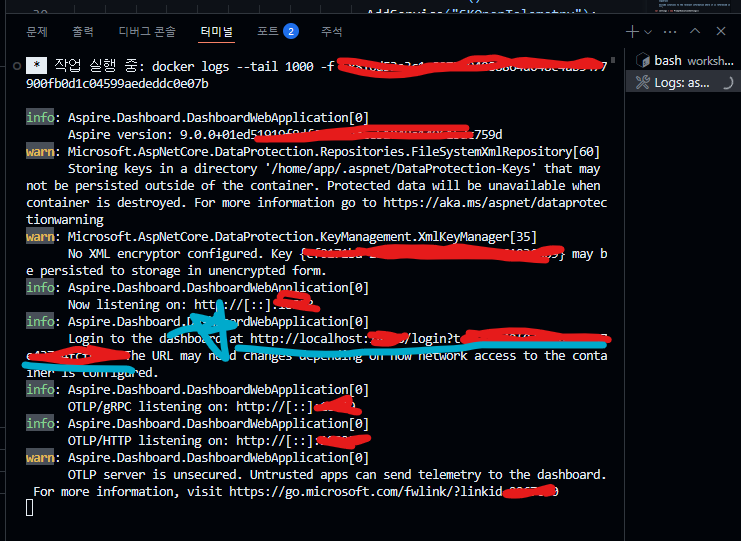
터미널 창에 이와 같은 화면이 뜬다.
하늘색 url을 터치
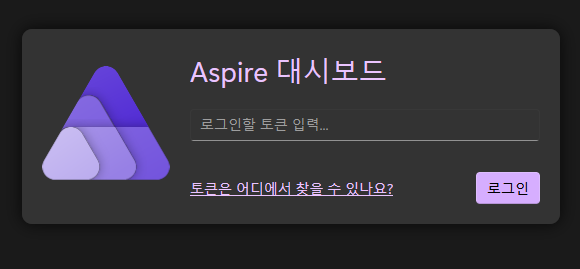
이 화면이 뜨면 토큰은 어디에서 찾을 수 있나요? 를 봐본다. 자세히 나와있으니 찾으면 된다.
터미널 창에 log=t 뒤에 있음
이렇게 했는데 오류가 떴다.
이유는 github codespace 환경이라서 local host는 외부 브라우저에서 접근 할 수 없기 때문!
즉, http://localhost:18888로는 내 브라우저에 절대 접속되지 않음.
// 생략 가능 , 생략 가능한 페이지 먼저 보지 말고 뒤에거 먼저 한 다음에 안되면 이거 하세요.
방법 1. 포트 포워딩
이건 코드스페이스 내부에서 하는 게 아니라 로컬에서 한다.
각자 gitHub CLI 를 로컬 컴퓨터에 설치 한 뒤 수행과정을 따르면 된다.
-
gh CLI + codespace 명령어 사용
그리고 먼저 권한을 주자.
gh auth refresh -h github.com -s codespace
1.
gh codespace ports visibility 18888:public --codespace <codespace-name> 이거 하는데 단순히 레포 이름을 적으면 안된다.
- 이걸 치면
gh codespace list
이게 나올텐데 Name이 안보인다.
json형식으로 뽑아내보도록 하자.
3.
gh codespace list --json name,displayName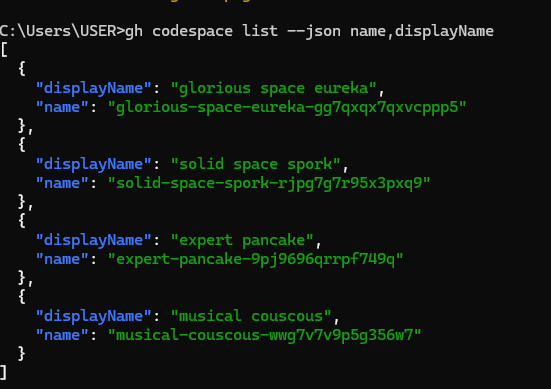
드디어 찾았다.
- 다시 터미널에 명령어 복붙
gh codespace ports visibility 18888:public --codespace "musical-couscous-wwg7v7v9p5g356w7"
이렇게 하면 포트 18888은 퍼블릭 포트 설정이 되었다.
접속 주소
https://18888-코드스페이스NAME.github.dev
다시 확인
docker logs aspire-dashboard // 생략가능
다시 정리하자면 토큰을 asprie 화면에 넣고, 다시 codespace 화면에 가서
dotnet run --project ./Workshop.ConsoleApp 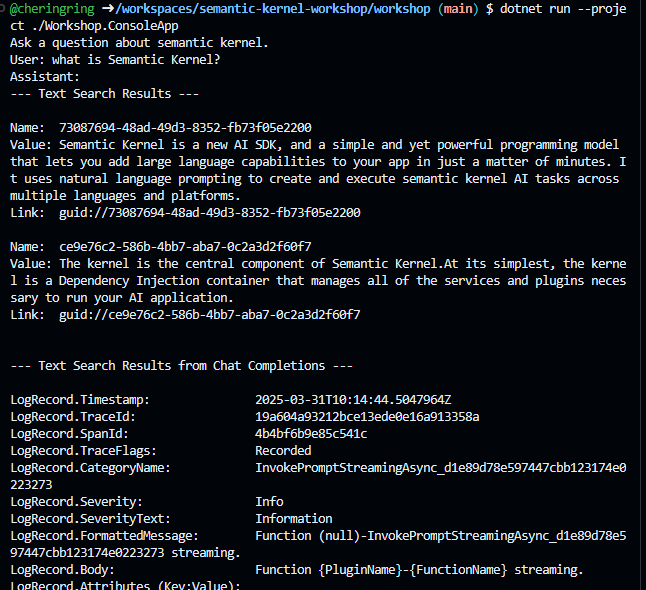
이제 요 결과가 Aspire 대시보드에 뜰 것이다.
cnt+c 종료해준다음
AsPrie 대시보드 트레이스를 확인하면 된다.
-
codespace 코드스페이스 안에서 도커 확인 후 하는 방법
-> 이 방법을 먼저 하세요.
docker ps
앞에 값이 나올겁니다.
docker logs {{CONTAINER_ID}} CONTAIER_ID에 붙여넣기
그러면 http://localhost:18888/login?t=xxx와 같은 링크를 뜸
token 값을 물어보면 로그 화면에서 ?t=xxx와 같은 부분을 찾아 xxx값을 복사해서 붙여넣기
run
dotnet run --project ./Workshop.ConsoleApp 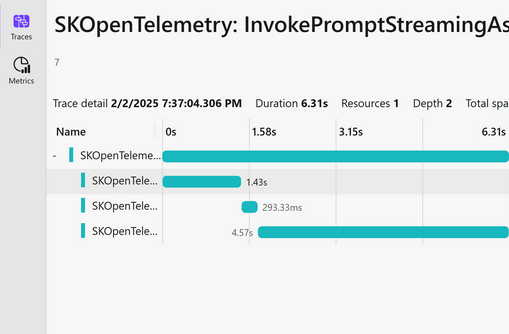
그럼 이제 Asprie 대시보드 트레이스에 값이 뜰 것 이다.
2025-03-29 부로 실습한 Semantic Kernel에 대해서 정리해보았다.
벨로그에 정리하면서 하기가 생각보다 빡세다 하하
악 깡 버

좋은글 감사합니다!