Geustures & Events
Geustures(제스쳐)
Framer Motion은 다양한 제스처를 지원하여 사용자 인터랙션을 더욱 풍부하게 만들어준다. 제스처는 사용자가 웹 페이지나 애플리케이션과 상호작용하는 방식을 정의하며, 이를 통해 사용자 경험을 향상시킬 수 있다.
Framer Motion에서 지원하는 주요 제스처의 종류는 다음과 같다.
• 호버(hover)
• 포커스(focus)
• 탭(tab)
• 팬(pan)
• 드래그(drag)
호버 (Hover)
호버 제스처는 사용자가 요소 위에
마우스를 올려놓았을 때 발생하는 동작을
의미한다. Framer Motion 에서는 whileHover 속성을 사용하여 호버 상태에서의 애니메이션을 정의할 수 있다.
whileHover : 호버 상태에 재생할 애니메이션
whileHover={{scale:1.2,backgroundColor:"red"}}❗ 아래의 on~을 이용하여 애니메이션 효과를 주는 방법도 있다. 이는 motion Framer에서 지원하는 속성이 아닌 리액트에서 지원하는 이벤트이다. on~을 사용할 경우 바로 애니메이션 효과를 줄 수는 없고 콜백함수를 통해 작성해야 한다.
onHoverStart : 호버가 시작될 때 호출되는 콜백함수
onHoverStart={()=>console.log("호버 시작")}onHoverEnd : 호버가 끝날 때 호출되는 콜백함수
onHoverEnd={()=>console.log("호버 끝")}예제
import {motion} from 'framer-motion'
function Comp1(){

return(
   <motion.div
   style={{width:100, height:100,backgroundColor:"yellow"}}
   whileHover={{scale:1.2,backgroundColor:"red"}}
   transition={{duration:0.5}}
   onHoverStart={()=>console.log("호버 시작")}
   onHoverEnd={()=>console.log("호버 끝")}
   >

   </motion.div>
)
}

export default Comp1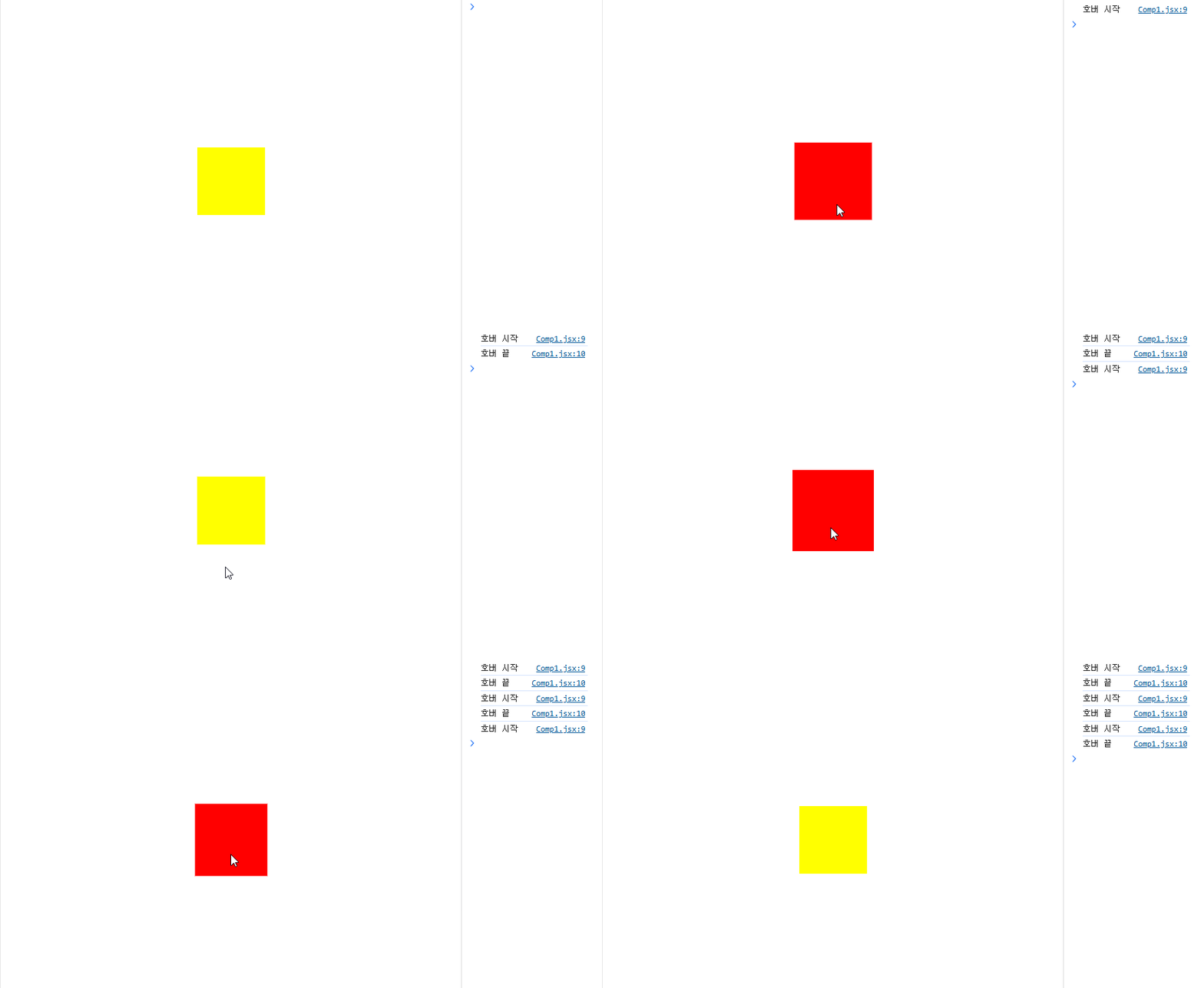
포커스 (Focus)
포커스 제스처는 사용자가 요소를 포커스했을 때 발생하는 동작이다. whileFocus 속성을 사용하여 애니메이션을 정의한다.
해당 제스처는 input 엘리먼트에만 적용되어 다른 엘리먼트에 포커스 이벤트를 적용하고자 할때에는 onFocus 나 onBlur 를 사용해야 한다.
❗ onFocus 혹은 onBlur 를 사용할 경우 반드시 tabIndex 속성을 적어줘야한다.
import {motion} from 'framer-motion'
import { useState } from 'react'
function Comp1(){
  const [isFocus,setIsFocus] = useState(false)
return(
    <>
   <motion.input
   whileFocus={{scale:2}}/>
   <motion.div
   style={{width:100, height:100,backgroundColor:'blue'}}
   onFocus={()=>setIsFocus(true)}
   onBlur={()=>setIsFocus(false)}
   animate={{scale:isFocus?2:1}}
   tabIndex={0}
   />
   </>
)
}

export default Comp1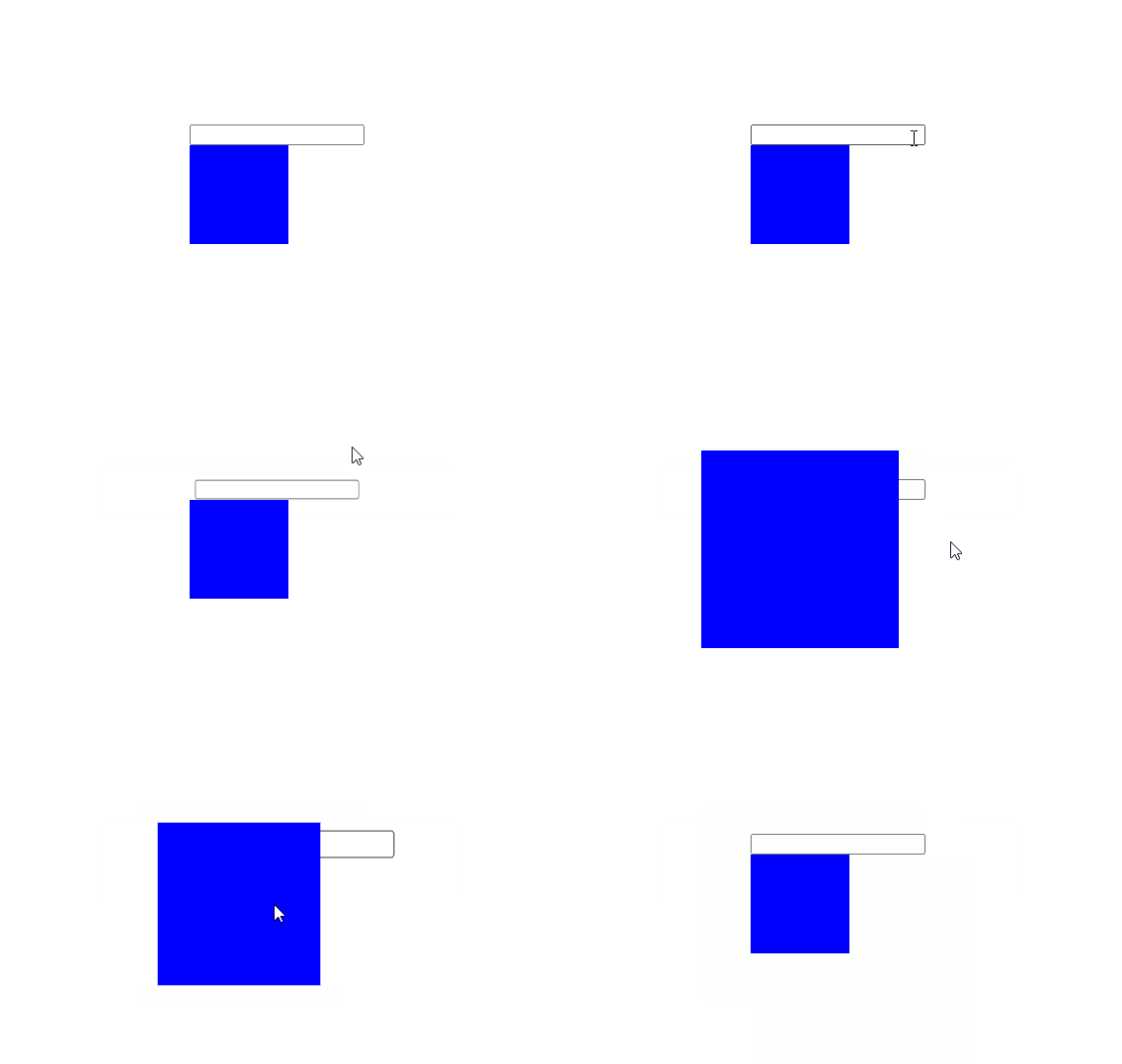
탭(Tab)
탭 제스처는 사용자가 요소를 클릭했을 때 발생하는 동작을 의미한다. whileTab 속성을 사용하여 애니메이션을 정의할 수 있다.
import {motion} from 'framer-motion'

function Comp1(){

return(
    <>
   <motion.div
   style={{width:100, height:100,backgroundColor:'blue'}}
    whileTap={{scale:1.5, backgroundColor:"green"}}
   />
   </>
)
}

export default Comp1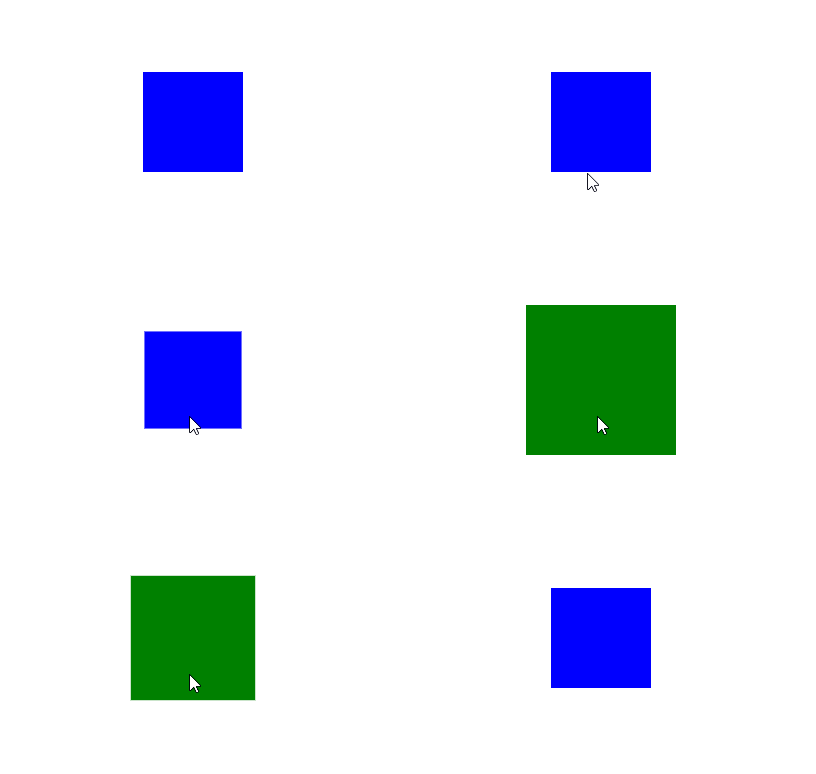
팬(Pan)
팬은 포인터가 구성 요소를 누르고 3픽셀 이상 이동할 때 이를 인식한다, 포인터를 놓으면 제스처가 종료된다. 팬 제스처에는 다음과 같은 매개변수를 제공한다.
onPan : 팬 제스처가 발생하였을 때 호출되는 콜백함수
onPan={(event, info)=>console.log(info.point)}onPanstart : 팬 제스처가 시작될 때 호출되는 콜백함수
onPanStart={(event, info)=>console.log('팬 시작',info.point)}onPanEnd : 팬 제스처가 끝날 때 호출되는 콜백함수
onPanEnd={(event, info)=>console.log('팬 종료',info.point)}Pan 주요속성
| 매개변수명 | 설명 |
|---|---|
| event | 기본적인 DOM 이벤트 객체. 이 객체는 이벤트가 발생한 요소와 관련된 정보를 포함하고 있다. |
| info | Framer Motion에서 제공하는 추가적인 정보 객체. 이 객체는 팬 제스처와 관련된 유용한 정보를 포함하고 있다 |
Info 주요 속성
| 속성이름 | 설명 |
|---|---|
| point | 팬 동작의 현재 위치를 나타내는 속성. point.x 와 point.y 속성을 통해 x 축과 y 축의 좌표를 얻을 수 있다. |
| delta | 마지막 이벤트 이후 이동한 거리를 나타내는 속성. delta.x 와 delta.y 속성을 통해 x축과 y축의 변화량을 얻을 수 있다. |
| offset | 팬 동작의 시작 위치로부터의 오프셋을 나타내는 속성. offset.x 와 offset.y 속성을 통해 x 축과 y 축의 오프셋을 얻을 수 있다. |
| velocity | 팬 동작의 속도를 나타내는 속성. velocity.x 와 velocity.y 속성을 통해 x 축과 y 축의 속도를 얻을 수 있다. |
예제
import {motion} from 'framer-motion'
import { useState } from 'react';

function Comp1(){
    const [position,setPosition] = useState({x:0, y:0});

    const handlepan = (event, info)=>{
        setPosition({x:info.point.x, y:info.point.y})
        console.log("팬 실행 중", info.point);
        console.log("이벤트 타입 :", event.type)
        console.log("변화량: ", info.delta);
        console.log('오프셋 : ', info.offset);
        console.log("속도:",info.velocity);
    }
    return(
        <div>
            <motion.div
                onPan={handlepan}
                tabIndex={0}
                style={{
                    width: 100,
                    height:100,
                    backgroundColor:"blue",
                    display:"flex",
                    justifyContent :"center",
                    alignItems:"center",
                    color:"white",
                    borderRadius:10,
                    position :"absolute",
                    top: position.y,
                    left : position.x
                }}>
                    onPan
            </motion.div>
        </div>
    )
}

export default Comp1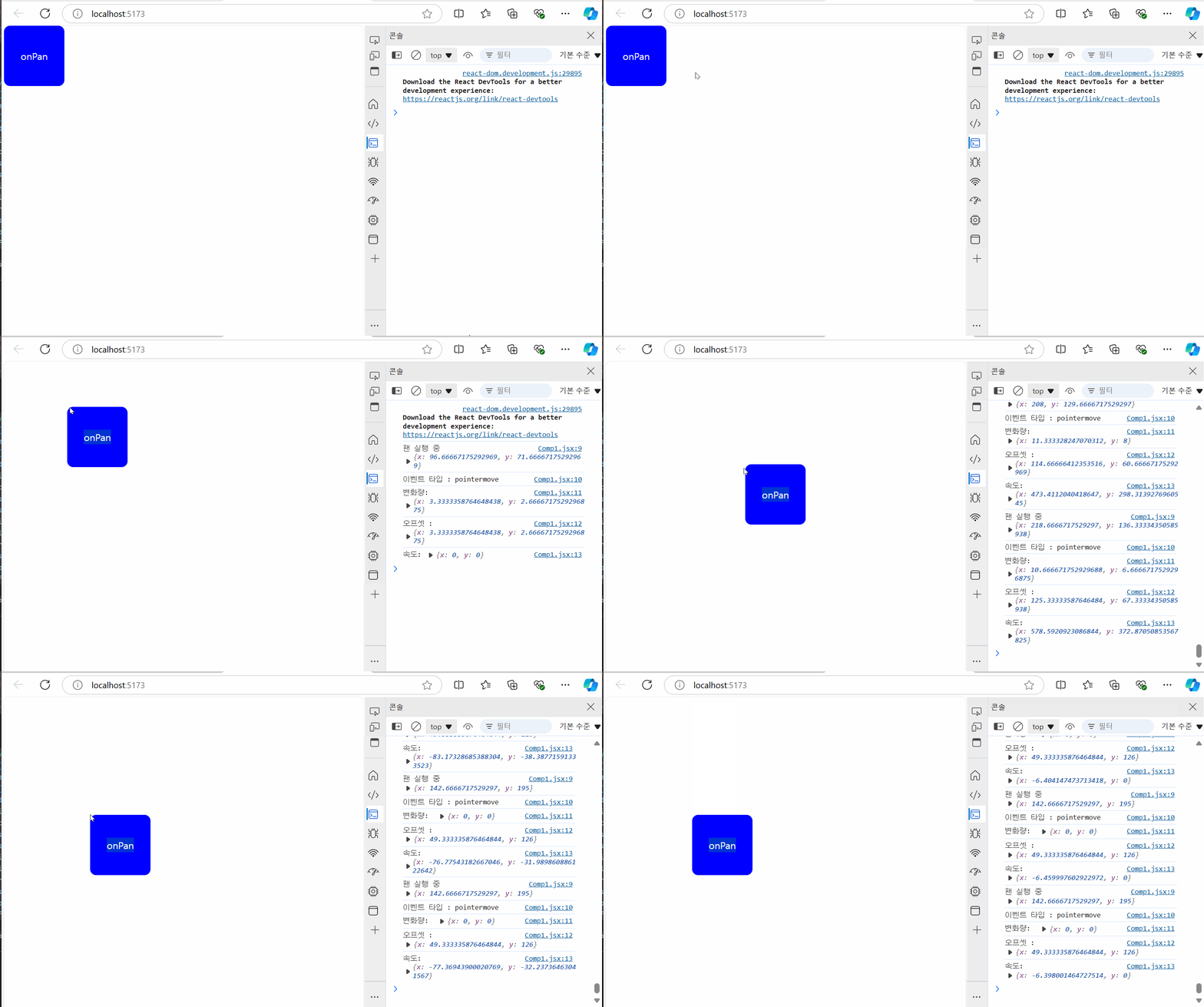
드래그 (Drag)
사용자가 클릭한 상태로 다른 위치로 이동시키는 동작을 의미한다.Drag 속성을 사용하여 기능을 활성화 시킨다.
Drag 드래그 제스처를 활성화 시켜주는 속성
DragWhile 드래그 상태에서 적용할 애니메이션 정의
      <motion.div
                style={{
                    width: 100,height:100,backgroundColor:"blue"}}
                drag  whileDrag={{backgroundColor:"red"}} >
                    Drag
        </motion.div>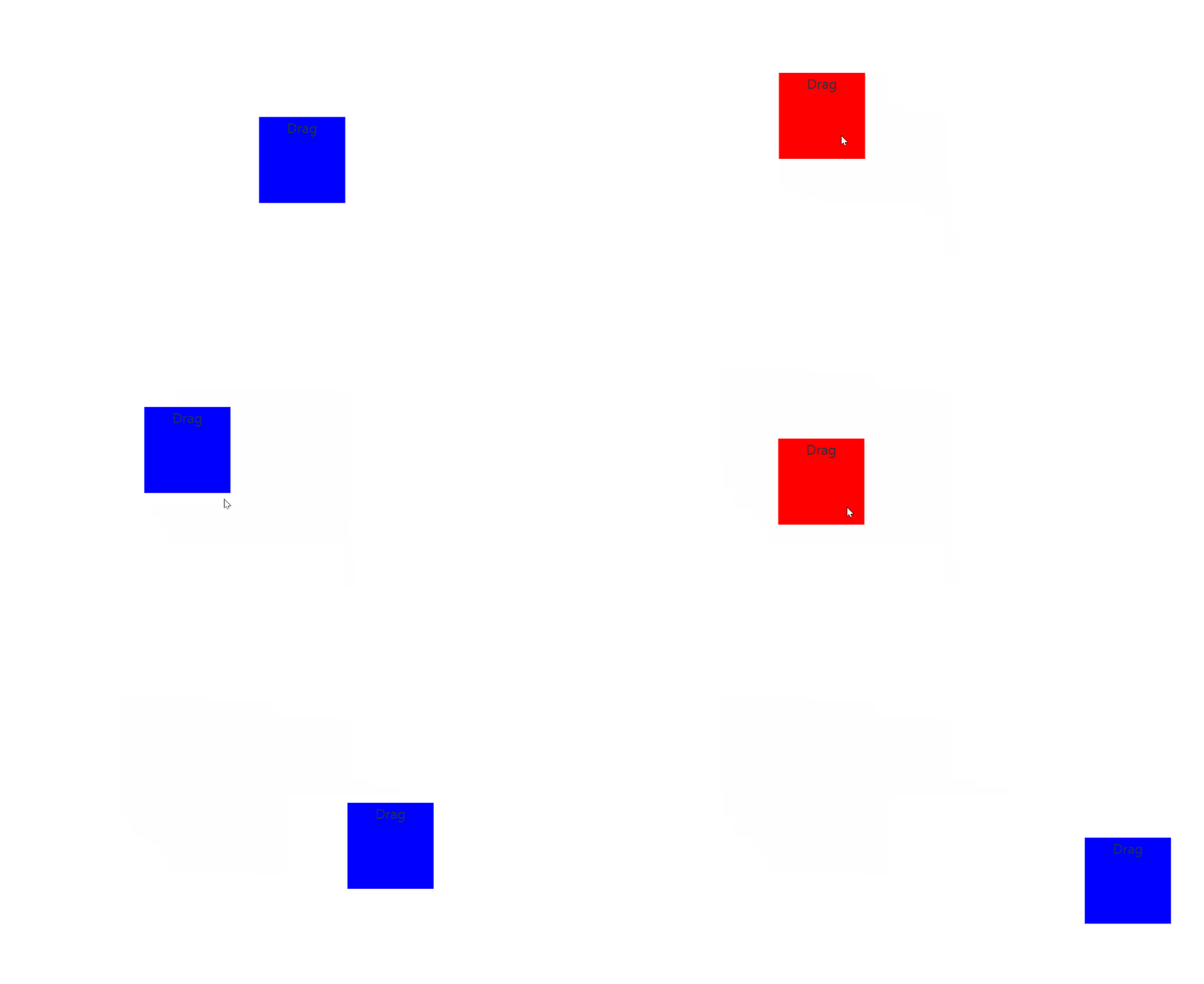
onDragStart 드래그가 시작될 때 호출되는 콜백함수
onDragStart 드래그 중에 호출되는 콜백함수
onDragStart 드래그가 끝날 때 호출되는 콜백함수
     <motion.div drag onDragStart={()=>console.log("드래그 시작")}>
            드래그 가능한 요소 5
        </motion.div>
            <motion.div drag onDrag={()=>console.log("드래그 중")}>
            드래그 가능한 요소 6
        </motion.div>
            <motion.div drag onDragEnd={()=>console.log("드래그 종료")}>
            드래그 가능한 요소 7
        </motion.div>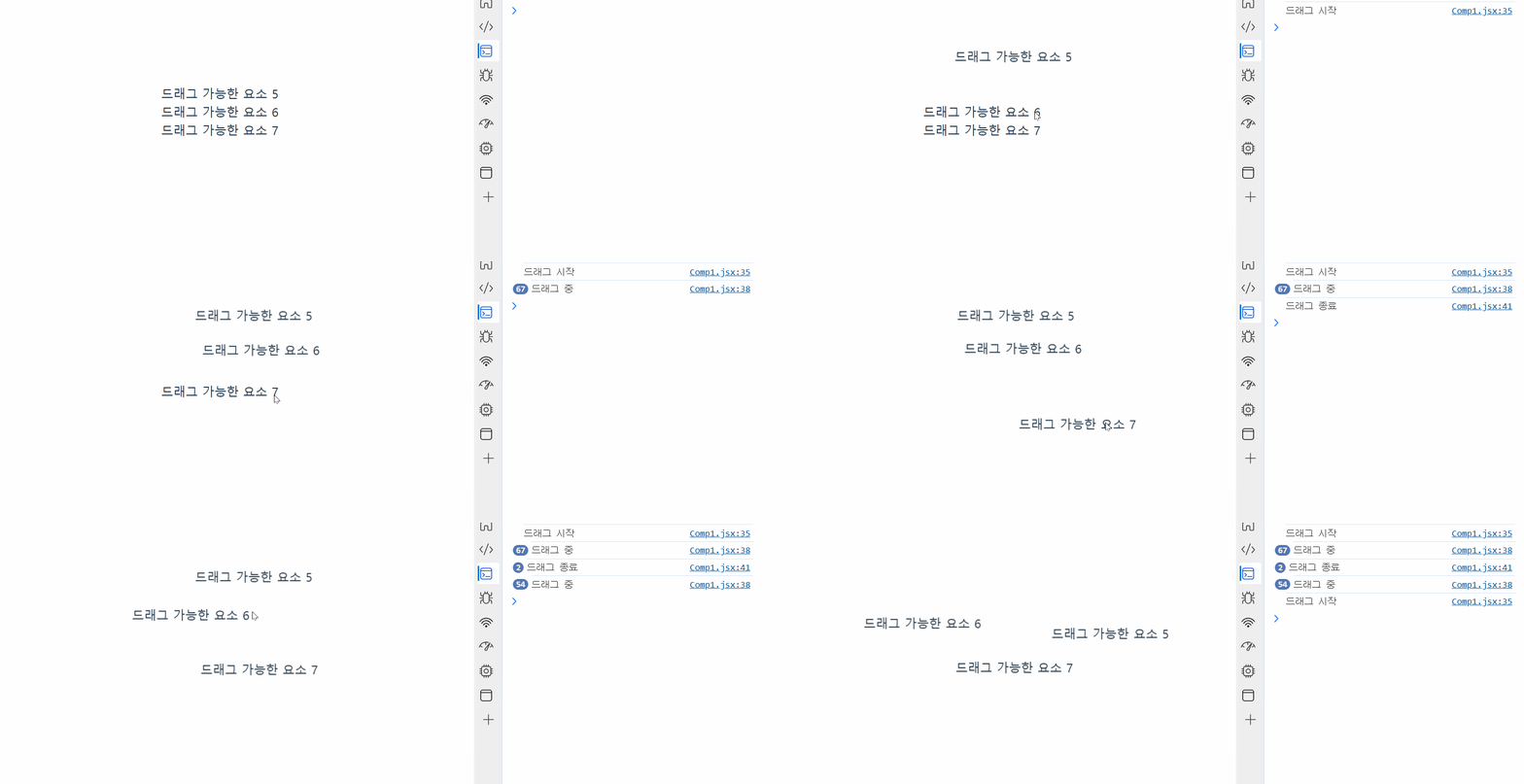
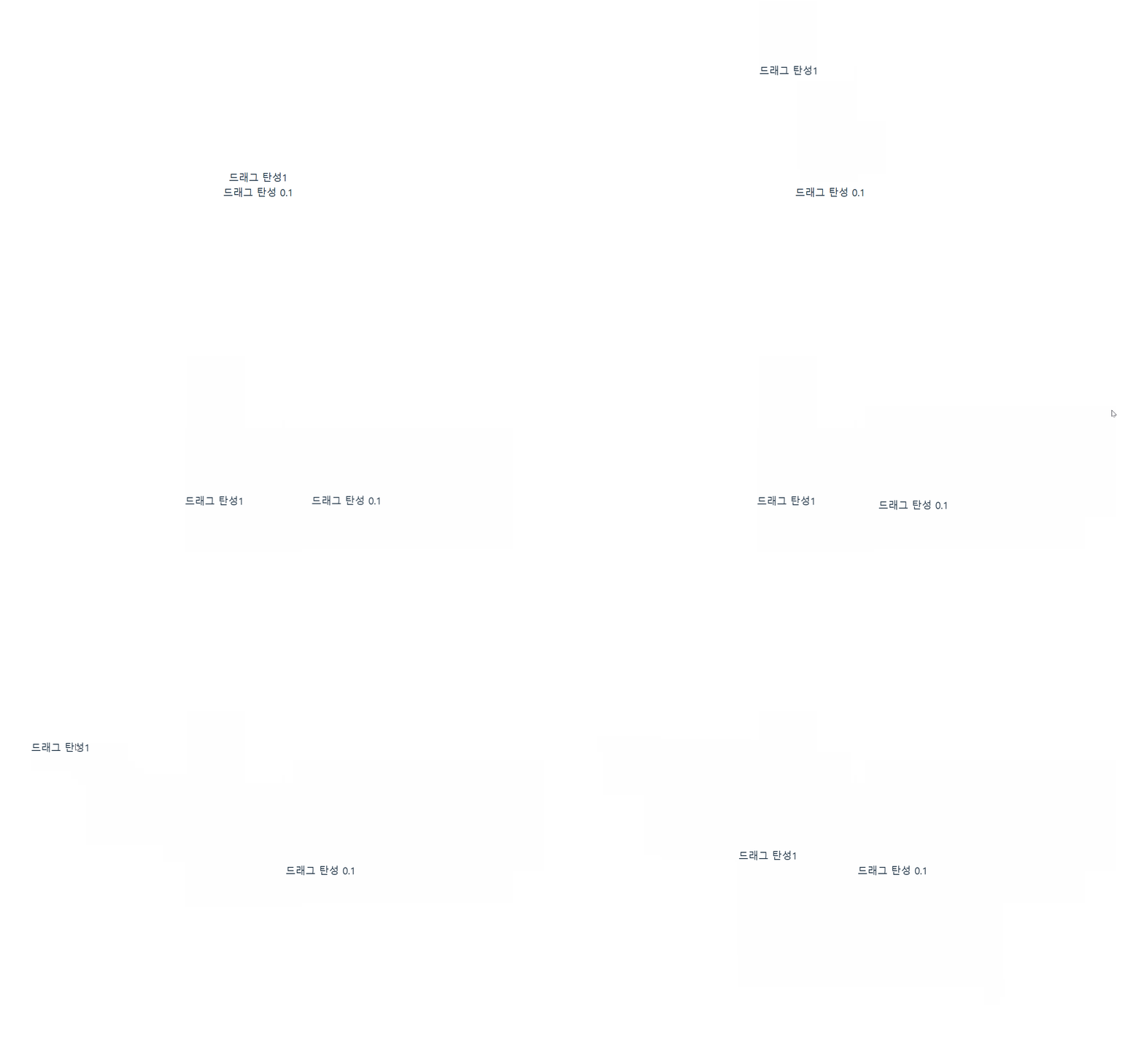
dragConstraints 드래그 가능한 범위 설정, 컨텐츠를 기준으로 px 단위
dragElastic 탄성력 조절 0~1
  <motion.div drag
        dragConstraints={{left : -100, right:100, top: -50, bottom : 50 }}
        dragElastic={1}
> 
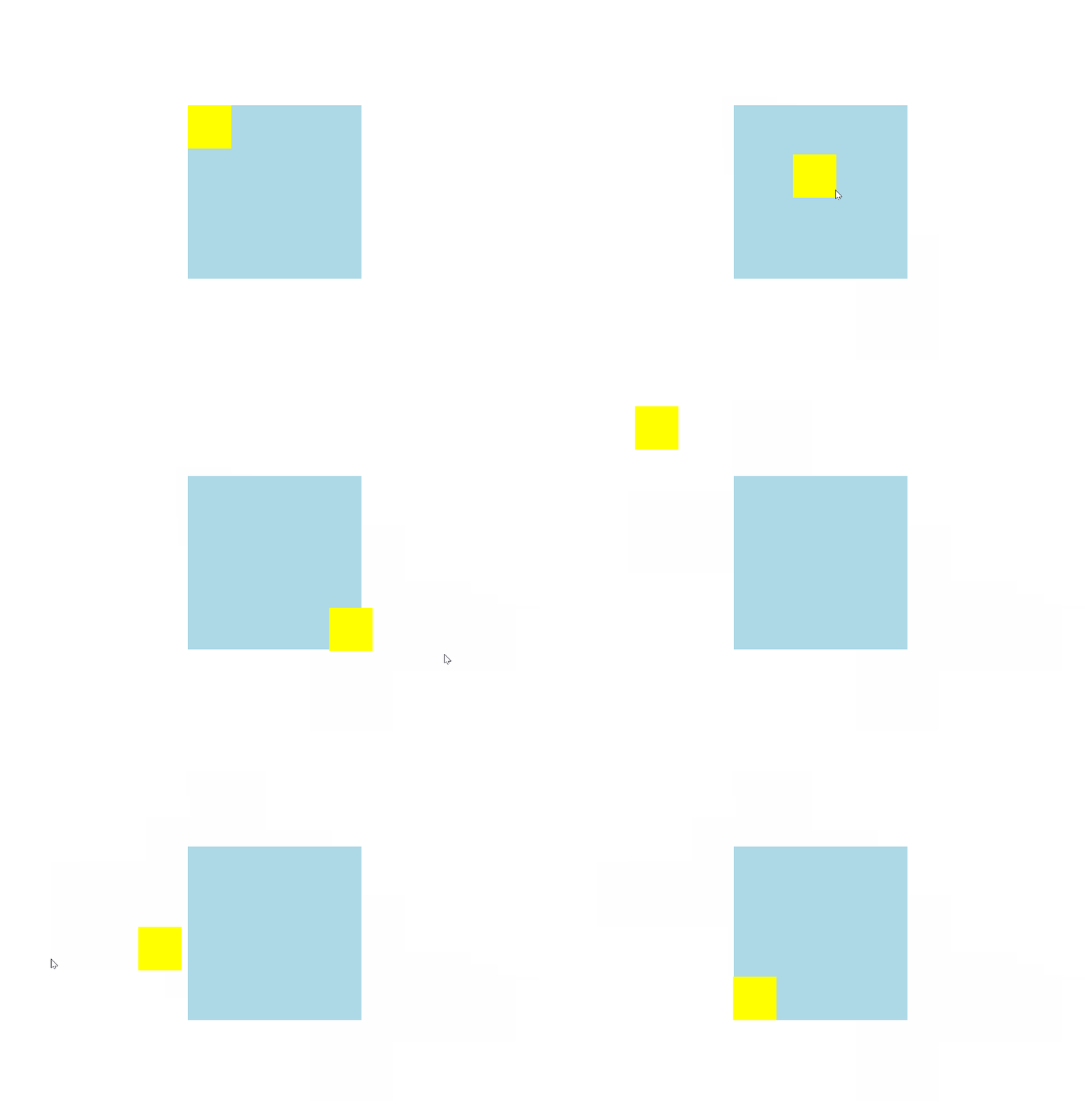
dragConstraints을 이용하여 부모요소를 기준으로 제한하는로직을 만들 수 있다
function Comp1(){
    const constraints = useRef()

    return(
            <div ref={constraints}
            style={{ width:"200px", height:"200px",backgroundColor:"lightblue"}}>
            <motion.div drag
            dragConstraints={constraints}
            style={{width:"50px",height:"50px",backgroundColor:"yellow"}}/>
            </div>
    )
}
dragMomentum : 관성 설정 속성, false 인 경우 관성이 없어진다.
  <motion.div drag
  	dragMomentum={false}>
         드래그 요소
  </motion.div>
dragConstraints true 인 경우 드래그를 놓는 순간 원위치로 돌아간다.
dragConstraints 속성
dragConstraints 속성은 드래그 동작이 끝난 후 요소가 이동하는 애니매이션의 물리적 특성을 정의한다.
이 속성을 사용하여 드래그가 끝난 후 요소가 어떻게 움직이는지 조정할 수 있다.
| 속성 | 설명 | 기본값 |
|---|---|---|
| bounceStiffness | 요소가 드래그 된 후 반동하는 강도를 설정. 값이 클수록 반동이 강해진다 | 300 |
| bounceDamping | 요소가 드래그 된 후 반동하는 감쇠를 설정. 값이 클수록 반동이 더 빨리 멈춘다. | 10 |
| power | 드래그 된 요소의 속도를 조정. 값이 클수록 더 멀리 이동한다. | 0.8 |
| timeConstant | 요소가 드래그 된 후 감속하는 시간을 설정한다. | 750 |
| modifyTarget | 요소가 드래그 된 후 이동할 목표 위치를 수정하는 함수 | - |
            <motion.div drag
            dragTransition={{
                bounceStiffness : 600,
                bounceDamping : 10,
                power:0.8,
                timeConstant:750,
               }}/>
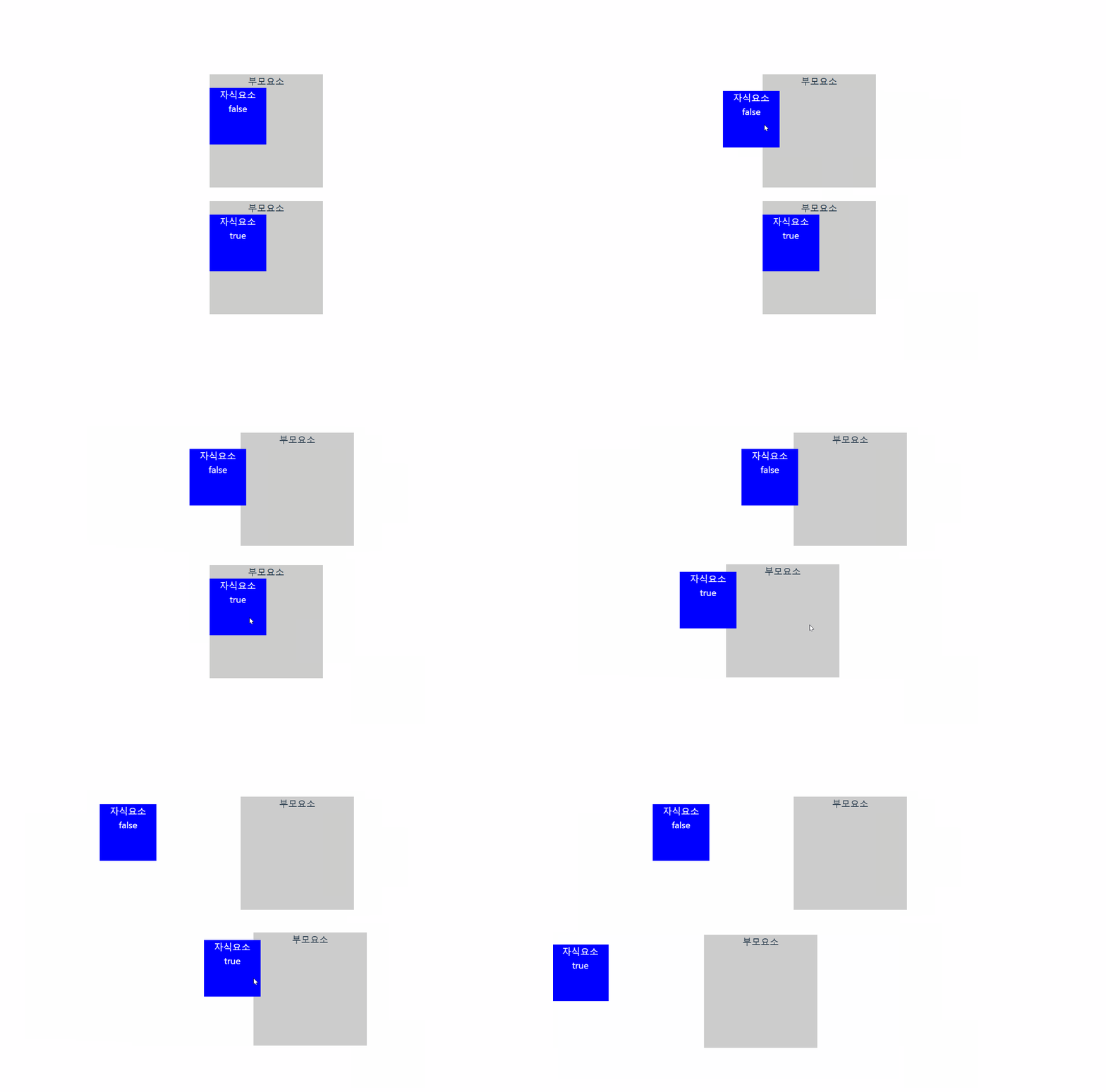
dragPropagation : 부모 요소와 자식 요소가 모두 드래그 가능할 때, 자식 요소를 드래그할 때 부모 요소에 드래그 동작이 전파되는지를 설정한다.
  <motion.div
        drag
        dragPropagation={false}
        style={{
            width:200,
            height:200,
            backgroundColor:"#ccc",
        }}
        >
           부모요소
           <motion.div
           drag
           dragPropagation={false}
           style={{
            width:100,
            height:100,
            backgroundColor:"#00f",
            color:"#fff",

           }}>
            자식요소
           </motion.div>
        </motion.div>