[React] youtube 플레이어 만들기
오늘은 이전에 진행했던 팀 프로젝트인 record panpang에서 만들었던 youtube 플레이어를 어떤 방식으로 구현했고 어떤 문제점을 겪었는지에 대해 포스팅을 해보려고 한다.
🚩 useRef
React 공식문서에 따르면
useRef는 렌더링에 필요하지 않은 값을 참조할 수 있는 React Hook 이라고 한다.

플레이어를 구현하기 위해 가장 기본이 되는 것이 ref였다.
ref는 DOM 요소와 연결하여 사용할 수 있기 때문에 비디오 컴포넌트에 연결하여 플레이어를 조작하면 비디오 컴포넌트의 상태가 변경되도록 설정해야했다.
ref의 설명과 여러 쓰임에 대해서는 React 공식 문서에 나와있으니 참고하면 좋을 것 같다.
React useRef 공식 문서
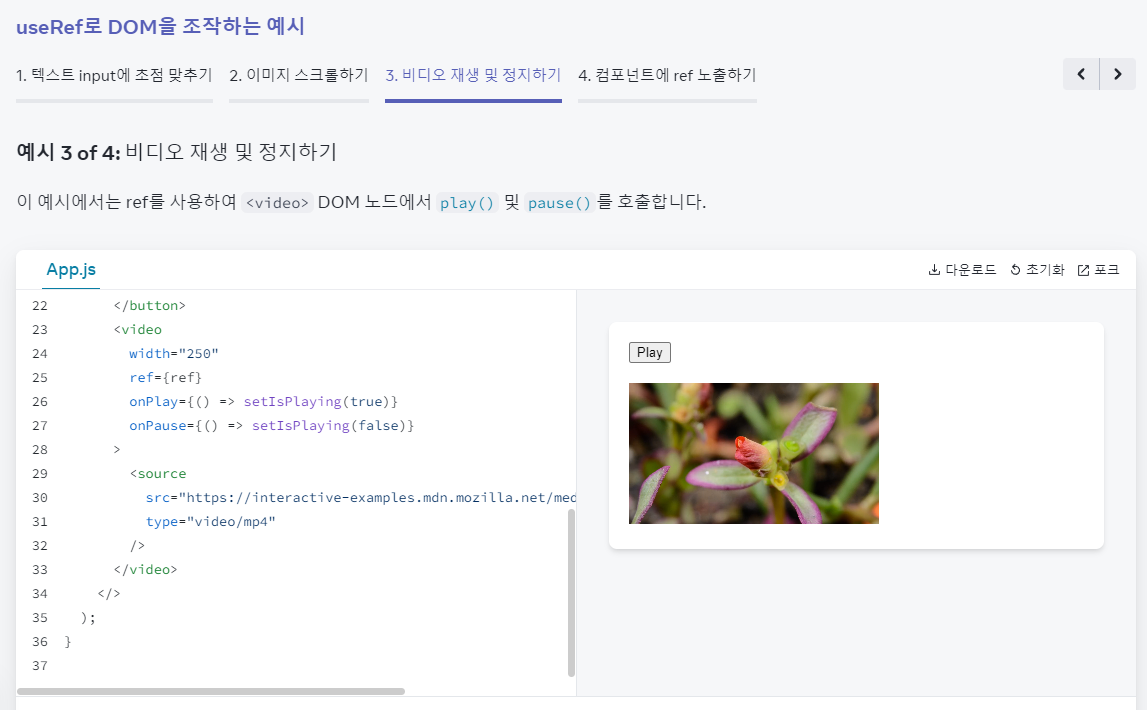
공식 문서에서도 직접 ref의 사용법으로 플레이어 조작을 예시로 들어준다!
⏯️ 플레이어 구현하기
우리 프로젝트는 영상 공유가 아닌 노래 공유가 주 서비스였기 때문에 영상 컴포넌트는 hidden으로 숨기고 플레이어를 통해 소리만 재생될 수 있도록 해야했다.
⭐ UI 구조
const PlayButton = ({ music, id, post_id }: Props) => {
  const { playedVideo, setIsPlay, setPlayedVideo, playedPlayer, setPlayedPlayer } = useYoutubeStore();
  const playerRef = useRef<YouTubePlayer | null>(null);
  const [showYouTube, setShowYouTube] = useState(false);

  return (
    <>
      {showYouTube && (
        <div className="hidden">
          <YouTube videoId={id} onReady={(e: YouTubeEvent) => onReady(e, playerRef)} />
        </div>
      )}
      <div className="relative w-[50px] h-[50px] cursor-pointer" onClick={(e: React.MouseEvent) => handleClick(e)}>
        <Image
          alt={music.name + "앨범커버"}
          src={music.album.images}
          width={50}
          height={50}
          className="rounded object-cover"
          style={{ width: "100%", height: "100%" }}
        />
        <div className="w-[50px] h-[50px] bg-black/30 rounded absolute top-0"></div>
        <PlayIcon
          style={{
            width: "15px",
            position: "absolute",
            top: "50%",
            left: "50%",
            transform: "translate(-50%, -50%)",
            fill: "white"
          }}
          id={music.id}
          post_id={post_id}
        />
      </div>
    </>
  );
};

export default PlayButton;
youtube가 들어가는 div는 hidden 으로 처리하여 숨기고 앨범 커버와 플레이 버튼을 만들어 해당 버튼으로 재생 조작이 가능하도록 설정했다.
처음 구현했을 때 메인 화면에서 로딩이 너무 길길래 왜인가 봤더니 피드형 사이트에서 한번에 모든 유튜브 비디오 컴포넌트를 렌더링하기 때문에 성능이 저하되는 것이었다. 그래서 showYoutube 라는 상태를 만들어 최초로 플레이 버튼을 눌렀을 때 컴포넌트가 렌더링 되도록 수정했다.
⭐ 플레이어 상태 관리
플레이어의 재생 상태를 제어하기 위한 값들은 zustand를 사용해 별도로 관리했다.
const useYoutubeStore = create<YoutubeStore>((set) => ({
  playedVideo: { id: "", isPlay: false, post_id: "" },
  playedPlayer: null,
  token: "",
  setPlayedVideo: (id: string, post_id: string) => set({ playedVideo: { isPlay: true, id, post_id } }),
  setIsPlay: () => set((state) => ({ playedVideo: { ...state.playedVideo, isPlay: !state.playedVideo.isPlay } })),
  setPlayedPlayer: (player: YouTubePlayer | null) => set({ playedPlayer: player })
}));

export default useYoutubeStore;
playedVideo = 현재 재생 중인 영상의 정보
playedPlayer = 현재 재생 중인 플레이어의(ref) 정보
token = spotify api 요청에 필요한 토큰 정보
setPlayedVideo = 재생 중인 영상 정보를 변경하는 함수
setIsPlay = 재생한 영상의 재생 상태만 변경하는 함수
setPlayedPlayer = 재생 중인 플레이어의 정보를 변경하는 함수
처음에는 playedPlayer를 제외하고 만들었는데 기존 영상이 재생 중일 때 다른 영상을 재생하면 선택한 노래들이 동시에 재생되는 문제가 있었다. 그래서 기존에 재생 중이던 영상의 상태를 제어하기 위해 플레이어를 정한 ref를 state로 만들어 제어가 가능하도록 만들었다.
⭐ 플레이어 제어 함수
const togglePlayVideo = async () => {
  	// 처음 누르는 거면 플레이어 렌더링부터
    if (!showYouTube) {
      setShowYouTube(true);
    }

    // 틀었던 노래를 정지하거나 다시 재생할 때 (같은 노래를 두 번 이상 눌렀을 떄)
    if (playerRef.current && playedVideo.id === music.id && post_id === playedVideo.post_id) {
      if (playedVideo.isPlay) {
        playerRef.current.pauseVideo();
        setIsPlay();
      } else {
        playerRef.current.playVideo();
        setIsPlay();
      }
    }

    // store에 저장된 음악과 현재 누른 음악이 다를 때 (a 노래 듣다가 b 노래 틀었을 때)
    if (playedVideo.id !== music.id && playerRef.current && post_id !== playedVideo.post_id) {
      if (playedVideo.isPlay && playedPlayer) {
        playedPlayer.pauseVideo();
      }
      setPlayedVideo(music.id, post_id);
      setPlayedPlayer(playerRef.current);
      playerRef.current.playVideo();
    }
  };
여러 조건을 통해 원하는 방식으로 조작이 가능하도록 구현했다.
내가 사용한 react-youtube 라이브러리에서는 영상 컴포넌트가 로딩이 완료 되었을 때 ready 라고 현재 상태를 알려주는데 컴포넌트가 Ready 상태가 되었을 때 특정 동작을 수행할 수 있는 onReady 속성을 제공한다.
  const onReady = (e: YouTubeEvent, playerRef: MutableRefObject<YouTubePlayer | null>) => {
    // 렌더링 완료 되면 ref 연결하기
    playerRef.current = e.target;
    // 만약 이전에 재생 중이던 노래가 있으면 그 노래 멈추고
    if (playedPlayer) {
      playedPlayer.pauseVideo();
    }
    // 현재 노래 정보로 변경
    setPlayedVideo(music.id, post_id);
    playerRef.current.playVideo();
    setPlayedPlayer(playerRef.current);
  };
그래서 onReady 함수를 따로 만들어 showYoutube 후에 영상 컴포넌트가 렌더링, ready 상태가 되면 자동으로 노래를 재생하도록 구현했다.
💥 중복 노래 아이콘 동기화
초기에 구현했던 플레이어는 만약 한 피드에 A 라는 노래가 두 개 이상 있을 경우 플레이어의 재생 상태 자체는 독립적으로 제어됐지만 PlayIcon이 동기화 되는 문제가 있었다. A1을 재생하고 A2를 재생했을 때 A1은 정지 상태가 되어야하는데 다른 포스트 같은 노래에서도 계속 재생 아이콘이 보이는 문제였다.
const PlayIcon = ({ style, id, post_id }: Props) => {
  const { playedVideo } = useYoutubnStore();
  if (playedVideo.isPlay && playedVideo.id === id && post_id === playedVideo.post_id) {
    return <PauseCon style={style} />;
  }

  if (!playedVideo.isPlay || playedVideo.id !== id || post_id !== playedVideo.post_id) {
    return <PlayCon style={style} />;
  }
};

export default PlayIcon;
아이콘 컴포넌트는 이렇게 생겼는데 처음에 구현했을 때는 post_id가 아니라 music_id를 받고 있었기 때문에 발생한 문제였다. 플레이어는 스포티파이에서 music id를 받고 있었기 때문에 같은 노래는 같은 id를 갖고 있었다. 중복 문제를 해결하기 위해 music이 아닌 post id를 받는 것으로 문제를 해결할 수 있었다.

고수..