How to Fix a Frozen MacBook: Easy Solutions for Mac Freezing Issues
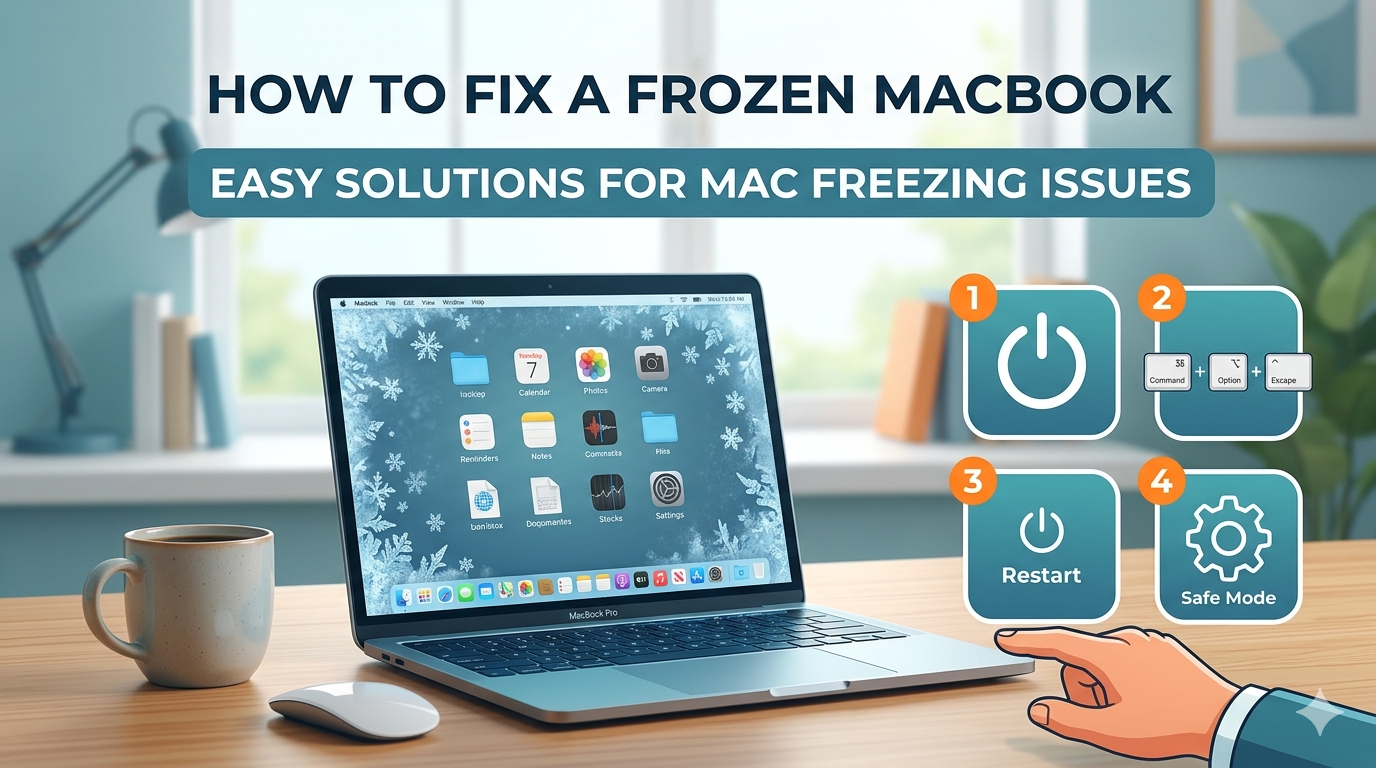
Well, we all know how frustrating a Mac computer freezing specially when you are working on something important or just browsing. In most cases, freezing is temporary and can be solved using some simple steps. If you are also searching for how to fix frozen MacBook, then you have found the right article. In this article, we will give you some easy steps to solve the issue.
Why Does a MacBook Freeze?
Before we understand how to fix frozen MacBook, we should understand what has caused this issue. This usually happens when the system faces software problems. Some of the most common reasons behind a Mac computer freezing are -
- Many background apps are running.
- Insufficient storage.
- Bugs or conflicts in applications.
- Outdated system.
- Hardware problems like overheating.
These can be the most common reasons behind the freezing of your MacBook.
Quick Fixes to Unfreeze Your Mac
1. Wait a Moment
It is not always that your MacBook has frozen; sometimes it can pause because it may be processing a heavy task. So it is better to wait a few minutes.
2. Force Quit Unresponsive Apps
When you see that only one app is not working because it has frozen, then close it and simply press Option + Command + Esc. Then again, select the app and click on force quit. This is a very easy way to fix a Mac Computer freezing.
Restart Your MacBook
In case you encounter your entire MacBook frozen or stuck, you can restart it. For this, you need to press the power button for 10 seconds and then wait for it to turn off. Then you can simply turn it on again. It is one of the easiest ways to fix temporary glitch issues.
Reduce System Overload
The primary reason behind Mac Computer freezing is overload. You can fix this issue by closing those apps that are not in use. You can also try to reduce the number of browser tabs or you can try using an Activity Monitor in order to stop heavy tasks.
If your CPU has high usage, then you can encounter this freezing issue frequently, so try reducing the overload.
Free Up Storage Space
A full disk can also lead to several problems. Make sure to regularly delete all unnecessary files. Remember to always clean trash and always keep 10- 15 percent storage free. Following these steps can ensure that your MacBook performs smoothly.
Update macOS and Apps
One of the easiest ways to solve the problem of a frozen MacBook is a software update. Sometimes, outdated software can cause issues like freezing. To resolve this, go to the System settings, then go to Software Update and install the latest update. It is very important to keep the system updated to avoid such issues in the future.
Final Thoughts
It is honestly not a good experience to encounter a frozen Mac, but such issues are mostly temporary. You can try basic steps like force quitting, freeing up device storage, and restarting the system to solve this issue.
But if you are still encountering the same issue, then it is best to go to a professional shop to solve the problem. If you are interested in knowing about MacBook functioning and other devices, then visit the site Datarecovee.
