How to Play Video Games Using Remote Desktop: A Complete Guide
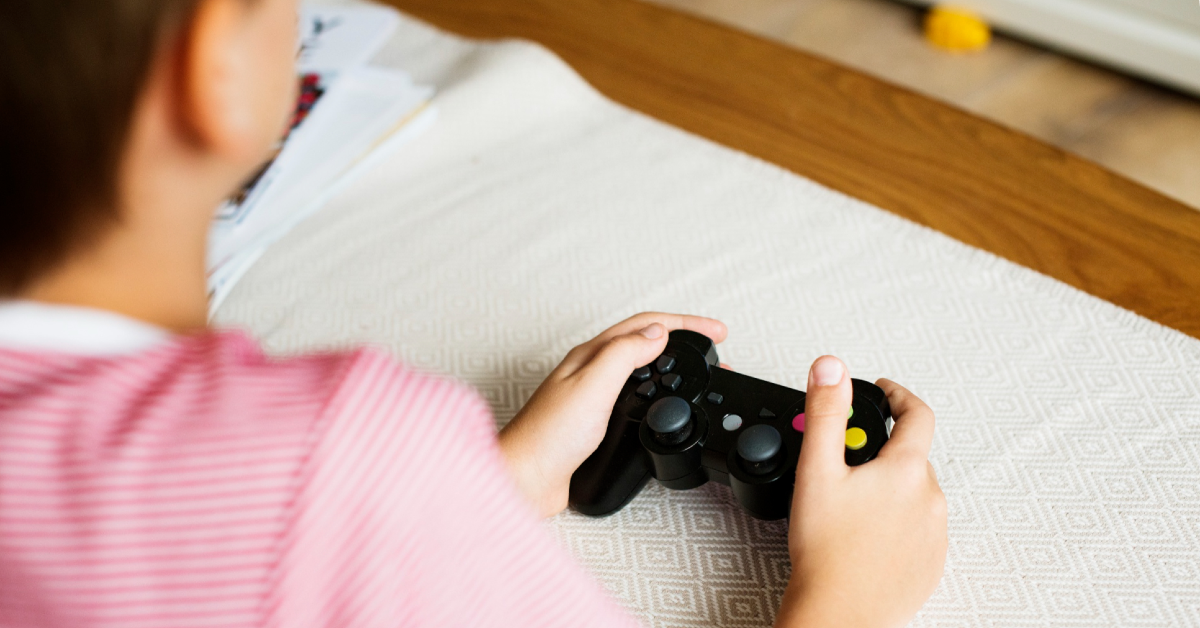
Gaming has evolved rapidly, and with advancements in technology, gamers now have more ways than ever to play their favorite titles. One of these innovative methods is using a remote desktop. This allows you to play video games on a powerful PC, even if you're accessing it from a less capable device, such as a laptop, tablet, or smartphone.
In this article, we’ll explore how to play video games using remote desktop technology, the tools you can use, setup steps, and tips to optimize your gaming experience.
What Is Remote Desktop Gaming?
Remote desktop gaming involves accessing a gaming-capable computer from a remote device using software that streams the desktop interface. While remote desktop software was originally designed for work purposes, it’s now commonly used by gamers to play high-performance games on devices that don’t have sufficient hardware.
Why Play Video Games Using Remote Desktop?
There are several reasons why gamers opt for remote desktop gaming:
Flexibility: Play your favorite games from anywhere, on any device, as long as you have an internet connection.
Cost-Effective: Use a single powerful PC for gaming instead of investing in multiple high-end devices.
Access to Exclusive Titles: Play games that are available only on PC, even if your primary device is a Mac, Chromebook, or tablet.
Convenience: Easily access your game library and progress without being tied to one location.
Best Remote Desktop Tools for Gaming
Here are some of the most popular remote desktop solutions for gaming:
- Steam Remote Play
Steam’s built-in remote play feature allows you to stream games from your gaming PC to another device.
Works seamlessly with Steam's extensive game library. - NVIDIA GeForce Experience (GameStream)
NVIDIA’s GameStream lets you stream games from a PC with an NVIDIA GPU to other devices, such as NVIDIA Shield, Android devices, and more. - Parsec
A high-performance remote desktop tool specifically designed for gaming.
Known for its low-latency streaming and support for multiplayer gaming sessions. - Microsoft Remote Desktop
A general-purpose remote desktop application that can also be used for casual gaming.
Works well for strategy or turn-based games that don’t require ultra-low latency. - Moonlight
An open-source alternative to NVIDIA GameStream.
Offers excellent streaming performance for gaming enthusiasts. - AnyDesk and TeamViewer
Primarily designed for business use, these tools can handle gaming, but they are less optimized for high-performance or low-latency play.
Step-by-Step Guide to Playing Games Using Remote Desktop
Follow these steps to set up remote desktop gaming:
Step 1: Set Up Your Gaming PC
Ensure that your gaming PC is powerful enough to handle the games you want to play and the streaming process.
Install the remote desktop software of your choice (e.g., Parsec, Steam Remote Play).
Connect your gaming PC to the internet via a wired Ethernet connection for the best performance.
Step 2: Prepare the Remote Device
Install the corresponding remote desktop client on your remote device (e.g., laptop, tablet, or smartphone).
Ensure the remote device has a stable internet connection, preferably via Wi-Fi or Ethernet.
Step 3: Configure Remote Desktop Settings
Open the remote desktop software on both devices.
Log in with the same account or connect using a unique access code.
Adjust the resolution, framerate, and bitrate settings for optimal performance. For gaming, aim for 60 FPS and a resolution suitable for your display.
Step 4: Launch the Game
Once connected, navigate to the game on your gaming PC through the remote desktop interface.
Start the game and ensure that controls (keyboard, mouse, or controller) are responsive.
Step 5: Optimize the Experience
Use a controller or gaming accessories for a more comfortable experience.
Reduce in-game graphics settings if you experience lag or stuttering.
Close unnecessary applications on your gaming PC to free up system resources.
Tips for Optimizing Remote Desktop Gaming
For the best gaming experience, follow these tips:
Choose a High-Speed Internet Connection:
A stable connection with low latency (ping under 20 ms) and high download/upload speeds (at least 10 Mbps) is crucial.
Enable Hardware Acceleration:
Use a gaming PC with hardware acceleration enabled to improve streaming performance.
Optimize Streaming Settings:
Lower the resolution or framerate slightly if you encounter lag.
Adjust bitrate settings for smoother gameplay.
Use Ethernet Over Wi-Fi:
A wired Ethernet connection provides a more stable connection, reducing lag.
Check Device Compatibility:
Ensure the remote device supports the remote desktop software and is capable of decoding the game stream efficiently.
Minimize Network Congestion:
Avoid running other bandwidth-heavy activities like video streaming or downloads while gaming.
Test Latency and Input Lag:
Use the remote desktop software's built-in tools to measure latency and input response times.
Benefits and Drawbacks of Remote Desktop Gaming
Benefits:
Play games on any device, regardless of its hardware limitations.
Access your game library remotely from anywhere.
Save money by relying on a single gaming PC.
Drawbacks:
Input lag can affect gameplay, especially for fast-paced games.
Requires a high-speed and stable internet connection.
Performance depends on the capabilities of your gaming PC and remote device.
Use Cases for Remote Desktop Gaming
Traveling Gamers:
Access your gaming PC from a laptop or tablet while traveling.
Cross-Platform Play:
Play PC-exclusive games on devices like Macs, Chromebooks, or smartphones.
Family Sharing:
Share your gaming PC with family members without needing multiple devices.
Game Development and Testing:
Developers can test games remotely on different devices.
FAQs
1. Can I use Remote Desktop for online multiplayer games?
Yes, but make sure your internet connection is stable and has low latency to avoid lag during gameplay.
2. Is remote desktop gaming free?
Some software like Steam Remote Play and Moonlight are free, while others like Parsec offer both free and paid plans.
3. What types of games are best for remote desktop gaming?
Single-player or turn-based games are ideal, as they are less affected by latency compared to fast-paced multiplayer games.
Conclusion
Remote desktop gaming is an excellent way to play high-performance games on any device, no matter where you are. By using the right software and optimizing your setup, you can enjoy a smooth gaming experience without investing in multiple gaming PCs or consoles.
Whether you’re exploring a vast open-world game or engaging in competitive multiplayer matches, remote desktop technology makes gaming more accessible and convenient than ever before. With the tips and steps outlined in this guide, you’re ready to start gaming remotely like a pro!

7개의 댓글



If you’re looking for more options, you can also play great games online at https://avbgames.net/.

Nice guide! For extra gaming vibes, I found some cool game-inspired ringtones here: https://ringtonesb.com/game-ringtones. Worth checking out!

Remote desktop gaming can be a useful solution when your main device isn’t powerful enough to run demanding games locally. I especially like the flexibility of being able to access a stronger gaming PC from another device, although connection quality and latency are obviously important for a smooth experience. Steam Remote Play is also a practical option for people who already have their game library on Steam. I’ve been looking into gaming-related resources as well and came across https://aklasbelaustarr.com/ while browsing similar topics.
If you’re playing video games, using a big screen like a TV makes the experience way more immersive. But for gambling games on Melbet https://melbet-indonesia.com/en/casino which is where I spend most of my gaming time now a desktop version is more than enough. Even the mobile app works surprisingly well. It’s well-optimized, and all the features are the same as on the website.