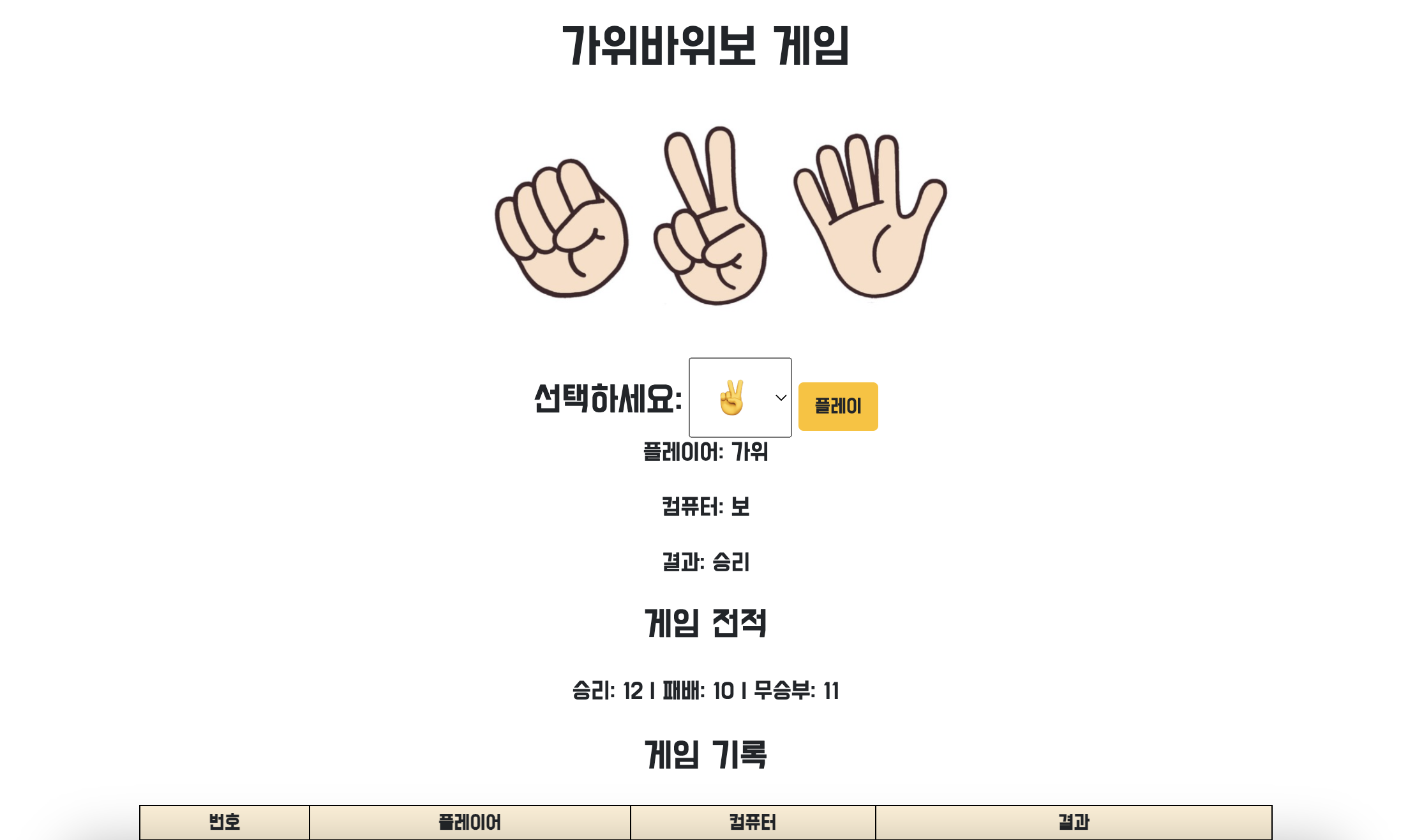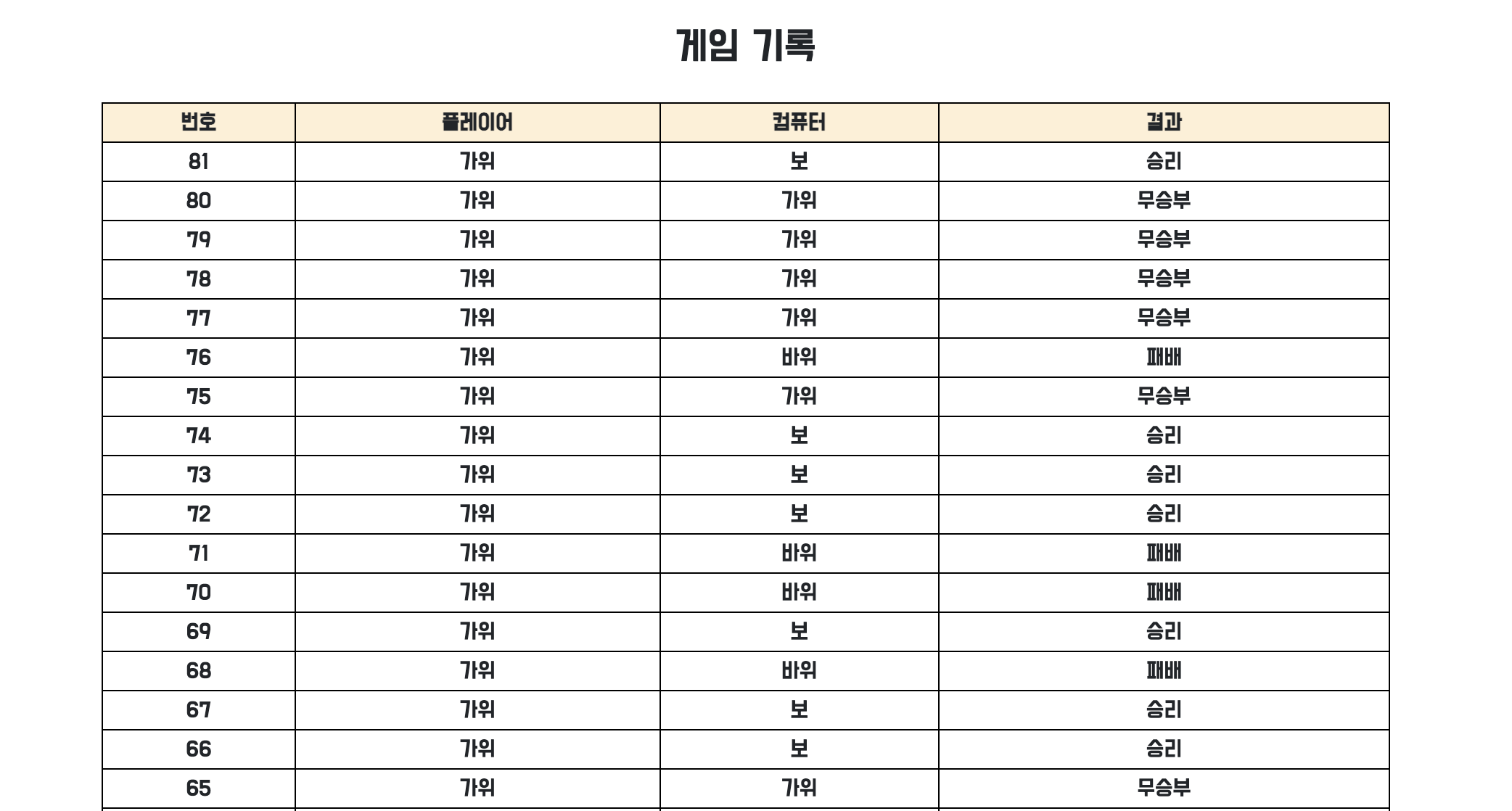
팀과제 4번 웹페이지에서 가위바위보 게임하기!
나는 문서 작성과 가위 바위 보 게임의 입출력을 Flask와 HTML을 이용하도록 변경하는 역할을 맡았지만 개인적으로도 가위바위보 웹페이지를 끝까지 만들어보았다.
🖥️코드 (app.py)
먼저 app.py 파일을 만들고 가위 바위 보 게임 코드를 작성했다.
from flask import Flask, render_template, request, session, redirect, url_for
import random
import os
from flask_sqlalchemy import SQLAlchemy- 사용한 기술과 모듈은 위와 같다.
@app.route('/play', methods=['POST'])
def play():
    options = ['가위', '바위', '보']
    player_choice = request.form['choice']
    computer_choice = random.choice(options)

    if player_choice == computer_choice:
        result = '무승부'
    elif (player_choice == '가위' and computer_choice == '보') or \
         (player_choice == '바위' and computer_choice == '가위') or \
         (player_choice == '보' and computer_choice == '바위'):
        result = '승리'
    else:
result = '패배'- 플레이어가 가위바위보 중 하나를 고르고 컴퓨터는 랜덤으로 정한다.
- 게임 룰을
if문을 사용하여 적어준다.
class GameHistory(db.Model):
    id = db.Column(db.Integer, primary_key=True)
    player_choice = db.Column(db.String, nullable=False)
    computer_choice = db.Column(db.String, nullable=False)
result = db.Column(db.String, nullable=False)- sqlite로 게임 기록 저장할 코드 작성
    # 게임 기록 저장
    new_game = GameHistory(player_choice=player_choice, computer_choice=computer_choice, result=result)
    db.session.add(new_game)
db.session.commit()- sqlite를 이용하여 게임 기록을 저장할 수 있게 한다.
    # 게임 전적 업데이트
    wins = GameHistory.query.filter_by(result='승리').count()
    losses = GameHistory.query.filter_by(result='패배').count()
    draws = GameHistory.query.filter_by(result='무승부').count()

    context = {
        'player_choice': player_choice,
        'computer_choice': computer_choice,
        'result': result
    }

    stats = {
        'wins': wins,
        'losses': losses,
        'draws': draws
}- 게임 전적을 계속 업데이트 시켜주는 코드도 입력!
app.config['SECRET_KEY'] = 'your_secret_key'  # 비밀 키 설정

@app.route('/')
def home():
    # 세션 초기화
    session.clear()

return render_template('rsp_game.html', stats=stats, history=history)- 플레이를 돌려볼 때 전적이 계속 쌓이기만 하고 새로고침은 안 된다. 새로고침하는 코드를 챗gpt에 물어보며 작성했다.
총 입력한 코드는 다음과 같다.
from flask import Flask, render_template, request, session, redirect, url_for
import random
import os
from flask_sqlalchemy import SQLAlchemy

basedir = os.path.abspath(os.path.dirname(__file__))
app = Flask(__name__)
app.config['SQLALCHEMY_DATABASE_URI'] = 'sqlite:///' + os.path.join(basedir, 'database.db')
app.config['SECRET_KEY'] = 'your_secret_key'  # 비밀 키 설정
db = SQLAlchemy(app)

class GameHistory(db.Model):
    id = db.Column(db.Integer, primary_key=True)
    player_choice = db.Column(db.String, nullable=False)
    computer_choice = db.Column(db.String, nullable=False)
    result = db.Column(db.String, nullable=False)

@app.route('/')
def home():
    # 세션 초기화
    session.clear()

    # 초기 stats 값 설정
    stats = {
        'wins': 0,
        'losses': 0,
        'draws': 0
    }

    # 초기 history 설정
    history = []

    return render_template('rsp_game.html', stats=stats, history=history)

@app.route('/play', methods=['POST'])
def play():
    options = ['가위', '바위', '보']
    player_choice = request.form['choice']
    computer_choice = random.choice(options)

    if player_choice == computer_choice:
        result = '무승부'
    elif (player_choice == '가위' and computer_choice == '보') or \
         (player_choice == '바위' and computer_choice == '가위') or \
         (player_choice == '보' and computer_choice == '바위'):
        result = '승리'
    else:
        result = '패배'

    # 게임 기록 저장
    new_game = GameHistory(player_choice=player_choice, computer_choice=computer_choice, result=result)
    db.session.add(new_game)
    db.session.commit()

    # 게임 전적 업데이트
    wins = GameHistory.query.filter_by(result='승리').count()
    losses = GameHistory.query.filter_by(result='패배').count()
    draws = GameHistory.query.filter_by(result='무승부').count()

    context = {
        'player_choice': player_choice,
        'computer_choice': computer_choice,
        'result': result
    }

    stats = {
        'wins': wins,
        'losses': losses,
        'draws': draws
    }

    # 게임 기록 가져오기
    history = GameHistory.query.order_by(GameHistory.id.desc()).all()

    return render_template('rsp_game.html', data=context, stats=stats, history=history)

if __name__ == '__main__':
    app.run(debug=True)
🖥️코드 (rsp_game.html)
html은 다음과 같이 작성 했다.
<!DOCTYPE html>
<html lang="en">
<head>
    <meta charset="UTF-8">
    <meta name="viewport" content="width=device-width, initial-scale=1.0">
    <title>가위바위보 게임</title>

    <!-- 부트스트랩 CDN 추가 -->
    <link href="https://stackpath.bootstrapcdn.com/bootstrap/4.5.2/css/bootstrap.min.css" rel="stylesheet">

    <style>
        @import url('https://fonts.googleapis.com/css2?family=Do+Hyeon&display=swap');

        * {
            font-family: 'Do Hyeon', sans-serif;
        }
        table {
            width: 80%;
            border-collapse: collapse;
        }
        table, th, td {
            border: 1px solid black;
        }
        th, td {
            padding: 1px;
            text-align: center;
        }
        th {
            background-color: papayawhip;
        }
        .container {
            display: flex;
            flex-direction: column;
            align-items: center;
            text-align: center; /* 요소들을 가운데 정렬 */
            font-size: 1.0em; /* 폰트 크기 조정 */
            margin-top: 20px; /* 위쪽 여백 추가 */
        }
        label {
            font-size: 1.8em;
        }
        select {
            font-size: 1.8em; /* 선택 박스 내부 텍스트의 크기 */
            padding: 15px; /* 선택 박스의 패딩 */
            margin-top: 10px; /* 선택 박스의 상단 여백 */
        }
        option {
            font-size: 1.5em; /* 옵션 내부 텍스트의 크기 */
        }
        img {
            height: 200px;
        }

        /* 게임 전적과 게임 기록 사이 간격 추가 */
        h2 {
            font-size: 1.2em;
            margin-bottom: 20px; /* 아래쪽 여백 추가 */
        }

        h3 {
            font-size: 1.8em;
            margin-bottom: 20px; /* 아래쪽 여백 추가 */
        }

        /* 승리/패배/무승부 텍스트의 폰트 크기 조정 */
        p {
            font-size: 1.2em; /* 폰트 크기 조정 */
            margin-bottom: 20px; /* 아래쪽 여백 추가 */
        }

    </style>
</head>
<body>
    <div class="container">
        <h1>가위바위보 게임</h1>
        <img src="{{ url_for('static', filename = 'image.png') }}" alt="Game Image">
        <form action="/play" method="post">
            <label for="choice">선택하세요:</label>
            <select name="choice" id="choice">
                <option value="가위">✌️</option>
                <option value="바위">✊</option>
                <option value="보">🖐️</option>
            </select>
            <button type="submit" class="btn btn-warning">플레이</button>
        </form>

        {% if data %}
            <h2>플레이어: {{ data.player_choice }}</h2>
            <h2>컴퓨터: {{ data.computer_choice }}</h2>
            <h2>결과: {{ data.result }}</h2>
        {% endif %}

        <h3>게임 전적</h3>
        <p>승리: {{ stats.wins }} | 패배: {{ stats.losses }} | 무승부: {{ stats.draws }}</p>

        <h3>게임 기록</h3>
        <table>
            <thead>
                <tr>
                    <th>번호</th>
                    <th>플레이어</th>
                    <th>컴퓨터</th>
                    <th>결과</th>
                </tr>
            </thead>
            <tbody>
                {% for game in history %}
                <tr>
                    <td>{{ game.id }}</td>
                    <td>{{ game.player_choice }}</td>
                    <td>{{ game.computer_choice }}</td>
                    <td>{{ game.result }}</td>
                </tr>
                {% endfor %}
            </tbody>
        </table>
    </div>

    <!-- 부트스트랩 JS 및 jQuery 추가 -->
    <script src="https://code.jquery.com/jquery-3.5.1.slim.min.js"></script>
    <script src="https://cdn.jsdelivr.net/npm/@popperjs/core@1.16.1/dist/umd/popper.min.js"></script>
    <script src="https://stackpath.bootstrapcdn.com/bootstrap/4.5.2/js/bootstrap.min.js"></script>
</body>
</html>- 폰트나 간격 등을 수정하는 단어들과 더 친숙해져야겠다. 고칠 때마다 검색하는 중...
- 폰트와 버튼은 부트스트랩에서 가져왔는데 적용이 안돼서 알고보니 부트스트랩 cdn을 추가해야 했다.
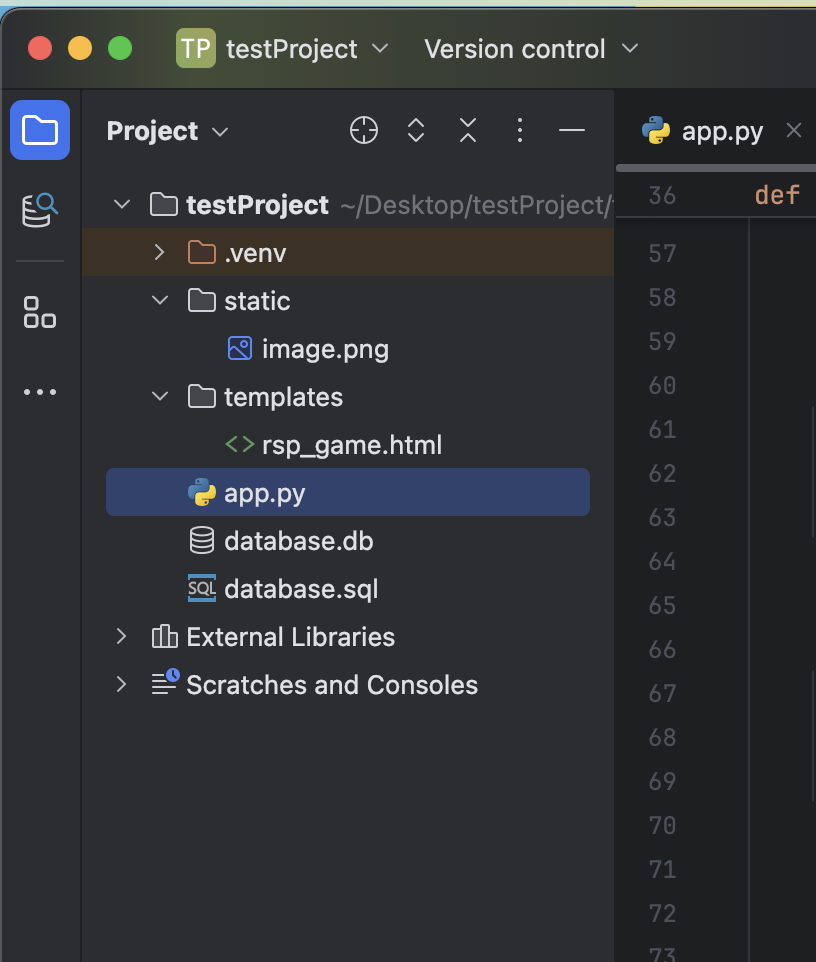
- html은 꼭 templates 폴더에 넣어 주어야 하고 이미지를 첨부하려면 이미지를 static 파일에 넣어 끌어와서 써야 한다.
❤️최종 결과물