▶️ 필수 라이브러리 설치
npm install @react-native-firebase/app @react-native-firebase/messaging설치 후, iOS를 개발하는 경우에는 pod install 필수입니다.
cd ios
pod install
cd ..
※ Android만 작업할 경우 pod install은 필요 없습니다.
⚙️ Android 설정
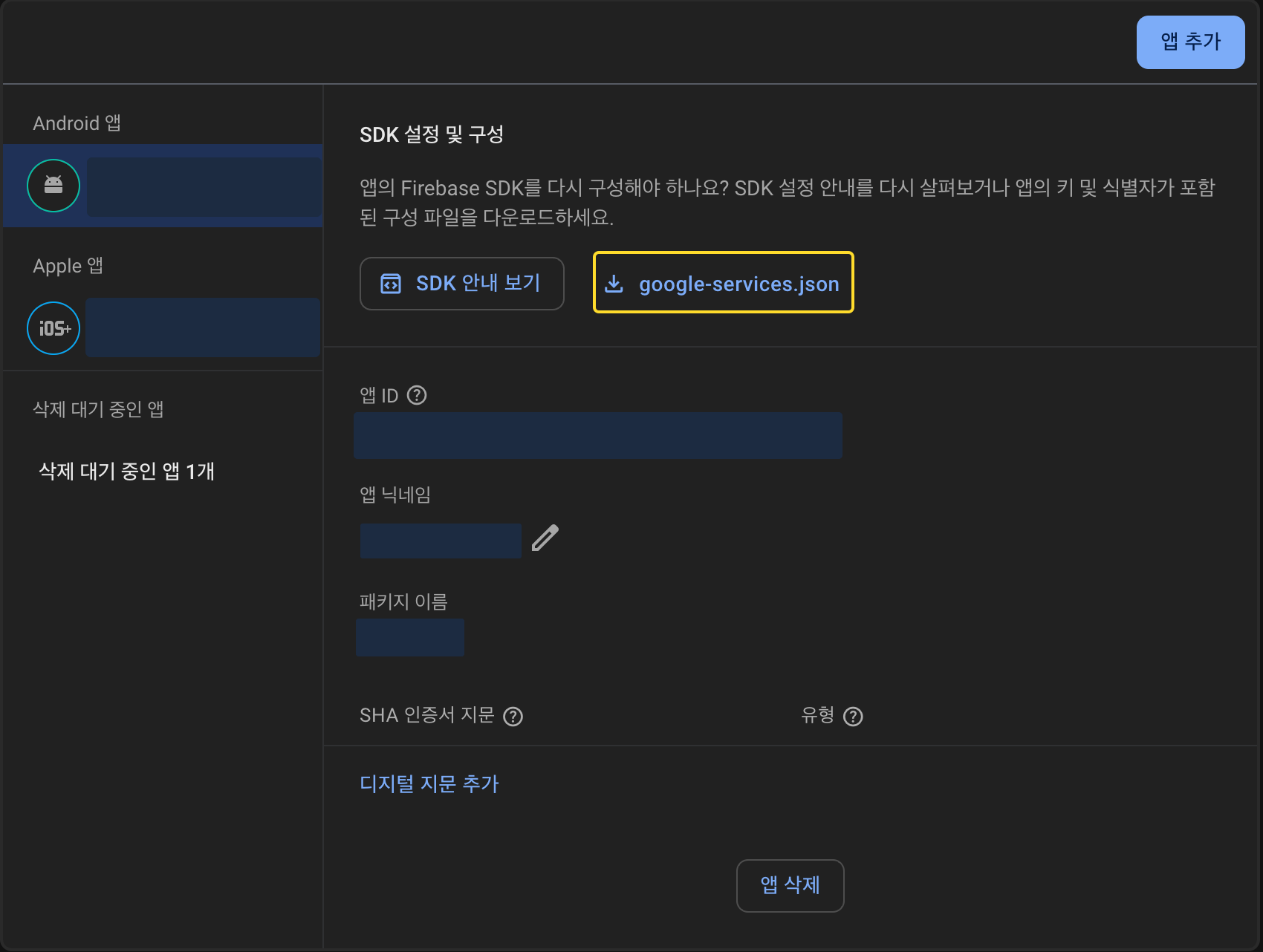
1️⃣ Firebase 프로젝트 설정 및 google-services.json 추가
- Firebase 콘솔 접속
- 새 프로젝트 생성 → Android 앱 등록
- 패키지명 입력 (예: com.example.app)
google-services.json파일 다운로드- 이 파일을 프로젝트 내
android/app/폴더에 복사
2️⃣ Android 프로젝트 설정
- android/build.gradle 수정
-> React Native는 Groovy 방식(build.gradle)이라 plugin 블록 없이 classpath만 추가하면 됩니다.
- buildscript > dependencies 블록 안에 다음 추가
buildscript {
    dependencies {
        // ... 원래 코드
        classpath("com.google.gms:google-services:4.4.2") // 추가
    }
}- android/app/build.gradle 파일 맨 아래에 다음을 추가
apply plugin: 'com.google.gms.google-services'이 설정이 있어야 google-services.json에 등록된 Firebase 정보를 앱이 읽을 수 있습니다.
- Android 13 이상 알림 권한 설정
Android 13(API 33)+부터는 알림 권한을 코드로 직접 요청해야 합니다.
PermissionsAndroid를 사용해POST_NOTIFICATIONS권한을 요청해야 합니다.- android/src/main/AndroidManifest.xml파일에 코드 추가
<uses-permission android:name="android.permission.POST_NOTIFICATIONS" />⚙️ IOS 설정
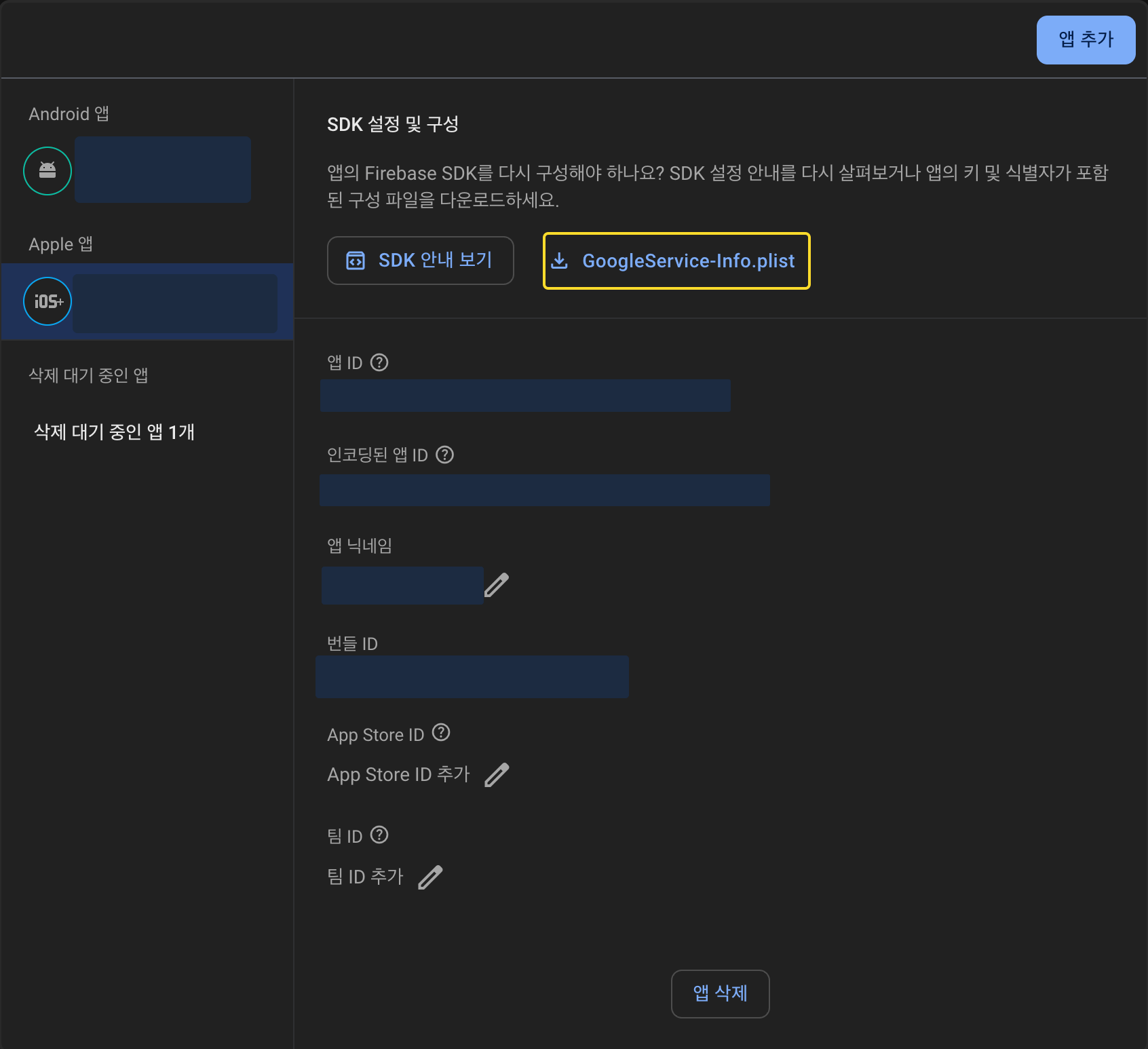
1️⃣ Firebase 프로젝트 설정 및 GoogleService-Info.plist 추가
- Firebase 콘솔 접속
- 새 프로젝트 생성 → iOS 앱 등록
- 번들 ID 입력 (예: com.example.app)
- GoogleService-Info.plist 파일 다운로드
- 이 파일을 Xcode에서 직접 ios/프로젝트이름/ 폴더에 드래그하여 추가 (Xcode에서 등록해야 정상 인식)
- "Copy items if needed" 체크
- "Add to targets"에서 앱 타겟 체크
2️⃣ Xcode 프로젝트 설정
- ios/Podfile에서 Firebase 관련 모듈이 설치되었는지 확인
pod install 중 에러가 발생하거나, CocoaPods 충돌로 인해 Firebase가 정상 설치되지 않는 경우 아래 설정을 Podfile 상단에 추가해 주세요:
use_frameworks! :linkage => :static # 추가
use_modular_headers! # 추가
platform :ios, min_ios_version_supported
prepare_react_native_project!
Firebase와 React Native를 함께 사용할 때 발생할 수 있는 CocoaPods 충돌을 방지하기 위한 설정입니다.
-
use_frameworks! :linkage => :static
→ CocoaPods에서 라이브러리를 정적(static) 프레임워크로 연결하여 빌드 오류와 중복 링크 충돌을 예방합니다.
특히 React Native Firebase, Google 라이브러리와 같이 동적 프레임워크에서 문제를 일으킬 수 있는 경우 유용합니다. -
use_modular_headers!
→ Firebase와 일부 서드파티 라이브러리에서 요구하는 모듈형 헤더 방식으로 pod를 불러옵니다.
충돌을 줄이고 호환성을 높이기 위해 사용합니다.
- Terminal에서 아래 명령어로 pod 설치
cd ios && pod install3️⃣ info.plist 권한 요청 및 설정 추가
ios/프로젝트이름/Info.plist에 아래 내용 추가
<key>UIBackgroundModes</key>
<array>
  <string>remote-notification</string>
</array>
<key>NSPushNotificationUsageDescription</key>
<string>앱이 알림을 보내기 위해 권한이 필요합니다.</string>
이 설정은 앱이 백그라운드에서도 푸시 알림을 받을 수 있게 하고, 사용자에게 알림 권한을 요청하는 메시지를 설정합니다.
4️⃣ 알림 권한 요청 (iOS 10 이상)
@react-native-firebase/messaging 또는 react-native-push-notification 등에서 권한 요청 API를 호출해야 합니다.
import messaging from '@react-native-firebase/messaging';

await messaging().requestPermission();
▶️ 권한 요청 + FCM 토큰 발급 코드
App.tsx 또는 앱 초기화 파일에 다음과 같이 작성합니다:
import React, { useEffect } from 'react';
import { View, Text, Platform, PermissionsAndroid } from 'react-native';
import { getApp } from '@react-native-firebase/app';
import messaging, {
  getMessaging,
  requestPermission,
  AuthorizationStatus,
} from '@react-native-firebase/messaging';

const App = () => {
  const requestUserPermission = async () => {
    const app = getApp();
    const messagingInstance = getMessaging(app);

    if (Platform.OS === 'android') {
      if (PermissionsAndroid && Platform.Version >= 33) {
        const granted = await PermissionsAndroid.request(
          PermissionsAndroid.PERMISSIONS.POST_NOTIFICATIONS,
        );
        if (granted !== PermissionsAndroid.RESULTS.GRANTED) {
          console.log('🔴 Android 알림 권한 거부됨');
          return false;
        }
        console.log('🟢 Android 알림 권한 허용됨');
        return true;
      }
      return true;
    } else {
      const authStatus = await requestPermission(messagingInstance);
      const enabled =
        authStatus === AuthorizationStatus.AUTHORIZED ||
        authStatus === AuthorizationStatus.PROVISIONAL;
      console.log('🟢 iOS 권한 상태:', authStatus);
      return enabled;
    }
  };

  const getFcmToken = async () => {
    const app = getApp();
    const messagingInstance = getMessaging(app);
    const token = await messagingInstance.getToken();
    if (token) {
      console.log('🔥 FCM Token:', token);
    } else {
      console.log('❗ 토큰 발급 실패');
    }
  };

  useEffect(() => {
    const init = async () => {
      const hasPermission = await requestUserPermission();
      if (hasPermission) {
        await getFcmToken();
      }
    };

    init();

    // 토큰 갱신 감지
    const unsubscribe = messaging().onTokenRefresh(token => {
      console.log('🔁 FCM 토큰 갱신:', token);
    });

    return unsubscribe;
  }, []);

  return (
    <View>
      <Text>FCM 테스트 중</Text>
    </View>
  );
};

export default App;
▶️ 테스트할 때 주의사항
| 항목 | 설명 |
|---|---|
| 실기기 테스트 | 에뮬레이터는 푸시 수신이 불안정함 (Android 실기기 권장) |
| Android 13+ | POST_NOTIFICATIONS 권한 반드시 요청해야 수신됨 |
| google-services.json 위치 | android/app/에 정확히 위치해야 인식됨 |
| iOS는 xcworkspace 사용 | .xcworkspace로 Xcode 열기 |
| 알림 권한 상태 확인 | 앱 설치 후 기기 설정 > 알림 허용 확인 |
📌 추후 작업
☑️ Firebase 콘솔에서 테스트 알림 전송
Firebase 콘솔 → Cloud Messaging → 알림 전송 → 테스트 전송
테스트 대상 기기 FCM 토큰 입력 필요
☑️ 앱 상태별 알림 수신 테스트
| 앱 상태 | 동작 여부 확인 항목 |
|---|---|
| Foreground (앱 실행 중) | 커스텀 알림 UI 출력 필요 (기본 알림 미표시) |
| Background (백그라운드 실행 중) | 시스템 알림 정상 수신 여부 |
| Terminated (앱 완전 종료 상태) | 앱 실행 + 알림 처리 로직 정상 동작 여부 |
☑️ iOS - Apple 개발자 계정 연동 후 테스트 진행
iOS는 APNs 인증 설정이 없으면 FCM 푸시가 작동하지 않습니다.
- Apple Developer 계정에 로그인
- 팀 계정 또는 개인 계정 등록 필요
- 앱의 Bundle ID와 일치하는 App ID 등록
- Apple Developer > Certificates, IDs & Profiles > Identifiers > App ID 생성
- Push Notification Capabilities 활성화
Xcode > Signing & Capabilities에서 Push Notifications 추가 - APNs 키(Key) 생성 및 Firebase 등록
- Apple Developer 콘솔 > Certificates > Keys > APNs Auth Key 생성
- Firebase 콘솔 → 프로젝트 설정 → 클라우드 메시징 탭
→ APNs 인증 키 업로드
- 실제 기기에서 테스트
- 시뮬레이터에서는 푸시 알림 수신 안 됨(실제 기기에서 테스트 필요)