
비동기 작업의 이해
웹 애플리케이션에서 서버 쪽 데이터가 필요할때는 Ajax기법을 사용해
API를 호출함으로써 데이터를 수신하는데, 네트워크 송수신 과정에서 시간이 걸리기 때문에, 작업이 즉시 처리되면 안됨
⇒ 응답 받을때까지 기다렸다가 처리해야함
⇒ 비동기적으로 처리해야함 ⇒ 안그러면 다른 일을 못함(데이터 오고난뒤에 처리할려는건 동기적이 아니라 비동기인데 후속 처리를 말하는거임)
콜백, 프로미스,async/await를 이용하자
axios로 API 호출해서 데이터 받아오기
axios?
현재 가장 많이 사용되고 있는 자바스크립트 HTTP 클라이언트
- HTTP 요청을 promise 기반으로 처리함
yarn add axios호출해보자
App.js
import React, { useState } from 'react'
import axios from 'axios';

function App() {
  const [data, setData] = useState(null);
  const onClick = () => {
    axios.get('https://jsonplaceholder.typicode.com/todos/1').then(response => { setData(response.data) });
  };
  return (
    <div>
      <div>
        <button onClick={onClick}>불러오기</button>
      </div>
      {data && <textarea row={7} value={JSON.stringify(data, null, 2)} readOnly={true} />}
    </div>
  )
}

export default App
//
asncy를 적용하면?

import React, { useState } from 'react'
import axios from 'axios';

function App() {
  const [data, setData] = useState(null);
  const onClick = async () => {
    try {
      const response = await axios.get('https://jsonplaceholder.typicode.com/todos/1')// 후속 처리를 위해 기다려라
      setData(response.data)
    } catch (e) {
      console.log(e);
    }
  };
  return (
    <div>
      <div>
        <button onClick={onClick}>불러오기</button>
      </div>
      {data && <textarea row={7} value={JSON.stringify(data, null, 2)} readOnly={true} />}
    </div>
  )
}

export default Appaxios.get: 파라미터로 전달된 주소에 GET 요청을 해준다, 이에 대한 결과는 .then을 통해 비동기적으로 확인한다.
newsapi API 키 발급밥기
사이트가서 받아라
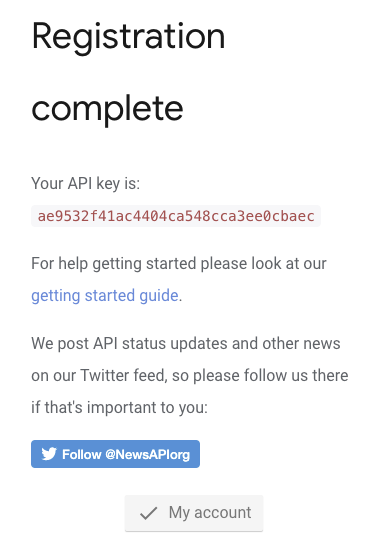
이 API키는 추후 API를 요청 할때 API 주소의 쿼리 파라미터로 넣어서 사용한다
사용할 API
https://newsapi.org/s/south-korea-news-api
- 전체 뉴스 불러오기
- 특정 카테고리 뉴스불러오기
const response = await axios.get('https://newsapi.org/v2/top-headlines?country=kr&apiKey=ae9532f41ac4404ca548cca3ee0cbaec',)
- apikey ={내 apikey}
뉴스 뷰어 UI 만들기
styled-components를 이용하자
yarn add styled-components- 이후 컴포넌트에
- NewsItem : 뉴스 정볼르 알려주는 컴포넌트
- NewList : API를 요청하고 데이터가 들어있는 배열을 컴포넌트 배열로 변환하여 랜더링 해주는 컴포넌트
추가한다.
import React from 'react';
import styled from 'styled-components';

const NewsItemBlock = styled.div`
  display: flex;

.thumbnail {
    margin-right: 1rem;
    img {
      display: block;
      width: 160px;
      height: 100px;
      object-fit: cover;
    }
  }
  .contents {
    h2 {
      margin: 0;
      a {
        color: black;
      }
    }
    p {
      margin: 0;
      line-height: 1.5;
      margin-top: 0.5rem;
      white-space: normal;
    }
  }
  & + & {
    margin-top: 3rem;
  }
`;
// article을 그대로 받아와서
const NewsItem = ({ article }) => {
    const { title, description, url, urlToImage } = article; // 프로퍼티를 뽑아서 // UI에 넣자
    return (
        <NewsItemBlock>
            {urlToImage && (
                <div className="thumbnail">
                    <a href={url} target="_blank" rel="noopener noreferrer">
                        <img src={urlToImage} alt="thumbnail" />
                    </a>
                </div>
            )}
            <div className="contents">
                <h2>
                    <a href={url} target="_blank" rel="noopener noreferrer">
                        {title}
                    </a>
                </h2>
                <p>{description}</p>
            </div>
        </NewsItemBlock>
    );
};

export default NewsItem;

import React from 'react';
import styled from 'styled-components';
import NewsItem from './NewsItem';

const NewsListBlock = styled.div`
    box-sizing: border-box;
    padding-bottom: 3rem;
    width: 768px;
    margin: 0 auto;
    margin-top: 2rem;
    @media screen and (max-width: 768px){
        width : 100%;
        padding-left: 1rem;
        padding-right: 1rem;
    }
`

const sampleArticle = {
    title: '제목',
    description: '내용',
    url: 'https://google.com',
    urlToImage: 'https://via.placeholder.com/160',
};

const NewsList = () => {
    return (
        <NewsListBlock>
            <NewsItem article={sampleArticle} />
            <NewsItem article={sampleArticle} />
            <NewsItem article={sampleArticle} />
            <NewsItem article={sampleArticle} />
            <NewsItem article={sampleArticle} />
            <NewsItem article={sampleArticle} />
        </NewsListBlock>
    );
};

export default NewsList;
NewList 에서 → NewsItem을 보여준다
데이터 연동하기
API를 처음에만 랜더링하고 싶으니 useEffect를 사용해야하는데, useEffect가 반환하는 값은 뒷정리 함수를 리턴을 반환하기 때문에 async 처럼 프로미스를 반환하게 하면 안된다
⇒ useEffect 안에 async 함수를 만들자!
import axios from 'axios';
import React, { useState, useEffect } from 'react';
import styled from 'styled-components';
import NewsItem from './NewsItem';

const NewsListBlock = styled.div`
    box-sizing: border-box;
    padding-bottom: 3rem;
    width: 768px;
    margin: 0 auto;
    margin-top: 2rem;
    @media screen and (max-width: 768px){
        width : 100%;
        padding-left: 1rem;
        padding-right: 1rem;
    }
`
const NewsList = () => {

    const [articles, setArticles] = useState(null);
    const [loading, setLoading] = useState(false); // loading 중이면 true로 하자

    useEffect(() => {
        const fetchData = async () => {
            setLoading(true);
            try {
                const response = await axios.get(
                    'https://newsapi.org/v2/top-headlines?country=kr&apiKey=ae9532f41ac4404ca548cca3ee0cbaec',
                );
                setArticles(response.data.articles)
            } catch (e) {
                console.log(e)
            }
            setLoading(false)
        }
        fetchData(); // 해당함수 useEffect에 등록
    }, []);

    if (loading) {
        return <NewsListBlock> 대기중..</NewsListBlock>
    }

    if (!articles) {
        return null;
    }

    return (
        <NewsListBlock>
            {articles.map(articles => (
                <NewsItem key={articles.url} article={articles} />))}
        </NewsListBlock>
    );
};

export default NewsList;- map함수를 사용하기전에 꼭 articles를 조회해서, 값이 잘 왔는지 확인해야한다, 잘못된 값으로 랜더링 할수있기 때문
카테고리 기능 구현하기
카테고리를 누르면 해당 카테고리로 가게 만들자
카테고리 선택 UI 만들기
import React from 'react';
import styled from 'styled-components';

const categories = [
    {
        name: 'all',
        text: '전체보기'
    },
    {
        name: 'business',
        text: '비즈니스'
    },
    {
        name: 'entertainment',
        text: '엔터테인먼트'
    },
    {
        name: 'health',
        text: '건강'
    },
    {
        name: 'science',
        text: '과학'
    },
    {
        name: 'sports',
        text: '스포츠'
    },
    {
        name: 'technology',
        text: '기술'
    }
];

const CategoriesBlock = styled.div`
    display: flex;
    padding: padding 1rem;
    width: 768px;
    margin: 0 auto;
    @media screen and (max-width 768px) {
        width: 100%;
        overflow-x: auto;
    }`;

const Category = styled.div`
  font-size: 1.125rem;
  cursor: pointer;
  white-space: pre;
  text-decoration: none;
  color: inherit;
  padding-bottom: 0.25rem;

&:hover {
    color: #495057;
  }
& + & {
    margin-left: 1rem;
  }
`;
const Categories = () => {
    return (
        <CategoriesBlock>
            {categories.map(c => (
                <Category key={c.name}>{c.text}</Category>
            ))}
        </CategoriesBlock>
    );
};

export default Categories;- 카테고리 리스트를 만들고, map을 이용해 순회해서 표현한다
그뒤에 스타일을 정해주자, 선택할때마다 해당 카테고리의 스타일을 변경해주자
import React from 'react';
import styled, { css } from 'styled-components';

const categories = [
    {
        name: 'all',
        text: '전체보기'
    },
    {
        name: 'business',
        text: '비즈니스'
    },
    {
        name: 'entertainment',
        text: '엔터테인먼트'
    },
    {
        name: 'health',
        text: '건강'
    },
    {
        name: 'science',
        text: '과학'
    },
    {
        name: 'sports',
        text: '스포츠'
    },
    {
        name: 'technology',
        text: '기술'
    }
];

const CategoriesBlock = styled.div`
    display: flex;
    padding: padding 1rem;
    width: 768px;
    margin: 0 auto;
    @media screen and (max-width 768px) {
        width: 100%;
        overflow-x: auto;
    }`;

const Category = styled.div`
  font-size: 1.125rem;
  cursor: pointer;
  white-space: pre;
  text-decoration: none;
  color: inherit;
  padding-bottom: 0.25rem;

&:hover {
    color: #495057;
  }
// Category 컴포넌트에 props에 따라 css에 적용됨 , 이걸 맵으로 돌리니깐 각각 따로 생김 all이면 all.active, technology.active .... 이렇게
**${props =>
        props.active && css`
    font-weight : 600;
    border-bottom: 2px solid #22b8cf;
    color: #22b8cf;
    &:hover {
        color: #3bc9db
    }
`}**

& + & {
    margin-left: 1rem;
  }
`;
const Categories = ({ onSelect, category }) => {
    return (
        <CategoriesBlock>
            {categories.map(c => (
                <Category key={c.name}
                    active={category === c.name}
                    onClick={() => onSelect(c.name)}
                >
                    {c.text}</Category>
            ))}
        </CategoriesBlock>
    );
};

export default Categories;- 처음에는 카테고리가 다 랜더링되고, 클릭을 하면 c.name이 설정되어 선택한 카테고리와 , 카테고리별로 생성된 컴포넌트 category 값이 같다면 ⇒ active가 true가 됨
API를 호출할때 카테고리 지정하기
고민해 봐야할게
- NewList에서 받아오는 API를 카테고리 별로 ⇒ 주소중간에 &category=카테고리명 을 카테고리별로 넣음
- 변경 될때마다 새로 마운트
App.js
import React, { useState, useCallback } from 'react'
import NewsList from './components/NewList'
import Categories from './components/Categories'

function App() {
  const [category, setCategory] = useState('all')
  const onSelect = useCallback(category => setCategory(category), []); // 기존 카테고리 상태는 all, 선택할때는 해당 카테고리로 업데이트됨
  return (
    <>
      <Categories category={category} onSelect={onSelect} />
      <NewsList category={category} />
    </>
  )
}

export default App
import axios from 'axios';
import React, { useState, useEffect } from 'react';
import styled from 'styled-components';
import NewsItem from './NewsItem';
const NewsListBlock = styled.div`
box-sizing: border-box;
padding-bottom: 3rem;
width: 768px;
margin: 0 auto;
margin-top: 2rem;
@media screen and (max-width: 768px){
width : 100%;
padding-left: 1rem;
padding-right: 1rem;
}
`
const NewsList = ({ category }) => {
const [articles, setArticles] = useState(null);
const [loading, setLoading] = useState(false); // loading 중이면 true로 하자
useEffect(() => {
const fetchData = async () => {
setLoading(true);
try {
// 카테고리가 all 이면 그냥 그대로, onclick때문에 상태가 변경된 카테고리이면, 그 카테고리를 넣어줌
const query = category === 'all' ? '' : `&category=${category}`;
const response = await axios.get(
`https://newsapi.org/v2/top-headlines?country=kr${query}&apiKey=ae9532f41ac4404ca548cca3ee0cbaec`,
);
setArticles(response.data.articles)
} catch (e) {
console.log(e)
}
setLoading(false)
}
fetchData(); // 해당함수 useEffect에 등록
}, [category]); // 변경될때마다 넣어줘야하니깐
if (loading) {
return <NewsListBlock> 대기중..</NewsListBlock>
}
if (!articles) {
return null;
}
return (
<NewsListBlock>
{articles.map(articles => (
// map으로 만들어진 리스트의 순서를 결정하기위해 key를 넣어줌
<NewsItem key={articles.url} article={articles} />))}
</NewsListBlock>
);
};
export default NewsList;리액트 라우터 적용하기
기존에는 카테고리 값을 useState로 관리해줬는데 이제는 리액트 라우터의 URL 파라미터를 사용해 관리하자
즉 누르면 해당하는 카테고리 경로로 가자
일단 라우트로 감싸주고
index.js
import React from 'react';
import ReactDOM from 'react-dom';
import './index.css';
import App from './App';
import reportWebVitals from './reportWebVitals';
import { BrowserRouter } from 'react-router-dom';

ReactDOM.render(
  <BrowserRouter>
    <App />
  </BrowserRouter>,
  document.getElementById('root')
);
그리고 라우터 역할을 해줄 NewsPage를 만들자
NewsPage.js
import React from 'react'
import Categories from '../components/Categories'
import NewsList from '../components/NewList'

function NewPage({ match }) {
    const category = match.params.category || 'all'
    return (
        <>
            <Categories />
            <NewsList category={category} />
        </>
    )
}

export default NewPage
App.js에서 담당하던 클릭으로 바뀐 상태 값을 이용해 카테고리값을 넘겨주던걸 ⇒ Catregories.js에서
import React from 'react';
import { NavLink } from 'react-router-dom';
import styled, { css } from 'styled-components';

const categories = [
    {
        name: 'all',
        text: '전체보기'
    },
    {
        name: 'business',
        text: '비즈니스'
    },
    {
        name: 'entertainment',
        text: '엔터테인먼트'
    },
    {
        name: 'health',
        text: '건강'
    },
    {
        name: 'science',
        text: '과학'
    },
    {
        name: 'sports',
        text: '스포츠'
    },
    {
        name: 'technology',
        text: '기술'
    }
];

const CategoriesBlock = styled.div`
    display: flex;
    padding: padding 1rem;
    width: 768px;
    margin: 0 auto;
    @media screen and (max-width 768px) {
        width: 100%;
        overflow-x: auto;
    }`;

const Category = styled**(NavLink)`**
  font-size: 1.125rem;
  cursor: pointer;
  white-space: pre;
  text-decoration: none;
  color: inherit;
  padding-bottom: 0.25rem;

&:hover {
    color: #495057;
  }

&.active {
    font-weight : 600;
    border-bottom: 2px solid #22b8cf;
    color: #22b8cf;
    &:hover {
        color: #3bc9db;
    }
}
& + & {
    margin-left: 1rem;
  }
`;
const Categories = () => {
    return (
        <CategoriesBlock>
            {categories.map(c => (
                <Category key={c.name}
                    activeClassName="active" // 눌렀을때 css가 적용됨
                    exact={c.name === 'all'} // all 값, 즉 전체보기 할때는 true로 해야함, 다른 카테고리 선택되었을때도 전체보기가 활성화되기 때문에
                    to={c.name === 'all' ? '/' : `/${c.name}`}
                >
                    {c.text}</Category>
            ))}
        </CategoriesBlock>
    );
};

export default Categories;- NavLink를 Category가 상속받음으로써 to를 설정할수 있다 ⇒ link 처럼 해당 컴포넌트를 누르면 파라미터로 to를 넘겨줄수 있다 ⇒ app.js 에서 파라미터로 받아서, NewPage가 선택한 카테고리에 맞게 라우팅됨
import React, { useState, useCallback } from 'react'
import { Route } from 'react-router-dom'
import NewsPage from './pages/NewsPage'

function App() {
  return (
    <>
      <Route path="/:category?" component={NewsPage} />
    </>
  )
}

export default App
usePromise 커스텀 Hook만들기
컴포넌트에서 Promise를 사용해야하는 경우에 사용된다
import { useState, useEffect } from ‘react‘;

export default function usePromise(promiseCreator, deps) {
  // 대기 중/완료/실패에 대한 상태 관리
  const [loading, setLoading] = useState(false);
  const [resolved, setResolved] = useState(null);
  const [error, setError] = useState(null);

useEffect(() => {
    const process = async () => {
      setLoading(true);
      try {
        const resolved = await promiseCreator();
        setResolved(resolved);
      } catch (e) {
        setError(e);
      }
      setLoading(false);
    };
    process();
    // eslint-disable-next-line react-hooks/exhaustive-deps
  }, deps);

return [loading, resolved, error];
}- 프로젝트의 다양한 곳에서 사용될 수 있는 유틸 함수들은 보통 src 디렉터리에 lib 디렉터리를 만든 후 그안에 작성한다
- 대기중, 완료결과, 실패 결과에 대한 상태를 관리하며 ⇒ 의존 배열인 deps를 파라미터로 받아온다
사용해보자
import React from 'react';
import styled from 'styled-components';
import NewsItem from './NewsItem';
import axios from 'axios';
import usePromise from '../lib/usePromise';

const NewsListBlock = styled.div`
  (...)
`;

const NewsList = ({ category }) => {
    const [loading, response, error] = usePromise(() => {
        const query = category === 'all' ? '' : `&category=${category}`;
        return axios.get(
            `https://newsapi.org/v2/top-headlines?country=kr${query}&apiKey=ae9532f41ac4404ca548cca3ee0cbaec`,
        );
    }, [category]);

    // 대기 중일 때
    if (loading) {
        return <NewsListBlock>대기 중...</NewsListBlock>;
    }

    // 아직 response 값이 설정되지 않았을 때
    if (!response) {
        return null;
    }
    // 에러가 발생했을 때
    if (error) {
        return <NewsListBlock>에러 발생!</NewsListBlock>;
    }

    // response 값이 유효할 때
    const { articles } = response.data;
    return (
        <NewsListBlock>
            {articles.map(article => (
                <NewsItem key={article.url} article={article} />
            ))}
        </NewsListBlock>
    );
};

export default NewsList;- 즉 usePormise 첫번째 매개변수에는 콜백 함수가 들어가고, 두번째 파라미터에는 의존성 배열인 desp=category가 들어가 게된다, 콜백함수 로직은 promise 의 비동기 처리로 넘어가 결과 값을 반환하고, 반환한 결과 값은 loading, respones, error의 상태 값을 변경 시킨다
- 변경된 상태값으로 대기중, 성공, 실패를 정하면된다.