HTML
<!DOCTYPE html>
<html>
  <head>
    <meta charset="utf-8">
    <meta name="viewport" content="width=device-width">
    <title>repl.it</title>
    <link href="style.css" rel="stylesheet" type="text/css" />
  </head>
  <body>
    <div class="container">
      <a href="weecode.co.kr">
        <img src="https://user-images.githubusercontent.com/61774575/95163201-34411c00-075c-11eb-9987-d6301acb4dab.png" alt="logo">
      </a>
      <div class="input__search">
        <img src="https://s3.ap-northeast-2.amazonaws.com/cdn.wecode.co.kr/icon/search.png" alt="돋보기 모양 아이콘">
        <input type="search">
      </div>

      <div class="container__button">
        <button class="button__style">weegle 검색</button>
        <button class="button__style">I'm feeling Lucky</button>
      </div>
      <p class="text__style">Weegle 제공 서비스 : <a href="">English</a></p>

    </div>
  </body>
</html>
CSS
body {
  display: flex;
  justify-content: center;
  align-items: center;
}


.container {
  display: flex;
  flex-direction: column;
  width: 500px;
  height: 300px;
  justify-content: center;
  align-items: center;
}

img {
  width: 300px;
}

a {
  text-decoration-line: none;
}
.input__search {
  position: relative;
  width: 100%;

}

.input__search input {
  width: 100%;
  border-radius: 16px;
  border: 1px solid #bbb;
  padding: 7px;
}

.input__search img {
  position: absolute;
  width: 13px;
  top: 9px;
  left: 9px;
  opacity: 0.5;
}
.container__button {
  display: inline-block;
}
.button__style {
  margin-top: 10px;
  margin-left: 5px;
  border: 0;
  border-radius: 5px;
  padding: 12px;
}
구현화면
review
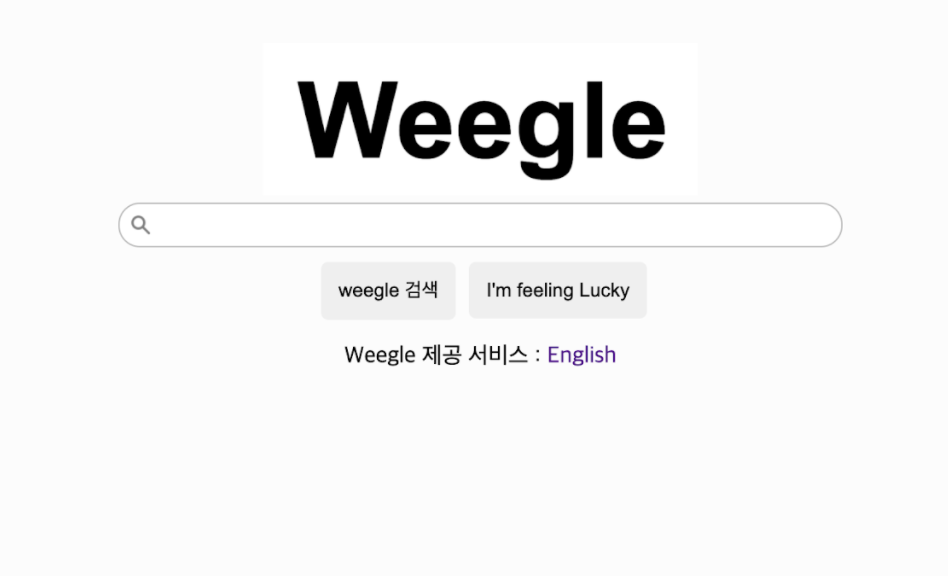
전체적으로 가운데 정렬을 하기 위해서 body에 css sytle을 적용하였고
div태그로 전체적으로 둘러쌓아서 css에서 display flex속성을 이용하여 column효과를 주어 세로로 정렬시켰다.
세로로 정렬된 값에 영역 지정을 하기 위해 width, height 값을 넣어줬으며 flex의 justify-content, align-items를 넣어 가운데로 정렬시켰다.
input의 search type을 이용하여 검색창을 구현하였고 style로 꾸며주었으며 돋보기 이미지를 검색창 안에 넣어주기 위해서 position을 이용하여 이미지의 위치를 조정하였다.
button의 위치를 양 옆에 놓고 크기를 조정하기 위해 display inline-block 값을 적용하였으며 style을 넣어서 이미지상 버튼을 꾸며주었다.
영역을 나눠보자면 전체적인 박스 하나, 로고 이미지 하나, input영역 하나, 버튼영역 하나, 마지막 p태그 영역 하나 이렇게 구성하여 html과 css를 작성했다고 볼 수 있다.