오늘은 API를 받아서 랜덤 이미지,이름을 만들겠습니다.
친구목록 만들기
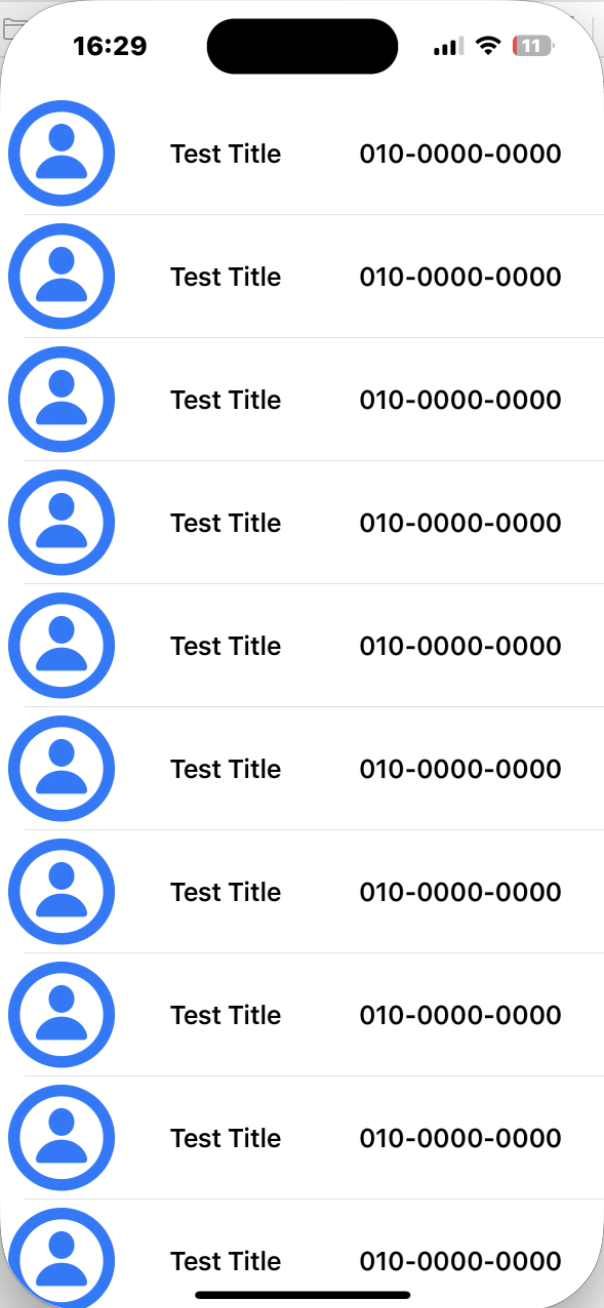
//ContactCellView.swift
import UIKit
import SnapKit

class ContactCellView:UITableViewCell {

    static let identifier = "ContactCell"
    //전역변수로 선언

    let image:UIImageView = {
        let imageView = UIImageView()
        imageView.image = UIImage(systemName: "person")
        imageView.translatesAutoresizingMaskIntoConstraints = false
        return  imageView

    }()

    let nameLabel: UILabel = {
        let label = UILabel()
        label.text = "파이리"
        label.textColor = UIColor.black
        label.translatesAutoresizingMaskIntoConstraints = false
        return label
    }()

    let numberLabel: UILabel = {
        let label = UILabel()
        label.text = "010-0000-0000"
        label.textColor = UIColor.black
        label.translatesAutoresizingMaskIntoConstraints = false
        return label
    }()

    override init(style: UITableViewCell.CellStyle, reuseIdentifier: String?) {
        super.init(style: style, reuseIdentifier: reuseIdentifier)

        addContentView()
        autoLayout()

    }

    required init?(coder: NSCoder) {
         fatalError("init(coder:) has not been implemented")
     }

    private func addContentView() {
        contentView.addSubview(image)
        contentView.addSubview(nameLabel)
        contentView.addSubview(numberLabel)
    }

    private func autoLayout() {
        image.snp.makeConstraints {
            $0.size.width.height.equalTo(80)
        }
        nameLabel.snp.makeConstraints {
            $0.leading.equalTo(image.snp.trailing).offset(30)
            $0.top.equalTo(30)


        }
        numberLabel.snp.makeConstraints {
            $0.leading.equalTo(nameLabel.snp.trailing).offset(50)
            $0.top.equalTo(30)

        }
    }

}
TableView
extension ViewController:UITableViewDataSource {
    func tableView(_ tableView: UITableView, numberOfRowsInSection section: Int) -> Int {
        return 10
    }

    func tableView(_ tableView: UITableView, cellForRowAt indexPath: IndexPath) -> UITableViewCell {
        let cell = tableView.dequeueReusableCell(withIdentifier: ContactCellView.identifier, for: indexPath) as! ContactCellView
        cell.image.image = UIImage(systemName: "person.circle")
        cell.nameLabel.text = "Test Title"
        return cell
    }
}
extension ViewController:UITableViewDelegate {
    func tableView(_ tableView: UITableView, didSelectRowAt indexPath: IndexPath) {
            print("select \(indexPath.row)")
        }
}
이제 Navigation Title을 만들어주겠습니다.
ViewController
title = "친구 목록"
        navigationController?.navigationBar.titleTextAttributes = [
            NSAttributedString.Key.font : UIFont.systemFont(ofSize: 20, weight: .bold),
            NSAttributedString.Key.foregroundColor : UIColor.black
        ]
위 코드가 ViewDidload 에서 동작 되어야 합니다. 또한 추가적으로 SceneDelegate도 코드를 추가 해줘야 합니다.
SceneDelegate
let navigationContoller = UINavigationController(rootViewController: ViewController())RootView 를 navigationContoller로 바꿔주시면 됩니다
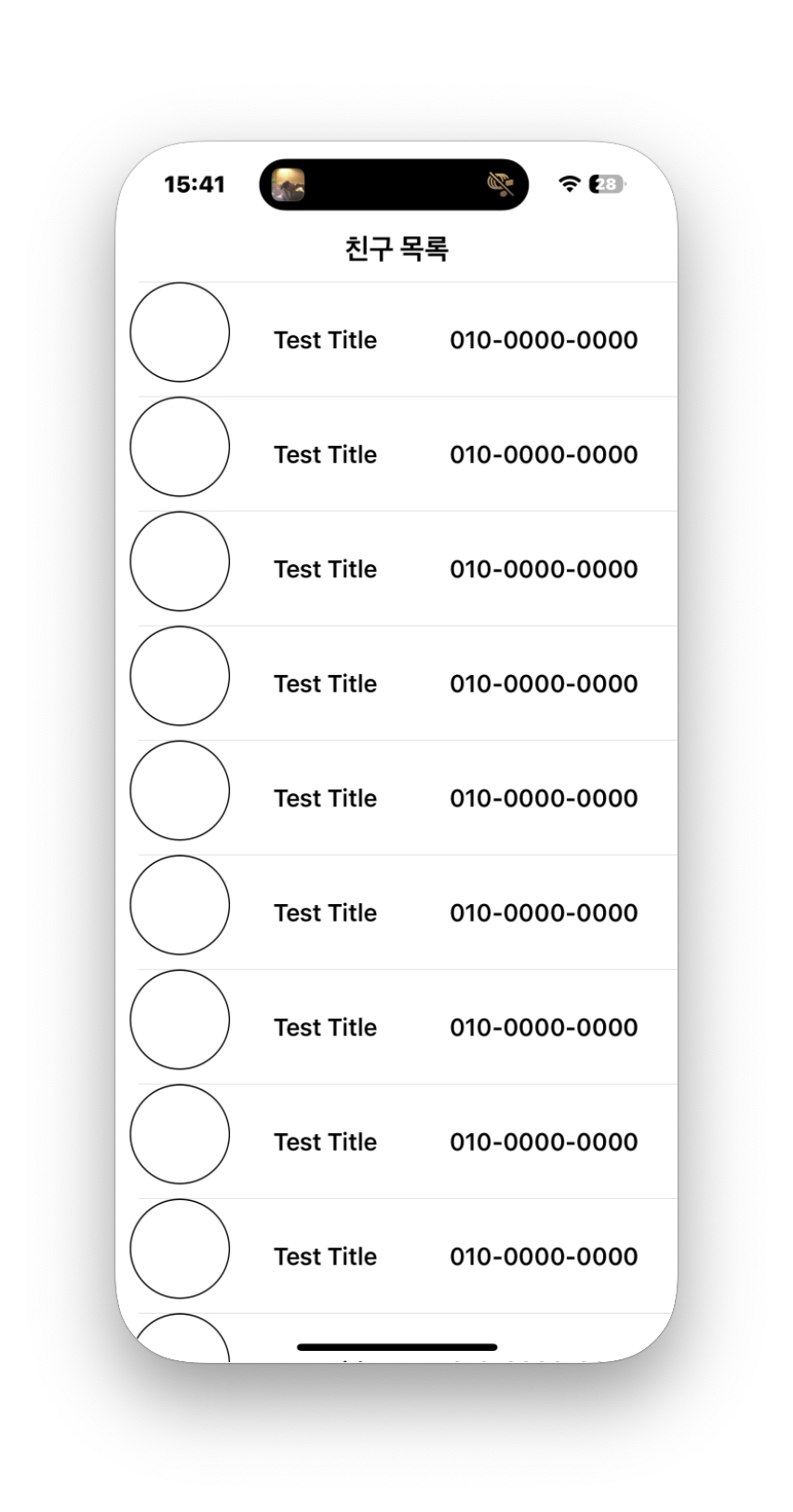
다음으로는 NavigationBaritem 추가해주겠습니다.
let addButton = UIBarButtonItem(title: "추가", style: .plain, target: self, action: nil)
        addButton.tintColor = UIColor.gray
        navigationItem.rightBarButtonItem = addButton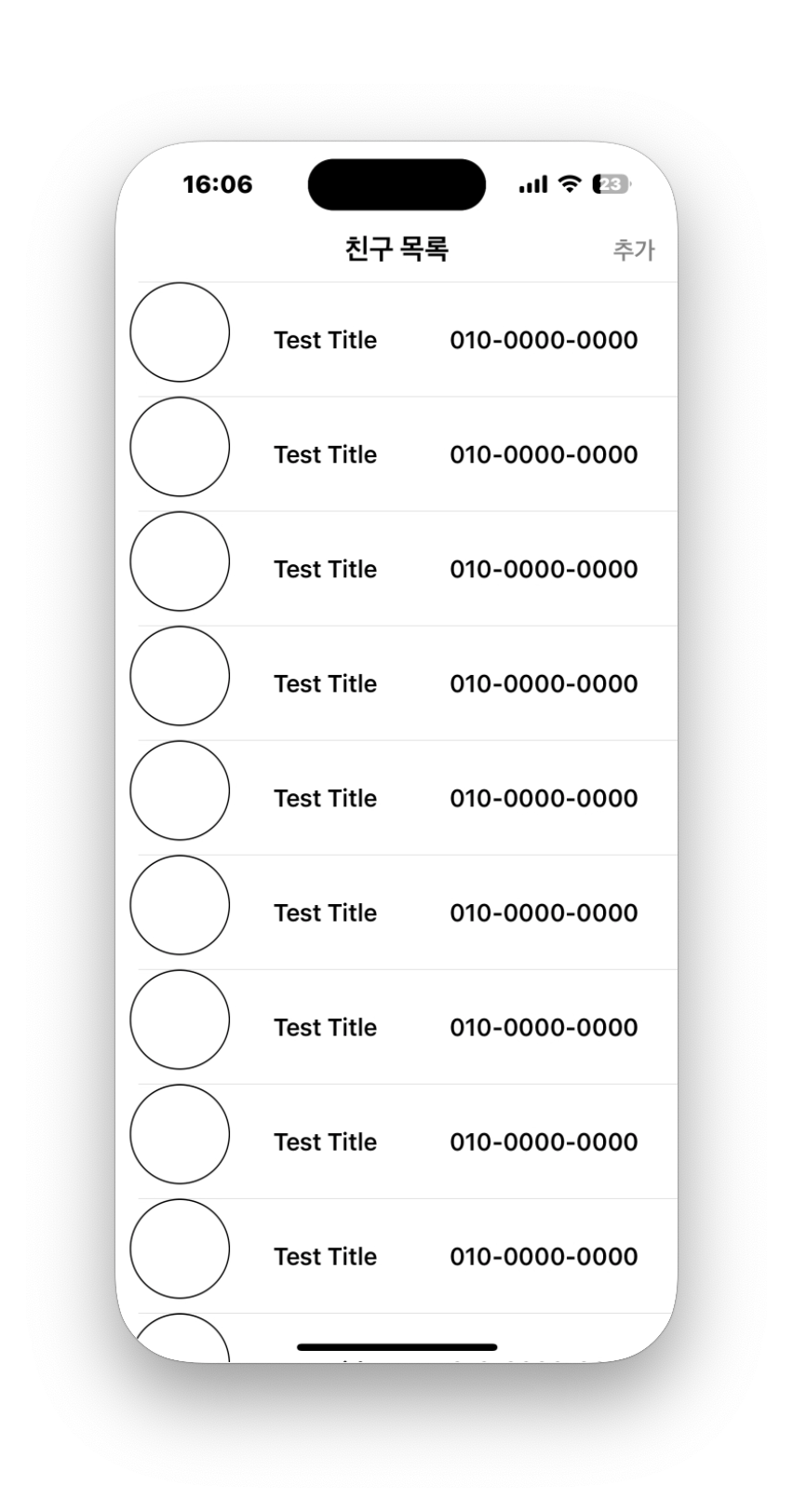
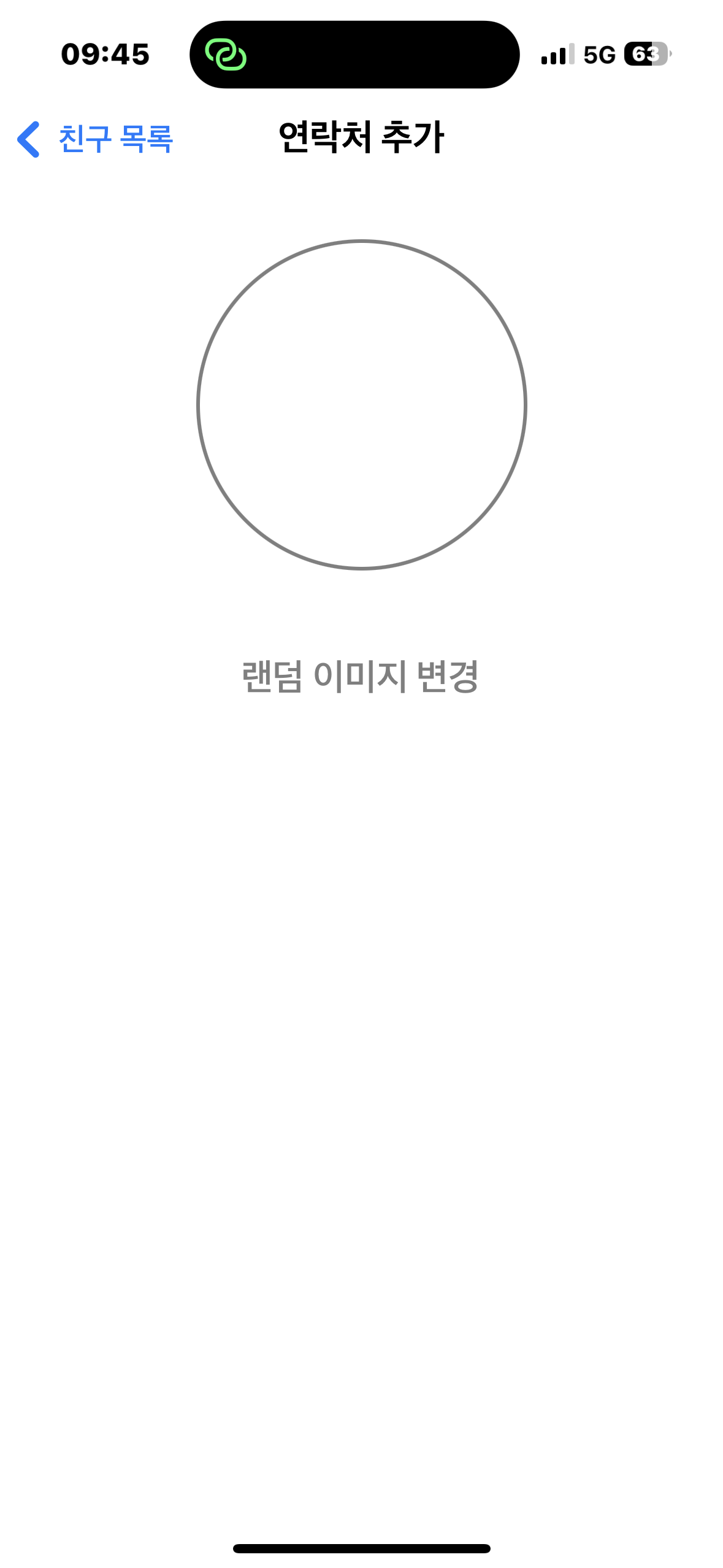
이제 추가 버튼을 눌렀을때 연락처를 추가할 수 있는 View를 만들어 줘야합니다.
import UIKit
import SnapKit

class PhoneBookViewController: UIViewController {

    override func viewDidLoad() {
        super.viewDidLoad()
        addSubView()
        setupNavigation()
        view.backgroundColor = .white
    }

    let image:UIImageView = {
        let imageView = UIImageView()
        imageView.image = UIImage(named: "imageSP")
        imageView.translatesAutoresizingMaskIntoConstraints = false
        imageView.layer.borderWidth = 2
        imageView.layer.cornerRadius = 90
        imageView.layer.masksToBounds = true
        imageView.layer.borderColor = UIColor.gray.cgColor
        return  imageView

    }()

    let randomButton: UIButton = {
        let button = UIButton()
        button.setTitle("랜덤이미지 변경", for: .normal)
        button.titleLabel?.font = .systemFont(ofSize: 20)
        button.setTitleColor(.gray,for: .normal)
        return button
    }()

    @objc func randomBtnTapped(_ sender: UIButton) {
        print("버튼 탭")
    }
}

extension PhoneBookViewController {
    private func addSubView() {
        [randomButton, image].forEach({view.addSubview($0)})
        self.randomButton.addTarget(self, action: #selector(randomBtnTapped(_: )), for: .touchUpInside)
        image.snp.makeConstraints {
            $0.centerX.equalToSuperview()
            $0.size.width.height.equalTo(180)
            $0.top.equalTo(130)
        }
        randomButton.snp.makeConstraints {
            $0.top.equalTo(image.snp.bottom).offset(40)
            $0.centerX.equalToSuperview()
        }
    }
    private func setupNavigation() {
        title = "연락처 추가"
        navigationController?.navigationBar.titleTextAttributes = [
            NSAttributedString.Key.font : UIFont.systemFont(ofSize: 20, weight: .bold),
            NSAttributedString.Key.foregroundColor : UIColor.black
        ]    }

}
이름과, 전화번호를 입력할 수 있는 TextField를 추가해주겠습니다.
let nameField: UITextField = {
        let field = UITextField()
        field.placeholder = "이름을 입력해주세요."
        field.borderStyle = .roundedRect
        field.translatesAutoresizingMaskIntoConstraints = false
        return field
    }()

    let numberField: UITextField = {
        let field = UITextField()
        field.placeholder = "이름을 입력해주세요."
        field.borderStyle = .roundedRect
        field.translatesAutoresizingMaskIntoConstraints = false
        return field
    }()
    nameField.snp.makeConstraints {
            $0.centerX.equalToSuperview()
            $0.trailing.equalTo(-20)
            $0.leading.equalTo(20)
            $0.height.equalTo(40)
            $0.top.equalTo(randomButton.snp.bottom).offset(30)
        }
        numberField.snp.makeConstraints {
            $0.centerX.equalToSuperview()
            $0.trailing.equalTo(-20)
            $0.leading.equalTo(20)
            $0.height.equalTo(40)
            $0.top.equalTo(nameField.snp.bottom).offset(10)
        }
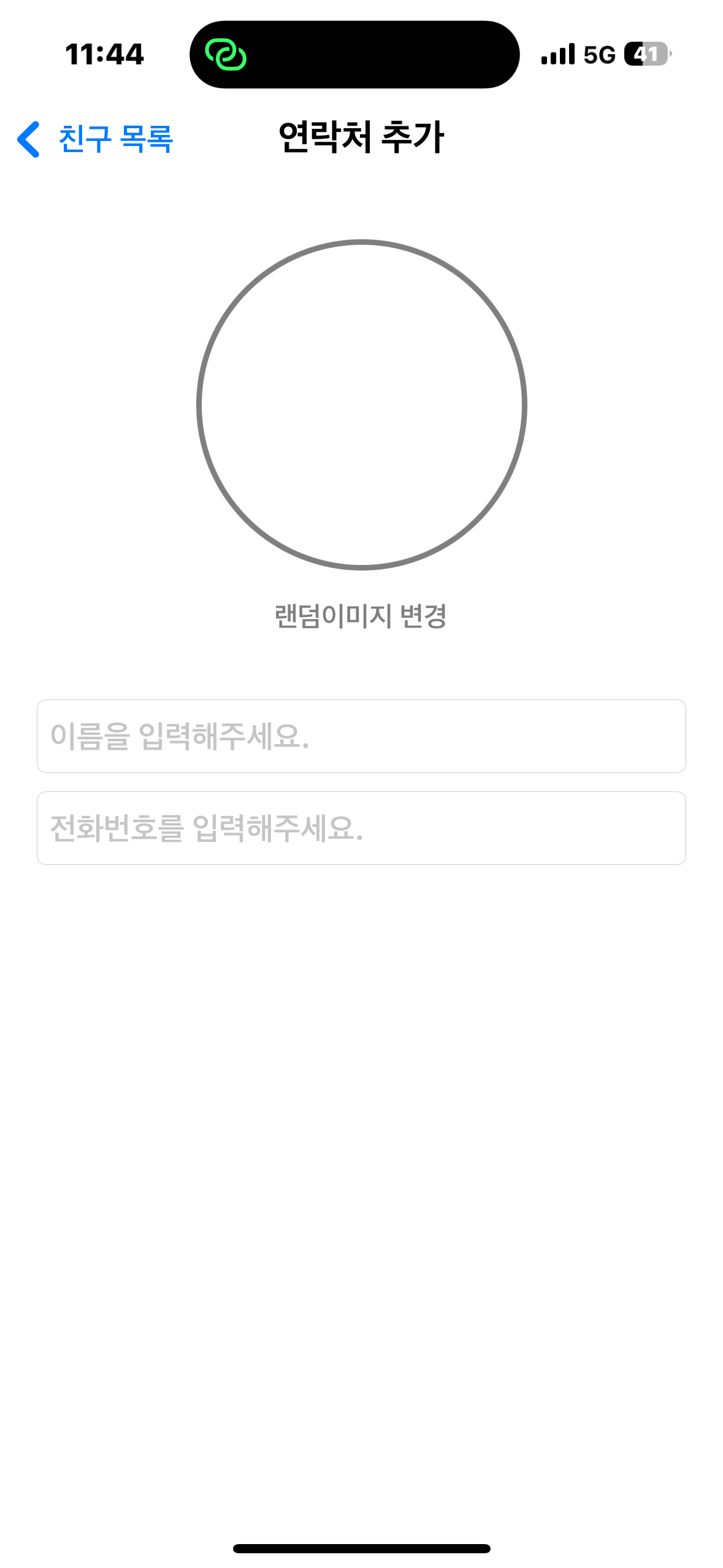
이제는 번호가 입력되면 010-0000-0000 “ - “ 를 넣어주겠습니다.
포맷팅을 쉽게 하기 위하여 anyFormatKit을 사용하도록 하겠습니다.
//viewDidload
numberfield.delegate = self

extension PhoneBookViewController: UITextFieldDelegate {
    func textField(_ textField: UITextField, shouldChangeCharactersIn range: NSRange, replacementString string: String) -> Bool {

        guard let text = numberField.text else {
            return false
        }
        let characterSet = CharacterSet(charactersIn: string)
        if CharacterSet.decimalDigits.isSuperset(of: characterSet) == false {
            return false
        }

        let formatter = DefaultTextInputFormatter(textPattern: "###-####-####")
        let result = formatter.formatInput(currentText: text, range: range, replacementString: string)
        textField.text = result.formattedText
        let position = textField.position(from: textField.beginningOfDocument, offset: result.caretBeginOffset)!
        textField.selectedTextRange = textField.textRange(from: position, to: position)
        return false
    }
}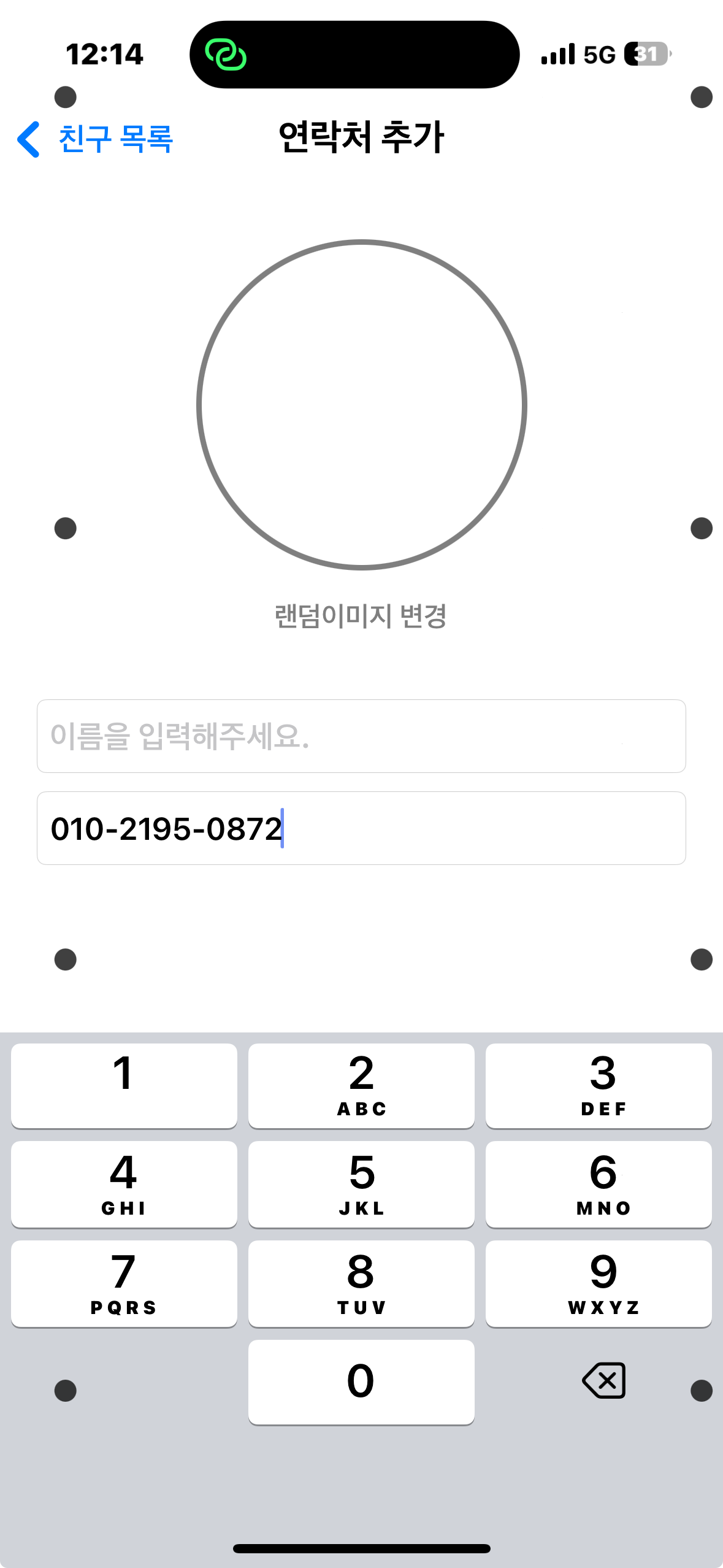
화면에 보이는 점들은 iOS 18에 있는 차량 모션큐 때문입니다. 차타고 여행가는도중에도 코딩을 합니다 !!!!!
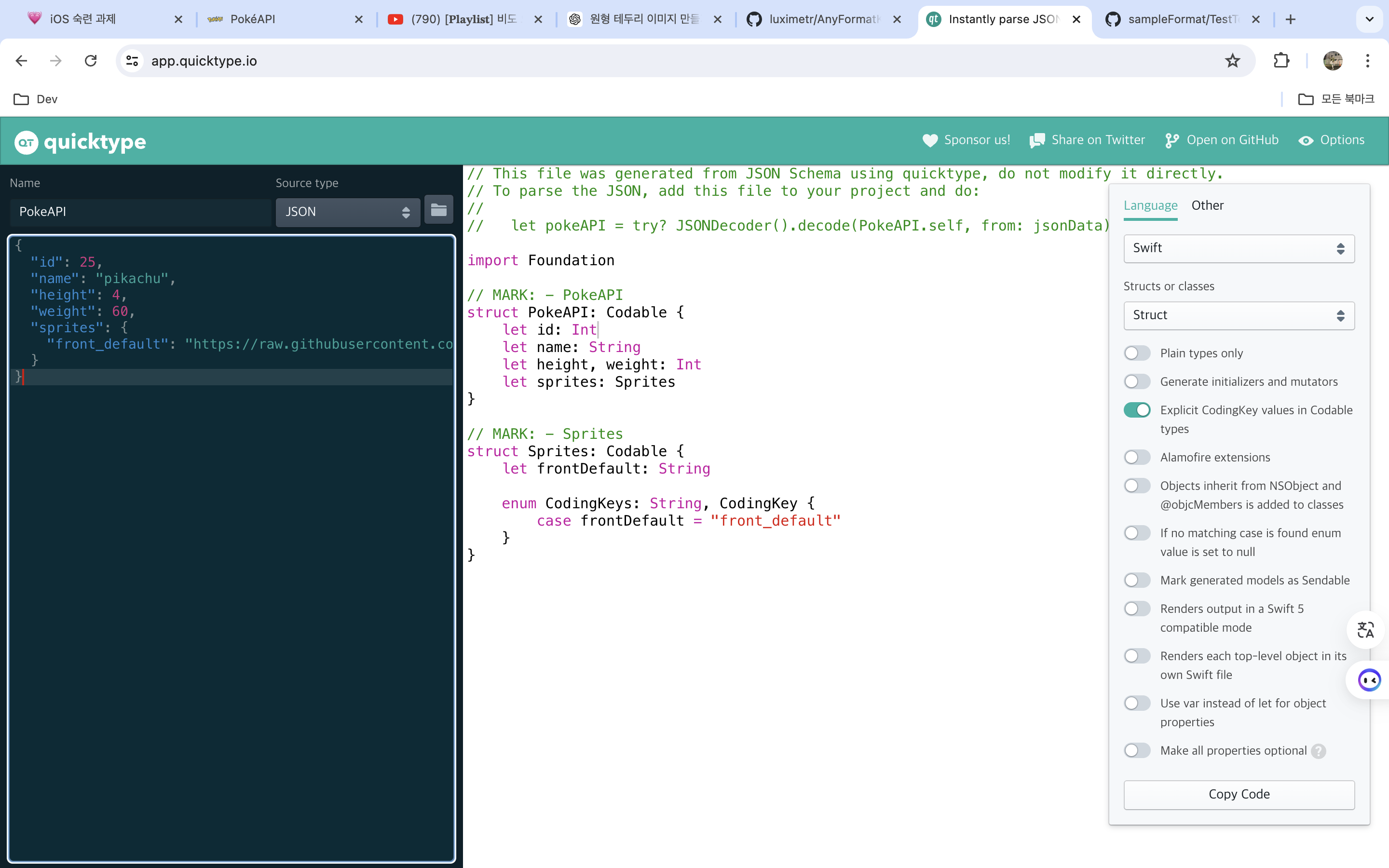
이제 https://pokeapi.co/api/v2/pokemon/ 이 도메인 에서 랜덤버튼을 눌렀을때 이미지를 가져올려고 합니다. 먼저 어떤 데이터를 받아와야 되는지 Json 형태로 입니다 QuickType 통해서 Struct로 변환 하겠습니다.
Json Data
{
  "id": 25,
  "name": "pikachu",
  "height": 4,
  "weight": 60,
  "sprites": {
    "front_default": "https://raw.githubusercontent.com/PokeAPI/sprites/master/sprites/pokemon/25.png"
  }
}
이제는 Get 메서드를 사용해서 이미지를 받아오겠습니다.
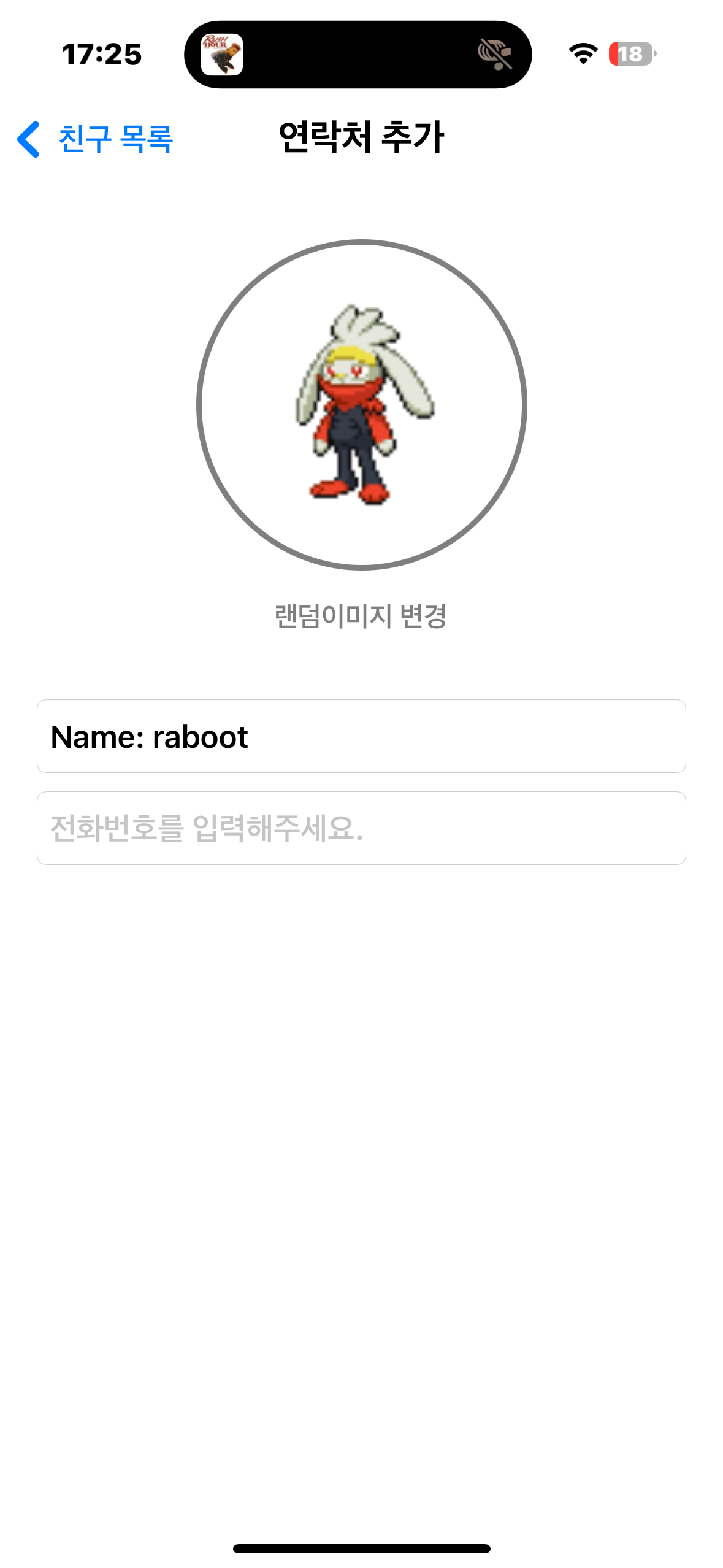
URL이 잘 나옵니다.
import Foundation
import Combine

class ViewModel: NSObject {
    @Published var pokemon: PokeAPI?
    @Published var errorMessage: String?

    func fetchPokemonData(for id: Int, completion: @escaping (PokeAPI?) -> Void) {
           let urlString = "https://pokeapi.co/api/v2/pokemon/\(id)"
           guard let url = URL(string: urlString) else {
               errorMessage = "Invalid URL"
               completion(nil)
               return
           }

           URLSession.shared.dataTask(with: url) { [weak self] data, response, error in
               if let error = error {
                   DispatchQueue.main.async {
                       self?.errorMessage = "Error: \(error.localizedDescription)"
                       completion(nil)
                   }
                   return
               }

               guard let data = data else {
                   DispatchQueue.main.async {
                       self?.errorMessage = "No data returned"
                       completion(nil)
                   }
                   return
               }

               do {
                   let pokemon = try JSONDecoder().decode(PokeAPI.self, from: data)
                   DispatchQueue.main.async {
                       self?.pokemon = pokemon
                       completion(pokemon)
                   }
               } catch {
                   DispatchQueue.main.async {
                       self?.errorMessage = "Decoding error: \(error.localizedDescription)"
                       completion(nil)
                   }
               }
           }.resume()
       }
}
위에 코드는 다음 글에서 자세히 설명하도록 하겠습니다.
PhoneBookViewController.swift
//
//  PhoneBookViewController.swift
//  Pokemon_Contact
//
//  Created by DEUKRYEONG LEE on 7/12/24.
//

import UIKit
import SnapKit
import AnyFormatKit

class PhoneBookViewController: UIViewController {

    let getdata = GetData()

    let vm = ViewModel()

    override func viewDidLoad() {
        super.viewDidLoad()
        addSubView()
        setupNavigation()
        view.backgroundColor = .white
        numberField.delegate = self


    }

    let image:UIImageView = {
        let imageView = UIImageView()
        imageView.image = UIImage(named: "imageSP")
        imageView.translatesAutoresizingMaskIntoConstraints = false
        imageView.layer.borderWidth = 3
        imageView.layer.cornerRadius = 90
        imageView.layer.masksToBounds = true
        imageView.layer.borderColor = UIColor.gray.cgColor
        return  imageView

    }()

    let randomButton: UIButton = {
        let button = UIButton()
        button.setTitle("랜덤이미지 변경", for: .normal)
        button.titleLabel?.font = .systemFont(ofSize: 15)
        button.setTitleColor(.gray,for: .normal)
        return button
    }()

    let nameField: UITextField = {
        let field = UITextField()
        field.placeholder = "이름을 입력해주세요."
        field.borderStyle = .roundedRect
        field.translatesAutoresizingMaskIntoConstraints = false
        return field
    }()

    let numberField: UITextField = {
        let field = UITextField()
        field.placeholder = "전화번호를 입력해주세요."
        field.borderStyle = .roundedRect
        field.keyboardType = .numberPad

        field.translatesAutoresizingMaskIntoConstraints = false
        return field
    }()

    @objc func randomBtnTapped(_ sender: UIButton) {
        fetchData()

    }
}

extension PhoneBookViewController {
    private func addSubView() {
        [randomButton, image, nameField, numberField].forEach({view.addSubview($0)})
        self.randomButton.addTarget(self, action: #selector(randomBtnTapped(_: )), for: .touchUpInside)
        image.snp.makeConstraints {
            $0.centerX.equalToSuperview()
            $0.size.width.height.equalTo(180)
            $0.top.equalTo(130)
        }
        randomButton.snp.makeConstraints {
            $0.top.equalTo(image.snp.bottom).offset(10)
            $0.centerX.equalToSuperview()
        }
        nameField.snp.makeConstraints {
            $0.centerX.equalToSuperview()
            $0.trailing.equalTo(-20)
            $0.leading.equalTo(20)
            $0.height.equalTo(40)
            $0.top.equalTo(randomButton.snp.bottom).offset(30)
        }
        numberField.snp.makeConstraints {
            $0.centerX.equalToSuperview()
            $0.trailing.equalTo(-20)
            $0.leading.equalTo(20)
            $0.height.equalTo(40)
            $0.top.equalTo(nameField.snp.bottom).offset(10)
        }
    }
    private func setupNavigation() {
        title = "연락처 추가"
        navigationController?.navigationBar.titleTextAttributes = [
            NSAttributedString.Key.font : UIFont.systemFont(ofSize: 20, weight: .bold),
            NSAttributedString.Key.foregroundColor : UIColor.black
        ]    }

}

extension PhoneBookViewController: UITextFieldDelegate {
    func textField(_ textField: UITextField, shouldChangeCharactersIn range: NSRange, replacementString string: String) -> Bool {

        guard let text = numberField.text else {
            return false
        }
        let characterSet = CharacterSet(charactersIn: string)
        if CharacterSet.decimalDigits.isSuperset(of: characterSet) == false {
            return false
        }

        let formatter = DefaultTextInputFormatter(textPattern: "###-####-####")
        let result = formatter.formatInput(currentText: text, range: range, replacementString: string)
        textField.text = result.formattedText
        let position = textField.position(from: textField.beginningOfDocument, offset: result.caretBeginOffset)!
        textField.selectedTextRange = textField.textRange(from: position, to: position)
        return false
    }
}

extension PhoneBookViewController {
    private func fetchData() {
        let randomID = Int.random(in: 1...1000)
        vm.fetchPokemonData(for: randomID) { [weak self] pokemon in
            guard let self = self, let pokemon = pokemon else {
                return
            }
            self.updateUI(with: pokemon)
        }
    }
    private func updateUI(with pokemon: PokeAPI) {
        nameField.text = "\(pokemon.name)"
//        heightLabel.text = "Height: \(pokemon.height)"
//        weightLabel.text = "Weight: \(pokemon.weight)"
        if let url = URL(string: pokemon.sprites.frontDefault) {
            loadImage(from: url)
        }
    }
    private func loadImage(from url: URL) {
           URLSession.shared.dataTask(with: url) { [weak self] data, response, error in
               if let error = error {
                   DispatchQueue.main.async {
                       self?.showError("Image loading error: \(error.localizedDescription)")
                   }
                   return
               }

               guard let data = data, let image = UIImage(data: data) else {
                   DispatchQueue.main.async {
                       self?.showError("Failed to load image")
                   }
                   return
               }

               DispatchQueue.main.async {
                   self?.image.image = image
               }
           }.resume()
       }
    private func showError(_ message: String) {
            let alert = UIAlertController(title: "Error", message: message, preferredStyle: .alert)
            alert.addAction(UIAlertAction(title: "OK", style: .default))
            present(alert, animated: true)
        }
}
프로그래머 아님