현재 오즈코딩스쿨 강의를 통해 프론트엔드를 학습하고 있습니다.
본 포스트는 해당 강의에 대한 내용 정리를 목적으로 합니다.
1. 배열(Array)
- 여러 개의 값을 하나의 변수에 저장할 수 있는 자료구조.
Array객체를 기반으로 하며, 인덱스(번호) 로 각 요소에 접근할 수 있음.- 배열의 인덱스는 0부터 시작함.
1) 배열 선언 방법
a. 배열 리터럴 방식 (가장 일반적)
const fruits = ["사과", "바나나", "포도"];
console.log(fruits[0]); // "사과"
✔️ [] 대괄호를 사용하여 배열 선언 가능.
b. new Array() 생성자 방식
const numbers = new Array(1, 2, 3);
console.log(numbers); // [1, 2, 3]
💡 하지만 일반적으로 리터럴 방식([])을 사용하는 것이 더 직관적임.
c. 빈 배열 생성
const emptyArray = [];2) 배열 요소 다루기
a. 요소 접근 (인덱스 사용)
const colors = ["빨강", "초록", "파랑"];
console.log(colors[1]); // "초록"
✔️ 배열은 0부터 시작하는 인덱스를 가짐.
b. 요소 변경
const animals = ["개", "고양이", "토끼"];
animals[1] = "호랑이";
console.log(animals); // ["개", "호랑이", "토끼"]
c. 배열 길이 확인 (length)
const numbers = [10, 20, 30, 40];
console.log(numbers.length); // 4
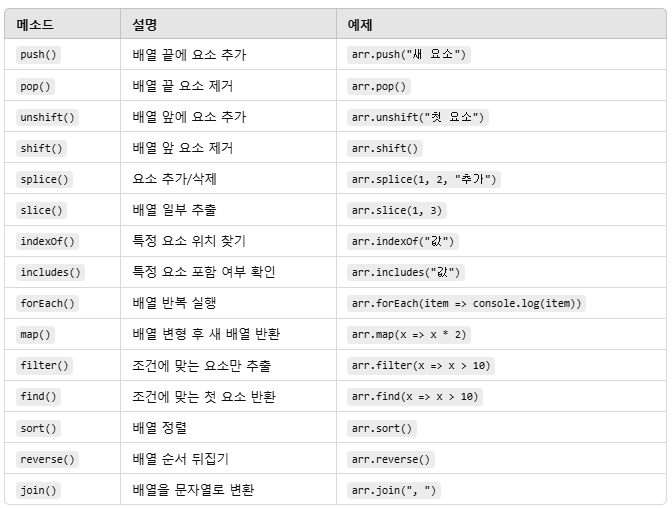
3) 배열 주요 메소드
2. 클래스리스트(classList)
자바스크립트에서 클래스 리스트는 HTML 요소에 있는 class 속성을 다루는 객체다. 이 객체는 DOMTokenList라는 타입이고, 클래스를 쉽게 추가하거나 삭제할 수 있게 도와주는 메서드들이 있다.
주요 메서드
-
add(): 클래스 추가
-
remove(): 클래스 제거
-
toggle(): 클래스가 있으면 지우고, 없으면 추가
-
contains(): 특정 클래스가 있는지 확인
<div id="myElement" class="foo bar"></div>
<script>
  const element = document.getElementById("myElement");

  // 클래스 추가
  element.classList.add("baz");

  // 클래스 제거
  element.classList.remove("bar");

  // 클래스 토글
  element.classList.toggle("foo");

  // 특정 클래스 존재 여부 확인
  if (element.classList.contains("baz")) {
    console.log("baz 클래스가 있어.");
  }
</script>
3. Math
Math는 수학 관련 기능을 제공하는 빌트인 객체로, 생성자를 사용하여 인스턴스를 생성할 수 없고 직접 메소드나 프로퍼티를 호출해서 사용한다. 주로 수학적 계산을 간편하게 처리하는 데 사용된다.
1) Math 주요 메소드
-
Math.abs(x): 절댓값 -
Math.ceil(x): 올림 -
Math.floor(x): 버림 -
Math.round(x): 반올림 -
Math.max(a, b, ...): 최대값 -
Math.min(a, b, ...): 최소값 -
Math.random(): 0~1 사이의 랜덤값 -
Math.pow(x, y): x의 y승 -
Math.sqrt(x): 제곱근
2) Math 주요 상수
-
Math.PI: 원주율 π -
Math.E: 자연상수 e
Math 객체는 수학 계산에 유용한 메소드와 상수를 제공하며, new로 인스턴스를 만들지 않고 직접 호출해서 사용한다.
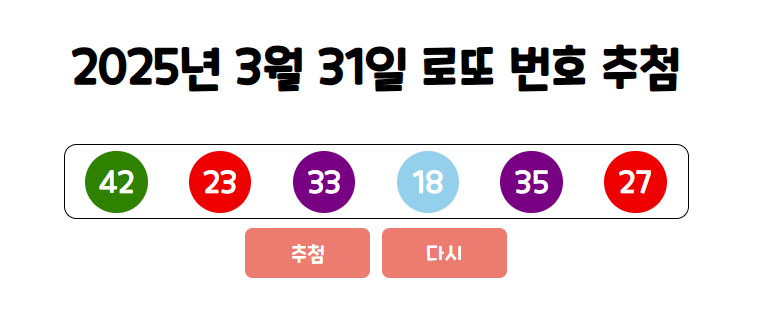
4. 실습_lotto
html
<!DOCTYPE html>
<html lang="ko">
<head>
  <meta charset="UTF-8">
  <meta http-equiv="X-UA-Compatible" content="IE=edge">
  <meta name="viewport" content="width=device-width, initial-scale=1.0">
  <title>로또 추첨 게임</title>
  <link href="lotto.css" rel="stylesheet">
</head>
<body>
  <div class="container">
    <div class="lotto">
      <h3><span id="today"></span>로또 번호 추첨</h3>
      <div class="numbers"></div>
      <button id="draw">추첨</button>
      <button id="reset">다시</button>
    </div>
  </div>
  <script src="lotto.js"></script>
</html>
css
@charset "utf-8";

@font-face {
  font-family: 'CookieRun-Regular';
  src: url('https://cdn.jsdelivr.net/gh/projectnoonnu/noonfonts_2001@1.1/CookieRun-Regular.woff') format('woff');
  font-weight: normal;
  font-style: normal;
}

*{
  font-family: 'CookieRun-Regular';
  box-sizing: border-box;
}

html{
  font-size: 32px;
}

body{
  margin: 0;
}

.container{
  width: 500px;
  height: 100vh;
  margin: 0 auto;
  display: flex;
  justify-content: center;
  align-items: center;
  flex-wrap: wrap;
}

.lotto{
  width: 500px;
  text-align: center;
}

.numbers{
  width: 500px;
  height: 60px;
  border: 1px solid black;
  border-radius: 10px;
  display: flex;
  justify-content: space-around;
  align-items: center;
}

.eachnum{
  font-size: 0.75em;
  width: 50px;
  height: 50px;
  border-radius: 25px;
  color: white;
  background-color: red;
  display: flex;
  justify-content: center;
  align-items: center;
}

button{
  font-size: 0.5em;
  width: 100px;
  height: 40px;
  border: none;
  border-radius: 6px;
  color: white;
  background-color: salmon;
  cursor: pointer;
}

button:active{
  font-size: 0.6em;
  width: 105px;
  height: 42px;
}
javascript
// 요소 선택 및 상수 선언
const todaySpan = document.querySelector("#today");
const numbersDiv = document.querySelector('.numbers');
const drawButton = document.querySelector('#draw');
const resetButton = document.querySelector('#reset');
const lottoNumbers = [];
const colors = ['orange', 'skyblue', 'red', 'purple', 'green'];
const today = new Date();

let year = today.getFullYear();
let month = today.getMonth() + 1;
let date = today.getDate();
todaySpan.textContent = `${year}년 ${month}월 ${date}일 `;

// paintNumber 함수
function paintNumber(number){
  const eachNumDiv = document.createElement('div');
  eachNumDiv.classList.add('eachnum');
  let colorIndex = Math.floor(number / 10);
  eachNumDiv.style.backgroundColor = colors[colorIndex];
  eachNumDiv.textContent = number;
  numbersDiv.appendChild(eachNumDiv);
}

// 추첨 버튼 클릭 이벤트 핸들링
drawButton.addEventListener('click', function(){
  numbersDiv.innerHTML = "";
  const lottoNumbers = [];

  while(lottoNumbers.length < 6){
    let ran = Math.floor(Math.random() * 45) + 1;
    if(lottoNumbers.indexOf(ran) === -1){ //중복처리 로직
      lottoNumbers.push(ran);
      paintNumber(ran); // ran 랜덤 약자
    }
  }
});

// 다시 버튼 클릭 이벤트 핸들링
resetButton.addEventListener('click', function(){
  lottoNumbers.splice(0, 6);
  numbersDiv.innerHTML = ""; // 초기화
});
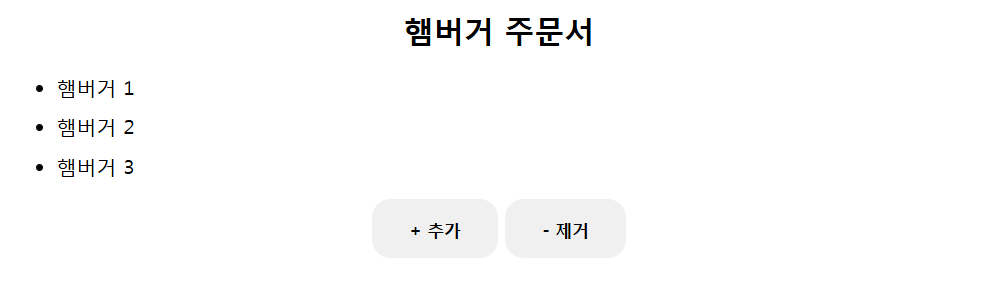
5. 실습_햄버거 주문서
html
<!DOCTYPE html>
<html lang="en">
  <head>
    <title>Home</title>
    <meta charset="UTF-8" />
    <meta name="viewport" content="width=device-width" />
    <!--
      Need a visual blank slate?
      Remove all code in `styles.css`!
    -->
    <link rel="stylesheet" href="styles.css" />
    <script type="module" src="script.js"></script>
  </head>
  <body>
    <h2 id="title">햄버거 주문서</h2>
    <ul class="todo"></ul>
    <ul id="itemList"></ul>
    <button class="button" id="addButton">+ 추가</button>
    <button class="button" id="removeButton">- 제거</button>
  </body>
</html>
css
* {
    box-sizing: border-box;
  }

  body {
    text-align: center;
    margin: 0;
    font-family: system-ui, sans-serif;
    color: black;
    background-color: white;
  }

  nav {
    display: flex;
    flex-wrap: wrap;
    align-items: center;
    justify-content: center;
    padding: 0.5rem;
    gap: 0.5rem;
    border-bottom: solid 1px #aaa;
    background-color: #eee;
  }

  nav a {
    display: inline-block;
    min-width: 9rem;
    padding: 0.5rem;
    border-radius: 0.2rem;
    border: solid 1px #aaa;
    text-align: center;
    text-decoration: none;
    color: #555;
  }

  nav a[aria-current='page'] {
    color: #000;
    background-color: #d4d4d4;
  }

  main {
    padding: 1rem;
  }

  h1 {
    font-weight: bold;
    font-size: 1.5rem;
  }
  .todoMenu {
    font-size: 1.8rem;
    font-weight: bold;
  }
  .todo {
    text-align: justify;
  }
  li {
    margin: 10px 25%;
    text-align: justify;
  }

  .button {
    border: none;
    display: inline-block;
    padding: 15px 30px;
    border-radius: 15px;
    font-family: 'paybooc-Light', sans-serif;
    text-decoration: none;
    font-weight: 600;
    transition: 0.25s;
  }

  .show {
    display: none;
  }

  h2 {
    cursor: pointer;
  }
## javascript
/*
기본 요구사항
-
1. ‘햄버거 주문서’ 를 클릭하면 `classList.toggle()` 메서드를 통해 ‘추가’, ‘제거’ 버튼이 토글 됩니다.
2. 햄버거 아이템 리스트 배열을 생성해줍니다.
3. 추가 버튼을 클릭하면 배열 리스트 1개가 추가 됩니다.
4. 이때 배열 리스트의 값은 추가 버튼 누를 때 마다 숫자가 1개씩 증가 됩니다.
5. 제거 버튼을 클릭하면 배열 리스트의 값 중 마지막 값 1개가 제거됩니다.
6. styles.css 파일을 보고 새롭게 생성한 요소에 class를 추가하면 미리 작성해둔 스타일이 적용됩니다.
7. 스타일은 마음껏 수정해도 좋습니다.
*/


// 아이템 리스트 배열
  /* TODO:햄버거 아이템 리스트 배열을 생성해줍니다. */
let item = []; // 빈 배열(empty array)


// 아이템 추가 버튼 클릭 시 호출되는 함수
function addItem() {
    /* TODO:추가 버튼을 클릭하면 배열 리스트 1개가 추가 됩니다.
    이때 배열 리스트의 값은 추가 버튼 누를 때 마다 숫자가 1개씩 증가 됩니다.
    */
    const newItem = `${item.length + 1}`;
    item.push(newItem);
    renderItem();
}

  // 아이템 제거 버튼 클릭 시 호출되는 함수
function removeItem() {
   /* TODO: 제거 버튼을 클릭하면 배열 리스트의 값 중 마지막 값 1개가 제거됩니다. */
    if (item.length > 0) {
    item.pop();  // pop : 제거
    renderItem();
    }
}
  // 아이템 리스트 렌더링 함수
function renderItem() {
  /* TODO: 아이템 리스트 초기화하는 함수를 만들어주세요. */
    const itemList = document.getElementById('itemList');
    itemList.innerHTML = "";

    item.forEach((item) => {
    /* TODO: 배열의 각 아이템을 순회하며 리스트에 추가하는 함수를 만들어주세요. */
        const listItem = document.createElement('li');
        listItem.textContent = `햄버거 ${item}`;
        listItem.classList.add('item'); // 스타일 적용
        itemList.appendChild(listItem);
    });
}

  //title '햄버거 주문서' 클릭 시 classList.toggle()메서드 실행
const title = document.getElementById('title');
title.addEventListener('click', function () {
    const controls = document.getElementById('controls');
    controls.classList.toggle('show');
    /* TODO: style.css 파일의 .show class를 이용하여 토글 기능을 만들어주세요! */
});

  // 아이템 추가 및 제거 버튼 이벤트 핸들러
document.getElementById('addButton').addEventListener('click', addItem);
document.getElementById('removeButton').addEventListener('click', removeItem);
끝맺음.
점점..과제가 어려워진다..ㅠㅠ아흑..