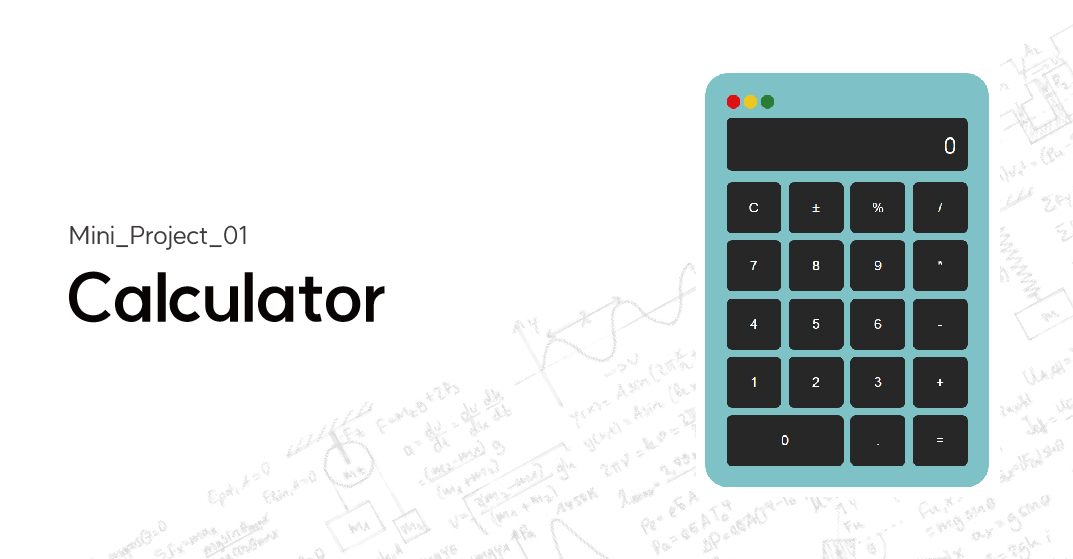
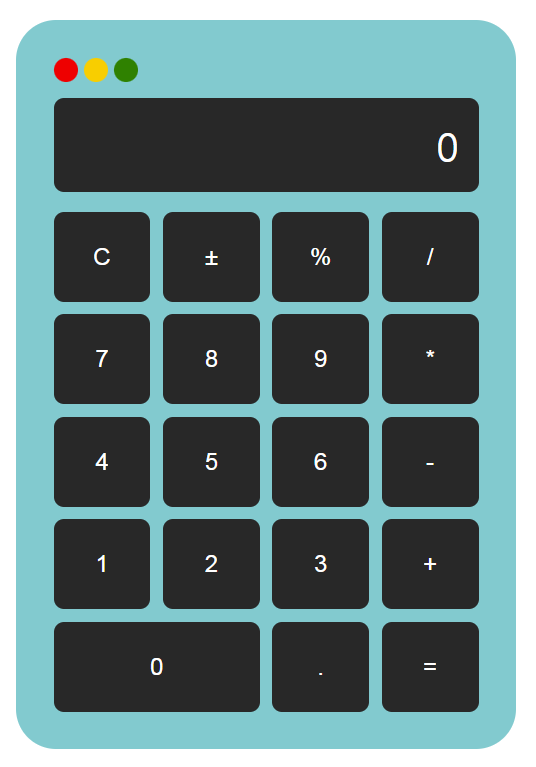
html
<!DOCTYPE html>
<html lang="ko">
<head>
    <meta charset="UTF-8">
    <meta name="viewport" content="width=device-width, initial-scale=1.0">
    <title>calculator</title>
    <link rel="stylesheet" href="style.css">
</head>
<body>
    <div id="container">
        <div class="calculator-container">
            <div class="system-btn">
                <button class="close"></button>
                <button class="reduce"></button>
                <button class="full"></button>
            </div>
            <div class="display-area">
                <div class="display">0</div>
            </div>
            <div class="buttons-area">
                <div class="buttons">
                    <button class="function" id="reset">C</button>
                    <button class="function">±</button>
                    <button class="function">%</button>
                    <button class="operator">/</button>
                    <button class="number">7</button>
                    <button class="number">8</button>
                    <button class="number">9</button>
                    <button class="operator">*</button>
                    <button class="number">4</button>
                    <button class="number">5</button>
                    <button class="number">6</button>
                    <button class="operator">-</button>
                    <button class="number">1</button>
                    <button class="number">2</button>
                    <button class="number">3</button>
                    <button class="operator">+</button>
                    <button class="zero number">0</button>
                    <button class="operator">.</button>
                    <button class="operator">=</button>
                </div>
            </div>
        </div>
    </div>

    <script src="script1.js"></script>
</body>
</html>
css
*{
    margin: 0;
    padding: 0;
    box-sizing: border-box;
}

/* HTML과 Body의 기본 설정 */
html, body {
    height: 100%;
    }

#container {
    height: 100%;
    display: flex;
    align-items: center;
    justify-content: center;
}

.calculator-container {
    width: 25rem;
    padding: 30px;
    border-radius: 2rem;
    background-color: #70c9ce;
}


.system-btn{
    display: flex;
    margin-bottom: 0.8rem;
}


.close, .reduce, .full{
    width: 1.2rem;
    height: 1.2rem;
    border-radius: 0.8rem;
    margin-right: 5px;
    border-color: transparent;
}


button.close{
    background-color: #ff0000;
}

button.reduce{
    background-color: #ffd000;
}

button.full{
    background-color: #008000;
}

/* 메인 */
.display-area{
    border-radius: 0.5rem;
    display: flex;
    padding: 1rem;
    justify-content: end;
    align-items: center;
    font-size: 2rem;
    color: #ffffff;
    background-color: #282828;
}

/* 버튼 */
.buttons-area{
    padding-top: 1rem;
    font-size: 2rem;
}

.buttons{
    height: 25rem;
    display: grid;
    /* 한 줄에 4개씩, 모두 동일한 비율 적용(1:1:1:1) */
    /* fr(프렉션) 분수 비율. */
    grid-template-columns: repeat(4, 1fr);
    grid-gap: 10px;
}

.buttons button{
    font-size: 1.2rem;
    border-radius: 0.5rem;
    background-color: #282828;
    color: #fff;
    border-color: transparent;
    cursor: pointer;

}

.buttons button:hover{
    background-color: #4f4f4f;
}

.buttons button:active{
    background-color: #70c9ce;
}

.zero{
    /* 첫 번째 선부터 3번째 선까지 지정 */
    grid-column: 1/3;
    font-size: 1.5rem;
}

/* fr(fraction) :분수, 비율 => 즉 숫자 비율대로 트랙의 크기를 나눔
repeat(반복횟수, 반복값) */

/* grid-column : 각 셀의 영역을 지정
시작번호는 1이며, span 2는 2개의 셀을 차지한다는 뜻으로
grid-column : 1 / span 2;는 1번부터 2개의 셀을 차지하기 때문에 1, 2번 셀을 차지하게됨.
.zero {
grid-column: 1 / span 2;
} */
javascript
const display = document.querySelector(".display"); // 디스플레이 요소 선택
const buttons = document.querySelectorAll("button"); // 모든 버튼 요소 선택

// firstOperand, operator 변수 선언
let firstOperand = null; // 첫 번째 피연산자 (숫자)
let operator = null;  // 선택된 연산자 (+, -, *, / 등)
let newResetDisplay = false; // 연산 후 새로운 숫자를 입력할 준비

/*firstOperand: 계산할 첫 번째 숫자를 저장하는 변수입니다. 초기값은 null로, 아직 입력되지 않았음을 의미합니다.
operator: 사용자가 누른 연산자 (+, -, *, / 등)를 저장하는 변수입니다. 초기값은 null입니다.
newResetDisplay: 이 변수는 계산 흐름을 제어하는 중요한 플래그(flag) 입니다.
false (기본값): 숫자를 누르면 현재 디스플레이 값 뒤에 이어서 표시됩니다.
true: 연산자 버튼을 누르거나 = 계산을 완료한 직후 상태입니다. 이 상태에서 숫자 버튼을 누르면,
디스플레이 내용이 지워지고 새로운 숫자가 입력되기 시작합니다. */

// 계산 함수
const calculate = (firstOperand, secondOperand, operator) => { // 화살표 함수는 표현식입니다. 언제나 익명입니다.
    let result;

    if (operator === "+") {
        result = firstOperand + secondOperand;
    } else if (operator === "-") {
        result = firstOperand - secondOperand;
    } else if (operator === "*") {
        result = firstOperand * secondOperand;
    } else if (operator === "/") {
        result = secondOperand !== 0 ? firstOperand / secondOperand : "Error";
    } else if (operator === "±") {
        result = -firstOperand;
    } else if (operator === "%") {
        result = firstOperand * (secondOperand / 100);
    } else {
        result = firstOperand;
    }

    // 소수점 두 자리로 반올림 후 숫자로 반환
    return typeof result === "number" ? Math.round(result * 100) / 100 : result;
};

/* 이 함수는 두 개의 숫자(firstOperand, secondOperand)와 연산자(operator)를 입력받아 계산을 수행하고 결과를 반환합니다.
if/else if 문을 사용하여 operator 값에 따라 덧셈, 뺄셈, 곱셈, 나눗셈, 부호 변경(±), 백분율(%) 계산을 수행합니다.
나눗셈: 0으로 나누는 경우 "Error" 문자열을 반환합니다.
부호 변경(±): firstOperand의 부호만 바꿉니다. (주의: 일반적인 계산기 로직과 약간 다를 수 있습니다. 보통 현재 화면의 숫자를 바꿉니다.)
백분율(%): firstOperand * (secondOperand / 100) 형태로 계산합니다. (주의: 이 역시 계산기마다 구현 방식이 다를 수 있습니다.)
결과 반올림: Math.round(result * 100) / 100을 사용하여 계산 결과가 숫자인 경우 소수점 세 번째 자리에서 반올림하여 두 자리까지만 표시합니다.
이는 부동 소수점 오류를 줄이는 데 도움이 됩니다. */

// 각 버튼에 클릭 이벤트 리스너를 추가
buttons.forEach((button) => { /* buttons.forEach(...): 앞에서 선택한 모든 버튼(buttons)을 하나씩 순회합니다. */
    button.addEventListener("click", (event) => { /* button.addEventListener("click", ...): 각 버튼에 대해 'click' 이벤트가 발생했을 때 실행될 함수(이벤트 핸들러)를 등록합니다. */
        const clickedButton = event.target; // 클릭한 버튼
        const clickedValue = clickedButton.textContent; // 클릭된 버튼의 텍스트 값 (예: "7", "+", "C")
        let currentDisplay = display.textContent; // 현재 디스플레이 값
        // 버튼이 클릭되었을 때, 클래스가 number인 경우 디스플레이에 값을 표시

        /* 클릭 이벤트가 발생하면, 이벤트 객체(event)에서 실제 클릭된 버튼 요소(event.target)와 그 버튼의 텍스트 내용(textContent)을 가져옵니다.
        현재 디스플레이 값도 currentDisplay 변수에 저장해 둡니다 */

        if (button.classList.contains("number")) {
            if (display.textContent === "0" || newResetDisplay) {
                // or 연산자 사용해서 두 개의 조건을 평가하여 하나라도 true면 전체 결과가 true, 둘 다 false면 최종 결과도 false
                display.textContent = clickedValue; // 디스플레이가 0일 때는 클릭한 숫자로 변경
                newResetDisplay = false; // 리셋 상태 해제 (이제부터 숫자 추가 모드)
            } else {
                display.textContent += clickedValue; // 디스플레이가 0이 아닐 때는 클릭한 숫자가 뒤에 추가
            }
        }

        /* 디스플레이가 "0"이거나, newResetDisplay가 true (연산자 누른 직후 또는 계산 완료 직후)이면, 클릭한 숫자로 디스플레이를 덮어씁니다.
        그리고 newResetDisplay를 false로 바꿔서 다음 숫자부터는 뒤에 이어 붙이도록 합니다.
        그 외의 경우 (숫자를 계속 입력 중인 경우)에는 클릭한 숫자를 디스플레이 내용 뒤에 추가합니다. */

        // C 버튼 클릭 시
        if (clickedValue === "C") {
            display.textContent = "0"; // 디스플레이 초기화
            firstOperand = null;// 첫 번째 피연산자 초기화
            operator = null; // 연산자 초기화
            newResetDisplay = false; // 리셋 상태 해제
        }

        // 소수점 버튼 클릭
        if (clickedValue === ".") {
            // 현재 디스플레이 값에 소수점이 없고, 새로운 숫자를 입력할 준비가 되었을 때만 소수점 추가
            if (currentDisplay.indexOf(".") === -1 && !newResetDisplay) {
                display.textContent += clickedValue; // 소수점 없고, 리셋 상태 아닐 때 추가
            } else if (newResetDisplay) {
                // 새로운 숫자를 입력하려는 상태에서 첫 번째 숫자에 소수점 추가
                display.textContent = "0."; // 리셋 상태면 "0."으로 시작
                newResetDisplay = false; // 리셋 상태 해제
            }
        }

        /* 현재 디스플레이 값에 소수점(.)이 없고(indexOf(".") === -1), newResetDisplay가 false인 경우에만 소수점을 추가합니다
        (예: "12" -> "12."). 이렇게 하면 "1.2.3"과 같이 소수점이 여러 개 찍히는 것을 방지합니다.
        만약 newResetDisplay가 true인 상태에서 소수점을 누르면 (예: 5 + 누른 후 .), 디스플레이를 "0."으로 설정하여 소수 부분 입력을 시작합니다.
        그리고 newResetDisplay를 false로 바꿉니다. */

        // 연산자 버튼 클릭 시
        if (button.classList.contains("operator") && clickedValue !== "=" && clickedValue !== ".") {
            // operator를 = 또는 .이 아닌 경우 실행
            if (firstOperand === null) {
                firstOperand = parseFloat(currentDisplay); // 첫 연산자면 현재 값을 firstOperand로
            } else if (!newResetDisplay) {
                // 연산자 연속 입력 시 (예: 5 + 3 -) 이전 계산 수행
                // 기존에 입력된 숫자와 연산자를 기준으로 계산하고 결과를 디스플레이에 표시
                firstOperand = calculate(firstOperand, parseFloat(currentDisplay), operator);
                display.textContent = firstOperand; // 중간 결과 표시
            }
            operator = clickedValue; // 새로 누른 연산자 저장
            newResetDisplay = true; // true를 설정해, 다음 숫자 입력 시 기존 숫자를 지우고 새롭게 입력되도록 설정
        }

        /* 클래스에 "operator"가 있고, "="나 "."가 아닌 버튼 (즉, +, -, *, / 등)을 눌렀을 때 실행됩니다.
        firstOperand가 null이면 (첫 연산을 시작하는 경우), 현재 디스플레이 값을 parseFloat (문자열을 숫자로 변환)하여 firstOperand에 저장합니다.
        firstOperand에 이미 값이 있고 (else if), newResetDisplay가 false인 경우 (즉, 5 + 3처럼 두 번째 숫자를 입력한 후 다음 연산자 -를 누른 경우), 이전 연산을 먼저 수행합니다.
        calculate 함수를 호출하여 firstOperand와 현재 디스플레이 값(parseFloat(currentDisplay))을 저장된 operator로 계산하고, 그 결과를 다시 firstOperand에 저장합니다. 그리고 중간 결과를 디스플레이에 보여줍니다.
        어떤 경우든, 마지막에는 현재 클릭한 연산자를 operator 변수에 저장합니다.
        매우 중요: newResetDisplay를 true로 설정합니다. 이는 연산자를 눌렀으므로, 다음에 숫자 버튼을 누르면 디스플레이를 지우고 새로운 숫자를 입력받아야 한다는 신호입니다. */

        // = 버튼 클릭 시 계산 수행
        if (clickedValue === "=") {
            if (firstOperand !== null && operator) { // 첫 번째 숫자와 연산자가 존재할 때만 연산 수행
                let secondOperand = parseFloat(display.textContent); // 두 번째 피연산자
                let result = calculate(firstOperand, secondOperand, operator); // calculate 함수 호출 // 계산 수행
                // 결과 나온 뒤 리셋
                display.textContent = result; // 계산 결과를 display에 출력.
                firstOperand = null; // 상태 초기화 (다음 계산 준비)
                operator = null;
                newResetDisplay = true; // 결과가 표시된 후 새로운 숫자를 입력하면 기존 결과를 지우고 새롭게 입력 // 다음 숫자 입력 시 디스플레이 리셋하도록 설정
            }

            /* firstOperand와 operator가 모두 설정되어 있는 경우에만 (즉, 5 + 3 처럼 계산에 필요한 요소가 다 있는 경우) 계산을 수행합니다.
            현재 디스플레이 값을 parseFloat하여 secondOperand로 가져옵니다.
            calculate 함수를 호출하여 최종 결과를 얻습니다.
            결과를 디스플레이에 표시합니다.
            firstOperand와 operator를 null로 초기화하여 계산을 완료하고 새로운 계산을 시작할 수 있도록 준비합니다.
            (이 부분 때문에 5 + 3 = 8 + 2 = 와 같은 연속 계산은 바로 되지 않습니다. = 이후 새 계산을 시작해야 합니다.)
            newResetDisplay를 true로 설정합니다. 계산 결과가 표시된 상태에서 사용자가 새 숫자를 입력하면, 기존 결과가 지워지고 새 입력이 시작됩니다. */
        }
    });
});
끝맺음.
프로젝트는 1~5단계로 진행되었고, 다음 단계로 넘어가기 위해서는 내가 작성한 코드를 완벽히 이해해야 했다. 그래서 내 코드에는 주석이 많다. 모르는 것은 메모하는 습관이 있어서, 별도의 script 파일을 만들어 코드에 대한 설명을 남겼다. 그리고 개념을 완전히 이해하면 주석을 지웠다. 다소 비효율적인 방법일 수도 있지만, 나는 이 공부법에 만족한다.
좋았던 점.
교육을 시작하고 첫 프로젝트!
팀원을 잘 만나서 시간이 지날 수록 소통이 잘됐다. 미팅에 대비해서 소통하고 서로서로 부족한 설명을 덧붙여주기도 하면서 좋은 팀워크를 보여줬다.
아쉬운 점.
4단계에서 =를 눌러도 계속 +가 나오는 오류가 발생했다. 이를 수정하는 데 많은 시간을 소비했고, 팀원들에게 피해를 줄까 봐 저녁 늦게까지 문제를 해결하려 노력했다. 개발 경험이 없는 내가 혹시 짐이 되지는 않을까 걱정도 많았지만, 조금이라도 팀에 보탬이 되고자 최선을 다했다.
개선할 점
가독성이 높고 간결한 코드를 작성하려면 철저한 정리가 필요하다고 생각한다. 하지만 아직 자바스크립트에 대한 지식이 부족해 더 공부해야 한다. 그래서 주말에도 쉴 틈이 없다!

UI/UX디자이너의 코딩 공부