Flutter 위젯
- Flutter 개발에서 가장 핵심이 되는 개념은 "위젯(Widget)"이다.
- 이 글에서는 위젯의 정의부터 기본 UI 구성, 상태 관리, 레이아웃까지 실무에 필요한 위젯 개념 전체를 정리한다.
1. 위젯(Widget)이란?
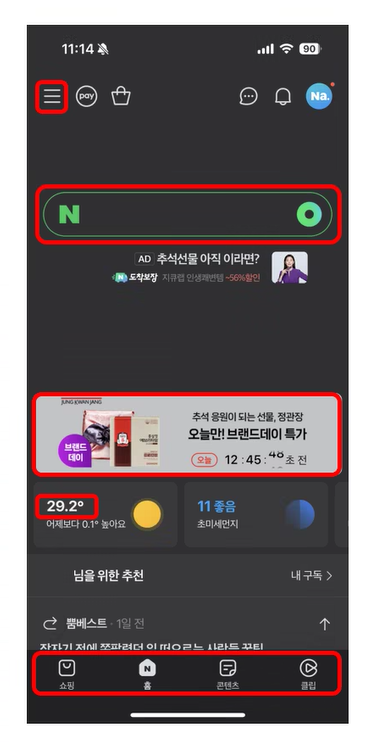
- Flutter의 모든 요소는 위젯이다.
- 버튼, 텍스트, 이미지, 입력창 등 UI를 구성하는 모든 구성 요소가 위젯이며, 개발자는 이 위젯들을 조합해 앱을 만든다.
2. Stateless vs Stateful
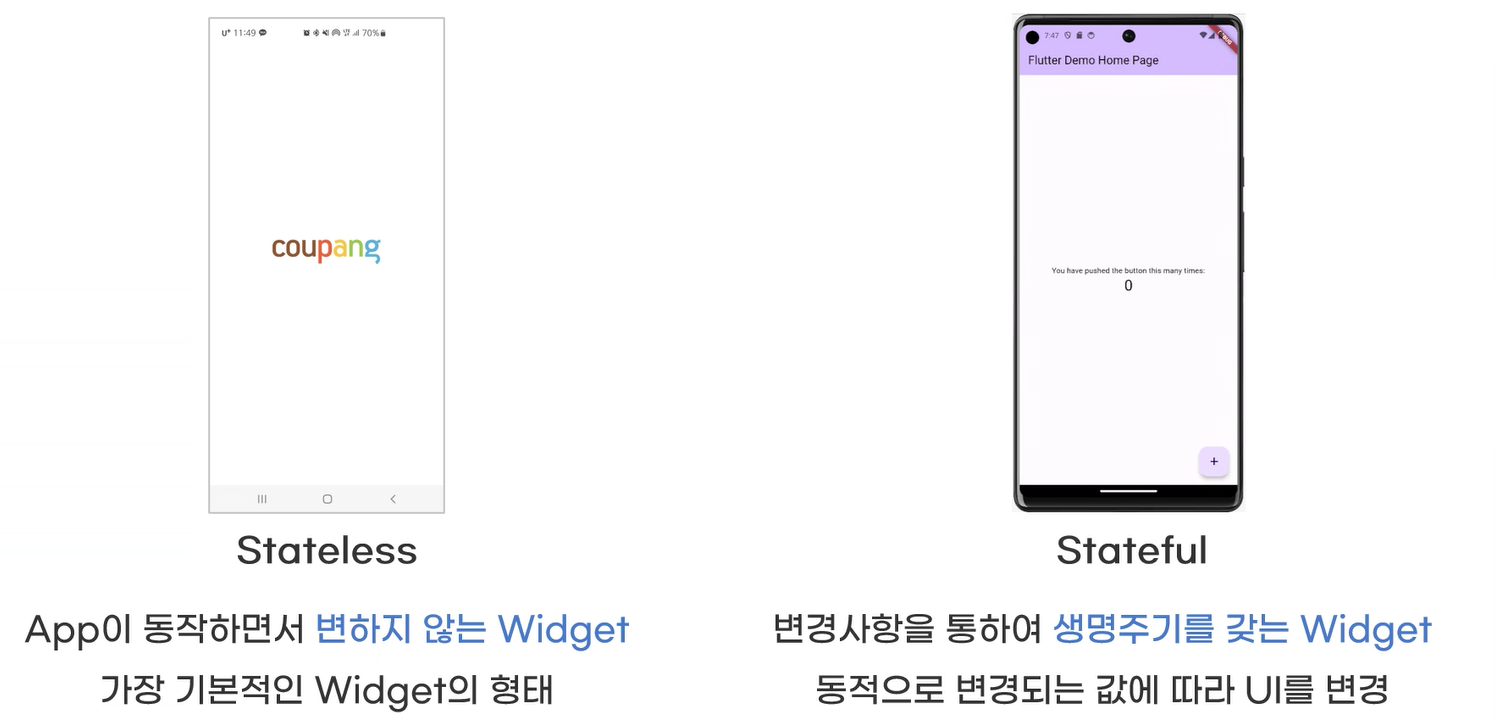
Stateless Widget (변하지 않는 UI)
- 상태가 없고, 화면이 한 번 렌더링되면 바뀌지 않는 UI이다.
- 예: 아이콘, 제목, 고정된 텍스트
class MyText extends StatelessWidget {
Widget build(BuildContext context) {
return Text('나는 Stateless 위젯!');
}
}Stateful Widget (상태가 바뀌는 UI)
- 사용자의 입력이나 앱 상태에 따라 화면이 다시 그려지는 위젯이다.
setState()를 사용해 상태를 갱신해야 화면이 업데이트된다.
class CounterWidget extends StatefulWidget {
_CounterWidgetState createState() => _CounterWidgetState();
}
class _CounterWidgetState extends State<CounterWidget> {
int counter = 0;
void _increment() {
setState(() {
counter++;
});
}
Widget build(BuildContext context) {
return Column(
children: [
Text('카운터: $counter'),
ElevatedButton(
onPressed: _increment,
child: Text('증가하기'),
),
],
);
}
}
3. Scaffold
Scaffold란?
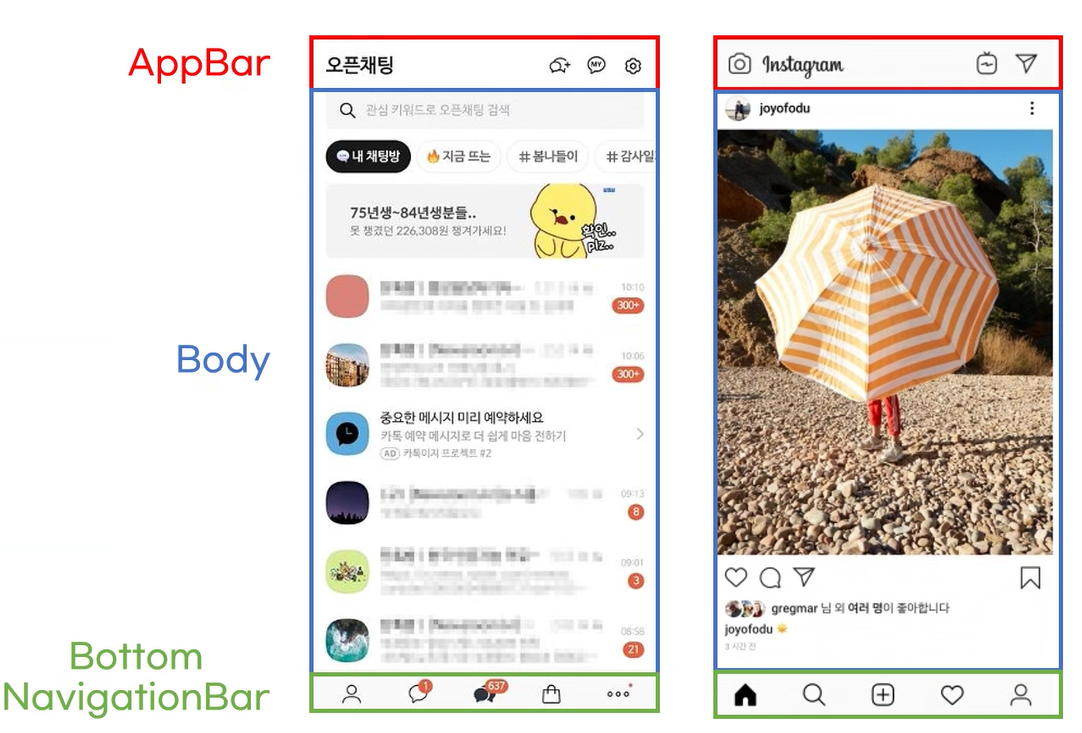
- Scaffold는 Flutter에서 Material Design 기반 앱의 기본 레이아웃 구조를 제공하는 위젯으로, 거의 모든 Flutter 앱에서 사용된다.
- 화면의 상단, 하단, 본문, 플로팅 버튼 등 UI의 기본 틀을 구성할 수 있도록 돕는다.
Scaffold(
  appBar: AppBar(title: Text('앱 타이틀')),
  body: Center(child: Text('여기는 본문 영역')),
  floatingActionButton: FloatingActionButton(
    onPressed: () {},
    child: Icon(Icons.add),
  ),
)
appBar,body,drawer,bottomNavigationBar등 다양한 영역을 정의할 수 있다.
Scaffold 주요 속성 정리
| 속성 | 설명 | 예시 코드 |
|---|---|---|
appBar | 상단 앱 바 영역 | AppBar(title: Text('제목')) |
body | 메인 콘텐츠 영역 | Center(child: Text('본문')) |
floatingActionButton | 오른쪽 하단 플로팅 버튼 | FloatingActionButton(...) |
drawer | 좌측 사이드 메뉴 (햄버거 메뉴) | Drawer(child: ListView(...)) |
endDrawer | 우측 사이드 메뉴 | Drawer(...) |
bottomNavigationBar | 하단 탭 메뉴 | BottomNavigationBar(...) |
bottomSheet | 하단 고정 시트 | Container(height: 60, child: Text(...)) |
backgroundColor | Scaffold 배경 색상 | backgroundColor: Colors.grey[100] |
persistentFooterButtons | 하단 고정 버튼 리스트 | persistentFooterButtons: [Button(...)] |
4. 기본 UI 위젯 정리
Text
Text('안녕하세요!', style: TextStyle(fontSize: 20))Container
Container(
  width: 100,
  height: 50,
  color: Colors.amber,
  child: Text('박스'),
)
Image
Image.asset('assets/logo.png')
Image.network('https://flutter.dev/images/flutter-logo-sharing.png')
Icon
Icon(Icons.favorite, color: Colors.red)ElevatedButton
ElevatedButton(onPressed: () {}, child: Text('클릭'))TextField
TextField(decoration: InputDecoration(labelText: '입력하세요'))5. 레이아웃 위젯
↔️ Row / ↕️ Column
Row(
  mainAxisAlignment: MainAxisAlignment.spaceAround,
  children: [Text('A'), Text('B'), Text('C')],
)

Column(
  crossAxisAlignment: CrossAxisAlignment.start,
  children: [Text('첫 번째'), Text('두 번째')],
)
Padding
Padding(
  padding: EdgeInsets.all(16.0),
  child: Text('패딩이 들어간 텍스트'),
)
SizedBox
SizedBox(width: 20, height: 50)여백을 주거나 크기를 지정할 때 사용
Expanded
Row(
  children: [
    Expanded(child: Container(color: Colors.red)),
    Expanded(child: Container(color: Colors.blue)),
  ],
)
남은 공간을 위젯 간에 비율로 배분
Align / Center
Align(alignment: Alignment.bottomRight, child: Text('오른쪽 아래'))
Center(child: Text('가운데'))
Stack
Stack(
  children: [
    Container(width: 200, height: 200, color: Colors.green),
    Positioned(top: 50, left: 50, child: Text('겹친 텍스트')),
  ],
)
위젯을 겹쳐서 배치할 수 있음
6. 기타 유용한 위젯들
ListView (스크롤 가능한 목록)
ListView(
  children: [
    ListTile(title: Text('항목 1')),
    ListTile(title: Text('항목 2')),
  ],
)
GridView (그리드 형태 목록)
GridView.count(
  crossAxisCount: 2,
  children: List.generate(4, (index) => Text('아이템 $index')),
)
GestureDetector (제스처 인식)
GestureDetector(
  onTap: () {
    print('탭됨!');
  },
  child: Container(color: Colors.blue, child: Text('탭해보세요')),
)
요약표
| 카테고리 | 대표 위젯 |
|---|---|
| 텍스트 | Text, TextField |
| 이미지 | Image.asset, Image.network |
| 버튼 | ElevatedButton, IconButton |
| 입력폼 | TextField, Form, Checkbox |
| 레이아웃 | Row, Column, Expanded, Stack, Padding, Align |
| 기타 | Scaffold, ListView, GridView, GestureDetector |
Data Scientist, interested in CV, NLP
정리가 진짜 깔끔하게 잘되어있네요 ㅎㅎ