Terraform 다운로드
https://developer.hashicorp.com/terraform/install
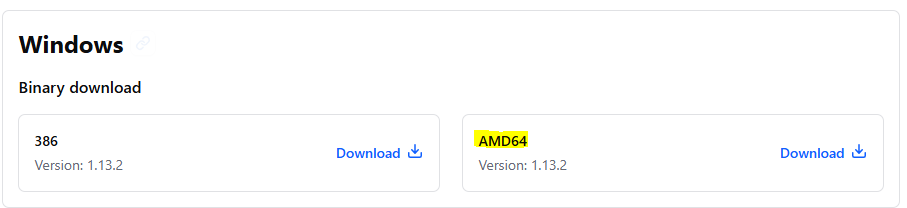
- 윈도우 AMD64 다운로드
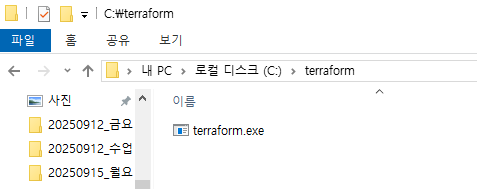
- C:\terraform 에 새폴더 terraform 만들고 다운받은 exe파일 넣기
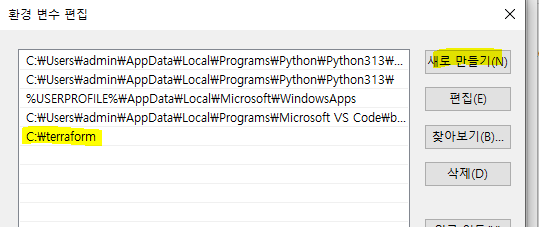
- Path 설정하기
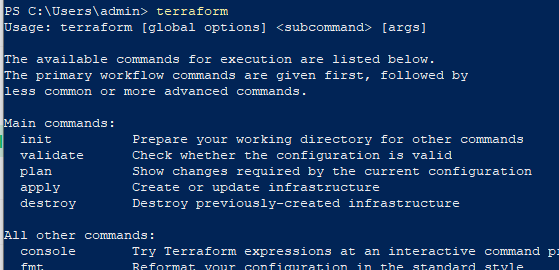
- 변수 설정한거 확인하기
VSCode 설정 및 apply
-
VSCode에 작업영역에 폴더 추가
D:\sources\terraform_code
(아래 경로 폴더가 없다면 폴더 만들기) -
확장 - 헤시코프 테라폼 설치
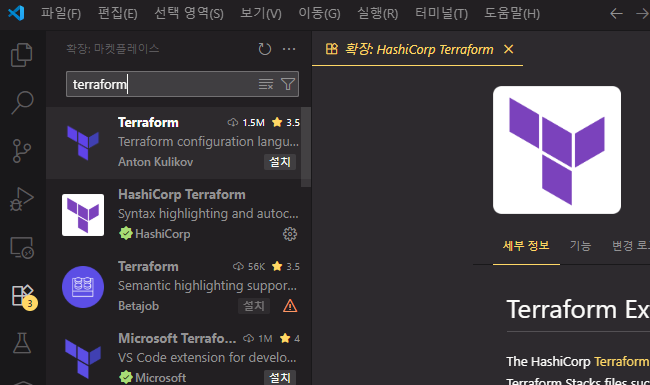
-
Gemini Code Assist 설치하고 로그인
-
ch03 폴더 만들기
-
그 안에 main.tf 파일 만들기
resource "local_file" "abc" {
  content = "abc!!!"
  filename = "${path.module}/abc.txt"
}- main.tf 경로로 와서 terraform init 명령
PS C:\source> cd D:\sources\terraform_code\ch03
PS D:\sources\terraform_code\ch03> terraform init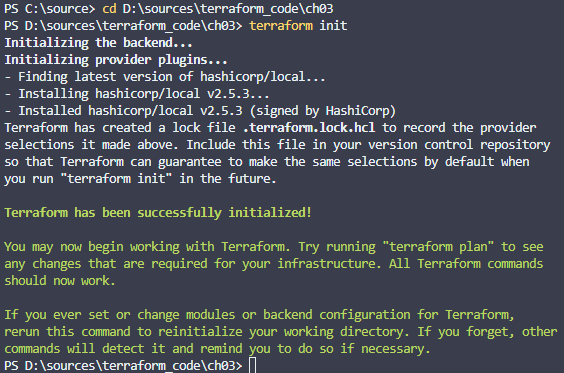
※ 이건 VSCode 터미널이나 PowerShell에서 하면됨
-
리소스 만들때 공급자(프로바이더)를 로컬로 줘서 로컬파일을 다운로드 받아서 오류 체크
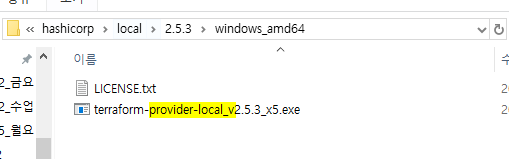
-
json 형태로 결과를 출력 하고싶을 때
terraform plan -json
- terraform apply
Enter a value: yes
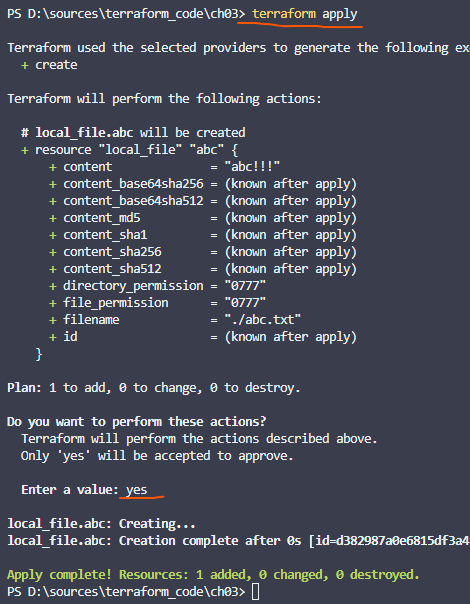
+ Create(생성)
- destroyed(삭제)
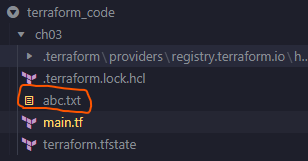
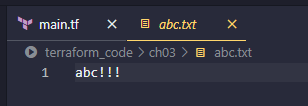
~ 수정 - 파일 생성된것 확인 & 파일 내용 확인
Git 연동
-
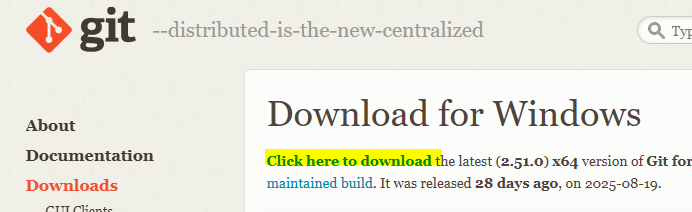
Git 홈페이지 접속 - 윈도우용 깃 다운로드
https://git-scm.com/downloads/win
-
다운로드된 Git-2.51.0-64-bit.exe 실행
쭉 Next 하다가 아래 설정만 이미지 참고하고 Install
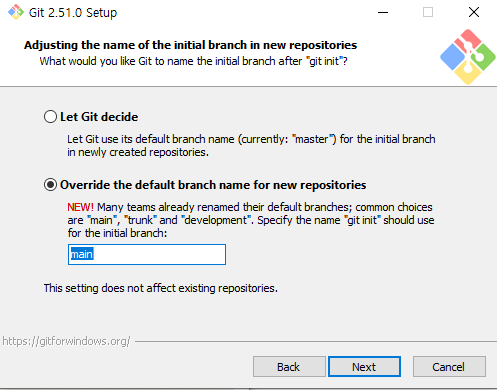
-
Github 접속해서 새로운 Repository 만들기
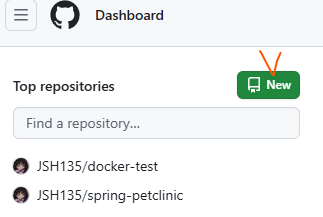
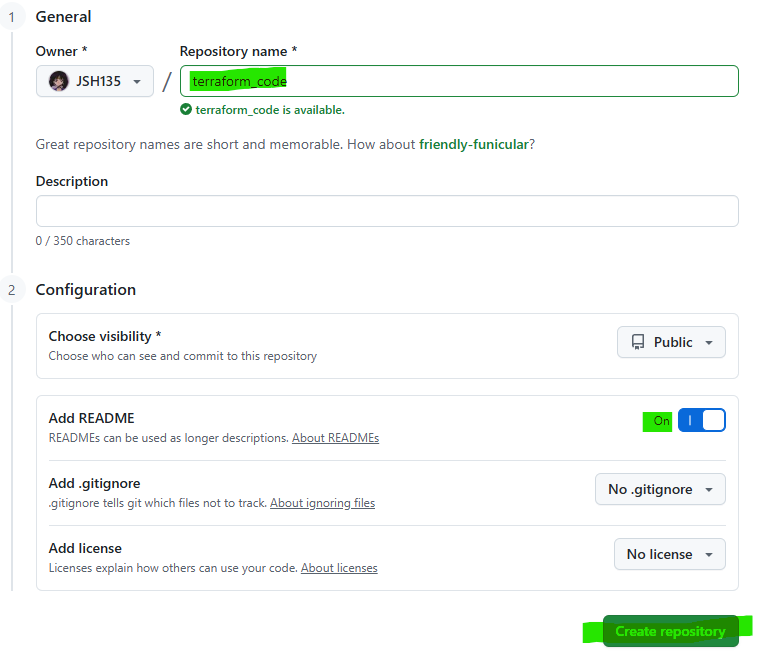
-
윈도우 D:\sources\terraform_code에서 우클릭 - Open Git Bash here
-
Git 로컬 저장소 만들기
git init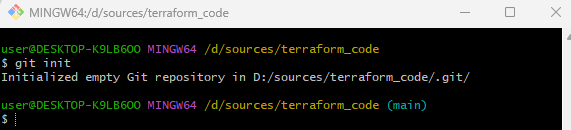
※ 로컬 저장소 위치 잘못 만들었으면 ,git 삭제하고 다시 로컬 저장소 만들 위치에서 git init
- D:\sources\terraform_code 위치에 .gitignore 파일 만들기
.terraform/
*.tfstate
*.tfstate.backup
.terraform.lock.hcl
이 안에 적어놓은 파일은 github에 안올린다.
- Account에서 Github 로그인하기
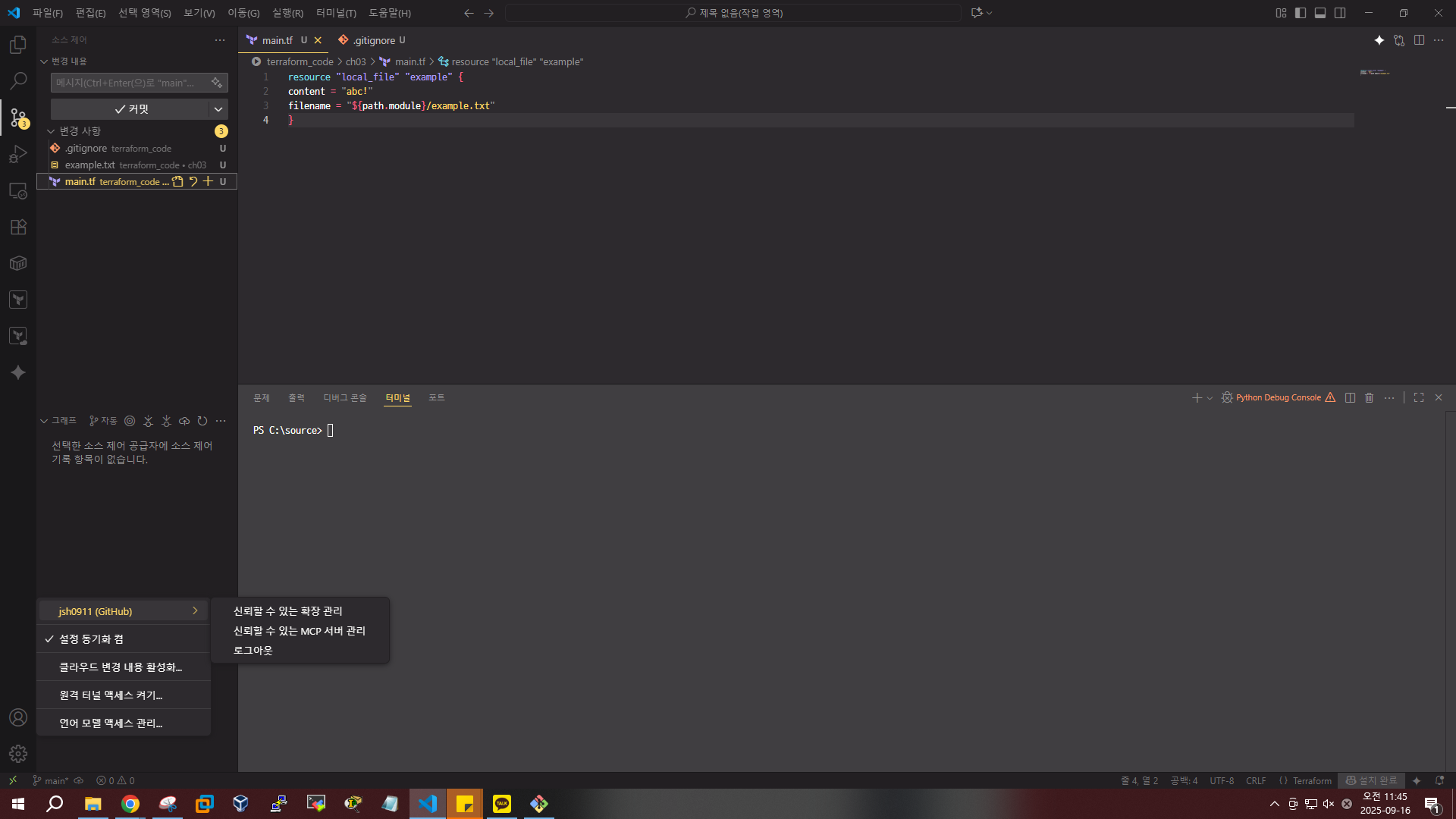
- git username, useremail 설정하기(github 계정이랑 같아야함)

- id, pw 방식으로 접속 할 수 없으므로 ssh 키 설정 하기
1) 조금 전 새로 만든 리포지토리에서 Code - SSH 링크 복사

2) git remote -v

3) ssh-keygen -t ed25519 -C "이메일주소"-엔터-엔터-엔터
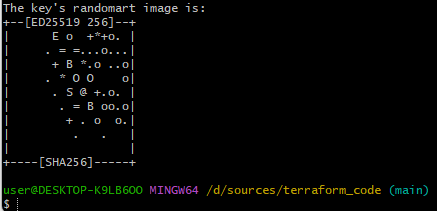
4) C:\Users\user.ssh 위치에 config 파일 메모장으로 만들기(확장자 없어야함)
Host github.com
    IdentityFile ~/.ssh/id_ed25519
    User git
5) Github 내계정 - Settings - SSH and GPG keys - New SSH key
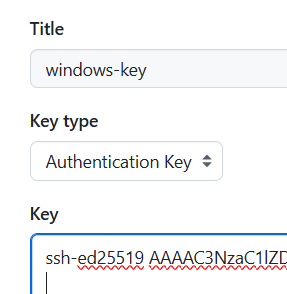
Key에는 id_ed25519.pub 파일 내용 복붙
6) Github 접속 테스트
ssh -T git@github.com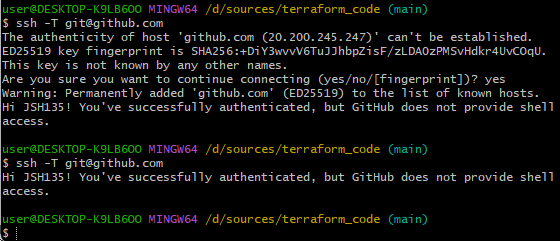
7) VSCode 확장에서 Git History 설치
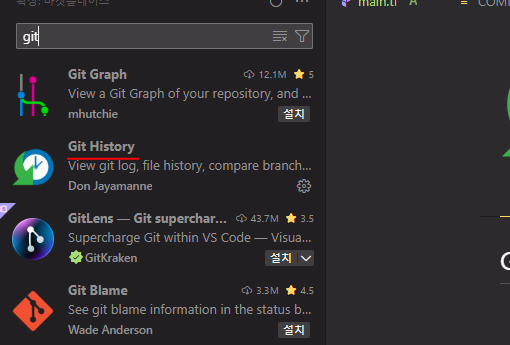
8) .gitignore파일 추가하고 커밋하기
git add .gitignore
git commit -m "inital commit"
9) main 브랜치 충돌 오류 발생시
git push origin +main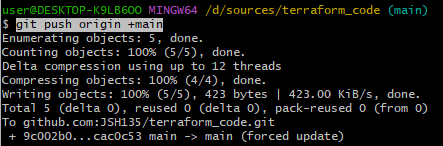
10) 확인
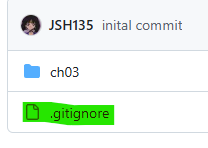
commit & push
- main.tf 파일 수정
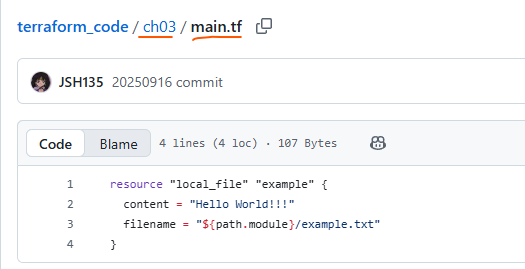
resource "local_file" "example" {
  content = "Hello World!!!"
  filename = "${path.module}/example.txt"
}- VSCode에서 스테이지에 main.tf 추가하고 커밋
- 왼쪽 아래 구름모양 눌러서 push
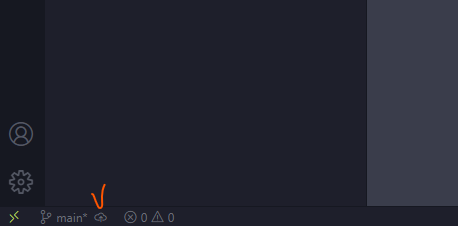
- Github에서 확인