React 개발 기초
1. 첫 리액트 프로젝트
npm init react-app .(또는 폴더 이름)
npm run start (개발 모드 실행).은 현재 디렉터리 내에서 프로젝트를 만들겠다는 것을 의미한다. Ctrl + C를 눌러 개발 모드를 종료할 수 있다.
2. 인덱스 파일에서 하는 일
index.html 파일과 index.js 파일은 리액트 프로젝트가 실행될 때 가장 먼저 동작하는 파일들이다.
import ReactDOM from 'react-dom';

ReactDOM.render(<h1>안녕 리액트!</h1>, document.getElementById('root'));
render 메소드를 통해 html 태그를 만들어 준다. 첫 번째 아규먼트로 html 태그를 작성한다. (리액트로 개발할 때 사용하는 문법) 두 번째 아규먼트로 id값으로 'root'를 사용하는 html 요소를 사용한다. 즉, 첫 번째 아규먼트 값을 두 번째 아규먼트에 집어넣는 형식으로 동작한다.
3. JSX
JSX는 자바스크립트의 확장 문법이다. 리액트로 코드를 작성할 때 HTML 문법과 비슷한 이 JSX 문법을 활용하면 훨씬 더 편리하게 화면에 나타낼 코드를 작성할 수 있게 된다.
// 속성명은 CamelCase로 작성
import ReactDOM from 'react-dom';

// JSX에서 class 속성은 className으로 표기
ReactDOM.render(<p className="hello">안녕 리액트!</p>, document.getElementById('root'));

// JSX에서 for 키워드는 htmlFor로 표기
// 이벤트 핸들러 CamelCase 작성
ReactDOM.render(
  <form>
    <label htmlForm="name">이름</label>
    <input id="name" type="text" onBlur="" onFocus="" onMouseDown="" />
  </form>,
  document.getElementById('root'));
단, 예외적으로 HTML에서 비표준 속성을 다룰 때 활용하는 data-* 속성은 기존의 HTML 문법 그대로 작성해도 된다.
import ReactDOM from 'react-dom';

ReactDOM.render(
  <div>
    상태 변경:
    <button className="btn" data-status="대기중">대기중</button>
    <button className="btn" data-status="진행중">진행중</button>
    <button className="btn" data-status="완료">완료</button>
  </div>,
  document.getElementById('root')
);
4. 프래그먼트
JSX 문법을 활용할 때는 반드시 하나의 요소로 감싸주어야 한다. 만약 2개 이상의 태그를 감쌀 때는 여러 태그를 감싸는 부모 태그를 만들어 주거나, Fragment로 감싸서 여러 요소를 작성할 수 있다.
import ReactDOM from 'react-dom';
import { Fragment } from 'react';

ReactDom.render(
  <Fragment>
    <p>안녕</p>
    <p>리액트!</p>
  </Fragment>,
  document.getElementById('root')
);

// Fragment 이름 생략 가능
import ReactDOM from 'react-dom';

ReactDom.render(
  <>
    <p>안녕</p>
    <p>리액트!</p>
  </>,
  document.getElementById('root')
);
5. JSX에서 자바스크립트 사용하기
import ReactDOM from 'react-dom';

const product = 'MacBook';
const model = 'Air';
const imageUrl = 'https://upload.wikimedia.org/wikipedia/commons/thumb/1/1e/MacBook_with_Retina_Display.png/500px-MacBook_with_Retina_Display.png';

function handleClick(e) {
  alert('곧 도착합니다!');
}

// 중괄호{}를 통해 JS 사용 가능
ReactDOM.render(
  <>
    <h1>{product + ' ' + model} 주문하기</h1>
    <img src={imageUrl} alt="제품 사진" />
    <button onClick={handleClick}>확인</button>
  </>,
  document.getElementById('root')
);
JSX 문법에서 중괄호{}를 활용하면 자바스크립트 표현식을 넣을 수 있다. 단, JSX 문법에서 중괄호는 자바스크립트 표현식을 다룰 떄 활용하기 때문에, 중괄호 안에서 if, for문 등의 문장을 다룰 수는 없다.
6. 컴포넌트
import ReactDOM from 'react-dom';

// 리액트 엘리먼트
const element = <h1>안녕 리액트!</h1>;

console.log(element);
ReactDOM.render(element, document.getElementById('root'));

// ----------------------- //
// 리액트 컴포넌트(함수명 첫글자는 대문자로 작성해야 하고 JSX 문법으로 만든 리액트 엘리먼트를 리턴해줘야 한다.)
function Hello() {
  return <h1>안녕 리액트!</h1>;
};

const element = (
  <>
    <Hello />
    <Hello />
    <Hello />
  </>
);

ReactDOM.render(element, document.getElementById('root')):
7. 컴포넌트 문법
(1) 리액트 엘리먼트
JSX 문법으로 작성한 요소는 결과적으로 자바스크립트 객체가 된다.
import ReactDOM from 'react-dom';

const element = <h1>안녕 리액트!</h1>;
console.log(element);
ReactDOM.render(element, document.getElementById('root'));
{$$typeof: Symbol(react.element), type: "h1", key: null, ref: null, props: {…}, …}이런 객체를 리액트 엘리먼트라고 한다. 이 리액트 엘리먼트를 ReactDOM.render 함수의 아규먼트로 전달하게 되면, 리액트가 객체 형태의 값을 해석해서 HTML 형태로 브라우저에 띄워주는 것이다.
(2) 리액트 컴포넌트
리액트 컴포넌트는 리액트 엘리먼트를 조금 더 자유롭게 다루기 위한 하나의 문법이다. 컴포넌트를 만드는 가장 간단한 방법은 자바스크립트의 함수를 활용하는 것이다.
import ReactDOM from 'react-dom';

function Hello() {
  return <h1>안녕 리액트</h1>;
}

const element = (
  <>
    <Hello />
    <Hello />
    <Hello />
  </>
);

ReactDOM.render(element, document.getElementById('root'));
element 변수 안의 JSX 코드에서 볼 수 있듯이 컴포넌트 함수 이름을 통해 하나의 태그처럼 활용할 수가 있다. 한 가지 주의해야 할 부분은, 리액트 컴포넌트의 이름은 반드시 첫 글자를 대문자로 작성해야 한다는 것이다.
8. Props (Properties)
리액트 컴포넌트에 지정한 속성을 Props라고 한다. 각각의 속성을 Prop이라고 부른다.
// Dice.js
import Dice from './Dice';
import diceBlue01 from './assets/dice-blue-1.svg';
import diceBlue02 from './assets/dice-blue-2.svg';
import diceBlue03 from './assets/dice-blue-3.svg';
import diceBlue04 from './assets/dice-blue-4.svg';
import diceBlue05 from './assets/dice-blue-5.svg';
import diceBlue06 from './assets/dice-blue-6.svg';
import diceRed01 from './assets/dice-red-1.svg';
import diceRed02 from './assets/dice-red-2.svg';
import diceRed03 from './assets/dice-red-3.svg';
import diceRed04 from './assets/dice-red-4.svg';
import diceRed05 from './assets/dice-red-5.svg';
import diceRed06 from './assets/dice-red-6.svg';

const DICE_IMAGES = {
  blue: [diceBlue01, diceBlue02, diceBlue03, diceBlue04, diceBlue05, diceBlue06],
  red: [diceRed01, diceRed02, diceRed03, diceRed04, diceRed05, diceRed06],
};

function Dice({ color = 'blue', num = 1 }) {
  const src = DICE_IMAGES[color][num - 1];
  const alt = `${color} ${num}`;
  return <img src={src} alt={alt} />;
}

export default Dice;

// App.js
function App() {
  return (
    <div>
      <Dice color="red" num={2} />
    </div>
  );
}

export default App;
9. children
// Button.js
function Button({ children }) {
  return <button>{children}</button>;
}

export default Button;

// App.js
import Button from './Button';
import Dice from './Dice';

function App() {
  return (
    <div>
      <Button>던지기</Button>
      <Button>처음부터</Button>
      <Dice color="red" num={4} />
    </div>
  );
}

export default App;
10. Props 정리하기
(1) Props
JSX 문법에서 컴포넌트를 작성할 때 컴포넌트에도 속성을 지정할 수 있다. 리액트에서 이렇게 컴포넌트에 지정한 속성들을 Props라고 부른다. Props는 Properties의 약자인데, 컴포넌트에 속성을 지정해주면 각 속성이 하나의 객체로 모여서 컴포넌트를 정의한 함수의 첫 번째 파라미터로 전달된다.
그래서 컴포넌트를 활용할 때 속성값을 다양하게 전달하고 이 Props 값을 활용하면, 똑같은 컴포넌트라도 전달된 속성값에 따라 서로 다른 모습을 그려낼 수 있게 된다.
// App.js
import Dice from './Dice';

function App() {
  return (
    <div>
      <Dice color="red" num={2} />
    </div>
  );
}

export default App;

// Dice.js
import diceBlue01 from './assets/dice-blue-1.svg';
import diceBlue02 from './assets/dice-blue-2.svg';
// ...
import diceRed01 from './assets/dice-red-1.svg';
import diceRed02 from './assets/dice-red-2.svg';
// ...

const DICE_IMAGES = {
  blue: [diceBlue01, diceBlue02],
  red: [diceRed01, diceRed02],
};

function Dice({ color = 'blue', num = 1 }) {
  const src = DICE_IMAGES[color][num - 1];
  const alt = `${color} ${num}`;
  return <img src={src} alt={alt} />;
}

export default Dice;
(2) Children
Props에는 children이라는 조금 특별한 프로퍼티가 있다. JSX 문법으로 컴포넌트를 작성할 때 컴포넌트를 단일 태그가 아니라 여는 태그와 닫는 태그의 형태로 작성하면, 그 안에 작성된 코드가 바로 children 값에 담기게 된다.
// Button.js
function Button({ children }) {
  return <button>{children}</button>;
}

export default Button;

// App.js
import Button from './Button';
import Dice from './Dice';

function App() {
  return (
    <div>
      <div>
        <Button>던지기</Button>
        <Button>처음부터</Button>
      </div>
      <Dice color="red" num={2} />
    </div>
  );
}

export default App;
JSX 문법으로 컴포넌트를 작성할 때 어떤 정보를 전달할 때는 일반적인 props의 속성값을 주로 활용하고, 화면에 보여질 모습을 조금 더 직관적인 코드로 작성하고자 할 때 children 값을 활용할 수 있다.
참고로 children을 활용하면 단순히 텍스트만 작성하는 걸 넘어서 컴포넌트 안에 컴포넌트를 작성할 수도 있고, 컴포넌트 안에 복잡한 태그들을 더 작성할 수도 있다.
11. State (스테이트)
// App.js
import { useState } from 'react';
import Button from './Button';
import Dice from './Dice';

function random(n) {
  return Math.ceil(Math.random() * n);
}
// num은 현재의 상태값, setNum은 num을 업데이트하는 함수를 의미한다.
// useState에는 초기값을 입력해준다. (생략 가능)
function App() {
  const [num, setNum] = useState(1);

  const handleRollClick = () => {
    const nextNum = random(6);
    setNum(nextNum);
  };

  const handleClearClick = () => {
    setNum(1);
  };

  return (
    <div>
      <div>
        <Button onClick={handleRollClick}>던지기</Button>
        <Button onClick={handleClearClick}>처음부터</Button>
      </div>
      <Dice color='red' num={num} />
    </div>
  );
}

export default App;

// Button.js
function Button({ children, onClick }) {
  return <button onClick={onClick}>{children}</button>;
}

export default Button;
State는 간단히 말해 변수이다. State는 값이 변하게 되면 컴포넌트들이 재렌더링되어 화면이 바뀌게 된다. 일반적으로 리액트에서 유동적인 데이터는 변수에 담아 사용하지 않고 useState()라는 함수를 사용하여 state라는 저장 공간에 담아 사용한다.
12. 참조형 State
import { useState } from 'react';
import Button from './Button';
import Dice from './Dice';

function random(n) {
  return Math.ceil(Math.random() * n);
}

function App() {
  const [num, setNum] = useState(1);
  const [sum, setSum] = useState(0);
  const [gameHistory, setGameHistory] = useState([]);

  const handleRollClick = () => {
    const nextNum = random(6);
    setNum(nextNum);
    setSum(sum + nextNum);
    setGameHistory([...gameHistory, nextNum]);
  };

  const handleClearClick = () => {
    setNum(1);
    setSum(0);
    setGameHistory([]);
  };

  return (
    <div>
      <div>
        <Button onClick={handleRollClick}>던지기</Button>
        <Button onClick={handleClearClick}>처음부터</Button>
      </div>
      <div>
        <h2>나</h2>
        <Dice color='blue' num={num} />
        <h2>총점</h2>
        <p>{sum}</p>
        <h2>기록</h2>
        {gameHistory.join(', ')}
      </div>
    </div>
  );
}

export default App;
13. State 정리하기
(1) State
state는 리액트에서 화면을 그려내는 데 중요한 역할을 한다. State는 말 그대로 상태가 바뀔 때마다 화면을 새롭게 그려내는 방식으로 동작을 하는 것이다.
import { useState } from 'react';

// ...

  const [num, setNum] = useState(1);

// ...
보통 Destructuring 문법으로 작성한다. useState 함수가 초기값을 아규먼트로 받고 그에 따른 실행 결과로 요소 2개를 가진 배열의 형태로 리턴을 하기 때문이다. 이때 첫 번째 요소가 state이고, 두 번째 요소가 state을 바꾸는 setter 함수이다. 보통 첫 번째 변수는 원하는 state 이름을 지어주고, 두 번째 변수는 state 이름 앞에 set을 붙인 CamelCase 형태로 짓는게 일반적이다.
state는 변수에 새로운 값을 할당하는 방식으로 변경하는 것이 아니라 이 setter 함수를 활용해야 한다. setter 함수는 호출할 때 전달하는 아규먼트 값으로 state 값을 변경해 준다.
import { useState } from 'react';
import Button from './Button';
import Dice from './Dice';

function App() {
  const [num, setNum] = useState(1);

  const handleRollClick = () => {
    setNum(3); // num state를 3으로 변경!
  };

  const handleClearClick = () => {
    setNum(1); // num state를 1로 변경!
  };

  return (
    <div>
      <Button onClick={handleRollClick}>던지기</Button>
      <Button onClick={handleClearClick}>처음부터</Button>
      <Dice color="red" num={num} />
    </div>
  );
}

export default App;
(2) 참조형 State
자바스크립트의 자료형은 크게 기본형(Primitive type)과 참조형(Reference type)로 나눌 수 있는데, 특히 참조형 값들은 변수로 다룰 때 주의해야 할 부분들이 있었다. state를 활용할 때도 마찬가지이다.
// ...

  const [gameHistory, setGameHistory] = useState([]);

  const handleRollClick = () => {
    const nextNum = random(6);
    gameHistory.push(nextNum);
    setGameHistory(gameHistory); // state가 제대로 변경되지 않는다!
  };

// ...
배열 값을 가진 gameHistory에 push 메소드를 이용해서 배열의 값을 변경한 다음, 변경된 배열을 setter 함수로 state를 변경하려고 하면 코드가 제대로 동작하지 않는다.
gameHistory state는 배열 값 자체를 가지고 있는 게 아니라 그 배열의 주소값을 참조하고 있기 때문에 push 메소드로 배열 안에 요소를 변경했다고 하더라도 결과적으로 참조하는 배열의 주소값을 변경한 것이 아니게 된다. 그래서 참조형 state를 활용할 때는 반드시 새로운 참조형 값을 만들어 state를 변경해야 한다. (Spread 문법(...)을 활용하면 된다.)
// ...

  const [gameHistory, setGameHistory] = useState([]);

  const handleRollClick = () => {
    const nextNum = random(6);
    setGameHistory([...gameHistory, nextNum]); // state가 제대로 변경된다!
  };

// ...
14. 컴포넌트가 좋은 이유
- 반복적인 개발이 줄어든다.
- 오류를 고치기 쉽다.
- 일을 쉽게 나눌 수 있다.
15. 컴포넌트 재사용하기
// App.js
import { useState } from 'react';
import Board from './Board';
import Button from './Button';

function random(n) {
  return Math.ceil(Math.random() * n);
}

function App() {
  const [num, setNum] = useState(1);
  const [sum, setSum] = useState(0);
  const [gameHistory, setGameHistory] = useState([]);
  const [otherNum, setOtherNum] = useState(1);
  const [otherSum, setOtherSum] = useState(0);
  const [otherGameHistory, setOtherGameHistory] = useState([]);

  const handleRollClick = () => {
    const nextNum = random(6);
    const nextOtherNum = random(6);
    setNum(nextNum);
    setSum(sum + nextNum);
    setGameHistory([...gameHistory, nextNum]);
    setOtherNum(nextOtherNum);
    setOtherSum(otherSum + nextOtherNum);
    setOtherGameHistory([...otherGameHistory, nextOtherNum]);
  };

  const handleClearClick = () => {
    setNum(1);
    setSum(0);
    setGameHistory([]);
    setOtherNum(1);
    setOtherSum(0);
    setOtherGameHistory([]);
  };

  return (
    <div>
      <Button onClick={handleRollClick}>던지기</Button>
      <Button onClick={handleClearClick}>처음부터</Button>
      <div>
        <Board name="나" color="blue" num={num} sum={sum} gameHistory={gameHistory} />
        <Board name="상대" color="red" num={otherNum} sum={otherSum} gameHistory={otherGameHistory} />
      </div>
    </div>
  );
}

export default App;

// Board.js
import Dice from './Dice';

function Board({ name, color, num, sum, gameHistory }) {
  return (
    <div>
      <h1>{name}</h1>
      <Dice color={color} num={num} />
      <h2>총점</h2>
      <p>{sum}</p>
      <h2>기록</h2>
      <p>{gameHistory.join(', ')}</p>
    </div>
  );
}

export default Board;
16. 코드 정리하기
// App.js
import { useState } from 'react';
import Board from './Board';
import Button from './Button';

function random(n) {
  return Math.ceil(Math.random() * n);
}

function App() {
  const [myHistory, setMyHistory] = useState([]);
  const [otherHistory, setOtherHistory] = useState([]);

  const handleRollClick = () => {
    const nextMyNum = random(6);
    const nextOtherNum = random(6);
    setMyHistory([...myHistory, nextMyNum]);
    setOtherHistory([...otherHistory, nextOtherNum]);
  };

  const handleClearClick = () => {
    setMyHistory([]);
    setOtherHistory([]);
  };

  return (
    <div>
      <Button onClick={handleRollClick}>던지기</Button>
      <Button onClick={handleClearClick}>처음부터</Button>
      <div>
        <Board name="나" color="blue" gameHistory={myHistory} />
        <Board name="상대" color="red" gameHistory={otherHistory} />
      </div>
    </div>
  );
}

export default App;

// Board.js
import Dice from './Dice';

function Board({ name, color, gameHistory }) {
  const num = gameHistory[gameHistory.length - 1] || 1;
  const sum = gameHistory.reduce((a, b) => a + b, 0);
  return (
    <div>
      <h1>{name}</h1>
      <Dice color={color} num={num} />
      <h2>총점</h2>
      <p>{sum}</p>
      <h2>기록</h2>
      <p>{gameHistory.join(', ')}</p>
    </div>
  );
}

export default Board;
17. 리액트가 렌더링하는 방식
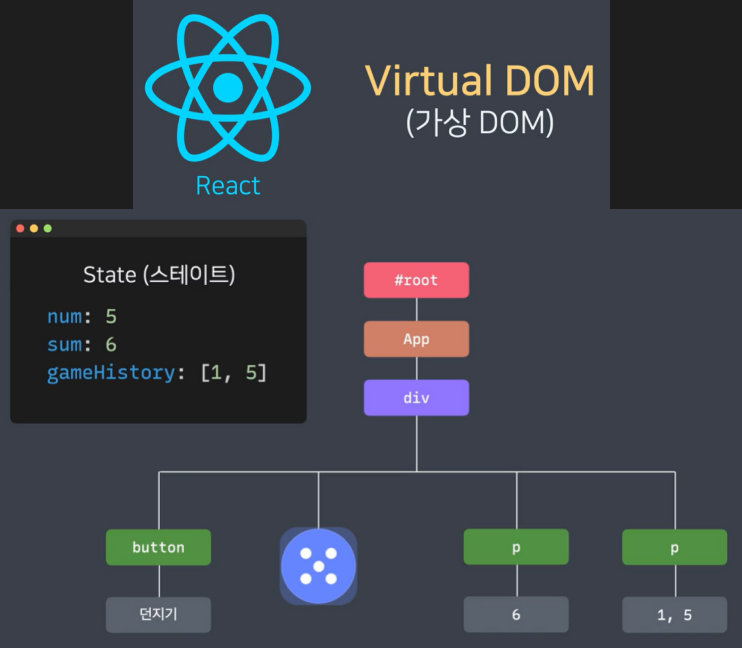
- 단순하고 깔끔한 코드를 작성할 수 있다.
- 변경사항들을 효율적으로 처리할 수 있다.
18. 인라인 스타일
/*
const style = {
  속성: '값',
};
*/

const baseButtonStyle = {
  padding: '14px 27px',
  outline: 'none',
  cursor: 'pointer',
  borderRadius: '9999px',
  fontSize: '17px',
};

const blueButtonStyle = {
  ...baseButtonStyle,
  border: 'solid 1px #7090ff',
  color: '#7090ff',
  backgroundColor: 'rgba(0, 89, 255, 0.2)',
};

const redButtonStyle = {
  ...baseButtonStyle,
  border: 'solid 1px #ff4664',
  color: '#ff4664',
  backgroundColor: 'rgba(255, 78, 78, 0.2)',
};

function Button({ color, children, onClick }) {
  const style = color === 'red' ? redButtonStyle : blueButtonStyle;
  return (
    <button style={style} onClick={onClick}>
      {children}
    </button>
  );
}

export default Button;
속성 이름들은 모두 CamelCase로 작성해야 한다.
19. CSS 클래스네임
/* Css */
.Button {
  padding: 14px 27px;
  border-radius: 9999px;
  outline: none;
  font-size: 17px;
  cursor: pointer;
}

.Button.blue {
  border: solid 1px #7090ff;
  color: #7090ff;
  background-color: rgba(0, 89, 255, 0.2);
}

.Button.red {
  border: solid 1px #ff4664;
  color: #ff4664;
  background-color: rgba(255, 78, 78, 0.2);
}
// JS
import './Button.css';
function Button({ className = '', color = 'blue', children, onClick }) {
const classNames = `Button ${color} ${className}`;
return (
<button className={classNames} onClick={onClick}>
{children}
</button>
);
}
export default Button;19-1. 디자인 적용하는 방법과 팁
(1) 디자인을 적용하는 방법
- 이미지 불러오기
이미지 파일은 import 구문을 통해 불러오고, 불러온 이미지 주소를 src 속성으로 사용하면 된다.
import diceImg from './assets/dice.png';

function Dice() {
  return <img src={diceImg} alt="주사위 이미지" />;
}

export default App;- 인라인 스타일
리액트에서 인라인 스타일은 문자열이 아닌 객체형으로 사용한다. 프로퍼티 이름은 CSS 속성 이름으로, 프로퍼티 값은 CSS 속성 값으로 쓴다. 이때 프로퍼티 이름은 대시 기호 없이 CamelCase로 작성해야 한다.
import diceImg from './assets/dice.png';

const style = {
  borderRadius: '50%',
  width: '120px',
  height: '120px',
};

function Dice() {
  return <img style={style} src={diceImg} alt="주사위 이미지" />;
}

export default App;- CSS 파일 불러오기
import 구문으로 파일을 불러올 수 있는데, 이 때 from 키워드 없이 사용하면 된다.
import diceImg from './assets/dice.png';
import './Dice.css';

function Dice() {
  return <img src={diceImg} alt="주사위 이미지" />;
}

export default App;- 클래스네임 사용하기
CSS 파일에 정의된 클래스명을 className prop에 문자열로 넣어주면 된다. 이 때 재사용성을 위해 className prop을 부모 컴포넌트에서 받으면 더 좋다.
import diceImg from './assets/dice.png';
import './Dice.css';

function Dice({ className = '' }) {
  const classNames = `Dice ${className}`;
  return <img className={classNames} src={diceImg} alt="주사위 이미지" />;
}

export default App;
(2) 편리하게 클래스네임을 쓰는 방법
- 템플릿 문자열을 사용한 예
function Button({ isPending, color, size, invert, children }) {
  const classNames = `Button ${isPending ? 'pending' : ''} ${color} ${size} ${invert ? 'invert' : ''}`;
  return <button className={classNames}>{children}</button>;
}

export default Button;- 배열을 사용한 예
function Button({ isPending, color, size, invert, children }) {
  const classNames = [
    'Button',
    isPending ? 'pending' : '',
    color,
    size,
    invert ? 'invert' : '',
  ].join(' ');
  return <button className={classNames}>{children}</button>;
}

export default Button;
위 코드처럼 지저분하게 느껴지고, 매번 반복되는 코드를 작성한다는 번거로움이 있다. 개발자들은 이럴 때 라이브러리라는 것을 사용한다. 다른 개발자가 미리 만들어 놓은 코드를 이용해서 편하게 개발하는 것이다.
- classnames 라이브러리를 사용한 예
import classNames from 'classnames';

function Button({ isPending, color, size, invert, children }) {
  return (
    <button
      className={classNames(
        'Button',
        isPending && 'pending',
        color,
        size,
        invert && 'invert',
      )}>
     { children }
   </button >
  );
}

export default Button;
classnames 라이브러리는 npm install classnames를 통해 설치하고, import로 불러와서 사용하면 된다.
