🧩 scrollIntoView()란?
scrollIntoView()는 스크롤을 부드럽게 이동시켜 특정 요소가 화면에 보이게 하는 메서드이다.
즉, 클릭이나 이벤트 발생 시 해당 요소가 뷰포트 안으로 들어오게 자동 스크롤되는 기능을 제공한다.
🧱 기본 문법
element.scrollIntoView([options]);| 옵션 | 타입 | 설명 |
|---|---|---|
behavior | "auto" 또는 "smooth" | 스크롤 애니메이션 여부 (smooth면 부드럽게) |
block | "start", "center", "end", "nearest" | 요소를 수직으로 어디에 맞출지 |
inline | "start", "center", "end", "nearest" | 요소를 수평으로 어디에 맞출지 (보통 생략) |
💡기본 예시
<button id="scrollBtn">Go to Section</button>

<div style="height: 1000px;"></div>

<section id="target" style="height: 200px; background: lightcoral;">
  🎯 여기가 목표 섹션!
</section>

<script>
  const button = document.querySelector('#scrollBtn');
  const target = document.querySelector('#target');

  button.addEventListener('click', () => {
    target.scrollIntoView({ behavior: 'smooth' });
  });
</script>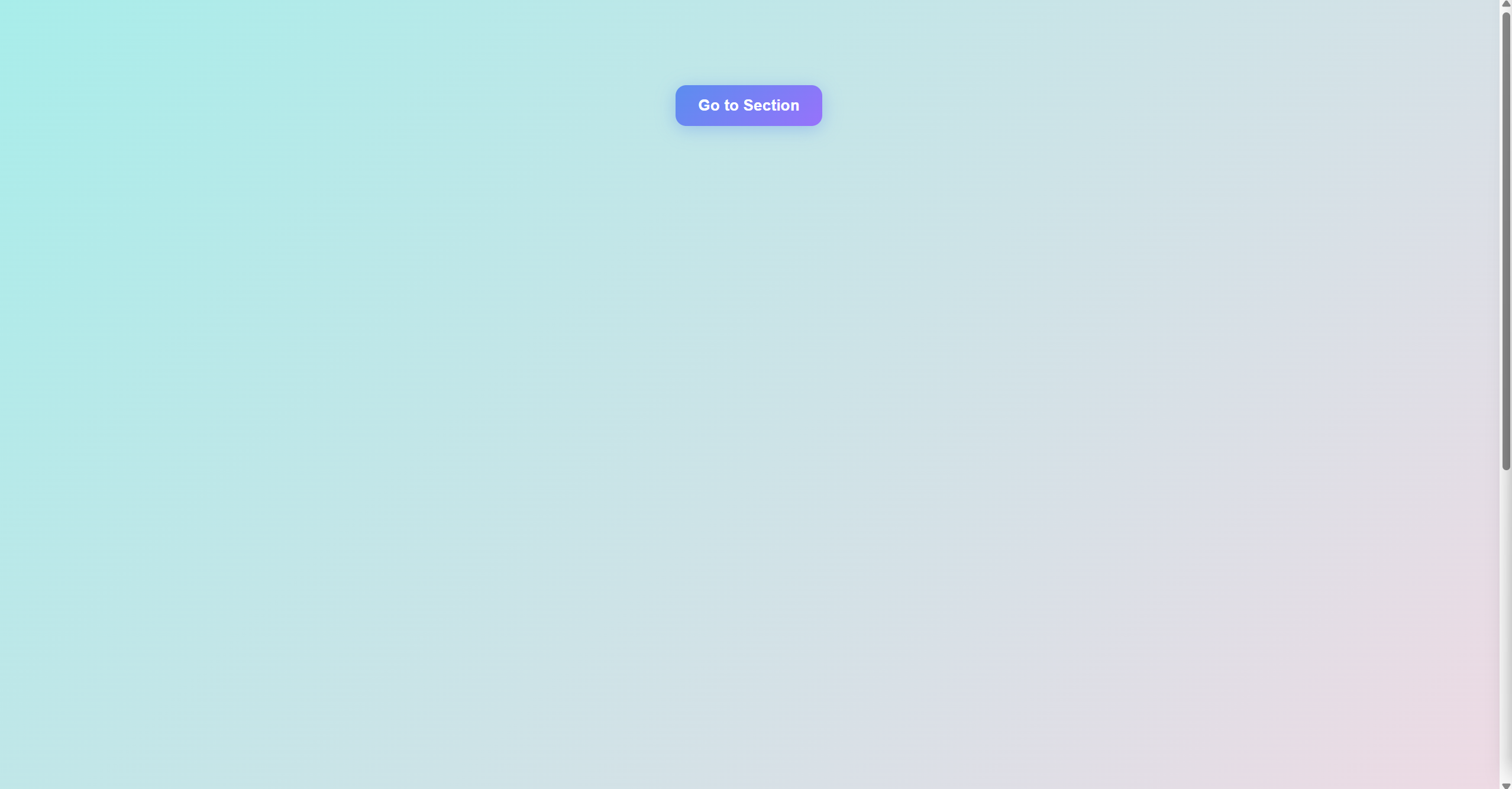
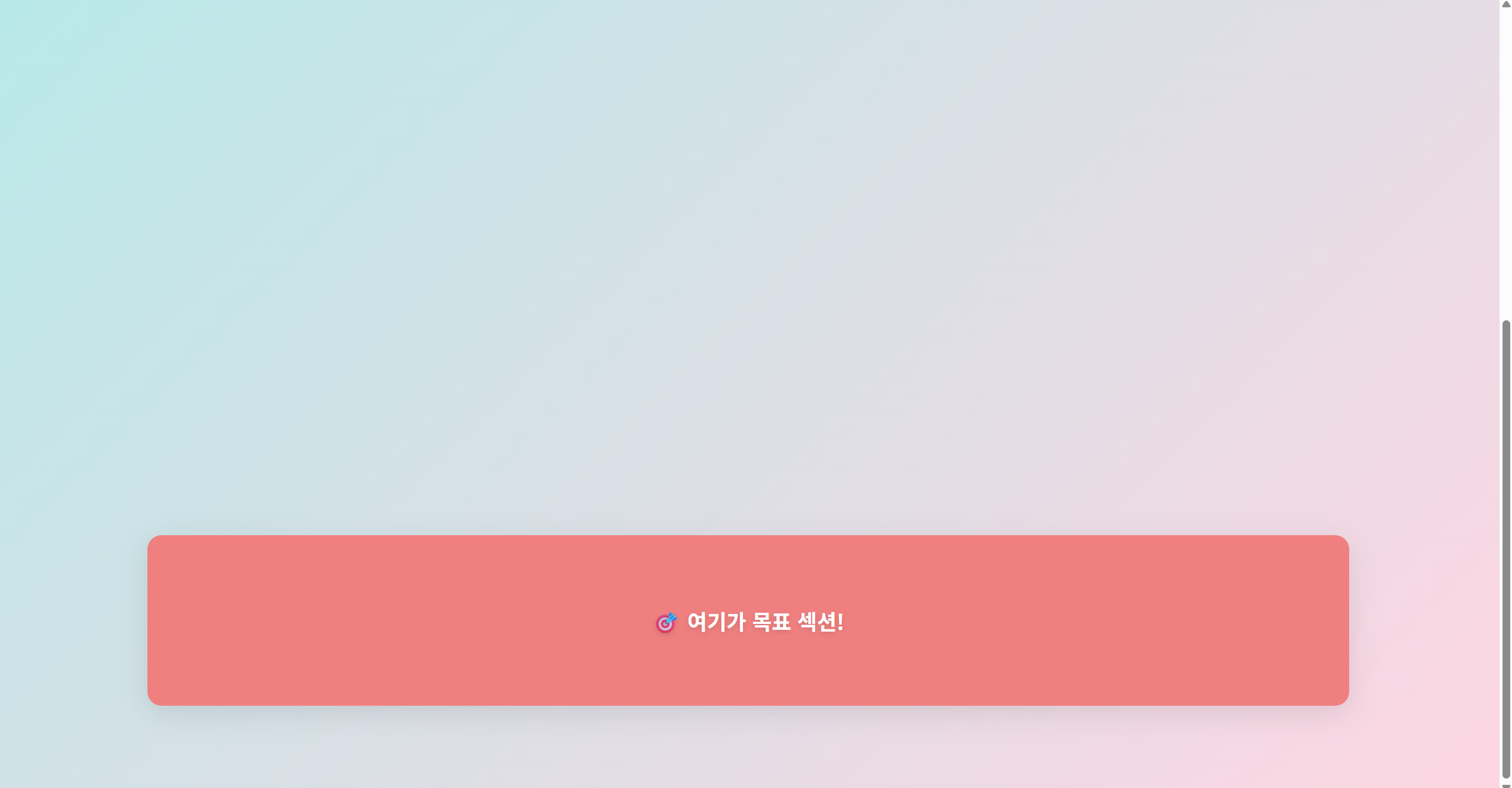
버튼을 클릭하면 페이지가 부드럽게 아래로 이동하면서
#target 섹션이 화면에 딱 들어오게 된다.
✨ 부드러운 스크롤 구현
✅ 네비게이션 앵커 스크롤
document.querySelectorAll('nav a').forEach(link => {
  link.addEventListener('click', e => {
    e.preventDefault();
    const id = e.target.getAttribute('href');
    document.querySelector(id).scrollIntoView({ behavior: 'smooth' });
  });
});
{behavior: 'smooth'} 옵션으로 부드럽게 이동이 가능하다.
✅ CSS로도 설정 가능
자바스크립트 말고 CSS로 전체 페이지 스크롤에 부드러운 효과를 줄 수도 있다.
html {
  scroll-behavior: smooth;
}
이와 같은 스타일을 사용하면 a[href="#section"] 같은 앵커 클릭 시에도 자동으로 부드럽게 스크롤된다.
다만 세밀한 제어(center, end 등)는 JS로만 가능하다.
⚠️ 주의사항
- iOS Safari 등 일부 브라우저는 scrollIntoView({ behavior: 'smooth' }) 지원이 완전하지 않을 수 있다.
- 고정된 헤더(navbar) 가 있을 경우, 스크롤 후 요소가 헤더 뒤에 가릴 수 있다.
→ 이런 경우엔 offset을 직접 계산하는 게 좋다.
const yOffset = -80; // 헤더 높이
const y = target.getBoundingClientRect().top + window.pageYOffset + yOffset;
window.scrollTo({ top: y, behavior: 'smooth' });
즐겁게 코딩하고 공부해요🍀