Git 사용준비
Git Global Configuration
Global Username & Email
git config --global user.name username
git config --global user.email email
CRLF - Mac
LF만 사용
git config --global core.autocrlf input
Editor
git config --global core.editor < editor >
전체 설정 확인
git config --list
항목별 설정 확인
git config < key >
Git 기본 용어
Repository
- 소스코드가 저장되어 있는 여러 개의 Branch가 모여있는 디스크상의 물리적 공간
- Local Repository와 Remote Repository로 구분
Checkout
- 특정 시점이나 Branch의 소스코드로 이동하는 것을 의미
- Checkout 대상 - Branch, Commit, Tag
- Checkout을 통해 과거 여러 시점의 코드로 이동이 가능
Stage
- 작업할 내용이 올라가는 임시저장영역
- 이 영역을 이용하여 작업한 내용중 commit에 반영할 파일만 선별하여 commit을 수행할 수 있음
Commit
- 작업할 내용을 Local Repository에 저장하는 과정
- 각각의 commit은 의미있는 변경단위이고, 변경에 대한 설명을 commit log로 남김
- 권장- commit을 아끼지 마세요
- 참고 - commit 단위나 commit log format을 정해놓은 회사나 팀도 있음 (빌드 서버를 사용하는 경우)
Tag
- 임의의 commit 위치에 쉽게 찾아갈 수 있도록 붙여놓은 이정표
- Tag가 붙은 commit은 commit id (version) 대신 tag name으로 쉽게 checkout 가능
Push
- Local Repository의 내용 중, Remote Repository에 반영되지 않은 commit을 Remote Repository로 보내는 과정
- 권장 - Push 하는 순간 다른 개발자들도 영향을 받음. 검증되지 않은 코드는 Push하지 않도록 함
Pull
- Remote Repository에 있는 내용 중, Local Repository에 반영되지 않은 내용을 가져와서 Local Repository에 저장하는 과정
- 다른 팀원이 변경하고 Push한 내용을 Local Repository에 가져올 수 있음
- 참고 - Push 과정에서 Conflict이 일어나서 Push가 거절된 경우
- Pull을 통해 Remote Repository의 변경 내용을 Local Repository에 반영하여 Conflict를 해결한 뒤 다시 Push를 시도해야 함
Branch
- 특정 시점 (commit단위)에서 분기하여 새로운 commit을 쌓을 수 있는 가지를 만드는 것
- 개발의 주축이 되는 branch를 master branch (혹은 main branch)라고 함
- 모든 branch는 최종적으로 다시 master branch에 merge되는 형식으로 진행됨
Merge
- Branch의 반대개념으로 하나의 Branch를 다른 Branch와 합치는 과정
- Merge 되는 두 Branch는 주종관계가 성립. 예) dev branch를 main branch에 merge
- Merge 되는 과정에서 Conflict이 발생하는 경우 Diff를 수정하여 Conflict를 해결한 뒤 Merge를 진행할 수 있음
Local Repository
Local Repository 구성
Local Repository는 Git이 관리하는 3가지 단계로 구성되어 있음
- Working Directory(작업공간) - 실제 소스 파일, 생성한 파일들이 존재
- Index (Stage) - Staging area(준비영역)의 역할, git add한 파일들이 존재
- HEAD - 최종 확정본, git commit한 파일들이 존재
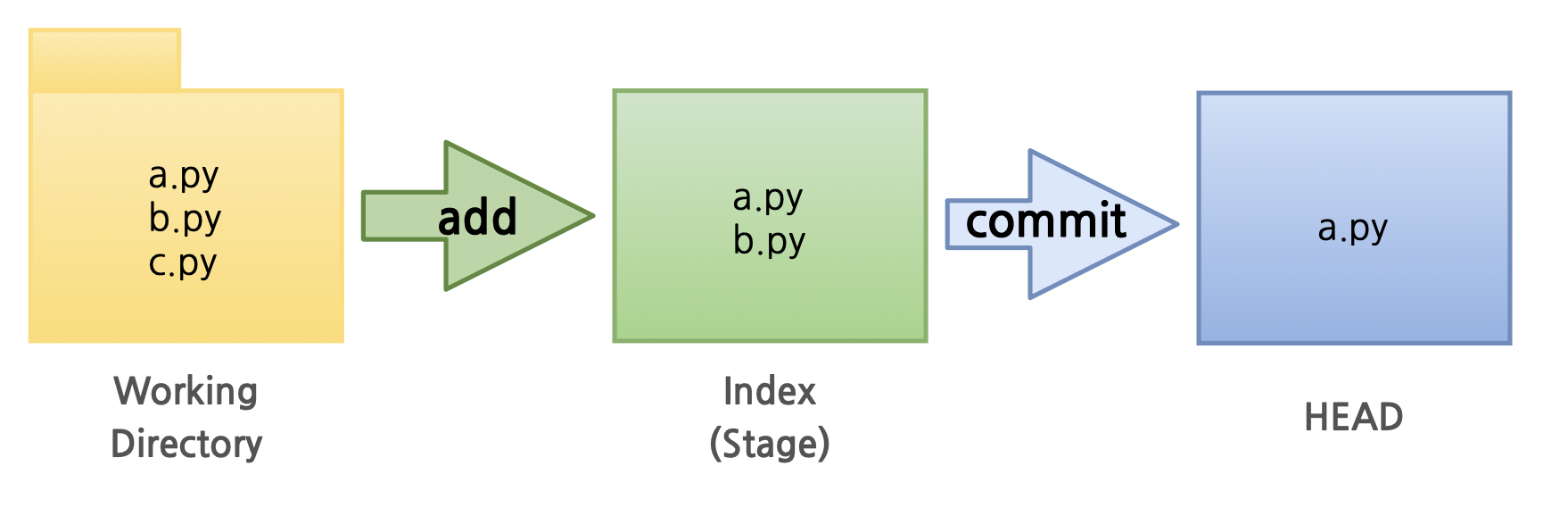
Local Repository 생성
-
Workspace 생성
mkdir git_ws -
Workspace로 이동한 뒤 Working Directory 생성
cd git_ws
mkdir test_project -
폴더에서 Git을 초기화하는 명령어를 사용하면 해당 폴더를 Git이 관리하기 시작
git init -
생성한 폴더로 이동하여 Git init을 실행하면 Repository가 생성됨
git_ws % cd test_project
test_project % git init
Initialized empty Git repository in /Users/nomaefg/.../git_ws/.git/
-> .git폴더가 생성된 것을 확인
- 파일 생성
- Working Directory에 파일을 생성
참고 > touch 명령어 - 빈 파일을 생성
test_project % touch test.txt
ls
test.txt
-
Git에 존재하는 파일 확인
git status -
Working Directory에서 변경된 파일을 Index(stage)에 추가
git add < filename > -
Index(stage)에 추가된 변경사항을 HEAD에 반영(확정)
git commit -m "commit에 대한 설명" < filename >
Remote Repository 등록
-
Local Repository에 Remote Repository 등록
git remote add origin https://github.com.< repository >.git -
Remote Repository 정보확인
git remote -v
Remote Repository에 변경내용 Push 하기
-
Local Repository (HEAD)에 반영된 변경내용을 Remote Repository에도 반영하기 위해서는 Git Push를 사용
-
git push origin < branchname >
test_project% git push origin master
-> Remote Repository 페이지에서 새로고침하면 Push된 파일이 보임
Remote Repository에 Pull 하기
-
Remote Repository의 내용에 맞춰 Local Repository를 갱신하려면 Git Pull 사용
-
git pull origin < branchname >
Remote Repository
Default Branch
- 수정이 가능
- 수정은 신중해야 한다. 다른 팀원들까지 영향을 받는다.
Default Branch 설정
- Remote repository를 생성할 때 Default Branch 이름을 설정할 수 있음
Remote Repository 복제하기
-
Local Repository를 생성하지 않은 상태에서 Git clone 명령을 사용하여 Remote Repository를 Local에 복제할 수 있음
-
Git clone
- 앞서 폴더를 만들고
- Git init으로 해당 폴더를 초기화하고
- remote repository를 등록하고
- remote repository의 내용을 pull하는 모든 과정을 git clone으로 할 수 있음
git clone https://github.come/< repository>.git
Branch
-
Branch 조회 (Local Branch)
git branch -
Branch 조회 (Remote Branch)
git branch -r -
Branch 조회 (Local + Remote)
git branch -a -
Branch 생성
git branch < branchname >
git push origin < branchname > -
Branch 이동
git checkout < branchname> -
Branch 생성 + 이동
git checkout -b < branchname > -
Branch 삭제 (Local Repository)
git branch -d < branchname > -
Branch 삭제 (Remote Repository)
git push origin --delete < branchname >
Log and Diff
Git Log
- Branch 별 변경이력을 볼 수 있음
git log
Git Editor 설정
--wait 옵션은 command line으로 VSCode를 실행시켰을 경우,
VSCode 인스턴스를 닫을 때까지 command를 대기
git config --global core.editor < editorname > --wait
Git Diff Tool 설정
-
git configuration 파일 열기
git config --global -e -
Git Diff 설정 추가
[diff]
tool = vscode
[difftool "vscode"]
cmd = "code --wait --diff $LOCAL $REMOTE"
Git Diff
-
Git Diff - Local Branch간 비교
git diff < branch1 > < branch2 > -
Git Diff - Commit간 비교
git diff < commithash > < commithash > -
Git Diff - 마지막 Commit과 이전 Commit 비교
git diff HEAD HEAD^ -
Git Diff - 마지막 Commit과 현재 수정사항 확인
git diff HEAD -
Git Diff - Local and Remote 간 비교
git diff < branch > origin/< branch2 >
Merge and Conflict
Merge Tool 설정
- Git Diff 설정 추가
[diff]
tool = vscode
[difftool "vscode"]
cmd = "code --wait --diff $MERGED"
Merge
- Git Merge
현재 위치한 Branch에 다른 Branch를 병합
git merge < branchname >
Conflict
- Merge Conflict
Branch를 Merge 하는 과정에서 충돌이 날 수 있음
혹은 Push, Pull하는 과정에서도 충돌이 일어날 수 있음
Tag
Tag
-
특정 버전 (Commit)에 Tag를 달아놓을 필요가 있을 때 사용 (예 - 버전 릴리즈)
-
git tag 생성
현재 버전에 tag 달기
git tag < tagname >
특정 버전에 tag 달기
git tag < tagname > < commithash >
tag를 Remote Repository에 Push
git push origin < tagname >
-
git tag 목록 보기
git tag -
git tag 상세 정보
git show < tagname > -
git tag 삭제
git tag --delete < tagname >
git push --delete origin < tagname >
README
README란?
- 프로젝트에 대한 설명, 사용방법, 라이센스, 설치법과 같은 부분에 대해 기술하는 파일
- 나, 직장동료, 프로그램 사용자를 위해 존재
Markdown
- Headers - 큰 제목
This is H1
==========
This is H1
- Headers - 작은 제목
This is H2
----------
This is H2
- Headers - 글머리 (1-6까지 지원)
# This is H1
## This is H2
### This is H3
#### This is H4
##### This is H5
###### This is H6- BlockQuote
> This is a first blockquote
>> This is a second blockquote
>>> This is a third blockquote
This is a first blockquote
This is a second blockquote
This is a third blockquote
- 코드블럭 1
<pre><code>print('this is readme file.')</code></pre>print('this is readme file.')