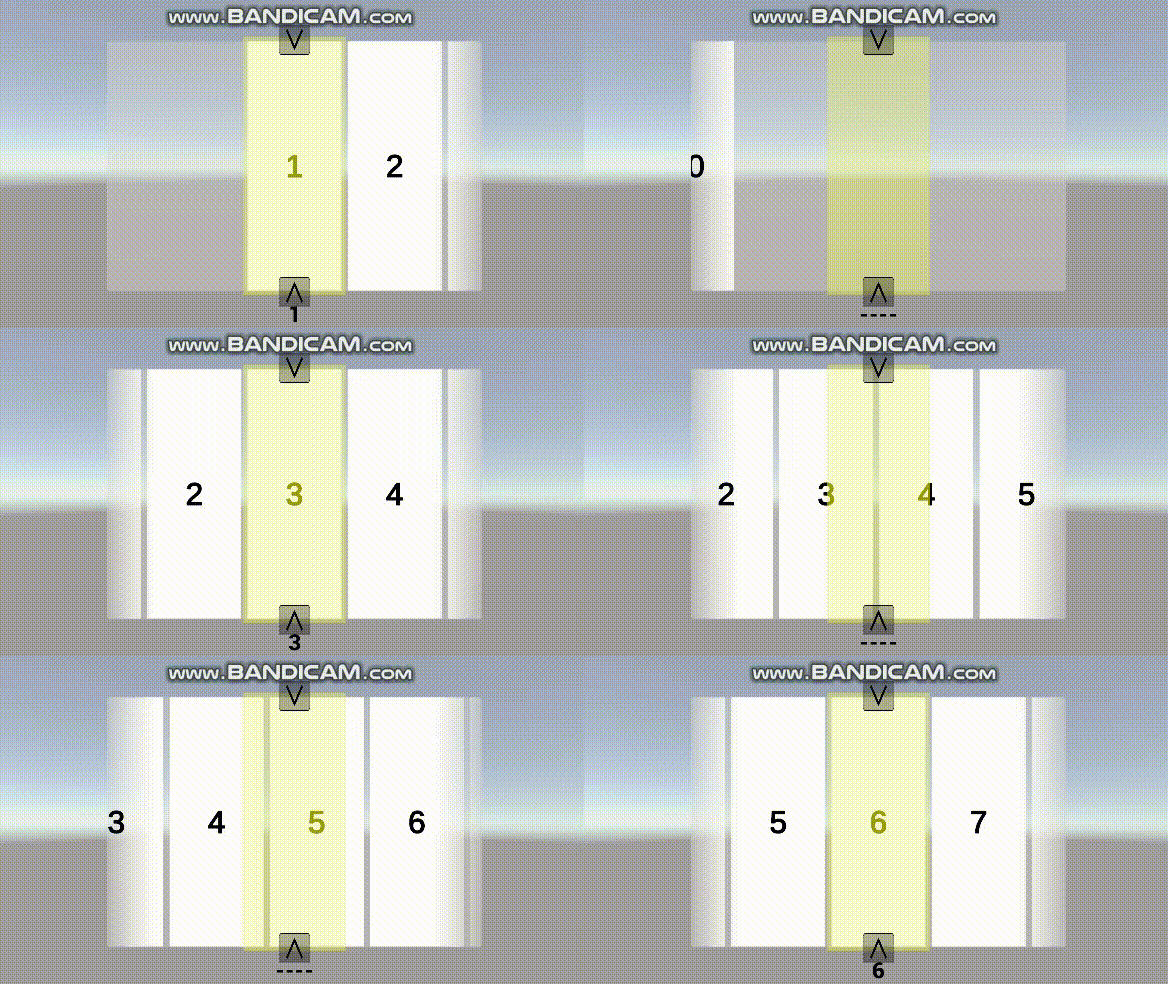
TIL_2025_03_26 자동 스크롤 페이지
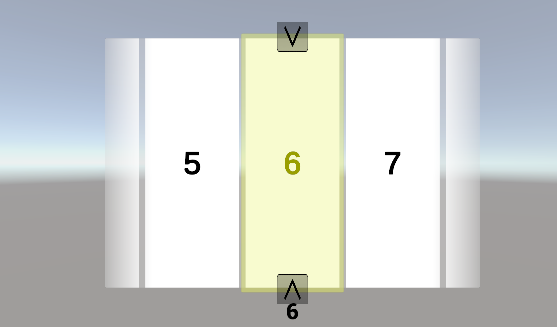
자동 스크롤 페이지란?
여러 목록을 스크롤로 이동할 수 있으며 가장 가까운 요소로 자동으로 이동하는 페이지다.
오브젝트 구성
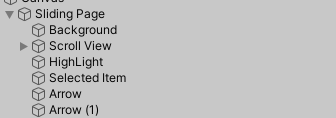
위 사진은 완성된 페이지의 구성이다.
이를 처음부터 만들어 본다
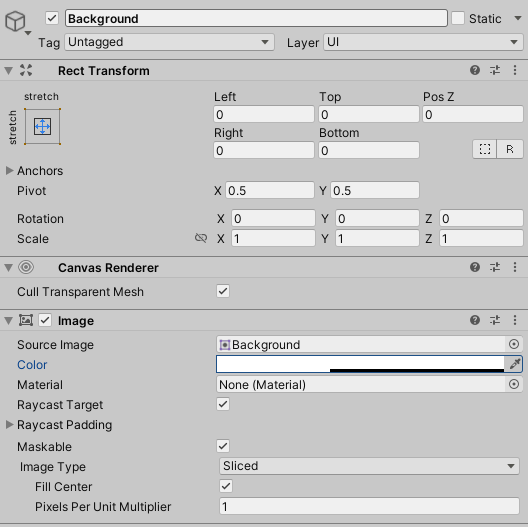
배경
이를 위해 배경을 Create > UI > Panel로 배경을 만든다.
스크롤 뷰
Create > UI > Scroll View로 기본 스크롤 뷰를 만든다.
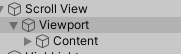
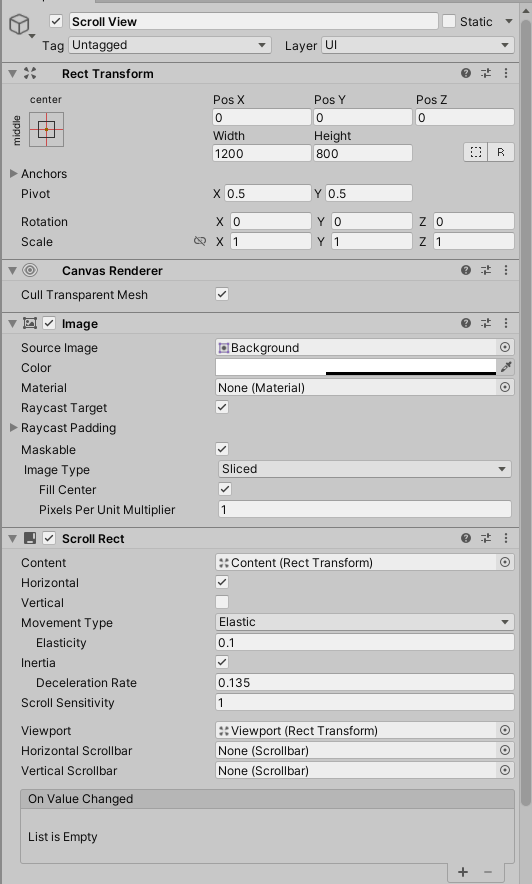
기존에 있는 스크롤바를 모두 삭제하고 Scroll Rect의 Vertical을 체크해제한다.
뷰 포트 - Viewport
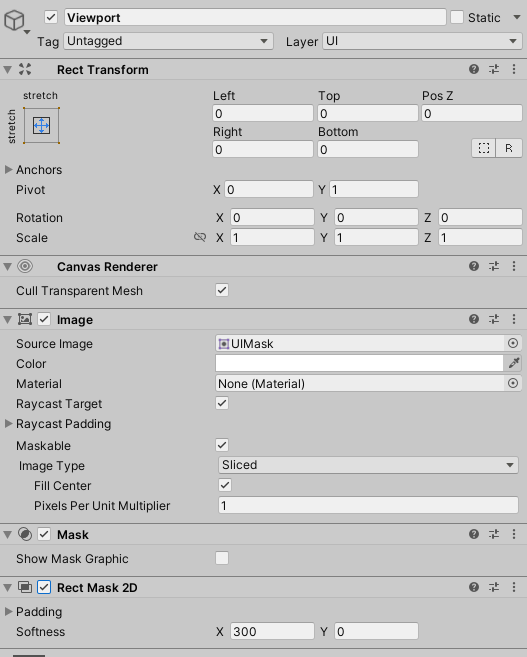
기존의 viewport에 Rect Mask 2D를 추가한다.
이를 통해 양옆에 요소에 부드러운 그림자 효과를 추가할 수 있다.
콘텐츠 - content
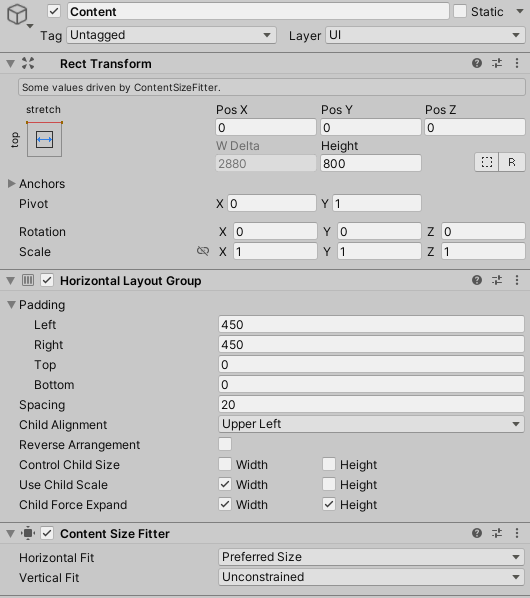
기존 content에 Horizontal layout group을 추가한다.
패딩으로 좌우에 같은 값을 추가하고 간격(spacing)을 임의로 추가한다.
Use child scale의 width를 체크하여 자식 요소의 크기를 반영하여 크기를 늘린다.
content size fitter를 추가하여 크기를 추가하고
Horizontal Fit을 Preferred Size로 설정하여 가로 크기가 요소에 맞게 늘어나도록 한다.
목록 요소 - item
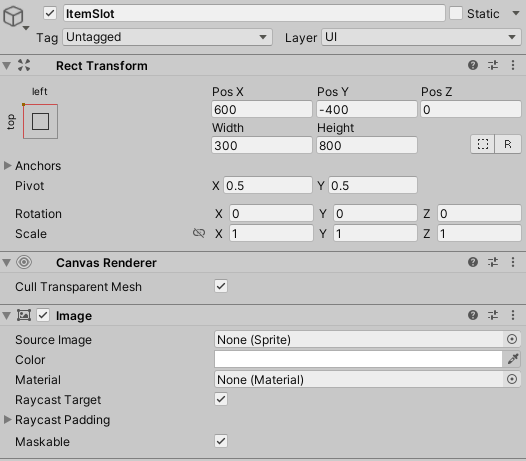
스크롤 뷰의 콘텐츠에 넣을 아이템을 만든다.
해당 예제는 단순한 이미지와 텍스트를 넣는다.
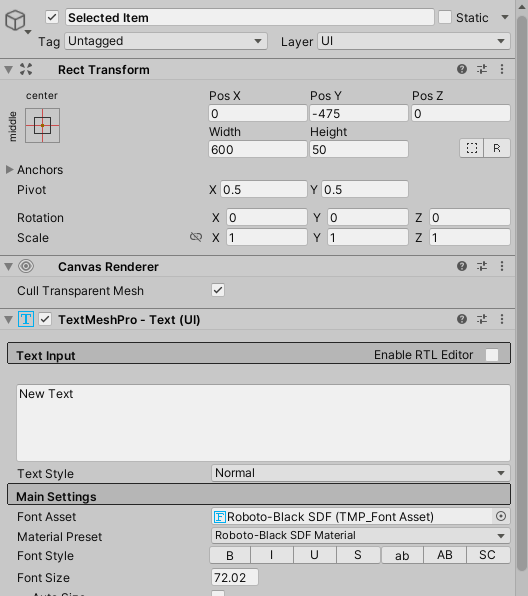
선택된 아이템 표시 텍스트
선택된 아이템을 표시하기 위한 텍스트를 만든다.
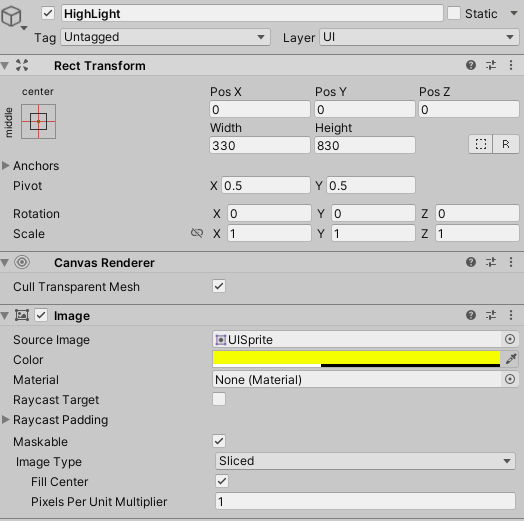
하이라이트 표시 이미지
선택된 아이템을 표시하기 위한 이미지를 만든다
원활한 조작을 위해 이미지의 Raycast Target을 체크 해제한다.
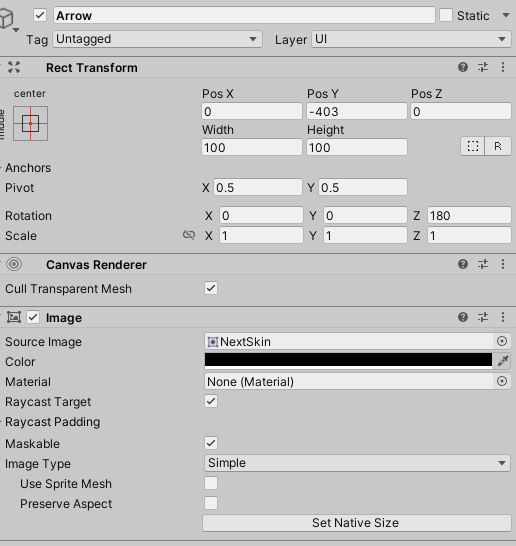
화살표 이미지
배경 이미지로 쓸 화살표 이미지를 만듭니다.
코드 SlidingPage.cs
전체
using System.Collections;
using System.Collections.Generic;
using UnityEngine;
using UnityEngine.UI;
using TMPro;
namespace UIExernal
{
    public class SlidingPage : MonoBehaviour
    {
        public ScrollRect scrollRect; // 스크롤 뷰
        public RectTransform contentPanel; // 스크롤 뷰의 content 오브젝트

        public RectTransform sampleListItem; // 요소 아이템, 가로 길이 참조용

        public HorizontalLayoutGroup hlg; // 요소 레이아웃, 간격 참조용

        public TextMeshProUGUI nameLabel; // 현재 아이템 표기 내용 표시

        public string[] ItemNames; // 아이템 텍스트 표기 내용 배열

        public float moveSensive = 200f; // 기준 속도

        public float snapForce = 100f; // 자동 이동 속도


        float snapSpeed;
        bool isSnapped;

        // Start is called before the first frame update
        void Start()
        {
            isSnapped = false;
        }

        // Update is called once per frame
        void Update()
        {
            // 현재 아이템
            int currentItem = Mathf.RoundToInt((0 - contentPanel.localPosition.x / (sampleListItem.rect.width + hlg.spacing)));

            if (scrollRect.velocity.magnitude < moveSensive && !isSnapped)
            {
                // 자동 조절
                currentItem = Mathf.Clamp(currentItem, 0, ItemNames.Length - 1);
                scrollRect.velocity = Vector2.zero;
                snapSpeed += snapForce * Time.deltaTime;
                contentPanel.localPosition = new Vector3(
                    Mathf.MoveTowards(contentPanel.localPosition.x, 0 - (currentItem * (sampleListItem.rect.width + hlg.spacing)), snapSpeed),
                    contentPanel.localPosition.y,
                    contentPanel.localPosition.z);
                nameLabel.text = ItemNames[currentItem];
                if (contentPanel.localPosition.x == 0 - (currentItem * (sampleListItem.rect.width + hlg.spacing)))
                {
                    isSnapped = true;
                }
            }
            if (scrollRect.velocity.magnitude > moveSensive)
            {
                // 수동 조절
                nameLabel.text = "----";
                isSnapped = false;
                snapSpeed = 0;
            }
        }
    }
}
변수
		public ScrollRect scrollRect; // 스크롤 뷰

        public RectTransform contentPanel; // 스크롤 뷰의 content 오브젝트

        public RectTransform sampleListItem; // 요소 아이템, 가로 길이 참조용

        public HorizontalLayoutGroup hlg; // 요소 레이아웃, 간격 참조용

        public TextMeshProUGUI nameLabel; // 현재 아이템 표기 내용 표시

        public string[] ItemNames; // 아이템 텍스트 표기 내용 배열

        public float moveSensive = 200f; // 기준 속도

        public float snapForce = 100f; // 자동 이동 속도


        float snapSpeed;
        bool isSnapped;
UI 변수는 각각의 UI를 매개변수로 받아 연결한다.
ItemNames는 아이템의 인덱스에 따라 표기될 내용을 저장한다.
moveSensive는 자동으로 움직일 때 분별할 스크롤의 기준속도이다.
snapForce는 자동으로 움직일때의 가속도이다
snapSpeed는 움직일 때의 속도이다.
isSnapped는 자동으로 움직일 여부를 저장하며 스크롤의 이동 속도에 따라 변한다.
초기화 - start
void Start()
{
    isSnapped = false;
}
처음에는 움직이지 않도록 한다.
업데이트
현재 아이템 인덱스
void Update() {
    // 현재 아이템
    int currentItem = Mathf.RoundToInt((0 - contentPanel.localPosition.x / (sampleListItem.rect.width + hlg.spacing)));
}
content는 왼쪽으로 이동하면 x 좌표가 음수로 변한다. 반대로 오른쪽으로 옮기면 양수가 된다.
이를 통해 contentPanel의 좌표값과 sampleListItem의 가로 크기, 간격으로 가운데의 아이템을 알 수 있다.
currentItem은 아이템의 인덱스를 얻을 수 있다.
만약 처음 위치보다 오른쪽으로 슬라이드하면 -1을 반환하고 왼쪽으로 슬라이딩하면 해당 인덱스를 반환한다.
수동 이동
if (scrollRect.velocity.magnitude > moveSensive) {
    // 수동 조절
    nameLabel.text = "----";
    isSnapped = false;
    snapSpeed = 0;
}
scrollRect의 가속도가 일정치 이상이면 사용자가 직접 이동시키고 있다는 뜻이면 이 가속도에 따라 자동으로 움직일지, 슬라이드를 통해 움직일 경우를 나눈다.
수동으로 움직일 동안에는 표기 텍스트가 변하며 이동속도를 전환한다.
isSnapped를 false로 하여 자동 이동을 준비한다.
자동 이동
if (scrollRect.velocity.magnitude < moveSensive && !isSnapped) {
    // 자동 조절
    currentItem = Mathf.Clamp(currentItem, 0, ItemNames.Length - 1);
    scrollRect.velocity = Vector2.zero;
    snapSpeed += snapForce * Time.deltaTime;
    contentPanel.localPosition = new Vector3(
        Mathf.MoveTowards(contentPanel.localPosition.x, 0 - (currentItem * (sampleListItem.rect.width + hlg.spacing)), snapSpeed),
        contentPanel.localPosition.y,
        contentPanel.localPosition.z);

    nameLabel.text = ItemNames[currentItem];
    if (contentPanel.localPosition.x == 0 - (currentItem * (sampleListItem.rect.width + hlg.spacing))) {
        isSnapped = true;
    }
}
isSnapped가 false이고 scrollRect의 가속도가 일정치 미만, 즉 조작을 중단하거나 일정 속도 이하라면 자동 이동 상태로 바뀐다
currentItem = Mathf.Clamp(currentItem, 0, ItemNames.Length - 1);Mathf.Clamp를 통해 0에서 목록의 갯수만큼을 보장한다.
그후 가속도만큼 더하고 현재 위치와 목표 위치(가까운 위치)의 차이만큼 이동한다.
scrollRect.velocity = Vector2.zero;
    snapSpeed += snapForce * Time.deltaTime;
    contentPanel.localPosition = new Vector3(
        Mathf.MoveTowards(contentPanel.localPosition.x, 0 - (currentItem * (sampleListItem.rect.width + hlg.spacing)), snapSpeed),
        contentPanel.localPosition.y,
        contentPanel.localPosition.z);
그후 지금 가까운 값을 텍스트에 표시하고 이동을 완료하면 상태를 변경한다.
nameLabel.text = ItemNames[currentItem];
    if (contentPanel.localPosition.x == 0 - (currentItem * (sampleListItem.rect.width + hlg.spacing))) {
        isSnapped = true;
    }
컴포넌트 연결
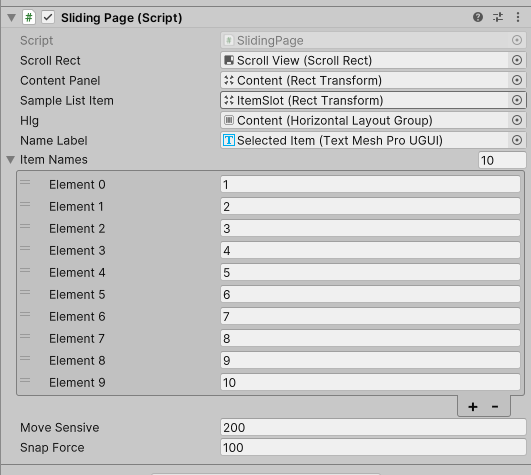
각각 위와 같이 UI와 연결한다.
ItemNames는 임의로 변경 가능하다.
결과