1 > 2번 세션으로 넘어갈 때, 2번 세션이 1번 세션을 서서히 덮는 듯한 모션을 구현하기 위해 useEffect 코드를 수정했습니다.
useEffect(() => {
    sectionsRef.current.forEach((section) => {
      if (section) {
        ScrollTrigger.create({
          trigger: section, // 세션을 트리거로 설정
          start: 'top top', // 세션 시작 부분이 뷰포트 상단에 도달할 때 애니메이션 시작
          pin: true, // 세션을 고정시켜 스크롤할 때 위치 고정
          pinSpacing: false, // 세션 사이 여백을 제거
          scrub: true, // 부드럽게 연결
        });
      }
    });
  }, []);
이렇게 해주니 원하는 대로 구현은 잘 됐으나 문제점을 하나 발견했습니다.
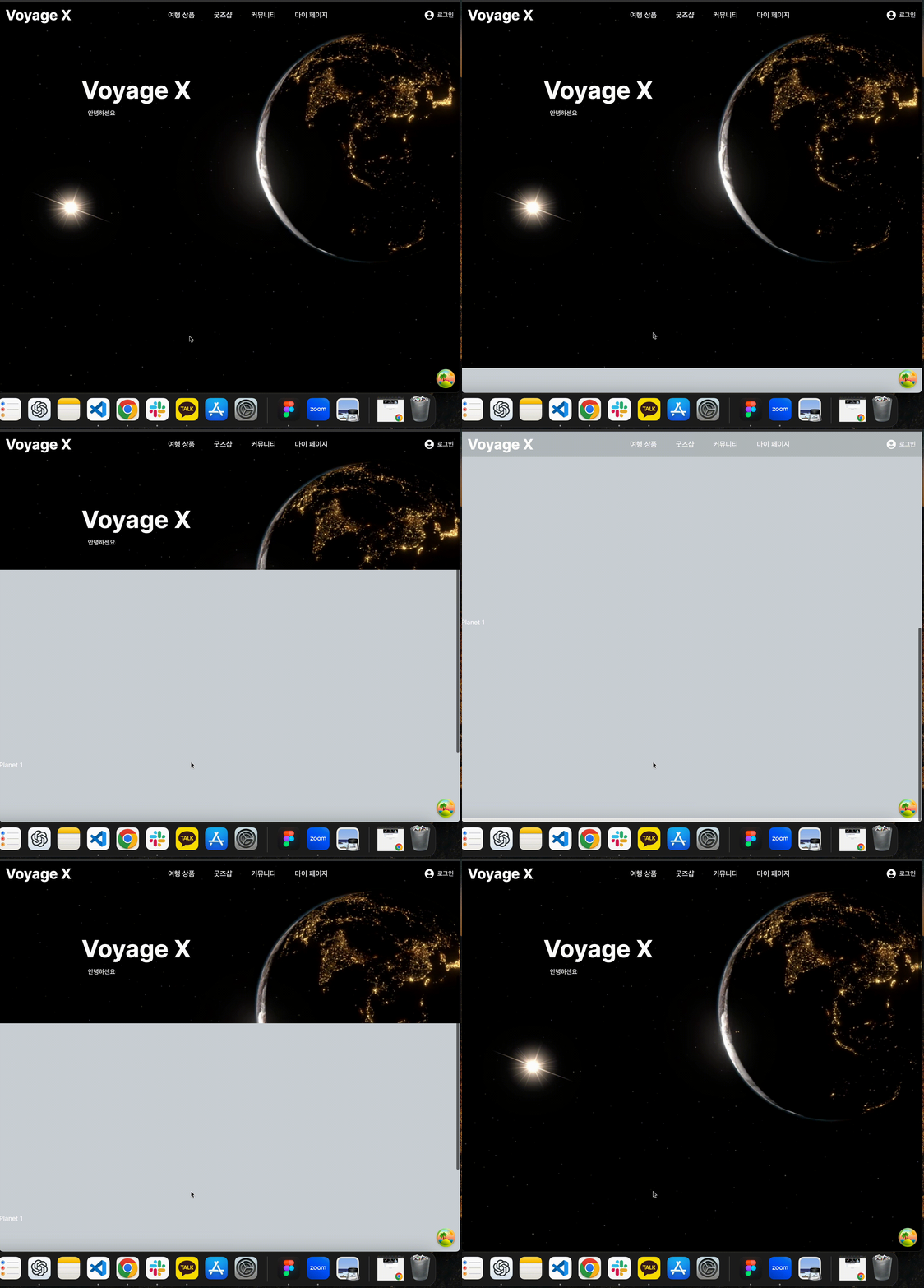
바로 페이지가 처음 렌더링 됐을 시에, 혹은 새로고침을 했을 때 스크롤을 내리기 전엔 백그라운드에 설정해둔 배경이 안 나온다는 것인데요.
이를 해결하기 위해 열심히 서칭을 해본 결과
HTMLElement 인터페이스에 속해있는 readyState 속성을 사용해서 해결할 수 있었습니다.
readyState 속성은 비디오 혹은 오디오 요소의 현재 준비 상태를 나타내는 값입니다.
readyState 속성은 아래와 같은 값들을 가집니다.
0 (HAVE_NOTHING): 미니어의 정보가 전혀 제공되지 않았음(사용 불가)
1 (HAVE_METADATA): 메타데이터는 사용 가능하지만, 실제 프레임은 사용 불가
2 (HAVE_CURRENT_DATA): 현재 재생 위치에 해당하는 데이터는 사용할 수 있지만, 그 다음 프레임 데이터는 준비 X
3 (HAVE_FUTURE_DATA): 현재 재생 위치와 그 다음 프레임에 해당하는 데이터를 사용할 수 있고, 재생이 원할하게 이루어짐
4 (HAVA_ENOUGH_DATA): 미디어의 충분한 데이터가 로드됨
수정 후 코드
비디오가 로드된 후에 ScrollTrigger를 설정해야 하므로, useState와 useEffect를 사용해 비디오가 로드됐는지 확인을 먼저 한 후에, videoLoaded 상태가 true일 때만 ScrollTrigger를 설정하여 비디오가 정상 로드된 후에야 애니메이션 효과가 정상적으로 작동하도록 수정했습니다.
'use client';
import Header from '@/components/common/Header';
import gsap from 'gsap';
import { ScrollTrigger } from 'gsap/all';
import React, { useEffect, useRef, useState } from 'react';

gsap.registerPlugin(ScrollTrigger);

const MainPage = () => {
  const sectionsRef = useRef<(HTMLElement | null)[]>([]);
  const videoRef = useRef<HTMLVideoElement | null>(null);
  const [videoLoaded, setVideoLoaded] = useState(false);

  useEffect(() => {
    if (videoRef.current) {
      const videoElement = videoRef.current;
      const checkVideoLoaded = () => {
        if (videoElement.readyState >= 3) { //
          setVideoLoaded(true);
        }
      };
      checkVideoLoaded();
    }
  }, []);

  useEffect(() => {
    if (videoLoaded) {
      sectionsRef.current.forEach((section) => {
        if (section) {
          ScrollTrigger.create({
            trigger: section,
            start: 'top top',
            pin: true,
            pinSpacing: false,
            scrub: true,
          });
        }
      });
      ScrollTrigger.refresh();
    }
  }, [videoLoaded]);

  return (
    <div className="w-full">
      <Header />
      <section
        ref={(el) => {
          sectionsRef.current[0] = el;
        }}
        className="section h-screen flex items-center justify-center relative"
      >
        <video
          ref={videoRef}
          className="absolute top-0 left-0 w-full h-full object-cover z-0"
          src="/videos/우주.mp4"
          autoPlay
          loop
          muted
        />
        <div className="absolute z-10 text-center top-48 sm:w-auto sm:text-left sm:left-48 md:left-40 lg:left-52 xl:left-64">
          <h1 className="text-white text-6xl font-bold text-purple-200">Voyage X</h1>
          <p className="text-white p-4 text-3xl">상상을 현실로, 우주에서의 만남</p>
          <p className="text-white p-4">
            우주 여행의 문을 여는 창구, Voyage X입니다.
            <br />
            상상으로 꿈꾸던 우주 여행을 현실로 만들어 드립니다.
          </p>
        </div>
      </section>

      <section
        ref={(el) => {
          sectionsRef.current[1] = el;
        }}
        className="section h-screen flex items-center justify-center relative"
      >
        <div className="scroll-container h-full w-full">
          <div className="scroll-item bg-gray-300 text-white">
            <h2>Planet 1</h2>
          </div>
          <div className="scroll-item bg-gray-300 text-white">
            <h2>Planet 2</h2>
          </div>
          <div className="scroll-item bg-gray-300 text-white">
            <h2>Planet 3</h2>
          </div>
          <div className="scroll-item bg-gray-300 text-white">
            <h2>Planet 4</h2>
          </div>
          <div className="scroll-item bg-gray-300 text-white">
            <h2>Planet 5</h2>
          </div>
          <div className="scroll-item bg-gray-300 text-white">
            <h2>Planet 6</h2>
          </div>
        </div>
      </section>
    </div>
  );
};

export default MainPage;
후에 정상 작동 되는 것을 확인한 후, 2번째 섹션에서 행성을 슬라이드하는 애니메이션을 추가했습니다.
const [currentSlide, setCurrentSlide] = useState(0);

 useEffect(() => {
    planetsRef.current.forEach((planet, index) => {
      if (planet) {
        const isActive = index === currentSlide;
        const xPos = (index - currentSlide) * 300; // 행성 위치
        const scale = isActive ? 1.5 : 1;
        const zIndex = isActive ? 10 : 0;
        const opacity = isActive ? 1 : 0.5;

        gsap.to(planet, {
          x: xPos,
          scale: scale,
          zIndex: zIndex,
          opacity: opacity,
          duration: 1,
          ease: 'power2.inOut',
        });
      }
    });
  }, [currentSlide]);
결과물 gif 올리고 싶은데 이미지 업로드 실패..
gsap 라이브러리를 이용해 행성의 위치 및 크기 조정, z-index를 조정하여 입체감을 주었습니다.

와 대박이네요