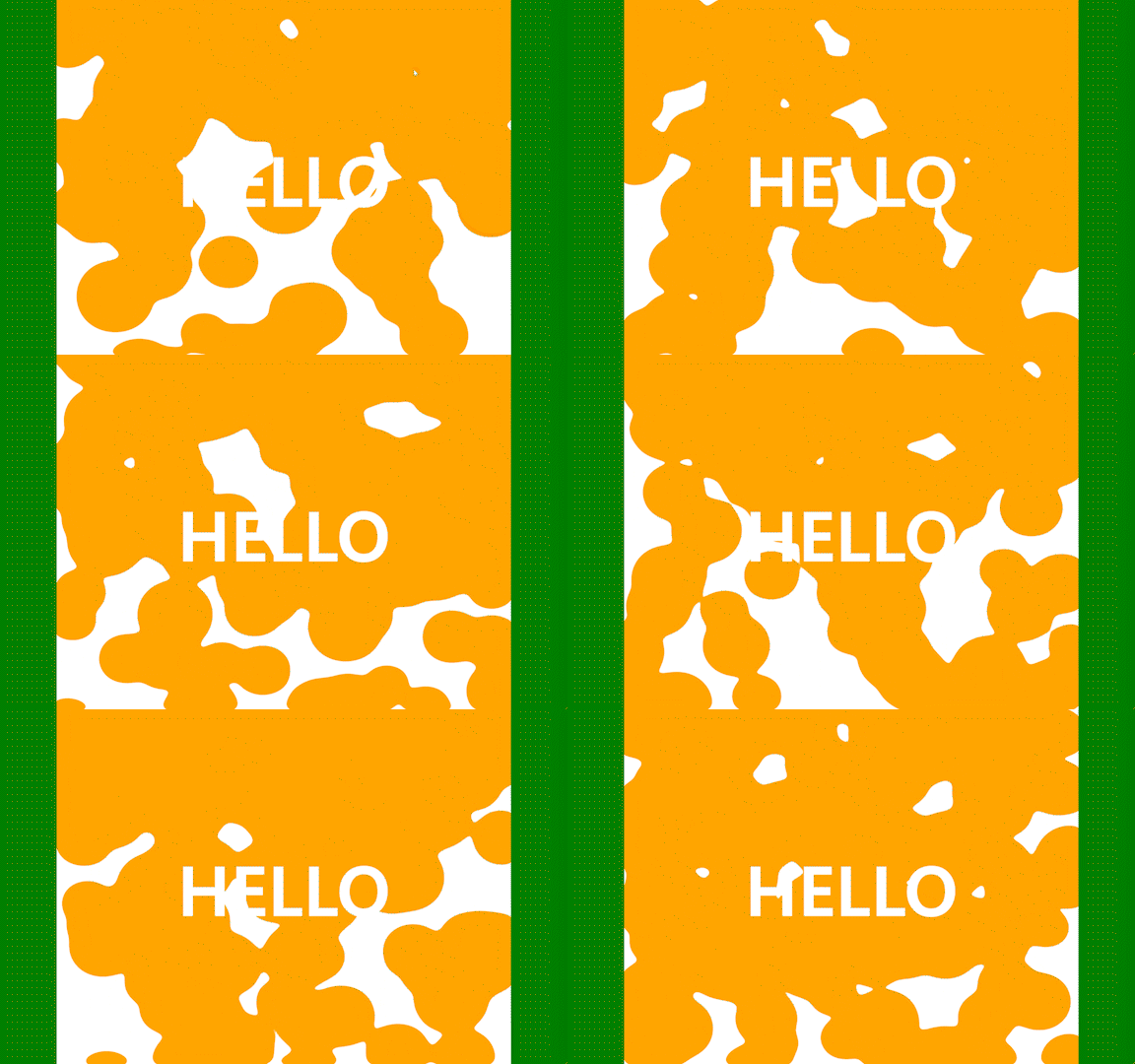
✨ Canvas?
: 캔버스 요소(canvas element)는 HTML5의 일부로서 2차원 모양과 비트맵 그림의 스크립트 작성이 가능한 동적 렌더링을 허용
✅ Canvas로 흘러 내리는 파티클들을 활용해보자!!
❓ HTML 구성
<!DOCTYPE html>
<html lang="en">
    <head>
        <meta charset="UTF-8" />
        <meta name="viewport" content="width=device-width, initial-scale=1.0" />
        <title>Confetti</title>
        <link
            rel="stylesheet"
            href="https://cdn.jsdelivr.net/npm/reset-css@5.0.2/reset.min.css"
        />
        <link rel="stylesheet" href="./style.css" />
        <script type="module" src="./index.js" defer></script>
    </head>
    <body>
        <div class="header"><h1>HELLO</h1></div>
        <div id="gui-container">
            <canvas> </canvas>
            <svg>
                <defs>
                    <filter id="gooey">
                        <feGaussianBlur
                            stdDeviation="23 13"
                            in="SourceGraphic"
                            result="blur"
                        />
                        <feColorMatrix
                            in="blur1"
                            mode="matrix"
                            values="1 0 0 0 0  0 1 0 0 0  0 0 1 0 0  0 0 0 100 -23"
                        />
                    </filter>
                </defs>
            </svg>
        </div>
    </body>
</html>
간단하게 HTML을 구성하였다.
Reset.cdn을 사용해서 기본 스타일을 제거하였고, js파일과 css파일을 가져왔다.
div tag 안에 <canvas>를 넣어주었다. 이 canvas 공간에서 우리는 그래픽을 사용할 수 있다.
svg 는 canvas의 요소들에게서 사용할 수 있다. Filter라고 볼 수 있다. 여러 filter들을 알기 위해서는 다음의 주소로 들어가서 볼 수 있다.
✅ SVG FILTER 알아보고 활용하기
❓CSS 구성
html,
body {
    display: flex;
    flex-direction: column;
    justify-content: center;
    align-items: center;

    margin: 0;

    width: 100%;
    height: 100%;

    overflow: hidden;
    background-color: green;
}

canvas {
    filter: url("#gooey");
}

div {
    width: 80%;
    height: 100%;
    background-color: white;

    overflow: hidden;
}

.header {
    position: absolute;
    width: 80%;
    height: auto;

    display: flex;
    align-items: center;
    justify-content: center;
}

h1 {
    font-size: 13rem;
    z-index: 3;
    color: white;
    font-weight: 900;
    line-height: 15rem;
}
CSS도 간단하게 구성해봤다.
여기서 canvas 안으로 글자가 들어오도록 position : absolute를 활용하여 글자를 canvas 안에 위치시도록 했다.
canvas property로는 filter property를 줘서 아까 html에서 작성했던 svg filter을 적용해주면 된다. (svg filter의 id값)
❓ JavaScript 구성
: 크게 3파트로 나눠서 알아보고자 한다.
const canvas = document.querySelector("canvas");

const parentNode = canvas.parentNode;

// 캔버스의 컨텍스트를 가져옵니다.
const ctx = canvas.getContext("2d");

// 하나의 픽셀을 그리기 위해 2개의 픽셀을 사용합니다.
const dpr = window.devicePixelRatio > 1 ? 2 : 1;

let canvasWidth = parentNode.offsetWidth;
let canvasHeight = parentNode.offsetHeight;
let particles = [];

let intervals = 1000 / 60;
let now, delta;
let then = Date.now();
첫번째로 필요한 변수들을 정의한다. canvas element를 가져오고, canvas의 크기를 부모 div tag와 맞추기 위해서 parentNode를 가져온다.
ctx는 canvas에서 사용할 수 있는 객체를 의미한다.
dpr은 픽셀수로 화면에 따라 가변적인 픽셀수를 설정하고, 그 크기를 최대 2로 제한하기 위해 선언한다.
그리고 각각 필요한 변수들을 선언한다
intervals는 프레임을 의미한다. 내가 보여줄 에니메이션의 프레임은 1초에 60번 간격으로 보여지는 것으로 카메라의 60fps와 같다고 보면 된다.
now, delta, then은 화면의 주사율에 따라 프레임값이 달라지면 안되니까 이를 조절하기 위한 변수이다.
const randomNumBetween = (min, max) => {
    return Math.random() * (max - min + 1) + min;
};

// 캔버스의 크기를 초기화합니다.
function init() {
    // 캔버스의 크기를 조정하는 함수
    canvasWidth = parentNode.offsetWidth;
    canvasHeight = parentNode.offsetHeight;

    // 캔버스의 크기를 조정하는 함수
    canvas.style.width = canvasWidth + "px";
    canvas.style.height = canvasHeight + "px";
    canvas.width = canvasWidth * dpr;
    canvas.height = canvasHeight * dpr;
    //화면 크기에 따라 캔버스의 크기가 변화하므로, 캔버스의 크기에 따라 픽셀의 크기도 변화시켜줍니다.
    ctx.scale(dpr, dpr);

    particles = [];
    const TOTAL = canvasWidth / 8;

    for (let i = 0; i < TOTAL; i++) {
        const x = randomNumBetween(0, canvasWidth);
        const y = randomNumBetween(0, canvasHeight);
        const vy = randomNumBetween(1, 5);
        const radius = randomNumBetween(50, 100);

        const particle = new Particle(x, y, radius, vy);
        particles.push(particle);
    }
}

class Particle {
    constructor(x, y, radius, vy) {
        this.x = x;
        this.y = y;
        this.vy = vy;
        this.acc = 1.02;
        this.radius = radius;
    }
    update() {
        this.vy *= this.acc;
        this.y += this.vy;
    }

    draw() {
        ctx.beginPath();
        ctx.arc(this.x, this.y, this.radius, 0, (Math.PI / 180) * 360);
        ctx.fillStyle = "orange";
        ctx.fill();
        ctx.closePath();
    }
}
간단하게 random 화살표 함수를 하나 만든다.
캔버스의 사이즈를 조절하기 위한 함수 init()을 만들었다.
이 함수 내에서 캔버스의 크기가 달라지면 적용될 값들을 정의한다.
캔버스에서는 style.width와 기본 width (height도 해당)을 맞춰줘야 한다. 그래야 원하는대로 구성할 수 있다.
그리고 class로 Particle을 정의하는데 이 안에서 ctx 객체를 활용해서 그래픽을 만들 수 있다.
update메소드는 particle의 상태를 업데이트 하기 위해 만들어졌고
draw메소드는 그래픽을 생성한다.
function animate() {
    // frame마다 animate를 호출합니다.
    // 주사율에 맞춰서 호출되는 함수입니다.

    // 60hz면 1초에 60번 호출됩니다. 모든 주사율에서 동일한 속도로 호출됩니다.
    window.requestAnimationFrame(animate);
    now = Date.now();
    delta = now - then;

    if (delta < intervals) return;

    // 캔버스를 지웁니다.
    ctx.clearRect(0, 0, canvasWidth, canvasHeight);

    // 새로운 위치에 원을 그립니다.
    particles.forEach((particle) => {
        particle.update();
        particle.draw();

        if (particle.y - particle.radius > canvasHeight) {
            particle.y = -particle.radius * 1.2;
            particle.x = randomNumBetween(0, canvasWidth);
            particle.vy = randomNumBetween(1, 5);
            particle.radius = randomNumBetween(50, 100);
        }
    });

    then = now - (delta % intervals);
}

// animate를 최초 1회 실행합니다.

window.addEventListener("load", () => {
    init();
    animate();
});

window.addEventListener("resize", () => {
    init();
});
마지막으로 animate() 함수를 선언하여 애니메이션을 시작시키고 아까 말했던 주사율 대비 일정한 프레임값을 유지하기 위한 코드를 작성한다.
간단하게 생각해서 주사율에서 해당 animate() 함수가 실행될 주기를 맞추는 것이라고 생각하면 된다.
아래 window.addEventListener를 통해 resize되거나 load될 때마다 init함수를 호출해서 캔버스 크기를 변경하고, animate()함수를 load 될 때 한번 실행해주어 에니메이션을 시작한다.
끝!!

좋은 포스팅 잘 봤습니다!