서론
먼저 왜 Coordinator Pattern 의 연습이 필요했냐면,
'출시'는 했지만 코드는 개판인 프로젝트인 <건빵>의 리팩토링 과정에
반영한 것들 이것저것 생각하다 나온 디자인 패턴 중 하나이기 때문
약 스포 하자면 아래 다이어그램 아닌 다이어그램이 우리 서비스의 흐름이다
굉장히 ... 복잡하다 ...
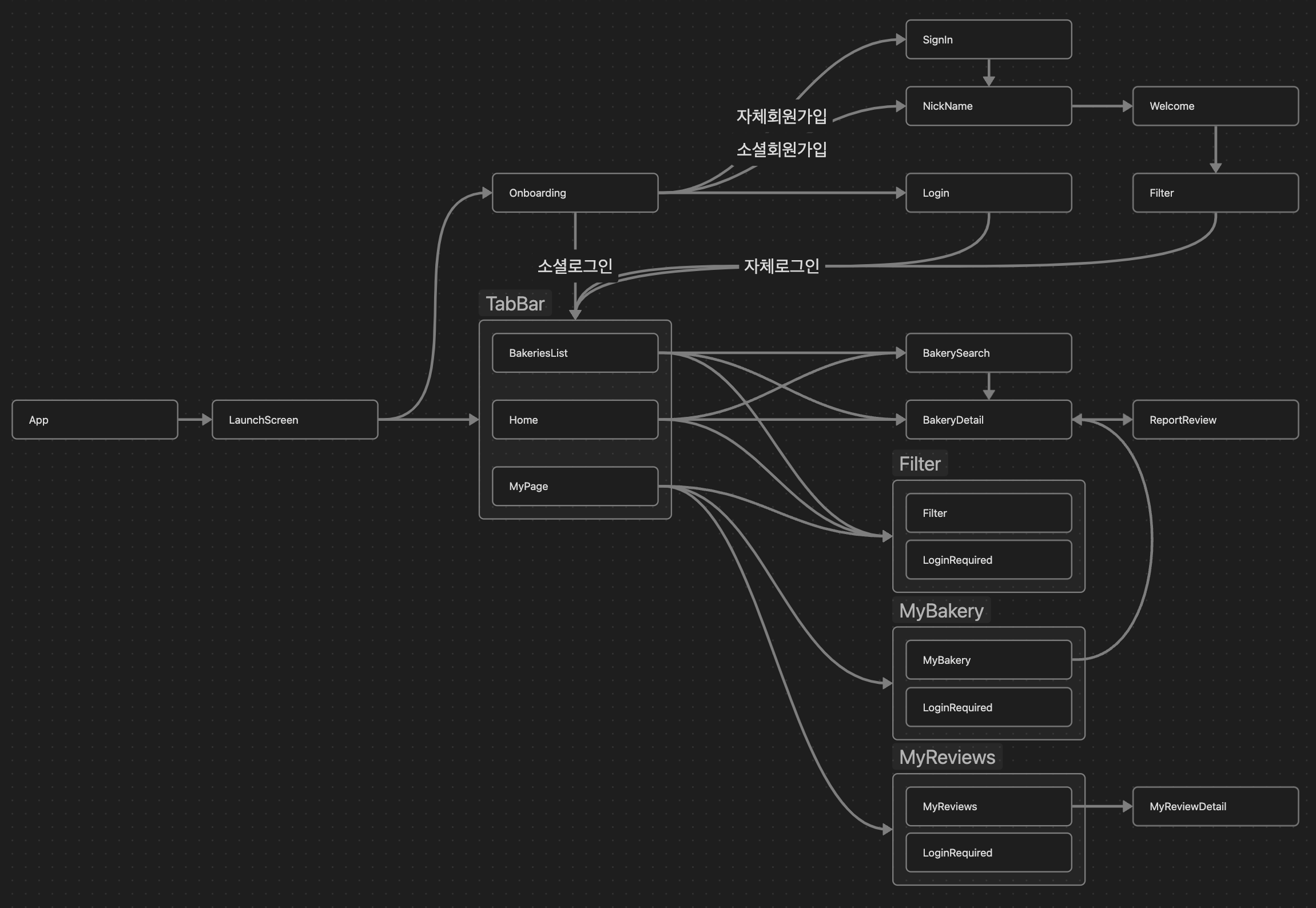
이 복잡한 흐름을 Coordinator Pattern으로 조금이나마 간략하게 하려고 한다 !
무튼 꽤나 복잡한 상태이기 때문에 바로 프로젝트에 적용해보려고 하면 난리 날 것 같아서 연습으로 먼저 해봤다 !
이후에 적용 다 완료되면 연습기 말고 설계할 때 생각한 것들, 적용할 때 생각한 것들 모두 올릴 것 같다 !!
고민
연습하고자/고민하고자 했던 요소들은 아래와 같다
- TabBar를 어떻게 관리할까
- LaunchScreen에서 유저/비유저 분기처리를 해야하는데, Coordinator에 어떻게 적용할까
- 29CM과 같은 서비스는 탭이 개별로 NavigationController를 갖는데, 없던걸 만드는것보다 있는걸 없애는게 쉬우니 적용해보자
일단 요정도 ??
.
첫 번째 고민 - AppCoordinator와 LaunchScreen
위에 적어둔 고민거리가 대부분 여기에 포함되어 있다
AppCoordinator는 최상단에 위치한 Coordinator로, 전체적인 앱 흐름을 관리하는 역할을 한다
- 그렇기 때문에, 맨 처음에 로그인 했는지 안했는지를 판별해야지 다음 플로우로 넘어가는데
LaunchScreen에서 보통 로그인 여부를 판단한다 !
음.. 시작하자마자 고민을 하게 됐는데...
LaunchScreen을 어떻게 관리할까 ?
생각의 흐름
맨 처음 든 생각은
AppCoordinator
에서LaunchScreenCoordinator로 이동한 뒤LaunchScreenViewController를 실행시키고LaunchScreenViewModel에서viewWillAppear이벤트가 도달하면- 로그인 여부를 판단하고, 이에 따라
AppCoordinator에게 적절한 플로우를 실행하라고 메시지를 전송하는 것
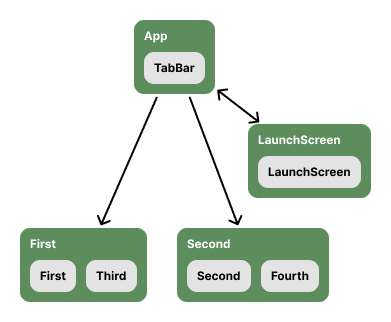
Coordinator 하나 만드는데에도 꽤나 많은 리소스가 필요한데,
그걸 LaunchScreen 하나 때문에 ViewController ViewModel Coodinator를 모두 만든다는 생각에 '흠...'싶을 것 같다
그래서 기각 ㅎㅎ
그 다음으로 든 생각은
AppCoordinator에서LaunchScreenViewController를 실행LaunchScreenViewModel에서 로그인 여부를 판단하고AppCoordinator에게 적절한 플로우를 실행하라고 메시지 전송
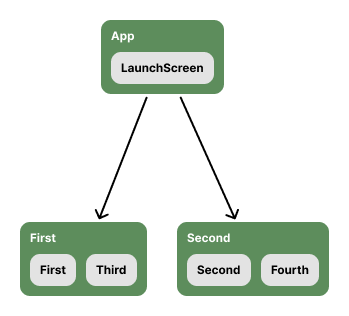
먼저 이 방법에 대해 말하기 전에 알아둬야 할게,
요번 건빵에서는 DIContainer도 만들어서 의존성을 주입해주는 방식을 쓰고 싶었다
하지만 꽤나 높은 러닝커브와 과도한 리소스가 필요할 것 같아서 일단은 기각시켰다
이걸 왜 말하냐
-> DIContainer에 미련이 남은 미련 줄줄 바짓가랑이 붙잡는st.이기 때문이다
-> DIContainer를 적용할 수 있는 확장성을 생각했다는 의미 ..
- DIContainer는 Presentation, Domain, Data 등 모든 레이어를 알고 있고,
- AppCoordinator가 DIContainer를 의존하고 있어서
- AppCoordinator도 Application 레이어에 존재해야 한다
어 ? 나쁘지 않은데 ?
LaunchScreenVC를 Presentation 레이어에 두고, AppCoordinator에서 실행시키면 되지 않을까 ?
이렇게 하면 내가 생각했을 때 얻게되는 (내 생각에서의) 이점이
- 추가적인
Coodinator를 만들지 않아도 된다는 것SceneDelegate에서AppCoordinator에UIWindow를 인스턴스로 넘겨준다면
LaunchScreenVC를UIWindow위에서 실행시켜서
별도로NavigationController를 만들지 않아도 되는 것
음 .. 이전까지는 LaunchScreen을 위해 UINavigationController를 만드는게 의미가 있을까? 하는 궁금증도 생겼고,
조금 더 알아봐야 하겠지만 굳이..? 라는 생각이 들었다
결과적으로 첫 번째 방법보다는 두 번째 방법이 더 좋다는 생각이 들었다
하지만 이걸 적용할지 말지는 건빵을 좀 더 자세히 들여다보고 생각해볼듯 ...
.
두 번째 고민 - TabBarController와 NavigationController
지금 취준중인데, 그 과정에서 어떤 기업의 서비스를 살펴보다가 UINavigationController 위에 UITabBarController가 있는 것 (아마? ㅎㅎ;;)을 확인했다
이렇게 되면, Tab 별로 Navigation이 관리되지 않고,
Tab 위에 계속 화면이 쌓이게 되는 것이다
뷰와 Tab의 흐름에 따라서 적절한지, 적절하지 않은지 다를 것이라고 생각한다
만약
TabBar를 계속 보여주고 싶고,Tab별로 별도의Navigation이 필요하다면,
TabBarController아래에UINavigationController를 두는 것 대신,
각Tab위에UINavigationController를 둬야 할 것이다그렇게 뎁스가 깊은 서비스가 아니기 때문에,
Tab별로Navigation을 관리해야 할 필요가 없다면
TabBarController아래에UINavigationController를 두고 단일 Navigation으로 가져가는 것도 괜찮을 것 같다
하지만 내가 봤던 서비스는 뎁스가 괴애애앵장히 깊었고, 따라서 첫 번째 방법이 적절하다는 생각이 들었....
무튼 건빵은 서비스 볼륨은 나름 크지만 뎁스는 깊지 않기 때문에,
두 번째 방법으로 가도 되긴 하지만, 연습을 위해서는 첫 번째 방법을 채택했다
연습
첫 번째 고민에서는 첫 번째 방법을
1. AppCoordinator 에서 LaunchScreenCoordinator로 이동한 뒤
2. LaunchScreenViewController를 실행시키고
3. LaunchScreenViewModel에서 viewWillAppear 이벤트가 도달하면
4. 로그인 여부를 판단하고, 이에 따라 AppCoordinator에게 적절한 플로우를 실행하라고 메시지를 전송하는 것
두 번째 고민에서는 첫 번째 방법을
1. 만약 TabBar를 계속 보여주고 싶고, Tab별로 별도의 Navigation이 필요하다면,
2. TabBarController 아래에 UINavigationController를 두는 것 대신,
3. 각 Tab 위에 UINavigationController를 둬야 할 것이다
이 두 가지를 고려하면서 연습을 해봤다
.
CoordinatorType
모든 Coodinator가 가져야 할 요소들이다
'추상화'시켜 '메시지'를 전송할 수 있어야 하므로, protocol로 추상화
protocol CoordinatorType: AnyObject {
    var parent: ParentCoordinatorDelegate? { get set }
    var navigationController: UINavigationController { get }
    var children: [CoordinatorType] { get set }
    var flowType: CoordinatorFlowType { get }

    func start()
    func finish()
}

extension CoordinatorType {
    func finish() {
        children.removeAll()
        parent?.finish(child: self)
    }
}
.
AppCoordinator
먼저 AppCoordinator에서 할 책임은
- LaunchScreenFlow를 보여주는 것과
- MainFlow를 보여주는 것
즉, showLaunchScreeFlow와 showMainFlow라는 메시지를 전송할 수 있어야 한다
그렇게 먼저 만든 프로토콜
protocol AppCoordinatorType: CoordinatorType {
    func showLaunchScreenFlow()
    func showMainFlow()
}
그리고 이에 대한 구현부
final class AppCoordinator: AppCoordinatorType {

    weak var parent: ParentCoordinatorDelegate? = nil
    var children: [CoordinatorType] = []
    var flowType: CoordinatorFlowType { .app }

    var navigationController: UINavigationController
    private var tabBarController: UITabBarController?

    init(navigationController: UINavigationController) {
        self.navigationController = navigationController
    }

    func start() {
        showLaunchScreenFlow()
    }

    func showLaunchScreenFlow() {
        let launchScreenCoordinator = LaunchScreenCoordinator(navigationController: self.navigationController)
        launchScreenCoordinator.start()
        launchScreenCoordinator.parent = self
        self.children = [launchScreenCoordinator]
    }

    func showMainFlow() {
        let tabs: [Tab] = Tab.allCases
        let tabNavigations: [UINavigationController] = tabs.map(makeTabNavigation)
        let tabBarController = makeTabBarController()

        self.tabBarController = tabBarController
        self.tabBarController?.setViewControllers(tabNavigations, animated: false)
        self.tabBarController?.selectedIndex = 0

        Array(zip(tabs, tabNavigations))
            .map { tab, navigation in makeTabCoordinator(type: tab, from: navigation) }
            .forEach { coordinator in
                coordinator.parent = self
                coordinator.start()
                children.append(coordinator)
            }

        guard let sceneDelegate = UIApplication.shared.connectedScenes.first?.delegate as? SceneDelegate else { return }
        sceneDelegate.changeRootViewController(to: tabBarController, animated: true)
    }
}
showLaunchScreenFlow()
func showLaunchScreenFlow() {
	let launchScreenCoordinator = LaunchScreenCoordinator(navigationController: self.navigationController)
	launchScreenCoordinator.start()
	launchScreenCoordinator.parent = self
	self.children = [launchScreenCoordinator]
}LaunchScreen을 보여주는 Coordinator를 만들고 실행시킨다
showMainFlow()
func showMainFlow() {
	let tabs: [Tab] = Tab.allCases
	let tabNavigations: [UINavigationController] = tabs.map(makeTabNavigation)
	let tabBarController = makeTabBarController()

	self.tabBarController = tabBarController
    self.tabBarController?.setViewControllers(tabNavigations, animated: false)
    self.tabBarController?.selectedIndex = 0

    Array(zip(tabs, tabNavigations))
        .map { tab, navigation in makeTabCoordinator(type: tab, from: navigation) }
        .forEach { coordinator in
            coordinator.parent = self
            coordinator.start()
			children.append(coordinator)
		}

	guard let sceneDelegate = UIApplication.shared.connectedScenes.first?.delegate as? SceneDelegate else { return }
	sceneDelegate.changeRootViewController(to: tabBarController, animated: true)
}Tab별로UINavigationController를 만든다TabBarController를 만든다- 1.에서 만든
Tab별UINavigationController를setViewControllers()로 적절히 설정해준다 Tab과 1.에서 만든Tab별UINavigationController로 각Tab에 알맞는Coordinator를 만들고,- 현재
Coordinator의children에 추가한다
이렇게 되면 각 Tab 별로 UINavigationController를 갖고,
각각 Coordinator도 갖게 된다
마치며
다음에는 프로젝트 세팅 관련 글로 돌아올 예정 ...
.
사실 코드 설명은 ... 글을 쓰다보니 지쳐서 조금 간략하게 설명했지만 ...
아래 레포가 연습한 레포이니까 참고하면 좋을듯 ㅎㅎ ;;
Coordinator Pattern Practice
.
참고
A comprehensive guide to Coordinator Pattern in Swift
Coordinator pattern with Tab Bar Controller
[iOS] 메이트러너: 코디네이터 패턴 적용기