
종합 프로젝트 수업을 진행하며 학습한 내용을 정리하는 글입니다.
기존에 ssh를 접속할 때는 터미널을 통해 접속하였는데, 사실 예쁜 GUI랑 편리하게 접근하고 관리하고 싶어서 플랫폼을 찾아보다가 Terminus라는 걸 발견하였다.
이번 포스팅은 간단하지만 Terminus를 사용하여 SSH에 접속하는 방법을 기술하고자 한다.
1. Terminus
Get instant access to your whole infrastructure
- Stop wasting time by searching and re-entering IP addresses, ports, usernames, and passwords. Instead, connect to your remote devices with only one click.
특징
- Save your hosts to connect in one click
Set connection information, credentials, and even terminal appearance to a Host to connect with the same one-click experience across all the platforms.
호스트에 연결하기 위한 연결 정보, 자격 증명 및 터미널을 설정하여 모든 플랫폼에서 동일한 원클릭으로 접근
- Secure your data with a Cloud Vault
Keep your data safe in an encrypted vault that is only accessible from your devices.
Create multiple shared vaults to securely share connections with your team.
암호화된 클라우드 보관소에 데이터를 안전하게 보관하여 팀 간의 기기에서만 접근할 수 있도록 보호
- AI-powered autocomplete
Simply type your command description, and our autocomplete will transform it into a bash command. Effortless, efficient, and ready to boost your terminal experience.
명령어 설명을 입력하면 자동 완성이 해당 명령어를 bash 명령어로 변환 -> 효율성 증가
- Share your terminal sessions
Join your teammates in a terminal session to troubleshoot together or teach new terminal tricks.
No server-side installation is required!
서버 설치가 필요하지 않다.
- Automate routine tasks
Save your frequently used shell scripts as Snippets. Run them on multiple targets or instantly get them autocompleted right in the terminal.
Share your Snippets with your team to boost its productivity and reduce the number of mistypes.
자주 사용하는쉘 스크립트를 스니펫으로 저장 -> 여러 대상에서 실행하거나 터미널에서 자동 완성으로 빠르게 실행
Terminus Homepage에서 발췌해온 내용인데 이러한 장점들이 있다.
난 예쁜 터미널과 큰 화면 그리고 간편한 접근에 매력을 느껴 사용했다.
2. 접속 방법
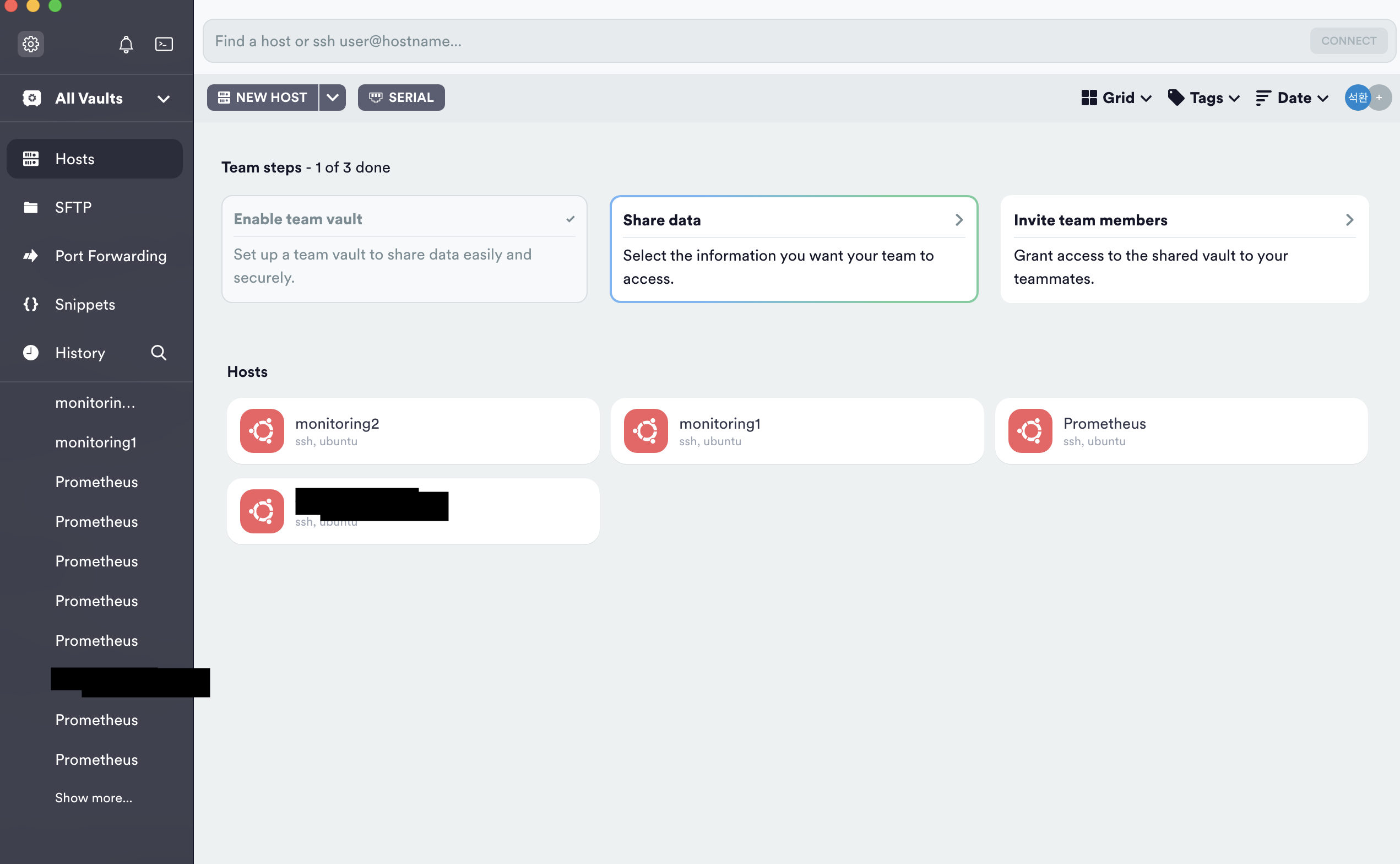
실행 시 위와 같은 화면이다.
나는 이미 4개의 인스턴스를 구동하고 있어서 위와 같이 표시되지만 처음 사용하면 아무 것도 뜨지 않는다.
[Cloud Monitoring #00] NHN Cloud에서 나는 Instance를 생성했었다.
NHN Cloud Console에서는 매우 편리하게 사용자에게 접속하는 방법을 알려준다.
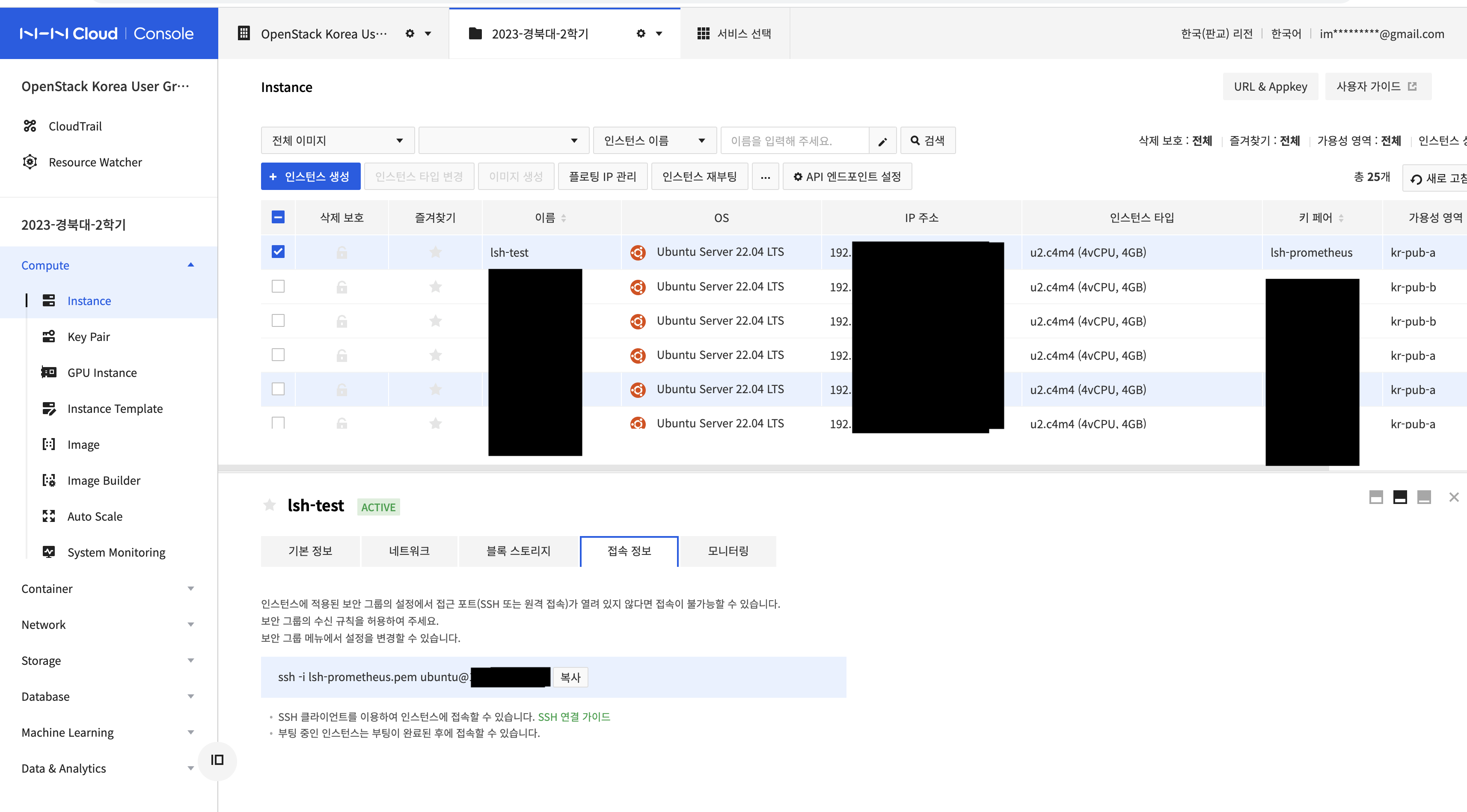
(팀원들의 동의를 구하지 않아서 모두 모자이크 처리)
접속 정보를 누른 후 밑에 명령어를 복사한다.
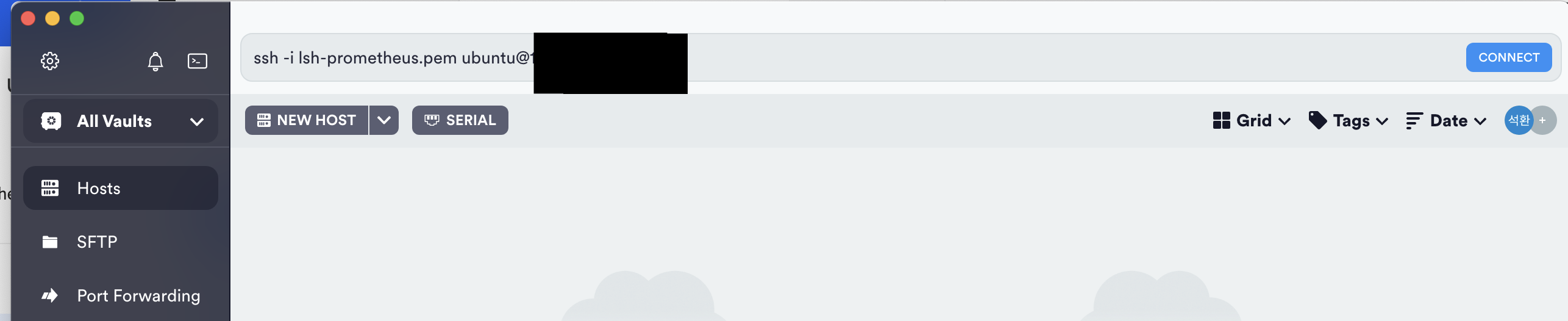
위와 같이 붙여넣기를 한 다음 CONNECT를 누른다.
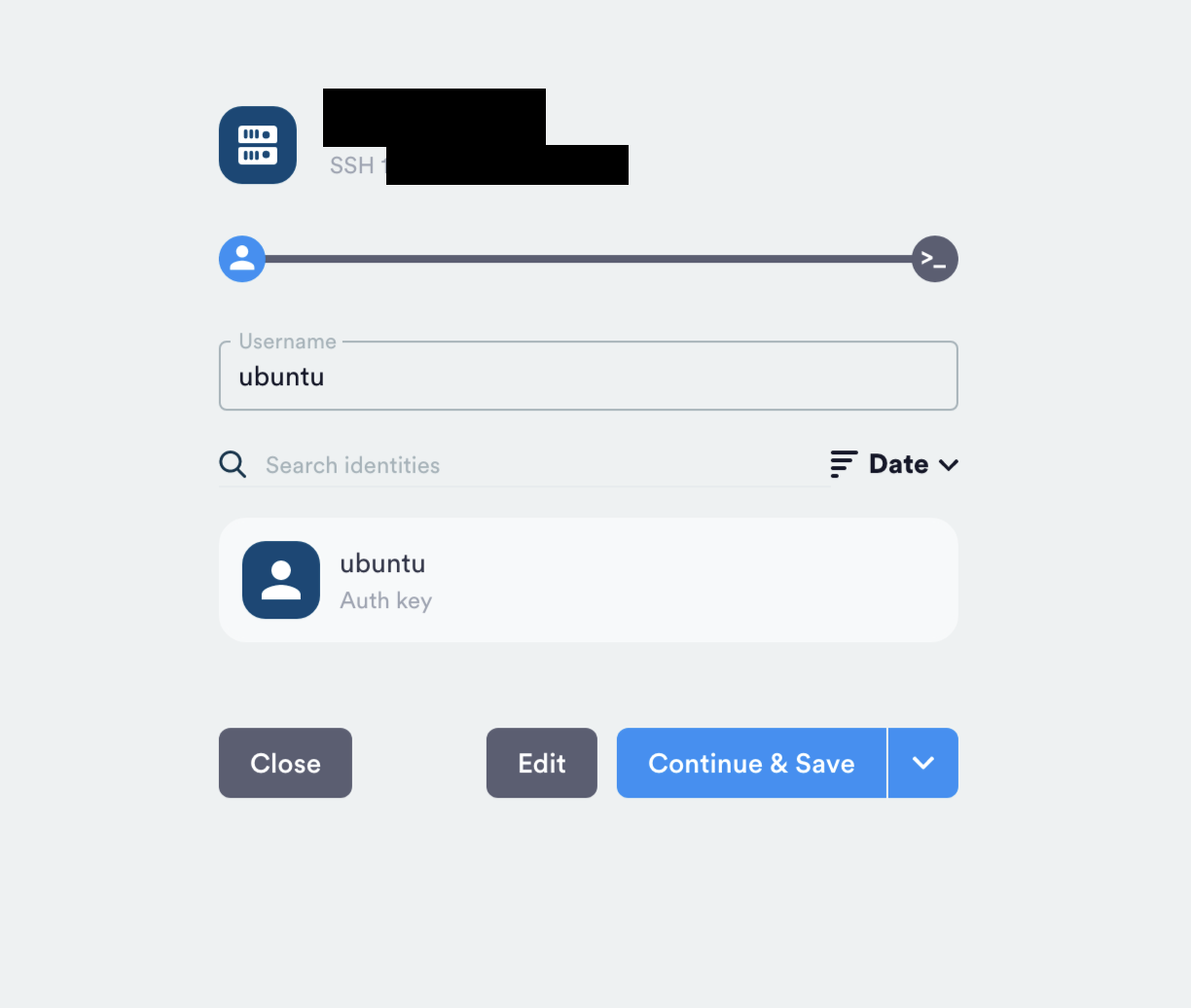
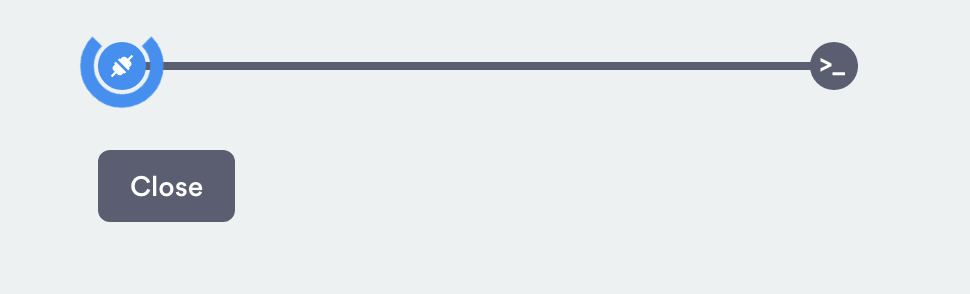
만약 이렇게 빙글빙글 돈다면 보안그룹이 설정이 안 된 것이다.
본인의 클라우드 서비스로 돌아가 port 22를 열어주자 !
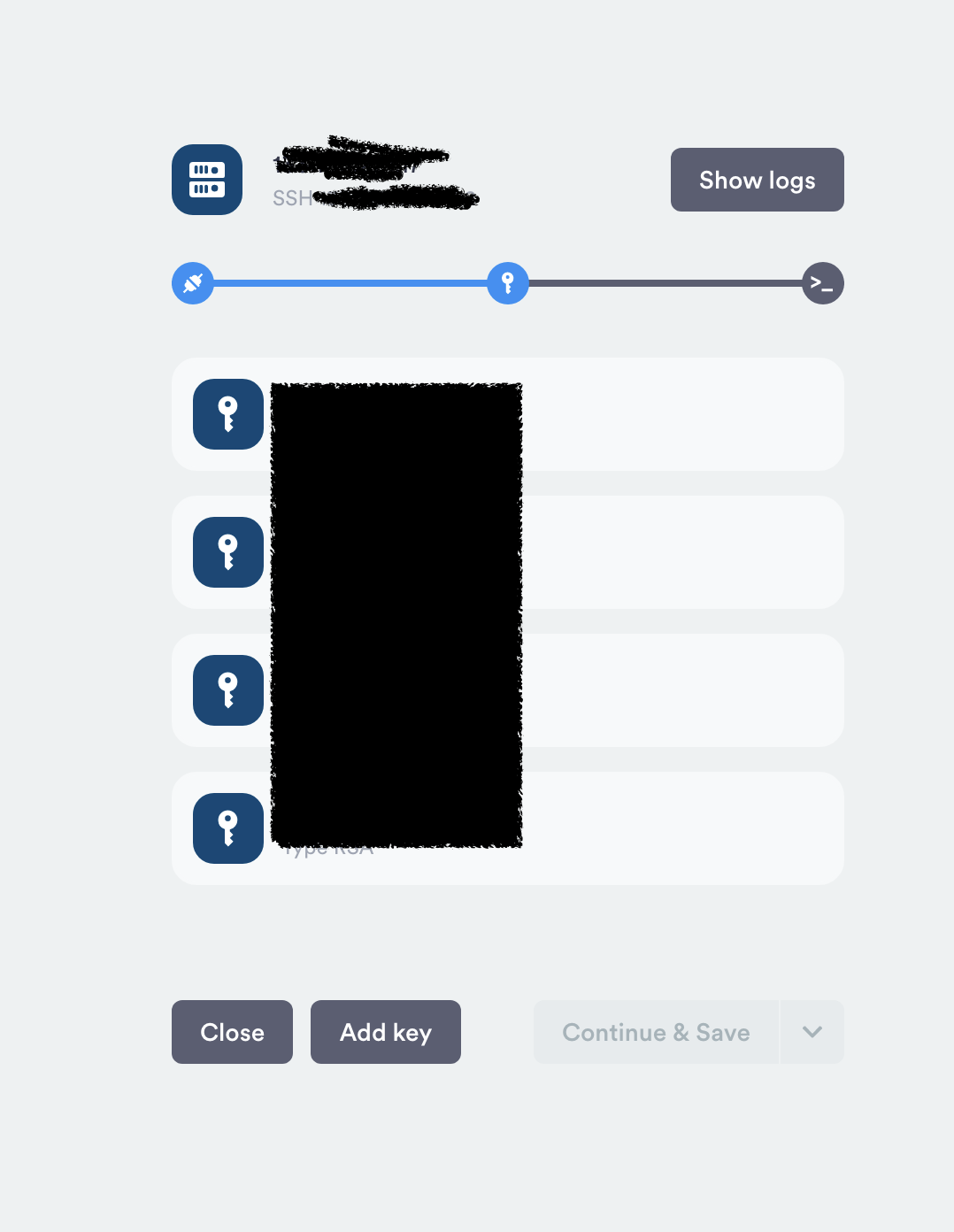
본인이 인스턴스 생성시에 발급받은 키페어를 넣어준다.
여기서 왜 로컬에 잘 저장하라고 한 것인지 유추했을 것이라 믿는다.
그리고 Continue & Save를 누르면 끝 !
3. 접속
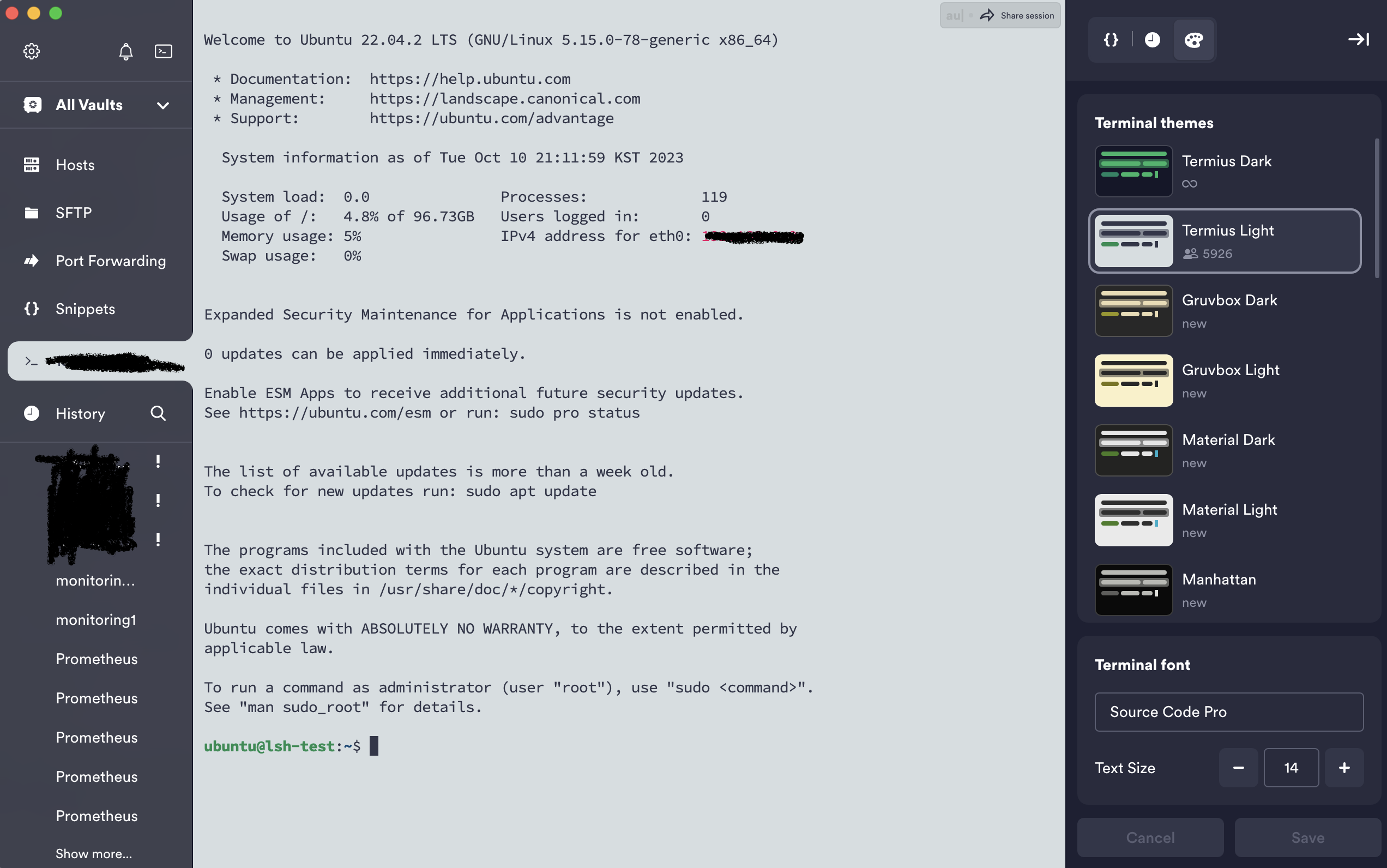
위와 같이 엄청나게 예쁜 UI와 다양한 터미널 테마가 보이는가 ?
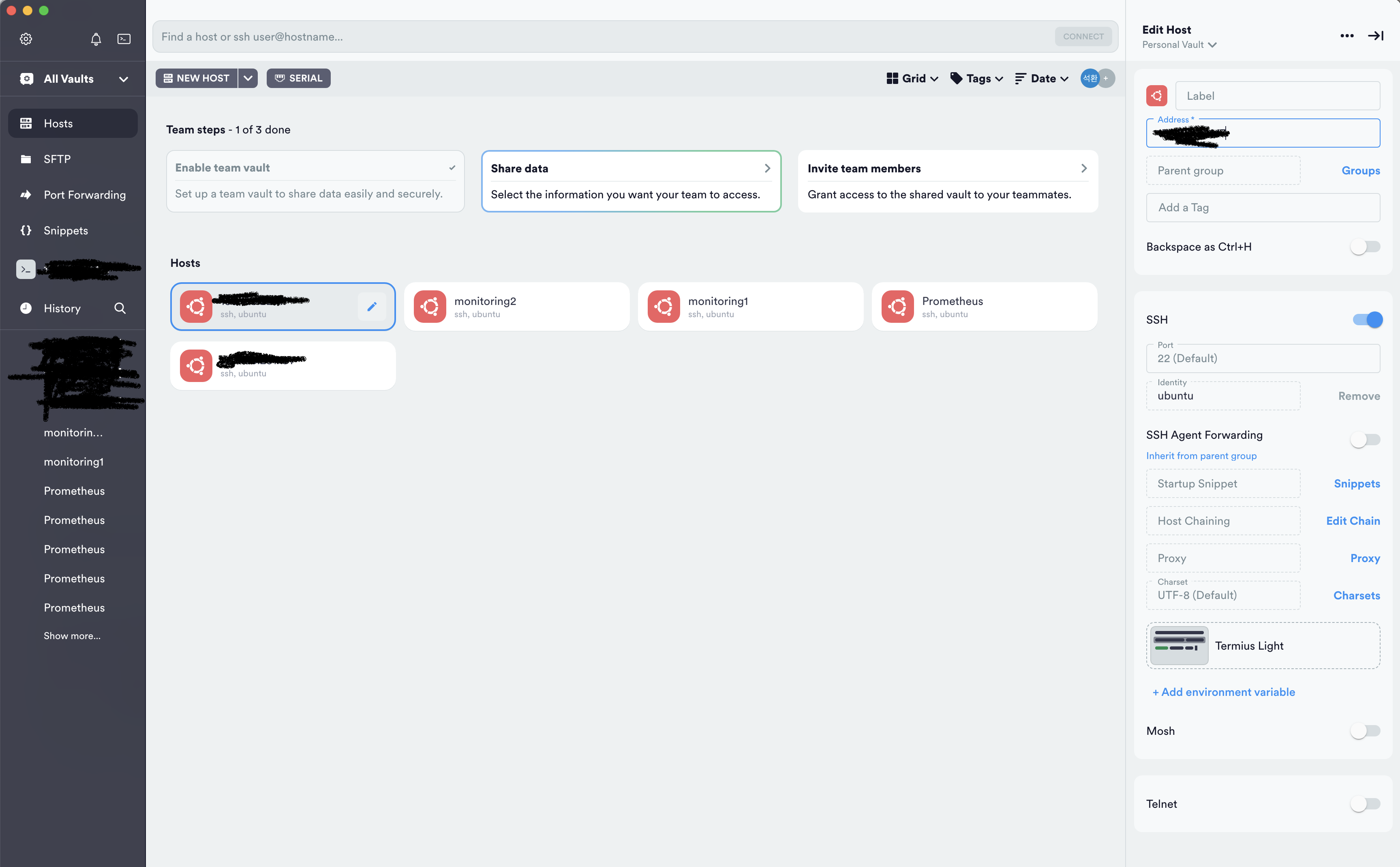
추가로 호스트 이름이나 관련 설정을 바꾸고 싶다면 Hosts를 누르고 연필 모양을 클릭 후 우측에서 바꿀 수 있다.
필자는 간단하게 다음 장에서 Prometheus 설치를 할 것이라 InstallPrometheus로 바꾸었다.
뭔가 개발을 더 잘할 수 있을 것 같다.

Hi, I am taegon.
I am interested in your project.
Thank you.