들어가기 전
JavaScript의 기본기를 다지기 위해 계산기를 구현해 보았고 복습하고자 이 글을 작성합니다.
HTML를 이용한 계산기 구조 만들기
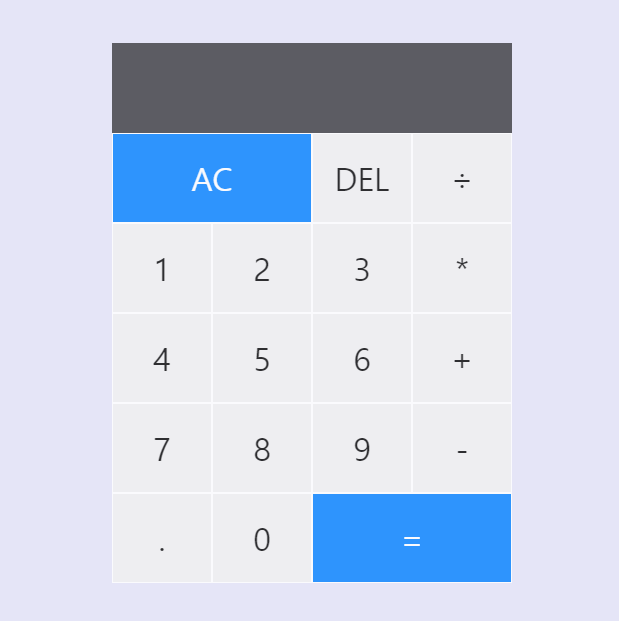
기본적인 계산기를 참고하여 HTML를 작성했습니다.
<body>
  <div class="calculator-grid">
    <div class="display">
      // 이전 내용의 값과 연산자 표출
      <div data-previous-operand class="previous-operand"></div>
	  // 현재 입력한 숫자 및 결과 표출
      <div data-current-operand class="current-operand"></div>
    </div>
    <button data-all-clear class="span-two">AC</button>
    <button data-delete>DEL</button>
    <button data-operation>÷</button>
    <button data-number>1</button>
    <button data-number>2</button>
    <button data-number>3</button>
    <button data-operation>*</button>
    <button data-number>4</button>
    <button data-number>5</button>
    <button data-number>6</button>
    <button data-operation>+</button>
    <button data-number>7</button>
    <button data-number>8</button>
    <button data-number>9</button>
    <button data-operation>-</button>
    <button data-number>.</button>
    <button data-number>0</button>
    <button data-equals class="span-two">=</button>
  </div>
</body>
CSS를 이용한 계산기 버튼 꾸미기
계산기가 브라우저 창 가운데 오도록 레이아웃을 정하고 css 작업을 진행했습니다.
*,
*::before,
*::after {
  box-sizing: border-box;
  font-family: sans-serif;
  font-weight: normal;
}
body {
  margin: 0;
  padding: 0;
  background-color: #e5e5f7;
  opacity: 0.8;
  background-size: 10px 10px;
}
.calculator-grid {
  display: grid;
  justify-content: center;
  align-content: center;
  min-height: 100vh;
  grid-template-columns: repeat(4, 100px);
  grid-template-rows: minmax(90px, auto) repeat(5, 90px);
}
.calculator-grid > button {
  cursor: pointer;
  font-size: 2rem;
  border: 1px solid #ffffff;
  outline: none;
  transition: 0.2s;
}
.calculator-grid > button:hover {
  background-color: #a9a9a9;
}
.span-two {
  grid-column: span 2;
  color: #fff;
  background-color: #dc143c;
}
.display {
  grid-column: 1 / -1;
  background-color: rgba(0, 0, 0, 0.75);
  display: flex;
  align-items: flex-end;
  justify-content: space-around;
  flex-direction: column;
  padding: 10px;
  word-wrap: break-word;
  word-break: break-all;
}
.display .previous-operand {
  color: rgba(255, 255, 255, 0.75);
  font-size: 1rem;
}
.display .current-operand {
  color: white;
  font-size: 2rem;
}
JavaScript로 기능 구현
처음에는 하나의 파일에 모든 기능을 구현했습니다. 그러나 가독성이 많이 떨어진다 생각하여 총 4가지의 파일로 분류하였습니다.
Calculator.js
전체적인 계산기들의 기능을 구현하였습니다.
class Calculator {
  constructor(previousOperandTextElement, currentOperandTextElement) {
    this.previousOperandTextElement = previousOperandTextElement;
    this.currentOperandTextElement = currentOperandTextElement;
    this.clear();
  }

  // 초기화
  clear() {
    this.currentOperand = ''; // 현재 연산
    this.previousOperand = ''; // 이전 연산
    this.operation = undefined;
  }

  //  현재 입력 중인 숫자나 연산자를 하나 삭제
  delete() {
    this.currentOperand = this.currentOperand.toString().slice(0, -1);
  }

  // 사용자가 클릭한 숫자를 현재 연산에 추가
  appendNumber(number) {
    if (number === '.' && this.currentOperand.includes('.')) return;
    this.currentOperand = this.currentOperand.toString() + number.toString();
  }

  // 사용자가 선택한 연산을 설정
  chooseOperation(operation) {
    if (this.currentOperand === '') return;
    if (this.previousOperand !== '') {
      this.compute();
    }
    this.operation = operation;
    this.previousOperand = this.currentOperand;
    this.currentOperand = '';
  }

  // 이전 연산과 현재 연산에 저장된 두 숫자의 연산 진행
  compute() {
    let computation;
    const prev = parseFloat(this.previousOperand);
    const current = parseFloat(this.currentOperand);
    if (isNaN(prev) || isNaN(current)) return;
    switch (this.operation) {
      case '+':
        computation = prev + current;
        break;
      case '-':
        computation = prev - current;
        break;
      case '*':
        computation = prev * current;
        break;
      case '÷':
        computation = prev / current;
        break;
      default:
        return;
    }
    this.currentOperand = computation.toString(); // 결과 문자열로 변환
    this.operation = undefined;
    this.previousOperand = '';
  }

  // 계산된 숫자를 화면에 표시 가능한 형태로 변환
  getDisplayNumber(number) {
    const stringNumber = number.toString();
    const integerDigits = parseFloat(stringNumber.split('.')[0]); // 정수 자리
    const decimalDigits = stringNumber.split('.')[1]; // 십진수
    let integerDisplay;
    if (isNaN(integerDigits)) {
      integerDisplay = '';
    } else {
      integerDisplay = integerDigits.toLocaleString('ko-KR', {
        maximumFractionDigits: 0,
      });
    }
    if (decimalDigits != null) {
      return `${integerDisplay}.${decimalDigits}`;
    } else {
      return integerDisplay;
    }
  }

  // 현재까지의 계산 결과를 화면에 표시
  updateDisplay() {
    this.currentOperandTextElement.innerText = this.getDisplayNumber(
      this.currentOperand
    );
    if (this.operation != null) {
      this.previousOperandTextElement.innerText = `${this.getDisplayNumber(
        this.previousOperand
      )} ${this.operation}`;
    } else {
      this.previousOperandTextElement.innerText = '';
    }
  }
}
export default Calculator;
InitCalculator.js
키보드로 계산기 기능을 사용할 수 있게 구현하는 도중, 계산기로 마우스로 누를 때와 키보드로 누를 때 Calculator 객체를 두 번 생성한다는 사실을 확인하고 공통 부분을 따로 빼서 구현하였습니다.
import Calculator from './Calculator.js';

const previousOperandTextElement = document.querySelector(
  '[data-previous-operand]'
);

const currentOperandTextElement = document.querySelector(
  '[data-current-operand]'
);

const calculator = new Calculator(
  previousOperandTextElement,
  currentOperandTextElement
);

export default calculator;
ButtonListeners.js
사용자의 버튼 클릭에 따라 계산기가 동작하도록 이벤트 리스너를 등록하는 파일입니다.
- 모든 행동에 updateDisplay 메소드 호출하여 화면 갱신
import InitCalculator from './InitCalculator.js';

const numberButtons = document.querySelectorAll('[data-number]');
const operationButtons = document.querySelectorAll('[data-operation]');
const equalsButton = document.querySelector('[data-equals]');
const deleteButton = document.querySelector('[data-delete]');
const allClearButton = document.querySelector('[data-all-clear]');

// 숫자 버튼
numberButtons.forEach((button) => {
  button.addEventListener('click', () => {
    InitCalculator.appendNumber(button.innerText);
    InitCalculator.updateDisplay();
  });
});

// 연산자 버튼
operationButtons.forEach((button) => {
  button.addEventListener('click', () => {
    InitCalculator.chooseOperation(button.innerText);
    InitCalculator.updateDisplay();
  });
});

// 등호(=) 버튼
equalsButton.addEventListener('click', () => {
  InitCalculator.compute();
  InitCalculator.updateDisplay();
});

// 초기화(=) 버튼
allClearButton.addEventListener('click', () => {
  InitCalculator.clear();
  InitCalculator.updateDisplay();
});

// 삭제 버튼
deleteButton.addEventListener('click', () => {
  InitCalculator.delete();
  InitCalculator.updateDisplay();
});
KeyboardListeners.js
사용자의 키보드 입력에 따라 계산기가 동작하도록 이벤트 리스너를 등록하는 파일입니다.
- ButtonListeners와 똑같이 모든 행동에 updateDisplay 메소드 호출하여 화면 갱신
import InitCalculator from './InitCalculator.js';

document.addEventListener('keydown', function (event) {
  // 정규식을 이용하여 숫자와 연산자에만 반응
  let patternForNumbers = /[0-9]/g;
  let patternForOperators = /[+\-*\/]/g;

  if (event.key.match(patternForNumbers)) {
    event.preventDefault();
    InitCalculator.appendNumber(event.key);
    InitCalculator.updateDisplay();
  }

  if (event.key === '.') {
    event.preventDefault();
    InitCalculator.appendNumber(event.key);
    InitCalculator.updateDisplay();
  }

  if (event.key.match(patternForOperators)) {
    event.preventDefault();
    InitCalculator.chooseOperation(event.key);
    InitCalculator.updateDisplay();
  }

  if (event.key === 'Enter' || event.key === '=') {
    event.preventDefault();
    InitCalculator.compute();
    InitCalculator.updateDisplay();
  }

  if (event.key === 'Backspace') {
    event.preventDefault();
    InitCalculator.delete();
    InitCalculator.updateDisplay();
  }

  if (event.key == 'Delete') {
    event.preventDefault();
    InitCalculator.clear();
    InitCalculator.updateDisplay();
  }
});
마치며
느낀점
여전히 겉으로는 쉬워보여도 막상 기능을 구현하면 당장 어떤 방법으로 구현을 해야할지 몰라 당황합니다. 예를 들면 ButtonListeners.js에서 숫자나 연산자들의 리스너를 하나하나 작성해야 하는지 순간적으로 멍때리는 경우가 있습니다. 연습량의 부족인거 같아 앞으로 자주 기능 구현을 해야겠습니다.
고민에 대하여
코드를 작성하는데 있어서 중요한 내용을 많이 보고 듣다보니, 기능 구현을 하기도 전에 고민에 빠져 시간을 허비하고, 정작 나중에 집중력이 떨어져 기능 구현을 하지 못하는 상황도 자주 생기는데 이러한 습관을 빨리 고쳐야 한다 생각합니다.

걱정보다 생각을 하고 싶은 사람