오늘 수업에서 React 컴포넌트와 useState를 사용해 가위바위보 게임을 만들어봤다. 복습도 할 겸 해당 코드를 응용해서 숫자 맞추기 게임을 직접 만들어봤는데, 구조는 비슷하지만 로직을 새로 짜면서 확실히 더 이해가 된 것 같다.
가위바위보
컴포넌트 분리
UI를 역할별로 나눠서 관리했다. App.jsx가 전체 게임 상태를 관리하고, Button과 Card는 각각 버튼과 카드 UI만 담당했다.
useState로 상태 관리
게임에 필요한 상태들을 useState로 관리했다.
const [userChoice, setUserChoice] = useState(null);
const [computerChoice, setComputerChoice] = useState(null);
const [result, setResult] = useState(null);
const [isPlaying, setIsPlaying] = useState(false);
props로 데이터 전달
부모 컴포넌트(App)에서 자식 컴포넌트(Card, Button)로 props를 통해 데이터를 전달했다.
<Card userTitle="유저" choice={userChoice} result={result} type="user" />CSS Module
CSS Module을 사용해 클래스명이 겹치지 않도록 스타일을 컴포넌트별로 분리했다.
import css from "./css/App.module.css";

<div className={css.container}>
숫자 맞추기 게임 만들기
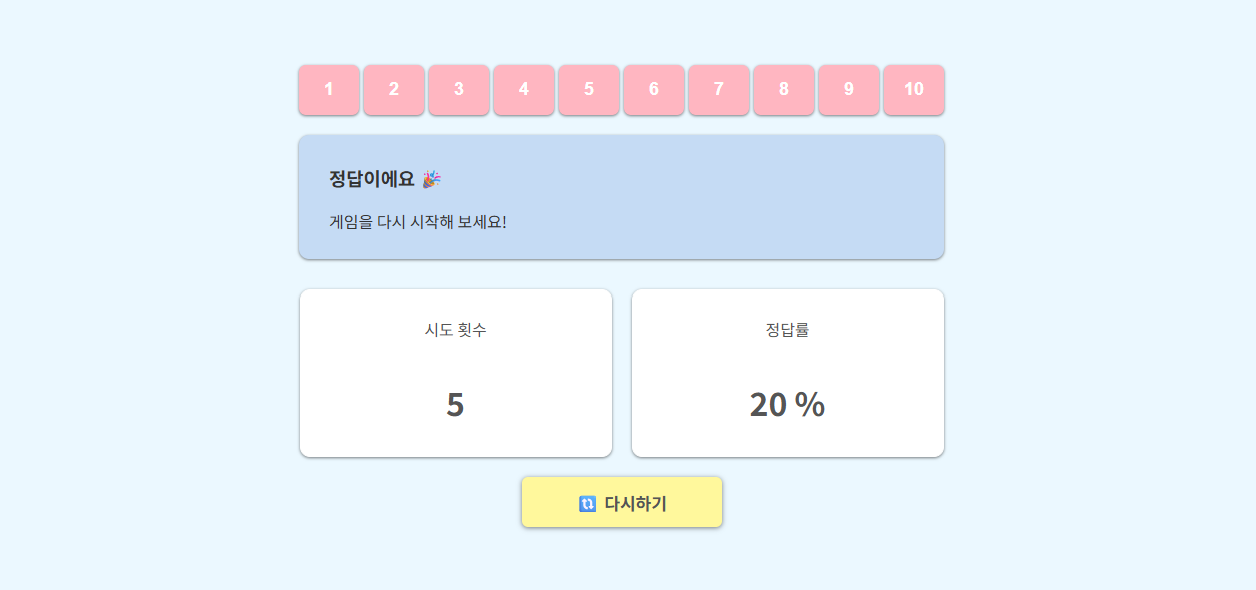
가위바위보 코드를 응용해서 1~10 사이의 숫자를 맞추는 게임을 만들었다. 컴퓨터가 랜덤으로 숫자를 정해두고, 유저가 버튼을 클릭해서 맞추는 방식이다. 힌트로 "더 높아요 ⬆️ / 더 낮아요 ⬇️"를 보여주고, 시도 횟수와 정답률도 표시된다.
폴더 구조
src/
├── components/
│   ├── NumberButtons.jsx   # 숫자 버튼
│   ├── ResultMessage.jsx   # 결과 메시지
│   └── ScoreBoard.jsx      # 점수판
├── css/
│   ├── App.module.css
│   ├── NumberButtons.module.css
│   └── ScoreBoard.module.css
└── App.jsx
주요 코드 설명
App.jsx — 게임 상태 관리
const [userChoice, setUserChoice] = useState(null);
const [computerChoice, setComputerChoice] = useState(
    Math.floor(Math.random() * 10) + 1
);
const [result, setResult] = useState(null);
const [count, setCount] = useState(0);
가위바위보와 다르게 컴퓨터 선택을 게임 시작 시 바로 정해두고, 유저가 맞출 때까지 유지한다.
결과 판단 로직
const numberChoiceResult = (user, computer) => {
    if (user === computer) return "정답이에요 🎉";
    if (user > computer) return "더 낮아요 ⬇️";
    return "더 높아요 ⬆️";
};
가위바위보의 determineWinner 함수를 응용해서 숫자 비교 로직으로 바꿨다.
정답률 계산
const correctRate =
    result === "정답이에요 🎉" ? Math.round((1 / count) * 100) + " %" : "-";
정답을 맞췄을 때만 정답률을 계산한다. 1번에 맞추면 100%, 5번에 맞추면 20%.
ResultMessage.jsx — 결과 메시지 컴포넌트
export const ResultMessage = ({ result, choice }) => {
    let resultSubMessage = "버튼을 클릭해 보세요!";
    if (result === "정답이에요 🎉") resultSubMessage = "게임을 다시 시작해 보세요!";
    if (result === "더 높아요 ⬆️") resultSubMessage = "보다 높은 숫자를 골라보세요.";
    if (result === "더 낮아요 ⬇️") resultSubMessage = "보다 낮은 숫자를 골라보세요.";

    return (
        <div>
            <h3>{result}</h3>
            <p>{result === "정답이에요 🎉" ? resultSubMessage : `${choice || ""} ${resultSubMessage}`}</p>
        </div>
    );
};
결과에 따라 다른 안내 메시지를 보여준다. 정답이 아닐 때는 유저가 선택한 숫자도 함께 표시된다.