🎈Instagram 클론코딩
Instagram loginUI를 클론코딩 해보았다.
혼자서 만든 div들의 위치가 너무 육안으로 보기에만 위치에 맞게 고정값으로 넣은 것 같아서
멘토님이 리뷰해주신것을 바탕으로 다시한번 코드를 짜보았다.
◾ Befor HTML & CSS
  <body>
      <div id="content">
        <div class="flex-center" id="lgtitle">
          <span>justgram</span>
        </div>
        <div id="input">
          <div class="flex-center" id="input-id">
            <input
              id="idarea"
              type="text"
              placeholder="전화번호, 사용자 이름 또는 이메일"/>
          </div>
          <div class="flex-center" id="input-password">
            <input id="passwordarea" type="password" placeholder="비밀번호" />
          </div>
          <div class="flex-center" id="login-button">
            <button id="btn" disabled>로그인</button>
          </div>
        </div>
        <div class="flex-center" id="miss"><a href="">비밀번호를 잊으셨나요?</a></div>
      </div>
    </div>
  </body>
body {
  background-color: rgba(var(--b3f, 250, 250, 250), 1);
  height: 1060px;
  display: flex;
  justify-content: center;
  align-items: center;
}
#content {
  width: 400px;
  height: 500px;
  border: 1px solid rgba(0, 0, 0, 0.1);
  background-color: white;
}
#lgtitle {
  font-size: 55px;
  text-align: center;
  font-family: "Lobster", cursive;
  margin-top: 50px;
}
#input {
  text-align: center;
  margin-top: 60px;
}
#idarea {
  font-size: 14px;
  width: 330px;
  height: 40px;
  background-color: rgba(0, 0, 0, 0.035);
  border: 1px solid rgba(0, 0, 0, 0.1);
  border-radius: 5px;
  padding-left: 10px;
}
#passwordarea {
  font-size: 14px;
  width: 330px;
  height: 40px;
  margin-top: 10px;
  background-color: rgba(0, 0, 0, 0.035);
  border: 1px solid rgba(0, 0, 0, 0.1);
  border-radius: 5px;
  padding-left: 10px;
}
#btn {
  width: 339px;
  height: 40px;
  margin-top: 20px;
  font-size: 18px;
  color: white;
  font-weight: bold;
  background-color: blue;
  background-color: rgba(0, 162, 255, 0.3);
  border: none;
  border-radius: 5px;
}
#miss {
  text-align: center;
  margin-top: 110px;
  color: rgb(18, 66, 142);
}
수강 첫날이기 때문에 멘토님의 코드리뷰하는 것을 처음 보았는데...
나는 HTML을 작성할 때 class 보다는 id를 주어서 하나하나 css 작업을 했다.
멘토님이 코드작성하는 리뷰강의를 듣고 난 후
◾ After HTML & CSS
<body class="flex-center">
    <div class="login-container">
      <div class="flex-center logo-wrapper">
        <span class="logo-text">justgram</span>
      </div>
      <div class="input-wrapper">
        <div class="login-wrapper flex-center">
          <input
            class="login-input"
            type="text"
            placeholder="전화번호, 사용자 이름 또는 이메일"/>
        </div>
        <div class="login-wrapper flex-center">
          <input class="login-input" type="password" placeholder="비밀번호" />
        </div>
        <div class="flex-center button-wrapper">
          <button class="login-button" disabled>로그인</button>
        </div>
      </div>
      <div class="flex-center findpass">
        <a>비밀번호를 잊으셨나요?</a>
      </div>
    </div>
  </body>세요
html {
  height: 100%;
}
body {
  background-color: rgba(var(--b3f, 250, 250, 250), 1);
  height: 100%;
}
.flex-center {
  display: flex;
  justify-content: center;
  align-items: center;
}
.login-container {
  background-color: white;
  width: 380px;
  height: 500px;
  border: 1px solid lightgray;
}
.logo-text {
  font-family: "Lobster", cursive;
  font-size: 55px;
  margin-top: 50px;
}
.input-wrapper {
  margin-top: 60px;
}
.login-wrapper {
  margin-left: 40px;
  margin-right: 40px;
  margin-bottom: 5px;
}
.login-input {
  font-size: 14px;
  width: 330px;
  height: 40px;
  background-color: rgba(0, 0, 0, 0.035);
  border: 1px solid rgba(0, 0, 0, 0.1);
  border-radius: 5px;
  padding-left: 10px;
}
.login-button {
  width: 100%;
  font-size: 15px;
  color: white;
  font-weight: bold;
  background-color: blue;
  background-color: rgba(0, 162, 255, 0.3);
  border: none;
  border-radius: 5px;
  padding: 9px;
}
.button-wrapper {
  border: none;
  margin: 15px 40px;
}
.findpass {
  margin-top: 140px;
  font-size: 13px;
  color: rgb(86, 96, 235);
}
🔥결과 화면
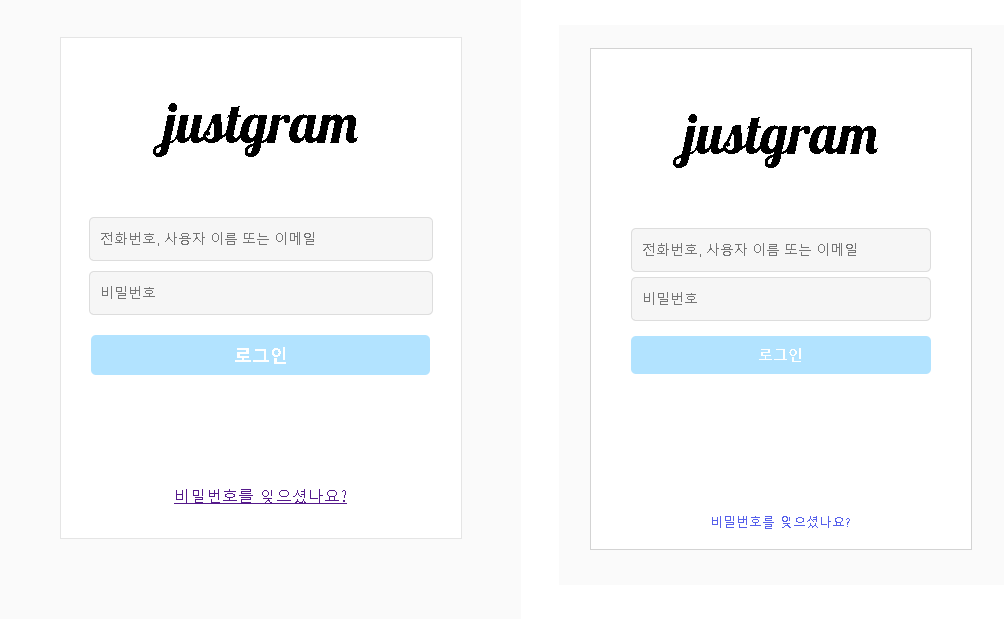
리뷰영상을 보고난 후에 작성하면서 든 생각은 HTML로는 간단히 뼈대만 잡아놓고 어떻게 해야겠다 라고 생각한 것을 CSS파일에 먼저 class명을 작성하고 HTML로 넘어가서 내가 작성해놓은 CSS코드를 HTML에 매칭시켜서 작업속도가 훨씬 빨랐다. 주말에 다시한번 연습해봐야겠다.
📌 느낀점
오늘 작성하면서
- HTML에서 가장 바깥의 div인 content가 '어떻게 브라우저의 정중앙에 어떻게오게 할 수 있는가'
- 그 자식요소들은 content 안의 중앙에 어떻게 알맞게 배치될 수 있는가
이 두가지가 가장 힘들었었는데, 과제 시작전에 https://flexboxfroggy.com/#ko FlexboxFroggy를 하면서 flex에 대해서 상기시키고 했음에도 은근 어려웠다.
처음했던 코드들에서는 바디값에 height(높이)를 고정값으로 지정해주고 flex를 써서 중앙으로 옮겼고
두번쨰 했던 코드는 html과body에 height(높이)를 100%로 지정해서 미리 지정해둔 css class
에 맵핑만 시켜줬다. 처음했던방식은 자식요소들도 따로 코드들로 가운데로 옮겨주는 작업을 했지만
두번째 코드는 미리 작성해둔 class속성을 HTML에 맵핑만 시켜주면 됐다.
화면 중앙에 위치시키는 것을 body뿐만아니라 HTML의 높이까지도 지정해주어야한다는 것을 처음
알았고 후에 다시 공부하여 TIL로 정리해서 올려야겠다.