
✅ Diffable DataSource에 대해서 알아보기 전, 현재 CollectionView의 DataSource를 간단하게 살펴보고, 어떤 문제점이 있는지 간단하게 알아보자.
CollectionView의 기본 개념
CollectionView DataSource
-
기본적으로 CollectionView를 사용하려면, 우리는 UICollectionViewDataSource 프로토콜을 채택해야된다.
weak var dataSource: UICollectionViewDataSource? { get set } @MainActor protocol UICollectionViewDataSourcedataSource는 collectionView에 데이터를 제공하는 역할을 한다. collectionView가 dataSource를 참조하며, 이를 통해 필요한 데이터를 요청하고 받는다. 참조 사이클을 방지하기 위해 dataSource는 약한 참조로 선언되어있다.
CollectionView DataSource Protocol
- UICollectionViewDataSource 프로토콜은 두 가지의 필수 메서드를 구현해주어야한다.
// 특정 Section 안에 몇 개의 데이터가 존재하는가? (X번째 섹션에서 N개의 Cell을 만들 것이다)
func collectionView(UICollectionView, numberOfItemsInSection: Int) -> Int

// indexPath에 대한 Cell의 모양이 어떻게 생겼는가? (X번째 섹션에서, Y번째 셀이 어떤 모양인가?)
func collectionView(UICollectionView, cellForItemAt: IndexPath) -> UICollectionViewCell
- 또한 필수 메서드는 아니지만, 2개 이상의 Section을 표현하고자 한다면, 다음 메서드를 이용해서 protocol을 정의해야한다.
// Section이 몇 개로 구성되어 있는가?
func numberOfSections(in: UICollectionView) -> Int
Collection View 사용 방법
DataSource 기초 사용 방법
- CollectionViewDataSource를 사용해서 간단한 CollectionView를 만들어보자. dataSource, Cell은 스토리보드로 설정했다.
import UIKit

class ViewController: UIViewController {

    @IBOutlet weak var collectionView: UICollectionView!

    private var data: [Int] = Array(1...10)

    override func viewDidLoad() {
        super.viewDidLoad()

    }
}

extension ViewController: UICollectionViewDataSource {

		// [data]에 저장된 개수만큼 cell을 보여준다.
    func collectionView(_ collectionView: UICollectionView, numberOfItemsInSection section: Int) -> Int {
        data.count
    }

		// MyCollectionViewCell모양으로 Cell 모양을 구성한다.
    func collectionView(_ collectionView: UICollectionView, cellForItemAt indexPath: IndexPath) -> UICollectionViewCell {

        guard let cell = collectionView.dequeueReusableCell(withReuseIdentifier: MyCollectionViewCell.id, for: indexPath) as? MyCollectionViewCell else { fatalError("not found \(MyCollectionViewCell.id)") }
        cell.configure(title: String("\(data[indexPath.row])번 째"))

        return cell
    }
}
CollectionView 데이터 업데이트하기
reload Data
✅ Data가 변경되었을 때, CollectionView UI를 업데이트 시키는 방법
- 실제 앱은 위 예시처럼 정적인 데이터를 보여주는 것이 아니라 유저의 터치 이벤트로 데이터가 변경되기도 하고, 서버에 있는 데이터가 변경되기도 한다. 이렇게 데이터가 변경되었을 때, CollectionView를 업데이트 시켜보자.
- 데이터가 변경되면, UICollectionViewDataSource 내부
numberOfItemsInSection,cellForItemAt이 다시 호출되어야한다. 이를 위해 우리는reloadData()를 호출할 수 있다.
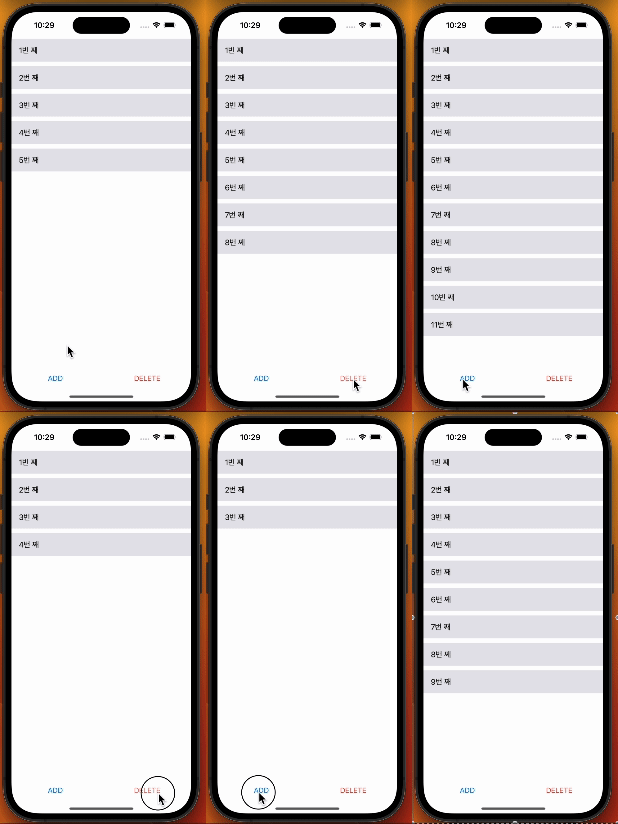
- 위 코드에서 AddButton, DeleteButton을 추가하여 앱을 확장시켜보자.
Add Button: 제일 마지막에 새로운 데이터를 추가
Delete Button: 제일 마지막에 있는 데이터 삭제
@IBAction func didTappedAddButton(_ sender: UIButton) {
    var value: Int

    // count를 기반으로 한다면, 중복된 숫자가 나올 수 있기 때문에 마지막 아이템 숫자 + 1로 표현
    if let item = data.last {
        value = item + 1
    } else {
        value = 1
    }
    data.append(value)

    // 변경된 데이터를 collectionView로 다시 로드한다
    collectionView.reloadData()
}

@IBAction func didTappedDeleteButton(_ sender: UIButton) {
    // 데이터가 없을 땐, 아무 동작도 하지 않도록 설정
    guard !data.isEmpty else { return }
    data.removeLast()
    collectionView.reloadData()
}
reload data의 한계
✅ Delete Button의 Action을 수정해서, reloadData에 어떤 한계점이 있는지 확인해보자.
- Delete Button: 랜덤 인덱스의 데이터 삭제
@IBAction func didTappedDeleteButton(_ sender: UIButton) {
    guard !data.isEmpty else { return }
    // 삭제 가능한 범위 중, 랜덤 아이템 삭제
    let randomIndex = Int.random(in: 0 ..< data.count)
    data.remove(at: randomIndex)
    collectionView.reloadData()
}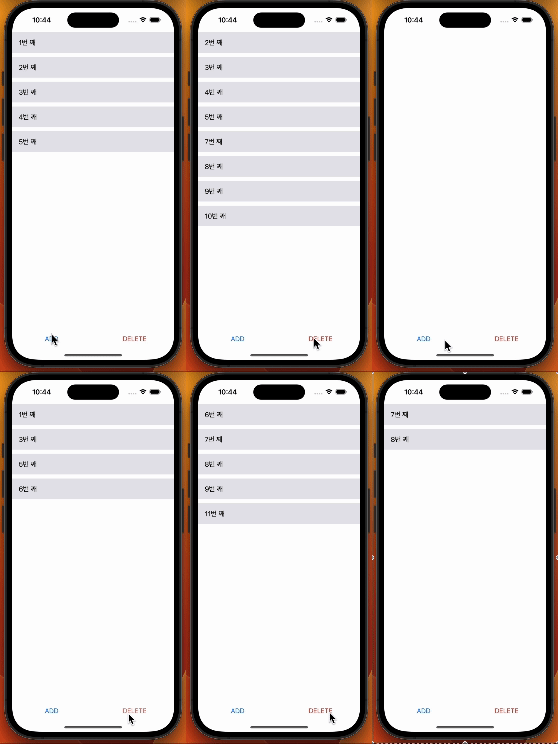
- reloadData의 한계점
- Animation이 없다.
- 어떤 데이터가 추가되었고, 어떤 데이터가 삭제되었는지 알기 힘들다.
- 우리는 유저에게 데이터의 변화를 직관적으로 알려주기 위해 Animation을 적용해야한다.
- Animation이 없다.
reloadData로 애니메이션을 표현할 수 없는 이유
-
reloadData() 메서드가 실행되면 전체 데이터를 다시 불러오지만, 특정 데이터가 어떻게 변화했는지에 대한 정보는 알 수 없다. 왜냐하면
numberOfItemsInSection과cellForItemAt메서드를 사용하여 전체 셀을 다시 그리기만 하기 때문이다. -
즉, data 배열 안에 1이 삭제가 되든, 아무런 변화가 일어나지 않았든 reloadData를 호출하면 data의 전체 데이터를 기반으로 CollectionView의 UI를 업데이트 시키기 때문이다.
-
그렇다면 CollectionView에서 데이터의 변화를 애니메이션을 보여주고 싶다면 어떻게 해야할까?
데이터의 변화를 Animation으로 보여주는 방법
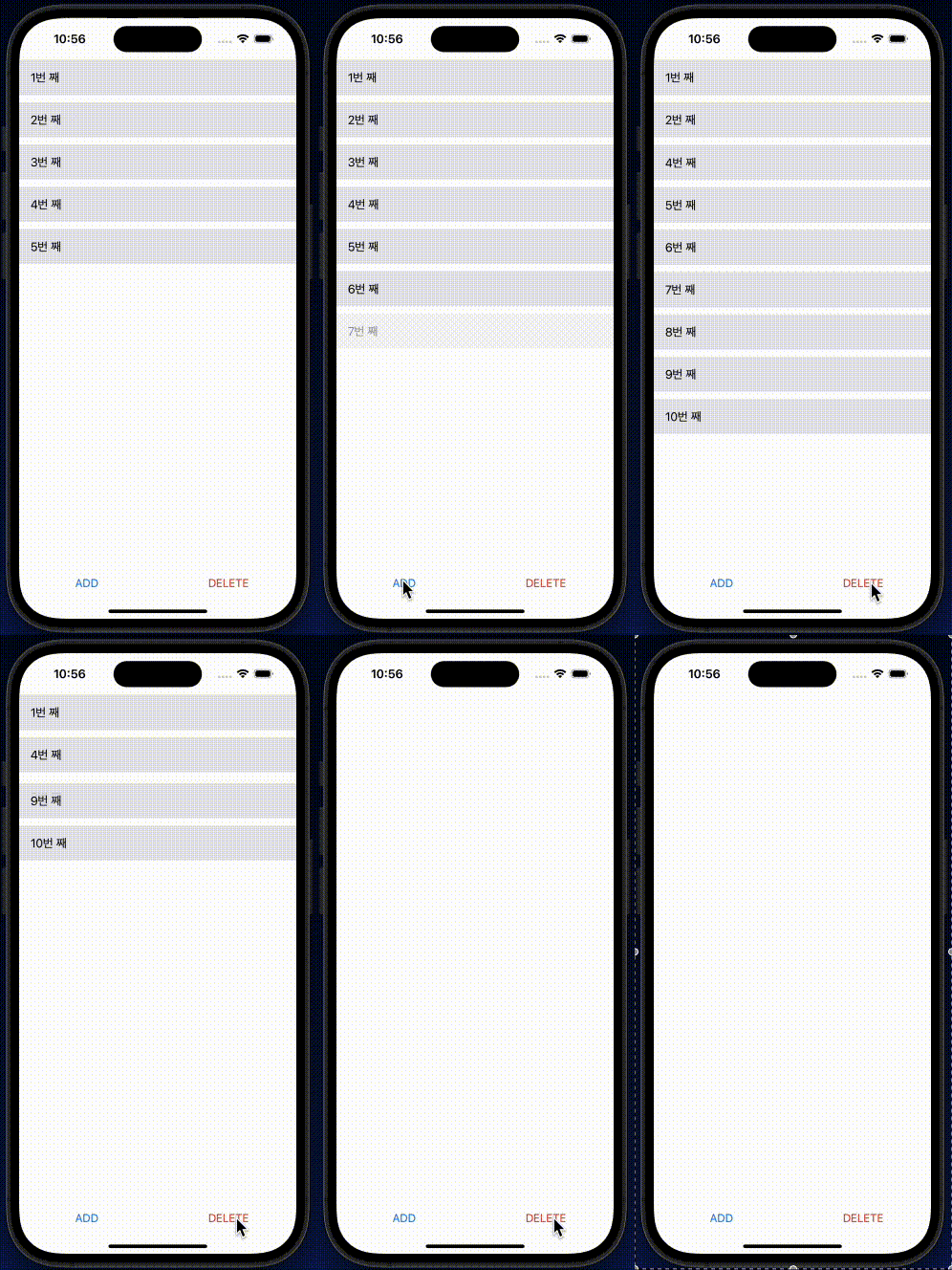
insertItems(at:),deleteItems(at:),moveItem(at:to:)메서드를 제공한다. 이 메서드들을 사용하면, 특정 인덱스에 항목이 추가, 삭제, 이동 되었음을 UICollectionView에게 명확하게 알려줄 수 있다. 이후 CollectionView에서 자체적으로 적절한 애니메이션을 제공하게 된다.
@IBAction func didTappedDeleteButton(_ sender: UIButton) {
    guard !data.isEmpty else { return }
    let randomIndex = Int.random(in: 0 ..< data.count)
    let indexPath = IndexPath(row: randomIndex, section: 0)
    **data.remove(at: randomIndex)**
    **collectionView.deleteItems(at: [indexPath])**
}
insertItems(at:), deleteItems(at:), moveItems(at:)의 한계점
-
이 메서드는 전체 컬렉션 뷰를 업데이트 하는 것이 아니라, 매개변수로 전달받은 Index에 해당하는 셀만 업데이트 된다. 그렇기 때문에 잘못된 IndexPath를 전달하게 되면, 예상하지 않은 결과를 얻을 수도 있다. 그렇기 때문에 해당 메서드를 사용할 땐 IndexPath를 정의하는 순서가 매우 중요하다.
-
여러 개의 데이터가 한 번에 업데이트 되어야할 때, 설계와는 다른 애니메이션을 만나게 될 수도 있다. 코드를 통해 알아보자.
- Swap Button: 맨 처음 아이템과, 맨 마지막 아이템의 위치를 변경한다.
- Swap Button: 맨 처음 아이템과, 맨 마지막 아이템의 위치를 변경한다.
@IBAction func didTappedSwapButton(_ sender: UIButton) {
    guard !data.isEmpty else { return }
    data.swapAt(0, data.count - 1)
    let startIndexPath = IndexPath(row: 0, section: 0)
    let endIndexPath = IndexPath(row: data.count - 1, section: 0)
    collectionView.moveItem(at: startIndexPath, to: endIndexPath)
    collectionView.moveItem(at: endIndexPath, to: startIndexPath)
}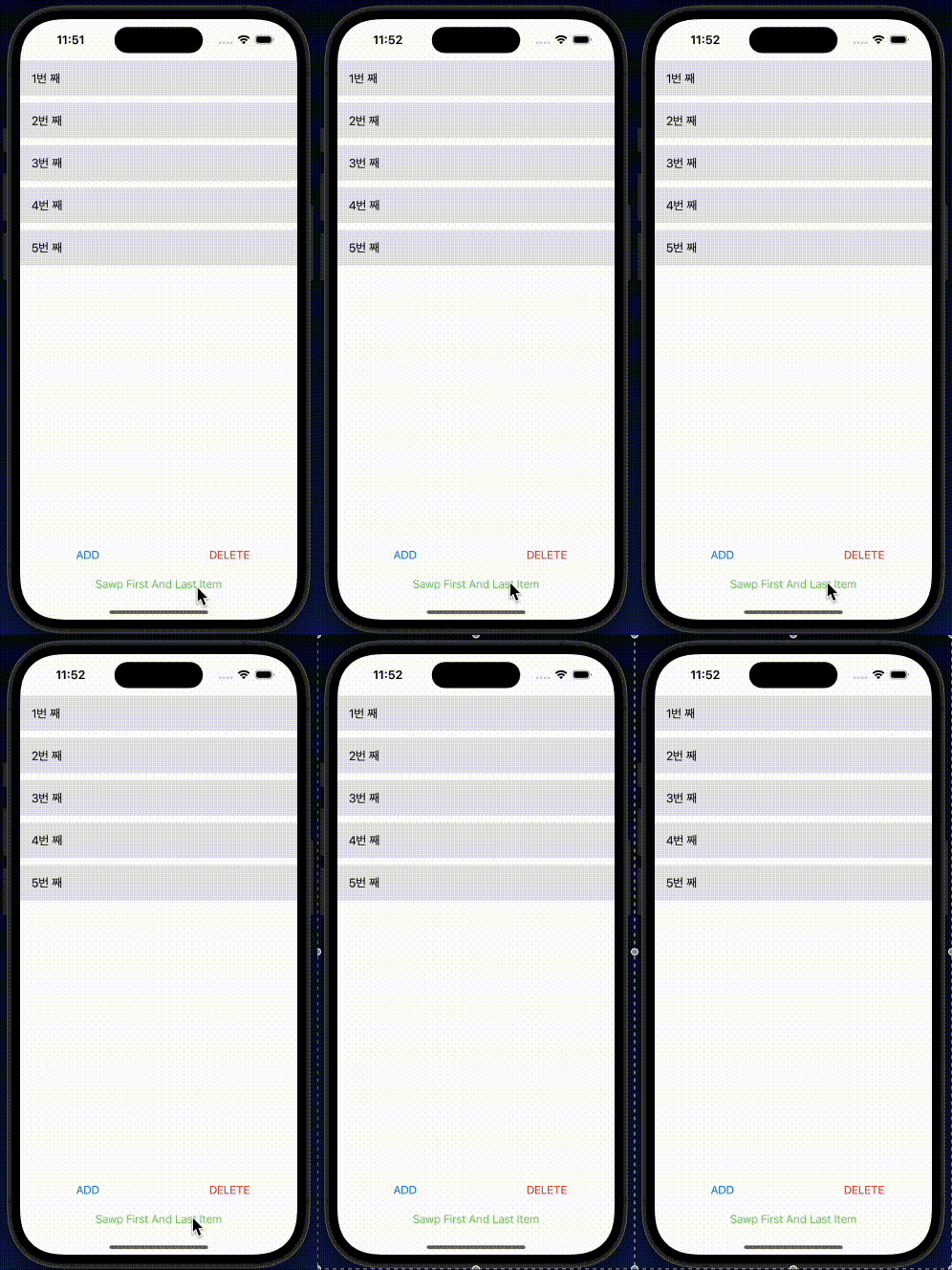
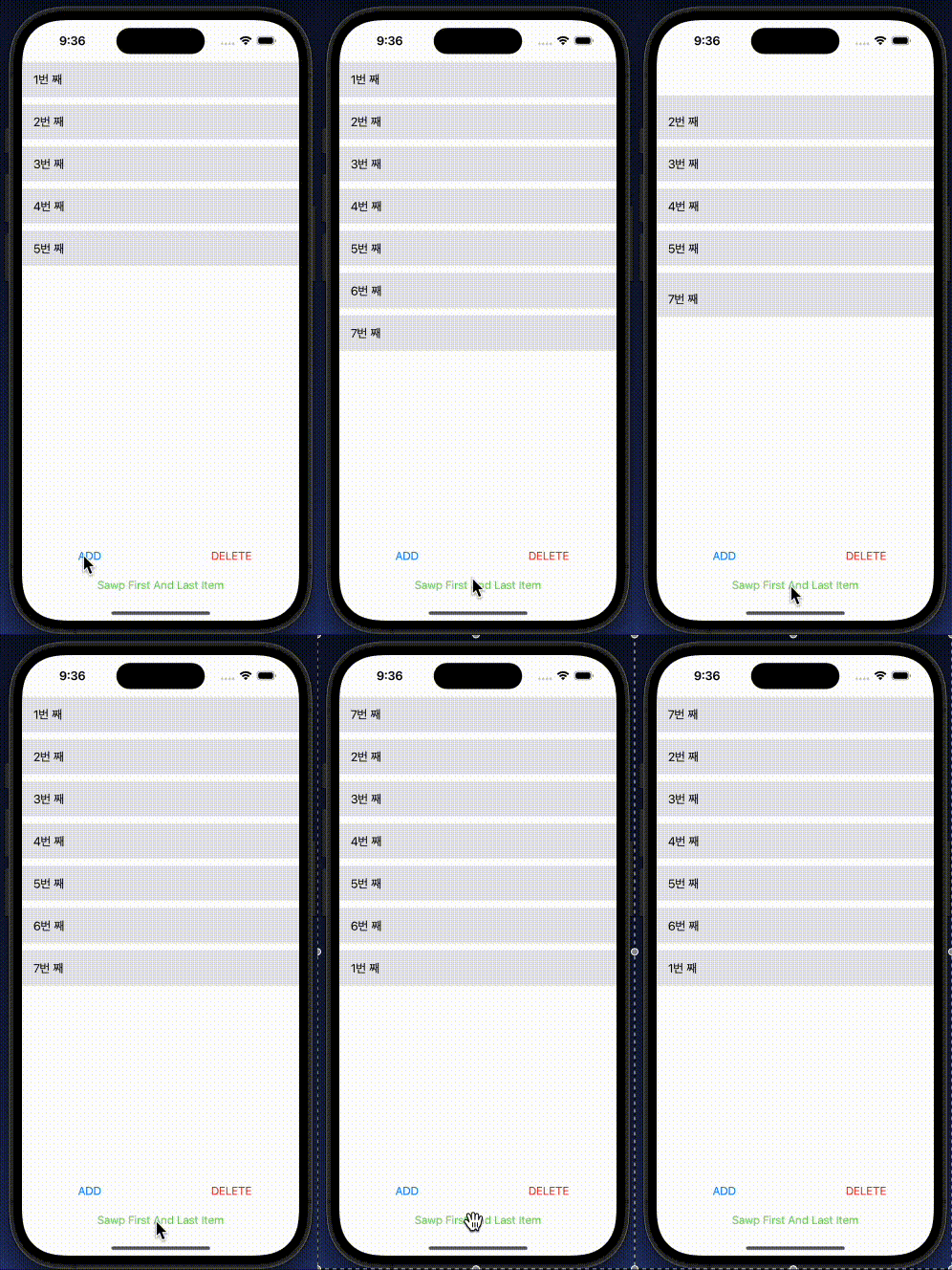
- 위 코드를 보면 데이터의 위치를 변경한 후, moveItem을 실행시켜 첫 아이템과 마지막 아이템의 위치를 변경시켰다.
- 왜 아무런 애니메이션도 일어나지 않았을까? data에 [1, 2, 3, 4, 5]가 저장되어있었고, swap을 시킨 후에는 [5, 2, 3, 4, 1]이 되었을 것이다.
moveItem(at: startIndexPath, to: endIndexPath)을 실행시키면, 기존 1, 2, 3, 4, 5가 표현되어있던 CollectionView는 2, 3, 4, 5, 1을 표현하게 된다. 이후moveItem(at: endIndexPath, to: startIndexPath)를 실행시키면 CollectionView는 Index를 기반으로 동작하기 때문에 다시 1, 2, 3, 4, 5의 순서로 CollectionView를 표현하게 되는 것이다.
PerformBatchUpdates
- 위처럼 여러개의 Item을 변경시킨 후, 한 번에 Animation을 업데이트 시킬 때에는
performBatchUpdates를 통해서 진행하게 된다. 위 작업을 performBatchUpdates 클로저 내부로 이동시켜보자.
@IBAction func didTappedSwapButton(_ sender: UIButton) {
    guard !data.isEmpty else { return }
    collectionView.performBatchUpdates {
        let startIndexPath = IndexPath(row: 0, section: 0)
        let endIndexPath = IndexPath(row: data.count - 1, section: 0)
        collectionView.moveItem(at: startIndexPath, to: endIndexPath)
        collectionView.moveItem(at: endIndexPath, to: startIndexPath)
        data.swapAt(0, data.count - 1)
    }
}
PerformBatchUpdates의 한계
- 현재는 data가 local에서 정의되며, 유저의 행동으로 인해 변화가 이루어지고 있다. 이번엔 실제 앱 처럽 비동기적으로 데이터를 추가하고, 삭제하는 상황을 만들어보고자 한다. 데이터를 호출하는 네트워킹 작업은 오래걸리기 때문에 반드시 비동기로 호출하게 되고, 데이터를 업데이트할 때에는 UI를 호출해야하기 때문에 반드시 mainQueue에서 실행해주어야한다.
- 위 상황을 실제 Network는 하지 않고, 간단하게 구현해보자. 데이터 추가 및 삭제를 백그라운드 스레드에서 수행하고, 컬렉션뷰 업데이트는 MainThread에서 수행하는 코드이다.
@IBAction func didTappedAddButton(_ sender: UIButton) {
DispatchQueue.global().async { [self] in
    var value: Int
    var indexPaths = [IndexPath]()

    for _ in 0..<10 {
        if let item = data.last {
            value = item + 1
        } else {
            value = 1
        }
        let indexPath = IndexPath(row: data.count, section: 0)
        data.append(value)
        indexPaths.append(indexPath)
    }

    DispatchQueue.main.async { [self] in
        collectionView.performBatchUpdates({
            collectionView.insertItems(at: indexPaths)
        }, completion: nil)
    }
}
}

@IBAction func didTappedDeleteButton(_ sender: UIButton) {
DispatchQueue.global().async { [self] in
    guard !data.isEmpty else { return }
    var indexPaths = [IndexPath]()
    for _ in 0 ..< min(data.count, 3) {
        let randomIndex = Int.random(in: 0 ..< data.count)
        let indexPath = IndexPath(row: randomIndex, section: 0)
        data.remove(at: randomIndex)
        indexPaths.append(indexPath)
    }

    DispatchQueue.main.async { [self] in
        collectionView.performBatchUpdates({
            collectionView.deleteItems(at: indexPaths)
        }, completion: nil)
    }
}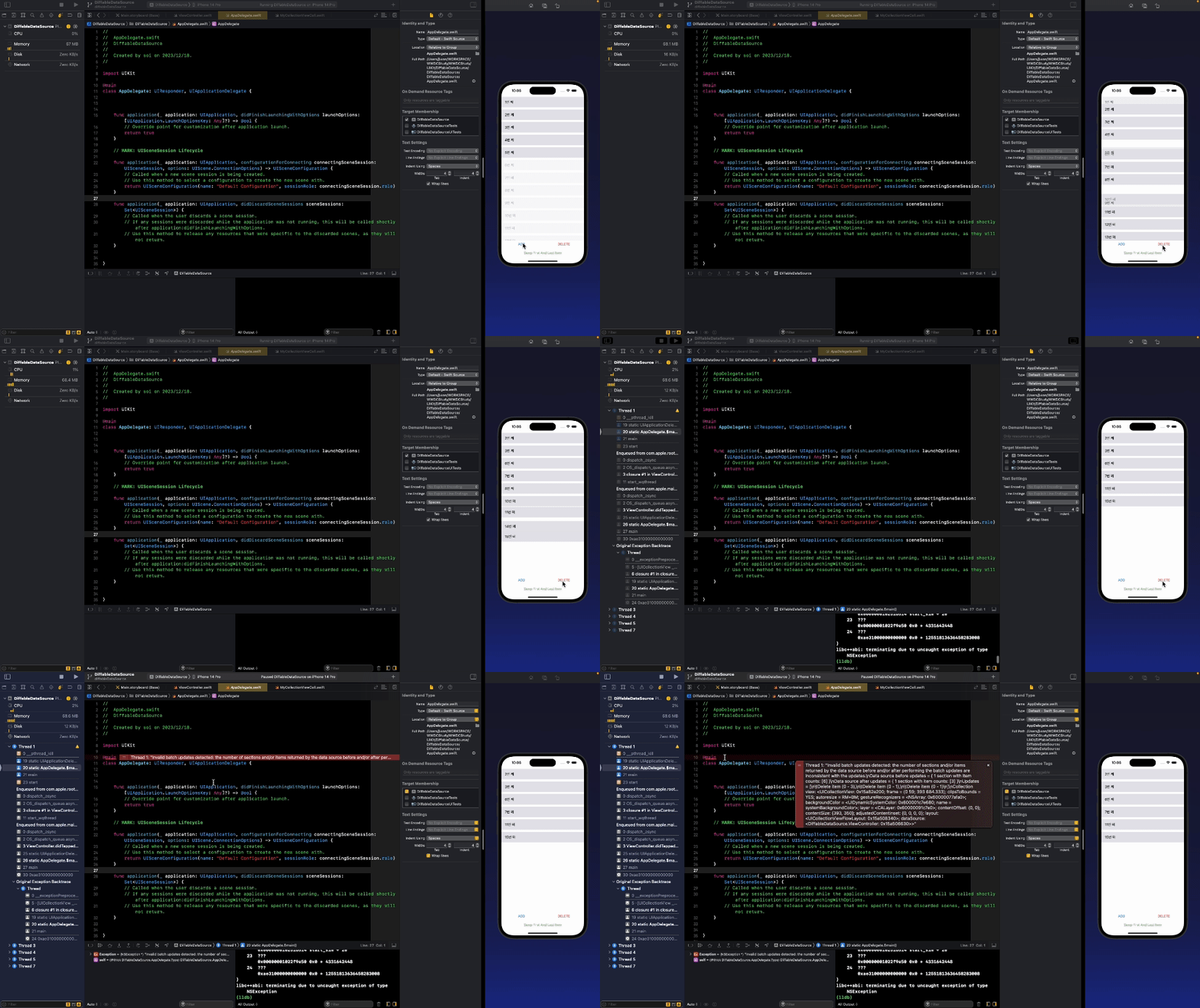
- 위 코드를 실행했더니
Invalid batch updates detected에러가 발생하며 앱이 종료되었다.
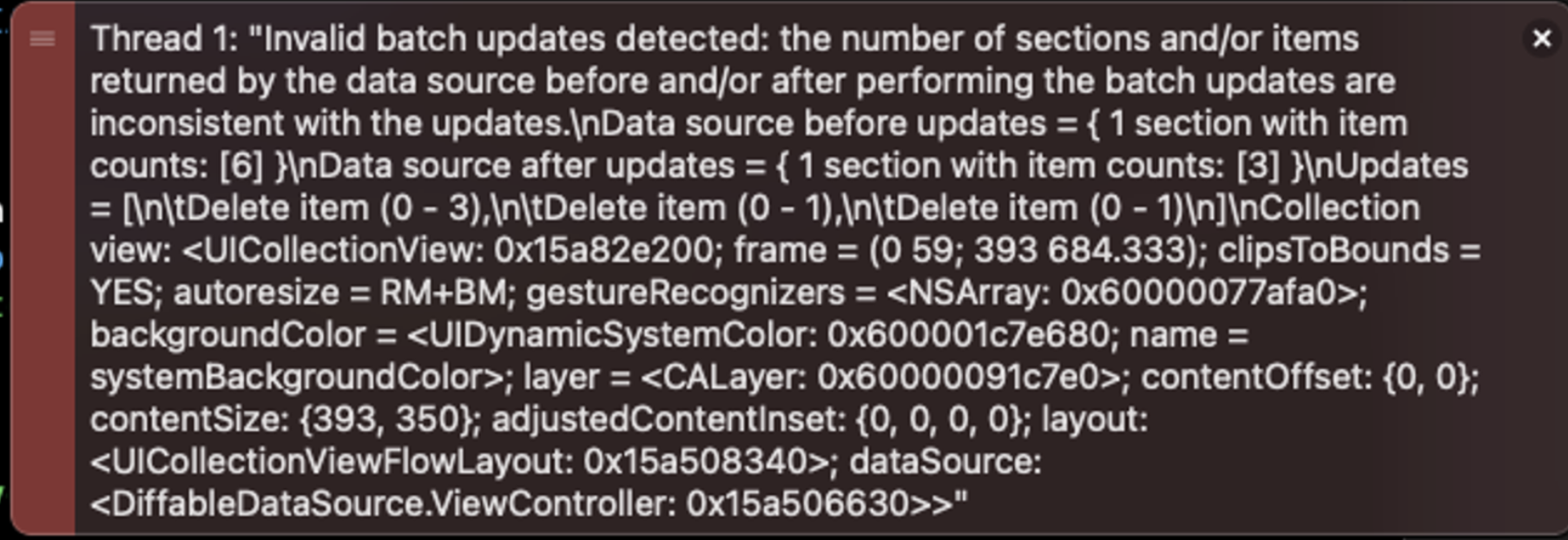
Thread 1: "Invalid batch updates detected: the number of sections and/or items returned by the data source before and/or after performing the batch updates are inconsistent with the updates.\nData source before updates = { 1 section with item counts: [6] }\nData source after updates = { 1 section with item counts: [3] }\nUpdates = [\n\tDelete item (0 - 3),\n\tDelete item (0 - 1),\n\tDelete item (0 - 1)\n]"- 이는 여러 Thread에서 배열에 접근하며 발생하는 문제라고 볼 수 있다. Thread에서 배열의 요소를 삭제하는 동안에 다른 Thread에서 배열에 접근하면, 앱이 충돌나는 것이다. 이 문제는 언제 어디서 발생할지 예측하기 어렵다는 문제가 있다. 이에 reloadData를 이용해서 동시성 문제를 해결할 수 있다.
- 즉, CollectionView의 매커니즘은 UI와 데이터의 표현이 완전히 분리되어있기 때문에, 뷰의 상태와 DataSource의 상태를 동기화 시켜주어야하기 때문에 Animation을 표현하기 어렵다.
DiffableDatasource
-
diffable Datasource는 기존 dataSource의 문제점을 해결하는 새로운 dataSource이다.
-
즉 data의 관리와 UI 업데이트가 분리되어있지 않으며, data가 변경되면 관련 Animation이 자동으로 계산되어 View에 표현해준다.
-
diffableDataSource에 대한 개념과 사용 방법에 대해서 다음 포스팅을 통해 알아보고자 한다.