개인 프로젝트 진행 중 바텀시트 형태의 UI를 구현하면서 겪었던 문제와 해결 방법을 기록한다.
플러터에서는 기본적으로 바텀시트를 바로 사용할 수 있어서 몰랐는데 리액트 네이티브에서는 라이브러리를 설치해 구현하거나 직접 만들어야했다. 처음엔 결과물을 빠르게 내려고 라이브러리를 설치했는데, 자식 요소 사이즈에 핏한 높이로 보여주고싶은 상황에서 난잡하게 프롭스를 넘겨주는 것이 마음에 안들어 직접 구현하기로 정했다.
해당 내용은 깃허브 링크에서도 확인할 수 있다.
첫 번째 시도
일단 Scrim과 Sheet를 분리해 Reanimated에서 제공해주는 레이아웃 애니메이션을 간단하게 적용시켰고 각 컴포넌트에서 바텀시트의 상태를 들고 핸들링하게끔 만들어봤다.
// Scrim.tsx
const AnimatedPressable = Animated.createAnimatedComponent(Pressable);

const Scrim: React.FC<ScrimProps> = ({ onDismiss }) => {
    return (
        <AnimatedPressable
            onPress={onDismiss}
            entering={FadeIn}
            exiting={FadeOut}
            style={styles.scrim}
        />
    );
};
// Sheet.tsx
const Sheet: React.FC<PropsWithChildren<SheetProps>> = ({ onClose, children }) => {
const [ sheetHeight, setSheetHeight ] = useState<number>(0);
const offsetY = useSharedValue<number>(0);
const animatedStyle = useAnimatedStyle(() => ({
transform: [{ translateY: offsetY.value }],
}), []);
const gesture = Gesture.Pan()
.onChange((event) => {
const delta = event.changeY + offsetY.value;
offsetY.value = delta > 0 ? delta : 0;
})
.onEnd((event) => {
const isOver = offsetY.value > sheetHeight * OVER_POINT;
offsetY.value = withTiming(isOver ? sheetHeight : 0, {}, () => {
isOver && runOnJS(onClose)();
});
})
return (
<GestureDetector gesture={gesture}>
<Animated.View
onLayout={(event) => setSheetHeight(event.nativeEvent.layout.height)}
layout={SequencedTransition}
entering={SlideInDown.springify().damping(18)}
exiting={SlideOutDown}
style={[styles.sheet, animatedStyle]}>
{children}
</Animated.View>
</GestureDetector>
);
};// MyScreen.tsx
const MyScreen: React.FC = () => {
const [ visible, setVisible ] = useState<boolean>(false);
return (
<View>
<Button
title='show sheet'
onPress={() => setVisible(true)}
/>
</View>
);
};난관
빈 화면에서 사용해보니 나름 잘 작동되었지만 한가지 문제가 발생했다. Tab Navigation과 Header 영역 안에서 짤린채로 스크림이 깔리고 그 안에서 바텀시트가 나오는 것. 플러터 앱 시점에서 바텀시트를 구현해서 예상하지 못한 문제와 마주쳤다. 그리고 시트 안에 들어가는 UI내부에서는 시트가 내려가는 애니메이션을 구현하기 난감한 문제도 있었다.
그렇게 많은 삽질을 해보다가 결국 리액트 네이티브의 Modal 컴포넌트를 활용해 원하는 결과물을 얻을 수 있었다. 일단 결과물을 보면 이렇다
바깥영역 눌러 닫기 - 다시 올리기 - 빠르게 내리기 - 많이 내리기 - 버튼으로 닫기 순
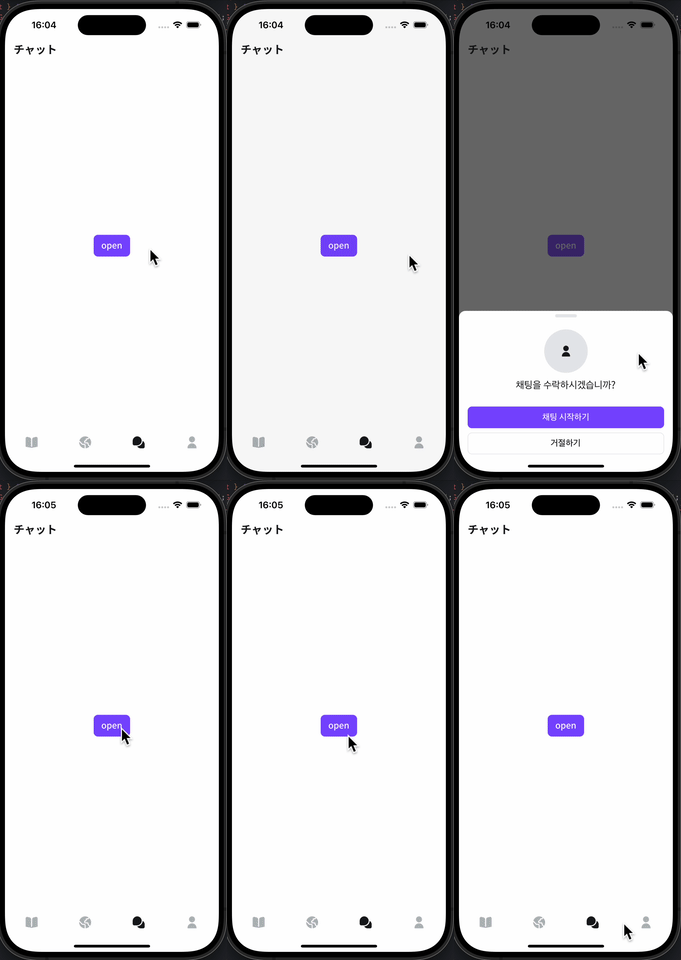
전략은 이렇다.
- Modal 컴포넌트를 활용한다. transparent속성으로 투명하게 깔아주고 animation속성은 none으로 설정한다.
- 바텀시트 관련 상태를 안에다 두고 사용하는 컴포넌트에서 ref를 통해 핸들링 할 수 있게 만든다. 요소에 ref를 넣어주는 방식이 아닌 useImperativeHandle를 활용해 객체로 커스터마이징한다.
다시 만들어보기
일단 바텀시트를 핸들링 할 수 있는 객체 타입을 적자. 간단하게 show, hide 두 개를 정의해봤다.
export type BottomSheetHandler = {
    show: () => void;
    hide: () => void;
};
그리고 BottomSheet 컴포넌트를 forwardRef를 사용해 다시 만들어보자. 간략한 설명을 위해 주석을 작성했다.
const BottomSheet = forwardRef<BottomSheetHandler, BottomSheetProps>((props, ref) => {
  	// 시트 노출 여부
    const [ visible, setVisible ] = useState<boolean>(false);

  	// 시트 높이
    const [ sheetHeight, setSheetHeight ] = useState<number>(0);

	// 사용자 제스쳐 offsetY
    const offsetY = useSharedValue<number>(0);

  	// 시트 애니메이션
    const animatedStyle = useAnimatedStyle(() => ({
        transform: [{ translateY: offsetY.value }],
    }), []);

  	// 시트 복원
    const restore = useCallback(() => {
        offsetY.value = withTiming(0);
    }, []);

  	// 시트 노출 + 시트 복원
    const show = () => {
        setVisibleTrue();

        offsetY.value && restore();
    };

    const hide = useCallback(() => {
        offsetY.value = withTiming(sheetHeight, {}, () => {
            runOnJS(setVisibleFalse)();
        });
    }, [ sheetHeight ]);

  	// 유저 제스쳐 정의
    const panGesture = Gesture.Pan()
        .onChange((event) => {
            const delta = event.changeY + offsetY.value;
            offsetY.value = delta > 0 ? delta : 0;
        })
        .onEnd((event) => {
          	// 사용자가 빠르게 시트를 툭 내렸을 때 시트를 닫기 위해 velocity 값도 활용
            const isFast = event.velocityY >= FAST_VELOCITY_POINT;
            const isOver = offsetY.value > sheetHeight * OVER_POINT;
            const shouldClose = isFast || isOver;

            runOnJS(shouldClose ? hide : restore)();
        });

  	// ref를 BottomSheetHandler 타입에 맞게 커스터마이징 해줍니다
    useImperativeHandle(ref, () => {
        return {
            show,
            hide,
        };
    }, [ sheetHeight ]);

  	return (
      	<Modal
          	visible={visible}
            animationType='fade'
            transparent
            onRequestClose={hide}>

        	// 글 상단에 있는 코드와 유사하므로 간단하게 표기했음
            <Scrim onPress={hide} />
            <Sheet
	            style={animatedStyle}
            	onLayout={(event) => setHeight(event.nativeEvent.layout.height)}
                entering={SlideInDown.springify().damping(20)}
                exiting={SlideOutDown}>
            />
        </Modal>
    );
});
사용하기
const MyScreen = () => {
  	const ref = useRef<BottomSheetHandler>(null);

  	const handleSomething = () => {
    	// ...
      	ref.current?.show();
    };

  	const handleSubmit = async () => {
    	await someAsyncFunction();

      	ref.current?.hide();
    };

	return (
    	<BottomSheet ref={ref}>
        	// ...content
        </BottomSheet>
    );
};
안드로이드에서는 Modal에서 제스쳐 핸들러가 동작하지 않는 문제가 있는데 공식문서에서 해결법이 간단하게 적혀있어 원하는 컴포넌트 구조대로 적용시키면 해결할 수 있다.
문서를 뒤져보다 발견한 useImperativeHandle 훅을 통해 클래스 컴포넌트에서 내부 상태, 메소드에 접근하는 방식을 함수 컴포넌트에서 구현할 수 있었다. 친절한 문서에 감사.. 그리고 평소에 이런 불편함을 느끼지 않던 플러터에게도 감사..
여기까지 자식 요소에 핏한 바텀시트 만들기 삽질 기록이었다.
