-
9장 - 자바 GUI 기초, AWT와 Swing
-
GUI - Graphical User Interface
AWT, Swing 이용
// AWT - java.awt.*; 운영 체제 GUI component 도움 받아 작동 (중량 컴포넌트) -> 많은 부담 but 실행 빠름 // Swing - javax.swing.*; AWT 기능 + 고급 component // J로 시작함 운영체제에 의존 X (경량 컴포넌트) -
자바 GUI 패키지
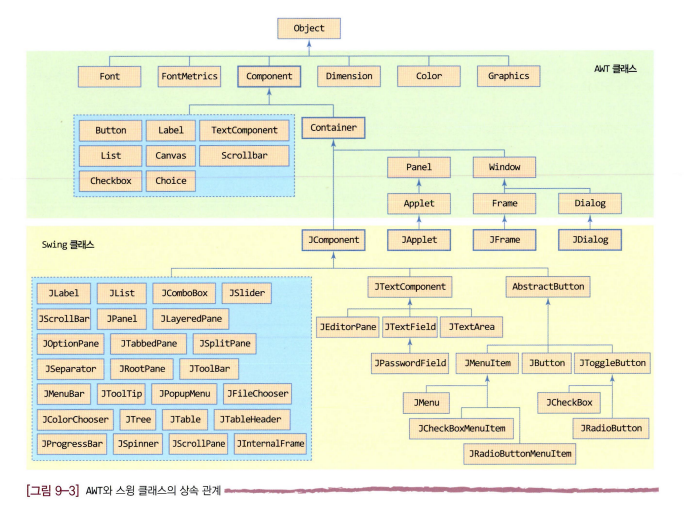
Object class > Component class
// Swing Swing component 유형 // JComponent - swing component의 공통 속성을 구현한 추상 class 1. JComponent - 대부분 swing component 가 여기에 해당 2. AWT의 Container 상속 - JApplet, JFrame, JDialog -
Container - 다른 GUI component를 포함할 수 있는 component
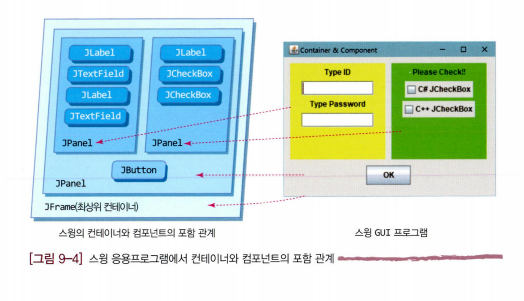
// 위 예제
// 최상위 컨테이너 - JFrame
JFrame(컨테이너)
> JPanel(컨테이너)
> JPanel 2개(컨테이너) + JButton(컴포넌트)
> JPanel a (JLabel, JTextField - 컴포넌트), JPanel b (JLabel, JCheckBox - 컴포넌트)
// Container 다른 container에 포함될 수 있음 Swing container - JPanel, JFrame, JApplet, JDialog, JWindow // 최상위 Container 다른 container에 속하지 않고 독립적으로 화면에 출력 가능한 container JFrame, JApplet, JDialog 모든 component는 container에 포함되어야 화면에 출력 가능 // component container에 포함되어야만 화면에 출력 가능한 순수 component 모든 component는 java.awt.Component를 상속 받음 모든 swing component - javax.swing.Component 상속// swing GUI 프로그램 만들기 // 필요 작업 - 1. swing frame 작성, 2. main() 작성, 3. frame에 swing component 부착 import java.awt.*; // 그래픽 처리를 위한 클래스 import java.awt.event.*; // AWT 이벤트 사용 import javax.swing.*; // swing component 사용 import javax.swing.event.*; // swing event 사용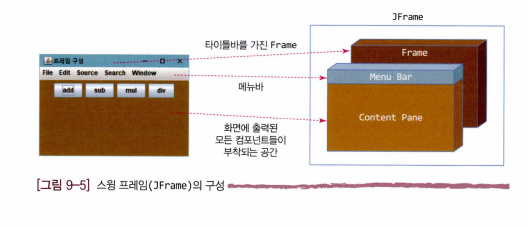
// JFrame 구성 요소 - Frame, Menu Bar, Content Pane Frame - swing 프로그램 기본 틀 Menu Bar - 메뉴 부착 공간 Content Pane - GUI component 부착 공간 // main을 frame class 내 작성 (권장) import javax.swing.*; public class MyFrame extends JFrame { public MyFrame() { setTitle("300x300 swing frame 제작"); setSize(300, 300); // frame size -> menubar까지 포함해서 300이다 setVisible(true); // frame 출력 } public static void main(String[] args) { MyFrame frame = new MyFrame(); } } // main을 외부에 작성 - MyApp import javax.swing.*; class MyFrame extends JFrame { public MyFrame() { setTitle("300x300 swing frame 제작"); // super("300x300 swing frame 제작"); 과 동일 - JFrame호출 setSize(300, 300); setVisible(true); } } public class MyApp { public void main(String[] args) { MyFrame mf = new MyFrame(); } } // frame에 component 붙이기 import javax.swing.*; public class ContentPaneEx extends JFrame { public ContentPaneEx() { setTitle("Ex"); setDefaultCloseOperation(JFrame.EXIT_ON_CLOSE); // frame 종료 시 프로그램도 종료 Container c = getContentPane(); // contentpane 생성 (컨테이너) c.setBackground(Color.ORANGE); // c.setLayout(new FlowLayout()); // 레이아웃 지정 c.add(new JButton("OK"); // JComponent 부착 c.add(new JButton("Cancel"); c.add(new JButton("Ignore"); setSize(300, 300); // frame size setVisible(true); // frame 표시 } public static void main(String[] args) { new ContentPaneEx(); } } // main() 종료 후에도 frame이 살아있는 이유 swing에서 JFrame 객체 생성 시 main thread 외에 event 분배 thread 자동 생성 -> main 종료되도 event 분배 스레드 살아있어 frame 살아있음 (사용자 키, 마우스 입력 계속 처리) -
Container와 배치 (layout) - java.awt 패키지에 구현되어 있음
Container 마다 1개의 layout manager 존재
→ Container 크기 조정 시 모든 Component 재배치, 크기 조정
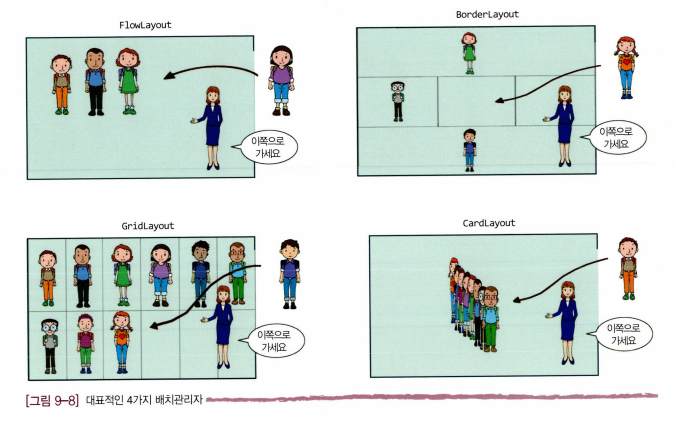
// FlowLayout - 좌 -> 우 순 열거 // BorderLayout - East, West, North, South, Center // GridLayout - 지정 크기로 동일 분배 // CardLayout - 포개어 배치 // Container 생성시 default layout manager Window, JWindow - BorderLayout Frame, JFrame - BorderLayout Dialog, JDialog - BorderLayout Panel, JPanel - FlowLayout Applet, JApplet - FlowLayout // layout manager 변경 및 설정 - setLayout() Container c = getContentPane(); c.setLayout(new FlowLayout());- FlowLayout
// FlowLayout 응용 new FlowLayout() // 기본 new FlowLayout(FlowLayout.LEFT); // int align - 정렬 방법 new FlowLayout(FlowLayout.LEFT, 10, 20); // hGap, vGap (수평, 수직 간격) - BorderLayout
// BorderLayout 응용 Container c = getContentPane(); c.setLayout(new BorderLayout()); c.setLayout(new BorderLayout(30, 20)); // hGap, vGap c.add(new JButton("div"), BorderLayout.WEST); // 위치 지정 c.add(new JButton("Calc"), BorderLayout.CENTER); - GridLayout
// GridLayout 응용
Container c = getContentPane();
c.setLayout(new GridLayout()); // 1 x 1 grid
c.setLayout(new GridLayout(3, 4)); // 3 x 4 grid
c.setLayout(new GridLayout(3, 4, 5, 5)); // hGap, vGap
- FlowLayout
-
배치 관리자 (layout manager)가 없는 container
→ component 크기, 위치 - 개발자 임의 지정 / 여러 컴포넌트 겹쳐 출력
Container c = getContentPane();
c.setLayout(null); // layout manager 삭제

// setLayout(null) 예제
Panel p = new JPanel();
p.setLayout(null);

JButton clickButton = new JButton("Click");
clickButton.setSize(100, 40); // 크기 지정
clickButton.setLocation(50, 50); // 위치 지정
p.add(clickButton);

// null 로 삭제 시 반드시 컴포넌트 크기, 위치 지정 필요
// why? - layout manager가 없어서 다 0으로 설정돼있음
-

https://github.com/khkim09