설정
1. 내 정보 변경
나의 정보를 변경합니다.
PUT /settings/update-user
Request Header
Authorization: bearer JWT토큰Request Body
{
  "fullName": String,
  "username": String
}
Response
User2. 비밀번호 변경
내 계정 비밀번호를 변경합니다.
PUT /settings/update-password
Request Header
Authorization: bearer JWT토큰Request Body
{
  "password": String
}
설정 실습하기
내정보 설정 : /settings/update-user
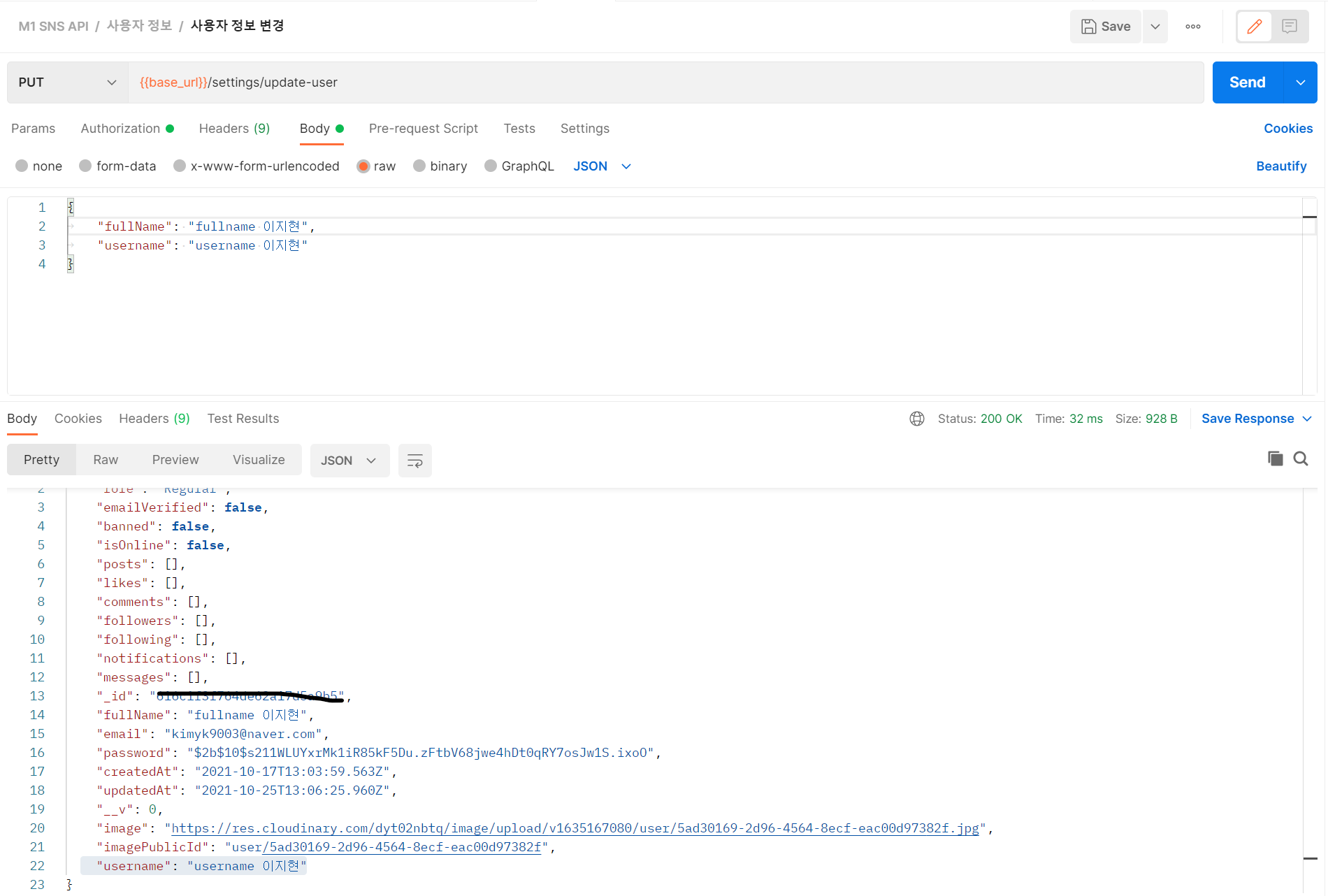
postman으로 사용하는 것 뿐만 아니라 코드에서도 사용할 수 있게 코드를 작성했다.
import axios from 'axios'

const API_END_POINT = 'http://-.-.-'

export default async function PutMyInformation(fullName, username) {
  const BearerToken = `Bearer ${sessionStorage
    .getItem('userInformation')
    .replace(/\"/gi, '')}`
  try {
    await axios
      .put(
        `${API_END_POINT}/settings/update-user`,
        {
          fullName,
          username,
        },
        {
          headers: {
            'Content-Type': 'application/json',
            Authorization: BearerToken,
          },
        },
      )
      .then((res) => res.data)
  } catch (error) {
    console.log(error)
  }
}
axios의
첫번째 매개변수로 url을
두번째 매개변수로 body 내용을
세번째 매개변수로 headers 내용을 저렇게 추가하니 동작했다.
추가로 token을 이용하기 위해서 token앞에
Bearer를 추가하였고
sessionStorage의 값을 가져오면""가 앞뒤에 붙어 해당 부분을 제거하기 위한 replace도 사용했다.
비밀번호 변경 : /settings/update-password
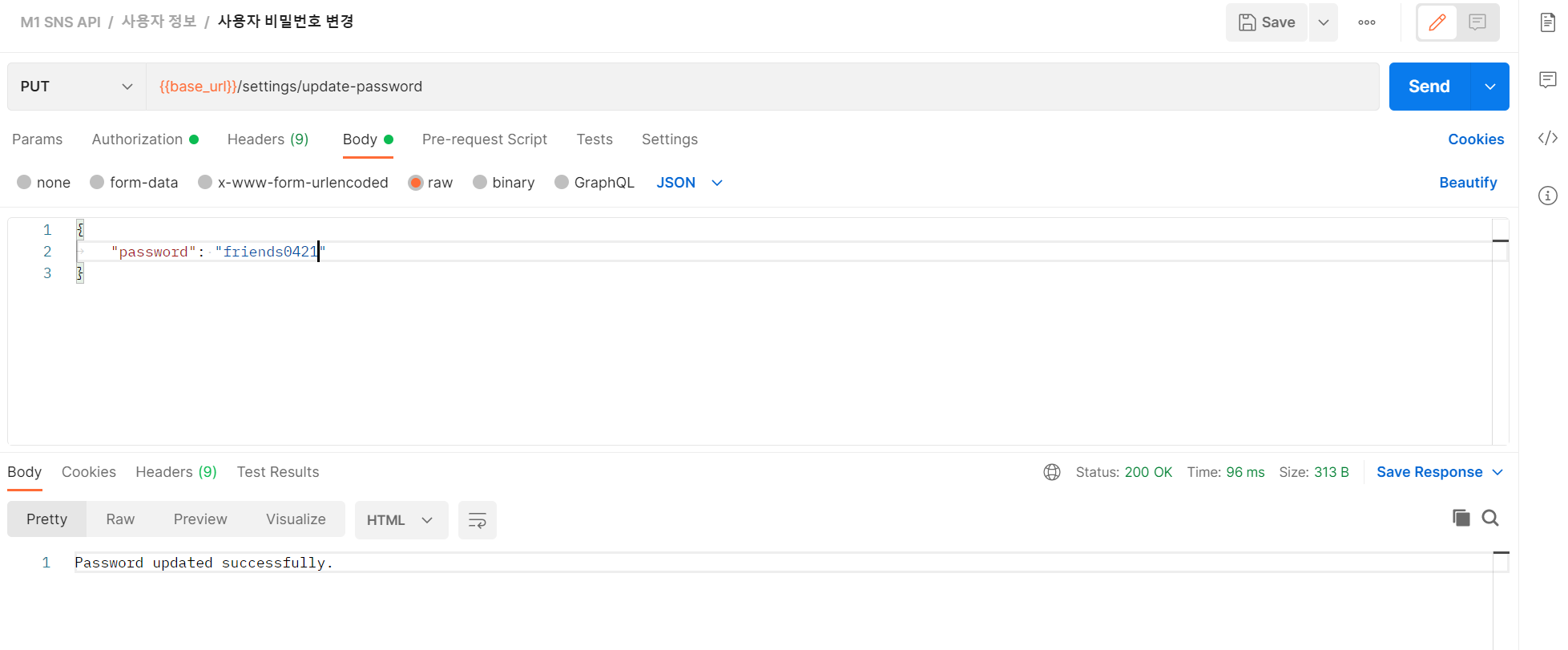
postman을 통해 처리하면 쉽게 Authorizationd을 headers에 넣고 body에 password를 추가해서 처리할 수 있다.
import axios from 'axios'
const API_END_POINT = 'http://-.-.-.-'
export default async function PutMyPw(pw) {
  const BearerToken = `Bearer ${sessionStorage
    .getItem('userInformation')
    .replace(/\"/gi, '')}`
  try {
    await axios
      .put(
        `${API_END_POINT}/settings/update-password`,
        {
          password: pw,
        },
        {
          headers: {
            'Content-Type': 'application/json',
            Authorization: BearerToken,
          },
        },
      )
      .then((res) => res.data)
      .then((data) => alert(data))
  } catch (error) {
    console.log(error)
  }
}
마찬가지로 url , body , headers 내용을 처리하고 있다.
실습해보기
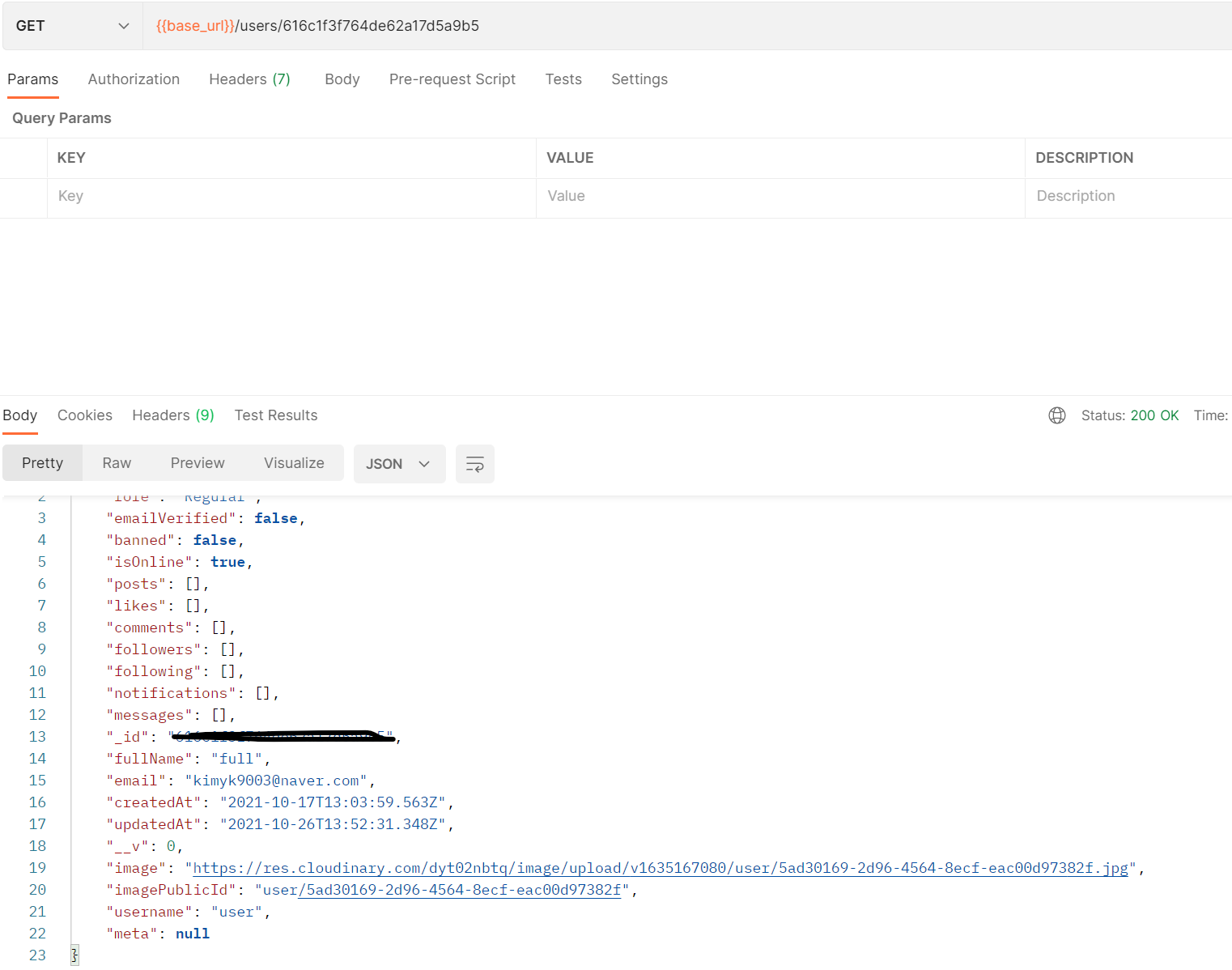
기존 fullName은 full이고 username은 user이다.
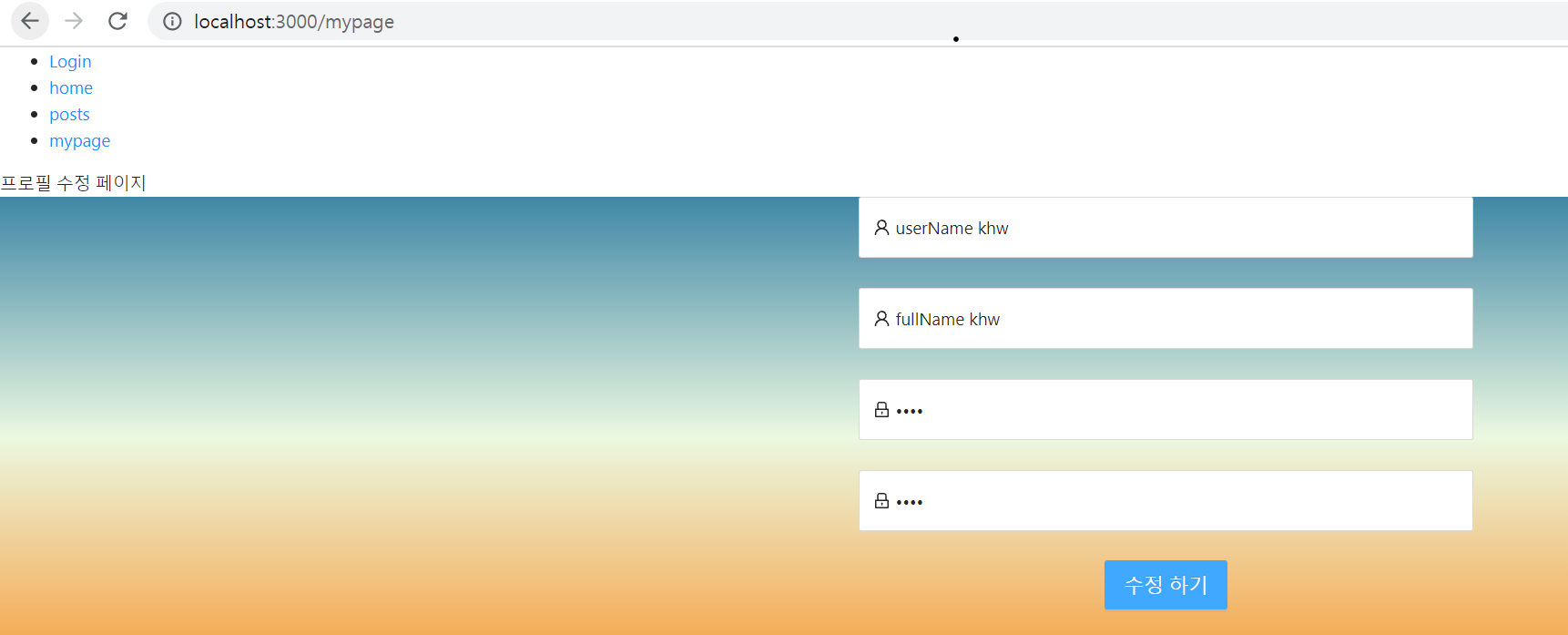
해당 부분을 userName과 fullName 비밀번호까지 변경해준다.
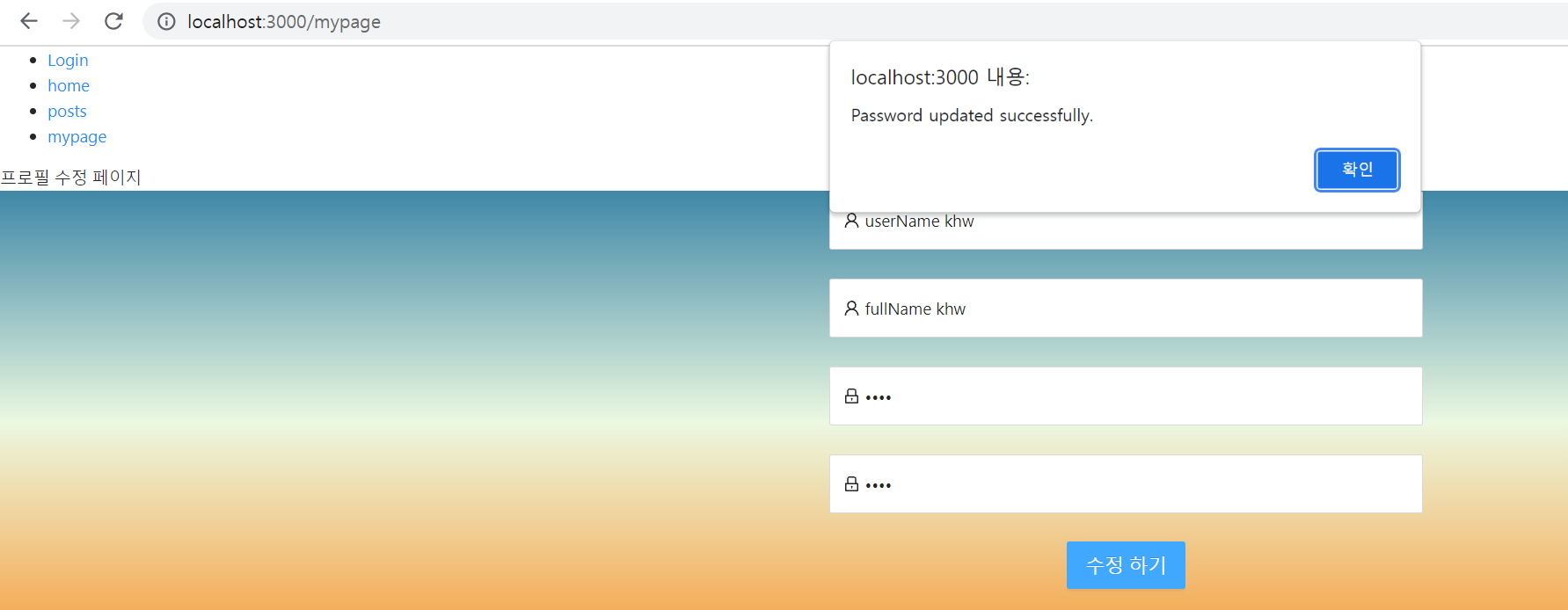
수정하기 버튼을 누르면 정상적으로 된 것을 알 수 있다.
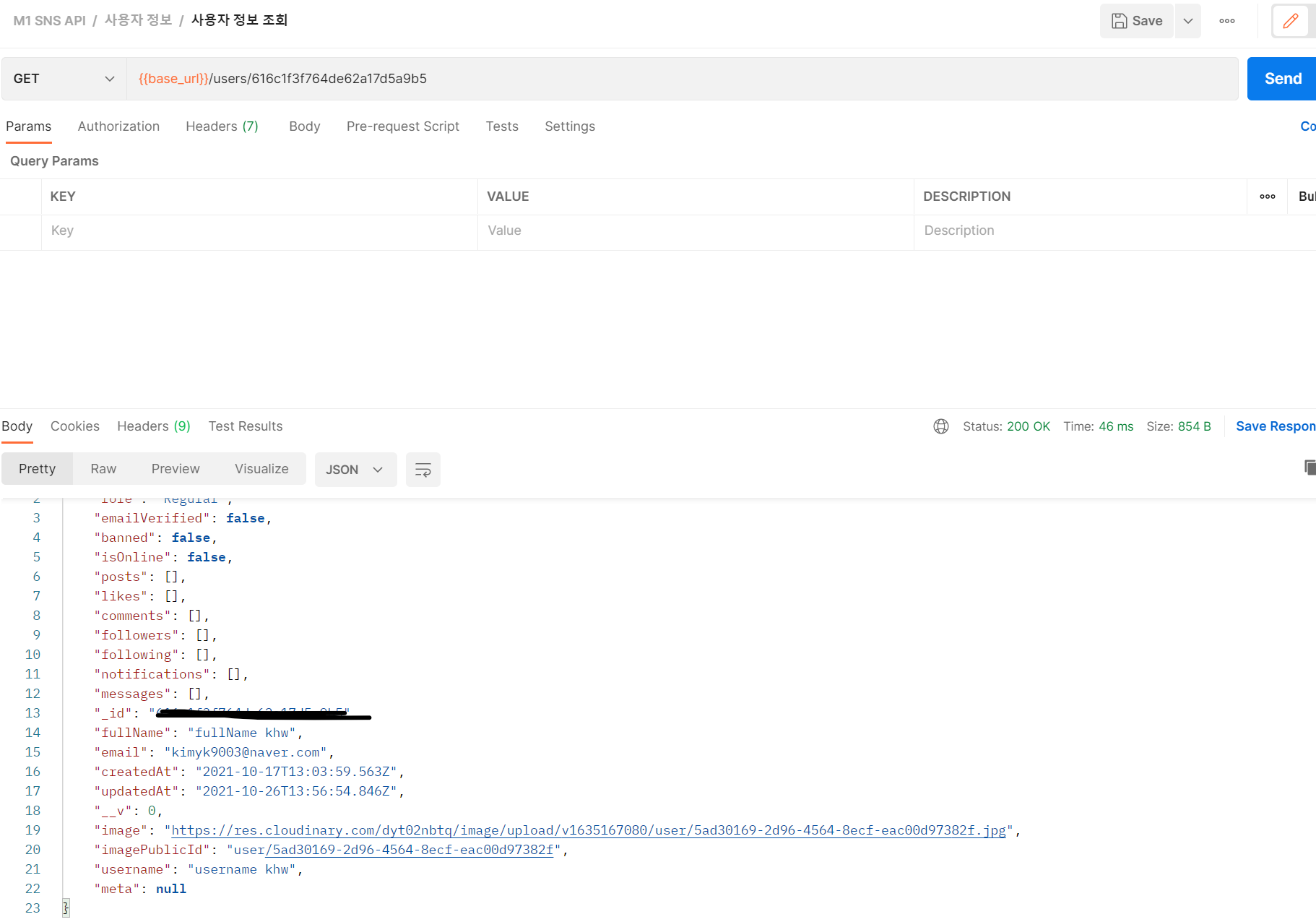
다시 해당 부분을 살펴보면 fullName과 username이 바뀐 것을 알 수 있고
비밀번호 또한 확인해보면 바뀐 처리가 된다.
정리
axios에서 headers와 body를 이용하기 위해서는
axios.CRUD(url , { body내용 } , { headers : { headers 내용 } } )형태로 저장을 처리하면 된다.
Ant-Design 사용하기
나의 시도한 코드
import React from 'react'
import ReactDOM from 'react-dom'
import 'antd/dist/antd.css'
import './index.css'
import {
  DownOutlined,
  FrownOutlined,
  SmileOutlined,
  MehOutlined,
  FrownFilled,
} from '@ant-design/icons'
import { Form, Input, Button, Tree } from 'antd'
import { UserOutlined, LockOutlined } from '@ant-design/icons'
import AntButton from '@components/AntDesign/AntButton'

const onChangeFullName = (e) => {
  // const get = JSON.parse(localStorage.getItem('MyInformation'))
  // let add = e.nativeEvent.data
  // console.log(get)
  // if (!get) {
  //   add = get.fullName + e.nativeEvent.data
  // }
  // localStorage.setItem(
  //   'MyInformation',
  //   JSON.stringify({
  //     ...get,
  //     fullName: add,
  //   }),
  // )
  // console.log(e.nativeEvent.data)
}
const onChangeUserName = (e) => {
  const get = JSON.parse(localStorage.getItem('MyInformation'))
  let add = e.nativeEvent.data
  // if (get.userName) add = get.userName + e.nativeEvent.data
  // localStorage.setItem(
  //   'MyInformation',
  //   JSON.stringify({
  //     ...get,
  //     userName: add,
  //   }),
  // )
  // console.log(e.nativeEvent.data)
}
const onChangeFirstCheckPw = (e) => {
  const get = JSON.parse(localStorage.getItem('MyInformation'))
  let add = e.nativeEvent.data
  // if (get.FirstCheckPw) add = get.FirstCheckPw + e.nativeEvent.data
  // localStorage.setItem(
  //   'MyInformation',
  //   JSON.stringify({
  //     ...get,
  //     FirstCheckPw: add,
  //   }),
  // )
  // console.log(e.nativeEvent.data)
}
const onChangeSecondCheckPw = (e) => {
  const get = JSON.parse(localStorage.getItem('MyInformation'))
  let add = e.nativeEvent.data
  // if (get.SecondCheckPw) add = get.SecondCheckPw + e.nativeEvent.data
  // localStorage.setItem(
  //   'MyInformation',
  //   JSON.stringify({
  //     ...get,
  //     SecondCheckPw: add,
  //   }),
  // )
  // console.log(e.nativeEvent.data)
}
const changeInformation = (e) => {}

const treeData = [
  {
    title: 'fullName 변경',
    key: '0-0',
    icon: <SmileOutlined />,
    children: [
      {
        title: (
          <Form
            name="normal_login"
            className="MyInformation-form"
            initialValues={{
              remember: true,
            }}
          >
            <Form.Item
              name="password"
              rules={[
                {
                  required: true,
                  message: 'Please input your Password!',
                },
              ]}
            >
              <Input
                prefix={
                  <UserOutlined className="MyInformation-form-item-icon" />
                }
                type="String"
                placeholder="새로운 fullName"
                onChange={onChangeFullName}
              />
            </Form.Item>
          </Form>
        ),
        key: '0-0-0',
      },
    ],
  },
  {
    title: 'userName 변경',
    key: '0-1',
    icon: <SmileOutlined />,
    children: [
      {
        title: (
          <Form
            name="normal_login"
            className="MyInformation-form"
            initialValues={{
              remember: true,
            }}
          >
            <Form.Item
              name="password"
              rules={[
                {
                  required: true,
                  message: 'Please input your Password!',
                },
              ]}
            >
              <Input
                prefix={
                  <UserOutlined className="MyInformation-form-item-icon" />
                }
                type="String"
                placeholder="새로운 userName"
                onChange={onChangeUserName}
              />
            </Form.Item>
          </Form>
        ),
        key: '0-1-0',
      },
    ],
  },
  {
    title: '비밀번호 변경',
    key: '0-2',
    icon: <SmileOutlined />,
    children: [
      {
        title: (
          <Form
            name="normal_login"
            className="MyInformation-form"
            initialValues={{
              remember: true,
            }}
          >
            <Form.Item
              name="password"
              rules={[
                {
                  required: true,
                  message: 'Please input your Password!',
                },
              ]}
            >
              <Input
                prefix={
                  <LockOutlined className="MyInformation-form-item-icon" />
                }
                type="password"
                placeholder="새로운 Password"
                onChange={onChangeFirstCheckPw}
              />
              <br />
              <Input
                prefix={
                  <LockOutlined className="MyInformation-form-item-icon" />
                }
                type="password"
                placeholder="새로운 Password 다시입력"
                onChange={onChangeSecondCheckPw}
              />
            </Form.Item>
          </Form>
        ),
        key: '0-2-0',
      },
    ],
  },
]

const MyInformation = () => {
  return (
    <>
      <Tree
        showIcon
        defaultExpandedKeys={['0-0-0']}
        defaultSelectedKeys={['0-0-0']}
        switcherIcon={<DownOutlined />}
        treeData={treeData}
      />
      <AntButton
        text="제출하기"
        type="primary"
        size="default"
        onClick={changeInformation}
      />
    </>
  )
}

export default MyInformation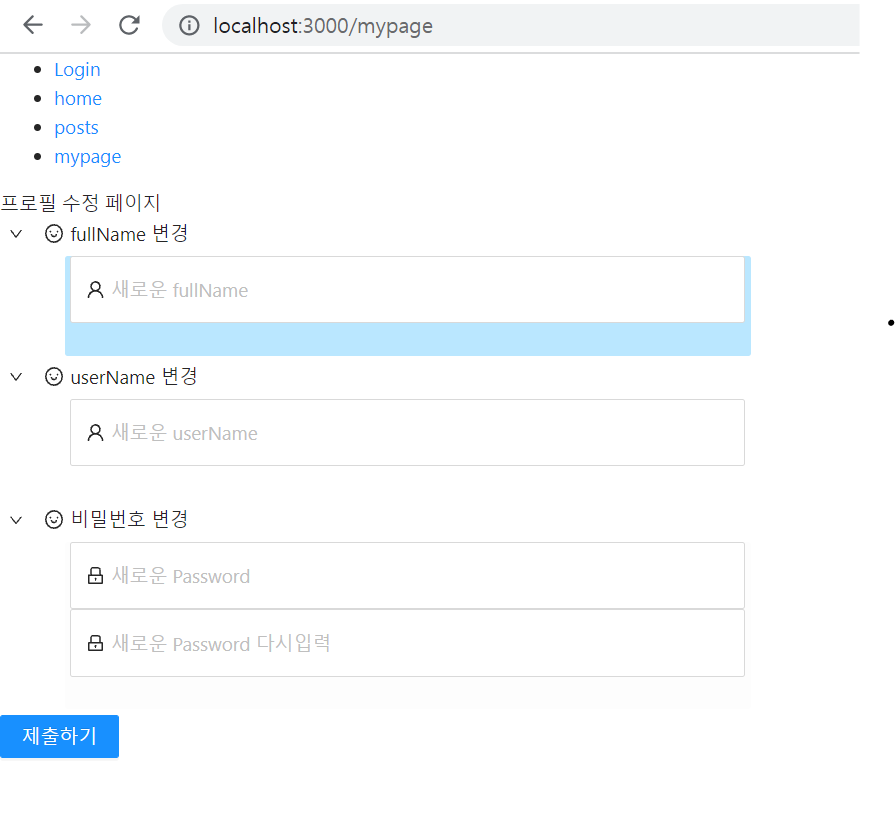
해당 부분 처럼 form이 안에 있고 버튼을 통해 숨기고 늘리는 기능을 처리할 수 있다.
문제점
input의 내용을 저장과 이벤트 등록에서 매우 힘들었고
어떻게 적용 할지 몰랐어서 세션스토리지까지 하면서 개고생(?)을 시도했다.
멘토님의 해결책
import React, { useState, useMemo } from 'react'
import ReactDOM from 'react-dom'
import 'antd/dist/antd.css'
import {
  DownOutlined,
  FrownOutlined,
  SmileOutlined,
  MehOutlined,
  FrownFilled,
} from '@ant-design/icons'
import { Form, Input, Button, Tree } from 'antd'
import { UserOutlined, LockOutlined } from '@ant-design/icons'
import AntButton from '@components/AntDesign/AntButton'

const MyInformation = () => {

  const [data, setData] = useState({
    fullName: '',
    userName: '',
    FirstCheckPw: '',
    SecondCheckPw: '',
  })

  const changeInformation = (e) => {
    e.stopPropagation()
    alert(JSON.stringify(data))
  }

  const treeData = useMemo(() => [
    {
      title: 'fullName 변경',
      key: '0-0',
      icon: <SmileOutlined />,
      children: [
        {
          title: (
            <Form
              name="normal_login"
              className="MyInformation-form"
              initialValues={{
                remember: true,
              }}
            >
              <Form.Item
                name="password"
                rules={[
                  {
                    required: true,
                    message: 'Please input your Password!',
                  },
                ]}
              >
                <Input
                  prefix={
                    <UserOutlined className="MyInformation-form-item-icon" />
                  }
                  type="String"
                  placeholder="새로운 fullName"
                  onChange={(e) => setData((oldData) => ({ ...oldData, fullName: e.target.value }))}
                />
              </Form.Item>
            </Form>
          ),
          key: '0-0-0',
        },
      ],
    },
    {
      title: 'userName 변경',
      key: '0-1',
      icon: <SmileOutlined />,
      children: [
        {
          title: (
            <Form
              name="normal_login"
              className="MyInformation-form"
              initialValues={{
                remember: true,
              }}
            >
              <Form.Item
                name="password"
                rules={[
                  {
                    required: true,
                    message: 'Please input your Password!',
                  },
                ]}
              >
                <Input
                  prefix={
                    <UserOutlined className="MyInformation-form-item-icon" />
                  }
                  type="String"
                  placeholder="새로운 userName"
                  onChange={(e) => setData((oldData) => ({ ...oldData, userName: e.target.value }))}
                />
              </Form.Item>
            </Form>
          ),
          key: '0-1-0',
        },
      ],
    },
    {
      title: '비밀번호 변경',
      key: '0-2',
      icon: <SmileOutlined />,
      children: [
        {
          title: (
            <Form
              name="normal_login"
              className="MyInformation-form"
              initialValues={{
                remember: true,
              }}
            >
              <Form.Item
                name="password"
                rules={[
                  {
                    required: true,
                    message: 'Please input your Password!',
                  },
                ]}
              >
                <Input
                  prefix={
                    <LockOutlined className="MyInformation-form-item-icon" />
                  }
                  type="password"
                  placeholder="새로운 Password"
                  onChange={(e) => setData((oldData) => ({ ...oldData, FirstCheckPw: e.target.value }))}
                />
                <br />
                <Input
                  prefix={
                    <LockOutlined className="MyInformation-form-item-icon" />
                  }
                  type="password"
                  placeholder="새로운 Password 다시입력"
                  onChange={(e) => setData((oldData) => ({ ...oldData, SecondCheckPw: e.target.value }))}
                />
              </Form.Item>
            </Form>
          ),
          key: '0-2-0',
        },
      ],
    },
  ], [])

  return (
    <>
      <Tree
        showIcon
        defaultExpandedKeys={['0-0-0']}
        defaultSelectedKeys={['0-0-0']}
        switcherIcon={<DownOutlined />}
        treeData={treeData}
      />
      <AntButton
        text="제출하기"
        type="primary"
        size="default"
        onClick={changeInformation}
      />
    </>
  )
}

export default MyInformation
useMemo와 useState를 이용하였다.
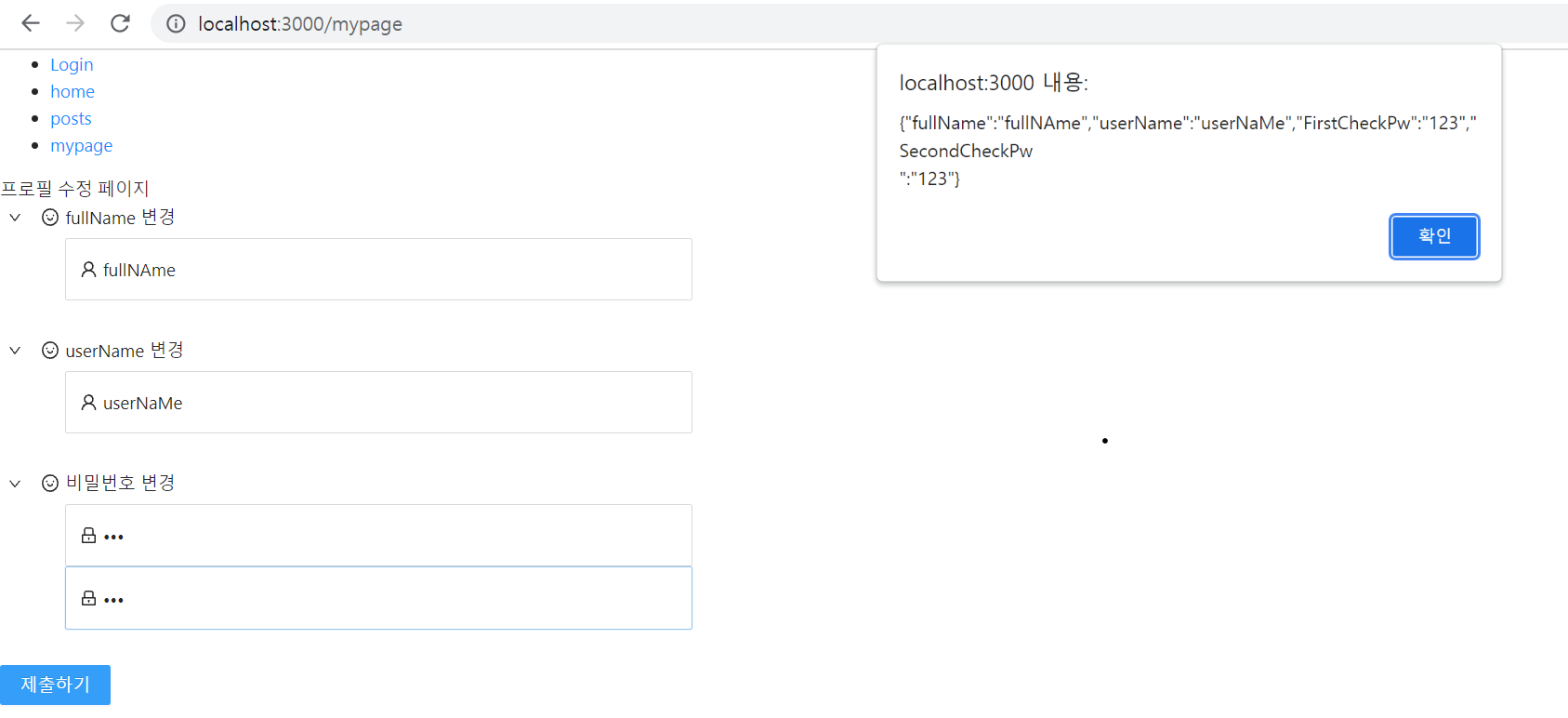
이를 통해 관련된 것들을 제출하는 순간 모아서 alert에 처리되는 것을 볼 수 있다.
해야할 일
useMemo와 useState 사용하는법 이해하기