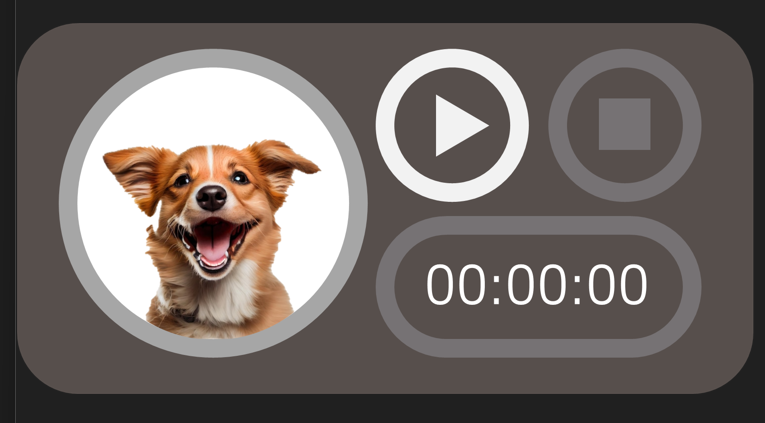
React Native로만 위젯을 구현할 수 있을거라고 생각했었다,, 불가능에 가깝단걸 깨달았고, 이제부터 할 건 안드로이드 전반적인 지식과 Java를 활용한 위젯이다.
흐름도
- React Native에서 타이머 시작 / 정지 / 재설정 등의 액션을 받으면 해당 액션과 함께 현재 시간 정보를 Native Module을 통해 Android코드로 전달한다.
- Android 코드에선 이 정보를 ‘Data Store’에 저장한다.
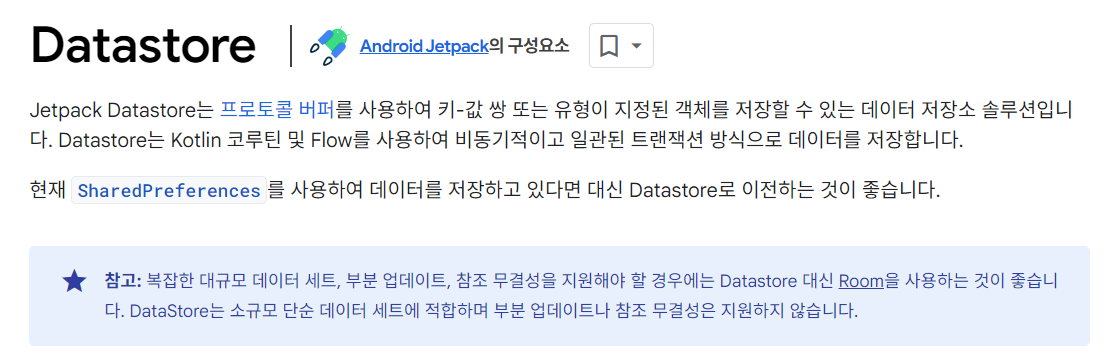
- Android에서 제공하는 Store를 사용해 앱과 위젯 간의 공유 데이터를 저장하고 관리할 수 있다.
- 1 ~ 2년전엔 SharedPreferences를 사용했다. 현재는 더 개선된 DataStore를 사용한다. 공식문서에서도 DataStore 사용을 권장한다.
- 하지만, 구현 난이도가 SharedPreferences가 쉬우며 간단한 데이터 관리기에 SharedPreferences를 이번엔 채택했다.
- 위젯은 주기적으로 Data Store의 정보를 체크해 해당 정보에 따라 UI를 업데이트한다.
- 위젯에서도 타이머를 시작 / 정지 / 재설정 등 액션이 가능하므로, 이러한 정보들도 Data Store의 정보를 업데이트한다.
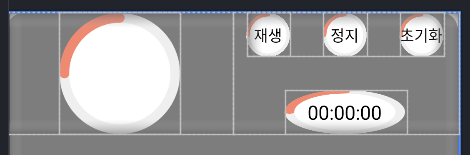
XML 레이아웃을 작성하자.
<LinearLayout xmlns:android="http://schemas.android.com/apk/res/android"
    android:layout_width="match_parent"
    android:layout_height="match_parent"
    android:background="@drawable/background_idog_widget"
    android:visibility="visible"
    android:orientation="horizontal">

    <LinearLayout
        android:layout_width="0dp"
        android:layout_height="wrap_content"
        android:layout_weight="1"
        android:gravity="center"
        android:orientation="vertical">

        <ImageView
            android:id="@+id/profile"
            android:layout_width="110dp"
            android:layout_height="110dp"
            android:src="@drawable/timer" />

    </LinearLayout>

    <LinearLayout
        android:layout_width="0dp"
        android:layout_height="wrap_content"
        android:layout_weight="1"
        android:gravity="center"
        android:orientation="vertical">

        <LinearLayout
            android:layout_width="wrap_content"
            android:layout_height="wrap_content"
            android:orientation="horizontal"
            android:gravity="center">

            <Button
                android:id="@+id/playButton"
                android:layout_width="40dp"
                android:layout_height="40dp"
                android:background="@drawable/timer"
                android:text="재생" />

            <Button
                android:id="@+id/stopButton"
                android:layout_width="40dp"
                android:layout_height="40dp"
                android:layout_marginLeft="30dp"
                android:background="@drawable/timer"
                android:text="정지" />

            <Button
                android:id="@+id/resetButton"
                android:layout_width="40dp"
                android:layout_height="40dp"
                android:layout_marginLeft="30dp"
                android:background="@drawable/timer"
                android:text="초기화" />
        </LinearLayout>

        <TextView
            android:id="@+id/timer"
            android:layout_width="110dp"
            android:layout_height="40dp"
            android:layout_marginTop="30dp"
            android:background="@drawable/timer"
            android:text="00:00:00"
            android:gravity="center"
            android:textSize="18sp" />
    </LinearLayout>
</LinearLayout>
좀 심각하게 못생겼지만,, 일단 기능구현과 연결을 한 뒤 디자인을 다시하자.
위젯 기능을 만들어보자.
난 아는게 하나도 없는데 새로운 정보가 너무 많다. 간단하게 정리하고 시작하자.
intent, remoteViews, pendingIntent, Context
Intent
- Android에서 컴포넌트 간의 통신을 위해 사용되는 메시징 객체이다.주로 다른 액티비티, 서비스를 시작하거나 데이터를 전달할때 사용된다.
- 예를 들어 React의 라우팅처럼 앱 내에서 다른 화면으로 이동하고 싶을 때 Intent를 사용한다.
PendingIntent
- 현재 앱 외부에서 나중에 수행될 수 있는 Intent의 토큰이다.
- 예를 들어 사용자가 알림을 탭하면, 특정 액티비티를 열도록 할 때 사용한다.
RemoteViews
- RemoteViews는 다른 프로세스(알림 또는 위젯)에서 UI업데이트를 수행하기 위한 뷰이다.
- 앱 위젯에 텍스트를 업데이트 하려면 RemoteViews를 사용한다.
Context
- 앱의 현재 상태에 대한 전역 정보를 나타내는 인터페이스이다.
- 앱의 리소스, 데이터베이스, 환경설정 파일 등과 같은 애플리케이션에 대한 정보에 액세스하려면 Context가 필요하다.
- Spring의 ApplicationContext를 생각하면 쉬울 것 같다. 다양한 정보에 액세스하는데 사용된다.
버튼 클릭을 인지시키자.
애플리케이션 기본 항목 | Android 개발자 | Android Developers
StopWatch.java
static void updateAppWidget(Context context, AppWidgetManager appWidgetManager, int appWidgetId) {
        RemoteViews views = new RemoteViews(context.getPackageName(), R.layout.stop_watch);

        Intent playIntent = new Intent(context, StopWatch.class);
        playIntent.setAction("PLAY_ACTION");
        PendingIntent playPendingIntent = PendingIntent.getBroadcast(context, 0, playIntent, PendingIntent.FLAG_UPDATE_CURRENT | PendingIntent.FLAG_IMMUTABLE);

        views.setOnClickPendingIntent(R.id.playButton, playPendingIntent);

        Intent stopIntent = new Intent(context, StopWatch.class);
        stopIntent.setAction("STOP_ACTION");
        PendingIntent stopPendingIntent = PendingIntent.getBroadcast(context, 0, stopIntent, PendingIntent.FLAG_UPDATE_CURRENT | PendingIntent.FLAG_IMMUTABLE);
        views.setOnClickPendingIntent(R.id.stopButton, stopPendingIntent);

        appWidgetManager.updateAppWidget(appWidgetId, views);
    }
곧 추가되겠지만 play, stop 버튼 두개를 만들고, intent로 보관한다.
또한 사용자가 버튼을 탭할시 발생하는 이벤트를 인지시키기 위해 PendingIntent를 만들었다.
@Override
    public void onReceive(Context context, Intent intent) {
        super.onReceive(context, intent);
        Log.d("StopWatch", "Received intent: " + intent.getAction());
        if ("PLAY_ACTION".equals(intent.getAction())) {
            Log.d("PLAY_ACTION", "PLAY ACTION CLICK");
        } else if ("STOP_ACTION".equals(intent.getAction())) {
            Log.d("STOP_ACTION", "STOP ACTION CLICK");
        }
    }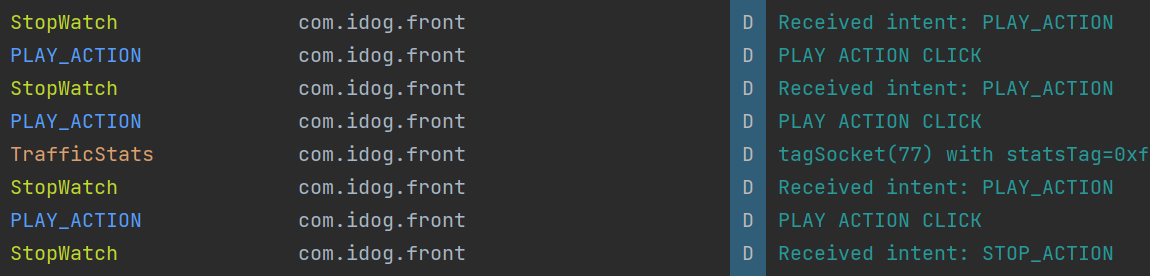
log를 찍어보며, 버튼을 클릭할 시 정상적으로 출력되는걸 확인했다.
작동 연습
static void updateAppWidget(Context context, AppWidgetManager appWidgetManager, int appWidgetId) {
        SharedPreferences prefs = context.getSharedPreferences("MyWidget", Context.MODE_PRIVATE);
        int number = prefs.getInt("number_" + appWidgetId, 0);

        RemoteViews views = new RemoteViews(context.getPackageName(), R.layout.stop_watch);
        views.setTextViewText(R.id.timer, String.valueOf(number));

        Intent playIntent = new Intent(context, StopWatch.class);
        playIntent.setAction("PLAY_ACTION");
        playIntent.putExtra(AppWidgetManager.EXTRA_APPWIDGET_ID, appWidgetId);
        PendingIntent playPendingIntent = PendingIntent.getBroadcast(context, 1, playIntent, PendingIntent.FLAG_UPDATE_CURRENT | PendingIntent.FLAG_IMMUTABLE);
        views.setOnClickPendingIntent(R.id.playButton, playPendingIntent);

        Intent stopIntent = new Intent(context, StopWatch.class);
        stopIntent.setAction("STOP_ACTION");
        stopIntent.putExtra(AppWidgetManager.EXTRA_APPWIDGET_ID, appWidgetId);
        PendingIntent stopPendingIntent = PendingIntent.getBroadcast(context, 2, stopIntent, PendingIntent.FLAG_UPDATE_CURRENT | PendingIntent.FLAG_IMMUTABLE);
        views.setOnClickPendingIntent(R.id.stopButton, stopPendingIntent);

        Intent resetIntent = new Intent(context, StopWatch.class);
        resetIntent.setAction("RESET_ACTION");
        resetIntent.putExtra(AppWidgetManager.EXTRA_APPWIDGET_ID, appWidgetId);
        PendingIntent resetPendingIntent = PendingIntent.getBroadcast(context, 3, resetIntent, PendingIntent.FLAG_UPDATE_CURRENT | PendingIntent.FLAG_IMMUTABLE);
        views.setOnClickPendingIntent(R.id.resetButton, resetPendingIntent);

        appWidgetManager.updateAppWidget(appWidgetId, views);
    }
@Override
public void onReceive(Context context, Intent intent) {
super.onReceive(context, intent);
Log.d("StopWatch", "Received intent: " + intent.getAction());
int appWidgetId = intent.getIntExtra(AppWidgetManager.EXTRA_APPWIDGET_ID, AppWidgetManager.INVALID_APPWIDGET_ID);
SharedPreferences prefs = context.getSharedPreferences("MyWidget", Context.MODE_PRIVATE);
if ("PLAY_ACTION".equals(intent.getAction())) {
Log.d("WATCH_PLAY_ACTION", "WATCH_PLAY ACTION CLICK");
int number = prefs.getInt("number_" + appWidgetId, 0);
prefs.edit().putInt("number_" + appWidgetId, number + 1).apply();
updateAppWidget(context, AppWidgetManager.getInstance(context), appWidgetId);
} else if ("STOP_ACTION".equals(intent.getAction())) {
Log.d("WATCH_STOP_ACTION", "WATCH_STOP ACTION CLICK");
int number = prefs.getInt("number_" + appWidgetId, 0);
prefs.edit().putInt("number_" + appWidgetId, number + 10).apply();
updateAppWidget(context, AppWidgetManager.getInstance(context), appWidgetId);
} else if ("RESET_ACTION".equals(intent.getAction())) {
Log.d("WATCH_RESET_ACTION", "WATCH_RESET_ACTION CLICK");
prefs.edit().putInt("number_" + appWidgetId, 0).apply();
updateAppWidget(context, AppWidgetManager.getInstance(context), appWidgetId);
} else if (TimerService.ACTION_UPDATE.equals(intent.getAction())) {
Log.d("WATCH_WHAT_ACTION", "WATCH_WHAT ACTION CLICK");
}
}- SharedPreferences를 사용했다. Data store사용하려고 했는데, 공부량이 생각보다 많기도 했고 간단한 저장소이기 때문에 SharedPreferences를 사용했다.
- 간단한 데이터를 저장하고 읽어올 수 있는 역할이다.
- 일단 play → +1, stop → +10, reset → reset으로 테스트해봤다.
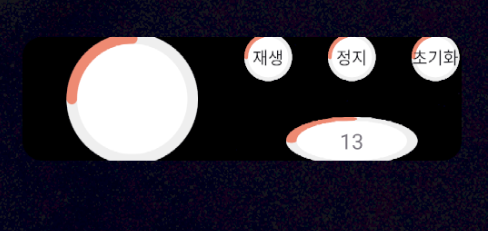
잘 돌아간다.

새로운 자극을 주세요.