이메일은 왜 달라?
이메일 클라이언트는 웹 브라우저보다 훨씬 다양한 종류가 있으며, 각각 다른 기능과 제한 사항을 가지고 있습니다. 일부 이메일 클라이언트는 웹 표준을 잘 준수하고 모든 기능을 지원할 수 있지만,
다른 클라이언트는 웹 표준을 완전히 준수하지 않거나 일부 기능을 지원하지 않을 수 있습니다.
또한, 이메일은 다양한 플랫폼과 장치에서 표시되어야 하므로, 모바일 기기에서의 표시, 다양한 이메일 클라이언트의 호환성 등을 고려해야 합니다.
이러한 이유로 이메일 HTML은 웹 표준보다는 이메일 클라이언트의 규칙과 제한 사항을 따라야 합니다.
이에 다양한 브라우저에서 공통적으로 사용할 수 있는 이메일 템플릿 필요성을 느껴 이 글을 작성하게 되었습니다.
최대한 다양한 브라우저에서 사용할 수 있도록 보수적이며 방어적인 태그와 스타일의 사용 방법과 이메일 템플릿의 이해를 목표로 하여 작성되었습니다. 추가로 발견되는 이슈는 지속적으로 수정, 보완해 나갈 계획입니다.
eDM?
"electronic Direct Mail"의 약어로, 전자적인 방식으로 직접 메일을 발송하는 것을 의미합니다. eDM은 일반적으로 마케팅 목적으로 사용되며, 이메일을 통해 대상 고객 또는 수신자에게 정보, 광고, 프로모션 등을 전달하는 데 사용됩니다.
1. 어떤 태그를 사용해야할까?
이메일 템플릿을 작성시 권장드리는 태그는 table, tr, td, img, a 태그 입니다.
TIP!
프로젝트가 클라우드 환경에서 진행된다면 이메일 템플릿은 로컬환경에서 작업 후 클라우드로 옮기는 것을 추천드립니다.
클라우드 내부에서 테스트 할 수 있는 환경은 제한적이며 도움이 될 수 있는 온라인 도구들을 사용하지 못할 경우가 생길 수 있기 때문입니다.
table
- 몇몇의 이메일 클라이언트는 div 태그를 인식하지 못합니다. 따라서 div의 역할을 table로 대신하여 사용하는 것을 권장드립니다.
- 스타일 리셋을 위해 border="0" cellpadding="0" cellspacing="0" border-collapse: collapse; 의 속성을 사용합니다.
- 아래에서 자세히 설명하겠지만 화면을 구성할 때 table 태그를 중첩하여 사용하는 빈도가 높고, 이 방식으로 많은 이슈가 해결되었었습니다.
tr
- 행(row)을 나타내는 태그로 td를 감싸주는 역할을 하기 때문에 스타일 속성을 넣어줄 일이 거의 없습니다.
td
- 실질적인 내용과 스타일이 들어가는 태그로, 필요시 td 태그 안에 table을 중첩하여 사용합니다.
## 사용예시
<body>
  <table width="100%" border="0" cellpadding="0" cellspacing="0"
         border-collapse: collapse; style="font-family: '원하는 폰트'">
    <tr>
      <td>
            ...
      </td>
      ## 중첩해서 사용할 경우
      <td>
            <table border="0" cellpadding="0" cellspacing="0"
                   border-collapse: collapse; style="font-family: '원하는 폰트'">
              ...
        </table>
      </td>
    </tr>
  </table>
<body/>
- 실질적인 내용과 스타일이 들어가는 태그로, 필요시 td 태그 안에 table을 중첩하여 사용합니다.
tbody, thead, th 등 다른 테이블 태그를 사용하지 않는 이유?
첫째, 호환성 문제
일부 이메일 클라이언트 및 웹메일 서비스는 태그를 제대로 지원하지 않을 수 있어 예기치 않은 렌더링 문제가 발생할수 있기 때문입니다.
둘째, 불필요한 복잡성
메일 템플릿은 주로 단순하고 직관적인 구조로 이루어져야 하며, 대부분 테이블의 복잡한 기능이 필요하지 않기 때문입니다.
셋째, 대체 방법의 사용
그 대신 CSS 스타일을 사용하여 테이블의 머리글 영역을 지정할 수 있습니다. 이렇게 하면 호환성 문제를 피하면서도 테이블의 머리글을 명확하게 표시할 수 있습니다.
넷째, 단순화된 구조
이메일은 다양한 이메일 클라이언트 및 웹메일 서비스에서 일관된 방식으로 렌더링되어야 합니다.
이를 위해 가능한 한 HTML과 CSS를 단순하고 예측 가능한 구조로 유지하는 것이 중요합니다.
img
- 파일 형식은 jpg, png를 권장 드립니다. .svg 형식은 지원하지 않는 클라이언트가 있습니다.
- 파일 이름은 의미있는 이름을 사용하는 것이 좋습니다. 일부 클라이언트는 스팸으로 의심할 수 있습니다. ex) 1241faef23dd4324234fsdfji.jpg -> cup.jpg
- display: block; 속성을 꼭 넣어줘야합니다. 몇몇의 이메일 클라이언트에서 여백이 생기는 것을 방지할 수 있습니다.
- img에 alt가 빈 값일 경우 이미지가 나오지 않을 때 내가 지정하지 않은 border 생길 수 있습니다.
- 일부 클라이언트는 이미지 태그의 인라인 스타일로 들어가는 width, height의 속성을 지원하지 않을 수 있습니다. 따라서 img 태그의 HTML속성인 width와 height을 사용하여 크기를 지정해주어야 합니다. 이 중 height의 값은 auto로 설정해주면 width 기준으로 이미지의 비율에 맞게 크기가 설정됩니다. 단, 혹시 모를 상황을 대비하여 인라인 스타일에도 width와 height를 지정해주시길 권장드립니다. (인라인 스타일의 width와 height값에는 단위를 붙여야합니다.)
- 아웃룩의 일부 버전은 background-image 속성을 지원하지 않으므로 img 태그 사용을 권장드립니다.
- 이미지를 서버에 저장해서 불러올 경우 실제로 화면에서 보여지는 크기의 이미지를 저장하는 것이 안전합니다.
- 이미지 파일의 용량은 가능하다면 작은 용량의 이미지를 사용하길 권장드립니다.
a
- 링크 및 버튼이 필요할 때 사용합니다.
2. 스타일을 적용해보자
-
이메일 템플릿의 가로 너비 상한선은 800px이며, 600px로 작업한다면 다양한 해상도의 이메일 클라이언트에 최적화 되어 보여집니다.
-
레이아웃을 구성할 때에는 화면 전체를 하나의 표라고 생각하고 작업하면 조금 더 수월하실 것 같습니다.
-
이메일 클라이언트 중 일부는
<style>을 지원하지 않습니다. 따라서 각 태그마다 HTML속성 또는 인라인 스타일을 사용하는 것을 권장드립니다. 이미<style>을 사용하여 작업했다면 인라인 스타일 변환기를 사용해보세요.
(단, 하나의 태그에 2개 이상의 클래스가 적용되어 있다면 인라인 스타일 변환기가 올바르게 작동하지 않을 수 있습니다.) -
모든 이메일 클라이언트가 CSS 표준을 완전히 지원하지 않기 때문에 단축 속성은 사용하지않습니다.
ex) background (X) => background-color (O) / padding (X) => padding- top, padding-right, padding-bottom, padding-left (O) 등 -
HTML 속성으로 사용하는 width와 height는 단위를 표시하지 않습니다. px의 단위를 표기하게 되면 아웃룩에서 정상적으로 작동하지 않는 문제가 있었습니다.
-
폰트
- 부모의 폰트 스타일을 상속 받지 못할 경우 필요한 태그마다 font-family 속성을 넣어줍니다.
td를 사용해서 여백을 만들 때, 높이에 영향을 끼칠 수 있으므로 line-height 값도 초기화 시켜야 합니다.
- 부모의 폰트 스타일을 상속 받지 못할 경우 필요한 태그마다 font-family 속성을 넣어줍니다.
-
색상
- RGB, RGBA가 아닌 HEX 코드를 사용해야합니다. HEX 코드 표기법은 3자리 단축 표기법이 아닌 6자리로 명시해주는 것이 좋습니다.
- 인라인 스타일을 정의할 때 background 같은 단축 속성의 선언을 피하고 background-color의 속성을 선언해줍니다.
- 이메일 클라이언트의 따라 인라인 스타일의 background-color를 지원하지 않는 경우도 있고 HTML bgcolor 속성을 지원하지 않는 경우도 있기 때문에 두 속성을 모두 선언해줍니다.
-
여백
-
margin 속성은 다수의 이메일 클라이언트에서 적용되지 않습니다. 따라서
td의 태그로 너비값과 높이값을 지정하여1)아무것도 들어있지 않은 td를
만들고 여백처럼 사용하거나2) td값에 padding의 속성을 각각넣어줍니다.1) 아무것도 들어있지 않은 td을 만들고 여백처럼 사용 - 권장
<td width="50" height="30" style="line-height:0; font-size:0"> <table border="0" cellpadding="0" cellspacing="0" border-collapse: collapse;> <td width="50" height="30" style="line-height:0; font-size:0"> </td> </table> </td>2) td값에 padding의 속성을 각각 넣어주기
<td width="50" height="30" style="line-height:0; font-size:0; padding-top: 10px; padding-right: 20px; padding-bottom: 10px; padding-left: 20px;"> </td>
-
-
자주 사용하는 HTML 스타일 속성
- table, td
width,height,align,valign(vertical-align),bgcolor(background-color),cellpadding,cellspacing,border - img
width,height
- table, td
3. 메일 템플릿 예시
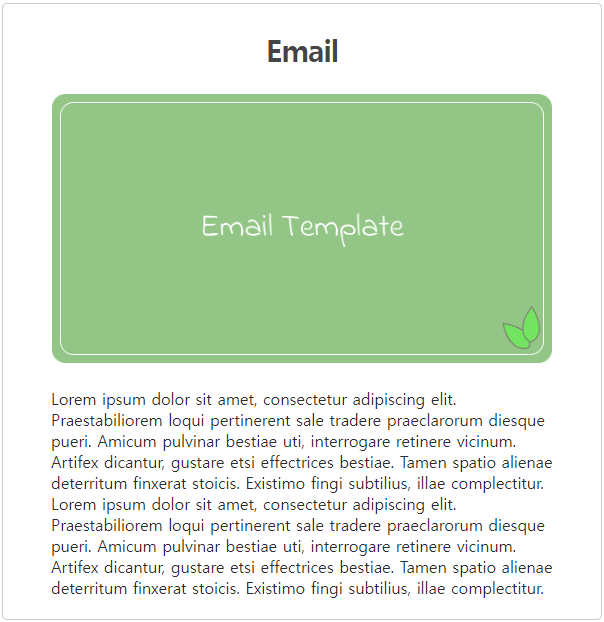
- 코드
<!DOCTYPE html> <html lang="ko"> <head> <meta http-equiv="Content-Type" content="text/html; charset=UTF-8" /> <meta name="viewport" content="width=device-width, initial-scale=1.0" /> <link rel="stylesheet" href="https://cdn.jsdelivr.net/npm/@fontsource/roboto@4.5.8/index.m=in.css" /> <title>Email</title> </head> <body style="margin: 0; padding: 0;"> <table width="100%" style="font-family: 'Pretendard', 'Malgun Gothic', 'Noto Sans KR', sans-serif; " > <!-- 메일 템플릿 외부 상단 여백 --> <tr> <td> <table cellpadding="0" cellspacing="0" border="0"> <tr> <td height="50"> </td> </tr> </table> </td> </tr> <!-- 메일 템플릿 --> <tr> <td> <table align="center" width="600" style="overflow: hidden; color: #2c2c2c" border="0" cellpadding="0" cellspacing="0" > <tr> <td> <table width="100%" cellpadding="0" cellspacing="0" border="0" style="border: 1px solid #ccc; border-radius:5px;"> <!-- 메일 템플릿 내부 상단 여백 --> <tr> <td width="48" height="20"> <table cellpadding="0" cellspacing="0" border="0"> <tr> <td width="48" height="20"> </td> </tr> </table> </td> <td> <table width="100%" cellpadding="0" cellspacing="0" border="0"> <tr> <td width="100%" height="20"> </td> </tr> </table> </td> <td> <table cellpadding="0" cellspacing="0" border="0"> <tr> <td width="48" height="20"> </td> </tr> </table> </td> </tr> <!-- 타이틀 --> <tr> <td width="48" height="48"> <table cellpadding="0" cellspacing="0" border="0"> <tr> <td width="48" height="48"> </td> </tr> </table> </td> <td align="center" height="48" style=" line-height: 48px; letter-spacing: -0.03em; font-family: 'Pretendard', 'Malgun Gothic', 'Noto Sans KR', sans-serif; font-size: 30px; font-weight: 600; color: #444444; " > Email </td> <td width="48" height="48"> <table cellpadding="0" cellspacing="0" border="0"> <tr> <td width="48" height="48"> </td> </tr> </table> </td> </tr> <!-- 타이틀 하단 여백 --> <tr> <td width="48" height="20"> <table cellpadding="0" cellspacing="0" border="0"> <tr> <td width="48" height="20"> </td> </tr> </table> </td> <td> <table width="100%" cellpadding="0" cellspacing="0" border="0"> <tr> <td width="100%" height="20"> </td> </tr> </table> </td> <td> <table cellpadding="0" cellspacing="0" border="0"> <tr> <td width="48" height="20"> </td> </tr> </table> </td> </tr> <!-- 이미지 --> <tr> <td width="48" height="20"> <table cellpadding="0" cellspacing="0" border="0"> <tr> <td width="48" height="20"> </td> </tr> </table> </td> <td> <table width="100%" cellpadding="0" cellspacing="0" border="0"> <tr> <td width="100%" height="auto" border="0" align="center"> <img src="./card.png" alt="email template" width="500" height="auto" style="width: 500px; height: auto;"> </td> </tr> </table> </td> <td> <table cellpadding="0" cellspacing="0" border="0"> <tr> <td width="48" height="20"> </td> </tr> </table> </td> </tr> <!-- 이미지 하단 여백 --> <tr> <td width="48" height="20"> <table cellpadding="0" cellspacing="0" border="0"> <tr> <td width="48" height="20"> </td> </tr> </table> </td> <td> <table width="100%" cellpadding="0" cellspacing="0" border="0"> <tr> <td width="100%" height="20"> </td> </tr> </table> </td> <td> <table cellpadding="0" cellspacing="0" border="0"> <tr> <td width="48" height="20"> </td> </tr> </table> </td> </tr> <!-- 본문 --> <tr> <td width="48" height="48"> <table cellpadding="0" cellspacing="0" border="0"> <tr> <td width="48" height="48"> </td> </tr> </table> </td> <td> Lorem ipsum dolor sit amet, consectetur adipiscing elit. Praestabiliorem loqui pertinerent sale tradere praeclarorum diesque pueri. Amicum pulvinar bestiae uti, interrogare retinere vicinum. Artifex dicantur, gustare etsi effectrices bestiae. Tamen spatio alienae deterritum finxerat stoicis. Existimo fingi subtilius, illae complectitur. Lorem ipsum dolor sit amet, consectetur adipiscing elit. Praestabiliorem loqui pertinerent sale tradere praeclarorum diesque pueri. Amicum pulvinar bestiae uti, interrogare retinere vicinum. Artifex dicantur, gustare etsi effectrices bestiae. Tamen spatio alienae deterritum finxerat stoicis. Existimo fingi subtilius, illae complectitur. </td> <td> <table cellpadding="0" cellspacing="0" border="0"> <tr> <td width="48" height="48"> </td> </tr> </table> </td> </tr> <!-- 본문 하단 여백 --> <tr> <td width="48" height="20"> <table cellpadding="0" cellspacing="0" border="0"> <tr> <td width="48" height="20"> </td> </tr> </table> </td> <td> <table width="100%" cellpadding="0" cellspacing="0" border="0"> <tr> <td width="100%" height="20"> </td> </tr> </table> </td> <td> <table cellpadding="0" cellspacing="0" border="0"> <tr> <td width="48" height="20"> </td> </tr> </table> </td> </tr> </table> </td> </tr> </table> </td> </tr> <!-- 메일 템플릿 외부 하단 여백 --> <tr> <td> <table cellpadding="0" cellspacing="0" border="0"> <tr> <td height="50"> </td> </tr> </table> </td> </tr> </table> </body> </html>
4. 마치며
실제 작업을 해보면 느끼시겠지만 가장 이슈가 많은 것은 outlook입니다. 제한적인 코드와 스타일의 사용 대부분이 outlook에서 발생하는 이슈가 원인입니다. 가능하다면 여러가지 버전에서 테스트 하는 것을 권장드립니다.
이 글은 제 경험과 주관을 통해 작성된 글로 정답이 아닙니다.
이메일 작업 시 참고하시고 잘못된 내용이 있다면 댓글로 달아주시면 감사드리겠습니다.
도움받을 수 있는 사이트
-
이메일 템플릿에서 사용할 수 있는 스타일 속성
https://www.caniemail.com/?ref=blog.stibee.com -
HTML 축소기
(브라우저가 코드를 처리하는 방식에 영향을 주지 않고 HTML 코드에서 불필요하거나 중복되는 데이터를 제거)
https://products.eptimize.com/ko/minifier/html -
인라인 스타일 변환기
https://htmlemail.io/inline/
outlook에서 html로 메일 보내는 방법 (버전에 따라 위치는 다를 수 있습니다.)
아래와 같은 방법을 통해 outlook web, app 자체 테스트를 진행하실 수 있습니다.
1. 새 메일 클릭 -> 우 상단 ∨ 버튼 클릭 후 클래식 리본 선택
2. 중앙에 있는 추가기능 가져오기 버튼 클릭
3. 추가 기능 검색 칸에 HTMl 검색 후 Insert HTML by Designmode 항목의 추가버튼 클릭
4. 추가 검색 기능 팝업 닫은 후 추가기능 가져오기 버튼 우측 Insert HTML by Designmode 버튼 클릭
5. Get Started!버튼 클릭 후 소스 입력, Insert HTML 버튼 클릭