(필요성) 부팅 과정에 대한 이해
-
리눅스 서버가 부팅하다가 에러가 생겨서 부팅이 멈춘 경우 => 트러블 슈팅
-
부팅시에 실행되는 서비스(EX: systemd) => 서비스 관리
1. F/W 단계 - BIOS
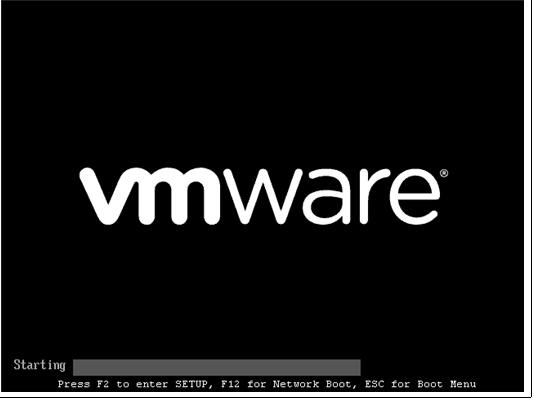
- F/W 종류: BISO, UEFI
- F/W 단계 주 내용:
- POST(Power On Self Test)
- Boot device 선택 (ex: Removable Device, Disk, Cd, Net)
- Boot Loader로딩(loading)
2. BootLoader 단계
- 리눅스는 LILO(Linux Loader)나 GRUB 사용.
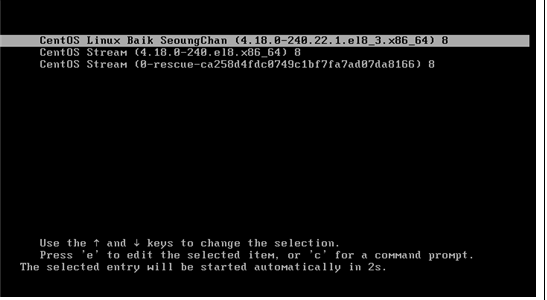
GRUB(GRand Unified Bootloader)
- grub 주 설정 파일: /boot/grub2/grub.cfg
- grub2-mkconfig CMD:
- /etc/grub.d/* --- grub2-mkconfig CMD --> /boot/grub2/grub2.cfg
- /etc/default/grub - Boot Loader 단계 주 내용:
- kernel 메모리에 로딩(/boot/vmlinuz)
- initramfs 메모리 적재(/boot/initramfs)
3. 커널 단계
kernel -> systemd(모든 프로세스의 부모 프로세스) -> 서비스 기동
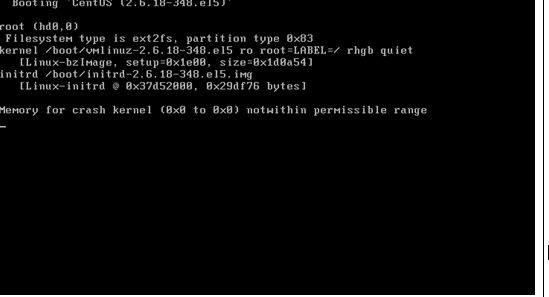
- kernel (/boot/vmlinuxz*)
- kernel 주 설정 파일: /etc/sysctl.conf, /etc/sysctl.d/*
- kernel 단계의 주 내용:
- kernel은 systemd 실행시키는 역할
4. systemd 단계
1) systemd 데몬
- CentOS 7.X 이상버전에서 systemd 체계로 전환.
- systemd 데몬은 PID 1이다. 모든 프로세스의 부모 프로세스이다.
- systemd(/etc/system/*)는 서비스 유닛 의조성 관계를 가지고 다중으로 UNIT을 실행한다.
2) 유닛(UNIT)
- 서비스 유닛(UNIT)? systemd가 관리하는 다양한 개체 유형이다.
# systemctl -t help
# systemctl -t service|socket|target
\=> UNIT.service, UNIT.socket, UNITtarget
3) systemctl CMD
-
서비스 제어
(현재) # systemctl restart|stop UNIT
(부팅) # systemctl enable|disable UNIT -
서비스 확인
(현재) # systemctl status UNIT (# systemctl is-active UNIT)
(부팅) # systemctl list-unit-files | grep UNIT (# systemctl is-enabled UNIT) -
장애처리
# systemctl --failed
# systemctl list-jobs# systemctl --failed
-> 서비스 기동(start|stop) 시켰지만 fail 상태로 되어 있는 것들 확인
# systemctl list-jobs
-> 서비스 기동된 상태 중 wait 상태로 되어 있는 것들 확인
● loaded : 유닛 구성 파일이 처리 되었다.
● active(running) : 하나 이상의 연속된 프로세스로 실행 중이다.
● active(exit) : 1회 구성을 성공적으로 완료한 경우이다.
● active(wait) : 실행 중이지만 이벤트를 기다리고 있는 경우이다.(ex: 프린터)
● inactive : 실행 중이 아닌 상태이다.
● enabled : 부팅시에 시작된다.
● disabled : 부팅할 때 시작하지 않는다.
4) 서비스의 의존성(Service Dependencies)
유닛의 의존성(Unit Dependency): A라는서비스가 기동중이어야 B(내가 실행할 거)가 기동이 되는 경우.
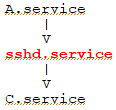
- A.service (systemctl list-dependencies sshd)
* sshd.service - c.service (systemctl list-dependensice sshd --reverse)
5) 서비스 마스크(Service mask/unmask)
- network script vs NetworkManager 시스템서비스 간 충돌
# systemctl mask network - (예전)iptables <----> (현재)firewalld
# systemctl mask iptables - (예전)sendmail <----> (현재)postfix
# systemctl mask sendmail
Created symlink /etc/systemd/system/sendmail → /dev/null.
-> enable,srart 를 막음. - (예전)ntpd <----> (현재)chronyd
# systemctl mask ntpd
6) 대상target
- 대상(target)? 원하는 상태에 도달하기 위해 실행되는 유닛(UNIT)의 집합이다.
- basic.target => multi-user.tsrget => graphical.target - 대상 확인
- who -r
- systemctl get-default - 대학 변경
- systemctl set-default multi-user.target
- systemctl isolate multi-user.target
[1. rd.break] <- (root)가 피벗되기 전상태 (/sysroot(ro))
- 상태: 피벗 되기 전 , /etc/fastab파일 읽지 않은 상태
- 용도: root 암호 변경
- 작업과정:
-> GRUB menu에서 적당한 kernel 선택 -> e -> linux라인 에서 \<end> -> rd.break -> <CTRL + X>
-> # mount -o remount,rw /sysroot
-> # chroot /sysroot
-> 장애처리(# passwd root ; touch /.autorelabel)
-> # exit; exit
[2. init=/bin/bash]
- 상태:
-> (root)가 피벗된 상태(ro)
-> /etc/fastab파일 읽지 않은 상태
-> systemd가 실행되지 않은 상태 (systemd 대신 /bin/bash실행함.)
- 용도: root 암호 변경
- 작업과정:
-> GRUB menu에서 적당한 kernel 선택 -> e -> linux라인 에서 \<end> -> init=/bin/bash -> <CTRL + X>
-> # mount -o remount,rw /
-> 장애처리(# passwd root ; touch /.autorelabel)
-> # exit
[3. systemd=emergency.target]
- 상태:
-> (root)가 피벗된 상태(ro)
-> systemd 실행된 상태 (emergenct.target)
-> 그러나 /etc/fastab파일 읽지 않은 상태
-> sulogin prompt 상태
- 용도: 일반적인 장애처리
- 작업과정:
-> GRUB menu에서 적당한 kernel 선택 -> e -> linux라인 에서 \<end> -> systemd=emergency.target -> <CTRL + X>
-> # mount -o remount,rw /
-> 장애처리(# vi /etc/fstab)
-> # exit
[4. systemd=rescue.target]
- 상태:
-> (root)가 피벗된 상태(/(rw))
-> systemd 실행된 상태 (rescue.target)
-> 그러나 /etc/fastab파일 읽어 들인 상태 (/rw)
-> sulogin prompt 상태
- 용도: 일반적인 장애처리
- 작업과정:
-> GRUB menu에서 적당한 kernel 선택 -> e -> linux라인 에서 \<end> -> systemd=rescue.target -> <CTRL + X>
-> 장애처리(# vi /etc/fstab)
-> # exit
5. 트러블 슈팅 (실습)
1) (systemd 단계)/etc/rc.local(/etc/rc.d/rc.local)
- 부팅시 원하는 프로그램 실행 : /etc.rc.local
# vi /root/bin/script.sh ; chmod 700 /root/bin/script.sh
# vi /etc/rc.local ; chmod +x /etc/rc.local
2) (GRUB 단계) GRUB 암호 설정
/etc/default/grub, /etc/grub.d/* -- grub2-mkconfig(명령어) --> /boot/grub2/grub.cfg(생성)
- # cat /etc/grub.d/01_users
#!/bin/sh -e
cat << EOF
if [ -f ${prefix}/user.cfg ]; then # -f : file 존재 하면
source ${prefix}/user.cfg
if [ -n "${GRUB2_PASSWORD}" ]; then # -n : 변수가 not null이면
set superusers="root"
export superusers
password_pbkdf2 root ${GRUB2_PASSWORD}
fi
fi
EOF
(설정) # grub2-setpasswd
(삭제) # rm -f /boot/grub2/user.cfg
3) (systemd 단계) 새로운 서비스 등록
(ㄱ) 서비스 스크립트 시작
(ㄴ) 새로운 서비스 등록
# vi /usr/lib/systemd/system/new.service
# systemctl daemon-reload
(ㄷ) 서비스 삭제
# systemctl disable --now new.service
# rm -f /usr/lib/systemd/system/new.service
# systemctl daemond-reload
4) (GRUB 단계) gurb2-install CMD
-
부팅했을때 grub2> 이렇게 뜨면 부팅 장치가 없다는 것.
-
grub가 이상이 발생하는 경우
- /boot/grub2/grub.cfg에 이상 -> CD 부팅 -> grub2-mkconfig CMD
- 디스크 내에 GRUB 영역 이상 발생 -> CD 부팅 -> grub2-install CMD
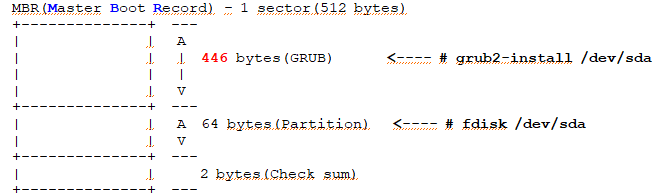
-> dd if=/dev/zero of=/dev/sda bs=446 count=1
-> reboot
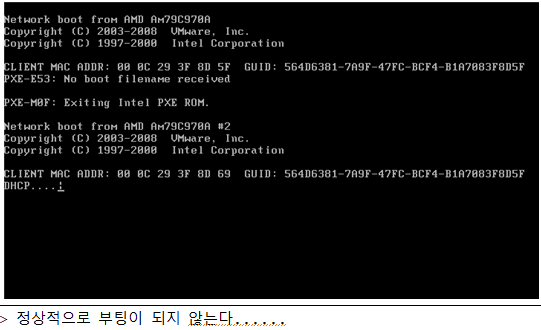
->
- OS 들어있는 CD로 해결해야함
-> 바이오스로 들어가 boot탭에 부팅순서를 CD로 변환
1. /boot/grub2/grub.cfg에 이상 -> CD 부팅 -> grub2-mkconfig CMD
-> 원인: grub.cfg파일을 읽어 들이지 못한 겨우
-> 해결: CD 부팅 > grub2-mkconfig CMD
2. 디스크 내에 GRUB 영역 이상 발생 -> CD 부팅 -> grub2-install CMD
-> 네트워크 부팅이 되는 것 같다.
-> 원인: 디스크 내 GRUB영역이 잘못된 경우
-> 해결: CD 부팅 -> grub2-install /dev/sda
5) (systemd 단계) /etc/fstab 파일 이상이 있는 경우
증상: 부팅하다 멈추고 emergenct mode로 진입했다. <- sulogin prompt
-> (원인) jurnalctl -xb를 입력해 부팅 과정을 보고 1.빨간색 2. 굵은글씨 위주로 본다.
-> (해결) 부팅 과정을 보고 그에 맞는 해결은 한다.
-> 실습 상황의 경우 /etc/fstab 파일 수정을 하면 된다.
-> (과정) # mount | grep root <- read-only일때
-> # mount -o remount,rw / <- 실행
-> # vi /etc/fstab
-> # systemctl daemon-reload
-> # exit
6) (kernel 단계) "Kernel Panic" 발생한 경우
("kernel panic" 발생)
- "kernel panic" 메시지 확인
-> 원인: 커널이 실행되지 않음
-> 해결: 잘못된 커널을 교체해준다.(정상커널, 백업 커널, 이전 커널)
=> 이전 커널로 부팅해서 트러블 슈팅한다.
이 장에선
■ 시스템 target 변경하기
(현재) # systemctl isolate graphical.target
(부팅) # systemctl set-default graphical.target
■ 서비스(EX: sshd) enable
(현재) # systemctl restart sshd
(부팅) # systemctl enable sshd
■ 서비스 이상 제어(Troubleshooting)
을 잘 알아두자
