1. 클라이언트 아이디 생성
expo 환경에서 진행합니다.
1) 구글 클라우드 접속
https://console.cloud.google.com/apis/dashboard?project=resolute-arcana-396201
페이지 접속 후, 상단에 셀렉트 박스를 클릭하여 프로젝트 선택 화면을 표시합니다.
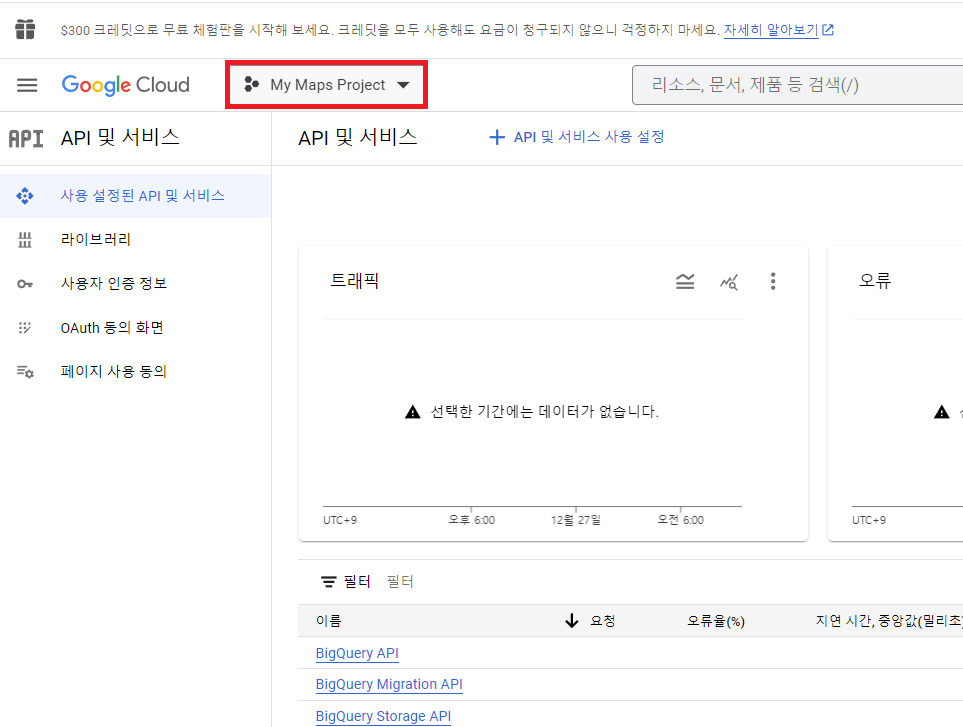
우측 상단에 "새 프로젝트"를 선택하여 새 프로젝트를 생성합니다.
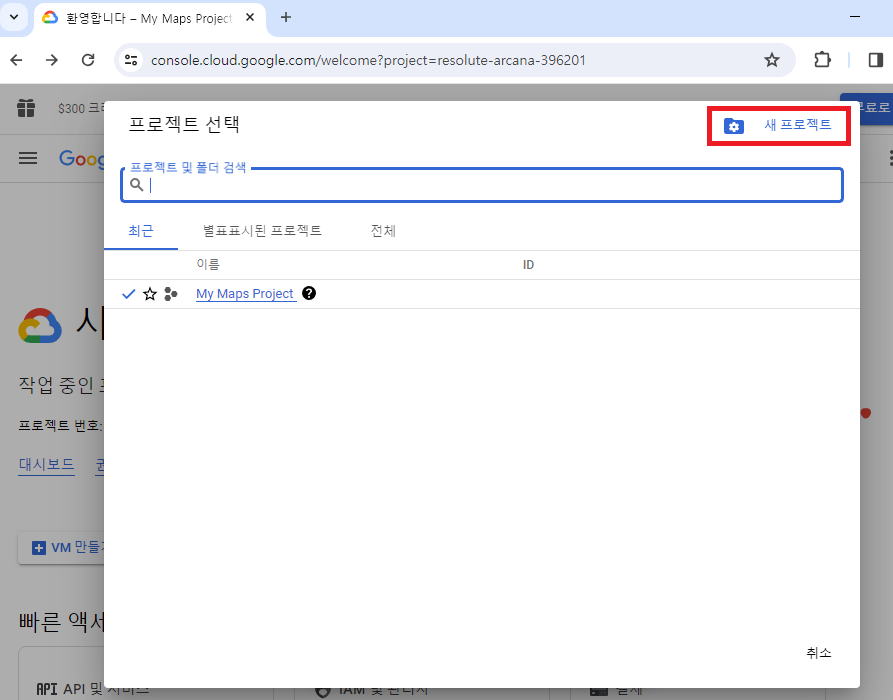
프로젝트 이름을 지정합니다. "google-login"으로 지정합니다.
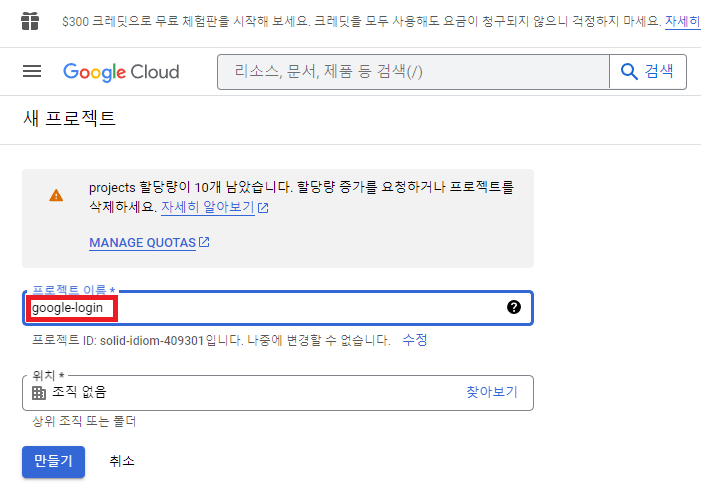
시작하기 화면에서 "API 및 서비스" 메뉴를 클릭합니다.
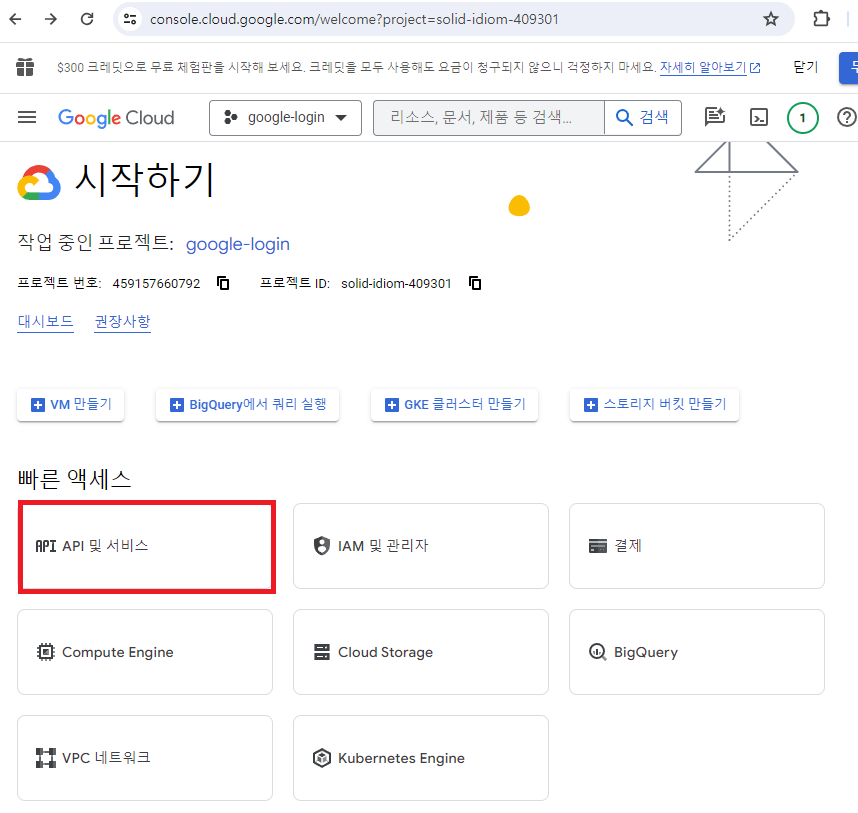
좌측 메뉴바의 "사용자 인증 정보"를 클릭합니다.
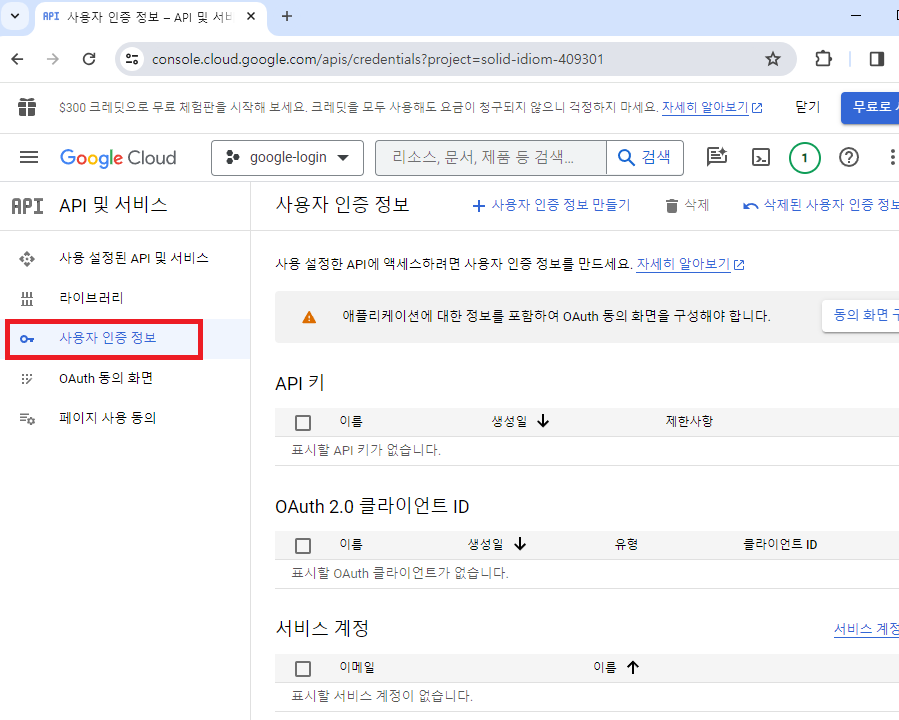
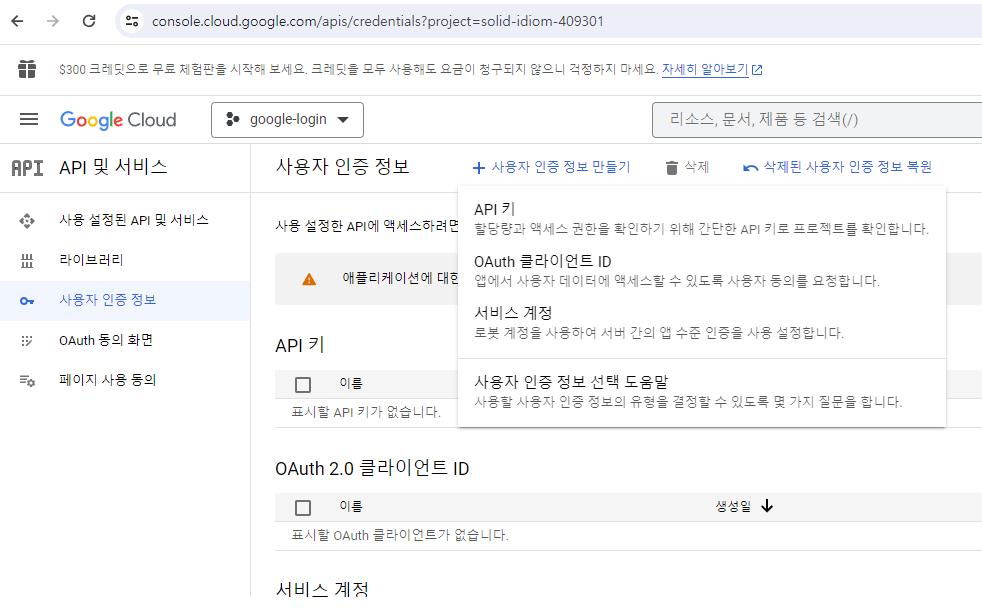
"OAuth 클라이언트 ID"를 클릭합니다.
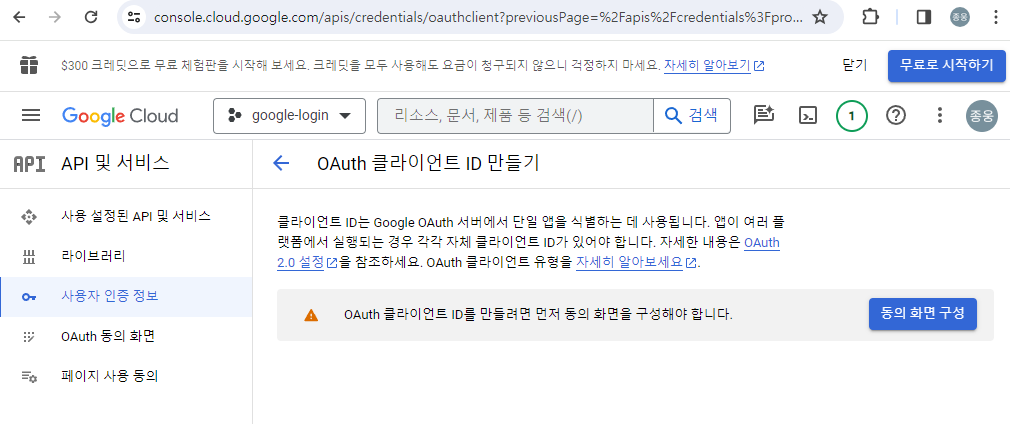
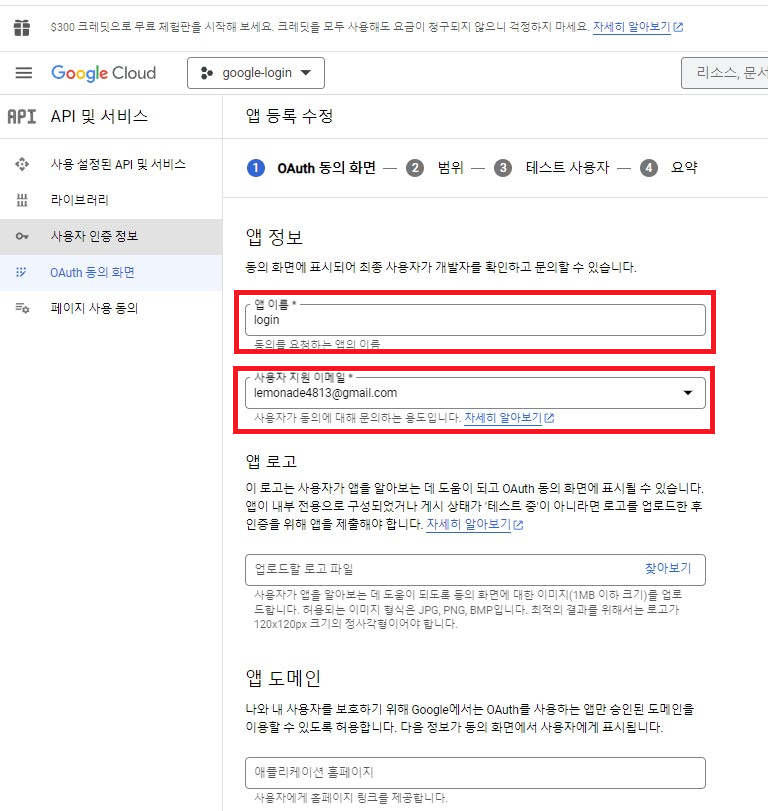
"동의 화면 구성"을 클릭하고,
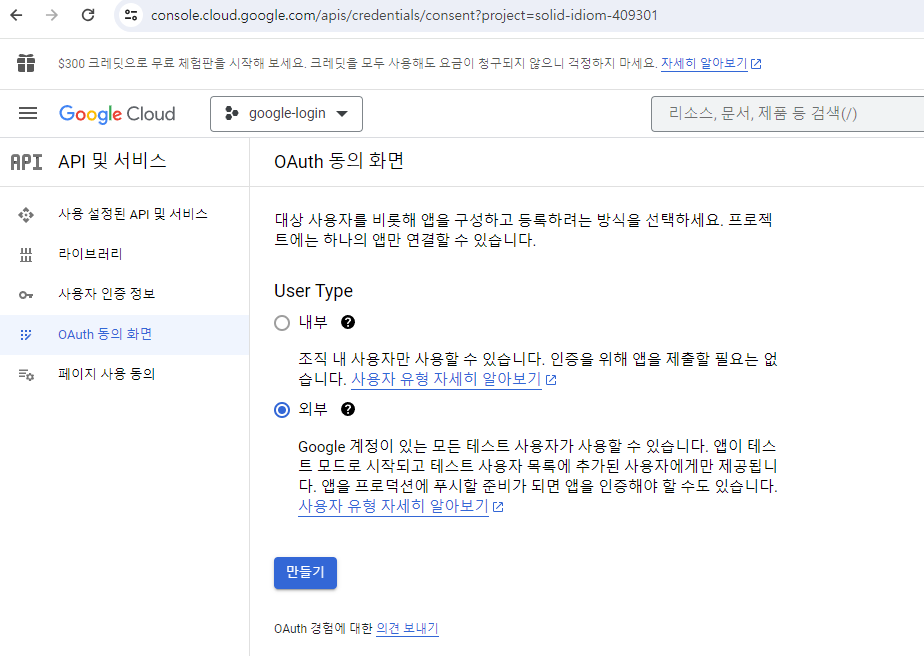
User Type 변경 없이, 디폴트로 "만들기"를 클릭합니다.
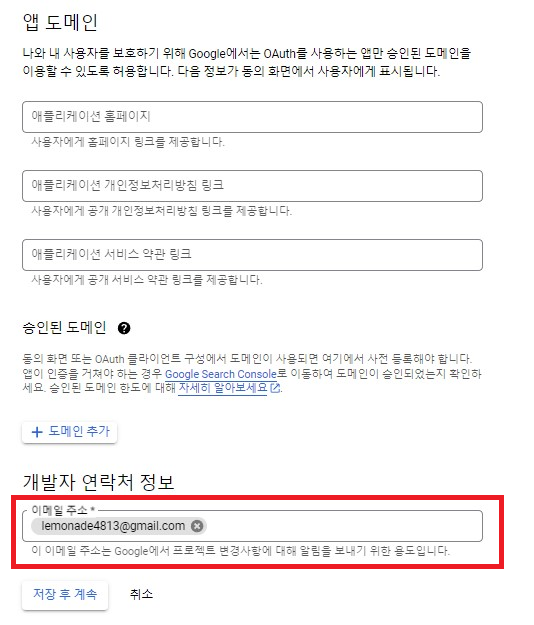
앱 이름, 사용자 지원 이메일 그리고 개발자 연락처 정보를 입력합니다.
"저장 후 계속"을 클릭합니다.
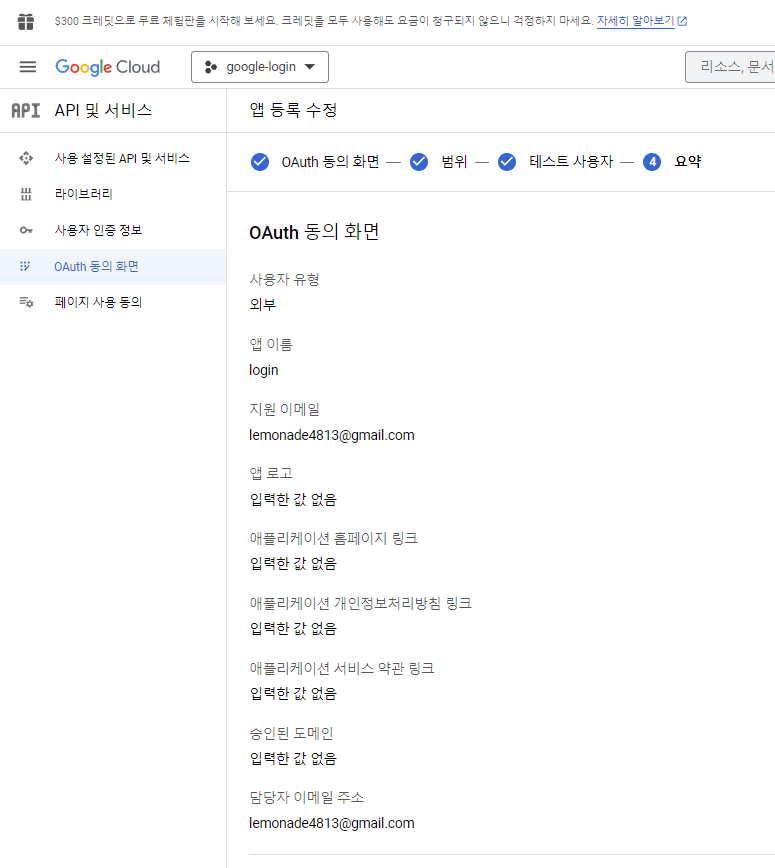
"OAuth 동의 화면"에서 입력사항을 다시한번 확인합니다.
다시 "OAuth 클라이언트 ID"를 클릭합니다.
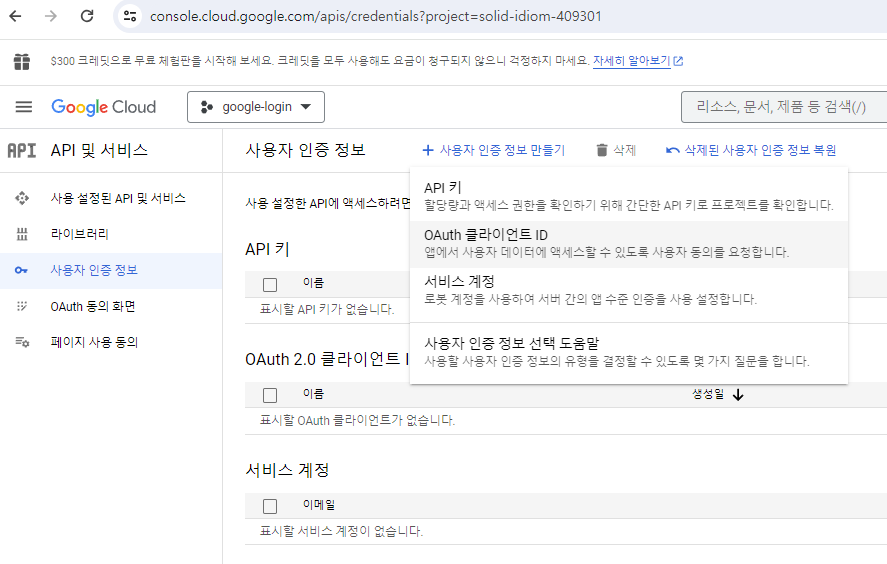
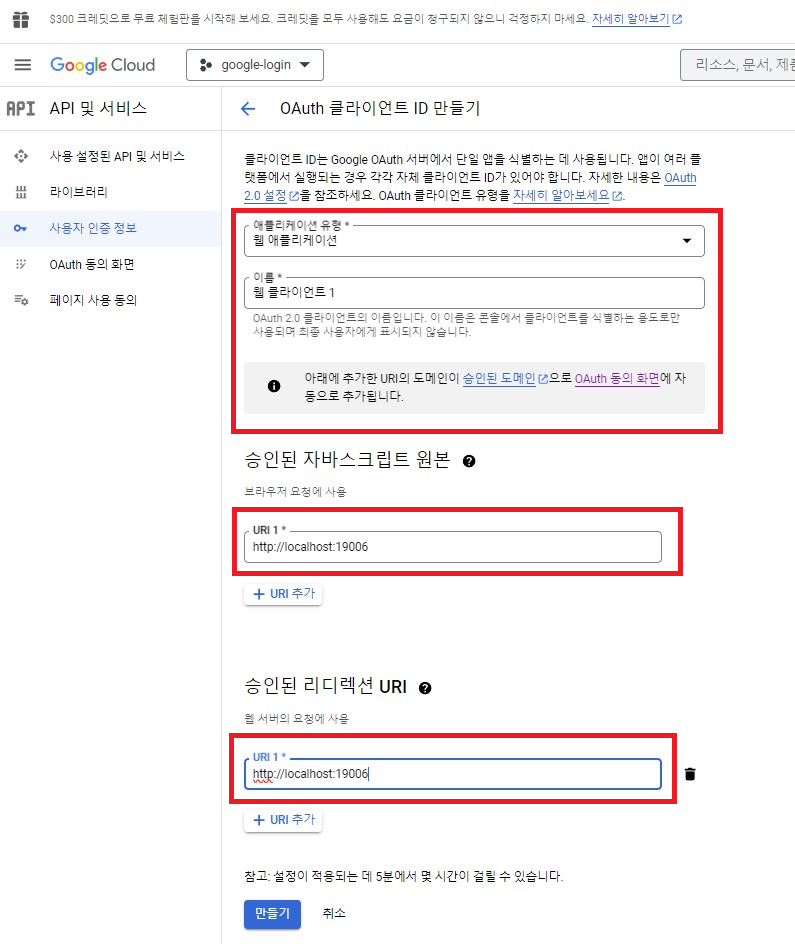
동의 화면 구성이 완료되었으므로, 어플리케이션별 클라이언트 아이디를 생성할 수 있습니다.
먼저 "웹 애플리케이션" 클라이언트 아이디를 생성하도록 하겠습니다.
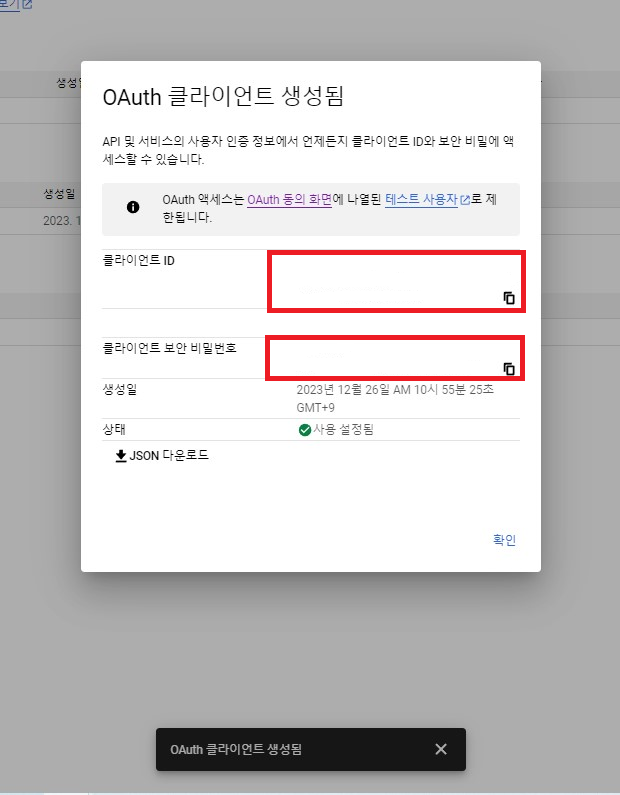
"웹 애플리케이션" 클라이언트 아이디가 생성되었습니다. 특히, 클라이언트 비밀번호는 다시 확인할 수 없으므로 하단에 있는 JSON 다운로드를 진행하도록 합니다.
2) 컴포넌트에서 API를 사용하도록 구현합니다.
[참조] : [kimmainsain.log]
https://velog.io/@kimmainsain/React-Native-Google-Login-%ED%95%98%EB%82%98%EB%B6%80%ED%84%B0-%EC%97%B4%EA%B9%8C%EC%A7%80
export default function Login({ navigation }: any) {

const [request, response, promptAsync] = Google.useAuthRequest({
  webClientId: "(클라이언트 아이디)",
  ;


const [userInfo, setUserInfo] = useState(null);

const handleSignInWithGoogle = async () => {
  const user = await AsyncStorage.getItem("user");
  if (!user) {
    if (response?.type === "success") {

      await getUserInfo(response.authentication?.accessToken!);
    }
  } else {

    setUserInfo(JSON.parse(user));
  }
};

const getUserInfo = async (token : string) => {
  if (!token) return;
  try {
    const response = await fetch(
      "https://www.googleapis.com/oauth2/v3/userinfo",
      {
        headers: { Authorization: `Bearer ${token}` },
      }
    );
    const userInfoResponse = await response.json();

    await AsyncStorage.setItem("user", JSON.stringify(userInfoResponse));
    setUserInfo(userInfoResponse);
  } catch (e) {
    console.log(e);
  }
};

const handleLogout = async () => {
  await AsyncStorage.removeItem("user");
  setUserInfo(null);
};


useEffect(() => {
  handleSignInWithGoogle();
}, [response]);


return (
    <View style={styles.container}>
    ...
      <View style={styles.loginButton}>
        <TouchableOpacity style={styles.button} onPress={()=> promptAsync()}>
          <Image source={require('./assets/google.png')} style={styles.buttonImage} />
          <Text style={styles.buttonText}>Google로 시작하기</Text>
        </TouchableOpacity>

...)
npm start
또는
npx expo start
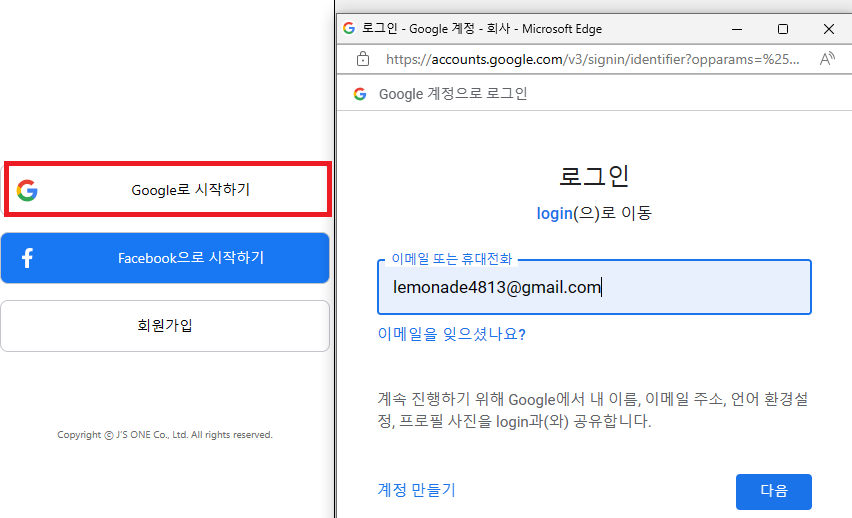
로 실행 후 "w"키를 클릭하여 웹 페이지 환경에서 로그인이 연동되었는지 확인합니다.
안드로이드 화면에서 동작하도록 하는 것은 추가로 작성예정.....