해당 글은 https://docs.github.com/en/actions/quickstart 를 기반으로 정리한 내용입니다.
Introduction
github Actions
Github Actions는 CI/CD 플랫폼이다.
대표적으로 많이 쓰는 다른 툴인 'jenkins' 와 달리 따로 인프라를 구성하지 않는 '관리형 시스템'이다.
그로 인한 장점은 일정 횟수까지는 무료이며 인프라 비용이 발생하지 않는다.
그리고 대부분 사용하는 github를 통해 바로 사용할 수 있어 편리하다.
CI/CD
빌드, 테스트 및 배포 파이프라인을 자동화한다.
Repository 의 변경 내용을 push 하거나 merge 된 상황에서 테스트를 실행하거나 배포하는 워크 플로우를 만들 수 있다.
실습
workflow 만들기
워크플로는yaml 파일을 통해 설정을 한다.
또한 반드시 .github/workflows 경로에 생성해야 github에서 감지하여 적용한다.
파일명은 자유롭지만, .yml 또는 .yaml이어야 한다.
github-actions-demo.yaml
name: GitHub Actions Demo
run-name: ${{ github.actor }} is testing out GitHub Actions 🚀
on: [push]
jobs:
  Explore-GitHub-Actions:
    runs-on: ubuntu-latest
    steps:
      - run: echo "🎉 The job was automatically triggered by a ${{ github.event_name }} event."
      - run: echo "🐧 This job is now running on a ${{ runner.os }} server hosted by GitHub!"
      - run: echo "🔎 The name of your branch is ${{ github.ref }} and your repository is ${{ github.repository }}."
      - name: Check out repository code
        uses: actions/checkout@v4
      - run: echo "💡 The ${{ github.repository }} repository has been cloned to the runner."
      - run: echo "🖥️ The workflow is now ready to test your code on the runner."
      - name: List files in the repository
        run: |
          ls ${{ github.workspace }}
      - run: echo "🍏 This job's status is ${{ job.status }}."
우선은 세부 내용은 나중에 이해해보자.
- 자세한 워크플로 구문
https://docs.github.com/ko/actions/using-workflows/about-workflows#understanding-the-workflow-file${{ github.actor }}과 같은 contexts
https://docs.github.com/ko/actions/learn-github-actions/contexts
해당 파일을 저장 후 commit, push 해보자
! [remote rejected] test -> test (refusing to allow a Personal Access Token to create or update workflow `.github/workflows/github-actions-demo.yaml` without `workflow` scope)혹시나 push 과정에서 다음과 같은 오류가 발생한다면 터미널에 등록된 github token의 권한이 부족한 것이다.
아무나 workflow 를 만들 수 없기 위함인 것 같다.

github token 설정에서 해당 권한을 체크해주자.
push 가 완료되면 github에서 Actions 탭을 들어간다.
왼쪽의 탭을 보면 워크플로우 별로 확인할 수 있다.
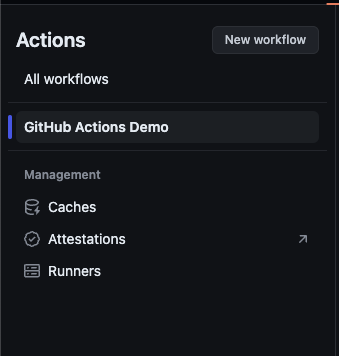
여기서는 파일 내부의 name을 통해 자동으로GitHub Actions Demo로 지정되었다.
해당 workflow로 들어가보면 gui 형태로 워크플로우를 볼 수 있다.
설정 파일로 추측을 하자면 jobs 밑에 Explore-GitHub-Actions 하나만 존재하여 Jobs 단위로 실행되는 것을 볼 수 있다.
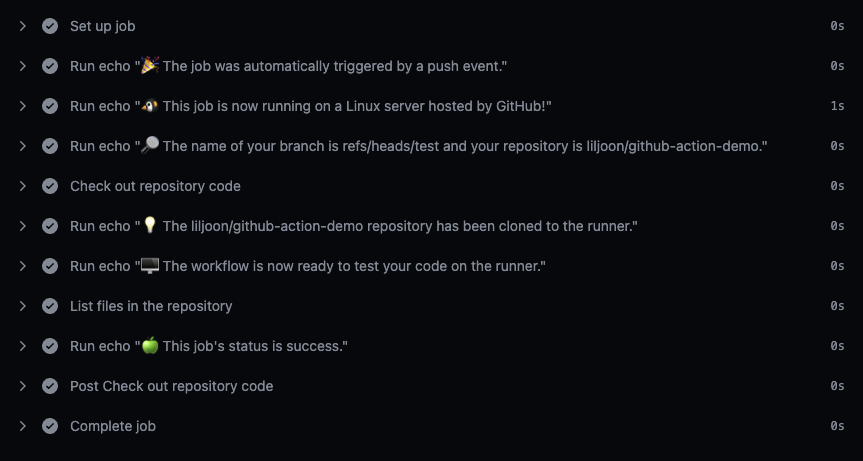
해당 Job에서 실행된 명령어와 내용을 볼 수 있다.
자세히보면 이벤트명, 동작한 OS, 브랜치 이름, 레포지토리 이름, 경로, 결과 상태 등이 잘 치환된 것을 볼 수 있다.