
슬슬이라는 사이드 프로젝트를 진행하며, 우편번호 API를 사용할 일이 생겨 수 시간 삽질하던 중 홍드로이드님 영상을 보고 해결한 내용을 정리하고 공유하고자 포스팅합니다.
이 문서는 홍드로이드 주소 검색 API 링크로 연결된 유튜브 영상을 기반으로 작성된 문서입니다.
🤗 Daum 우편번호 서비스 API 소개
카카오에서 제공하는 우편번호 검색 및 도로명 주소 입력 기능 API
- 장점
- key를 발급받을 필요가 없다.
- 사용량에 대한 제한이 없다.
- 기업용이든 상업용이든 상관없이 무료로 사용 가능하다.
- .. 등등 (위 링크를 타고 들어가면 더 자세히 나와있음)
🧐 그러면 어떻게 사용할까 ?
이 API는 안드로이드 측에서 직접 API를 연동해서 사용할 수는 없다.
이유는 API 자체가 JS로만 제공되기 때문 !
-> 따라서 JS 파일을 호스팅한 후, 웹 뷰를 통해서 사용해야 함!
😶🌫️ JS 파일 웹 호스팅하기
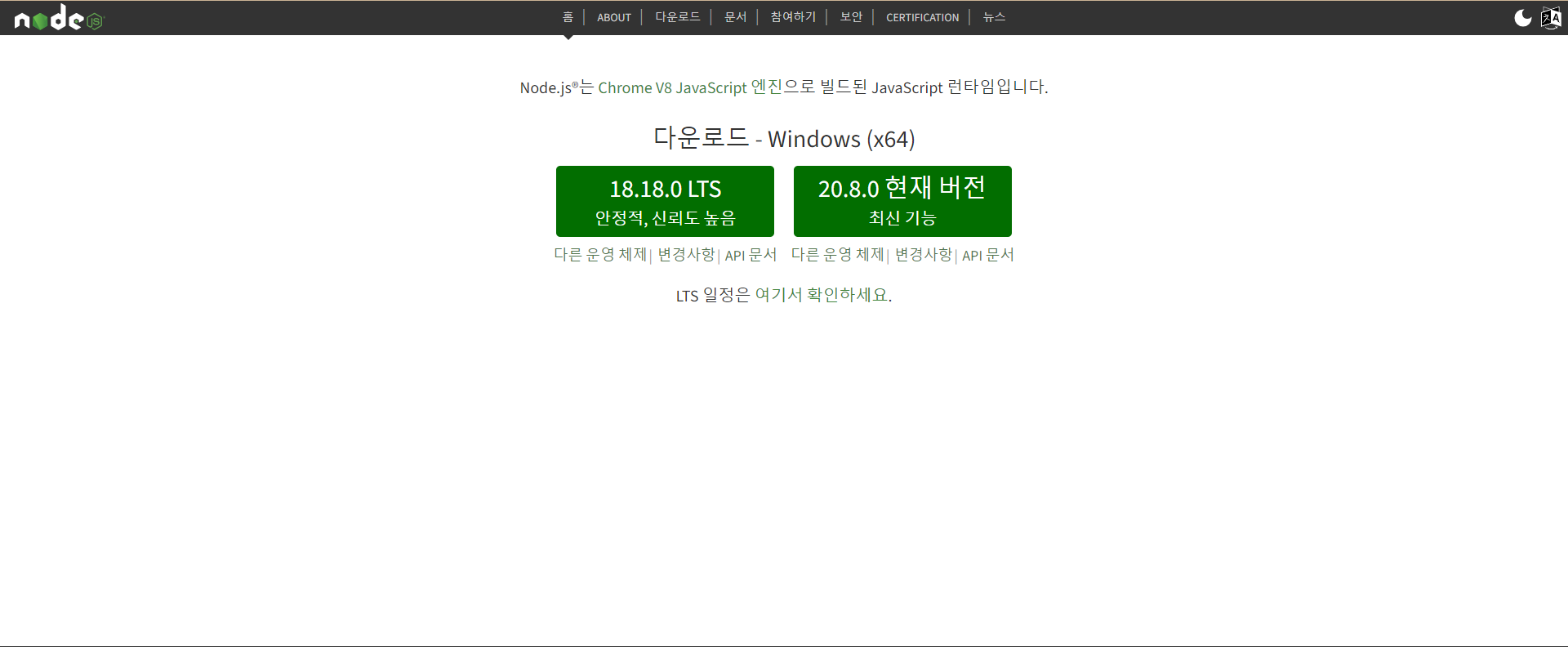
node.js설치
node.js에서 왼쪽 버전으로 다운받고, 설치한다.
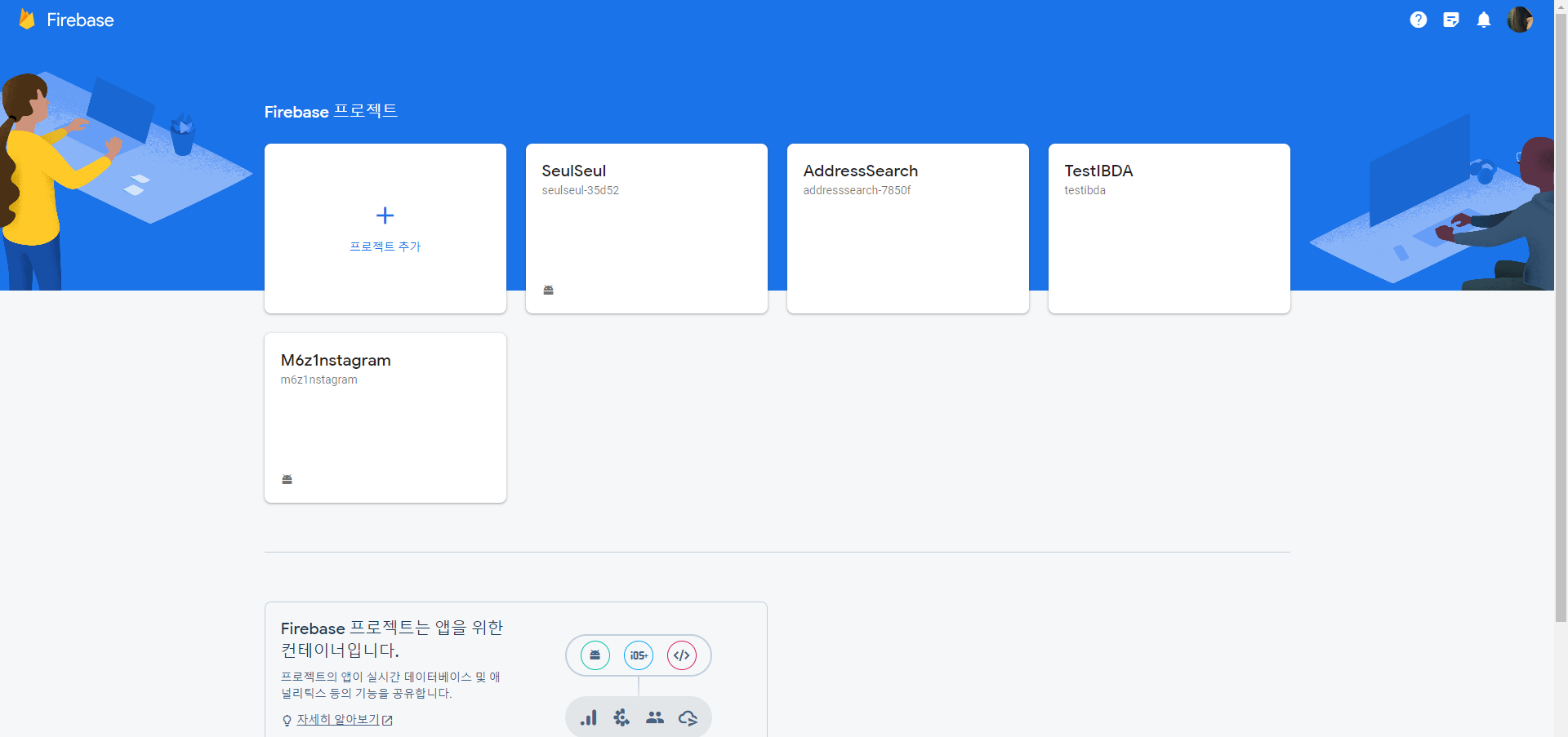
firebaseconsole에서 my project 설정
-1. firebase 링크로 들어가서 로그인을 진행한 후, 콘솔로 이동한다.
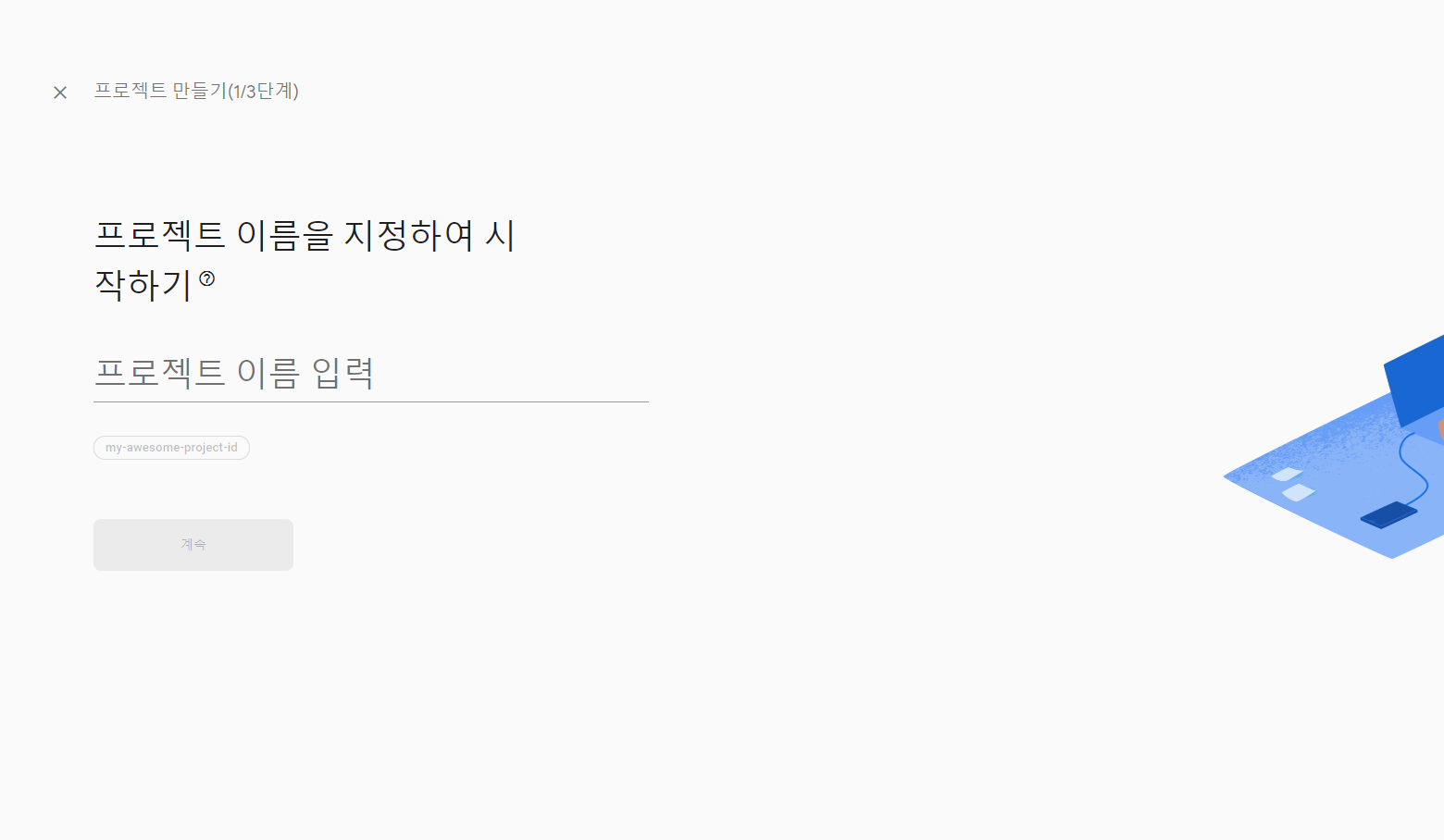
-2. 프로젝트 추가를 눌러서 새로 생성한다.
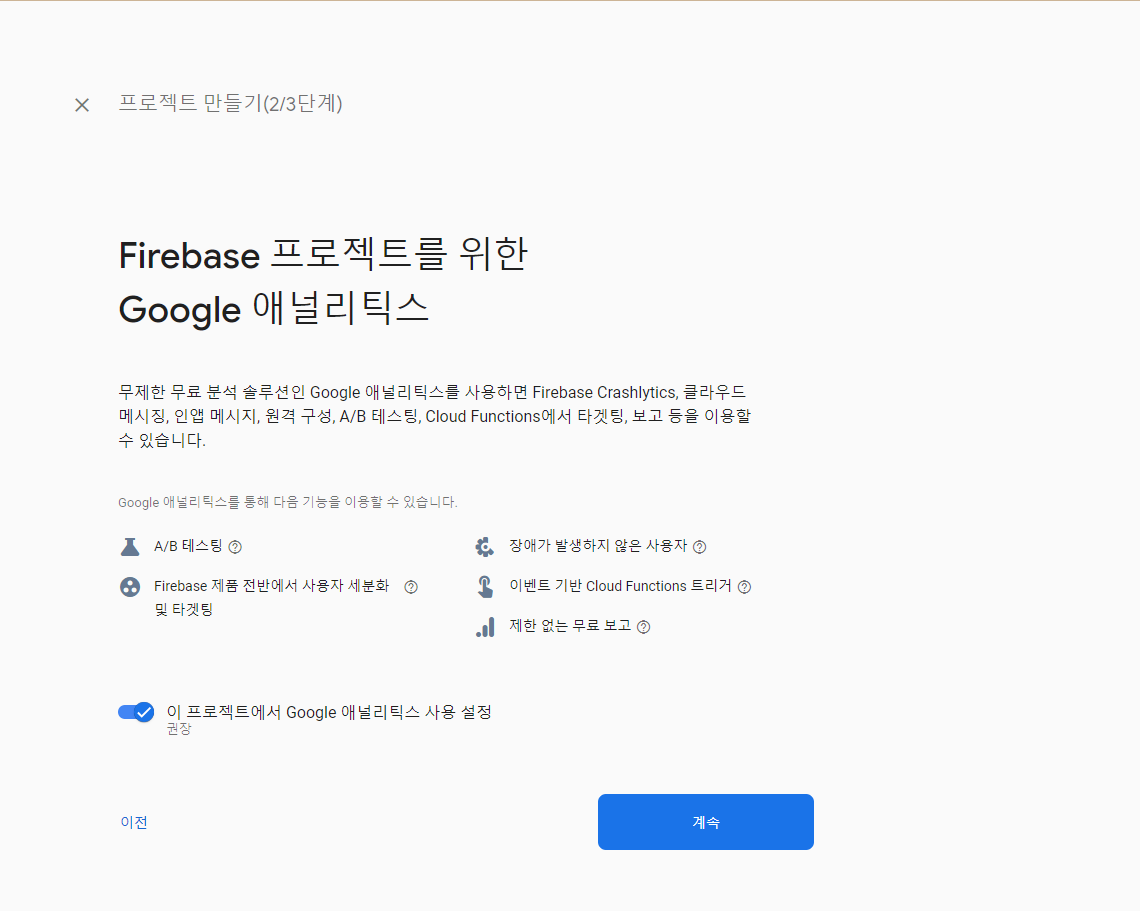
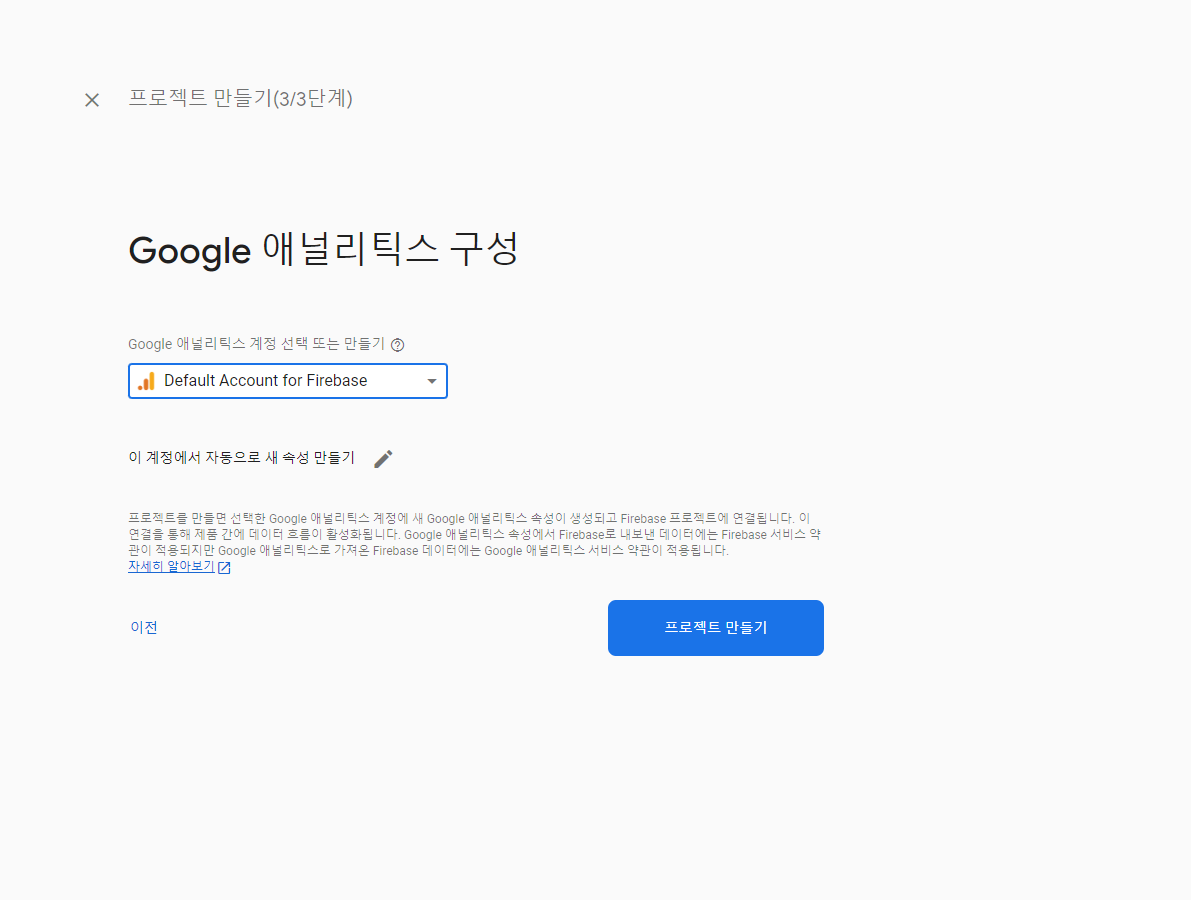
-3. 계속 버튼을 누르고, 계정을Default Account for Firebase로 선택하고 프로젝트를 생성한다.
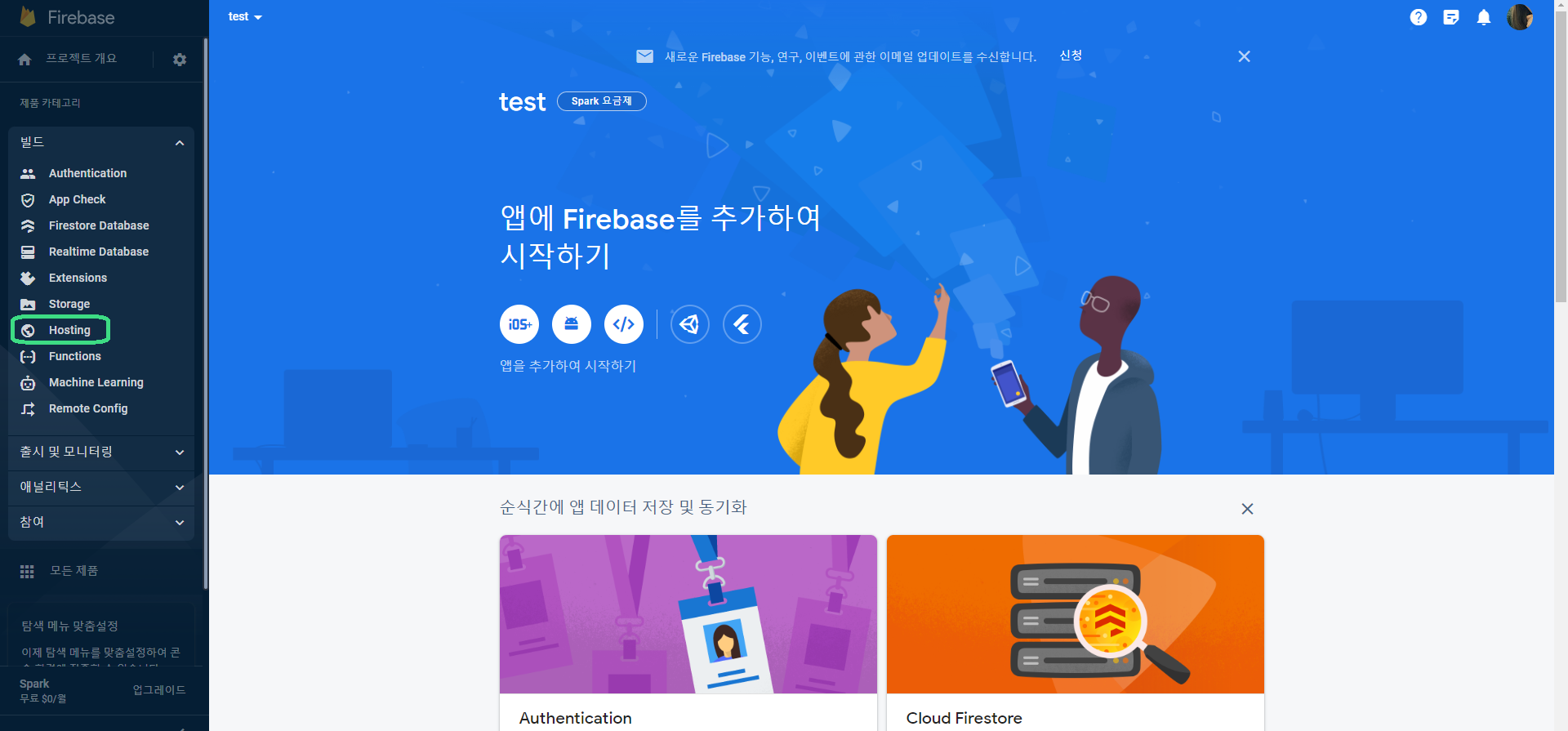
-4. 프로젝트 화면에서빌드>Hosting을 클릭한다.
- 웹 호스팅 준비
-1.시작하기버튼을 눌러서 CLI 설치 코드를 확인한다.
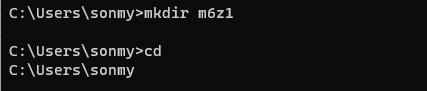
-2. 파이어베이스 연동할 파일을 하나 만든다. (윈도우 기준)
$ mkdir m6z1 //m6z1 파일 만듦❗추가 팁 : cmd 에서 현재 위치를 알고 싶으면
$ cd // linux는 pwd
-3. 파일로 이동해서 아까의 CLI 설치 코드를 작성한다.npm install -g firebase-tools
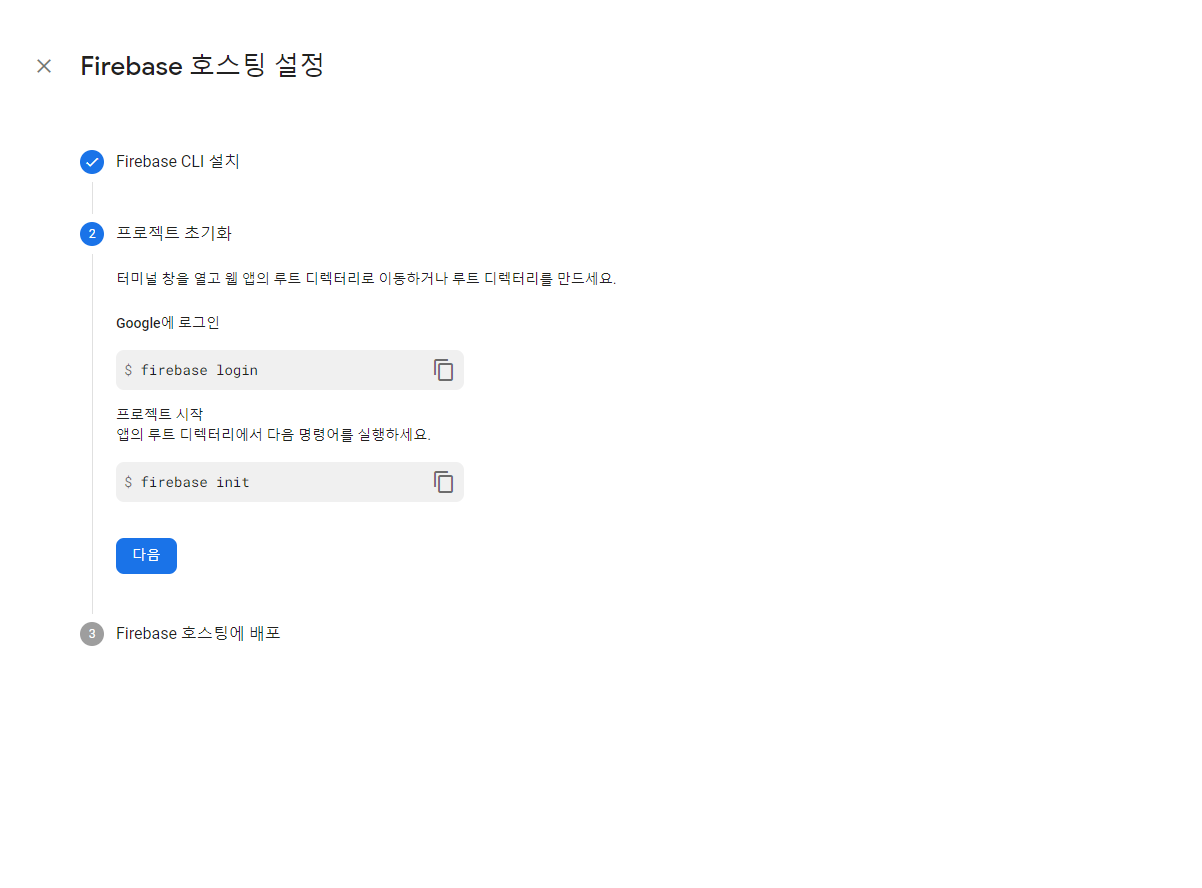
-4. 나와있는대로 login 진행하고, 프로젝트를 시작한다.
$ firebase login // 새 창이 뜸
$ firebase init // init 을 입력하면 yes > Hosting : Configure files for Firebase Hosting and (optionally) set up Github Action deploys 선택

- 파일 경로에 있는 index.html 을 수정해서 deploy 한다.
$ firebase deploy
🤓 Daum 우편번호 서비스 적용하기
- index.html 작성하기
<!DOCTYPE html>
<html>
<head>
</head>
<body>
<!-- HELLO DAUM! -->

<!-- iOS에서는 position:fixed 버그가 있음, 적용하는 사이트에 맞게 position:absolute 등을 이용하여 top,left값 조정 필요 -->
<div id="layer" style="display:block;position:fixed;overflow:hidden;z-index:1;-webkit-overflow-scrolling:touch;">

</div>


<script src="https://t1.daumcdn.net/mapjsapi/bundle/postcode/prod/postcode.v2.js"></script>
<!-- <script src="http://dmaps.daum.net/map_js_init/postcode.v2.js"></script> -->
<script>


window.addEventListener("message", onReceivedPostMessage, false);

function onReceivedPostMessage(event){
    //..ex deconstruct event into action & params
    var action = event.data.action;
    var params = event.data.params;

    console.log("onReceivedPostMessage "+event);

}

function onReceivedActivityMessageViaJavascriptInterface(json){
     //..ex deconstruct data into action & params
     var data = JSON.parse(json);
     var action = data.action;
     var params = data.params;
       console.log("onReceivedActivityMessageViaJavascriptInterface "+event);
}


    // 우편번호 찾기 화면을 넣을 element
    var element_layer = document.getElementById('layer');

    function sample2_execDaumPostcode() {
        new daum.Postcode({
            oncomplete: function(data) {

              var fullRoadAddr = data.roadAddress ? data.roadAddress : data.autoRoadAddress;
              var extraRoadAddr = ''; // 도로명 조합형 주소 변수

              // 법정동명이 있을 경우 추가한다. (법정리는 제외)
              // 법정동의 경우 마지막 문자가 "동/로/가"로 끝난다.
              if(data.bname !== '' && /[동|로|가]$/g.test(data.bname)){
                  extraRoadAddr += data.bname;
              }

              // 건물명이 있고, 공동주택일 경우 추가한다.
              if(data.buildingName !== '' && data.apartment === 'Y'){
                 extraRoadAddr += (extraRoadAddr !== '' ? ', ' + data.buildingName : data.buildingName);
              }

              // 도로명, 지번 조합형 주소가 있을 경우, 괄호까지 추가한 최종 문자열을 만든다.
              if(extraRoadAddr !== ''){
                  fullRoadAddr += ' (' + extraRoadAddr + ')';
               }

               var jibunAddr = data.jibunAddress ? data.jibunAddress : data.autoJibunAddress;
            		window.Android.processDATA(fullRoadAddr, jibunAddr); // data.zonecode + ", " +
                        },
                        width : '100%',
                        height : '100%'
                    }).embed(element_layer);

                    // iframe을 넣은 element를 보이게 한다.
                    element_layer.style.display = 'block';

                    // iframe을 넣은 element의 위치를 화면의 가운데로 이동시킨다.
                    initLayerPosition();


    }

    // 브라우저의 크기 변경에 따라 레이어를 가운데로 이동시키고자 하실때에는
    // resize이벤트나, orientationchange이벤트를 이용하여 값이 변경될때마다 아래 함수를 실행 시켜 주시거나,
    // 직접 element_layer의 top,left값을 수정해 주시면 됩니다.
    function initLayerPosition(){
        var width = (window.innerWidth || document.documentElement.clientWidth); //우편번호서비스가 들어갈 element의 width
        var height = (window.innerHeight || document.documentElement.clientHeight); //우편번호서비스가 들어갈 element의 height
        var borderWidth = 5; //샘플에서 사용하는 border의 두께

        // 위에서 선언한 값들을 실제 element에 넣는다.
        element_layer.style.width = width + 'px';
        element_layer.style.height = height + 'px';
        element_layer.style.border = borderWidth + 'px solid';
        // 실행되는 순간의 화면 너비와 높이 값을 가져와서 중앙에 뜰 수 있도록 위치를 계산한다.
        element_layer.style.left = (((window.innerWidth || document.documentElement.clientWidth) - width)/2 - borderWidth) + 'px';
        element_layer.style.top = (((window.innerHeight || document.documentElement.clientHeight) - height)/2 - borderWidth) + 'px';
    }

</script>

</body>
</html>
deploy하기
$ firebase deploy !!주의 : 파이어베이스 프로젝트가 연결된 만들었던 파일에서 deploy 해야 함. 나의 경우엔 C:\Users\Sonmy\m6z1에서 진행
webview로 띄우기
-a. xml 작성
<?xml version="1.0" encoding="utf-8"?>
<layout xmlns:android="http://schemas.android.com/apk/res/android"
    xmlns:app="http://schemas.android.com/apk/res-auto"
    xmlns:tools="http://schemas.android.com/tools">

    <data>

    </data>

    <androidx.constraintlayout.widget.ConstraintLayout
        android:layout_width="match_parent"
        android:layout_height="match_parent"
        android:background="@color/white"
        tools:context=".presentation.location.activity.LocationSearchActivity">

        <ImageView
            android:id="@+id/location_iv_back"
            android:layout_width="20dp"
            android:layout_height="20dp"
            android:layout_marginStart="@dimen/margin_20"
            android:layout_marginTop="22dp"
            android:src="@drawable/ic_back"
            app:layout_constraintStart_toStartOf="parent"
            app:layout_constraintTop_toTopOf="parent" />

        <TextView
            android:id="@+id/location_tv_title"
            android:layout_width="wrap_content"
            android:layout_height="wrap_content"
            android:fontFamily="@font/pretendard_semi_bold"
            android:text="@string/location_title"
            android:textColor="@color/grey_500"
            android:textSize="@dimen/font_size_16"
            app:layout_constraintEnd_toEndOf="parent"
            app:layout_constraintStart_toStartOf="parent"
            app:layout_constraintTop_toTopOf="@id/location_iv_back" />

        <WebView
            android:id="@+id/location_search_webView"
            android:layout_width="match_parent"
            android:layout_height="0dp"
            android:layout_marginHorizontal="@dimen/margin_20"
            android:layout_marginTop="@dimen/margin_24"
            app:layout_constraintBottom_toBottomOf="parent"
            app:layout_constraintEnd_toEndOf="parent"
            app:layout_constraintStart_toStartOf="parent"
            app:layout_constraintTop_toBottomOf="@id/location_tv_title" />

    </androidx.constraintlayout.widget.ConstraintLayout>

</layout>
-b. activity 작성
package com.timi.seulseul.presentation.location.activity

import android.content.Intent
import android.os.Bundle
import android.util.Log
import android.webkit.JavascriptInterface
import android.webkit.WebView
import android.webkit.WebViewClient
import com.timi.seulseul.R
import com.timi.seulseul.databinding.ActivityLocationSearchBinding
import com.timi.seulseul.presentation.common.base.BaseActivity
import com.timi.seulseul.presentation.common.constants.EXTRA_JIBUN_ADDR
import com.timi.seulseul.presentation.common.constants.EXTRA_ROAD_ADDR

class LocationSearchActivity :
    BaseActivity<ActivityLocationSearchBinding>(R.layout.activity_location_search) {

    override fun onCreate(savedInstanceState: Bundle?) {
        super.onCreate(savedInstanceState)

        binding.locationIvBack.setOnClickListener {
            finish()
        }

        val webView: WebView = binding.locationSearchWebView

        webView.clearCache(true)
        webView.settings.javaScriptEnabled = true

        webView.addJavascriptInterface(BridgeInterface(), "Android")
        webView.webViewClient = object : WebViewClient() {
            override fun onPageFinished(view: WebView?, url: String?) {
                webView.loadUrl("javascript:sample2_execDaumPostcode();")
            }
        }

        webView.loadUrl("https://seulseul-35d52.web.app")
    }

    inner class BridgeInterface() {
        @JavascriptInterface
        @SuppressWarnings("unused")
        fun processDATA(fullRoadAddr: String, jibunAddr: String) {
            val intent = Intent(this@LocationSearchActivity, LocationDetailActivity::class.java)
            intent.putExtra(EXTRA_ROAD_ADDR, fullRoadAddr)
            intent.putExtra(EXTRA_JIBUN_ADDR, jibunAddr)
            Log.d("jibun", jibunAddr)
            Log.d("jibun", fullRoadAddr)
            setResult(RESULT_OK, intent)
            startActivity(intent)
            finish()
        }

    }
}
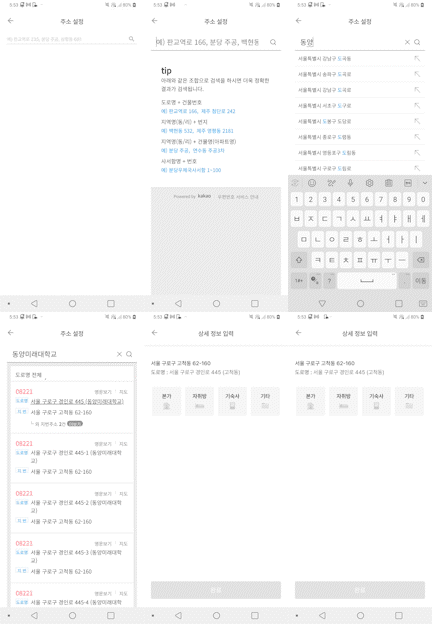
😀 실행 화면
⭐ 참고 자료

멍멍멍멍멍지 ~