들어가며
본 포스팅에서는 EC2(Ubuntu)에 Prometheus를 설치하는 방법에 대해서 소개하겠습니다.
Prometheus의 기본적인 개념을 알고 싶을 경우에는 아래 링크를 참고해주세요.
https://velog.io/@mag000225/Prometheus-Prometheus란
1. Prometheus 다운로드 및 설치
1.1 Prometheus 다운로드
wget <https://github.com/prometheus/prometheus/releases/download/v2.45.4/prometheus-2.45.4.linux-amd64.tar.gz>1.2 압축 해제
tar xvzf prometheus-2.45.4.linux-amd64.tar.gz2. Prometheus 실행 환경 준비
2.1 사용자 추가
- Prometheus가 시스템 전체에 접근하지 못하도록 전용 사용자를 생성하여 제한적으로 실행되도록 설정했습니다.
Prometheus 전용 사용자를 생성
sudo useradd --no-create-home --shell /bin/false prometheus2.2 디렉토리 생성
- 유지보수와 파일 관리를 용이하게 하기 위해 설정 파일과 데이터 파일을 분리하였습니다.
Prometheus 설정 파일 및 데이터 저장을 위한 디렉토리를 생성
sudo mkdir /etc/prometheus
sudo mkdir /var/lib/prometheus
2.3 디렉토리 소유자 변경
생성한 디렉토리의 소유자를 Prometheus 사용자로 설정
sudo chown -R prometheus /etc/prometheus
sudo chown -R prometheus /var/lib/prometheus
2.4 실행 파일 복사
- 실행 파일을 표준 경로(
/usr/local/bin/)로 복사하여 어디서나 접근 가능하도록 하였습니다.
Prometheus 실행 파일을 시스템에서 접근 가능한 위치로 복사
sudo cp prometheus-2.45.4.linux-amd64/prometheus /usr/local/bin/
sudo cp prometheus-2.45.4.linux-amd64/promtool /usr/local/bin/
sudo cp -r prometheus-2.45.4.linux-amd64/consoles /etc/prometheus
sudo cp -r prometheus-2.45.4.linux-amd64/console_libraries /etc/prometheus
3. Prometheus 설정 파일 작성
3.1 설정 파일 생성
/etc/prometheus/prometheus.yaml 파일을 생성하고 다음 내용을 작성
global:
  # 모든 잡(job)에서 기본적으로 데이터를 수집하는 간격(스크레이프 간격)을 설정합니다.
  # 여기서 설정된 15초는 Prometheus가 15초마다 메트릭을 수집한다는 의미입니다.
  scrape_interval: 15s

  # Prometheus가 경고 조건을 평가하는 간격을 설정합니다.
  # 여기서 설정된 15초는 15초마다 경고 조건을 평가한다는 의미입니다.
  evaluation_interval: 15s

scrape_configs:
  # Prometheus 자체의 메트릭 데이터를 수집하는 잡 설정
  - job_name: "prometheus"  # 잡 이름
    static_configs:
      # 수집 대상(static_configs)으로 localhost의 9090 포트를 설정
      # Prometheus 서버 자체의 메트릭을 수집합니다.
      - targets: ["localhost:9090"]

  # Node Exporter를 통해 노드 메트릭 데이터를 수집하는 잡 설정
  - job_name: "node"  # 잡 이름
    static_configs:
      # Node Exporter가 실행 중인 서버의 9100 포트를 설정
      # Node Exporter를 통해 CPU, 메모리, 디스크 등의 노드 관련 메트릭을 수집합니다.
      - targets: ["localhost:9100"]
4. Prometheus를 서비스로 실행하기 위한 설정
- Prometheus를 서비스로 등록하여, systemctl 명령어를 통해 서비스가 관리되도록 아래와 같이 설정하였습니다.
4.1 서비스 파일 작성
/etc/systemd/system/prometheus.service 파일을 생성하고 다음 내용을 작성합니다:
[Unit]
Description=Prometheus
Wants=network-online.target
After=network-online.target

[Service]
User=prometheus
Group=prometheus
Type=simple
ExecStart=/usr/local/bin/prometheus \\
  --config.file /etc/prometheus/prometheus.yaml \\
  --storage.tsdb.path /var/lib/prometheus \\
  --web.console.templates=/etc/prometheus/consoles \\
  --web.console.libraries=/etc/prometheus/console_libraries \\
  --storage.tsdb.max-block-duration=1m \\
  --storage.tsdb.min-block-duration=1m \\
  --web.enable-lifecycle \\
  --web.enable-admin-api \\
  --log.level=info

[Install]
WantedBy=multi-user.target
4.2 Prometheus 서비스 시작
-
데몬 재로드
- 데몬을 재시작하여 prometheus.service를 반영합니다.
sudo systemctl daemon-reload -
서비스 시작
sudo systemctl start prometheus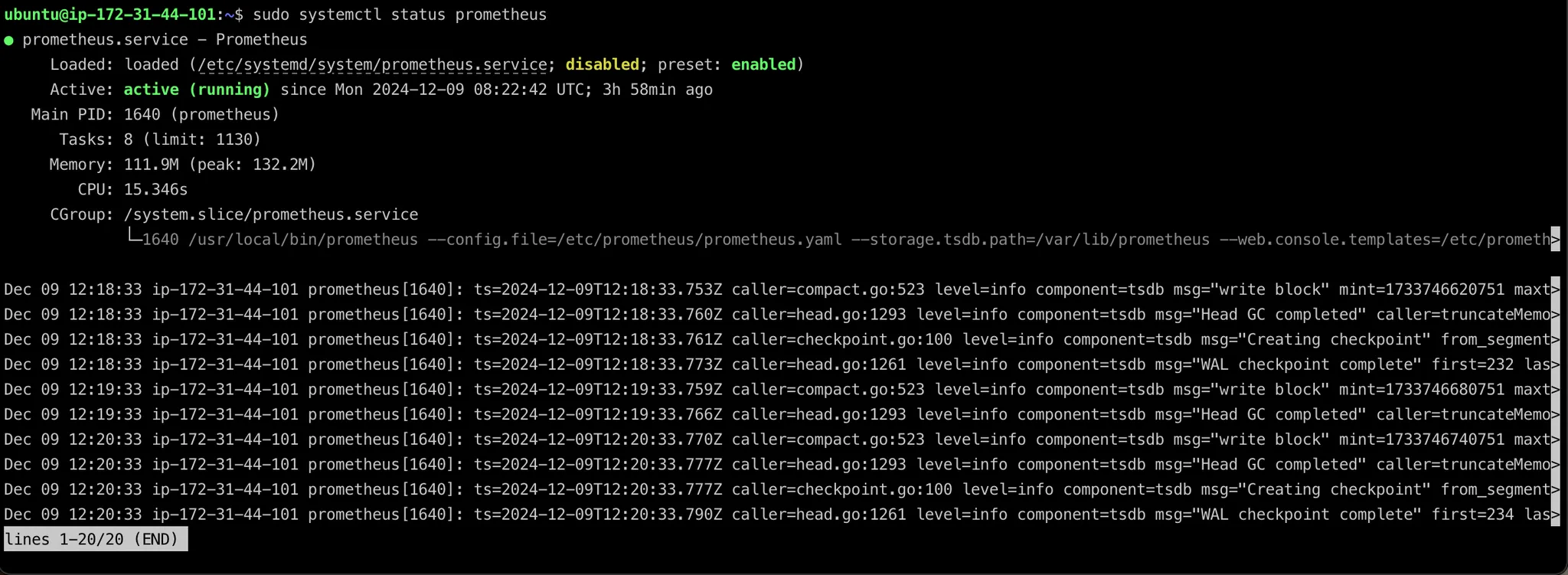
5. Node Exporter 설치 및 실행
Node Exporter는 Prometheus와 함께 사용되어 호스트 시스템의 메트릭(시스템 성능 데이터)을 수집하고 Prometheus가 이를 모니터링할 수 있도록 지원합니다.
5.1 Node Exporter 다운로드 및 압축 해제
Node Exporter 파일을 다운로드하고 압축 해제
wget <https://github.com/prometheus/node_exporter/releases/download/v1.7.0/node_exporter-1.7.0.linux-amd64.tar.gz>tar xvzf node_exporter-1.7.0.linux-amd64.tar.gz5.2 Node Exporter 서비스 파일 작성
- Prometheus와 동일하게 서비스 매니저(systemd)를 통해 실행되며, 통합된 관리가 가능하도록 설정하였습니다.
/etc/systemd/system/node_exporter.service 파일을 생성하고 다음 내용을 작성
[Unit]
Description=Node Exporter
Wants=network-online.target
After=network-online.target

[Service]
User=root
Group=root
Type=simple
SyslogIdentifier=node-exporter
WorkingDirectory=/home/ubuntu/prometheus/node_exporter-1.7.0.linux-amd64
ExecStart=/home/ubuntu/prometheus/node_exporter-1.7.0.linux-amd64/node_exporter

[Install]
WantedBy=multi-user.target
5.3 Node Exporter 서비스 시작
-
데몬 재로드
sudo systemctl daemon-reload -
서비스 시작
sudo systemctl start node_exporter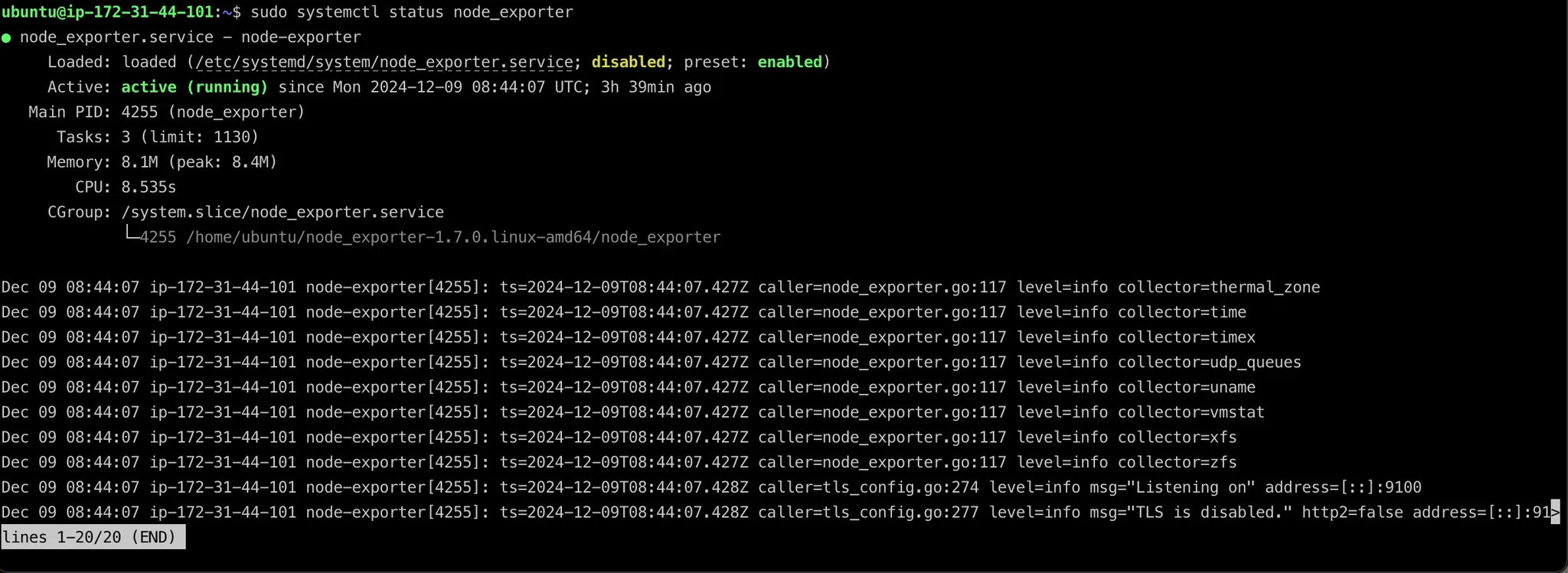
6. 엔드포인트 확인 및 테스트
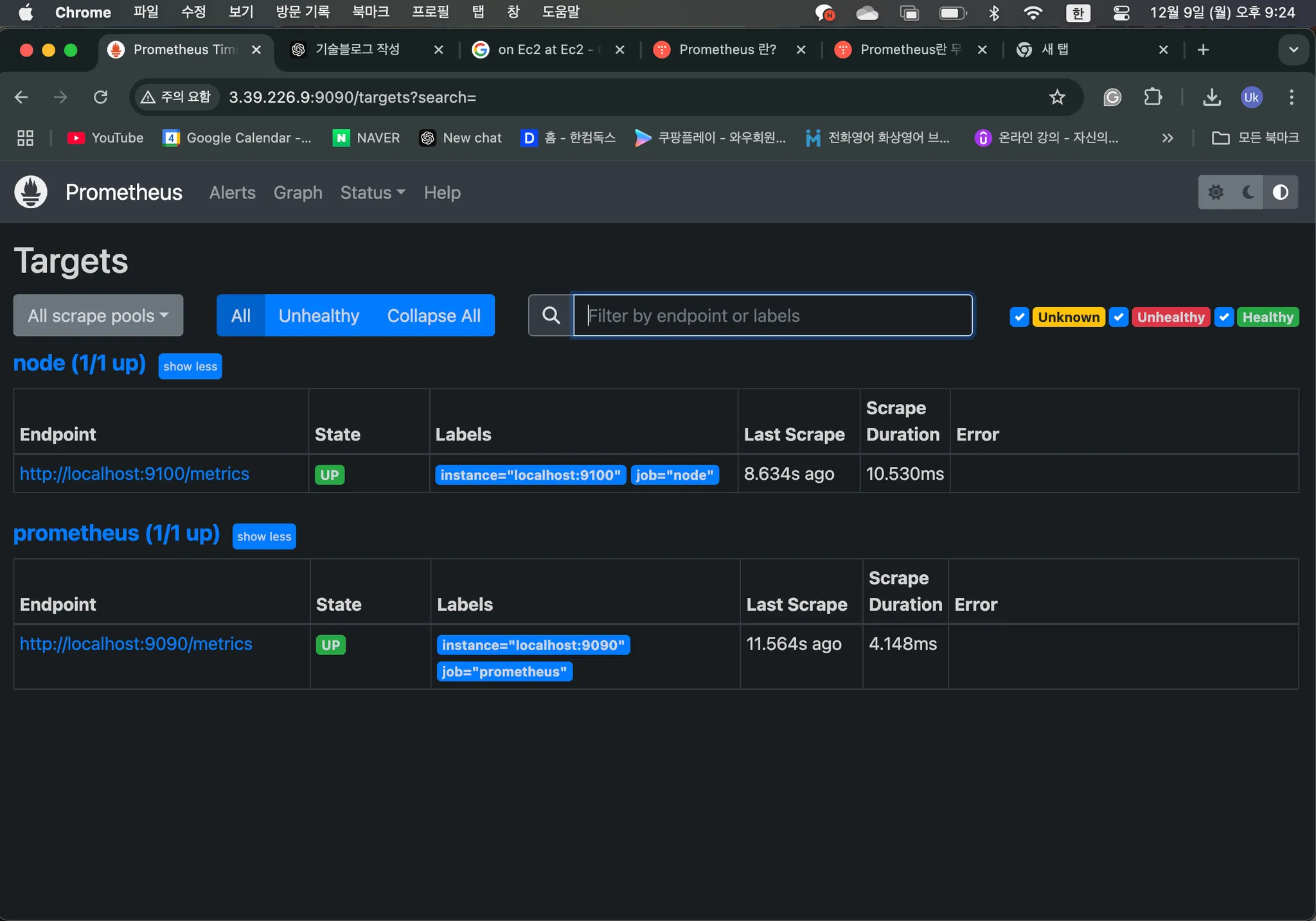
- 브라우저에서
http://localhost:9090/targets로 이동-
EC2에서 작업할 경우 보안 그룹에서 해당 포트 번호를 인바운드에 추가해야 합니다.
-
- 위 화면에서 현재 수집 중인 타겟의 엔드포인트를 확인할 수 있습니다.
- prometheus.yaml 파일에서 설정한 것과 같이 15초마다 해당 노드에 대한 메트릭을 수집하고 있습니다.
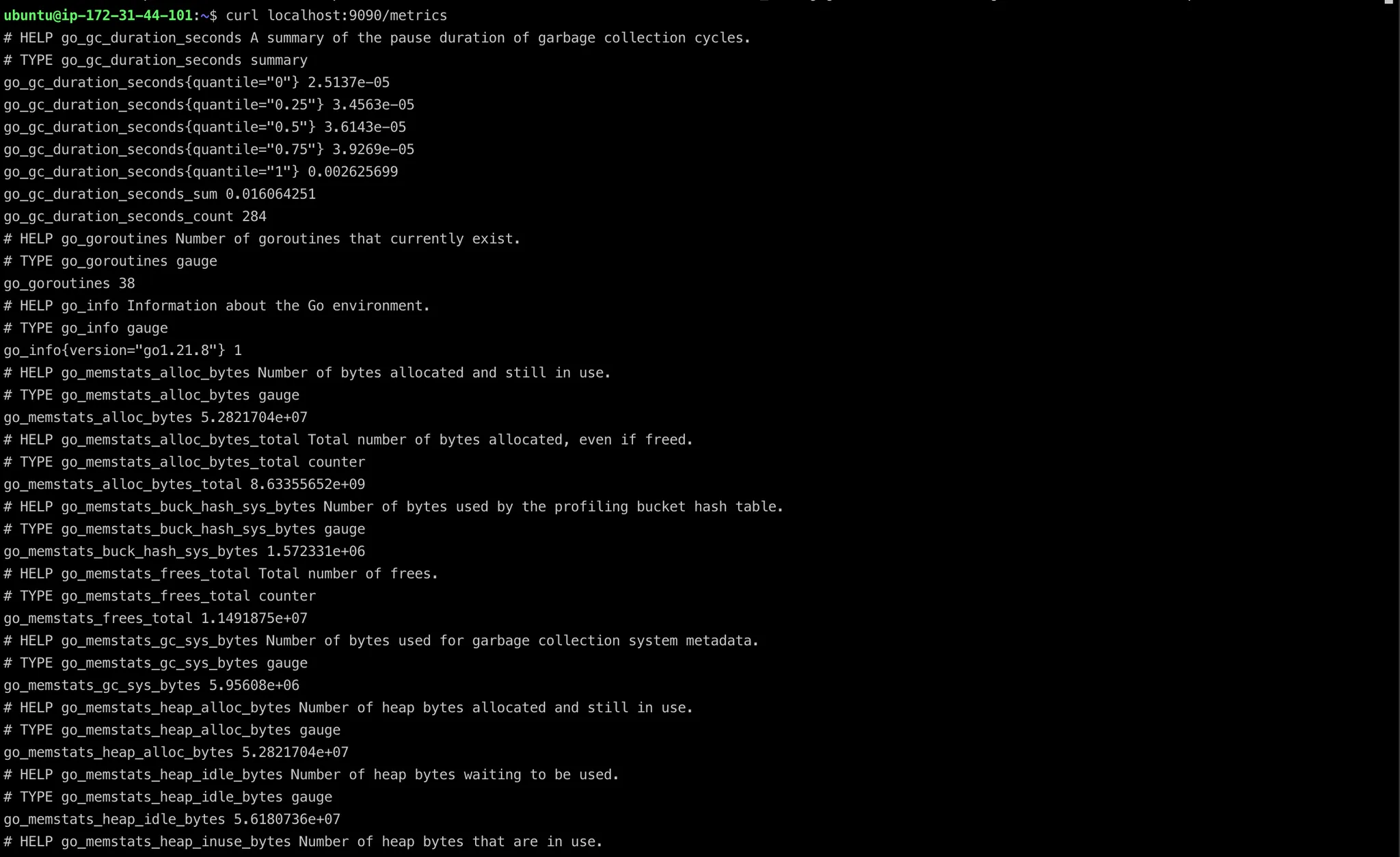
- 아래 명령어를 입력하면 메트릭에 대한 수집된 값들을 확인할 수 있습니다.
curl localhost:9090/metrics