windows IntelliJ에서 진행하던 프로젝트를 wsl ubuntu환경으로 옮기는 과정이다.
windows에서 작업하던 블로그 프로젝트를 wsl에 복사 후
gradle sync 시 에러 발생
1. sdk관련 에러 발생
**Invalid Gradle JDK configuration found (error)**
✅ Springboot3부터는 java version 17이상 사용하므로 openjdk17 설치
✅ 시스템 환경 변수에 추가
- 시스템 변수 - 환경 변수에서 JAVA_HOME에 아래 값 추가
\wsl$\Ubuntu\usr\lib\jvm\java-17-openjdk-amd64
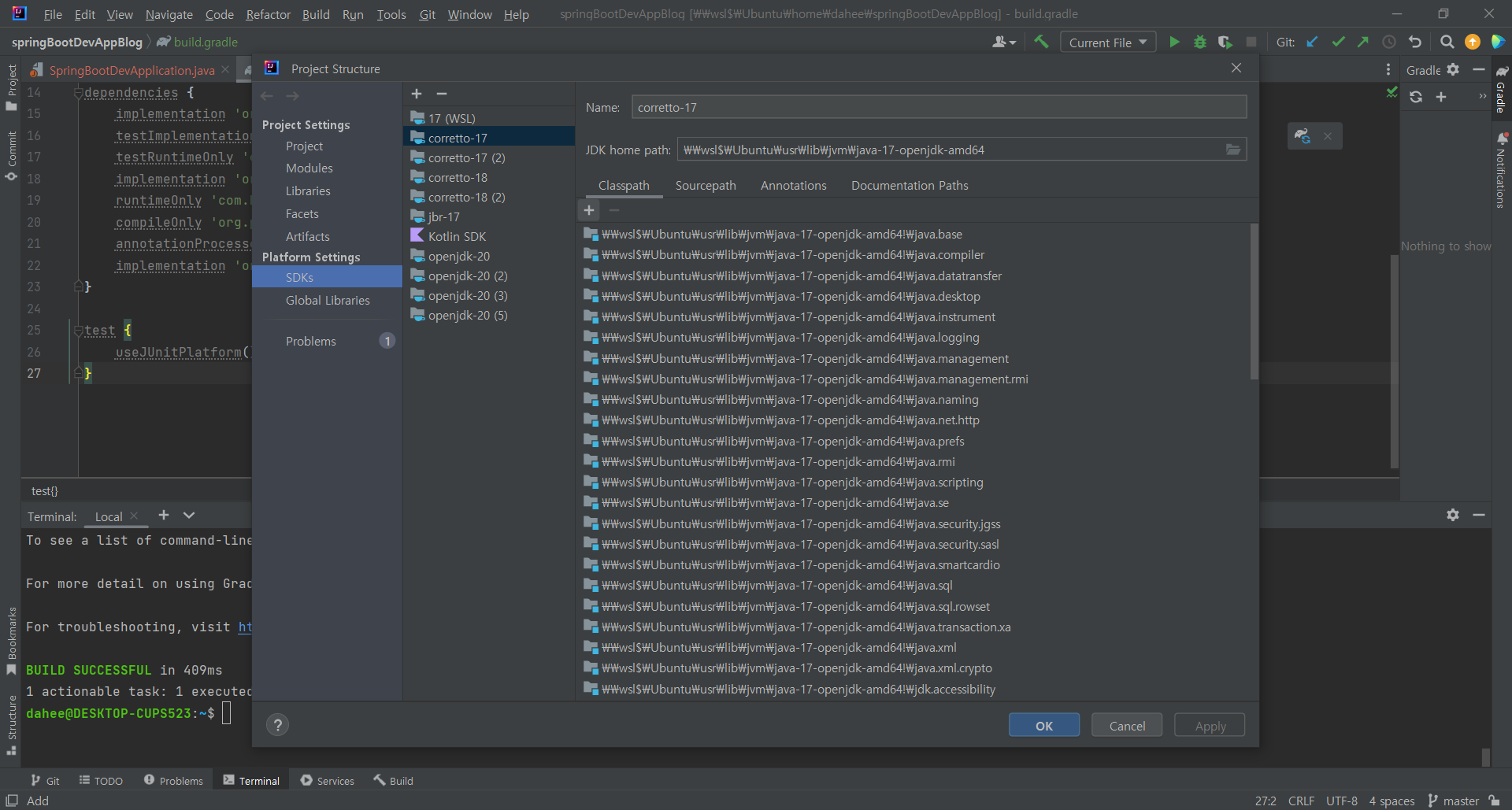
✅ IntelliJ JDK home path 설정
- Project Structure - Platform Settings - SDKs
설치한 JDK home path 추가
2. gradle 관련 에러 발생
Could not install Gradle distribution from 'https://services.gradle.org/distributions/gradle-7.5.1-bin.zip'.
The cached zip file C:\Users\admin.gradle\wrapper\dists\gradle-7.5.1-bin\xxxx\gradle-7.5.1-bin.zip may be corrupted.
Delete file and sync project
✅ gradle도 설치
-
wget으로 gradle-7.5.1 버전 다운받기
- ubuntu에는 /opt/gradle 경로에 다운 받았는데 wsl의 경우는 gradle 디렉토리가 없어서 /opt/gradle 디렉토리를 생성했다.
wget https://services.gradle.org/distributions/gradle-7.5.1-bin.zip
-
다운 받은 파일 unzip
unzip gradle-7.5.1.zip
터미널에서 gradle 입력 시 다운받은 버전으로 동작하게 하기
(ubuntu에서는 /opt/gradle 링크 연결, 나는 연결하진 않음)
- /etc/profile.d/gradle.sh 파일 생성
sudo vi /etc/profile.d/gradle.sh
-
내용 입력
export PATH=/opt/gradle/gradle-7.5.1/bin:$PATH
-
파일 적용
source /etc/profile.d/gradle.sh
3. 방화벽관련 에러 발생
Cannot establish network connection from WSL to Windows host (could be blocked by firewall). More details: https://jb.gg/wsl-firewall
아래 링크 접속해서 그대로 따라 하면 된다.
https://www.jetbrains.com/help/idea/how-to-use-wsl-development-environment-in-product.html#debugging_system_settings
✅참고 : 터미널에서 wsl 입력하면 wsl의 터미널로 접속된다.