Out-of-band (OOB)
OOB는 운영체제를 통해 관리 어플리케이션에 대한 사용자 접근을 제한함.
OOB applications are agentless, meaning the management of the server has no dependencies on the operating system.
iDRAC
iDRAC은 관리자가 에이전트나 운영체제를 사용하지 않고도 어떤 위치에서든 서버를 배포, 모니터링, 관리, 구성, 업데이트 및 문제 해결할 수 있도록 해줍니다.
iDRAC은 아웃오브밴드(out‑of‑band) 애플리케이션
The iDRAC enables configuration, updates, monitoring, and maintaining servers both locally and remotely.
Lifecycle Controller
The iDRAC with Lifecycle Controller provides PowerEdge servers with advanced embedded systems management. Embedded management enables management tasks such as deploying an OS, running configuration wizards, updating, maintaining, diagnosing, repurposing, and retiring the server.
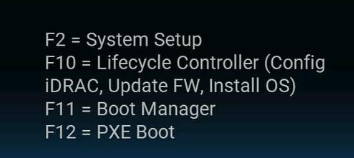
Launch by pressing the F10 key during the server boot.
주요 장점
- 다운타임 예방 : 서버 장애 가능성을 조기에 알림으로써 장애를 예방하고 복구 시간을 단축할 수 있습니다.
- 보안이 강화된 원격 관리 : 원격 관리자도 서버 및 네트워크 보안을 유지하면서 핵심 관리 작업을 수행할 수 있습니다.
- 유연한 펌웨어 업데이트 : 로컬 저장소 또는 Dell 기반 펌웨어 저장소를 사용해 펌웨어를 업데이트할 수 있습니다.
Lifecycle Controller를 사용하면 IT 관리자는 별도의 물리 매체 없이 다음 작업을 수행할 수 있습니다:
- 펌웨어 업데이트 : 로컬 저장소 또는 네트워크 소스를 통한 업데이트 지원
- 하드웨어 구성
- 운영체제 배포 : 로컬에 내장된 드라이버 저장소를 활용 / Windows 및 Linux 지원
- 플랫폼별 진단 기능 실행
RACADM (Dell Remote Access Controller Admin)
RACADM utility is a command-line tool that accesses the iDRAC for PowerEdge server management.
- 관리자는 SSH를 통해 iDRAC에 직접 접속
RACADM get and set
get 명령은 단일 객체의 값을 표시하거나 여러 객체의 값을 파일로 내보낼 수 있음.
set 명령은 지정한 새 값으로 단일 객체를 수정할 수 있으며, 구성 파일을 사용하여 여러 객체를 새로운 값으로 일괄 수정할 수도 있음
Boot Manager
Boot Manager enables administrators to select boot options and diagnostic utilities.
To access the Boot Manager screen, press F11 while being on the system warm boot screen.
System Setup
System Setup helps to configure the basic settings of a server.
The administrator uses the System Setup utility to view and configure the BIOS settings.
Administrators can edit specific functions such as boot order, system and setup passwords, RAID mode, and enabling or disabling USB ports.
Launch by pressing the F2 key during the server boot.
Virtual console
Administrators launch the virtual console from the iDRAC UI Dashboard to gain a remote connection to the host system. The console enables the use of the keyboard, video, and mouse on the local management station.
OpenManage Enterprise
OpenManage Enterprise is a systems management web application that administrators deploy as a virtual appliance on either Windows Hyper-V, VMware ESXi, or Linux KVM.
In-band
IB management is operating system dependent, meaning the administrator cannot manage the server unless the operating system is running.
iDRAC service moduel (ISM)
iSM is a lightweight, optional software agent that administrators can install on the PowerEdge server.
iSM expands iDRAC management into supported host operating systems.
Use case: The administrator wants to view the Lifecycle logs from the host OS.
iDRAC 은 OOB 여서 OS 레벨의 접근이 어려움.
따라서 iSM을 설치하면 OS 내부정보를 조회가능.
Use case: Suited for administrators that manage, monitor, and updated thousands of devices to include third party devices.
Open Server Manager (OSM)
특정 PowerEdge 클라우드 스케일 서버에서 사용할 수 있는 오픈소스 기반 BMC(Baseboard Management Controller) 관리 플랫폼
즉, 기존의 iDRAC과 유사한 목적(서버 원격 관리)을 가지지만
OpenBMC를 기반으로 다 vendor 환경에서도 통합·일관된 관리가 가능하도록 설계된 “오픈형” 관리 솔루션입니다.
Dell OpenManage Server Administrator (OMSA)
one-to-one software application that can manage and monitor the health of a server.
At-the-Box Management
LCD Control Panel
-
The LCD control panel is an optional feature on the server.
-
The panel provides system information, status, and error messages.
-
Administrators can use the control panel to configure or view the iDRAC IP address.
Use case scenario: The server is installed and powered on. The administrator tries to perform initial configurations, but does not have the correct iDRAC IP address. Use the control panel to view the iDRAC IP address that the deployment engineer configured.
Quick Sync
Quick Sync is an optional feature that allows administrators to monitor and configure the server over a Bluetooth or WiFi connection.
Connect:
1. Press the Quick Sync button on the left control panel (white indicator).
2. Move the mobile device close to the control panel.
Enable the optional Quick Sync for at-the-box monitoring.
Use case scenario: The administrator accesses the server management functions without the need of a front bezel or connecting a management console. Imagine that the data center has hundreds of PowerEdge servers and while performing an inspection, the administrator notices error LEDs illuminated on some of the servers. The administrator can view the logs using a smartphone without returning to a desk and remote into the server.
Server Setup and Configuration Utilities
관리자는 서버를 구성하기 위해 설정 또는 부팅 유틸리티를 사용할 수 있음