1.2 Using Python in a variety of ways
As in my previous scrip, there are several ways to use Python.
ex.
1) VScode + local Python
Recommended for those who want to install Python, and work on different projects in a light development environment.
It is convenient to utilize the rich expansion features and Git interworking provided by VSCode.
2) Python Anaconda + Jupyter Notebook
If want to mainly do data analysis, machine learning/deep learning practice, the rich package Anaconda has and Jupiter laptops are very convenient.
Recommended for those who want to reliably process data in their local environment and manage packages in an easy way.
3) Google Colab(similar to Jupyter, no need installation)
No need for a separate installation, and you can run Python code straight from the cloud.
GPU/TPU is free (for a certain amount of time), so it is especially recommended for deep learning practice.
Can work anytime, anywhere on the Internet, so it's very convenient if need a simple practice or sharing.
1.2.1 Basic Local Python installation
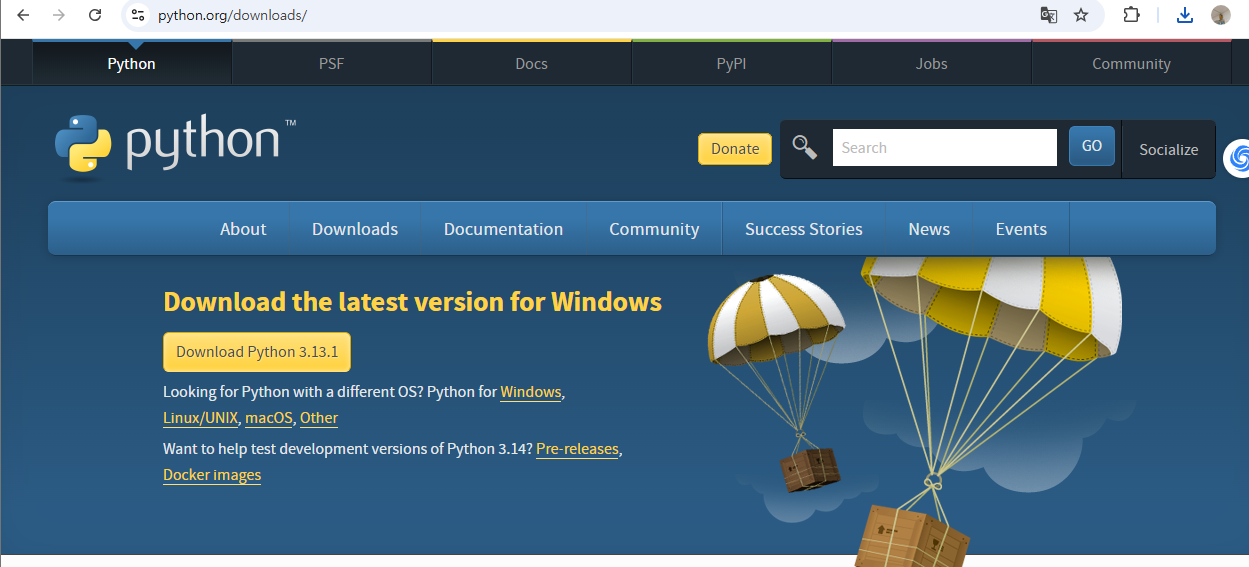
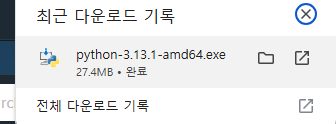
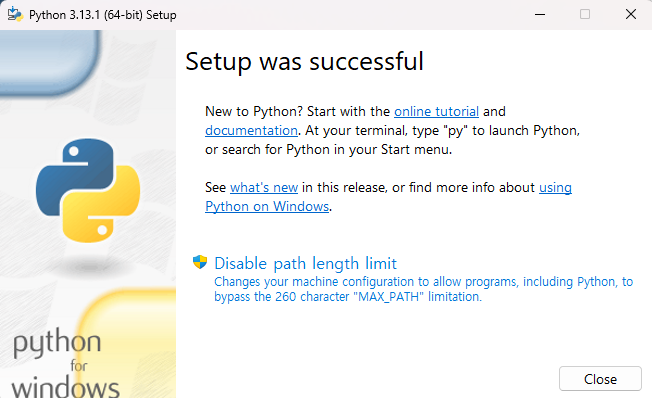
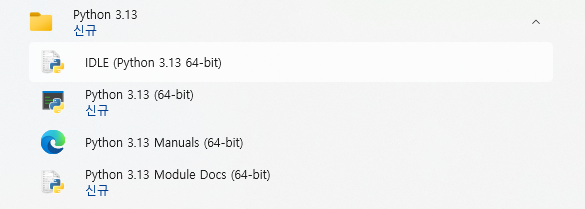
Launch IDLE (Python 3.13 64-bit)
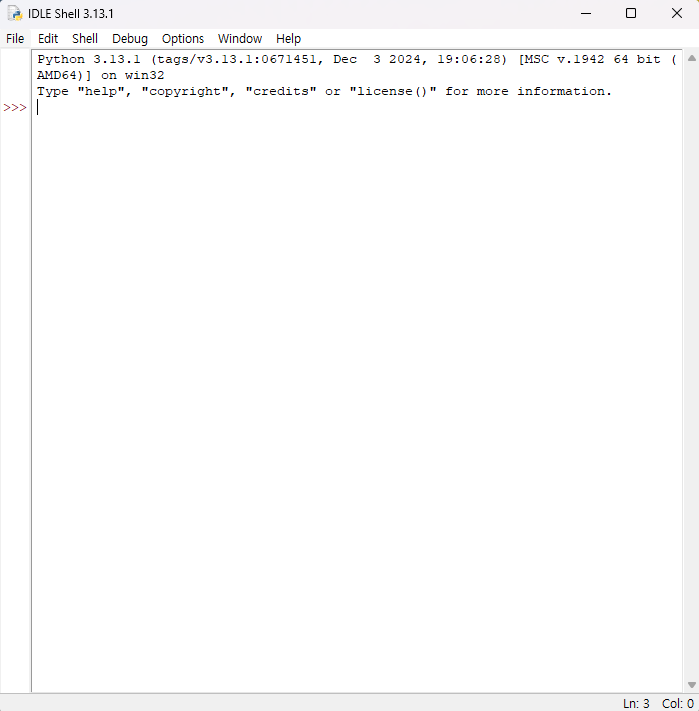
text
import this
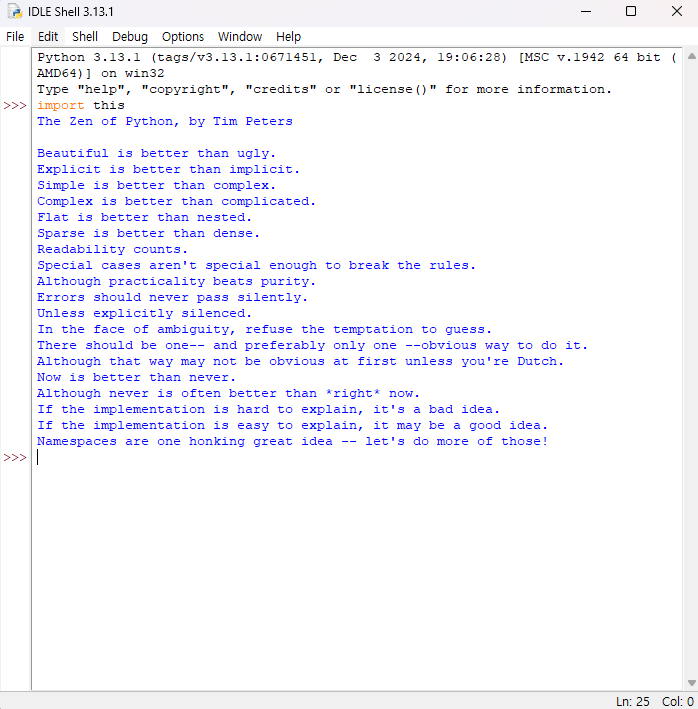
Python's philosophy
1.2.2 Python Anconda
install anconda
1.2.3 Jupyter Notebook
install jupyter
1.2.4 Setting up Python with VScode
1.2.4.1 Install Python
Already done it up there, so skip it
-
Go to Python's official site (https://www.python.org/downloads/ ).
-
Download the latest version for your operating system (I use Windows).
-
Launch python exe file. (ignore the version ㅎㅎ)
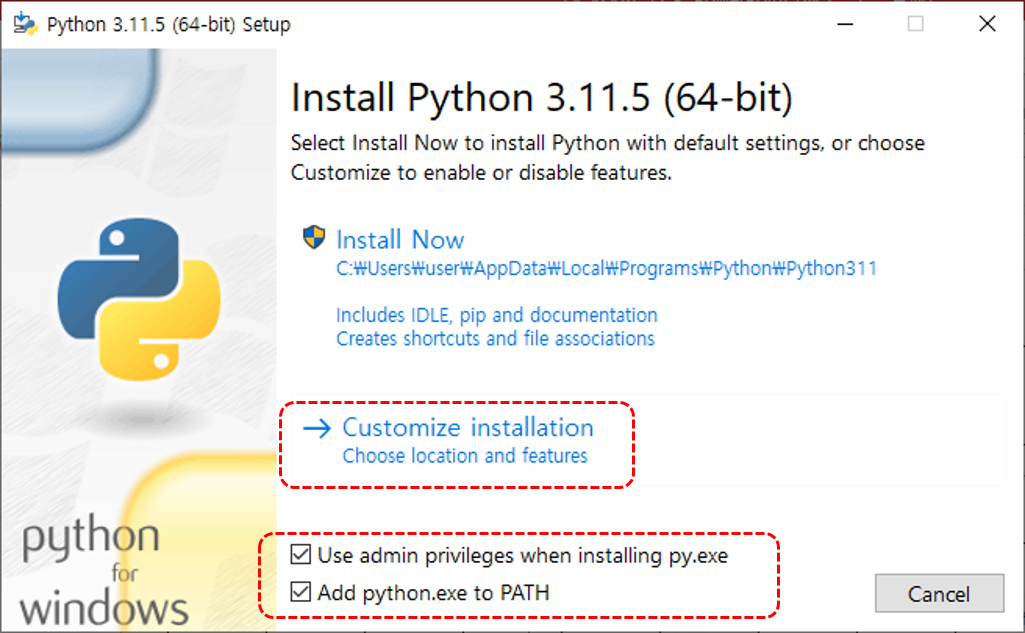
- For Windows users, make sure to check and install the "Add Python to PATH" option, so that you can recognize "Python" commands directly from the command prompt (cmd) or from the terminal.
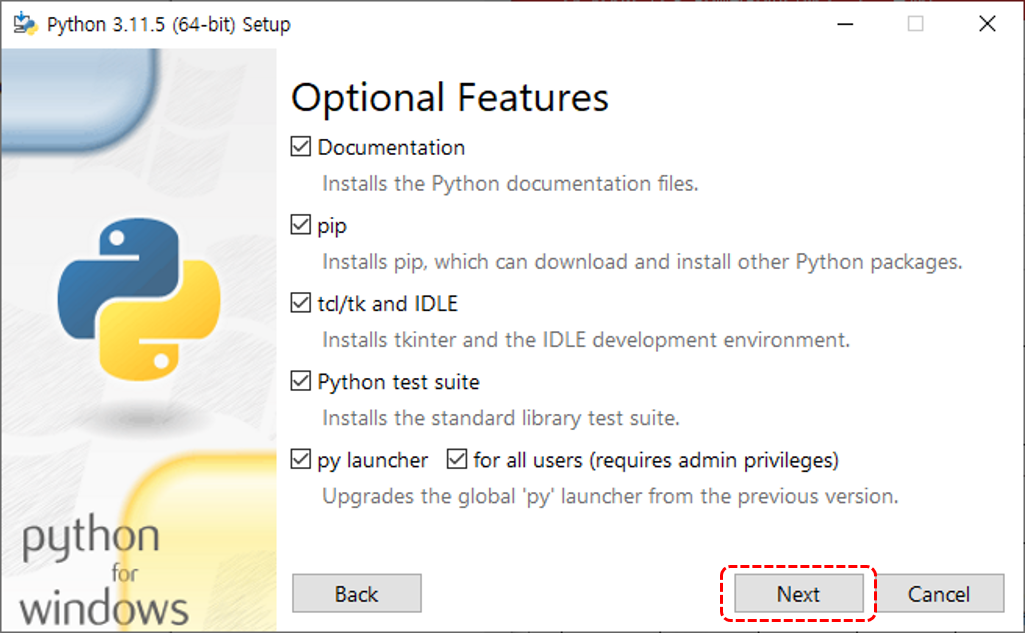
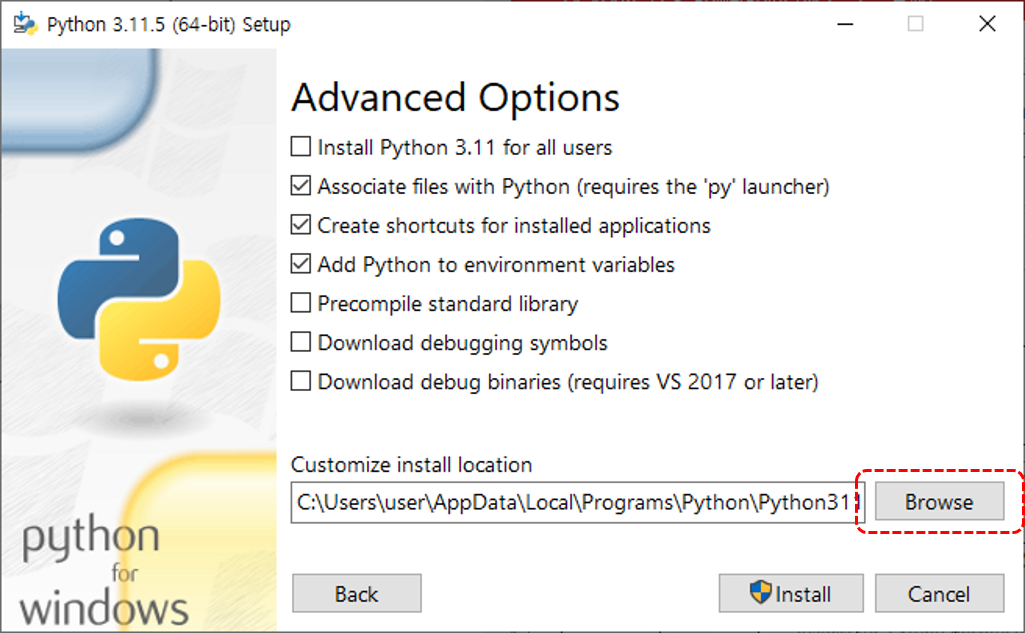
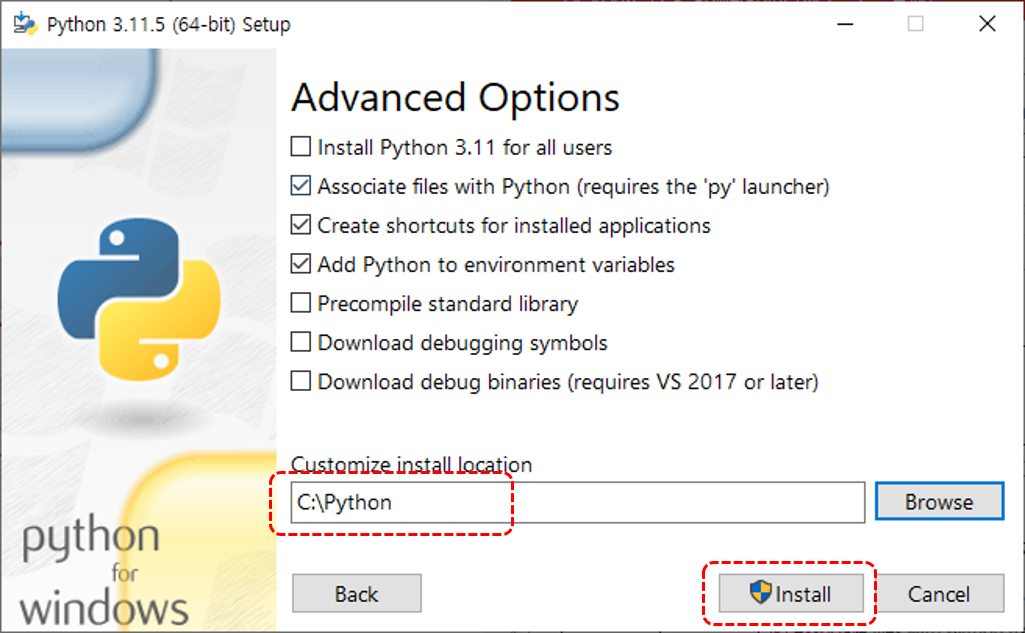
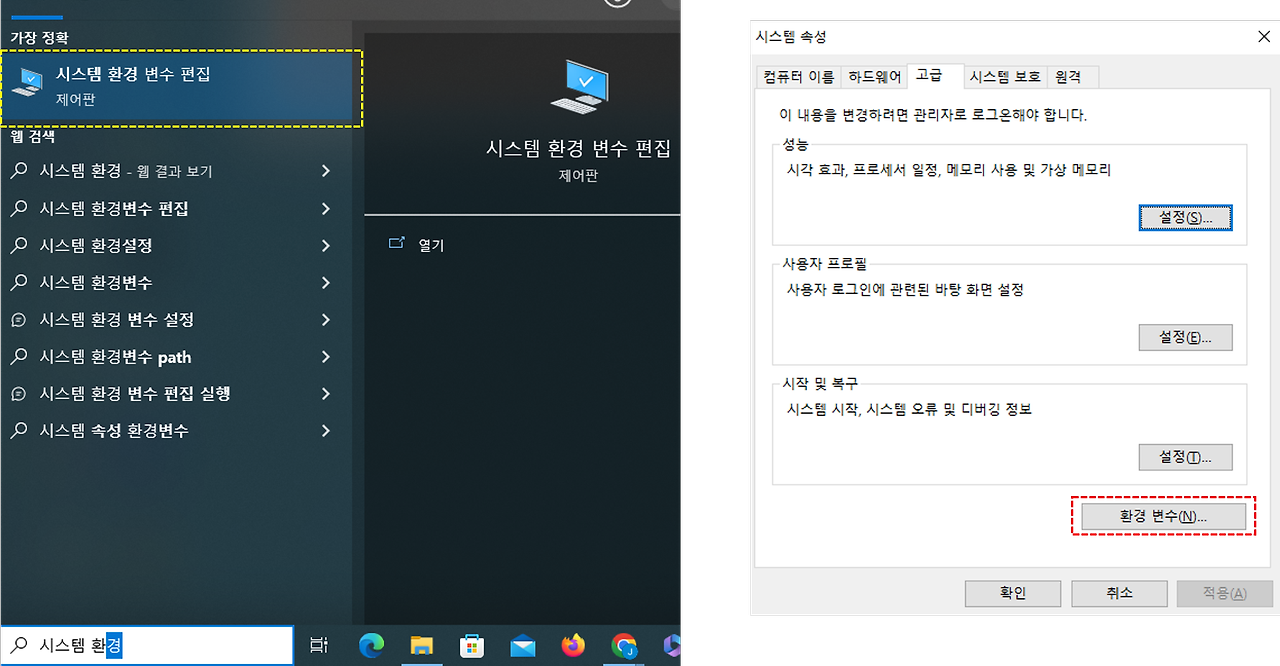
- Environment variable settings need to be checked
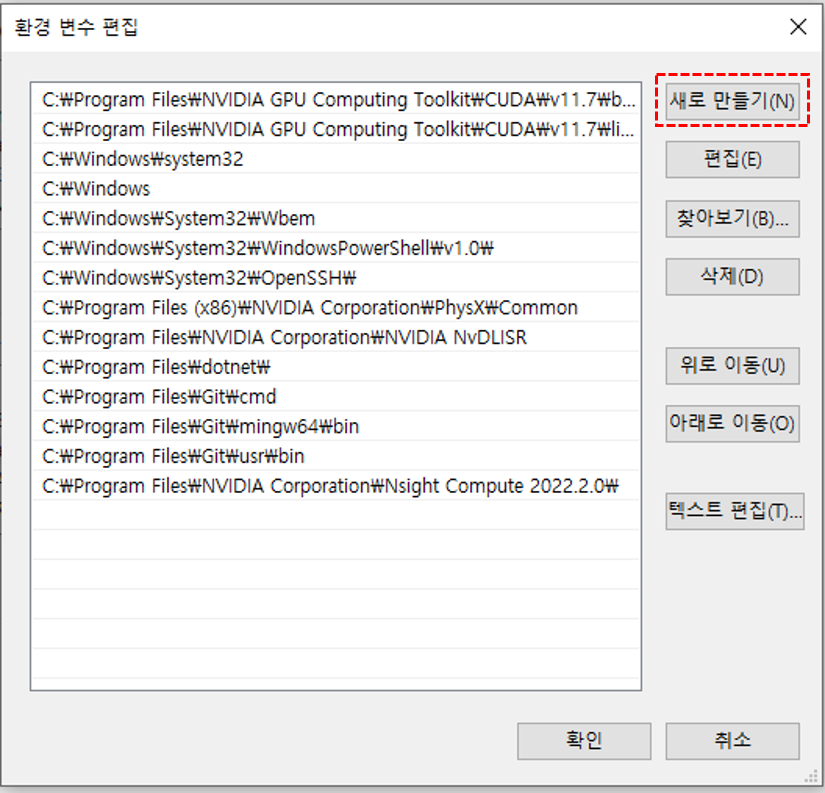
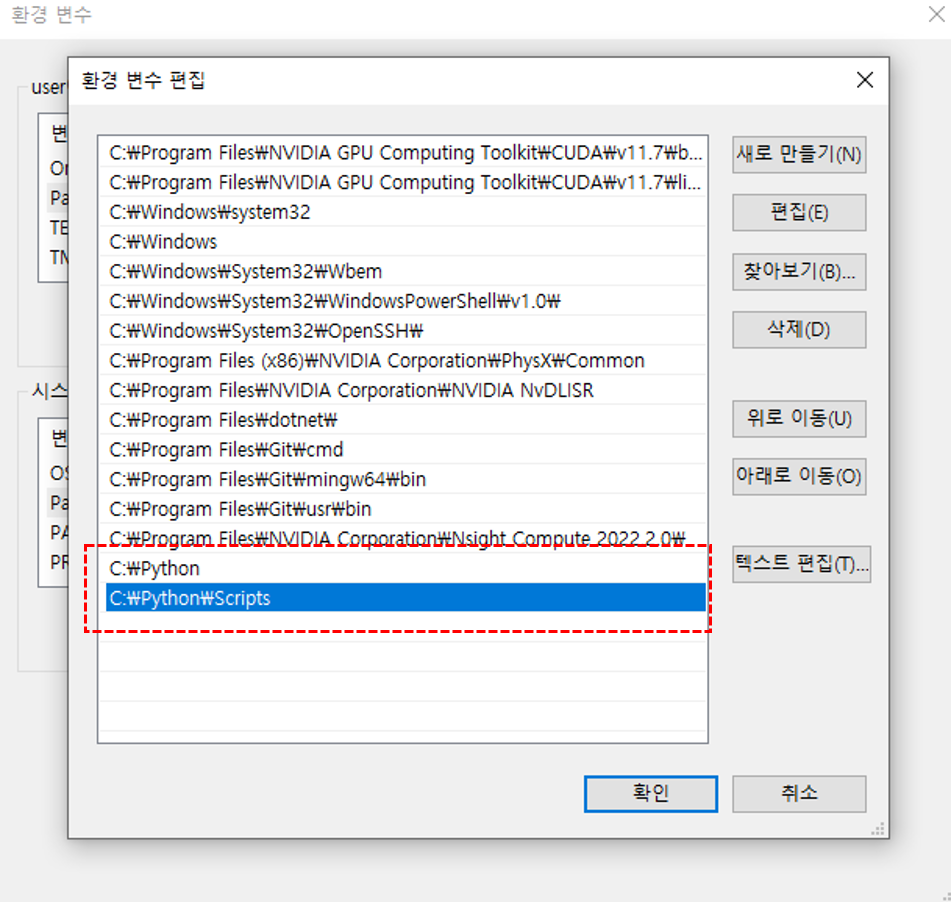
- If you just click Install Now ---------------------------------------
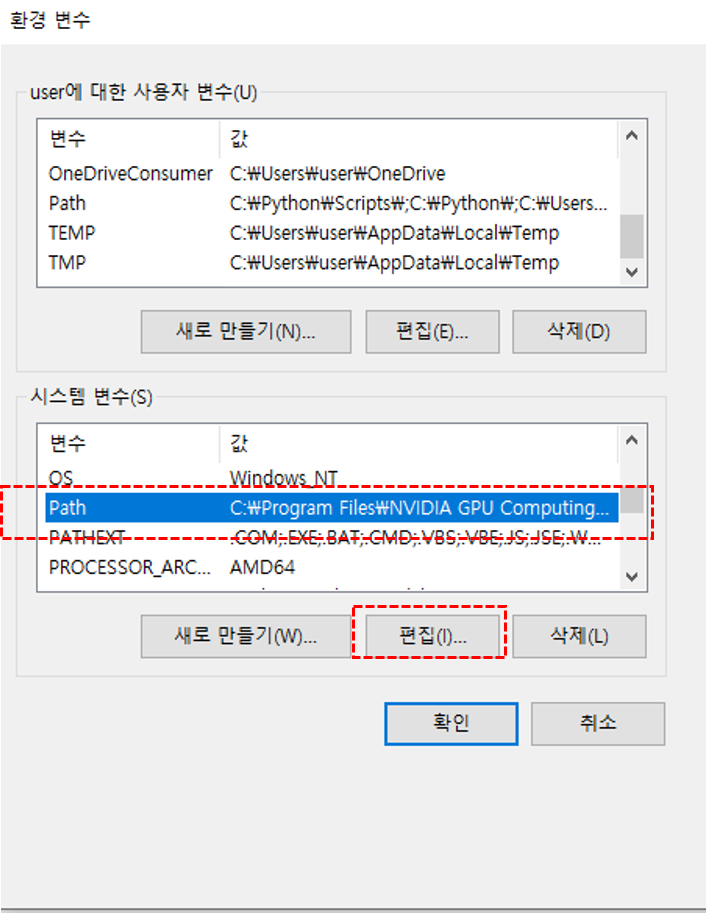
Environment Variable path :
C:\Users\ [USER NAME]\AppData\Local\Programs\Python\Python312\
C:\Users\ [USER NAME]\AppData\Local\Programs\Python\Python312\Scripts\
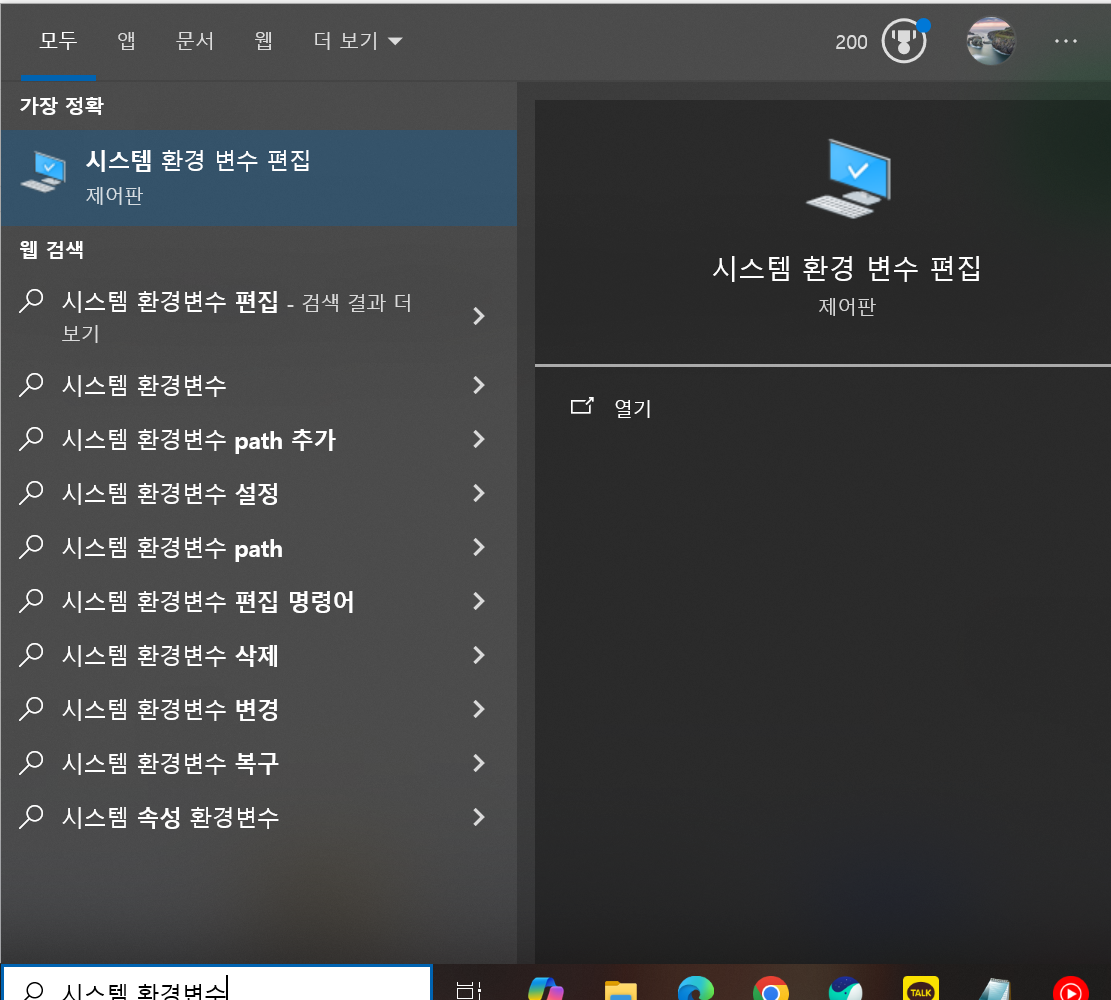
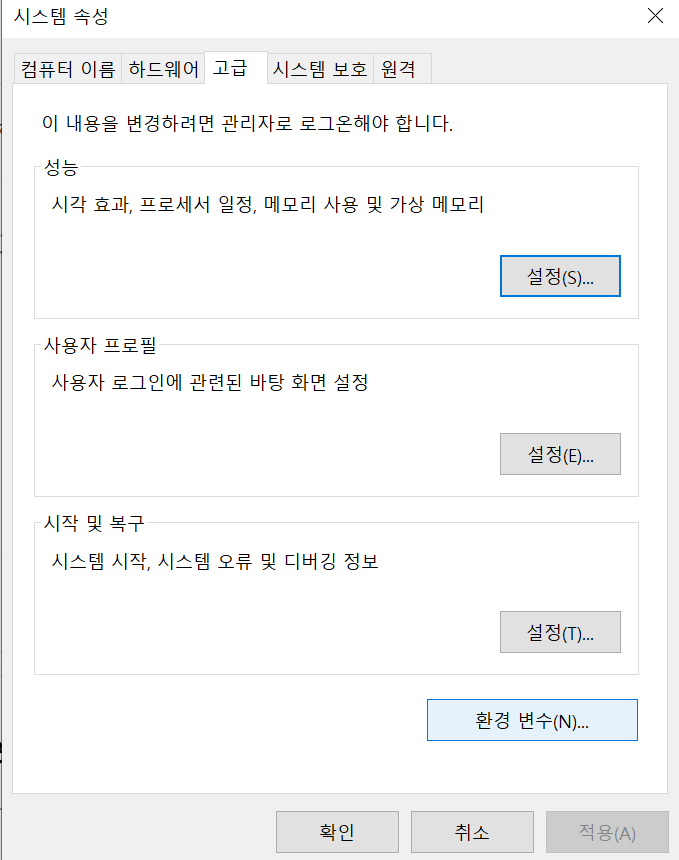
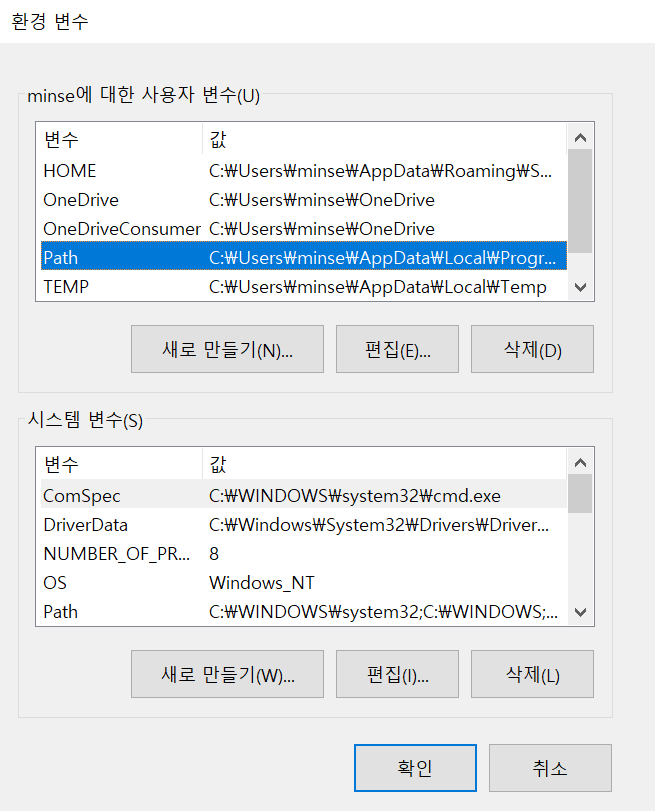
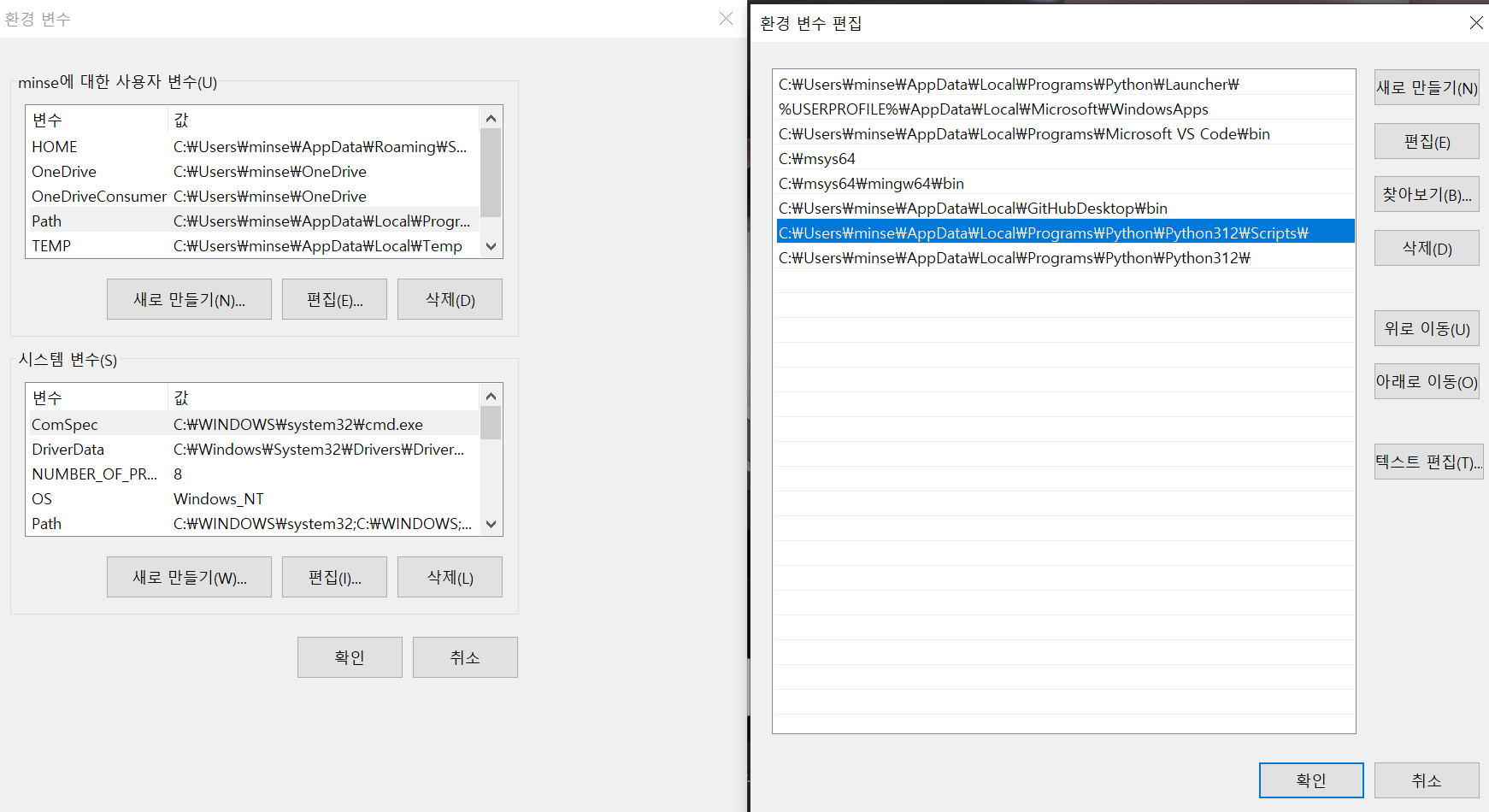
If not, must edit the env variable part
1.2.4.2 Install VScode
It is available for free download from the official VSCode site
The installation process does not require any special options, so you can install it with the default settings.
Github Account creation is recommended to use Git Copilot & Git interlock
+) Difference of git & github
=> git: locally management source code
=> github: Space to upload and share locally managed source code
My Other posts will provide information about "the git"
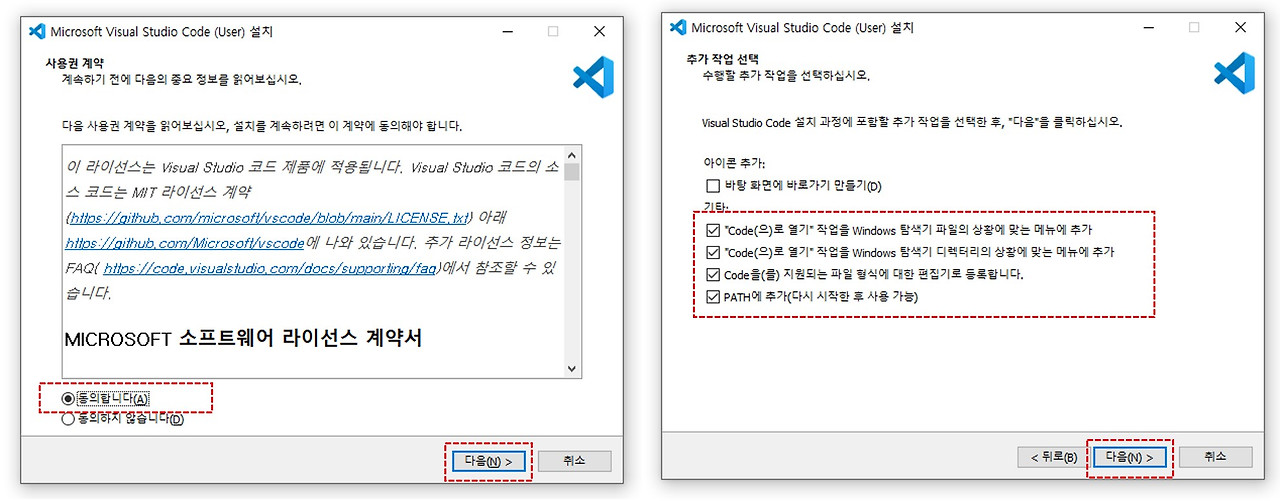
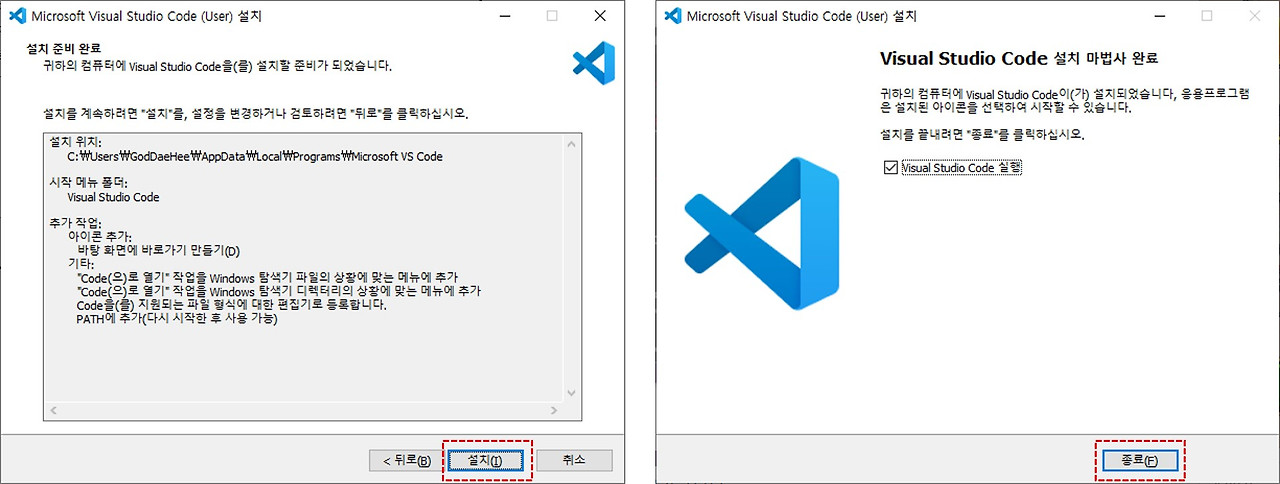
1.2.4.3 Setting up Python Development Environment in VSCode
-
Run VSCode.
-
Click the Extensions icon in the left sidebar, or click the top menu View > Extensions.
- Type Python in the search box and install the Python provided by Microsoft.
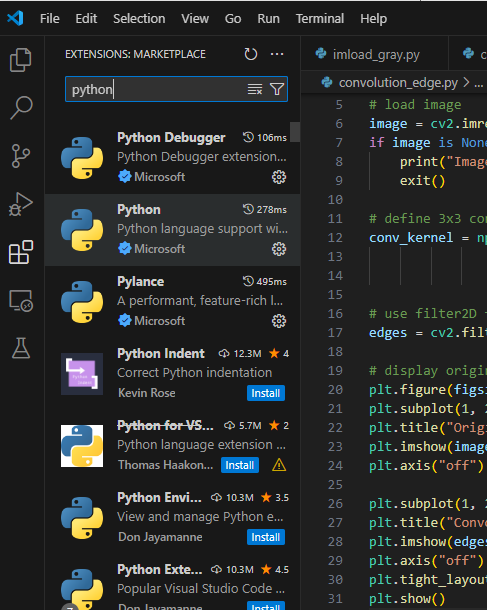
additionally install Python Extension Pack extension facilitates Python grammar emphasis, code auto-completion, debugging, and more.
(Optional) An additional Jupiter extension can also be installed to execute the code in the form of a Jupiter laptop within the VSCode.
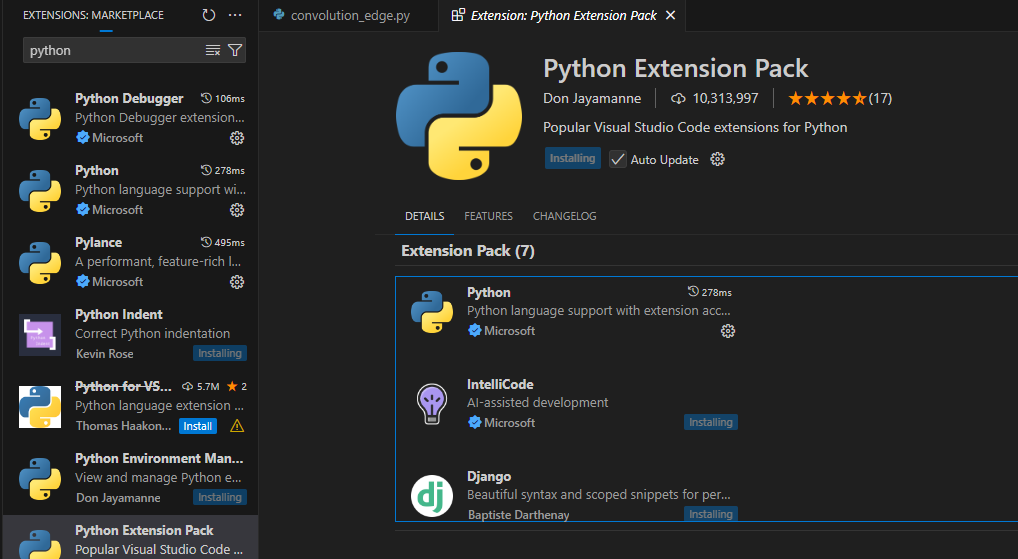

done
1.2.4.4 Run Python Files in VSCode
-
Create a Python file on your desktop.
-
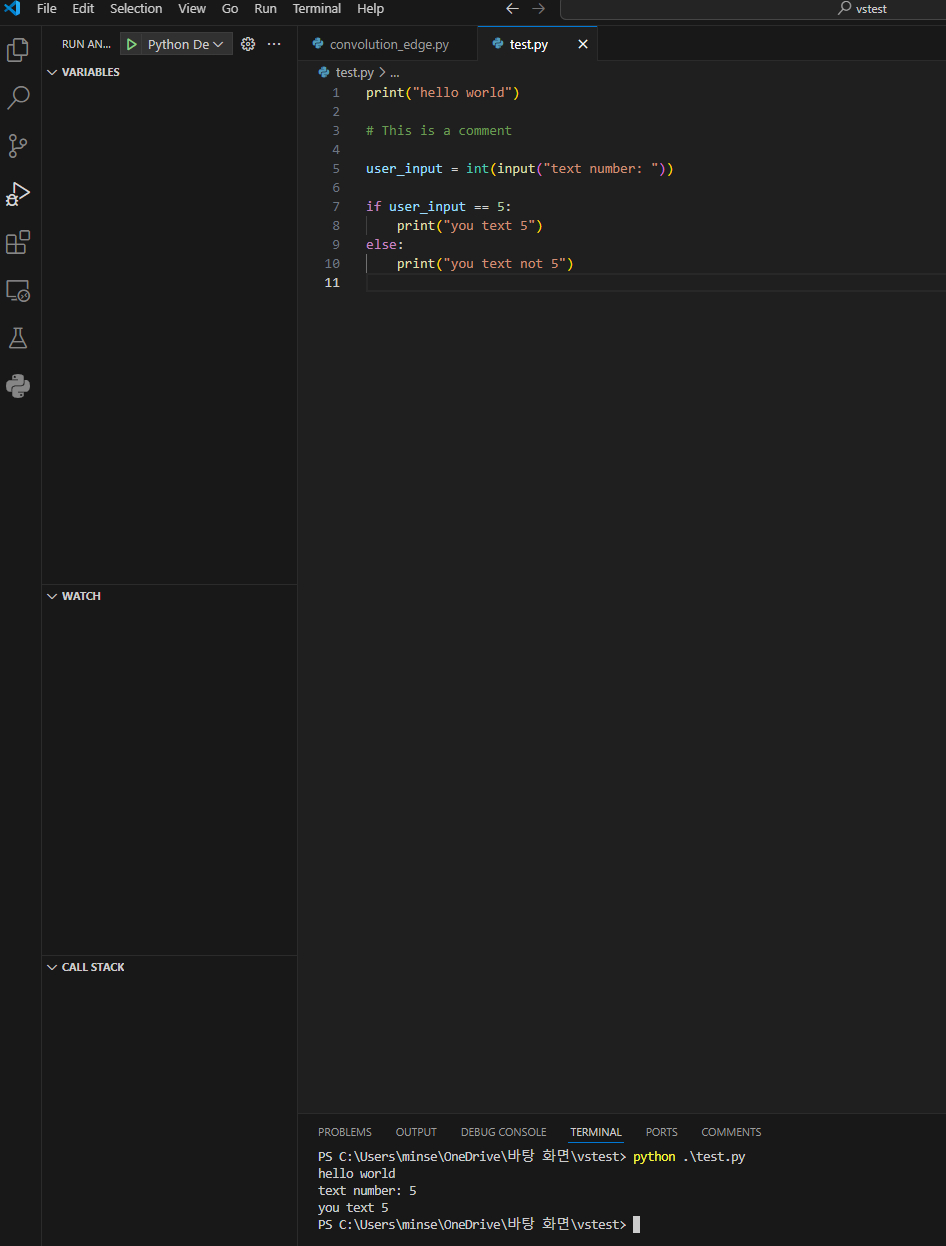
Create a new file in VSCode and save it as a " .py extension ", such as " test.py " .
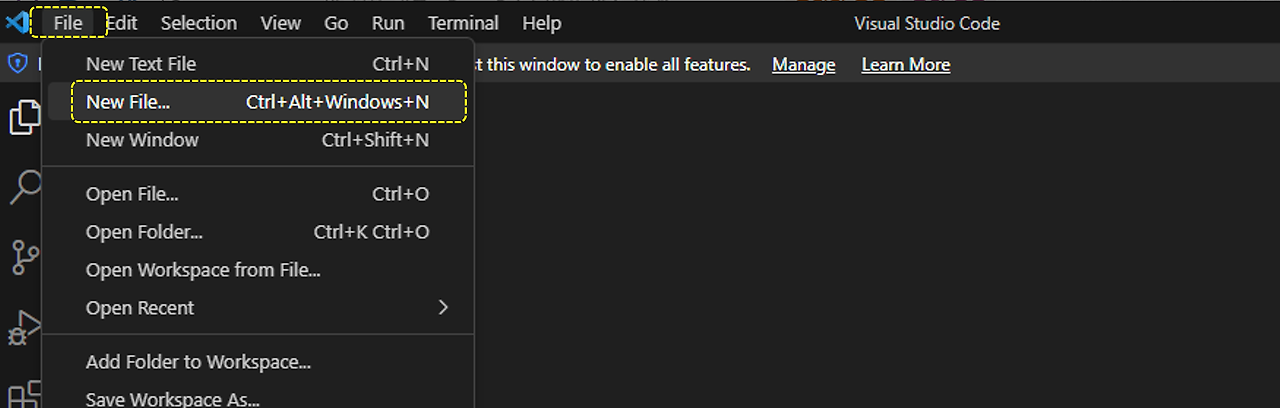
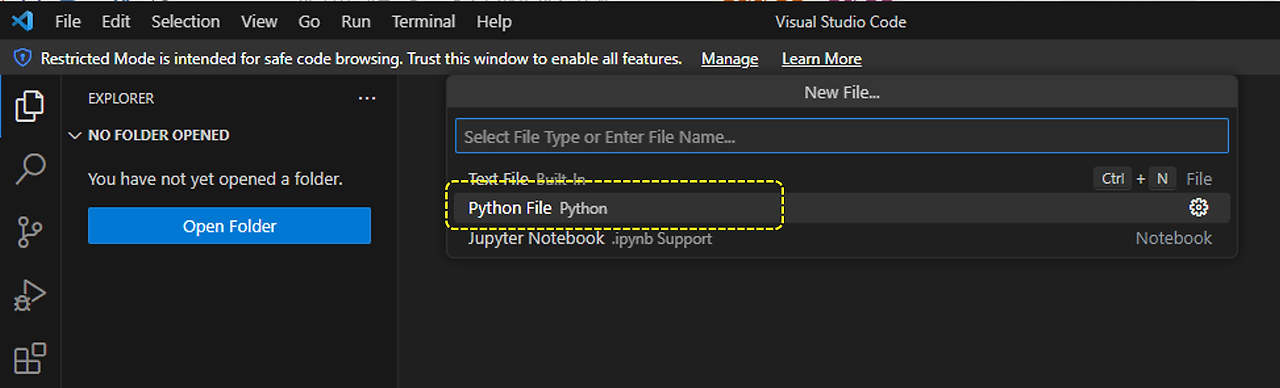


- Write a simple code as below
print("hello world")

# This is a comment

user_input = int(input("text number: "))

if user_input == 5:
    print("you text 5")
else:
    print("you text not 5")
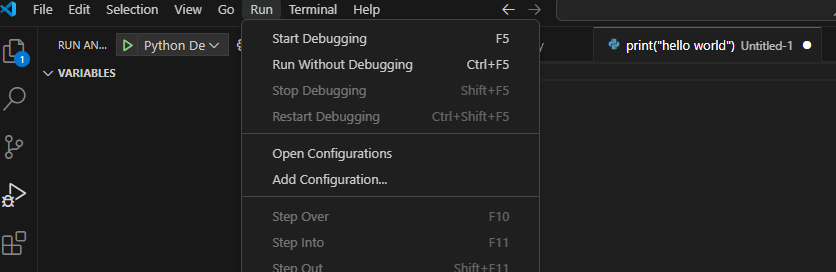
- Click 'Run' (or triangle icon) in the upper right corner, or run it with the python test.py command in the terminal.
or crtl+shift+d and F5
- If "Hello, world" is displayed in the output window (or terminal), it is a success.
1.2.5 Google Colab
Google Colab is a cloud-based Jupiter laptop experience provided by Google. The benefit is that you can run Python code with just a web browser without a separate installation.
1.2.5.1 Access to Google Colab
-
Must have a Google account (for example, a Gmail account).
-
From a web browser, go to the Google Colab link
-
If you want to create a new file on your Google Drive, you can choose Google Drive > New > View More > Google Catalog.
1.2.5.2 How to use Google Colab
-
When create a new laptop, it is saved to Google Drive in the form of a .ipynb file.
-
Just like Jupiter laptops, you can use code cells and markdown cells to write code and check the results.
-
GPU and TPU can be used to some extent even in a free environment, which is useful for deep learning and machine learning practice.
-
If various packages are already installed, and additional installations are required, you can install them immediately by running !pip install in the cell.
Now that the initial settings are all over, let's study the grammar