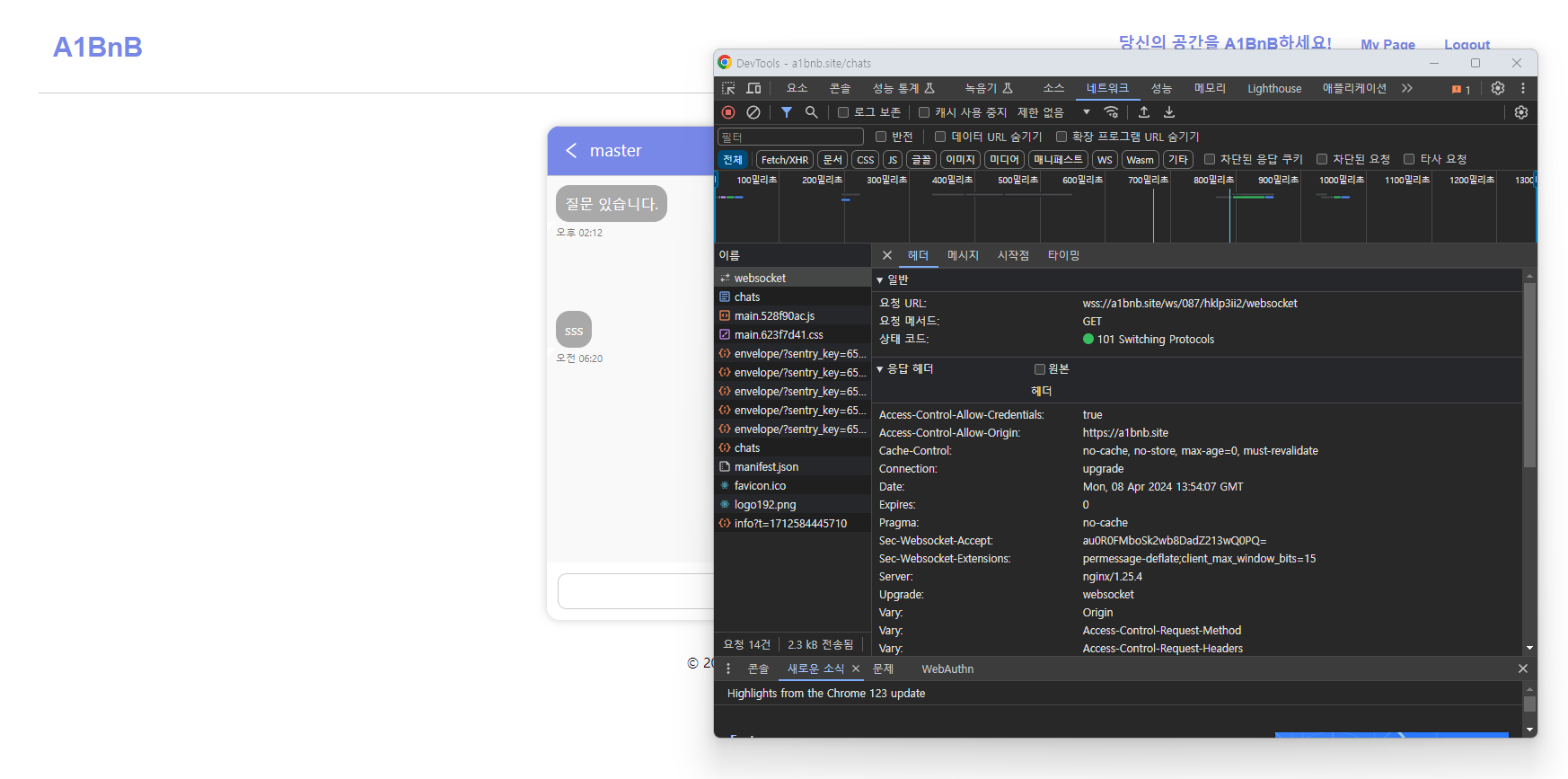
a1bnb.site
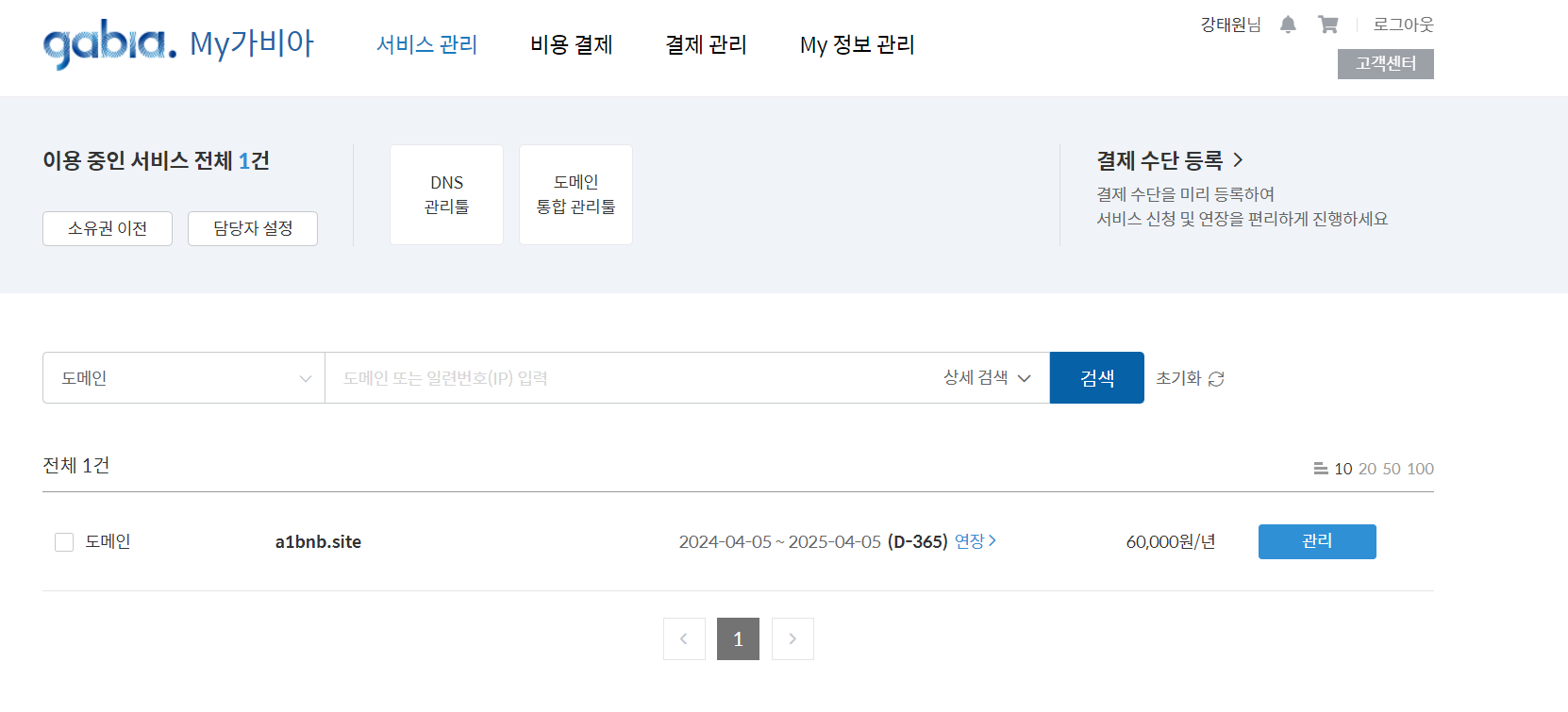
현재 기존의 EC2 퍼블릭 IP를 연결한 도메인을 준비 해놓은 상태이다.
오늘은 배포 중인 a1bnb의 서비스에 보안성 향상을 위해 HTTPS 프로토콜을 적용해보도록 하겠다.
HTTPS
HTTPS는 인터넷 상에서 데이터를 안전하게 주고받기 위한 프로토콜이다. HTTP에 데이터 암호화 기능이 추가된 버전이라고 생각하면 된다.
동작 과정
HTTPS는 어떤 방식으로 데이터를 암호화하는지 알아보자.
먼저 대칭키와 비대칭키 암호화에 대해 알아야 한다.
- 대칭키 암호화
클라이언트와 서버가 동일한 키를 사용해 암호화/복호화 진행
키가 노출되면 위험하며 연산 속도 빠름
- 비대칭키 암호화
1개의 쌍으로 구성된 공개키와 개인키를 암호화/복호화에 사용
키가 노출되어도 비교적 안전하며 연산 속도 느림
HTTPS는 대칭키와 비대칭키 암호화를 모두 사용하여 속도와 안전성 모두 보장하였다.
HTTPS 프로토콜 동작 과정
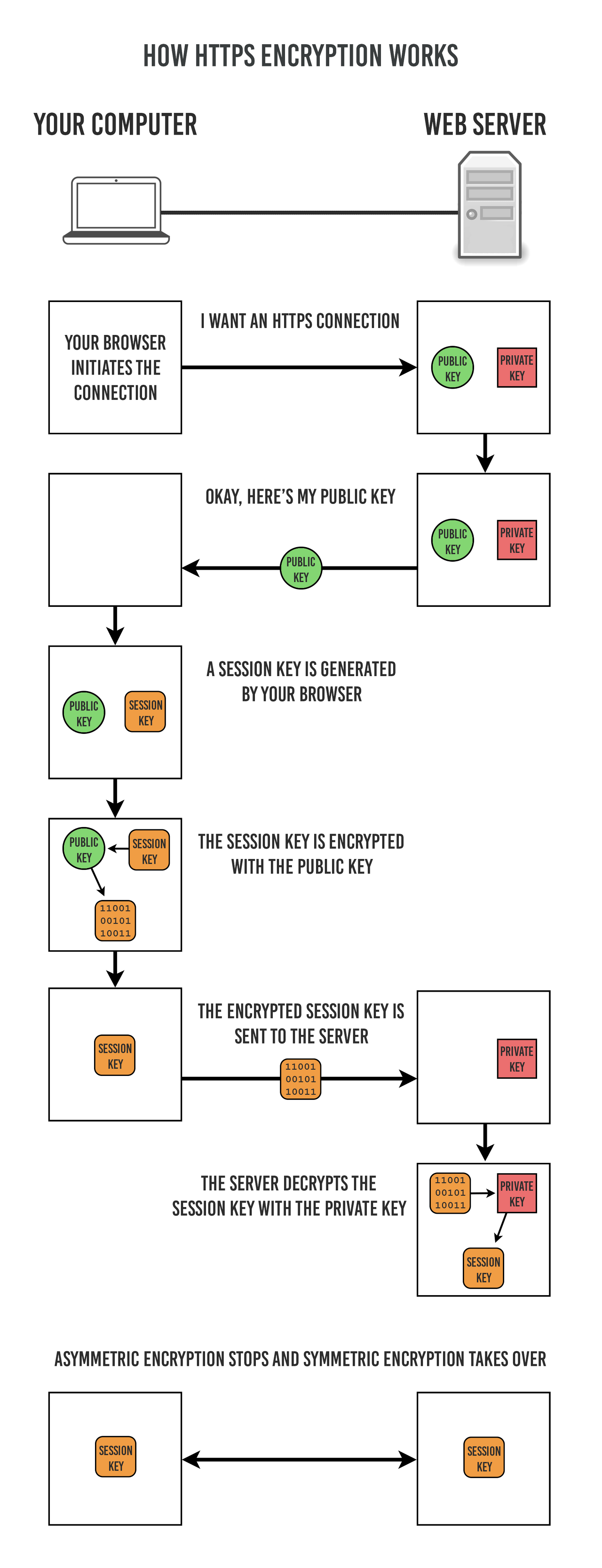
- 사용자(클라이언트)가 웹 브라우저를 통해 HTTPS를 사용하여 웹사이트에 접속을 시도.
- 서버는 자신의 공개키가 포함된 디지털 인증서를 클라이언트에게 전송.
- 클라이언트는 인증서의 유효성을 검사하고, 세션키(대칭키)를 생성
- 클라이언트는 서버의 공개키를 사용하여 세션키를 암호화하고 서버로 전송.
- 서버는 개인키로 암호화된 세션키를 복호화
- 이후 세션키로 데이터 암호화/복호화 진행
HTTPS 프로토콜 적용 방법으로 Nginx를 이용하여 진행할 예정인데..
Nginx

Nginx는 경량 웹 서버로서 클라이언트로부터 요청을 받았을 때 요청에 맞는 정적 파일을 응답해주는 용도로도 활용 될수 있다. 이 외에도
- 리버스 프록시: 클라이언트의 요청을 하나 이상의 서버로 전달, 그 결과를 클라이언트로 다시 전달하는 중계자 역할
- 로드 밸런싱: 여러 대의 서버에 걸쳐 트래픽을 분산. 서버의 부하 감소
- 캐싱: 자주 요청되는 웹 콘텐츠를 캐시하여 빠르게 제공함으로써 웹 서버의 부하를 줄이고 응답 속도 향상
또한, SSL 인증서 발급을 통해 HTTPS 설정을 할 수 있다.
Dockerfile 작성
먼저 기존에 사용하던 리액트 애플리케이션을 nginx를 통해 배포할 수 있게 수정하자.
기존의 Dockerfile
# base image
FROM node:18.16.1-alpine

# set working directory
WORKDIR /app

# install app dependencies
COPY package*.json ./
RUN yarn add react

# add app
COPY . .

# Expose the port
EXPOSE 3000

# start app
CMD ["yarn", "start"]
수정한 Dockerfile
# BUILD
FROM node:18.16.1-alpine AS builder
WORKDIR /app
COPY package*.json .
RUN yarn add react
COPY . .
RUN yarn build

# DEPLOY
FROM nginx:latest
RUN rm /etc/nginx/conf.d/default.conf
RUN rm -rf /etc/nginx/conf.d/*
COPY ./nginx.conf /etc/nginx/conf.d
COPY --from=builder app/build /usr/share/nginx/html
EXPOSE 80
CMD ["nginx", "-g", "daemon off;"]
nginx.conf
Dockerfile에서 사용할 nginx의 설정 파일이다.
- / 경로에 대한 요청은 Nginx가 관리하는 정적 파일로 응답
- 프록시 설정을 통해 /api 요청은 8080 포트에서 실행 중인 Spring 컨테이너로 전달.
server {
    listen 80;
    server_name a1bnb.site;
    location / {
        root   /usr/share/nginx/html;
        index  index.html index.htm;
        try_files $uri $uri/ /index.html;
    }
    location /api {
        proxy_pass http://a1bnb.site:8080;
    }
}
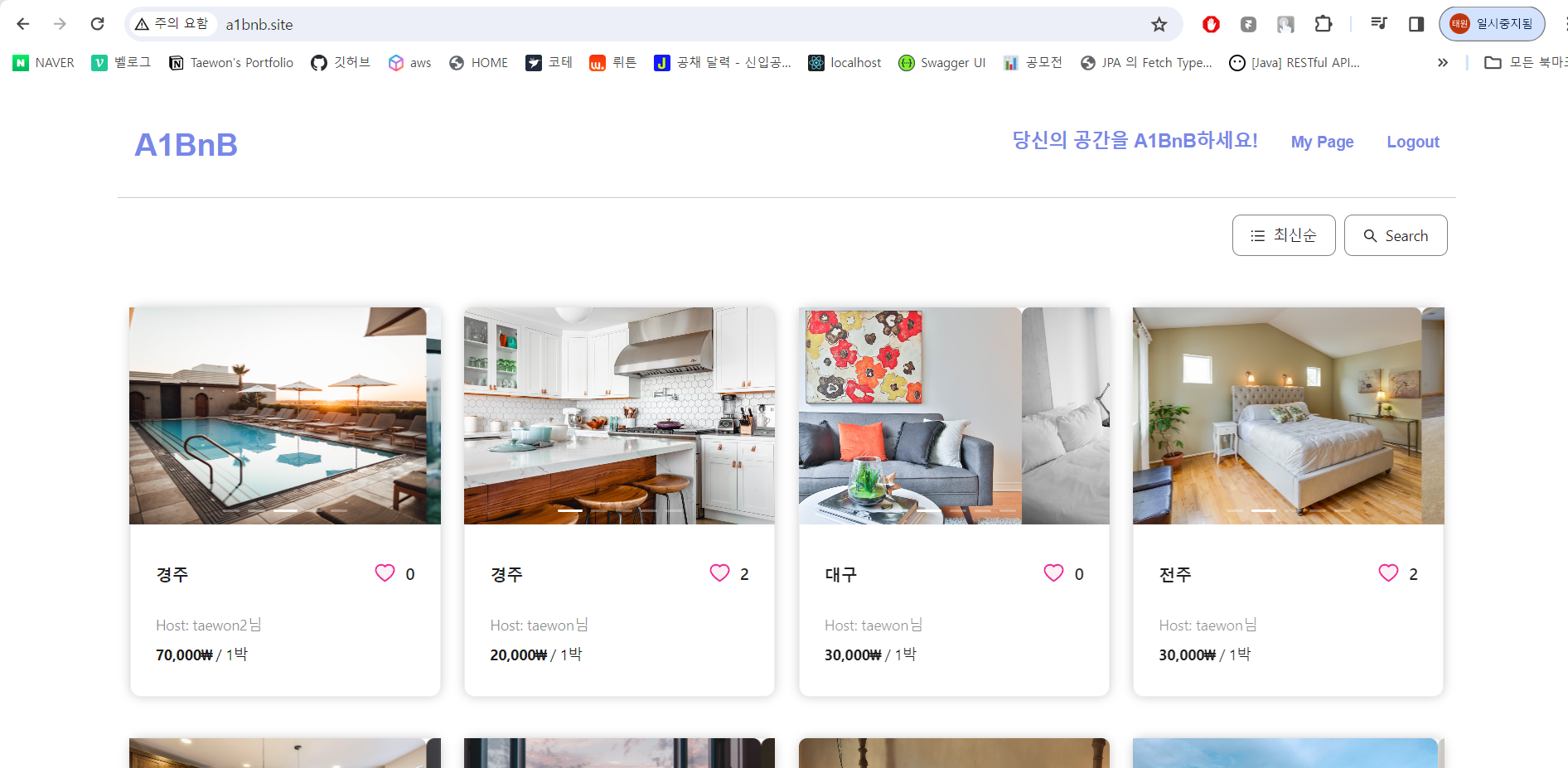
먼저 http로 연결한 모습이다. 프록시 설정으로 CORS 에러도 깔끔하게 해결한 상태이다.
Let’s Encrypt
Let’s Encrypt를 통해 무료 인증서 발급을 받을 수 있다. 일반 발급 시에 90일 동안 사용할 수 있는 인증서를 발급받지만 docker 세팅을 통해 자동으로 연장할 수 있다.
docker compose를 통해 무료 SSL 인증서 발급 및 자동 연장을 구현해보자.
Certbot

certbot은 Let's Encrypt를 통해 무료로 SSL/TLS 인증서를 자동으로 발급받을 수 있다. 먼저 docker compose에 사용할 이미지를 받아오자.
docker pull certbot/certbot
nginx.conf
다음으로 https 적용을 위해 Nginx 설정을 바꿔줘야한다.
server 블록을 2개로 나눠 새로 작성해주었다.
server {
  listen 80;
  server_name a1bnb.site;

  location / {
    return 308 https://$host$request_uri;
  }

  location /.well-known/acme-challenge/ {
    root /var/www/certbot;
  }
}

server {
  listen 443 ssl;
  server_name a1bnb.site;

  location /api {
    proxy_pass http://a1bnb.site:8080;
    proxy_set_header Host $host;
    proxy_set_header X-Forwarded-For $proxy_add_x_forwarded_for;
    proxy_set_header X-Real-IP $remote_addr;
    proxy_set_header X-Forwarded-Host $server_name;
    proxy_set_header X-Forwarded-Proto $scheme;
  }

  location / {
    root   /usr/share/nginx/html;
    index  index.html index.htm;
    try_files $uri $uri/ /index.html;
  }

  ssl_certificate /etc/letsencrypt/live/a1bnb.site/fullchain.pem;
  ssl_certificate_key /etc/letsencrypt/live/a1bnb.site/privkey.pem;
  include /etc/letsencrypt/options-ssl-nginx.conf;
  ssl_dhparam /etc/letsencrypt/ssl-dhparams.pem;
}
80 포트
모든 HTTP 요청을 HTTPS로 리다이렉트.
server {
  listen 80;
  server_name a1bnb.site;

  location / {
    return 308 https://$host$request_uri;
  }

  location /.well-known/acme-challenge/ {
    root /var/www/certbot;
  }
}
443 포트
HTTPS 요청을 처리하고, Nginx 컨테이너 내부에서 SSL 인증서를 사용.
프록시 설정을 통해 /api 요청은 http으로 처리.
server {
  listen 443 ssl;
  server_name a1bnb.site;

  location /api {
    proxy_pass http://a1bnb.site:8080;
    proxy_set_header Host $host;
    proxy_set_header X-Forwarded-For $proxy_add_x_forwarded_for;
    proxy_set_header X-Real-IP $remote_addr;
    proxy_set_header X-Forwarded-Host $server_name;
    proxy_set_header X-Forwarded-Proto $scheme;
  }

  location / {
    root   /usr/share/nginx/html;
    index  index.html index.htm;
    try_files $uri $uri/ /index.html;
  }

  ssl_certificate /etc/letsencrypt/live/a1bnb.site/fullchain.pem;
  ssl_certificate_key /etc/letsencrypt/live/a1bnb.site/privkey.pem;
  include /etc/letsencrypt/options-ssl-nginx.conf;
  ssl_dhparam /etc/letsencrypt/ssl-dhparams.pem;
}
새로 수정한 설정 파일로 Docker 이미지를 새로 빌드하자.
docker-compose.yml
AWS EC2에 docker-compose.yml을 작성해 주자. 각 이미지 컨테이너의 설정은 다음과 같다.
- nginx: 볼륨 설정으로 Let's Encrypt의 인증서와 관련된 파일 저장,
6시간마다 nginx -s reload 명령어를 실행하여 설정을 새로고침. - certbot: 볼륨 설정으로 Let's Encrypt의 인증서와 관련된 파일 저장,
12시간마다 certbot renew 명령어를 실행하여 SSL 인증서 자동 갱신
services:
  nginx:
    image: taewon171/react
    volumes:
      - ./data/certbot/conf:/etc/letsencrypt
      - ./data/certbot/www:/var/www/certbot
    restart: always
    ports:
      - '80:80'
      - '443:443'
    command: '/bin/sh -c ''while :; do sleep 6h & wait $${!}; nginx -s reload; done & nginx -g "daemon off;"'''
  certbot:
    image: certbot/certbot
    volumes:
      - ./data/certbot/conf:/etc/letsencrypt
      - ./data/certbot/www:/var/www/certbot
    entrypoint: "/bin/sh -c 'trap exit TERM; while :; do certbot renew; sleep 12h & wait $${!}; done;'"
init-letsencrypt.sh
마지막으로 작성한 docker-compose.yml 파일을 통해 ssl 세팅을 해줄 쉘스크립트 파일을 작성하자. docker-compose.yml과 같은 경로에 두면 된다.
#!/bin/bash

if ! [ -x "$(command -v docker-compose)" ]; then
  echo 'Error: docker-compose is not installed.' >&2
  exit 1
fi

domains="a1bnb.site"
rsa_key_size=4096
data_path="./data/certbot"
email="{}"
staging=0 # Set to 1 if you're testing your setup to avoid hitting request limits

if [ -d "$data_path" ]; then
  read -p "Existing data found for $domains. Continue and replace existing certificate? (y/N) " decision
  if [ "$decision" != "Y" ] && [ "$decision" != "y" ]; then
    exit
  fi
fi


if [ ! -e "$data_path/conf/options-ssl-nginx.conf" ] || [ ! -e "$data_path/conf/ssl-dhparams.pem" ]; then
  echo "### Downloading recommended TLS parameters ..."
  mkdir -p "$data_path/conf"
  curl -s https://raw.githubusercontent.com/certbot/certbot/master/certbot-nginx/certbot_nginx/_internal/tls_configs/options-ssl-nginx.conf > "$data_path/c>  curl -s https://raw.githubusercontent.com/certbot/certbot/master/certbot/certbot/ssl-dhparams.pem > "$data_path/conf/ssl-dhparams.pem"
  echo
fi

echo "### Creating dummy certificate for $domains ..."
path="/etc/letsencrypt/live/$domains"
mkdir -p "$data_path/conf/live/$domains"
docker-compose run --rm --entrypoint "\
  openssl req -x509 -nodes -newkey rsa:$rsa_key_size -days 1\
    -keyout '$path/privkey.pem' \
    -out '$path/fullchain.pem' \
    -subj '/CN=localhost'" certbot
echo


echo "### Starting nginx ..."
docker-compose up --force-recreate -d nginx
echo

echo "### Deleting dummy certificate for $domains ..."
docker-compose run --rm --entrypoint "\
  rm -Rf /etc/letsencrypt/live/$domains && \
  rm -Rf /etc/letsencrypt/archive/$domains && \
  rm -Rf /etc/letsencrypt/renewal/$domains.conf" certbot
echo


echo "### Requesting Let's Encrypt certificate for $domains ..."
#Join $domains to -d args
domain_args=""
for domain in "${domains[@]}"; do
  domain_args="$domain_args -d $domain"
done

# Select appropriate email arg
case "$email" in
  "") email_arg="--register-unsafely-without-email" ;;
  *) email_arg="--email $email" ;;
esac

# Enable staging mode if needed
if [ $staging != "0" ]; then staging_arg="--staging"; fi

docker-compose run --rm --entrypoint "\
  certbot certonly -a webroot -v --debug-challenges -w /var/www/certbot \
    $staging_arg \
    $email_arg \
    $domain_args \
    --rsa-key-size $rsa_key_size \
    --agree-tos \
    --force-renewal" certbot
echo

echo "### Reloading nginx ..."
docker-compose exec nginx nginx -s reload
chmod +x init-letsencrypt.sh
./init-letsencrypt.sh
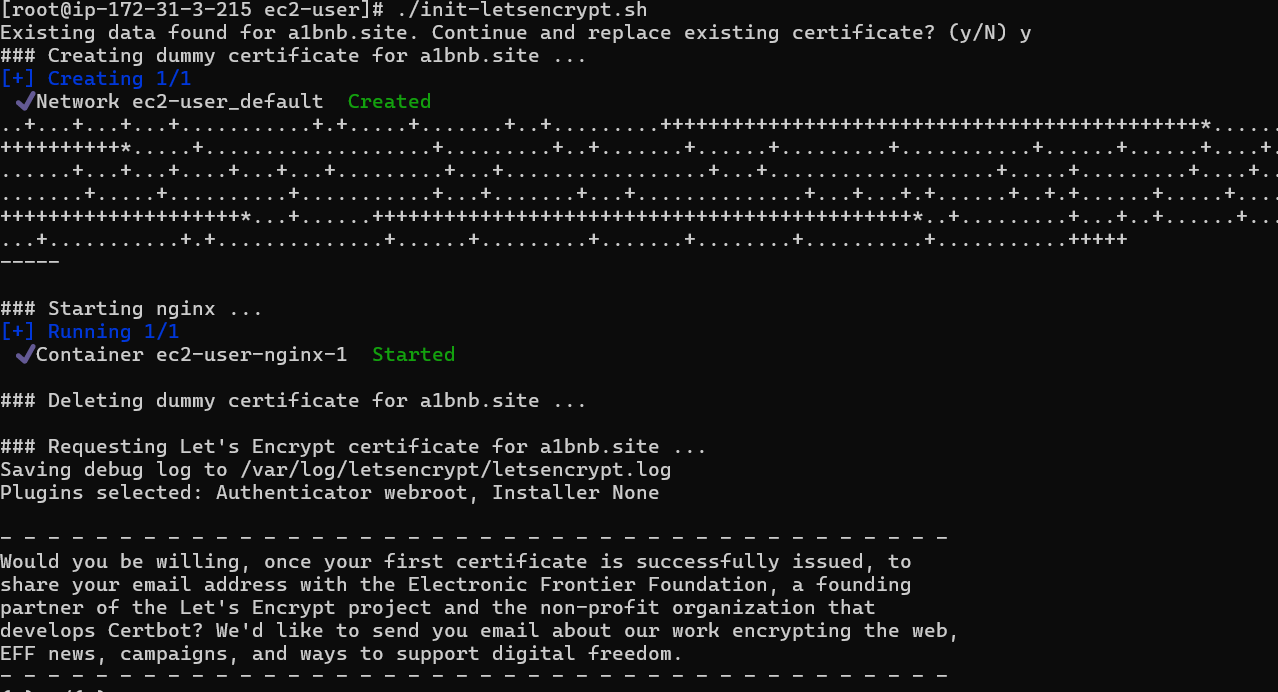
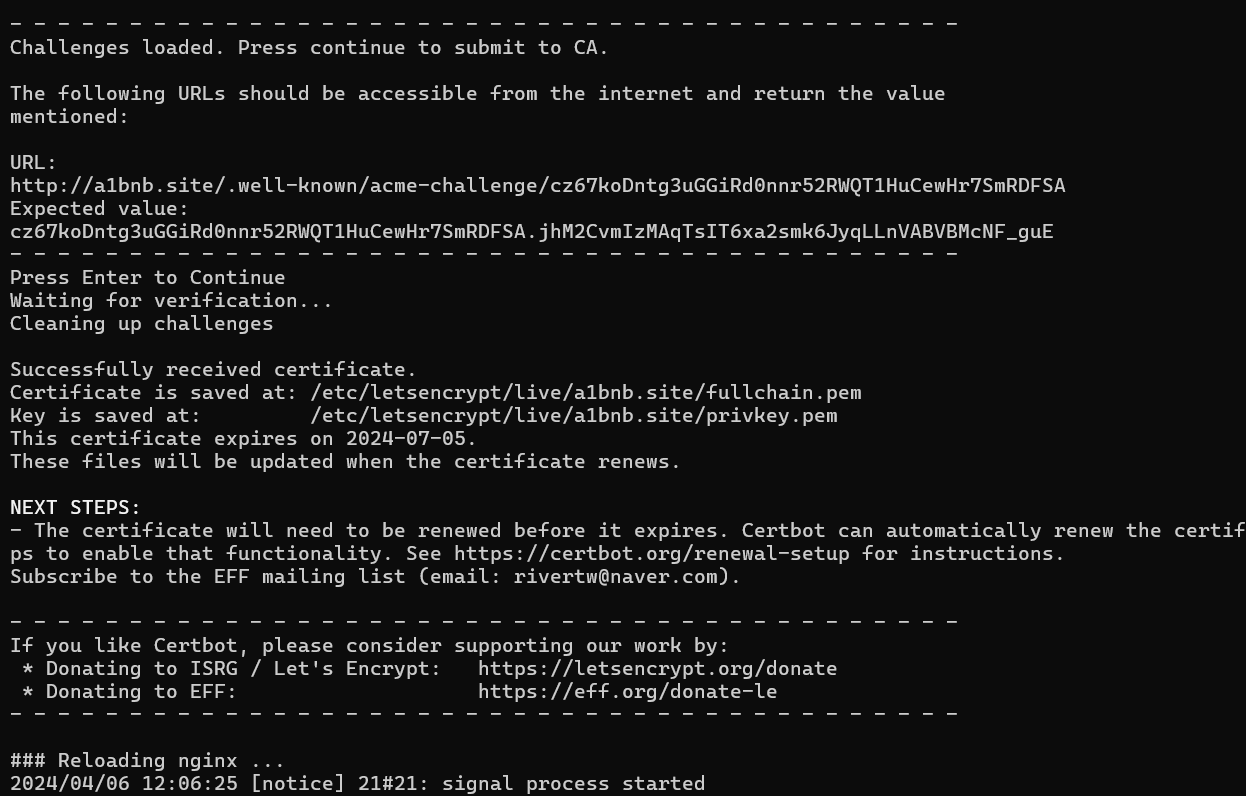
최초 실행시 ssl 인증서를 생성해준다. 이후로는 docker compose 명령어를 통해 컨테이너를 실행하기만 하면 된다.
https 접속 확인
모든 세팅을 맞추고 도메인에 접속한 모습이다.
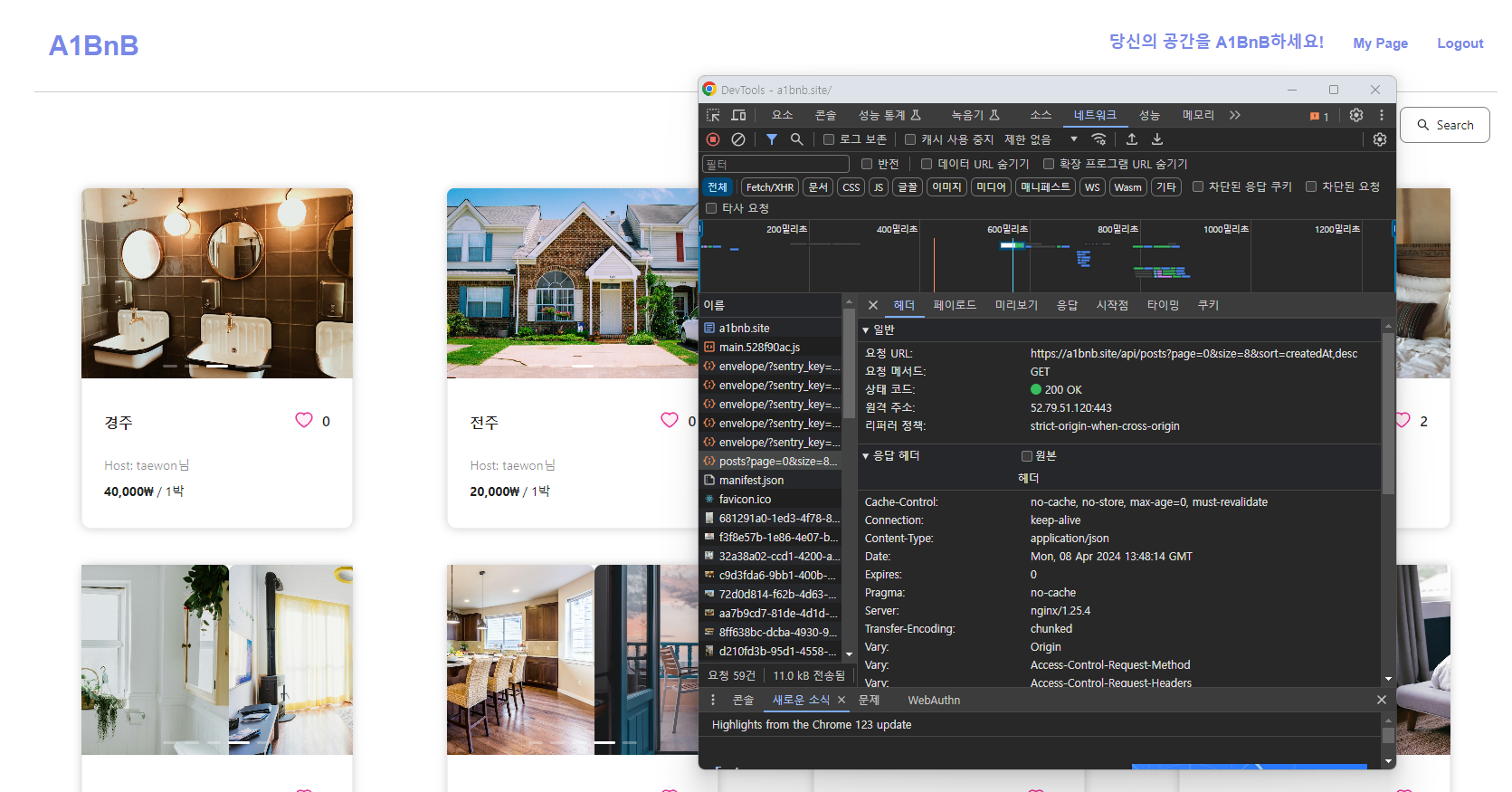
참고로 API를 호출하는 과정에서 403 CORS 에러나 Mixed Content 에러를 만나게 되는데..
Spring과 React의 설정 파일에서 url은 https://도메인로 통일해줘야 한다!
웹소켓 설정
/ws 경로를 통한 웹소켓 접속은 별도로 처리해줘야 한다.
설정은 다음과 같다.
nginx.conf
server {
  listen 443 ssl;
  server_name a1bnb.site;

  location /api {
    proxy_pass http://a1bnb.site:8080;
    proxy_set_header Host $host;
    proxy_set_header X-Forwarded-For $proxy_add_x_forwarded_for;
    proxy_set_header X-Real-IP $remote_addr;
    proxy_set_header X-Forwarded-Host $server_name;
    proxy_set_header X-Forwarded-Proto $scheme;
  }

  location /ws {
    proxy_pass http://a1bnb.site:8080;
    proxy_http_version 1.1;
    proxy_set_header Upgrade $http_upgrade;
    proxy_set_header Connection "upgrade";
    proxy_set_header Host $host;
    proxy_set_header X-Real-IP $remote_addr;
  }

  location / {
    root   /usr/share/nginx/html;
    index  index.html index.htm;
    try_files $uri $uri/ /index.html;
  }

  ssl_certificate /etc/letsencrypt/live/a1bnb.site/fullchain.pem;
  ssl_certificate_key /etc/letsencrypt/live/a1bnb.site/privkey.pem;
  include /etc/letsencrypt/options-ssl-nginx.conf;
  ssl_dhparam /etc/letsencrypt/ssl-dhparams.pem;
}