😶 타입스크립트를 사용하는 이유가 무엇일까?
1. IDE 를 더욱 더 적극적으로 활용 (자동완성, 타입확인)
TypeScript 를 사용하면 자동완성이 굉장히 잘 된다고 한다. 함수를 사용 할 때 해당 함수가 어떤 파라미터를 필요로 하는지, 그리고 어떤 값을 반환하는지 코드를 따로 열어보지 않아도 알 수 있다.
(직접 사용해보니 자바스크립트의 에러를 보완해주는 좋은 언어라는 것을 다시 한 번 느꼈다.)2. 실수방지
함수, 컴포넌트 등의 타입 추론이 되다보니, 만약에 우리가 사소한 오타를 만들면 코드를 실행하지 않더라도 IDE 상에서 바로 알 수 있게 된다.
이렇게 타입스크립트의 중요성을 뒤늦게 알고, 유튜브 코딩앙마 강의로 기본적인 학습을 마치고 프로젝트에 적용해보기로 나섰다.
1. 타입스크립트 설치
먼저 타입스크립트를 적용하기 위해 설치해보도록 하자.
npm i typescript
설치가 되는 건가 싶더니 에러가 발생하였다.
나는 리액트 프로젝트를 이미 생성한 뒤에 타입스크립트를 설치하려고 하니 리액트 버전과 타입스크립트의 버전 충돌이 발생한 것이다.
에러의 내용을 살펴보자.
npm WARN Found: typescript@5.2.2
npm WARN peerOptional typescript@"^3.2.1 || ^4" from react-scripts@5.0.1
에러는 "현재 typescript@5.2.2를 사용하고 있지만 react-scripts@5.0.1가 typescript@^4.0.0을 요구하고 있다"는 내용이다.
@4로 가장 최신인 4.9.5 버전을 설치를 해보자.
npm i typescript@4.9.5
2. 확장자 변경
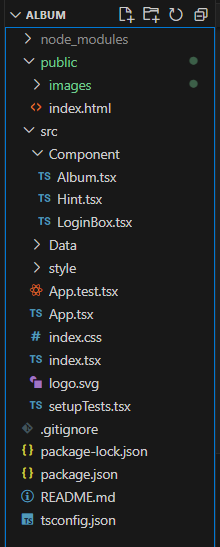
이 프로젝트에 있는 자바스크립트 파일을 모두 .tsx 확장자로 변경해주자.
3. 컴포넌트 안의 타입 지정하기
3.1. LoginBox.tsx
import React, { useState, useEffect, useCallback } from 'react';
import { Routes, Route, Link, useNavigate } from 'react-router-dom';
import Hint from './Hint';
import Album from './Album';
import '../style/LoginBox.css';

interface FormState {
    id: string;
    password: string;
}

const LoginBox = () => {
    const [ isActive, setIsActive ] = useState(false);
    const [ form, setForm ] = useState<FormState>({
        id: '',
        password: ''
    });
    const { id, password } = form;
    const navigate = useNavigate();

    useEffect(() => {
        // id와 password 값의 유무에 따른 활성화 상태
        setIsActive(id !== '' && password !== '');
    }, [id, password]);

    const handleInputChange = useCallback((e: React.ChangeEvent<HTMLInputElement>) => {
        setForm(prevForm => ({
            ...prevForm,
           [e.target.name]: e.target.value
        }));
    }, []);
    const handleKeyDown = useCallback((e: React.KeyboardEvent) => {
        e.key === "Enter" && access();
    }, [id, password]);

    const access = useCallback(() => {
        if(id === '이상미' && password === '981223') navigate('/album')
        else if(id === '') alert('아이디를 입력해주세요.');
        else if(password === '') alert('비밀번호를 입력해주세요.');
        else alert('아이디 또는 비밀번호가 맞지 않습니다. 다시 입력해주세요.');
    }, [id, password, navigate]);


    // // 상태 및 변수를 로깅
    // console.log('id:', id);
    // console.log('password:', password);
    // console.log('isActive:', isActive);
    return (
        <>
            <section className="login-form">
                <h1>추억을 로그인</h1>
                <form
                    onKeyDown={handleKeyDown}

                    <div className="int-area">
                        <input
                            type="text"
                            name="id"
                            value={id}
                            onChange={handleInputChange}
                            id="name-input"
                            required
                        />
                        <label>Username</label>
                    </div>
                    <div className="int-area">
                        <input
                            type="password"
                            name="password"
                            value={password}
                            onChange={handleInputChange}
                            id="password-input"
                            required
                        />
                        <label>Password</label>
                    </div>
                </form>

                <button
                    id="btn-login"
                    type="submit"
                    onClick={access}                       // 노란색 : 회색
                    style={{ backgroundColor: isActive ? "#d8db31" : "rgba(209, 206, 206, 0.733)" }} // style 동적으로 변경

                    LOGIN
                </button>
                <div id="hint">
                    <Link to="/hint">Click to get a hint</Link>
                </div>
            </section>
            <Routes>
                <Route path="/album" element={<Album />}></Route>
                <Route path="/hint" element={<Hint />}></Route>
            </Routes>
        </>
    )
};

export default LoginBox;
3.2. Hint.tsx
import { useState } from 'react';
import { useNavigate } from 'react-router-dom';
import styled, { css } from 'styled-components';

const CenterBox = styled.div`
    text-align: center;
`;

const Font = styled.span<{ value?: string }>`
    font-size: 60px;
    font-family: 'Sunflower', 'sans-serif';
    &:hover {
        color:rgb(123, 168, 40);
    }

    ${props =>
      props.value === 'pw' &&
      css`
        display: block;
        margin-top: 30px;
    `};
`;

const Li = styled.li`
    color: black;
    font-weight: lighter;
    font-size: 30px;
    list-style: none;
    margin-top: 20px;
    margin-bottom: 30px;
`;

const Back = styled.button`
    width: 18%;
    height: 35px;
    margin-top: 10%;
    border: 1px solid gray;
    border-radius: 15px;
    opacity: 0.85;
    &:hover {
        background-color: #d8db31;
    }
`;

const Hint = () => {
    const [visibleId, setVisibleId] = useState(false);
    const [visiblePw, setVisiblePw] = useState(false);
    const navigate = useNavigate();

    return (
        <CenterBox>
            <Font onClick={() => setVisibleId(!visibleId)}>
                당신의 ID는?
            </Font>
            {visibleId && <Li>귀하의 <b>성함</b>을 입력하시면 됩니다.</Li>}

            <Font
                value="pw"
                onClick={() => setVisiblePw(!visiblePw)}

                당신의 PASSWORD는?
            </Font>
            {visiblePw && <Li>귀하의 <b>생년월일</b>을 입력하세요.</Li>}

            <div>
                <Back onClick={() => navigate(-1)}>로그인 하기</Back>
            </div>
        </CenterBox>
    )
}

export default Hint;
❓: 선택적 프로퍼티
스타일드 컴포넌트인 Font를 보면 value에 선택적 프로퍼티 문법(물음표)을 사용하고, 타입을 string으로 주었다.
왜 선택적 프로퍼티 문법을 사용했냐 하면,
<Font onClick={() => setVisibleId(!visibleId)}>
    당신의 ID는?
</Font>
{visibleId && <Li>귀하의 <b>성함</b>을 입력하시면 됩니다.</Li>}

<Font
    value="pw"
    onClick={() => setVisiblePw(!visiblePw)}
>
    당신의 PASSWORD는?
</Font>
Font 컴포넌트를 2번 사용하면서
첫 번째 Font 컴포넌트에는 value 속성을 넣지 않았고,
두 번째 Font 컴포넌트에는 value 속성을 넣었기 때문이다.
설정을 해도 되고 안해도 되는 값이라는 의미에서 물음표를 사용한 것이다.
3.3. Album.tsx
import { useState, useEffect, useCallback } from 'react';
import { useNavigate } from 'react-router-dom';
import Carousel from "react-material-ui-carousel";
import axios from 'axios';
import '../style/Album.css';

interface ImageData {
    id: string;
    title: string;
    urlLeft: string[];
    urlRight: string[];
    txt: string[];
}

const Album = () => {
    const [darkMode, setDarkMode] = useState(false);
    const [imageData, setImageData] = useState<ImageData[]>([]); // 이미지 데이터 상태
    const [loading, setLoading] = useState(true); // 데이터 로딩 상태
    const navigate = useNavigate();

    const onClick = useCallback(() => setDarkMode(prev => !prev), []);
    const handleLogout = useCallback(() => navigate('/'), [navigate]);

    useEffect(() => {
        axios
           .get('http://localhost/Album/src/Data/GET_db.php')
            .then(res => {
                const data = res.data;
                const updatedImageData: ImageData[] = [];
                console.log('data = ', data);
                for (let i in data) {
                    if (data[i].title !== '') {
                        updatedImageData.push({
                            "id": data[i].id,
                            "title": data[i].title,
                            "urlLeft": JSON.parse(data[i].urlLeft),
                            "urlRight": JSON.parse(data[i].urlRight),
                            "txt": JSON.parse(data[i].txt)
                        })
                    }
                }
                setImageData(updatedImageData);
                setLoading(false); // 데이터 로딩이 완료됐음을 표시
            })
            .catch(error => {
                console.log(error);
                setLoading(false); // 데이터 로딩 실패 시도 표시
            });
    }, []);


    if (loading) {
        // 데이터 로딩 중일 때 표시할 내용
        return (
            <div className="loading-container">
                <div className="loading"></div>
                <div className="loading-text">loading</div>
            </div>
        )
    }

    return (
        <div className={darkMode === true ? "dark" : "light"}>
            <img
                src={darkMode === true ? "images/light.png" : "images/dark.png"}
                className="icon"
                width="40"
                onClick={onClick}
                alt="Icon"
            />
            <button className='exit' onClick={handleLogout}>로그아웃</button>
            <div
                className="notServer"
                style={{ display: imageData.length === 0 ? "block" : "none" }}

                서버가 연결되어 있지 않습니다.
            </div>

            <Carousel
                className="crsl"
                autoPlay={false}


                {imageData.map(content  => (
                    <div key={content.id} className="albumBox">
                        <div className="leftBox">
                            <h3>{content.title} 앨범집</h3>
                            {content.urlLeft.map((url, urlIndex) => (
                                <img key={urlIndex} src={url} width={165} alt="이미지" />
                            ))}
                            {content.txt.map((txt, txtIndex) => (
                                <span className="contents" key={txtIndex}>{txt}</span>
                            ))}
                        </div>

                        <div className="rightBox">
                            <h3>추억을 열어 보세요.</h3>
                            {content.urlRight.map((url, urlIndex) => (
                                <img key={urlIndex} src={url} width={165} alt="이미지" />
                            ))}
                            <button className="entrance">펼쳐보기</button>
                        </div>
                    </div>
                ))}
            </Carousel>
        </div>
    );
};

export default Album;
이렇게 자바스크립트를 타입스크립트로 변환하는 작업을 마쳤다.
참고문헌
김민준,「리액트를 다루는 기술 :실무에서 알아야 할 기술은 따로 있다!」, 길벗, 개정판[실은 2판] 2019 (개정판)
https://react.vlpt.us/using-typescript
https://githws.github.io/til/install-typescript-cra