1.HTML Form 업로드
HTML Form을 통한 파일 업로드는 두가지 방식이 있다.
application/x-www-form-urlencodedmultipart/form-data
application/x-www-form-urlencoded 방식은 HTML 폼 데이터를 서버로 전송하는 가장 기본적인 방법이다. Form 태그에 별도의 enctype 옵션이 없으면 웹 브라우저는 요청 HTTP 메시지의 헤더에 다음 내용을 추가한다.
Content-Type: application/x-www-form-urlencoded
그리고 폼에 입력한 필드들을 HTTP Body에 문자로 username=kim&age=20와 같이 &로 구분해서 전송한다.
여기서 문자가 아닌 파일을 업로드 하려면 바이너리 데이터를 전송해야 한다. 또한 문제는 파일만 전송하는것이 아닌 다른 데이터도 전송하는 경우가 많다.
이 문제를 해결하기 위해 HTTP는 multipart/form-data라는 전송 방식을 제공한다.
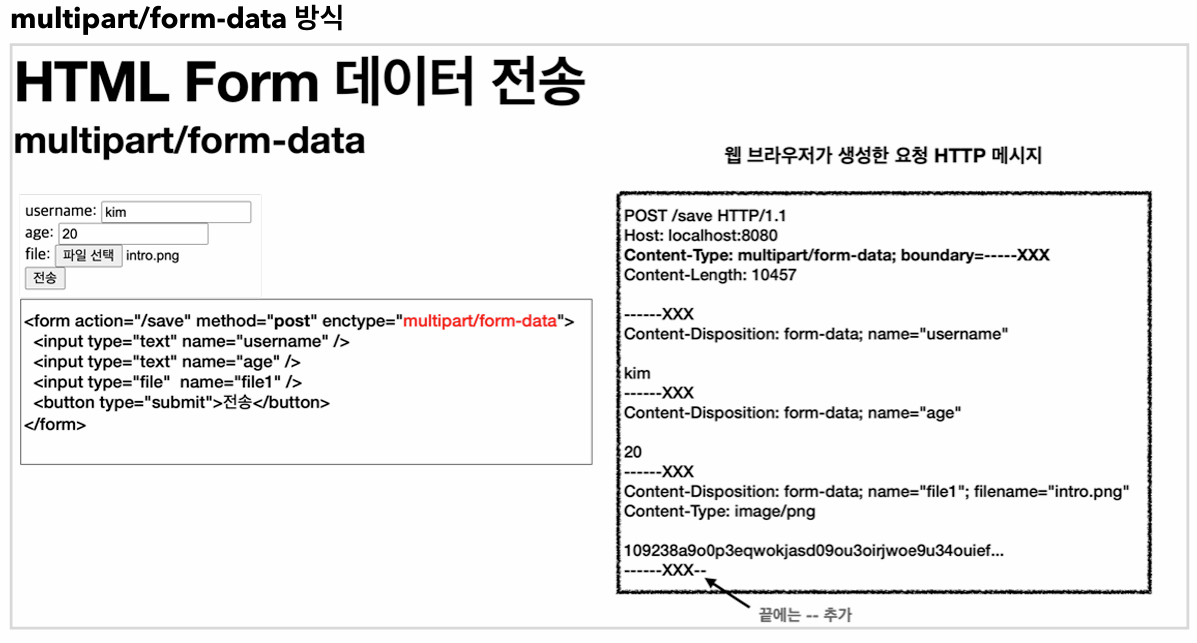
이 방식을 사용하려면 Form 태그에 별도의 enctype="multipart/form-data"를 지정해야 한다. 해당 방식은 다른 종류의 여러 파일과 폼의 내용 함께 전송할 수 있다. 폼의 일반 데이터는 각 항목별로 문자가 전송되고, 파일의 경우 파일 이름과 Content-Type이 추가되고 바이너리 데이터가 전송된다.
2.서블릿 파일 업로드
서블릿을 통한 파일 업로드를 진행해보자.
ServletUploadController
@Slf4j
@Controller
@RequestMapping("/servlet/v1")
public class ServletUploadController {
    @GetMapping("/upload")
    public String newFile(){
        return "upload-form";
    }

    @PostMapping("/upload")
    public String saveFileV1(HttpServletRequest request) throws ServletException, IOException {
        log.info("request={}",request);

        String itemName = request.getParameter("itemName");
        log.info("itemName={}",itemName);

        Collection<Part> parts = request.getParts();
         for (Part part : parts) {
            log.info("Part Name: {}", part.getName());
            log.info("File Name: {}", part.getSubmittedFileName());
            log.info("File Size: {}", part.getSize());
            log.info("Content Type: {}", part.getContentType());
        }

        return "upload-form";
    }
}
이미지 업로드시
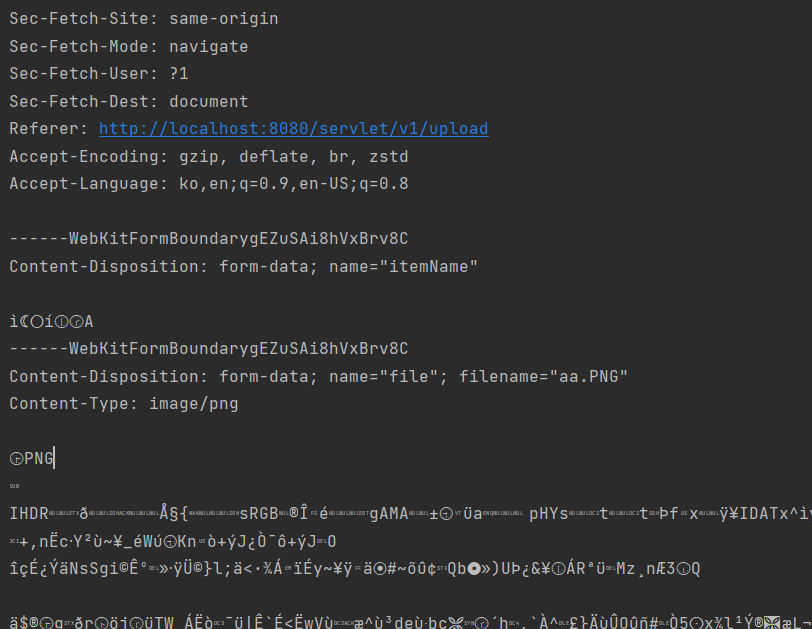
WebKit~ 을 구분선으로 PNG파일이 정상 업로드 된것을 확인할수 있다.
DispatcherServlet 중
protected void doDispatch(HttpServletRequest request, HttpServletResponse response) throws Exception {
		HttpServletRequest processedRequest = request;
		HandlerExecutionChain mappedHandler = null;
		boolean multipartRequestParsed = false;

		WebAsyncManager asyncManager = WebAsyncUtils.getAsyncManager(request);

		try {
			ModelAndView mv = null;
			Exception dispatchException = null;

			try {
				processedRequest = checkMultipart(request);
				multipartRequestParsed = (processedRequest != request);
원리는 DispatcherServlet에서 request를 checkMultipart 함수에 전달하여 Multi-part 옵션이 true(기본)이면 MultipartResolver를 통해 표준 Multi-Part 서블릿을 반환하게 된다.
다음은 실제 파일을 서버에 업로드하는 방법을 알아보자.
application.properties에 file.dir=C:\\Users\\1\\Desktop\\upload 를 추가하고
@Value("${file.dir}")
private String fileDir;
컨트롤러에 Value에 지정하여 경로를 설정한 인스턴스를 사용할수 있다.
Collection<Part> parts = request.getParts();
        for (Part part : parts) {

        if(StringUtils.hasText(part.getSubmittedFileName())){
                String fullPath = fileDir + part.getSubmittedFileName();
                log.info("파일 저장 fullPath={}",fullPath);
                part.write(fullPath);
            }

}
part.write("경로")를 통해 파일을 저장할수 있다. 멀티파트 형식은 전송 데이터를 하나하나 각각 부분(Part)으로 나누어 전송한다. parts에는 이렇게 나누어진 데이터가 각각 담긴다. 서블릿이 제공하는 Part는 멀티파트 형식을 편리하게 읽을 수 있는 다양한 메서드를 제공한다.
3.MultiPartFile
스프링은 MultipartFile이라는 인터페이스로 멀티파트 파일을 매우 편리하게 지원한다.
@Slf4j
@Controller
@RequestMapping("/spring")
public class SpringUploadController {

    @Value("${file.dir}")
    private String fileDir;

    @GetMapping("/upload")
    public String newFile(){
        return "upload-form";
    }
    @PostMapping("/upload")
    public String saveFile(@RequestParam String itemName,
                           @RequestParam MultipartFile file, HttpServletRequest request) throws IOException {
        log.info("request={}",request);
        log.info("itemName={}",itemName);
        log.info("multipartFile={}",file);

        if(!file.isEmpty()){
            String fullPath = fileDir + file.getOriginalFilename();
            log.info("파일 저장 fullPath={}",fullPath);
            file.transferTo(new File(fullPath));
        }
        return "upload-form";
    }
}
업로드하는 HTML Form의 name에 맞추어 @RequestParam MultipartFile file(form name)을 적용하면 된다. 추가로 @ModelAttribute 에서도 MultipartFile 을 동일하게 사용할 수 있다.
MultipartFile 주요 메서드
file.getOriginalFilename(): 업로드 파일 명file.transferTo(...): 파일 저장
4.파일 업로드,다운로드 구현
실제 파일이나 이미지를 업로드,다운로드 할때는 몇가지 고려할점이 있는데, 구체적인 예시를 알아보자.
1.상품 클래스
- 상품 이름
- 첨부 파일
- 이미지 파일 여러개
2.비지니스 로직
- 첨부 파일 업로드,다운로드 기능
- 업로드한 이미지 웹 브라우저에서 확인
업로드 파일 정보(UploadFile)
 @Data
 public class UploadFile {
 private String uploadFileName;
 private String storeFileName;

 public UploadFile(String uploadFileName, String storeFileName) {
 		this.uploadFileName = uploadFileName;
 		this.storeFileName = storeFileName;
 	}
 }
여러 사용자가 같은 파일 이름을 서버에 올리면 저장시 겹치게 되기 때문에 파일 이름을 UUID를 추가로 저장한다.
여러개의 파일 저장 로직(FileStore)
@Component
public class FileStore {
    @Value("${file.dir}")
    private String fileDir;

    public String getFullPath(String filename){
        return fileDir+filename;
    }

	public List<UploadFile> storeFiles(List<MultipartFile> multipartFiles) throws IOException {
        	List<UploadFile> storeFileResult=new ArrayList<>();
        	for (MultipartFile multipartFile : multipartFiles) {
            	if(!multipartFile.isEmpty()){
                	UploadFile uploadFile = storeFile(multipartFile);
                	storeFileResult.add(uploadFile);
            }
        }
        return storeFileResult;
    }

    public UploadFile storeFile(MultipartFile multipartFile) throws IOException {
        if(multipartFile.isEmpty()){
            return null;
        }
        String originalFilename = multipartFile.getOriginalFilename();
        //image.png -> 확장자 추출
        String storeFileName = createStoreFileName(originalFilename);
        multipartFile.transferTo(new File(getFullPath(storeFileName)));

        return new UploadFile(originalFilename,storeFileName);
    }

    private String createStoreFileName(String originalFilename) {
        String ext=extracted(originalFilename);
        //서버에 저장하는 파일명
        String uuid = UUID.randomUUID().toString();
        String storeFileName = uuid + "." + ext;

        return storeFileName;
    }

    private String extracted(String originalFilename) {
        int pos = originalFilename.lastIndexOf(".");
        String ext = originalFilename.substring(pos + 1);

        return ext;
    }
}
createStoreFileName 함수를 통해 UUID를 생성하고 extracted로 파일 확장자를 추출하여 서버에 저장할 파일명을 반환하면(ex. 51041c62-86e4-4274-801d-614a7d994edb.png) multipartFile 인터페이스를 통해 서버 파일 시스템(디스크)저장하게 된다.
storeFiles 함수는 폼에서 MultipartFile의 리스트 형태로 전송된 인스턴스를 받아 UploadFile 객체들의 리스트로 변환하여 반환한다.(서버에 저장할 객체)
업로드,다운로드 컨트롤러
@Slf4j
@RequiredArgsConstructor
@Controller
public class ItemController {

    private final ItemRepository itemRepository;
    private final FileStore fileStore;

    @GetMapping("/items/new")
    public String newItem(@ModelAttribute ItemForm form){
        return "item-form";
    }

    @PostMapping("/items/new")
    public String saveItem(@ModelAttribute ItemForm form, RedirectAttributes redirectAttributes) throws IOException {
        UploadFile attachFile = fileStore.storeFile(form.getAttachFile());
        List<UploadFile> storeImageFiles = fileStore.storeFiles(form.getImageFiles());

        //데이터베이스에 저장
        Item item=new Item();
        item.setItemName(form.getItemName());
        item.setAttachFile(attachFile);
        item.setImageFiles(storeImageFiles);
        itemRepository.save(item);

        redirectAttributes.addAttribute("itemId",item.getId());

        return "redirect:/items/{itemId}";
    }
}
실제 파일 데이터는 S3와 같은 외부 스토리지에 저장되고(storeFile 함수를 통해 반환된 객체), 데이터베이스에는 파일의 경로(URL) 또는 파일 메타데이터(예: 파일명, 크기, 확장자 등)만 저장된다.
다음은 저장된 결과를 보여주기 위한 코드이다.
@GetMapping("/items/{id}")
    public String Items(@PathVariable Long id, Model model){
        Item item = itemRepository.findById(id);
        model.addAttribute("item",item);
        return "item-view";
}
<!DOCTYPE HTML>
<html xmlns:th="http://www.thymeleaf.org">
<head>
<meta charset="utf-8">
</head>
<body>
<div class="container">
<div class="py-5 text-center">
<h2>상품 조회</h2>
</div>
상품명: <span th:text="${item.itemName}">상품명</span><br/>
첨부파일: <a th:if="${item.attachFile}" th:href="|/attach/${item.id}|"
th:text="${item.getAttachFile().getUploadFileName()}"/><br/>
<img th:each="imageFile : ${item.imageFiles}" th:src="|/images/$
{imageFile.getStoreFileName()}|" width="300" height="300"/>
</div> <!-- /container -->
</body>
</html>저장된 결과

${item.getAttachFile().getUploadFileName()}로 인하여 실제 저장한 파일의 이름이 보여지고 서버 내부에 uuid로 새로 만들어진 파일 이름이 저장되게 된다. 실제 링크와 이미지를 보여주는 컨트롤러를 작성하자.
바이너리 데이터 Http 응답 컨트롤러
//이미지 렌더링
@ResponseBody
@GetMapping("/images/{filename}")
public Resource downloadImage(@PathVariable String filename) throws MalformedURLException {
        return new UrlResource("file:"+fileStore.getFullPath(filename));
    }

//다운로드
@GetMapping("/attach/{itemId}")
    public ResponseEntity<Resource> downloadAttach(@PathVariable Long itemId) throws MalformedURLException {
        Item item = itemRepository.findById(itemId);
        String storeFileName = item.getAttachFile().getStoreFileName();
        String uploadFileName = item.getAttachFile().getUploadFileName();

        UrlResource resource = new UrlResource("file:" + fileStore.getFullPath(storeFileName));
        log.info("uploadFileName={}",uploadFileName);
        String encodedUploadFileName = UriUtils.encode(uploadFileName, StandardCharsets.UTF_8);
        String contentDisposition="attachment; filename=\""+encodedUploadFileName + "\"";
        return ResponseEntity.ok().header(HttpHeaders.CONTENT_DISPOSITION,contentDisposition).body(resource);
    }
UrlResource: 파일 시스템에 저장된 파일을 읽어서 클라이언트로 반환하기 위한 Spring Framework의 리소스 객체이다.
Content-Disposition: 헤더를 나타내는 부분으로, 응답 데이터를 파일로 다운로드할지, 브라우저 내에서 표시할지 지시한다. ResponseEntity에서 header를 명시적으로 설정하는 이유는 파일 다운로드 동작을 명확히 제어하기 위함이다.
전체 로직
1.이미지 저장: 파일은 서버 파일 시스템(fileStore)에 저장된다.
2.이미지 URL 생성: th:src를 통해 각 이미지의 저장된 파일명을 기반으로 다운로드 링크인 URL(/images/{filename})을 생성한다.
3.이미지 다운로드: 브라우저가 /images/{filename}에 요청을 보내면, 컨트롤러에서 해당 파일을 찾아 HTTP 응답으로 전송한다.
4.이미지 표시: 브라우저는 응답 데이터를 렌더링하여 이미지를 표시한다.